Delve deep into the quick ways to fix find my iPhone not updating location error. This guide will help you to identify the causes behind this issue and suggest all possible solutions to get rid of the problem:
Why is Find My Location not updating? If you’ve asked this question lately, you are probably in a very frustrating situation. Regarding location-sharing features, I have a soft spot for the Apple-exclusive “Find My iPhone” feature.
I remember being stranded on my trip abroad and stressed, trying to navigate to a more familiar terrain. Fortunately, the “Find My Location” feature saved my life. Thanks to this feature, I could immediately share my real-time location with friends, who quickly tracked me down.
Table of Contents:
- Why is Someone’s Location Not Updating: Possible Solutions
- Why is Find My Location Not Updating
- How to Fix Find My iPhone Not Updating Location
- #1) Toggle on Location Services & Find My iPhone Feature on Your Device
- #2) Reboot Your Device
- #3) Check your Phone’s Internet Connection
- #4) Update Your Phone’s Software
- #5) Refresh the Location Status on Find My iPhone Manually
- #6) Check if Background Refresh is Disabled on your iPhone
- #7) Try a Third-Party System Repair App
- FAQ’s on iPhone Location Not Updating
- Conclusion
Why is Someone’s Location Not Updating: Possible Solutions
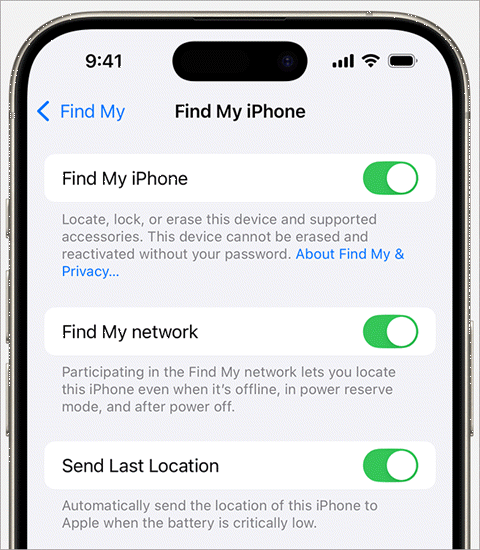
People mostly use the “Find My Location” feature in situations of distress. Parents could use this feature to track the whereabouts of their children, or you could use it to track down your lost or stolen phone.
[image source]
Here is a video on How to use Find My on iPhone and iPad:
It can be daunting when this feature fails to work as intended in your time of need. More often than not, this isn’t a big deal. There are quick fixes that you could try right away to get the feature working.
So consider this article the only guide you’ll need to learn how to fix “Find My Location” not updating.
Why is Find My Location Not Updating
To solve a problem, you must first acknowledge it and understand why it exists. There could be multiple reasons behind the failure of your “Find My iPhone” feature. Here are some of the most prominent reasons as experienced by past users.
#1) Unstable Internet Connection
The stability or strength of your phone’s internet connection determines how accurately the “Fine My iPhone” feature will work. This feature relies on a strong internet connection to sync with your phone’s real-time GPS data. Naturally, a terrible internet connection will result in the feature failing to pinpoint your phone’s real-time GPS location.
Recommended reading =>> How to track a phone without them knowing
#2) Outdated Operating System
It is always wise to keep your phone’s OS up-to-date. Missing out on the latest software updates will result in way more issues in your phone than the misbehavior of its “Location Sharing” feature alone.
#3) Disabled Settings
Unbeknownst to you, the “Location Sharing” or “Find My iPhone” feature on your phone might be disabled. It would be wise to first check your phone’s location or GPS settings before you take any possible action to resolve the problem. Wrong Privacy settings could also hinder the abilities of your “Location Sharing” features.
“Find My iPhone’s” ability could also be affected if your phone’s “Background Refresh” feature is disabled. This pre-installed feature was designed to automatically update all apps currently active on your phone. With “Background Refresh” switched off, “Find My iPhone” would not receive the updates it needs to function properly.
#4) Wrong Time and Date Settings
This is an issue that is quite easy to miss. The date and time settings on your phone can greatly influence its location-sharing features as well. Wrong data and time settings will hinder your phone’s ability to report correct GPS data, which is necessary if “Find My iPhone” is to share an accurate location.
Factoring in the above 4 reasons could help you understand why the location is not updating on the iPhone. You can now sort out the issue and start taking measures to fix the problem.
How to Fix Find My iPhone Not Updating Location
Now that you know why won’t someone’s location update on Find My iPhone, it is time to look at possible solutions.
In my experience, there are a variety of quick fixes you can try to resolve the issue of “location sharing not updating on iPhone” once and for all.
I’ll start with the simplest fix and proceed to mention other measures as we move along in this article. I suggest starting with Fix #1 and only resorting to Fix #2 if the previously mentioned solution doesn’t work.
So, without much further ado, let’s get started.
#1) Toggle on Location Services & Find My iPhone Feature on Your Device
It could be very well the case that nothing is wrong with your device. The root cause of your problem could be the disabled “Location Services” and “Find My iPhone” settings. As such, simply follow the below steps to enable these features on your phone.
i) Toggle On Location Services
1. The first thing you want to do is a tap on the “Settings” of your phone.
2. Scroll down until you find “Privacy and Security”, and tap on it.
3. At the very top, you’ll find “Location Services”, tap on it.
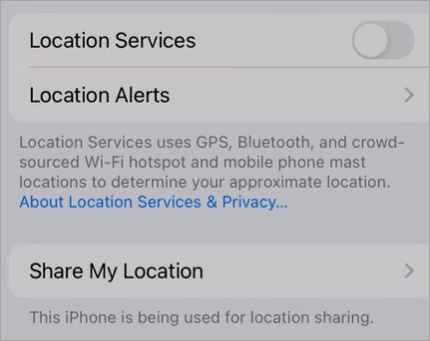
4. If “Location Services” are disabled, simply toggle on to enable it.
ii) Toggle On Find My iPhone
1. To make sure your “Find My iPhone” feature is switched on, open the “Settings” on your phone.
2. Navigate to “Privacy and Security” > “Location Services” > “Share My Location”.
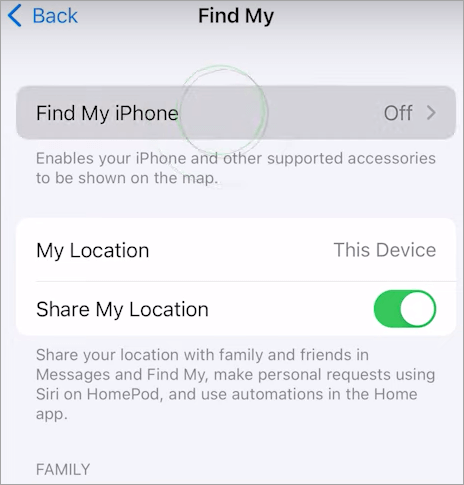
3. You’ll find the “Find My iPhone” option at the very top. Tap on it and turn the toggle on.
Hopefully, this solves your “find my iPhone not updating” problem. If not, move on to the method.
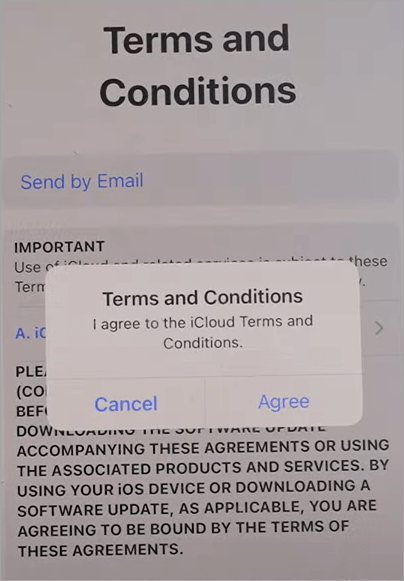
Now, it is also possible that the Find My iPhone and iCloud features on your phone have been disabled automatically. You see, Apple is constantly tweaking its terms and conditions of use. If you haven’t read and agreed to the updated terms and conditions, your phone’s iCloud features might be turned off without any warning.
Sometimes the answer to a question like why is Find My iPhone not updating someone’s location is that simple. The iCloud on your phone has been disabled because you failed to accept Apple’s new terms of use.
To check if your device’s iCloud is disabled, go to settings, click on your Apple ID, scroll down, and see if the iCloud and Find My options have greyed out. If this is the case, your phone’s Find My iPhone feature is practically useless.
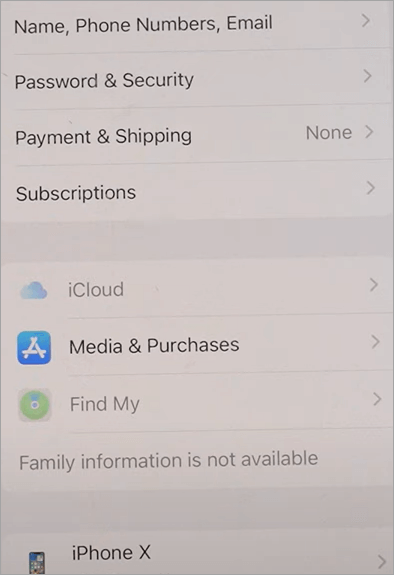
Thankfully, enabling these features again is simple. When you click on your Apple ID, you will find a new section called “New iCloud Terms and Conditions”.
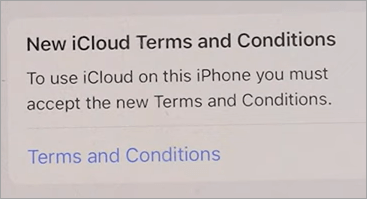
Click on it and on the resulting page, select “Agree”. Hopefully, this will enable the iCloud feature on your phone again.
#2) Reboot Your Device
This is a no-brainer. I can’t tell you how many mundane and serious issues I’ve resolved by simply restarting my phone. Perhaps you could do the same. Now how you reboot your iPhone will largely depend on the model you are using.
Also Read =>> Useful methods to Boot into Windows 10 Safe Mode
Let me walk you through the reboot process for each model:
i) iPhone X/11 and Later
- Hold your device’s volume up and volume down buttons alongside the side button together until the power icon appears on your screen.
- Simply drag the slider across your screen to switch off your phone.
- Now hold the Side button until the “Apple” icon appears on your phone to restart.
ii) Second Generation Models (6/7/8/SE)
- Hold the Side button until the power icon appears on your screen.
- Drag the slider across your screen to switch off the phone.
- Hold the Side button until the “Apple” icon appears to restart your device.
iii) Older iPhone Models
- Hold the Top button until the power slider appears on your screen.
- Drag the slider across your screen to switch off the phone.
- Once the phone is turned off, hold the Top button again until your screen lights up.
Rebooting your device is a good way to not only fix the update issues plaguing your phone’s location features but to also address a misbehaving OS. I would suggest waiting a minute or two before you restart your device for better results.
Further Reading => How to Fix When iPhone is Not Charging
#3) Check your Phone’s Internet Connection
Sometimes the problem isn’t with your device but with the network it is connected to. A stable and fast internet connection is necessary for “Find My Location” to work well with a phone’s GPS data. Your phone’s going to have a tough time pinpointing its real-time location on a live map if the internet it is connected to is poor.
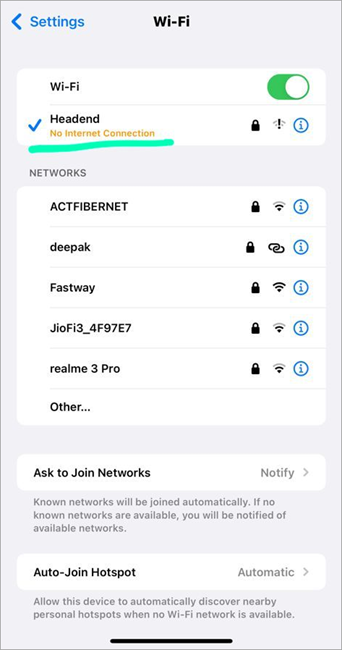
So I suggest checking the strength of the Wi-Fi or Mobile network it is connected to. You could simply try operating a YouTube video in HD to check whether your internet connection is solid. You could also try internet speed-checking apps to gauge your network’s strength.
If you’ve confirmed the issue to be your internet connection, I would suggest moving until you find a better cellular network. You could also try switching to a Wi-Fi network in your vicinity or contact your internet service provider for a possible solution.
#4) Update Your Phone’s Software
I always recommend updating and keeping your phone on the latest OS version. Regular updates ensure your phone is free from bugs, viruses, or other system-related errors that could lead certain apps or features on your phone to malfunction.
Recommended reading => 11 Best iPhone Data Recovery Software
If your Find My iPhone fails to update, a quick OS software update could be the solution. Follow the below steps to update your iPhone’s OS.
1. Tap on your iPhone’s “Settings”.
2. Scroll down until you find “General”, tap on it.
3. At the very top, right below “About”, find the “Software Update” option.
4. Tap on “Software Update” and your phone will start checking for new updates.
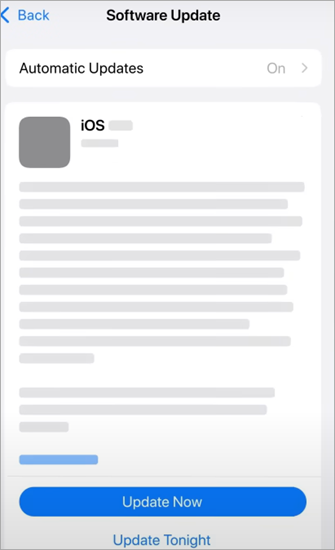
5. If available, you’ll be presented with the option to “Download and Install”.
6. Install the update and reboot your device.
#5) Refresh the Location Status on Find My iPhone Manually
This is a method I suggest you try if your Find My iPhone app is working, but the location updates are lagging or slow. This usually happens when the internet speed is slow. Unfortunately, the iPhone does not offer an option to manually refresh the app for a quick location update. This makes the process tedious, but not that challenging.
- The first thing you’d want to do is open the “Find My” app, and select the person you want to refresh the location for. Do this if Find My Location is not updating for one person.
- Keep the app open for a few minutes. Do nothing and make sure your device’s screen doesn’t go to sleep.
This should result in an automatic refresh. Another way to manually refresh a location would be to force quit the “Find My” app and relaunch it. This should do the trick.
Older versions of the “Find My” came with the refresh button so users didn’t have to go through this hassle. Frankly, it is annoying that they stripped the newer version of a critical feature. Hopefully, the refresh button will be restored in future versions.
#6) Check if Background Refresh is Disabled on your iPhone
iPhones today come with an intriguing feature called “Background Refresh”. The sole purpose of this built-in feature is to refresh each app installed on the device to keep its content up-to-date. As the name suggests, this feature works in the background regardless of whether an app is open or not.
Also Find =>> Methods to find ways on how to Unlock a Disabled iPhone
Here is a video on the Background App Refresh Feature:
Now, if this feature is disabled, you can bet your “Find My” app’s content will remain outdated.
To check whether your phone’s Background Refresh feature is enabled, do:
1. Open Settings.
2. Tap on “General”.
3. Scroll down to “Background App Refresh.
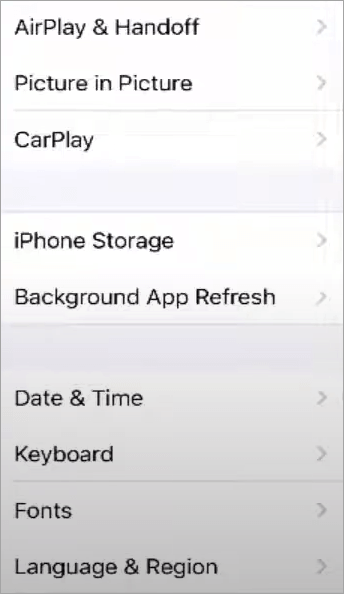
4. You’ll now know whether this feature is on or off. Tap on it if the feature is off.
5. Select whether to run “Background App Refresh” on Wi-Fi alone or Wi-Fi and Mobile Data together.
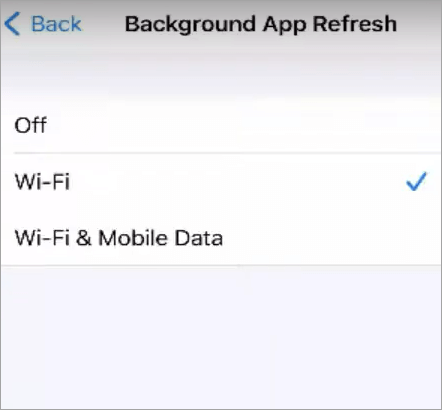
6. Also, scroll down the list of apps on this page and check whether the feature is toggled on against the “Find My” app.
#7) Try a Third-Party System Repair App
If none of the above methods work, don’t lose hope as you haven’t exhausted all of your options yet. If rebooting or updating your iPhone’s software doesn’t work, it is time to seek help from external third-party apps. There are boatloads of apps out there whose sole purpose is to fix system errors similar to “iPhone location not updating”.
Here are four apps that I trust for the best results:
1. Dr. Fone
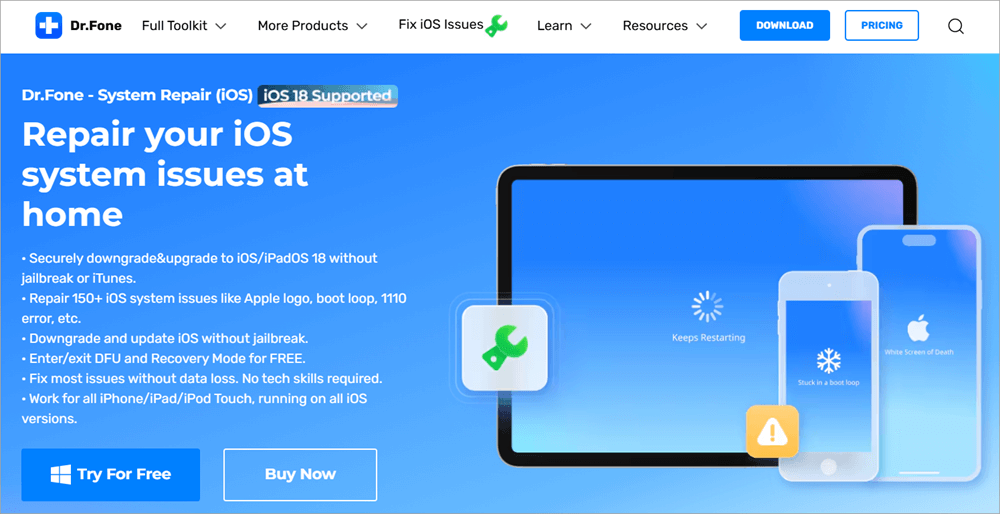
Dr Fone by Wondershare is a user-friendly system repair tool that promises to fix over 150 iOS system repair issues. The software’s simple UI makes it accessible to everyone, regardless of whether you are technically proficient.
To get started, you simply launch Dr. Fone on your system, connect your device to the computer, choose the correct model for your phone, download the firmware, and click “Fix Now”.
Website: https://drfone.wondershare.com/ios-system-repair.html
Recommended Reading =>> Spoof iPhone Location using Wondershare Dr. Fone Virtual Location
2. Tuneskit iOS System Recovery
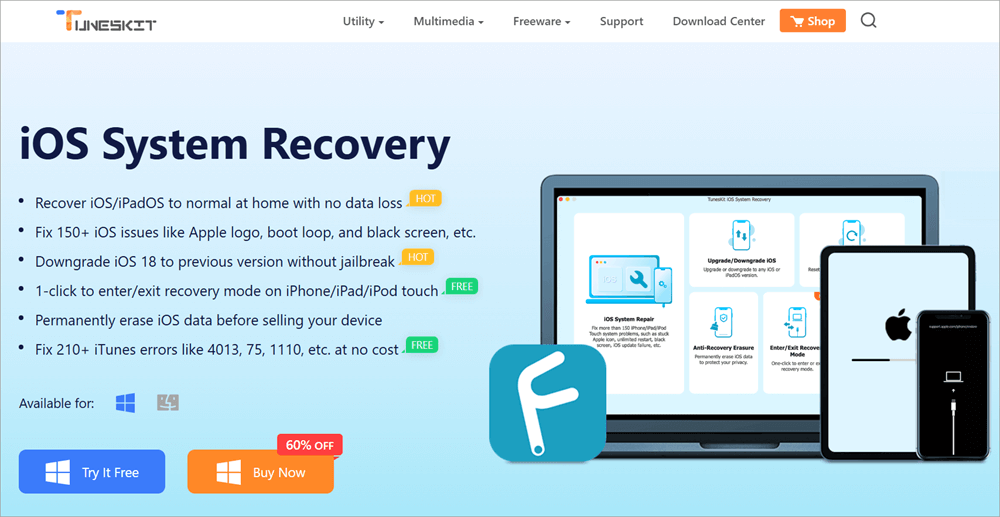
Tuneskit iOS System Recovery is another software that like Dr. Fone, also promises to repair over 150 iOS system issues without any data loss. It is easy to use and stands out for its neat interface. You’ll be able to downgrade or upgrade your iOS with this software without any jailbreak necessary. Plus, the software also facilitates one-click recovery of your iOS.
Website: https://www.tuneskit.com/ios-system-recovery/?srsltid=AfmBOoppWYPQdudSPwMfPNUPHAl3r1HQ2lahDuzLfizN6BXCDJS24kJc
3. FoneLab
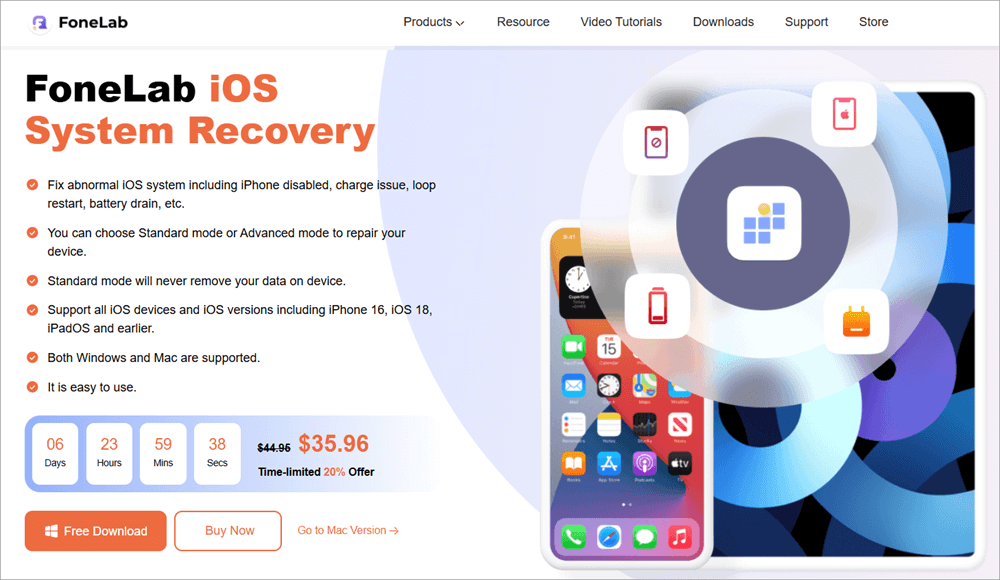
FoneLab is another software that I would recommend for its ease of use and advanced features. You can fix just about any iOS system issue with this software and it will only take you a few clicks. The software works with almost all iOS versions. To make matters even more convenient, you can use the software on both Mac and Windows devices.
Website: https://www.fonelab.com/ios-system-recovery/
4. AnyFix
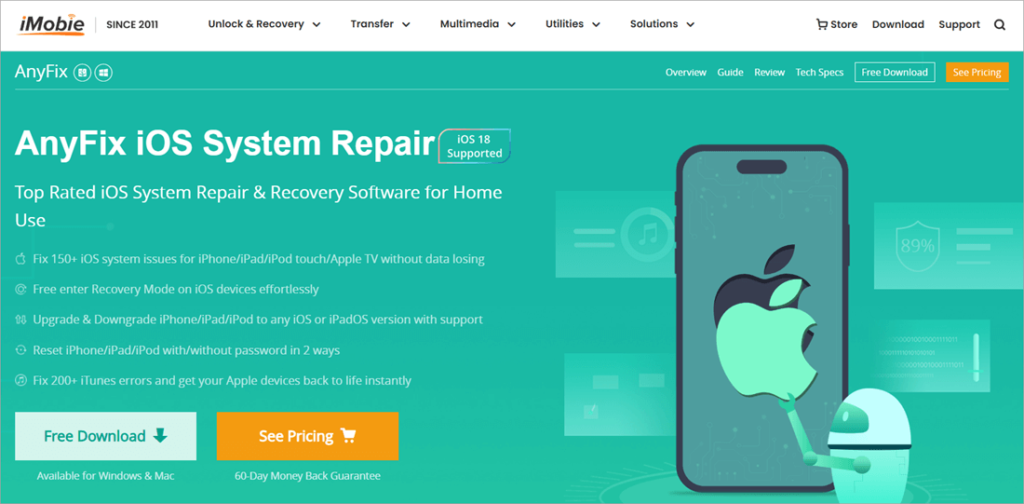
AnyFix by iMobie strikes the perfect balance between simplicity and sophistication. It is simple to use but packs in advanced features that let you address almost all the most typical system issues iPhones face today. Depending on the severity of the issue, AnyFix offers three repair modes to help get your device back to optimal condition.
Website: https://www.imobie.com/anyfix/ios-system-recovery.htm
FAQ’s on iPhone Location Not Updating
1. Why is Find My iPhone not locating someone?
Find My iPhone could fail to update someone’s real-time location for several key reasons. Those reasons could be:
• Outdated iOS
• Misconfigured Privacy settings
• Locating Services and Find My iPhone features have been disabled.
• Poor Internet Connection.
Whatever the reason behind this problem, the simple fixes I’ve suggested in this article could help you address this issue in no time.
2. Why can’t I see someone’s location even though they are sharing it?
This could happen if the GPS reception of you or the person sharing their location is poor. This issue could also arise if the phone’s GPS has been turned off. For the phone to accurately pinpoint a location, you’ll need to ensure your phone’s GPS is turned on and the internet it is connected to is stable and fast.
3. How do I make Find My iPhone Work?
You could start by trying the methods I’ve suggested. First, check whether the “Location Services” and “Find My iPhone” have been enabled. If your phone’s settings are fine, try rebooting your device. If that doesn’t work, try connecting your phone to a stronger internet connection. You could also try updating your phone’s iOS.
If all else fails, seek help from a third-party app like Dr. Fone or Fone Lab to fix any system error that might cause problems within your device.
4. How do I force my iPhone to show my location?
Your iPhone will only show your location if the “Location Services” on your phone is switched on. To enable it, open “Settings” -> “Privacy and Security” -> “Location Services” -> Toggle “Location Services” on.
5. How do I freeze the location on my iPhone without anyone noticing?
If you are being tracked and wish to trick the tracker, you could do so by enabling your phone’s airplane mode. This will essentially freeze your location, giving the impression to your tracker that you haven’t moved.
Conclusion
There you have, 5 ways that could help you fix the often-frustrating issue of “location not updating on iPhone”. The Find My iPhone feature on iOS devices is truly a godsend. It can come in handy in scenarios where you’ve lost your phone or if you need to share your real-time location with a friend or family member.
I know just how stressful it can be if this feature does not work when you need it the most. Thankfully, this isn’t a problem you need to worry about. Checking your phone’s location settings, reviewing your phone’s internet connection, and rebooting or updating the device’s iOS could solve the problem once and for all.
So the next time you find yourself in a pickle where Find My iPhone is not updating location, don’t waste time pondering questions like Why is my friend’s location not updating? Resort to any of the 5 fixes I’ve suggested above and start sharing real-time locations without hassle again.
Was this helpful?
Recommended Reading
-

Explore the top and best iPhone Chargers with pricing, technical specifications, and comparisons to select the fastest iPhone charger as per your needs: The compatible iPhone Charger that you are using might just not be good enough. It's time to pick out an iPhone charger that does the job faster…
-
Explore Apps To Mirror iPhone to iPad and compare their features, pros, and cons to select the best screen mirroring app available in the market: On average, iPhones come with a compact screen, unless you upgrade to the plus-size version. But when compared to an iPad screen, even the Plus…
-
Here we review and compare the top iPhone Data Recovery Software to help you select the best iPhone recovery software as per your requirement: You’re always vulnerable to data loss whether you’re using a computer, smartphone, or another device that can store data. Similarly, it does not matter if you…
-
This tutorial will guide you to easily Spoof iPhone Location using Wondershare Dr. Fone Virtual Location: We know GPS is a very useful mobile technology and yet we can think of many reasons one would like to fake their GPS location on their mobile devices. While some want to access…
-
Here we will explore multiple ways to understand how to Share Your Location on iPhone with others: Sharing live locations is a useful thing today. It is especially useful when you don’t know the exact address and you would like to tell someone where you are. Be it an Android…
-

Quickly learn how to clear Instagram cache on iPhone and Android to free up storage. Understand the simple steps on how to clear cache on Instagram to fix the app issues for both operating systems: Instagram is a social networking service platform where users can share their pictures with loved…
-
Here you will find the top effective step-by-step methods with screenshots to remove malware from the iPhone: This article tells you about the methods that can help you remove malware from the iPhone, the precautionary measures that you should adopt to avoid any threat to your device, and ways to…
-

Explore this quick guide to know how to set timer on iPhone camera and take stunning photos easily. Customize the duration and receive alerts with the clock app's timer function in easy steps: All iPhone cameras have a timer feature that makes it easier to take photos without leaving yourself…