Are thousands of emails clogging up your Gmail inbox? Learn how to rapidly delete all Old Emails in Gmail with highly effective, proven methods to free up storage space:
I’ve seen inboxes stacked to the brim with emails, most of which remain unopened and unseen for a long time. I believe a neat inbox indicates an organized mind. It is always wise to keep your inbox clean, and the best way to do that is to regularly delete older emails.
Fortunately, cleaning up your Gmail inbox isn’t as intimidating as it might seem initially. There are several very effective methods you can employ to declutter your inbox in no time.
Table of Contents:
- Bulk Delete Gmail Emails: Easy & Safe Methods
- How to Delete All Emails on Gmail
- How to Delete All Old Emails in Gmail
- Unsubscribe or Block Senders
- Ways to Automatically Delete Old Emails in Gmail
- Steps to Mass Delete Old Emails in Gmail
- Can We Use Gemini to Delete Old Emails
- Why You Should Consider Deleting Old Emails
- Frequently Asked Questions
- Conclusion
Bulk Delete Gmail Emails: Easy & Safe Methods

My goal with this article is to shed light on these methods for your benefit.
So, without much further ado, allow me to share how to delete all old emails in Gmail.
Also check => Most Secure Email Service Providers
How to Delete All Emails on Gmail
Deleting old emails is a great way to clean up your inbox. However, keeping an empty inbox could be even better. Of course, I would only suggest doing this if you have no use for any email in your inbox.
Follow the steps below to delete all emails in your Gmail:
#1) Log in to your Gmail account.
#2) Navigate to the tiny box you’ll find at the top left-hand side of your screen. You’ll see it right above the inbox. Click on it.
#3) You’ll see the following message: All 50 conversations on this page are selected. Select all conversations in Primary.

#4) Click on the part of this message that’s highlighted in blue to select emails in the primary inbox en masse.
#5) Hit the Trash-Bin icon to delete.
You’d now have an empty inbox. Alternatively, hit the archive symbol right next to the mass-select checkbox to hide the emails instead of permanently deleting them.
Suggested Reading => Top-Rated Email Marketing Tools
How to Delete All Old Emails in Gmail
You never know when a particular email in your Inbox could become useful. So, it isn’t always wise to wipe out your entire inbox. If the intention is to declutter your inbox, simply deleting older emails should be enough.
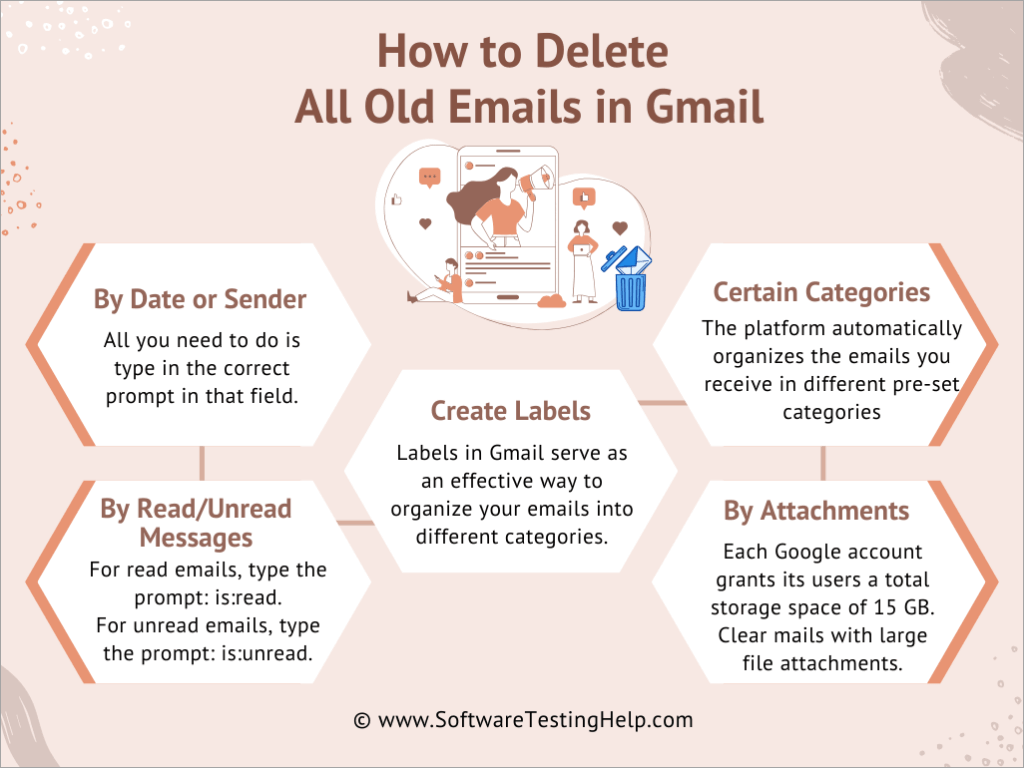
Let me walk you through all the options you could employ to achieve this:
By Date or Sender
This is perhaps the most convenient way to sort and ferret out older messages that don’t need to be in your inbox anymore. The Gmail account’s search field will prove to be your greatest ally here. All you need to do is type in the correct prompt in that field.
Let me illustrate this with examples:
- Let’s say you want to delete messages older than 2 years. In the search field, type in the following: older_than:2y.
- If you want to delete emails sent before a particular date, type the following prompt instead: before:yyyy/mm/dd. Hit enter after typing the prompt, and you’ll be greeted by emails older than 2 years or emails you received before the specified date.

- If you wish to delete messages received in a specific frame of time, specify the date range by typing: after:yyyy/mm/dd before:yyyy/mm/dd.

Once you have the emails displayed, check the tiny box above your inbox and hit the “Trash Bin” icon to delete them all.
Now, hitting the delete button will only result in the emails being moved to trash, where they will remain for 30 days before being deleted automatically. If you want them gone sooner, navigate to the trash and click on “Empty Trash now”.
By Sender

If you want to delete all old emails in Gmail that were sent to you from a particular sender, type in the following prompt: from:(email address). Hit enter, and you’ll be presented with all emails sent by the typed email address. From here, the deletion process will be the same.
By Read/Unread Messages
Another effective way to find and delete older emails would be to shift your focus towards read or unread messages. As for the question of how to delete all unread emails in Gmail, or read emails for that matter, it is quite easy.
Type in the following prompts to get all read and unread emails you’d like to purge displayed:
- For read emails, type the following: is:read.
- For unread emails, type the following: is:unread.
Hit enter after typing the prompts, hit the mass-select checkbox, and click on the blue text that says – Select all __ Conversations.
Further Reading => How to Create an Email Group in Gmail
Create Labels
Labels in Gmail serve as an effective way to organize your emails into different categories. Labels are like folders that you can create to keep certain types of emails, and creating them could help you delete emails that you still want to receive.
For example, you could create a label meant to keep newsletters that you no longer want in your primary inbox.
You can later delete the messages that particular label holds through the following steps:
#1) Select the Label name from the menu on the left-hand side of your screen.
#2) Check the box above to select all messages in the inbox.
#3) Click on the blue text above the inbox to select all messages and hit the trash icon to delete the emails.
Certain Categories
Understand how to delete all Old Emails in Gmail from Certain Categories in this section.
“Categories” is a feature I really admire in Gmail. The platform automatically organizes the emails you receive in different pre-set categories. Besides your primary inbox, Gmail sorts your emails across four other categories – Promotions, Social, Forum, and Updates.
As the emails found in these categories aren’t always important, empty them by following the steps below:
#1) Navigate to the “Categories” section.
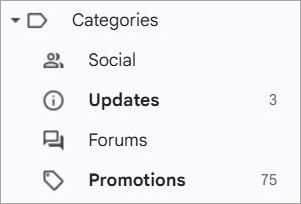
#2) Select the category that you want to purge.
#3) Check the tiny box above your inbox and select the blue text that says “Select all __ Conversations”.
#4) Hit the Trash icon to delete all messages that the category contains.
Further Reading => How to Send Encrypted Emails in Gmail
By Attachments
Each Google account grants its users a total storage space of 15 GB. You are going to lose this space quickly if there are emails in your inbox with large file attachments. My advice would be to prioritize such emails when you are cleaning up.
Finding emails with large attachments is quite simple:
#1) Select the “Show Search Options” icon on the right-hand side of the search field.
#2) From the drop-down menu, select size > greater than > type a number (1,2, or 3) > choose MB.
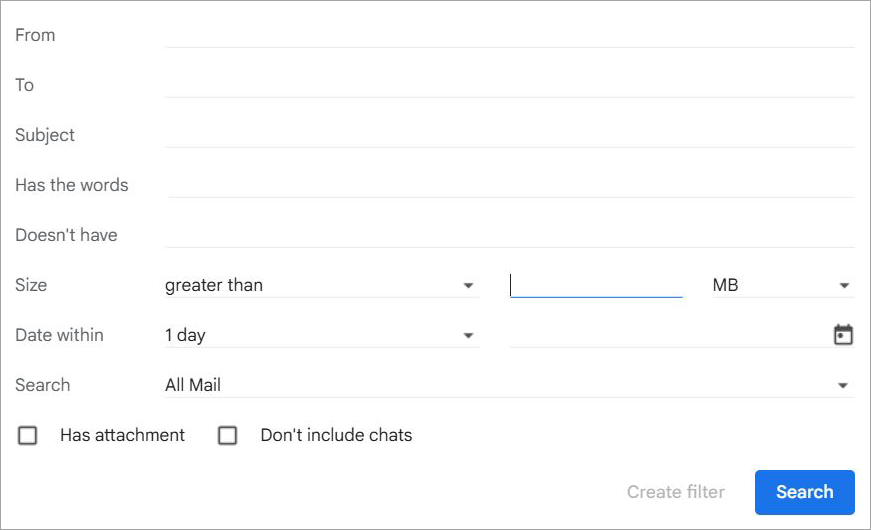
#3) Now, Gmail will only display messages with attachments larger than the file size you’ve specified.
#4) From here, proceed to mass-select all of these emails and delete them.
Unsubscribe or Block Senders
Until now, I’ve only talked about deleting messages you’ve received. Now, I want to talk about being proactive for keeping your inbox well-organized and clean. The best way to achieve that is by unsubscribing from certain newsletters or blocking emails from unwanted senders.

Newsletter subscriptions can pile up if you aren’t paying attention to them. Thankfully, Gmail comes with a built-in feature. The feature entails an unsubscribe button displayed right beside the sender’s address, thus letting you unsubscribe from an email list in a single click. This feature is only available on Gmail’s desktop version.
Besides this, you can also block certain email addresses. The process of doing so is simple:
- Open an email sent to you by a sender you wish to block.
- Click on the three dots at the top-right corner of the mail.
- Select “Block (Sender Name)” from the drop-down menu.
You’ll now stop receiving emails from this sender. Both the ability to unsubscribe and block addresses are effective and proactive ways to keep your inbox clean. I suggest you ferret out email addresses or newsletter subscriptions that aren’t of any use to you and implement these measures.
Recommended Reading => Easy Methods to Sign Out of Gmail from Different Platforms
Ways to Automatically Delete Old Emails in Gmail
This is yet another way to keep your Gmail inbox proactively clean. Gmail allows its users to set up filters, which can automatically trigger a purge of older emails as per your set instructions.
Here’s how to delete all old emails in Gmail in bulk, automatically.
#1) Navigate to the search field and click on the “Show Search Options” icon. You’ll see it on the right-hand side of this field.
#2) In the drop-down menu, type the necessary prompts in the “Has the words” field.
#3) For example, if you want Gmail to automatically delete messages older than 1 year, type: older_than:1y.

#4) Now click on “Create Filter.”
#5) You’ll be directed to a second menu. Find the option “Delete It” and click on the checkbox next to it.
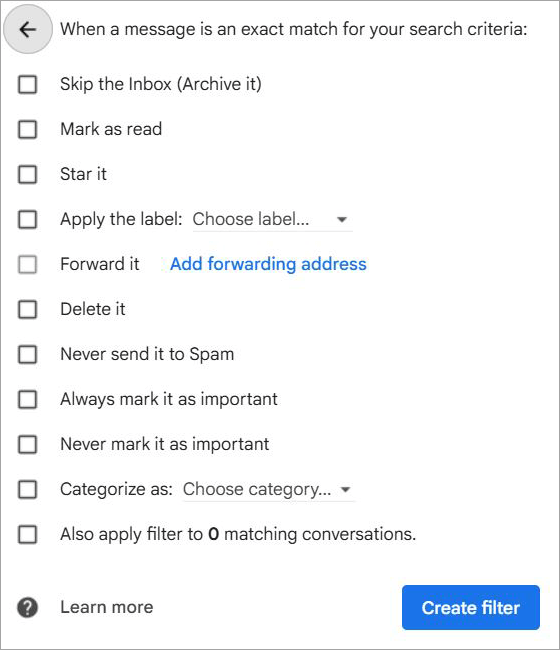
#6) Click on Create Filter.
Gmail will now automatically delete all emails older than 1 year from your inbox.
Steps to Mass Delete Old Emails in Gmail
On Android
Whether you are using Gmail on an iPhone or an Android device, the process to delete old email messages will be the same.
Learn how to delete all old emails in Gmail on Phone:
#1) Open the Gmail app on your phone.
#2) Tap on the Search Field. This will result in multiple different filters being displayed beneath the field.
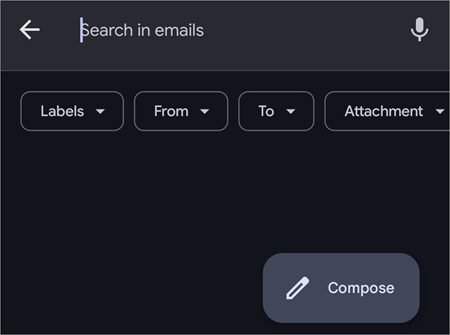
#3) You’ll now have the option to sort your email list by date, sender, recipient, labels, attachment, and is:unread.
#4) Sort according to your wishes to get the emails you wish to delete displayed.
Suggested Reading => Guide to Create a New Gmail Account
#5) Tap and hold the first displayed email to unveil the “Select All” checkbox.
#6) Click on the checkbox and hit “delete”.
On iPhone
How to Delete All Old Emails in Gmail on iPhone
Whether you are using an Android device or an iPhone, the Gmail app will be the same. As such, the process to delete emails will also be the same.
Follow the guide below to delete all old emails in Gmail on an iPhone:
- Open Gmail on your phone.
- Tap on the “Search Field”.
- Filter your email list by sender, recipient, labels, or date.
- Tap and hold the first displayed email to unveil the “Select All” checkbox.
- Click on the check to mark all the emails for deletion.
- Hit “Delete”.
Can We Use Gemini to Delete Old Emails
Almost all Google products today come with the Gemini AI built into them, and Gmail is no exception. So, that got me curious. What if I could use this AI to automate deleting emails in bulk? I put this theory to the test using multiple different prompts, and here’s what I discovered:
#1) Gemini was quick to filter my email list. Although it’s great at organizing an email list and helping you unearth older emails. You cannot use Gemini to delete these emails. You can only delete emails manually.
#2) Next, I wanted Gemini to only unearth Promotional emails. The results weren’t really all that great. It was clear to me that Gemini was struggling with email categorization. It presented me with an email list, a large majority of which weren’t promotional emails.
#3) Finally, I wanted to see if Gemini could create a specific filter for me. It failed to do so. You must follow the usual route to filter your email list.
In conclusion, I would not recommend anyone rely on Gemini to automate the process of deleting emails in bulk. It cannot delete emails or create filters. If you still wish to automate this process, paying for a third-party tool that specializes in this feature would be best.
Why You Should Consider Deleting Old Emails
Know that you are under no obligation to delete your old emails or purge your inbox. You’d probably get by just fine with a cluttered inbox. That said, keeping a clean inbox is immensely beneficial in more ways than one.
For starters, it is a great way to manage your storage space. Most folks remain under the impression that they’ll never exhaust their Google account’s storage space until it finally happens. By deleting older emails, you get rid of messages containing large file attachments.
Also Read => List of the Best Free Cloud Storage Providers
Keeping an inbox clean also helps you quickly find an important email when you need it. It is a great way to keep your messages well-organized. Furthermore, a clean inbox could also prove beneficial to you mentally.
It can be stressful to sift through a cluttered inbox. On the contrary, you avoid this stress with an organized Gmail account and could even see your productivity shoot through the roof as a result.
Needless to say, you only stand to benefit by deleting older emails.
Frequently Asked Questions
1. How do I clean Gmail faster?
The best way to clean Gmail faster is to mass-select all emails and hit the delete button. Simply follow the guide below:
1. Select the checkbox right above your inbox.
2. You’ll see a message that says – All 50 conversations on this page are selected. Select all conversations in Primary. Select the text highlighted in blue.
Hit the “Trash” icon to delete all messages.
2. Is it possible to recover deleted messages in Gmail?
When you first delete messages from your Gmail primary inbox, they are simply moved to the Trash section. These emails will remain there for up to 30 days before being deleted permanently. If the 30 days haven’t passed or if you haven’t emptied the trash bin yet, you’ll be able to recover the deleted messages.
3. How do I delete unread emails in Gmail?
You’ve got two ways to do this. First, you type: is: unread in the search field and hit enter to display all unread emails. Alternatively, you can click on the arrow beside the checkbox above your inbox and select “unread” from the drop-down menu.
Once you have all the unread emails displayed, here’s how to delete old unread emails in Gmail:
1. Click on the checkbox above.
2. Select the text that appears above the inbox, which will be highlighted in blue.
3. Click on the Trash icon to delete.
4. Go to the Trash section and click on Empty Trash now.
4. How do I remove unwanted emails from Gmail?
You have multiple options to remove unwanted emails from your account. You could start by unsubscribing from email lists or newsletters you don’t want to be a part of. If that doesn’t work or isn’t enough, you could block senders. You could also set up filters to automatically delete emails sent by certain senders.
5. Does Gmail have a clean-up tool?
Gmail doesn’t have a built-in clean-up feature. However, you could still rely on some of its other features, like bulk selection, labels, categories, search-field prompts, and filters, to conveniently delete older emails from your inbox regularly.
6. How do I delete thousands of old emails in Gmail?
Deleting thousands of old emails in Gmail is quite simple. Do the following:
1. Open Gmail
2. Click on the Search field and either filter your email list by date or get more specific by typing before:(the date).
3. You’ll now be presented with a list of emails older than the date you’ve mentioned.
4. At the top of your interface, click on the checkbox to select all emails.
5. This will result in 50 emails on that particular page being selected. You’ll be shown an option to “Select all “number” conversations in the category.
6. Click on it to select all old emails and hit the “delete” button.
If you wish to learn how to mass delete emails on Gmail, this is the best way to do it.
7. How do I delete 10-year-old emails in Gmail?
Again, this is a very simple process.
1. Open Gmail
2. Navigate to the search field and type – older_than:10y.
3. You’ll now be presented with a list featuring emails you received 10 years ago.
4. To delete them, click on the “Select All” checkbox at the top.
Hit “Delete”.
Conclusion
So, there you have it. Deleting older emails in Gmail is as simple as a walk in the park. You only need to get familiar with a few of its features. Sort your email list first. It could be by date, sender, attachment, or category. Once you have the list sorted, simply select all the emails displayed and hit the delete button to clean your inbox in one fell swoop.
It can be overwhelming at first, but you’ll quickly realize just how simple it is to get rid of those older emails you no longer need. Remember, you only benefit from a clean, well-organized inbox. So, give all the above methods a try, delete those old emails, and get an inbox that’s free from clutter.
Was this helpful?
Recommended Reading
-

Explore this step-by-step guide to create a new Gmail Account for personal or business use. Learn to connect various applications with Gmail account: Almost everybody nowadays uses Gmail, as it is one of the most popular email platforms used worldwide and is user-friendly. Whenever a new user tries to open…
-
Learn how to create an Email Group in Gmail and simplify your emailing task drastically. Handle group email communication effectively with just one single click and send emails to multiple recipients: You could have many good reasons to email several people at once. Perhaps you want to shoot an urgent…
-
This tutorial explains the step-by-step process to send an Encrypted Email in Outlook, Gmail, iOS, and Android devices with screenshots. You will also learn to open Encrypted Emails: Encrypting email is the process of encoding and decoding your messages so that they can remain safe and secure from intrusive third…
-
This tutorial will walk you through the process of how to log out of your Gmail account on different platforms such as Windows, Android, and iOS. Are you wondering how to sign out of your Gmail account on your laptop, computer, or phone? Perhaps you are using a shared computer…