Learn how to Logout of Netflix on a Smart TV from our step-by-step guide. Discover the easy ways to sign out of Netflix on all Smart TVs and log out securely in minutes:
Leaving Netflix on a smart TV may sound like a straightforward process, yet it is surprisingly hidden and counterintuitive to most users.
In comparison with logging out of a mobile phone or web browser, where you generally only have to press a single click on the Sign Out button or the sign-out Netflix TV button, smart TV apps hide this option in the deepest layers of menus, like Get Help or Settings.
Logout of Netflix on Smart TV: Complete Step-by-Step Guide
To the everyday user, this may not be immediately clear, particularly when the device is shared among friends, family, or even in social settings such as hotels and Airbnb rentals.
It is much more than mere convenience to sign out. Now that Netflix has implemented its new household policy that limits account sharing, by maintaining your account signed on to the many TVs, you can be exposed to access lapses or even unforeseen costs of the additional slots for an extra member.
Here is a video guide on how to log out of Netflix on TV:
Another big issue is privacy. By keeping your account online, you are opening your profile, including watch history, preferences, and access to payments, to any other person who has access to the same television.
[Via Netflix]
He/she may subconsciously (or willingly) modify your recommendations, advancements in shows, or even attempt to modify your account settings.
There are a lot of quirks on different devices. Others may force you to provide a secret remote-control code to use the logout, and some may cease to support Netflix entirely because the apps were retired in older models.
To make it worse, sometimes you might not exit without the device in hand, like when you leave one of your accounts running on a borrowed television. Fortunately, Netflix can offer both web-based and mobile app-based solutions to remote sign-out as well.
Quick Steps to Exit Netflix on TV
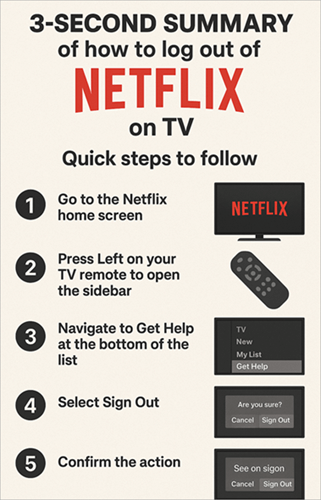
We will walk through this article:
- The basics you must know before leaving smart TVs.
- Instructions for all the key devices and consoles.
- Other solutions include the mobile application and the website.
- Motives for why it is important to log out.
- Frequently asked questions.
- Problems and troubleshooting hints for the logout of Netflix smart TVs.
- By the conclusion, you will have all the details on how to stream Netflix on any television or device.
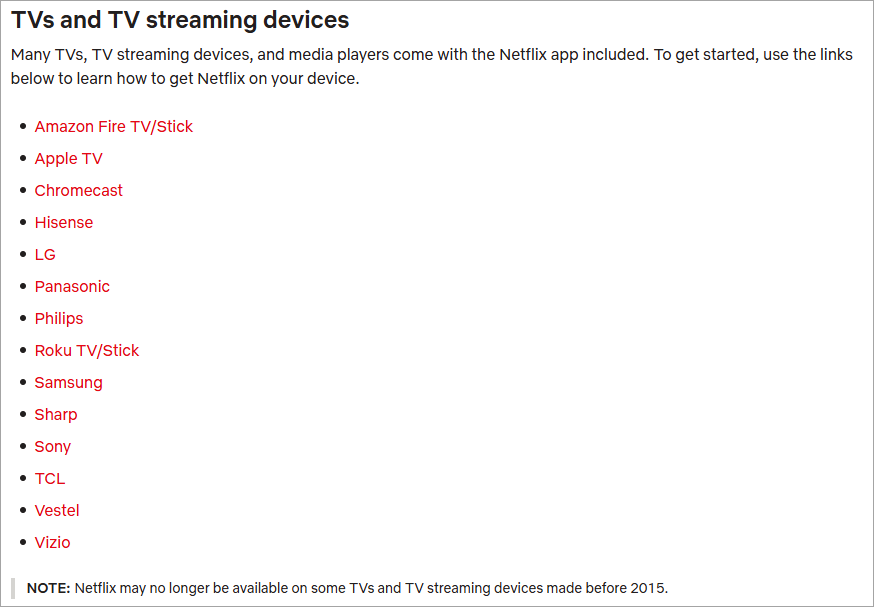
Leaving Netflix on a Smart TV: What You Need to Know
- The Sign Out button or the sign-out Netflix TV button is nearly never visible on the home profile page, but rather under the menu “Get Help” or “Settings” which can be confusing to users.
- Exiting Netflix does not mean signing out, merely a close to the app, but leaves you logged in.
- Leaving the app clears it to the sign-in screen and allows another user to log in using different credentials.
- Remotely logging out is possible through the Netflix site, in account settings, Manage Access and Devices.
- One more feature of Netflix is the ability to Sign Out of All Devices, and this is often helpful in case you believe that your credentials have been compromised.
- Other devices do not support Netflix, including the first-generation Fire TV and Fire Stick models, and can not sign out locally.
- Several Sony TVs and Blu-ray players, too, have lost Netflix support and are compelled to use external devices such as the Roku or Fire Stick.
- On Android TV or Google TV, a secret menu is hidden (Up, Up, Down, Down, Left, Right, Left, Right, Up, Up, Up, Up), and this contains Sign Out.
- When there is no logout button, a reset is usually enforced through the reinstallation or a clear of the cache app.
- According to Netflix policies of password sharing, it logs out of devices not considered part of your household automatically.
How to Log Out of Netflix on Diverse Devices
#1) TV Set-Top Box/ Blu-ray Player
[Via blu-ray.com]
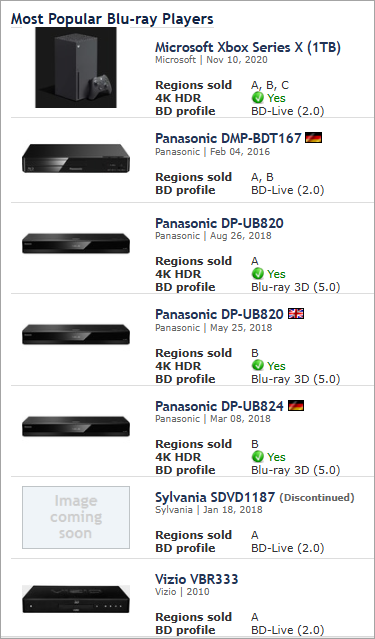
Netflix is still among the most used applications on set-top boxes and Blu-ray players. These systems also have simplified menu systems, and they do not necessarily have an easy way of logging out, especially on older devices. The procedure is quite similar across most large brands.
Steps to Log Out:
- Open the Netflix application on your set-top box or your Blu-ray player.
- Click on the left to open the main menu.
- Open up to Get Help or Settings.
- Click on Select Sign out.
- Confirm the action.
- Allow the app to restart to the login screen.
Verdict: It is fairly easy to log out of set-top boxes and Blu-ray players, provided the appliance offers this option. Most older Blu-ray players, however, do not support Netflix at all (or no more than limited), so logout may now be unavailable as well.
Under such circumstances, the only alternative is to reset the devices at the factory or to switch Netflix to the remote sign-out option. Although local logging out removes credentials, it sometimes does not delete the data stored in apps that are cached, so it is necessary to reinstall the app or perform a reset.
To be on the safe side, users are always encouraged to ensure that the app has taken them back to the login page before leaving it unattended.
#2) Amazon Fire TV
The use of Amazon Fire TV sticks and boxes makes them one of the most popular streaming sticks and boxes in the entire world. Netflix is also pre-installed, and although it fits well, when it comes to the logout option, it is a little hidden, however, in the menus.
Steps to Log Out:
- Open the Netflix app.
- Go to the menu bar on the left.
- Click on Help at the bottom of the page.
- Choose Sign Out.
- Confirm when prompted.
- The application must go back to the login screen.
Another (in case of failure of the above) method:
- In the Fire TV, navigate to Fire TV Home settings, applications, manage installed applications, and Netflix clear data.
- Recreate Netflix; this time, it will request logins.
Verdict: In those supported versions of Fire TV, disabling the device is simple but requires a couple of clicks. The clearing data approach is especially secure, since it destroys credentials and cached data. Note, though, that first-generation Fire TV and Fire Stick models have since been discontinued by Netflix and cannot be logged out of there.
In terms of security, the logout or logout of Netflix smart TV completely removes the data of a session, yet users who worry about the presence of these files as caches should uninstall and reinstall the application, as it can be considered one of the less risky environments to secure their account.
#3) Apple TV
Netflix is one of the most used apps on Apple TV, and it offers a refined streaming experience. Currenter Apple TV models are fully supported by Netflix, whereas older models like Apple TV 2 and 3 are not supported, and therefore the log out applies only to the newer models.
Steps to Log Out:
- Launch the Netflix application on Apple TV.
- Go to the menu that is on the left.
- Click on Help or Settings.
- Select Sign Out.
- Confirm your choice.
- You are going back to the login screen.
Alternative Method:
- Uninstall the Netflix application on the Apple TV home.
- Install it again via the App Store, which prompts the logout.
Verdict: It is simple and assuring to log out on Apple TV, which requires several menu clicks. It is not risky since credentials are erased when leaving, but caches can be left unless you erase the app. To be sure, it is better to restart the Apple TV after uninstalling.
Due to the fact that the older models do not support Netflix, users must ensure they have the latest version of Apple TV before trying. Apple TV logout is quick and safe with the use of app reinstallation to perform a complete restart.
#4) Android TV and Google TV (Sony, TCL, Hisense, etc.)
Google TV and Android TV are operating on numerous sets of brands such as Sony, TCL, and Hisense. Netflix runs on default, though the logout button may be buried or even hidden under special remote codes.
Steps to Log Out:
- Launch the Netflix app.
- Use the left-hand menu to open the main menu.
- Click scroll down to Get Help or Settings.
- Select Sign Out.
- Confirm when prompted.
- Allow the appearance of the login screen.
Remote Method (not visible) hidden:
- Use: Up, Up, Down, Down, Left, Right, Left, Right, Up, Up, Up, Up on your remote.
- This gives access to a secret menu.
- Select Sign Out from here.
Alternative Method:
- On your television, go to the Apps menu in Netflix and Clear Data.
- Re-open the app, and you will be required to log in once again.
Verdict: On Android/ Google TVs, Netflix TV sign-out can be done, but not as easily as on other systems. The non-user-friendly remote sequence is particularly handy where the standard sign-out option is not offered, yet permanent visitors can be unaware of its existence.
To be on the safe side, clearing app data or reinstalling it makes sure that there is no leftover information stored as a cache. Older Android TV and Sony models, at times, lose the support of Netflix altogether, and they cannot log out locally.
In this case, remote sign-out by the site will be advisable. In general, logging out of Android TV is an easy task, though safe, and it might need patience or more advanced procedures.
#5) LG TV or Blu-ray Player
The LG TVs operating under the webOS system provide Netflix as an in-built application that households use frequently. The logout feature is mostly standard, but it can vary a little depending on the software version of the TV.
Steps to Log Out:
- Open the Netflix app.
- On the menu on the left, move down to Get Help.
- Select Sign Out.
- Confirm your choice.
- The login screen will appear.
- In the case of stubborn cases:
- Click on LG Settings, general, reset to initial settings.
- This shuts down the TV and overrides all app logins.
Verdict: Logout of LG is fairly easy, but older models of NetCast might have different menus. Quitting deletes all credentials completely, although not all the transient data. It is a safe process that can be safely used in daily life, yet when you are on a shared TV (such as renting or at the workplace), a complete reset is a more effective guarantee.
With Blu-ray players, the logout is almost the same process, but an additional confirmation of support is necessary because most of the older players do not receive Netflix updates anymore.
#6) PlayStation (PS4/PS5)
One of the most-utilized applications on PlayStation consoles is Netflix. Both PS4 and PS5 have it, and logging out is just like smart TVs, only designed to work with the controller.
Steps to Log Out:
- Open the Netflix app.
- Click the Options button on your controller.
- Select Get Help.
- Choose Sign Out.
- Confirm the action for the Netflix TV sign-out option.
Alternative Method:
- Uninstall Netflix in your library.
- Re-download it at the PlayStation Store.
- This forces the logout.
Verdict: On PlayStation, disconnecting is simple, so unfamiliar users will not notice it at first. It is important to use the sidebar by means of the Options button. The logout itself is secure, deleting credentials without any data being saved on the deletion of the app.
When signed in with a left, the Netflix sessions are still in their entirety to anyone who is using the console. To have full peace of mind, they can have a backup with remote sign-out. The logout procedure on the PlayStation is safe, and uninstalling/reinstalling is the cleanest way of resetting.
#7) Roku
One of the most used streaming devices is Roku, and Netflix is usually pre-installed. Quitting is easy, but not everyone realizes that some people confuse exit with a complete sign-out. Check our quick guide on how to turn off the Roku Device.
Steps to Log Out:
- Install the Netflix channel on Roku.
- Click on the left to open the main menu.
- Scroll to Get Help.
- Select Sign Out.
- Confirm your decision.
Alternative Method:
- On the Roku home page, point to Netflix.
- Press the star on your remote.
- Choose Remove Channel.
- Install Netflix in the Roku Channel Store.
Verdict: The process of logging out is simple and secure on Roku, yet user confusion is the true danger. Leaving the application does not constitute a logout, and the user should use Sign Out.
The most comprehensive way of doing it is to remove and reinstall Netflix to make sure that no session data is left behind. On the whole, Roku offers a secure logout mechanism, but it works only if individuals make the right choice.
#8) Samsung TV or Blu-ray Player
Tizen Samsung smart TVs have Netflix built in, and the logout button is not visible in the application list. Samsung Blu-ray players can also support Netflix, depending on the model.
Steps to Log Out:
- Open Netflix on a Samsung TV.
- Click the menu left.
- Scroll down to Get Help.
- Select Sign Out.
- Confirm your action.
Alternative Method:
- Press the Back/Return button and press Hard to close the app.
- In case of a problem, uninstall and reinstall Netflix.
Verdict: On Samsung TVs, it is not that difficult to log out, after you know where to go, but most users fail to notice the Get Help option. The logout is secure and removes credentials, yet there can be some leftover files. Reforming or complete reinstatement is guaranteed to destroy data.
Very ancient Samsung models are no longer supported by Netflix, and in such situations, remote sign-out is the only way out. As far as security is concerned, the logout is secure, though only under the condition that you ensure the app goes back to the login screen.
#9) Xbox (One, Series X/S)
The Xbox consoles work well with Netflix and are therefore an ideal choice for watching and playing. The process of logging out is easy and involves navigating through the application menus. Read through our detailed guide on how to uninstall the Xbox Game Bar.
Steps to Log Out:
- Launch the Netflix app.
- Go to the left-hand menu.
- Scroll down to Get Help.
- Select Sign Out.
- Confirm the selection.
Alternative Method:
- Place Netflix in the spotlight of the Xbox dashboard.
- Click the Menu button, and choose Uninstall.
- Restore the Microsoft Store app.
Verdict: Logging out is convenient on Xbox. The application deletes the stored credentials, meaning that the application will need the user to re-log in. The deletion and reinstallation of the application offers a better guarantee, deleting files in the cache as well.
Even when you lose access to your Xbox, you can still perform a remote logout. On the whole, the logout procedure in Xbox is very safe to use to secure an account.
#10) Other Consoles (PS3, Older Units)
Though Netflix has since ceased supporting most of the older consoles, the PS3 will continue to run the application for those who have not updated. The output procedures are almost similar to those of the contemporary consoles.
Steps to Log Out:
- Open the Netflix app.
- Navigate to Get Help.
- Choose Sign Out.
- Confirm your choice.
Alternative Method:
- Uninstall Netflix on the console.
- Reinstall it to clear logins.
Verdict: With support for old consoles, it is easy and safe to log out. But on other unsupported devices, such as Wii or PS2, Netflix ceases to work, and, therefore, logging out will not matter. For PS3 users, the log-out operation will delete credentials, but could leave some small pieces of cache.
A complete reset is provided by reinstalling. On the security front, it is better to trust remote sign-out in case you are not confident that the logout has been completely cleared.
Other Methods to Sign Out of Netflix
#1) Via the Netflix Website
The Netflix website is the most flexible location where you can control logins and logouts and have command over all the devices that are connected to your account. The site provides granular and bulk ways of signing out of a single or all the TVs and devices at once.
Single device sign-out steps:
- Fire up a browser and visit Netflix.com.
- Enter your account information.
- Click the icon of your profile in the top right.
- Take Account Select.
- Move to the Security and Privacy.
- Click Manage access and devices.
- Locate the device you are logging out of.
- Click Sign Out beside that device.
- Verify the action in the query.
Verdict: The Netflix site is secure and safe to sign out of. It just disconnects the device of choice and leaves the rest unaffected. This helps it to be handy when you just wish to turn off a particular smart TV and leave it signed in on your phone.
The technique is also successful in that the app requires a login on the device immediately. Its only weakness is that it will not delete the files that are already in the cache on the TV – there is a need to restart the application again to completely wipe. It is an easy way to control an account.
#2) Using the Netflix Website (Sign Out of All Devices) Remotely
Check the video below to know how to logout of other devices on Netflix:
Netflix also lets you log out of all devices simultaneously in case you think your account has been accessed illegally or you have not signed out of a TV in a shared room or restaurant. This is the most robust account protection feature of Netflix.
Procedures to leave everything:
- Go to Netflix.com and enter your account.
- On the far right at the top is your profile icon.
- Select Account.
- Go down to Security and Privacy.
- Click Sign Out of All Devices.
- Re-enter your password when requested.
- Confirm the action.
- Allow 8 hours to elapse until all devices become disconnected (often occurs sooner).
Verdict: This is the safest means of securing your account since it will ensure that there are no devices that are left logged in. It is perfect when you leave Netflix playing on a hotel TV, Airbnb, or a borrowed console.
The only disadvantage is that it logs out everybody, including yourself, and you will have to re-enter your credentials everywhere. To be on the safe side, Netflix suggests adding this to a password reset, so there will be no other person who can use the old account with the passwords.
The approach is very secure and wipes access in all directions of the board and offers peace of mind.
#3) Netflix Mobile App
The Netflix mobile application not only enables you to stream anywhere but also allows you to control all account settings, including managing devices. This is ideal when you must step out of a computer.
Procedures to Log Out of Netflix on the Mobile App:
- Open Netflix on your tablet or phone.
- Click on your profile on the right-hand side.
- Select Account (opens the account settings screen in-app).
- Go to the Security and Privacy.
- Tap Access and device management.
- View a list of the devices that are currently logged in.
- Tap Sign out to remove one device.
- To delete every device, tap Sign Out of All Devices.
- Confirm the action.
Verdict: One of the most convenient ways is the mobile app, and it is highly appreciated if you travel a lot. It is just like the site, but made accessible and user-friendly on mobile phones. Quitting the app is secure and efficient, and equally as safe as quitting it via browser.
Similar to the site, it will not clear data in the cache on the smart TV itself; a local re-install of the app will remain best practice should you want a full wipe. The mobile application will be the most convenient and fast method of keeping accounts secure at any location.
Typical Issues during Netflix Log Out:
- Sign Out option is missing: frequent solutions are to re-install the app or use the hidden remote-control sequence.
- Freezing or crashing of apps: reboot or delete the system settings cache or data.
- Outdated hardware: Netflix is no longer compatible with older hardware, such as old Sony TVs or first-generation Fire Sticks, and cannot be logged out.
- Remote lost/ broken: companion apps or remote sign-out on the site.
- Leaving does not work: The change can take several minutes to affect the servers of Netflix.
#4) Chromecast With Google TV
The Chromecast with Google TV uses the Netflix application on the Google Television platform and allows one to sign out of the Netflix application itself. Infuriatingly, Netflix tends to hide the Sign out control within a Get Help or Settings section, rather than a visible profile menu, which makes signing out unpredictably awkward.
In case you genuinely cannot discover the choice, Netflix has support which notes that you can unveil an options menu with a special button combination, such that Sign out reveals itself in it, which is a little trick but relatively useful.
After learning the location where Netflix hides the control, it is easy to sign out, and the process is fast and fulfilling.
How to log out of Netflix on Chromecast with Google TV:
Step 1: The initial step is to press the Home button on your Chromecast remote and open the Netflix app to get yourself on the Netflix Home screen.
Step 2: In case the left-hand sidebar is not visible, then the secret remote sequence – Up, Up, Down, Down, Left, Right, Left, Right, Up, Up, Up, Up – may show the hidden Netflix options menu on certain Google TV versions.
Step 3: Having the sidebar open, scroll down to Get Help (or Settings, depending on the model) and then choose Sign out and Yes in order to sign out of the Netflix application.
When the Sign out entry has a different name on your build (occasionally it is Exit, Reset, or Deactivate), then you can still select the last menu element and accept the confirmation message to force the application into the sign-in screen.
Step 4: For an unresponsive menu or a menu that fails, restart the Chromecast, which should now clear all the temporary glitches in the UI so that you can get to the sign-out controls.
In case the application is not cooperative, then open Google TV Settings – Apps – Netflix, and use Force stop or Clear storage / Clear data to reset the application and open it at the login screen.
Step 5: Alternatively, as an emergency, you can remotely check out devices under your Netflix page using Account – Manage Access and Devices and remove the Chromecast session. In the case Netflix is not willing to sign out, Android-TV-specific tutorials suggest clearing the data in the app in system settings (this deletes the local credentials).
Netflix devices include a list of help pages that have always displayed Get Help – Sign out (or Settings – Sign out) as the canonical way on both Google TV and Android TV devices. Lastly, community threads indicate that when the app gets unresponsive, forcing the device to stop or to reboot, in most cases, breaks the loop, and you can finally sign out.
The decision (Chromecast with Google TV) was made:
Chromecast with Google TV normally allows one to sign out in the Netflix app in a neat way; however, the choice can be frustratingly buried and sometimes malfunctioning, so knowing the secret menu and the app-reset workaround is prudent.
In case you are conscious of speed and privacy, either go through the in-app Get Help – Sign out flow or, should things go awry, either do a remote sign-out of your Netflix account or delete the app data on your device.
#5) NVIDIA Shield TV
NVIDIA Shield TV is also an Android TV device, with a full-fledged Netflix application, but displays the same quirks of hidden menus and sidebars as other Android-based streamers.
In cases where Shield misbehaves, the web account controls offered by Netflix are a very useful lifesaver since you can remotely kill active sessions should the box malfunction. The exit option in Shield itself resembles other Android television gadgets: open Netflix, open the sidebar, select Get Help or Settings, and choose Sign out.
When it comes to traveling or having a TV-watching concern, the remote account sign-out on Netflix.com is a quick, uncompromising choice that will keep your account secure.
How to log out of Netflix on NVIDIA Shield TV:
Step 1: Open the Netflix application on your Shield and open the sidebar using the Left or Back button on the Shield remote.
Step 2: On the scroll-bar, click on Get Help (or Settings), then Sign out, and verify the dialog to leave Netflix and get back to the sign-in screen.
Step 3: In case Sign out or Exit is not responding, attempt to press the Shield Home button to exit the app and rerun Netflix again to perform the same.
Step 4: It may happen that the menu does not respond and freezes. You can wipe the local credentials by going to Shield Settings – Apps – Netflix and Force stop or Clear storage.
Step 5: If normal menu items are absent, it is possible to open concealed menu items such as Sign out, on most Android Television versions using the pattern of the secret button (Up, Up, Down, Down, Left, Right, Left, Right, Up, Up, Up, Up).
Step 6: In case the app does not start properly again, uninstall and re-install Netflix via the Play Store in the Shield, or side-load an updated build, should you feel comfortable doing so.
Step 7: It can be used as a sure method of reducing access by changing your Netflix password and using Sign out of all devices (or Manage Access and Devices) to bombard your account with all of your sessions, including the Shield.
Step 8: Check the list of devices in Netflix to make sure the Shield session is removed, and look forward to the app needing a new sign-in again – it is a confirmation that the sign-out functioned.
Verdict (NVIDIA Shield TV): Shield users access robust troubleshooters – app resets, reinstalls, and the Netflix web controls, meaning that in most cases, it is possible to coerce a difficult logout without reflashing the hardware.
Note: the Netflix button provided on certain remotes is just a feature that opens the app and is not an escape hatch out of the account, so it cannot be used to obtain privacy.
The in-app Get Help – Sign Out flow or the remote Manage Access and Devices – Sign out on Netflix.com when the box is acting up. To be sure that a final hammer is used, change passwords and issue a global sign-out. It is crude, but it works instantly.
FAQs About Signing Out of Netflix on TV
1. Can I leave Netflix on one device without other devices?
Yes, you can be out of Netflix on one device without affecting all the rest of your devices. Netflix gives users the ability to control personal device sessions under the Manage Access and Devices tab under Account settings.
Clicking on one device and then Sign Out will disconnect that device, but leave the rest of the devices logged in. It is especially useful to sign out of a friend’s TV or a hotel smart TV, but still maintain your phone or laptop connected.
It is, however, worth pointing out that such an act only logs you out but does not eliminate the smattering of data that might be stored in the local machine.
The best option to remove all traces totally is to install the Netflix app once again. This feature is safe and gives users control over logouts.
2. Why does Sign Out of All Devices occur?
Choosing Sign out of All Devices will make Netflix log out of all devices with which you are currently signed in. This covers smart televisions, gaming devices, streaming sticks, smartphones, tablets, and computers. It can take up to 8 hours, though in most instances the change becomes effective long before that.
The best advantage is security – it guarantees that no machine is left signed in, and this is particularly valuable when you misplace a device or forget to log out of a shared or available TV.
The disadvantage is that it also eliminates your and other household members access, so you will have to log in everywhere again.
In order to protect as much as possible, Netflix suggests you should change your account password right after logging out of all devices. This will deny any user using the old credentials the ability to re-sign in, rendering the process a potent reclaiming account recovery tool.
3. How do you log out or delete the Netflix app?
No, you cannot log out of Netflix and delete the app the same way, but both of them can leave you needing to log in once again. Leaving the Netflix app without clearing the credentials in the app automatically will leave you on the login screen.
There might be some leftover information on the machine, like search history, recommendations, or temporary data.
Conversely, removing the Netflix app on your smart TV, Roku device, or game console deletes the app and the files it is caching. Upon reinstatement, the app will need the credentials once more, basically providing you with a fresh start.
To obtain the safest outcome, particularly in case you are leaving a shared/public device, it is advisable to delete and reinstall the app. Personal devices usually need only to log out, but deletion is more powerful when privacy is the primary concern.
4. Why does my smart TV not display the Sign Out option?
Other smart TVs conceal the sign-out option in menus, and others do not have it at all because of the limitations of app versions.
In such instances, users can frequently use remote control sequences (such as the notorious Up, Up, Down, Down, Left Right Left, Right, Up, Up, Up, Up, Up sequence on Android television) to access a concealed service menu containing a logout button.
Assuming that does not work either, hitting the device settings and clearing the app data can log you out. On some television sets, the only thing that can be done is to install and uninstall Netflix.
Alternatively, there is the possibility that your TV has lost Netflix support altogether – older Samsung, LG, and Sony models do not support the app at all, and therefore, the logout option will be irrelevant as Netflix will no longer work. Without a logout option and no ability to clear the app data, remote removal of the device is most reliable by using the Netflix site or mobile app.
5. Can I log out enough to keep my account safe?
Normally, there is no danger of logging out of Netflix, and it guarantees that no one using that device can stream under your profile. Nonetheless, certain residual information might be left behind under certain devices; e.g. search history or cached files.
Although this information cannot be used to stream without a legitimate credential, it may still have a clue to your consumption behavior.
To be completely safe, a combination of a local logout and one of the more powerful options must be suggested: reinstall the app, a factory reset, or the Sign Out of All Devices option of Netflix should be used.
Also, in the case you believe that an unauthorized person has your password, it is important to change your Netflix password so that they cannot log in again. Essentially, logging out is useful in general cases, but to have the best security, using it with password updates and remote logout can be the most effective way to protect your account.
6. Is logging out delete the downloaded shows?
No, when you log out, all the movies and TV shows that you have been downloading so affectionately are not necessarily deleted, but here is the trick: you can not even watch them when you are signed out.
Netflix encrypts that content using your log-in information, so in practice, the files might be stored on your hard drive as silent little placeholders, but you cannot actually play them without your account credentials.
Imagine it to be like having a treasure chest and it is right there in your living room, but the second you log out, the key goes away. Those files are still stored in the space on your Chromecast, the NVIDIA Shield, or even on your phone.
However, they cannot be used until you log in again. That thin line of difference is very confusing, but it is vital when you want to save on the storage space or to guard your privacy.
7. What would be my indication that I have actually logged out?
The moment Netflix no longer addresses you with your usual profiles and cheerful thumbnails, you will know that you are actually out of the account. Instead, you will be welcomed by that large, distinct Sign In screen, which is much like the guard at the gate who is insisting on your password before he admits you back into the playground.
When using Chromecast or Shield TV, when you log out, you are usually thrown back to a bare login screen, and then when you open the app again, you will find all of your Continue Watching lists, recommendations, or profiles are gone.
In case you are still fretting it out whether or not you have won, open the Netflix Manage Access and Devices web page and see whether your streaming box is still listed therein. Once it is no longer listed, you can safely smile and know that you have severed the cord fully.
8. What is the difference between closing Netflix and logging out?
Shutting down Netflix would be tantamount to shutting the door and leaving the key hanging on the handle. You closed the app, okay, but any account details are stored in the cache that any person can access by simply reopening it at any moment to plunge into your shows.
Leaving is similar to leaving that key behind, but putting it in your pocket so that it remains secure, and going home knowing that no one is going to access it without your consent.
This distinction is critical in mutual spaces, such as your dorm in college, or your smart TV in a hotel, as well as in your own living room with your family, since foreclosing on the app is not enough to safeguard your account.
LEAVE is the only way of ensuring that your history, your suggestions, and even your account information associated with billing remain undiscovered by any prying eyes.
9. Is it possible to log out remotely in case I forgot?
Definitely, and it is one of the most freeing options that Netflix has implemented. And you leave your account signed in on a Shield at a friend’s house or perhaps a hotel Chromecast, you can get into Netflix.com -> Account -> Manage Access and Devices and destroy that connection in seconds.
You can see a list of all the devices that have been used on your account: smartphones and smart TVs, sets in random hotels, etc., and you can log them out with a single click. It is somehow empowering, such as pressing the eject button on freeloaders or just clearing up your online track record.
And should you wish to get nuclear, Netflix does allow you to sign out of all machines simultaneously, which is quite dramatic yet very fulfilling in the reassertion of control when you think someone is stealing on your binge watch.
Conclusion
It is vital to log out of Netflix on a smart TV to keep your privacy and account safe. Although the option may be obscured or simply non-existent on older devices, every major platform has some way of signing out, either locally via the app or via the site.
By having tools such as Manage Access and Devices, you are guaranteed that you have full control even when you are not physically in control of the TV. You keep your account safe, have the right recommendations, and prevent unnecessary risks by being careful and signing out after completing your task.
Research Process:
The total time involved to complete and publish this article is approximately 35 hours. This content was created through a structured research approach to ensure accuracy and reliability.
For more quick Netflix & Streaming-related guides, you can explore our range of tutorials below:
- How to Change Netflix Region & Watch it from Any Country
- Why Does Netflix Keep Freezing: How to Fix
- Netflix Student Discount: Does It Offer + Alternatives
- Top 10 Video Streaming Services [LIST COMPARED]
- The Best Free Live TV Streaming Services to Cut Your Cable Bill
- Top 6 AniWatch Alternatives for Safe Streaming Anime
- How to Connect Roku TV to Wifi Without Remote
- Ways to Fix When Fire Stick Won’t Load Home Screen
- Best 123movies Alternatives: Sites Like 123movies
Was this helpful?
Recommended Reading
-

Through this tutorial, you will understand how to change Netflix region & watch it From Any Other Country and access its content library also: Netflix has become a staple for entertainment across the globe. Its endless content keeps you company when you are traveling or bored. However, we often get…
-

Have you seen NW-2-5 on your TV when trying to open Netflix? Looking for ways to fix the Netflix code NW-2-5 error? Explore the causes & to solve Netflix error code NW-2-5 to watch your favorite shows: The error "Netflix has encountered an error. Retrying in X seconds: code: NW-2.5'…
-
Does Netflix offer a student discount in 2026? Find out the latest update and explore the best student-friendly streaming alternatives that save money. If you’re a student trying to cut entertainment costs, you might be wondering: Does Netflix offer a student discount in 2026? With streaming prices rising and student…
-

Explore the top-rated free online movie streaming sites to enjoy unlimited entertainment at your fingertips. Discover the best Free Movie Websites for streaming movies without spending a dime: In an era where digital platforms rule our entertainment domain, exploring top-notch films to watch without any cost can appear to be…