Quickly explore how to change page color in Google Docs. This guide will walk you through the settings in the Google Docs editing platform to help you change Background Color on Google Docs in just a few steps:
How do I change the background color on Google Docs? I’ve been seeing this question pop up online a lot recently. Why would anyone want to change the color of their paper in Google Docs?
For ages, black text on white paper has been the accepted norm. However, sometimes you’d want to change things up a little bit. Maybe you want to dazzle your reader or imbue your work with a distinct visual appeal. A colored paper among a stack is bound to grab anybody’s attention.
How to Change the Color of a Google Doc
Check out this video highlighting 8 awesome Google Docs features!
I vividly remember staining some of my assignment papers with wet tea bags, as I saw it as an effective way to set my work apart. Fortunately, you don’t have to rely on such archaic tactics today. A single click is enough to change your Google Docs color.

[image source]
Suggested Read => How to Strikethrough on Google Docs
Consider this article your comprehensive guide on how to change the background color on Google Docs.
So, without much further ado, let’s dive in.
Quick Answer: How to alter the background color on Google Docs
| Platform | Steps |
|---|---|
| Desktop/Laptop | Open Google Docs -> File -> Page Setup -> Page Color |
| Android Mobile/iPad/iPhone/iOS | Open Google Docs -> Click Pencil icon -> Select the Three Dots -> Select Page Setup -> Page Color -> Now select a color |
How to Change Background Color on Google Docs
Customization is very simple in Google Docs, and one of its most endearing aspects in my opinion. Changing the color of your Google Docs page is as simple as walking in the park.
Here’s how to change page color in Google Docs:
#1) Open your Google Docs
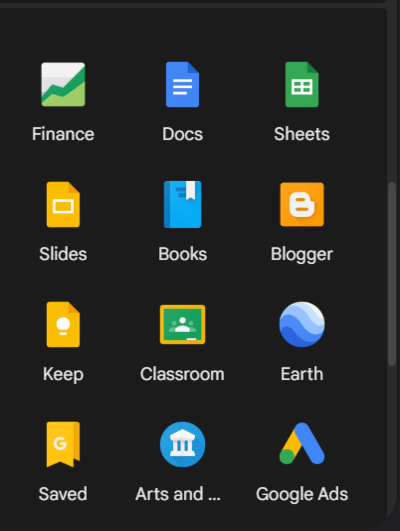
Opening a Google Document is simple. You click on the 9 dots right next to the Google Account icon and select “Docs”. Alternatively, you can open a Google Document directly from within your Google Drive. Right-click in the center of your Google Drive interface and select Google Docs -> Blank Document from the menu.
Of course, sign into your Google account to open a Google Doc.
#2) Navigate to “Page Setup”
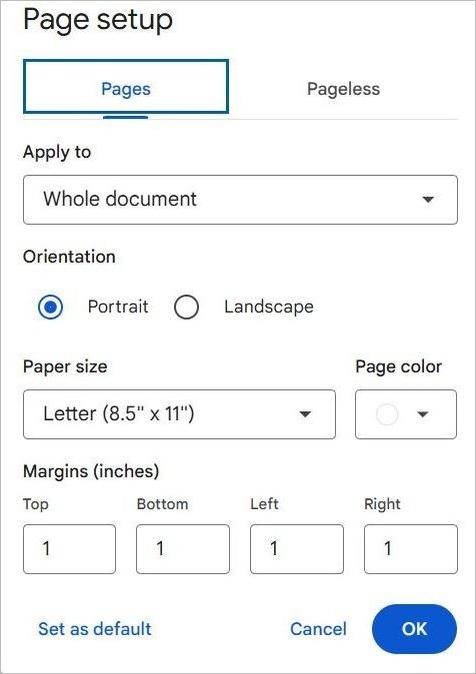
Once inside your Google Doc, you’ll need to find “Page Setup”. Click on the “File” option that’s in the top left corner of your page. You’ll find “Page Setup” at the bottom of the drop-down menu.
#3) Select “Page Color”

Clicking on Page Setup will open a menu. You will find the Page Color option right next to the Paper Size option here. You’ll be greeted with a ton of preset color options to change your paper’s color. Click on the one you like and hit the OK button.
If you want all of your documents to have the same color in the future, hit the “Set as Default” button once you’ve selected a color.
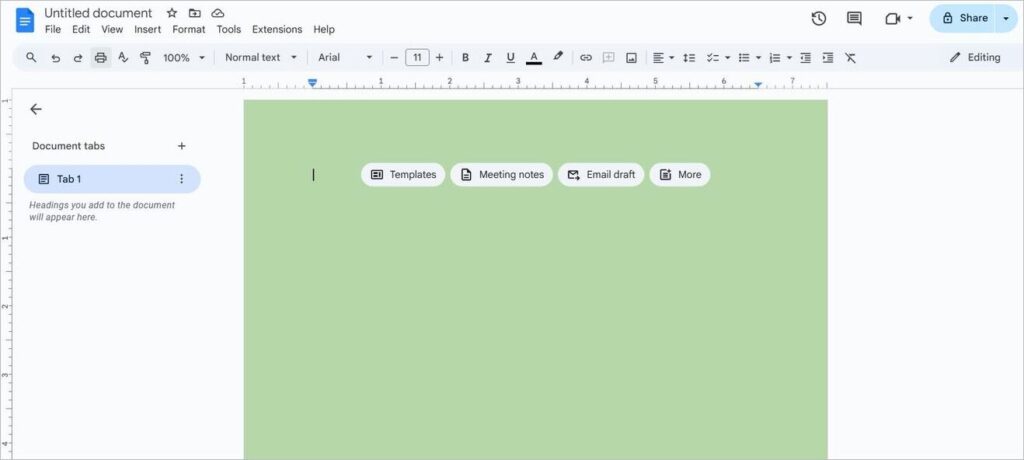
A Google Docs page that was modified to look green on the Web.
#4) Try to Custom-Create a Color
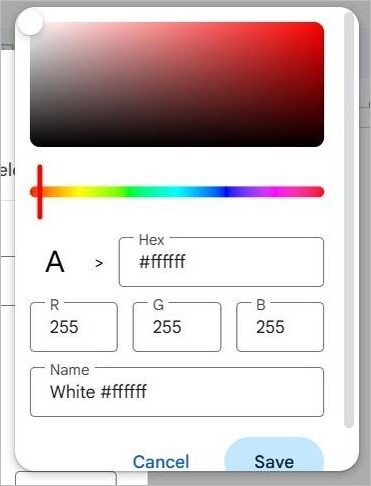
If you are in the mood to experiment, I’d suggest hitting the “Custom” option that’s available beneath all the available preset colors. A slider, which you can move across the bar to get a specific shade of color, will greet you. You can save this custom color by naming it. You’ll see this custom color every time you open the Page Color option.
Further Reading => How to Use Superscript in Google Docs
This is how simple it is to change your page’s color in Google Docs. You can preview the changed color instantly to see how your modified paper looks.
How to Modify Google Doc Background Color on Other Devices
Google Docs is the same software no matter what device you use it on whether it is a mobile or an iPad. Therefore, changing your paper’s color is also pretty much the same regardless of the device you are using Google Docs on.
Here is how to change the background color on Google Docs, iPad, or Mobile.
- Open the Google Doc.
- Hit the pencil icon at the bottom of your page to start editing.
- Select the Three Dots that you’ll see at the top right corner of your screen.
- Select Page Setup -> Page Color
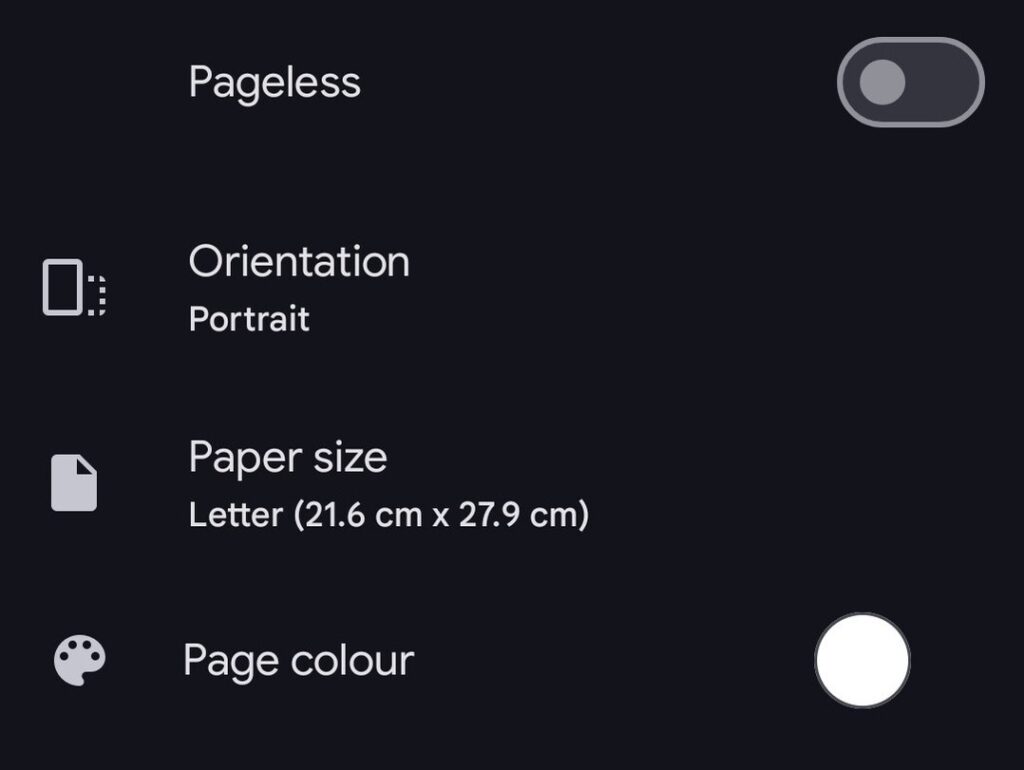
- Now select a color from the preset options.
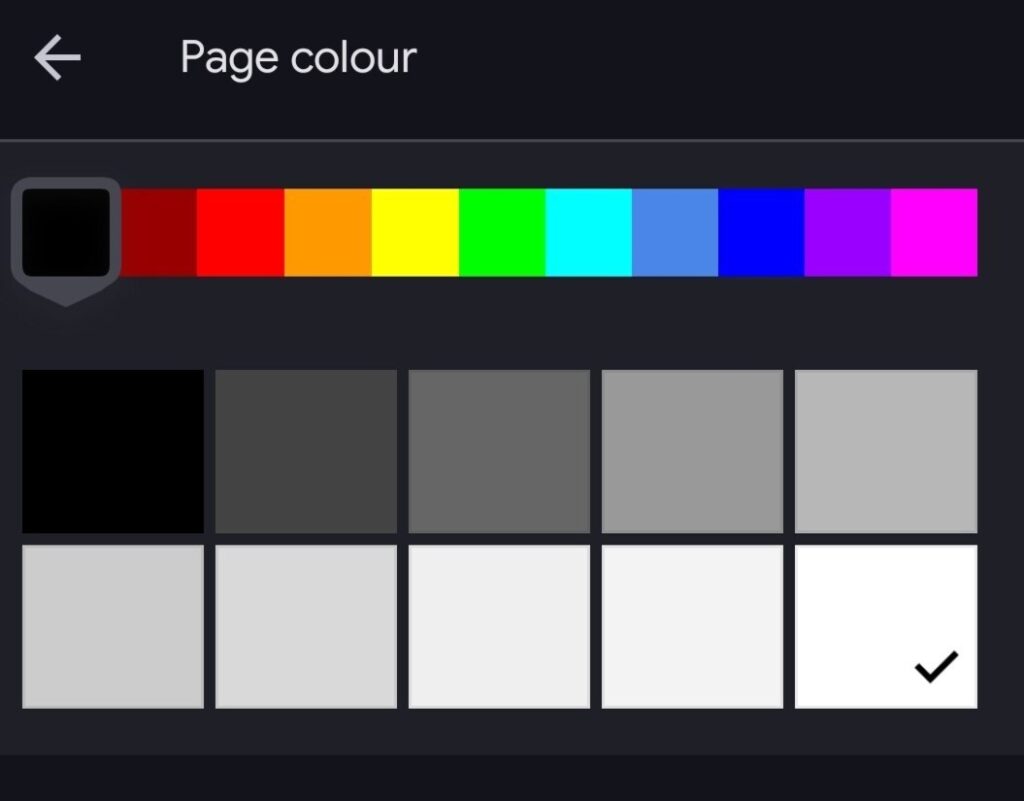
- Once selected, go back to check whether the new page color looks right.

A Google Docs page that was modified to look green on Mobile.
Further Reading => How to Edit PDF in Google Docs
Why Change Color Background on Google Docs
One can have many good reasons to change their paper’s color. This was what I did to set my assignments apart from other submissions back in my college days, and it worked wonderfully. If you are working on a Google Doc, you could try changing your paper’s color for several reasons, such as.
#1) Improve Your Paper’s Visual Style: Changing a paper’s color is a great way to lend it a distinct visual appeal. Let’s say you’ve been brought a giant stack of papers to grade. Among this stack that’s mostly filled with white papers, you find a paper that’s laced with a dull reddish color. Your eyes will be drawn towards this paper.
#2) To Make Your Texts Legible: Sometimes the text on a paper doesn’t compliment the white background it is written on. This makes reading it a challenge. You could improve the legibility of such papers by simply changing the background color of your Google Doc.
#3) To Keep Up With a Particular Theme: If you are working on legal papers that have historically had a pale yellowish appearance, you’d want to maintain this uniformity by working on a paper with the same color. Some firms or organizations require their staff to print out and maintain papers in a standard format.
Further Reading => How to Change Google Form Header Image Size
#4) For Easier Printing of Documents: Sometimes you might come across an issue where your printed papers do not appear right. You could try solving this issue by changing the paper’s color.
#5) Give Documents a Professional Appearance: It is just a commonly accepted practice to write on papers of a specific color. It is mostly considered professional to write on a white paper. That said, you’d find most legal papers to have a dull yellowish color. Many legal firms across the United States of America still use such papers and consider them to be the professional norm.
Depending on what you are working on and which field you are working in, you’ll be expected to follow a standard protocol concerning paper color. Regardless, you’ll have no issues changing the color of your paper, and thus give it a desired professional appearance in Google Docs.
Common Scenarios that Justify Changing A Google Docs’ Page Color
In most cases, a white paper will suffice and get the job done. However, you might come across certain situations that compel you to stray from this conventionally practiced standard.
Sometimes changing a page’s color just makes sense. Let’s say you’ve been tasked by your company to create promotional material like brochures or an event poster. You can experiment with the page’s color to make these brochures appear catchy. After all, such documents will only serve their purpose well once they manage to grab a prospect’s attention.
You might also come across a situation where the document you’ve received has pages that are not white. They could be green or red. Such pages are hard to read and even difficult to print. You could simply change their color to white to improve the paper’s legibility and make them easier to print.
You could have both aesthetic and practical reasons to change your Google Docs color. Whatever the reason, one should be prepared to change a Google Docs background color if the situation calls for it.
Troubleshooting Background Color Not Working in Docs
Don’t worry if you are having trouble changing the page color on Google Docs. Try any of the following troubleshooting methods instead:
- Check Page Setup to see if you’ve selected your desired color.
- Check for any active browser extensions that could interfere with your doc’s functions and disable them.
- Try to use Docs on another browser.
- Make sure your Google Docs and Browser are updated.
- Reset your Google Docs to its default setting.
- Reload or refresh the Google Docs page and try again.
Also Read => How to Merge PDF Files Into A Single Document
Frequently Asked Questions
1. How do I change Google Docs background color?
I’ve already mentioned how you can change a Google Docs background color in detail. To be more precise, all you need to do is the following:
1. Open Google Docs
2. Click on “Files” -> Page Setup -> Page Color.
3. Select an option from the preset color. Alternatively, you can create a custom color of your own. Hit the OK button once you’ve selected the color.
2. Where is “Page Setup” in Google Docs?
To change your page’s color, you must know how to navigate to the “Page Setup” option in Google Docs. On a web browser, you can find Google Docs by clicking on Files, which is on the top-left corner of your page. On mobile, Page Setup can be found after clicking on the “Three Dots” found at the top left corner of your screen.
3. What else can you do with the “Page Setup” option in Google Docs?
Besides changing a page’s color, you can use the Page Setup option to customize your Google Docs considerably. You can change the page’s orientation with the option to choose between Portrait and Landscape mode. You could also adjust the page’s size and customize its margins.
4. How do I color text in Google Docs?
Coloring text in Google Docs is as simple as coloring its pages. You simply highlight the text you wish to change the color of and navigate to the toolbar above. On the toolbar, click on “Text Color” and choose from the preset options. You can set one color as default to have your typed text appear in that color unless the settings are changed again.
5. How do I remove background color from Google Docs?
Removing background color in Google Docs is as simple as applying it. Simply open Page Setup > Page Color and find the color you want to replace the currently applied one with. Click on the color you like and hit OK.
Conclusion
There you go, a comprehensive guide on how to change the color of the background on Google Docs. You could have several good reasons to change the page color on your Google Doc. Perhaps you want the newly released promotional materials to match your brand’s image, or maybe you wish to improve a document’s legibility.
The important thing to note here is that you can change your Google Docs color in a heartbeat. You could opt for a color from the plethora of preset options at your disposal or create a shade yourself with Google Docs’ advanced customization capabilities.
The process itself is simple and quick. Just follow the guide as I’ve dictated above, step-by-step, and you’ll be able to modify and format your Google Doc like a pro in no time.
Was this helpful?
Recommended Reading
-

This tutorial explains How to Strikethrough on Google Docs. Also, learn various strikethrough shortcuts on Google Docs: In the initial days, Microsoft Office provided users with software that could ease creating and managing documents on the computer. Later on, the users looked for an online editor that can store all…
-
This tutorial explains how to do a Voiceover on Google Slides and why Google Slides is your best choice to create presentations: Presentation is considered an effective and efficient way to present data to the audience and make a complex topic easier. Earlier, it was a pretty cumbersome task to…
-
Here you will learn the easy steps about how to Drop a Pin in Google Maps for Android / iOS devices and desktops: Google Maps is no doubt a huge discovery. It is one of the most popular mobile applications in the world and is offered by Google, whose name…
-
This tutorial explains how to Open CSV Files to access your data. Learn multiple ways to open the CSV file format on various applications: Ever came across a CSV file on your system, and when asked what application you want it to open, you had no idea? Many of you…
-
Review this step-by-step guide to transfer files from Dropbox to Google drive. Also, explore the top tools to save and transfer data: The need for storage services has grown by leaps and bounds in the last few years. With the growing demand for storage services, services like Dropbox, Google Drive,…
-
Here we will explain how to use 5 easy-to-use tools to Convert PDF to Google Docs format with the help of screenshots: PDF documents are extremely hard to edit because it was developed as a document exchange format. Its main aim was to protect the layout and content of the…
-
Read this article to understand how to edit PDF in Google Docs. Follow the easy steps to format text, insert images, charts, tables, etc: Until recently, PDF wasn’t as important a document. It made us think about legal contracts, agreements, purchase orders, etc. It was a document you would print,…
-
Review and compare the list of the Best Chrome Extensions along with the features to select the must have Google Chrome Extensions: Google’s Chrome browser is one of the most popular web browsers around. Millions of users across the globe use this browser daily. This browser’s functionality can be enhanced…