Want to archive or hide your Amazon orders in 2026? Learn how to archive Amazon orders step by step, hide past purchases, and manage your order history.
Many people share their Amazon account with family members, employees, and work partners, and it may be imperative to hide Amazon orders for a variety of reasons.
If you want to keep certain purchases private or clean up your order history, Amazon allows you to archive orders instead of deleting them. While you cannot permanently delete orders from your account, you can hide them from your default order view.
In this updated 2026 guide, you’ll learn how to archive or hide your Amazon orders step by step and manage your order history easily on desktop and mobile.
Can You Hide Orders on Amazon: See How to Hide Purchases
Even when you are using an Amazon account alone, you may want to, for instance, hide orders you don’t intend to repeat purchasing. Amazon has made archiving orders on your account easier in just a few simple steps. Archived orders will not appear in your purchase history, but will appear in the archived order list. Unfortunately, there is a limit to the number of orders to archive, which is 500.
There are two options for hiding orders on Amazon: deleting or archiving them manually one by one or creating an Amazon Household account.

[image source]
Quick Fix: The household account keeps order history private and cannot be viewed by other adults sharing the same account, despite all adults sharing other Prime benefits.
Recommended Reading =>> AWS (Amazon Web Services) Interview Questions & Answers
What is an Amazon Household Account
Amazon Household is a type of account for sharing Amazon Prime among family members.
Through the arrangement, you get to share Prime benefits with one adult and teens and children in your household. With such an account, you can then keep your purchase history and other private data, such as purchase recommendations on your account, and lists, away from prying eyes, especially teens and kids.
Hiding Orders Using Amazon Household Account
Refer to this video:
How to Create an Amazon Household Account
- Step #1: Locate or navigate to the Amazon Household on the page
- Step #2: Create an account on the above page.
- Step #3: You can now add accounts. Either send an invitation to the person you want to add, via email or sign up together to verify your accounts.
Please Note: On this account, you can add a teen or a child by first sending an invitation via email. For this case, the teen will need to accept an invitation from the parent and they will then set up their logins.
The other step is to review the content-sharing settings of the account through the Family Library. Ensure to untick all the boxes there. This will stop the account from sharing all the content types.
However, the setting does not include recent purchases. This means that even if you tick to share all content with the entire family, orders remain private meaning they are only accessible through your account.
Please note: Amazon Household accounts do share payment options.
Household accounts can also be set up on Android and iOS.
Follow these steps to do so:
- Step #1: Download the Amazon Shopping app from the relevant stores for the respective devices.
- Step #2: Login or create an account. From your account, now navigate to Settings and choose Manage Your Household. Send invites to add others, as described in the above section.
How to Archive Amazon Orders (One by One)
Purchase orders can be archived using mobile phones and desktops, but with mobile, you must open the Desktop version of the website on your phone’s browser.
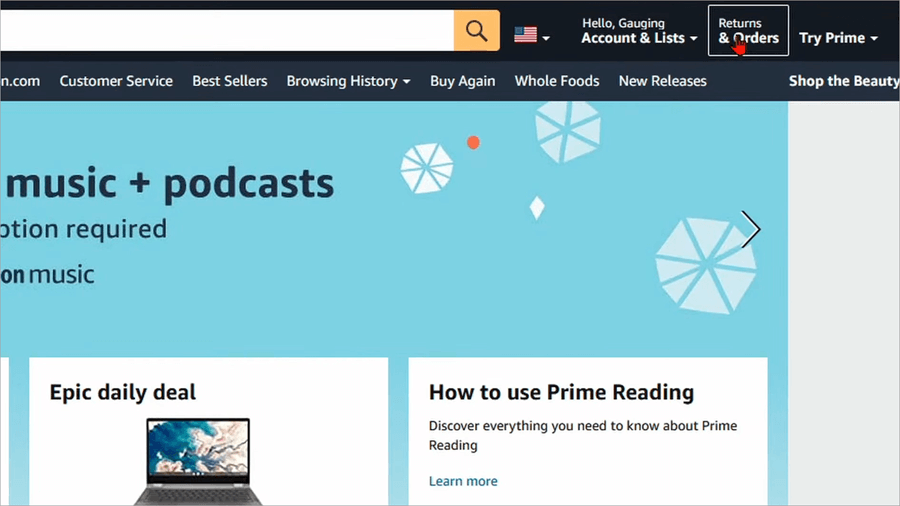
- Step #1: Open any browser on your phone. This can either be Firefox or the default mobile web browser. From your browser on the phone, type https://amazon.com to open the Amazon official website and log into your account.
- Step #2: If on mobile, tap the three dots at the top-right corner and select Desktop Site from the drop-down.
- Step #3: Tap the Returns & Orders and select Your Orders from the drop-down menu.
Further Reading => How to Buy Amazon Unclaimed Packages
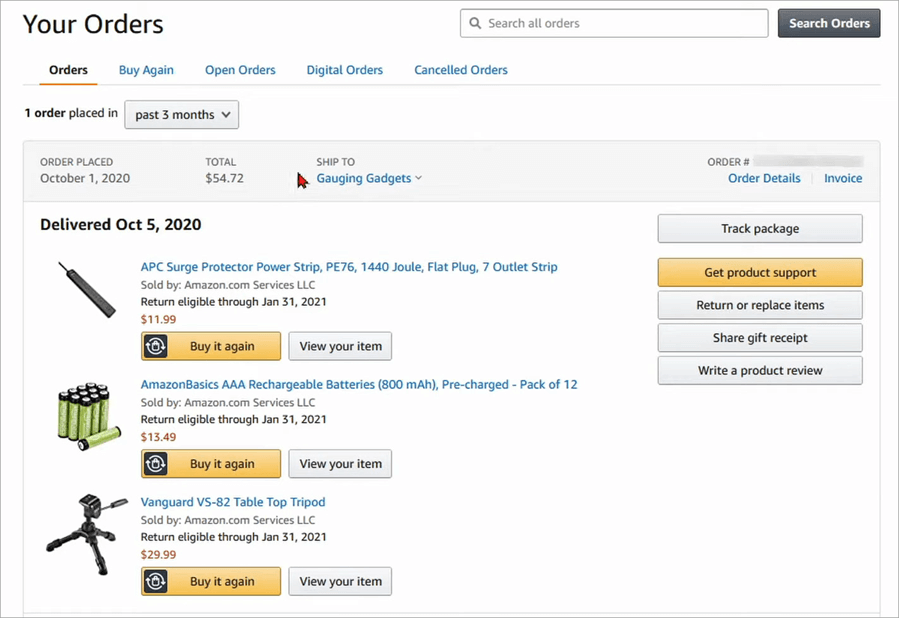
Step #4: Locate the order you want to archive and tap on Archive order.
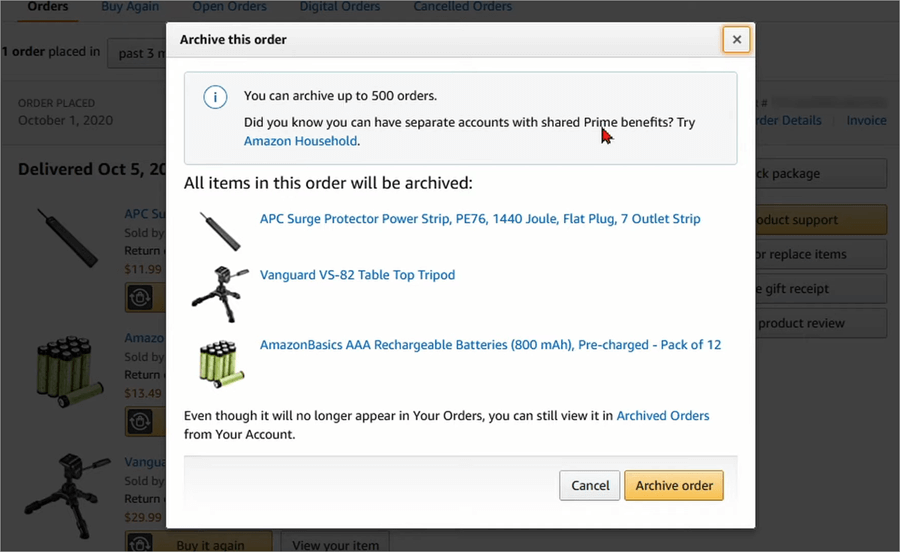
Step #5: Select Archive order in the Archive this order prompt. There will be a lot of information about the purchase. All you have to look for is the Archive Order button.
Confirm to hide the order in the pop-up window.
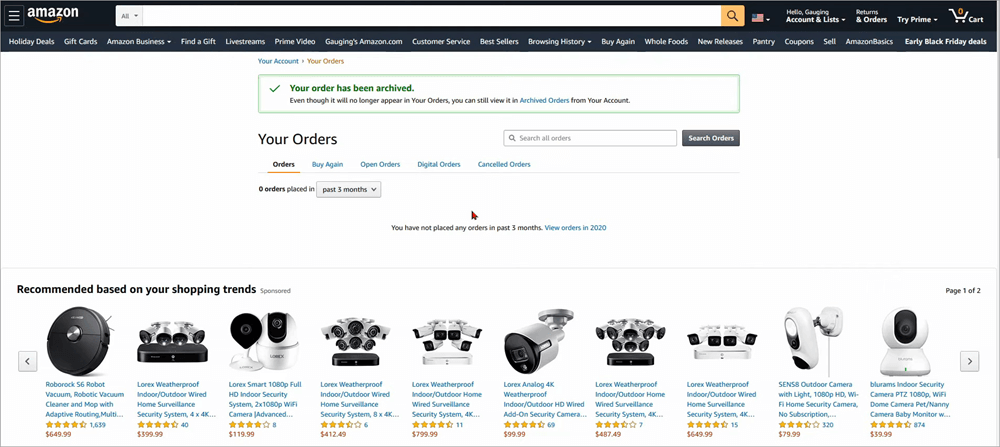
How to Hide Orders on Amazon Using Desktop
- Step #1: Visit Amazon’s official website and log in to your account.
- Step #2: Hover the mouse cursor over the Accounts & Lists at the top and select Your Orders from the menu.
- Step #3: Scroll down to find the Archive order and click/tap on it.
- Step #4: Click on Archive order.
How to Find Archived Orders on Amazon
Revisiting the order histories on Amazon may be needful if you want to check their details or want to re-order, or even check arrival dates. Here are the steps:
- Step #1: Go to Amazon.com and log into your account.
- Step #2: Click or tap Returns & Orders, located in the top right corner of the page.
- Step #3: From the Orders tab, find a drop-down button to filter the orders by time. Click on the order.
- Step #4: Click or tap the Archived Orders option. The orders will all show up.
There is another alternative to searching for the order to find archived orders. Go to your orders and use the search function to look for any orders in the archived category.
Follow the procedure below:
- Step #1: Go to Amazon.com and log into your account.
- Step #2: Click on Returns & Orders in the top right corner of the page.
- Step #3: Find the text box that reads Search all orders. Type in the product’s name you want to search and click Search Orders.
Please Note: The searched order should appear even if it is on the archived orders list.
You have an option of unarchiving the orders which brings it back to the normal orders history. Archived orders will not appear in the browsing history list at the bottom of the front page, which is one reason you may be interested in unarchiving them.
Tips to Hide Amazon Order
- Archiving is not permanent deletion: Archiving an order is not removing the order permanently or deleting it. It can still be found using the search feature or by visiting the archived order section, which can also be done by people with who you share the account.
- Archiving is not full privacy protection: Archiving the order, therefore, is not used in place of stringent account privacy. If you want to improve the privacy of the account, try changing the account password after hiding the orders.
- Hide related emails and notifications: Emails and notifications related to an order need to be hidden alongside the order.
- Archiving helps retain order history: Hiding orders can be much more helpful than deleting because you may want to later on generate Amazon History reports for other purposes.
- Delete or turn off browsing history: Search history can be deleted by visiting Amazon browsing history and selecting Remove from view below each item you want to remove. Alternatively, go to Manage history>Remove all items from view. To turn off search history, log in Amazon account go to browsing history>Manage history, and toggle the Browsing History option off.
- Disable browsing history on mobile: To turn off Amazon search history on mobile devices, you first need to log in to the shopping app. Tap the profile icon in the bottom menu and then select Your Account. Search for the Personalized Content on this menu, tap Browsing History, and select Manage. From here, you can then toggle the browsing History off.
How to Unarchive Orders on Amazon
- Step #1: Open the Amazon website if browsing from a computer.
- Step #2: Move the mouse over the Account & lists and click Your Orders.
- Step #3: Click the drop-down button next to X orders placed in. Select Archived Orders and the list of those archived orders will show up. There also will be an Unarchive order button against each option and clicking on it will move the specific order back to the normal history order list.
Hiding Amazon Browsing History
In this section, we will see the steps to delete Amazon search history on a computer.
Please take a look at this video for more information.
It may not be very helpful to hide your orders without hiding the browsing history although as said above, archived orders do not appear in the list of browsed orders. It is possible to delete all or part of the browsing history, or even block Amazon from continuously tracking your browsing history entirely.
- Step #1: Go to the Amazon homepage and hover the mouse over Browsing History.
- Step #2: From the pullout menu that pops, choose View and Edit.
- Step #3: For each of the items you want to hide from the history, choose ‘Remove from view’. Two more options are displayed when you click Manage History to access these options. One option allows you to ‘Remove all items from view’. The other option is to turn on or off the browsing history.
- Step #4: You can turn it off for Today, 3 days, 1 week, or 2 weeks by selecting the corresponding options.
- Step #5: To turn it off permanently, click or tap More Settings and toggle the Browsing History switch to off.
How to Clear Amazon Search History on Computer
- Step #1: Open the Amazon app.
- Step #2: Tap the short three parallel lines in the top left corner. If on a larger device like a tablet or PC, this should be the menu.
- Step #3: Tap Your Account. Tap Browsing history. Tap Manage and remove items you want to delete.
If using a P.C. then you are using a website.
Go to Accounts & Lists -> Browsing History. Select the item you want to delete and on each, click Remove from view.
How to Turn off Search History on Amazon
Follow the steps below to turn off your browsing history on Amazon:
Step #1: Navigate to the Browsing History page from your accounts page menu.
Step #2: Choose Settings at the right corner.
Step #3: Select More Settings.
Step #4: Toggle off or on the browsing history.
See the preceding section on how to clear Amazon Search history on your mobile device, iPhone, iPad, and Android.
Suggested Read => How to Turn Off Trending Searches on Google Apps
How to Clear Your Recently Viewed on Amazon
To clear this type of history on Amazon, log into your Amazon account, then navigate to Browsing History>Manage History and click the drop-down arrow next to this menu. It will open several buttons and on this click Remove all items if you want to clear all items from the list.
On the right side of this, there is a menu to turn off the browsing history if it is turned on. Disabling this toggle means Amazon will not track your browsing habits.
Changing the Delivery Location on Amazon
To do so, go to the Accounts & Lists section -> Your Account -> Ordering and shopping preferences, choose your addresses, then opt to Add Address.
Further Reading => Steps to Change Location in Amazon App or Website
Hiding Orders Without Amazon Prime
Without Amazon Prime subscriptions, you still can hide purchase orders, and browsing history, and use Amazon Locker in addition to changing the shipping address to improve account security.
Using Amazon Locker to Hide Orders on Amazon
Amazon Locker provides a free order delivery option and with it, a buyer picks the package where and when they choose. The lockers, which are self-service delivery kiosks, will keep or store the order in a secure locker until the buyer picks it up. Remember, your order is eligible for Locker if it is smaller than 10 lbs if the size is smaller than 16 by 12 by 14 inches, and if the value is less than $5,000.
- Step #1: Go to this Amazon page to access lockers on it you can choose a locker that secures packages near you.
- Step #2: You can search by address, zip code, landmark, or locker/store name to find an Amazon Locker.
- Step #3: The Locker appears as an address option when you place an order and on placing the order, Amazon will email you a unique six-digit code that you must use to open the locker when the package arrives. The company allows three days for you to pick up the item, otherwise, it will be returned and you get a refund.
In addition to using Amazon Locker, there are other Amazon Pickup services such as using UPS stores and Amazon counter in a Whole Foods store, which can hide Amazon deliveries. In this case, you will have to choose a pick-up location.
If the package is larger and up to 33 lbs and up to 36 by 24 by 24 inches, the best alternative would be using Amazon counters at Whole Foods. UPS Store can be an alternative when the value is less than $5,000 and smaller than 38 by 38 by 38 inches.
Using Alexa to Archive Orders on Amazon: By asking Alexa how to archive orders on Amazon, you will land on the exact page on which you must archive the order manually.
Suggested Reading =>> Fix Alexa not Connecting to Wi-Fi Issues
How to Hide Your Amazon Orders From Alexa
Any Echo or Alexa device can alert you when you receive an Amazon package, even if it is delivered to a different address or Amazon Locker. And if someone asks Alexa about your recent orders, it will tell them what was bought recently. That means you would have to block it from doing so.
- Step #1: Open the Alexa and tap More or the three squares and a plus sign.
- Step #2: Tap Settings (the gear icon).
- Step #3: Tap Notifications. Select Amazon Shopping.
- Step #4: Under Let Alexa say or show titles for items you have ordered, toggle off the items marked as gifts or any that might be gifts, for instance, holiday gifts in your shopping basket.
- Step #5: Toggle off for items in delivery updates.
Further Reading => Amazon Alexa vs. Google Home – Which is best
FAQs on Hide Amazon Order History
1. Does Amazon have a way to hide purchases?
Archiving an order on an Amazon account makes it no longer accessible on the default order history unless you visit the archived orders or use the search order feature. This option, however, does not delete the orders completely. To hide the order completely or permanently, you need to delete it manually.
2. Why can’t I archive Amazon orders?
To hide or archive orders on Amazon, log into your Amazon account using a desktop computer. If using a mobile device, you need to activate the desktop version of the Internet browser that you are using on the mobile device and then proceed. Go to Your Orders at https://amazon.com/yourorders and locate the applicable order. Select Archive order.
3. How do I remove an order from my order history on Amazon?
You may not delete your previous orders on Amazon, but it is still possible to hide them from your obvious order history. The latter is achieved using the order archive option.
To do this, visit Amazon on a mobile or desktop browser (if mobile, ensure to activate the desktop version of the browser from the browser settings), browser Returns & Orders and click Archive order under the orders you want to remove.
4. Is there a private mode for Amazon shopping?
With Amazon Household, everyone gets their sign on and adults cannot see another adult’s shopping history, although some content can still be shared within the family. Kids under 13 can not shop on their own. However, adults can shop privately from home.
5. Can the Amazon family see my orders?
If you share an account with someone, they may access your data and information, including orders you have recently purchased. The same case is if someone accidentally accesses your account.
There are strategies to enforce and improve privacy for your account, including changing your password and using 2FA if available.
For those planning to hide orders from teens and children on their Amazon account, consider opening an Amazon Household account which allows you to hide orders by archiving them.
To archive orders,
visit Accounts & Lists,
select Your Orders from the drop-down menu, then locate the order you want to archive and tap/click Archive order.
Tap/click Select Archive order in the Archive this order prompt.
Confirm the hiding of the order.
With an Amazon Prime account, through Amazon Household, each adult has a private order history and cannot see anyone else’s orders. This is despite them sharing Prime benefits.
Each Amazon Household can contain a maximum of 2 adults (18+), up to 4 teenagers (13-17), and up to 4 children.
6. What happens when you archive an order with Amazon?
The order, once unarchived, is saved in the list of archived orders and is not deleted permanently. You can still check the order details later. An archived order will not appear on the front page of your account as the most recently viewed item until you unarchive it.
Conclusion
Hiding Amazon orders is imperative for a variety of reasons among them privacy.
There are two major ways of achieving it: hiding or archiving orders individually or using an Amazon Household account which automatically hides order histories for adults sharing the account.
For those who were wondering if there is a way to hide orders on Amazon, this tutorial would have explained all about how to hide Amazon purchases. You would have also explored how to hide orders on the Amazon app in this step-by-step guide.
Time taken to Research and publish this article: 48 hours (Approx)
Was this helpful?
Recommended Reading
-

Get to know all about the several aspects of Amazon Alexa vs Google Home to identify the one which best suits your requirements: Recently, smart technology has become a hot topic for simplifying your home life. You may wish to add simple security features, such as weather updates and timers,…
-
Explore the top Online Product Management Courses with features and comparisons to decide on the best training course for your career: One of the most fascinating roles in an organization right now is the Product manager. They are close to the center of the action and have an excessive influence…
-
AWS is a world leader in the industry of cloud computing. But for new users, it's difficult to configure AWS servers. This is where Managed Cloud Hosting Services can be helpful. This is a detailed review of how you can use Cloudways Managed AWS Cloud Hosting Service and take advantage…
-
In this tutorial, we have provided the most frequently asked AWS (Amazon Web Services) interview questions & answers with explanations: In constantly uncertain economic situations prevailing globally, many organizations are considering moving to public cloud computing and storage services offered by Amazon. In startup software industries, the DevOps team needs…
-
Top AWS Managed Service Provider Companies and Vendors: AWS stands for Amazon Web Services. Amazon web services provide a cloud-based platform for many services like database storage etc. AWS is used by several business organizations as it helps the business to grow by giving flexible and cost-effective solutions. Let's explore…
-
Through this tutorial, you will identify and understand some effective ways to Fix Alexa not Connecting to Wi-Fi Issues: I have a third-generation Amazon Echo and I use it for various things, like a speaker for my TV, alarm, smart devices in my house, and so on. Sometimes it goes…
-
Do you want to join Product Tester Jobs and get paid to test products while sitting at home? Here is a list and comparison of the best Product Testing Sites in the USA and internationally that pay product testers for their feedback about software and consumer products: Product testing is…
-
Review and compare the list of best Product Management Software considering their discovery, planning, and development to select the right Product Management Tool of your choice: Product management software refers to the platform that helps in the development of a product from its inception to the phase-out period. From designing…