


Are Ads hindering your reading experience? Unveil all possible ways to know how to remove ads from Kindle. Expand your reading horizons to enjoy Kindle without ads and maximize your device’s capabilities:
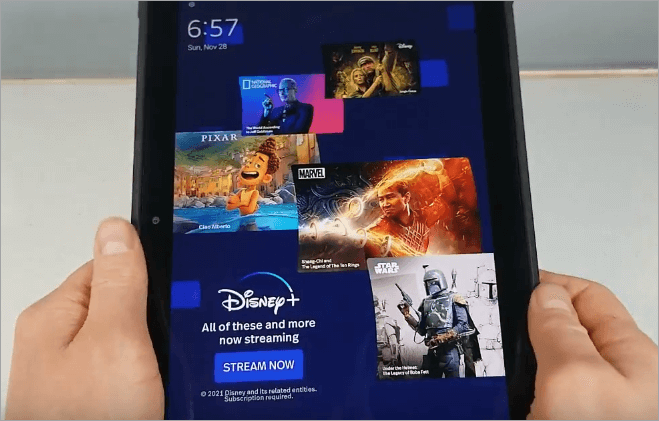
Amazon displays ads on the Kindle and tablet reader lock screens or home screens unless the user pays a $20 one-time fee to have them removed. The ads come under a program known as Kindle Special Offers. Amazon gives a special discount of $20 to every new Kindle user and will in return show them targeted ads for even the books they are reading.
With this type of offer, Amazon will not show ads when a user is browsing a book or book lists, instead, the ads are shown on the Kindle or Fire Tablet lock screens. The screen will refresh to show the ad once the user turns off the display after reading.
Remove Adverts From Kindle Fire: Know How
These ads, like any online on-screen ads, can be annoying and reduce the readability of the text, although they are not hugely intrusive. This tutorial shows how to remove adverts from Kindle Fire, Amazon readers, and other Amazon tablets.
Quick steps to remove ads from Kindle:
| Device | How to remove ads |
| Kindle Fire | Log into your Amazon account -> Go to Manage Your Devices -> Devices -> (select your device) Special Offers -> Remove Offers -> End Offers and Pay the Fee. |
| Kindle Reader and other tablets | Log into your Amazon account -> Go to Manage Your Devices -> Devices -> (select your device) Special Offers -> Remove Offers -> End Offers and Pay the Fee. |
| Kindle Fire HD | Log into your Amazon Account, Click or tap Your Account -> Manage Your Kindle -> Manage Your Devices -> (select the device if there is a list) Edit -> Unsubscribe now with one click> (pay fee to unsubscribe) -> Restart. |
How to Disable Ads on an Amazon Fire Tablet
The quickest way to remove ads from Kindle or Amazon Reader tablet:
If you don’t want to pay fees to Amazon, then there is one safe method that you can try, using Airplane Mode. The only con of this method is that you cannot use the Internet.
Here is a YouTube video on What is Ad support on Amazon Fire Tablets:
Unsubscribing from ads and sponsored screensavers is done by the user paying for the service. A one-time fee is paid to do this. Below are the Amazon-prescribed ways of ending ads and sponsored screensavers when using Kindle.
Here are the steps for Ad removal from the Desktop:
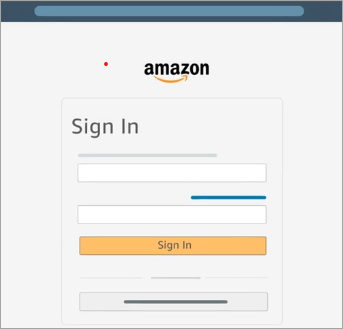
Step #1: Sign up for or log into your Amazon account on an Internet browser on a PC or mobile phone. Go to Your Account -> Content and Devices -> Devices. Alternatively, use the Amazon menu to navigate to Account & List -> Content & Devices, and then click/tap Devices. Select ‘Kindle’ and then click/tap your device. If there are more than one, choose the one on which you want to remove ads.
Also Read => Review of Free & Commercial Pop-Up Blockers
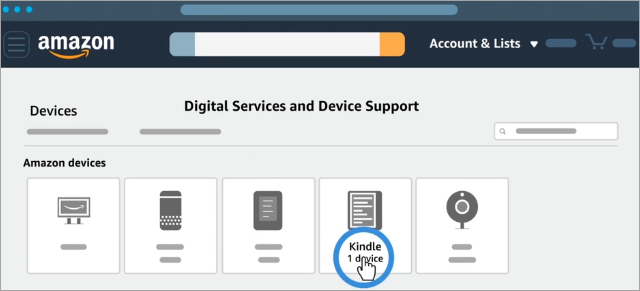
Step #2: Select Devices, and then select your Kindle e-reader or Fire tablet. The details about the device will appear below the device’s listing on-screen. Look for the line that says Special Offers. If you have Special Offers, it will say ‘Active’.
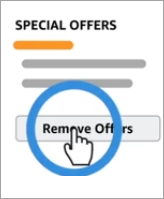
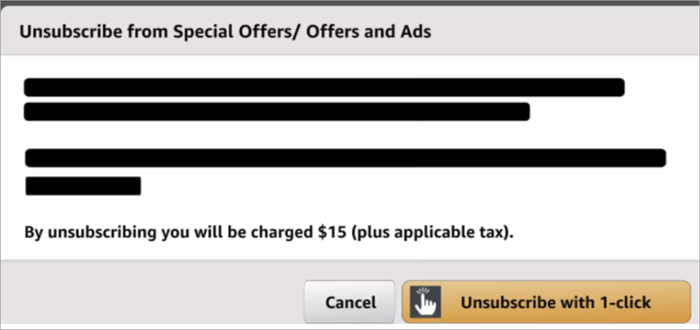
Step #3: Select Special Offers and under it, tap/click the Remove Offers button and follow the instructions to remove adverts from Kindle Fire and readers. The price that you need to pay to have the ads and screensavers removed will be displayed. Select the ‘End Offers and Pay the Fee’ option and proceed to pay.
You will be asked to confirm if you still want to remove the ads or keep them. If OK with removing, the account will be charged $20 and the ads and screensavers will not show up on your device.
Note: It takes about 24 hours for the ads to be removed. You might need to restart the Kindle.
The prescribed method is for those who have already purchased a Kindle reader and it is showing ads. The below methods advise on how to avoid the ads if you haven’t yet purchased the device.
Also Read => Easy ways to Convert PDF To Kindle
For Kindle Fire, go to your account menu and select ‘Manage Your Devices’ located under ‘Your Kindle Account’. On the ‘Registered Kindles’ window, there is an Edit section in the upper right section under the Special Offers.
Click or tap Edit to make changes. From here, you can subscribe to Special Offers. Tap or click the ‘Unsubscribe now with 1-Click’ button. Most of the ads that appear on the tablet are gone. It will remove even the textual advertisements that pop up on the home screen.
Swipe from the top of the screen to move into the Quick Settings menu of the device and there will be a notification informing you that Special Offers have been removed. If you’ve linked multiple Kindles, repeat the ad removal process for each one.
How to Remove Ads From Kindle Fire HD
Kindle Fire HD can be bought with or without a discount. If you opt to buy one with a discount, it will show ads on the screen. The process of removing ads from Kindle Fire HD is as described above. Visit Your Account>Manage Your Devices page and buy an unsubscription to remove the ads.
Step #1: Log in to your Amazon account.
Step #2: Click or tap Your Account menu and select Manage Your Kindle.
Step #3: Click or tap Manage Your Devices in the sidebar on the left of the page. You will see a list of devices registered with your Amazon account.
Step #4: Select the device from which you want to ban lock screen ads.
Step #5: Click or tap the Edit button next to Special Offers and it will show that you need to pay $15 (if in U.K.) or $20 one-time cost.
Step #6: Click Unsubscribe now with one click and proceed to pay the $15 or $20.
Step #7: Restart Kindle Fire HD and it will not show any ads on the lock screen.
Using ES File Explorer to Disable Ads on Kindle Tablets
ES File Explorer application is used to browse files, including hidden ones on rooted devices. To access the system files, including the specific file that manages ads and their display on the lock screen on Kindle, one would need to root their Kindle tablet/device.
Step #1: Rooting your Kindle Fire device. Rooting the device may come with some risks, including voiding any warrants that come with the device, and two may lead to installing malware on the device. Since it involves altering the root files, it may also damage the files previously installed or brick your device if improperly achieved.
Therefore, you need to understand what you are doing and ensure you can recover from any mess. For more details on how to root Kindle Fire and related devices
Step #2: Download and install ES File Explorer on the Amazon App Store.
Step #3: Open ES File Explorer on your device and tap the Homepage button located in the top menu bar. It will show a quick-access menu.
Step #4: Tap /Device, which is the first option in the quick access menu mentioned in the previous step. Tapping this will take you to your device folders. Open the System folder by tapping it.
Step #5: Open the App folder by tapping it. Step 6: Tap the dctp_apk to open it. This folder contains the .apk file that controls the ads on the Kindle Fire HD and other Amazon tablets.
Step #7: Select the dctp_apk.apk file by tapping and holding it. The button on the bottom menu changes.
Step #8: Tap Rename to assign a new name to this file. Fill in the text field that comes up when you tap this menu. Altering the name will change the file properties of the app that controls ads on the device and it will stop to launch, therefore, no ads will display.
Step #9: Tap OK to save the new name assigned to the file.
Step #10: Restart the device.
Buying a Kindle Without Ads
If you are interested in buying a new Kindle reader, you can opt to buy one that is not discounted, namely Kindle Without Ads, instead of a discounted one (With Special Offers or Ad-Supported discount) that will stream the ads on your screen. As aforementioned, the non-discounted one costs $20 more. This applies to all models of Kindle including the Kindle Paperwhite and Kindle Fire line.
Amazon clearly shows you which devices are ad-supported and which ones are not when purchasing on the company website. When browsing the Kindles, you can sort the offers by Ad-Supported or Without Ads categories. See the bottom of the Kindle listing pages.
Disable & Take Off Ads by Contacting Amazon
Contacting the Amazon help team is helpful if you are unable to delete/remove the said apps or in deed unsubscribe from the ads and screensavers under the Kindle’s Special Offers program.
One way is requesting a phone call from Amazon speaking with the representative about the issue and asking for them to help. On the Amazon website, visit Americas -> Help and Troubleshooting -> Select Hello at the top -> Your Account -> Customer Service -> Select the topic issue you’re experiencing -> I need more help -> Request a phone call.
Alternatively, visit Americas -> Help and Troubleshooting -> Select Hello at the top -> Your Account -> Customer Service -> Select the topic issue you’re experiencing Fire Tablet -> Appstore -> Problem installing/using an App -> Scroll down and choose I need more help.
Deactivate & Remove Ad Pop-ups From Amazon Apps
Some readers report frustrations with ad pop-ups even after having unsubscribed from Special Offers as described above. If you have de-activated or unsubscribed from the Special Offers ads and screensavers that show on Kindle and Fire Tablet, yet more ads keep showing, the problem is likely with your other apps on the device.
For instance, some wallpaper apps are designed to send ads and screen notifications endlessly on the screen once you download and install the wallpaper on your device. Most apps that promise free content will have these issues. The solution is to check the notification to see which app is sending the ads and to uninstall or deactivate the app.
Even so, some apps are downloaded from Amazon websites disguised as free games or others. In that case, you can deactivate and uninstall the apps from your Amazon account. Log into your Amazon account using the affected or another device, then go to My Account and select My Apps or use the link https://www.amazon.com/gp/mas/your-account/myapps/?sort=date. to navigate to the exact Amazon app feature.
Delete the suspected apps downloaded especially those that were downloaded on or after you noted the ad pop-ups in question. You can also sort apps by date and delete those latest downloaded until you remain with trusted apps.
Customizing E-book Cover Display After Removing Screen Lock Ads
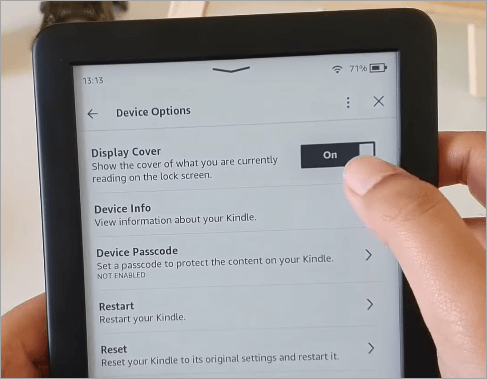
After deactivating the screen lock ads on Kindles, Amazon Kindles displays a generic Amazon Kindle wallpaper that changes every time the device is unlocked. Users can customize this setting to display the cover of the e-book they are currently reading as the lock screen wallpaper. Most e-books, magazines, comics, and Manga are supported.
To have the cover of the e-book you are reading displayed as the wallpaper on the lock screen, tap the three-dot menu button at the top right corner of the Kindle screen and select Settings. Go to Device Options and turn on the toggle next to Display Cover. This will display the e-book cover instantly on the lock screen.
Deactivate Ads & Pop-ups Using Your Device Settings
Step #1: Swipe down from the top of the screen to access Quick Settings and then tap Settings. Select Apps & Games and then Amazon Application Settings.
Step #2: Tap on each of the ad-enabled options. Some of the ad-enabled apps or sections include Home Screens, Amazon Video, and Insider. Toggle off the ads from the respective app window. For instance, turn off ads under Amazon Insider Settings by toggling off ‘Featured Content & Personalized Recommendations’, ‘Fire Tablet Features’, and ‘Amazon Promotions & Deals’ options.
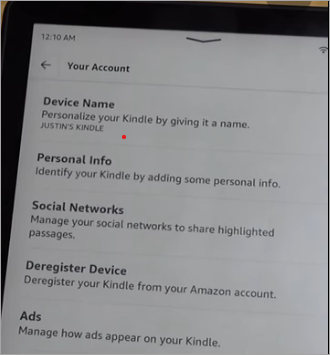
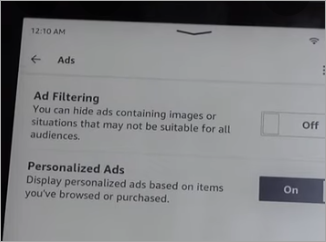
Also on Kindle, use the ad filtering feature to deactivate any ads. Visit Your Account -> Ads and toggle off the two options, namely Ad Filtering and Personal Ads.
Remove Ads & Pop-ups Coming From Third-party Apps
Third-party apps on Amazon Kindle can be blamed for ads and ad pop-ups if you have done all the above but are still getting ads and pop-ups on your Kindle devices. You, therefore, need to deactivate these ads per app.
Facebook: Launch the app, hit the hamburger icon (the three horizontal lines in the upper right corner), and select Account Settings. Scroll down to the following menu.
Tap Ads, then proceed to Ad Settings, and the next window will give you three options to choose from: The first is ‘Ads based on my use of websites and apps’, the second is ‘Ads on apps and websites off of the Facebook Companies’ and third, ‘Ads with my social actions’. Tap on each option and disable ads manually by ticking ‘off’, ‘yes’, or ‘no one’.
YouTube: To disable ads from YouTube, unsubscribe from YouTube Red which provides a premium ad-free viewing experience. The other option is using browser extensions but this may not work on Kindle Fire.
Also Read => Best advertising networks with CPM earnings
Third-party Apps & Computers to Remove Ads From Kindle Fire and Amazon Readers
An example of a third-party app that can help users remove ads from Amazon devices is Automate from Llama Labs used together with a computer and a few commands as described in the video below.
FAQ’s on Remove Kindle Ads
1. Why can’t I remove ads on my Kindle?
They can be removed. You have to follow the right process of removing Amazon Special Offers lock screen ads and screensavers.
Log into the Amazon account, go to Manage Your Content and Devices, choose the Devices category which is defaulted to Content, select the Kindle devices, and select the one on which you want to remove ads and screensavers. From and under Details you will see a box called Special offers.
Click or tap on the Remove Offers button and it will charge you $20.
2. How to get rid of ads on Kindle Paperwhite without paying?
Removing Special Offers ads on Amazon Kindles and Fire Tablet costs $20 and in some cases free paperwhite and Prime devices. Freeway is not easy because you have to contact the support and sometimes several times. Ensure to approach them politely.
3. Can you turn off the ads on a Kindle?
Removing Special Offers ads and screen savers on Fire Tablets and Kindles is optional for those who find the ads intrusive or annoying. It can be done by paying a one-time fee of $20, which is the discount given when purchasing the same device on the Amazon website.
To remove the ads, simply log into your Amazon account -> Account & Lists -> Content & Devices -> Devices -> Kindle, then select the Kindle device on which you want to remove the ads. Click or tap the Remove Offers button and proceed to pay and have it removed within 24 hours.
4. How much does it cost to remove ads on Kindle?
Amazon charges $20 to remove the Kindle Special Offers ads that show on the lock screen but some people report having it removed free of charge by support albeit on some devices e.g. paperwhite and Prime.
5. Can you get ad free Kindle after purchase?
The best way to not have Special Offers ads on your Kindle or Fire Tablet in case you have not purchased it yet, is to purchase one that does not have the special offer so that it will not show any ads on the lock screen.
Amazon gives buyers a discount of $20 in exchange for the right to show them ads on the lock screen so if you do not want it, please do not go for the device that has Special Offers. In case you purchase a device with special offers such that it shows ads, you can remove it from your Amazon Account after paying $20.
6. How much does it cost to remove ads from Kindle UK?
It costs £10.00 to remove Special Offers on Kindle and Fire Tablet in the U.K. while in the U.S. it is $20. You can either remove them yourself by following Amazon’s specified procedure or contact support to remove the ads for you.
7. Why am I getting ads on my Kindle?
Mostly, and if you have not downloaded a suspicious app that is streaming ads on the screen, it will be Amazon’s Special Offers program that covers Kindle devices of all types. The devices are shown to you on the lock screen if you have purchased a device that has a discount offer of $20 which allows Amazon to stream ads on your locked screen. This affects the devices sold under the With Special Offers or Ad-Supported discount as compared to those in the Without Ads category.
Conclusion
Ads on Fire Tablet and Kindle lock screen can be annoying if not intrusive but luckily, it is optional to continue receiving them on your device. It will cost you around $20 to officially remove them by unsubscribing to Kindle’s Special Offers, which is a program for these devices by Amazon.
You can either remove them on already bought devices using the prescribed channel from your account, by contacting customer support; or by buying a device without ads.
Time Taken to Review: 7 hours
Was this helpful?
Recommended Reading
-

Review and comparison of the Best Ad Blocker for Safari. Put an end to the content being blocked because of ad placement by websites on the landing page with these Safari Ad Blockers: Are constant ads getting on your nerves? Too many ads can frustrate and a simple solution is…
-

Worried about how to keep your kids entertained when you cannot attend them? Read this review to find the best Tablets for Kids used for various purposes: Thinking about getting a device that serves both fun and education? It's time to switch to a tablet for your kids to use.…
-

Are you thinking about how to use your tablet for classes and online documentation? Read this review to compare the top Tablets for Note Taking along with technical specifications: Having the best tablet for taking handwritten notes is the go-to option for you. It is important to have the right…
-
Here we are providing easy and simple steps to Convert Kindle to PDF: Kindle is one of the most popular ebook readers today and it uses MOBI and AZW file formats, but these formats are not compatible with most devices. So, if you want to open it on your smartphone…
-
Here we will explain the five easy ways to Convert PDF To Kindle. Learn how to upload and add PDF to Kindle: Kindle, or Kindle app, they both not only support ebooks but also PDFs. However, reading a PDF on Kindle or even your smartphone can strain your eyes because…
-
Read this review to compare and select the best YouTube Ad Blocker for Android, iOS, Windows, Mac, and various web browsers: YouTube is an amazing video streaming site where you will find endless good quality videos on almost any topic on earth. But Ads are its vice. You can take…
-
Review, compare and select among the best Android Tablets for watching videos, checking emails, browsing the web, playing games, etc: Is it getting difficult for you to carry your laptop everywhere? You may be on a journey and planning to watch a movie! Want to make your work portable? A…
-
Worried about completing your graphic drawings with the best possible output? Get to know the top Drawing Tablets along with their features, pros, cons, etc. You'll need a specific drawing tablet that helps you to get an impressive graphic output with the help of a stylus pen. Picking out the…


