Worried about why won’t your Firestick load? Try these simple ways to fix the Fire Stick won’t load home screen issue. Know the reasons for the fire stick not loading home page issue along with their possible solutions:
Firesticks are the modern way of watching movies, TV shows, sports, etc. You can also use them to listen to music and play games.
The popularity of Firesticks is due to the fact that they give users access to trending streaming platforms like Netflix, Amazon Prime, Hulu, etc., and thousands of other applications, all in one place.
Their newest models come with the latest technology. Their remotes can be operated through voice instructions. You can ask Alexa to tell you about the current weather or play your favorite movie.
Amazon Fire Stick Home Screen Not Loading: Expert Solutions
An issue often stated by Firestick users is that their Firestick is not loading the home screen. So in this article, we have stated the reasons and solutions for this issue.
This YouTube video will teach you about FireSticks and how to operate them.
Why Does My Firestick Have a Black Screen?
Firestick having a black screen can be because of various reasons like-
- The Firestick may have gotten unplugged from the HDMI port somehow.
- It may not be properly inserted into the HDMI port.
- The Firestick may need a software update.
- There can be some issues with the TV’s settings. Press the Home or Settings button on your Firestick remote for about 3-5 seconds to access settings.
Suggested Read => Best Firestick Apps with Comparisons
Solve Fire Stick Won’t Load Home Screen Issue
First, wait for some minutes before you do anything. Sometimes it takes a while for the Firestick to load. If it doesn’t load within 10 minutes, then you will need to take some measures. And you will most probably be able to solve this issue by yourself, by following these steps:
#1) Check whether your TV is switched on or not: First, the TV must be switched on, from the socket and the TV and Firestick remotes.
#2) Check the remote batteries: Check whether your Firestick’s remote batteries are ok or not. Try changing the batteries to check if they are causing the problem.
#3) Check for system updates: Many times, systems do not work properly when there is a pending software update, or when an update is going on. So, you must check for updates and install them, and then use the Firestick once the update process is fully completed, to avoid issues.
To check for updates, follow these steps:
- Go to Settings
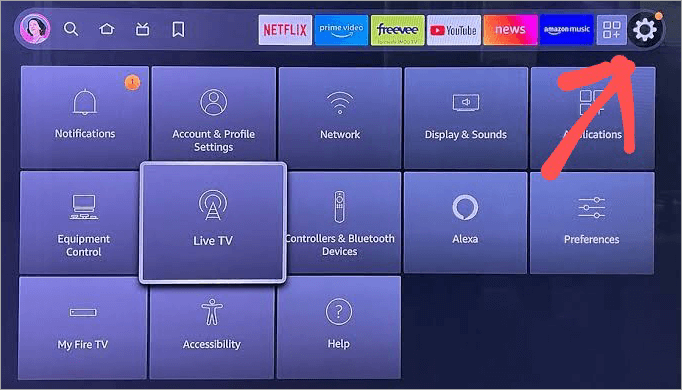
[image source]
- Select My Fire TV or Device & Software
- Click on About
- Select Check for Updates.
#4) Remove cache: If your FireStick is not running smoothly, try clearing the cache. This will free up some space and make the whole process smoother. To clear the cache, follow these steps:
- Go to Settings
- Click on Applications
- Now Select Manage Installed Applications
- Select the app that you want to clear the cache for
- Now click on Clear cache.
You can clear the cache of any app through this process when an app in your Firestick does not work properly.
#5) Check your internet connection: A Firestick requires a strong internet connection to work. Check whether or not you are connected to the internet. A weak internet can also be the reason for Fire Stick not loading the home screen.
#6) Restart the Firestick and Router: You can try restarting the Firestick and Router. This fixes the problems most of the time. For restarting the Firestick, follow these steps:
- Press the Select and Play buttons on your remote simultaneously for some seconds.

[image source]
- Now follow the instructions to Restart.
#7) Check your HDMI port: Check whether or not the HDMI cable is inserted properly. Plus, try inserting the cable in another port to check whether the previous port has got corrupt.
#8) Check whether your Firestick is getting enough power supply or not: Users are often recommended to connect the Firestick to a wall socket for power supply, instead of plugging it into the TV’s USB port, to give enough power supply to the Firestick.
#9) Factory Reset: If all the above-stated measures do not solve the issue of Amazon Fire Stick home screen not loading, you can try factory resetting your Firestick.
This can be done by following these simple steps:
- Press the Back button and the Right Navigation button simultaneously for some seconds,

- Now select the Reset option and confirm.
10. If you are facing an issue with a specific app, try uninstalling the app, then restart Firestick, then reinstall that app.
Further Reading => Amazon Fire TV Stick Explained: In-Depth Guide
Causes for Firestick Won’t Load Problem
Here we will see the reasons for ‘why won’t my firestick load?’
1. Unstable Internet connection: Your internet connection may be slow or lost. A Firestick needs a strong internet connection to work.
2. A corrupt HDMI port: There is a possibility that the cable is not inserted in the HDMI port properly. Plus, the HDMI port may have gotten corrupted.

[image source]
3. Insufficient power supply: Users have faced issues with their Firestick when the Firestick does not get enough power supply.
4. Check if you have switched on your TV: Sometimes users switch on the TV from the socket but forget to start it with the remote. Most of the recent TV models need to be switched on from the remote also, each time they are switched on from the socket.
5. The Firestick remote batteries may have got weak.
6. The device may be too much loaded: Try deleting the cache and rarely used apps. A Firestick usually comes with only 8 GB of internal storage, which gets consumed easily when you download large apps and files.
7. Your software may need an update. If you are facing an issue of Fire Stick not loading, there are chances that your software is not up to date. An ongoing software update can also cause this issue.
Also Read =>> Troubleshoot with reasons for Why is My FireStick So Slow
FAQs on Firestick Not Loading
1. Why is my Firestick not loading anything?
There can be several reasons why a Firestick won’t load anything, for example-
• There can be a problem with your internet connection
• The Firestick may not be getting enough power supply
• Your remote’s batteries may have gone weak, due to which your TV would not be getting any commands.
• The HDMI cable may not be inserted properly
• The HDMI port may have got corrupt
• Your Firestick can be too loaded with downloaded apps, cache, and other files.
2. How do you reset an unresponsive firestick?
When your Firestick does not respond, you can try doing a factory reset. This will solve your problem. For resetting an unresponsive Firestick, follow these steps:
• Press the Select and Play buttons on your remote simultaneously, for about 5 seconds.
• The screen will then show you an option to Reset. Select it and confirm.
• Your Firestick will then restart and reset.
3. Why is my Firestick not responding to the remote?
If your Firestick is not responding to the remote, there can be one of the following reasons-
• Your remote’s batteries may have got weak, or they may have not been inserted properly. So check the batteries.
• The remote may have been unpaired with the Firestick somehow. To pair them again, follow these steps:
1. There will be a Home button on your remote. Press and hold it for some time.
2. Now follow the instructions on the screen for pairing the remote with the Firestick.
4. How do I update my Firestick?
To update a Firestick, follow these steps:
• Go to Settings
• Select My Fire TV
• Now select About
• Go to Check for System Update
• If an update is available, the system will guide you to download and install it. Follow the instructions shown on the screen.
5. How do you reset an unresponsive Fire Stick without a remote?
If you want to reset an unresponsive Firestick and you do not have the remote, then you can download the Firestick TV remote application on your mobile phone, which works as a remote for the Firestick TV. Then follow these steps (using the Firestick TV remote application) for resetting the Firestick-
• Press the Back and Right Navigation buttons for some seconds.
• Now choose the Reset option on the screen.
6. Should you unplug your Firestick when you’re not using it?
There is no need to unplug the Firestick when you have already switched off the TV. The Firestick turns off automatically within 20 minutes when it is not in use. Users have reported no issues faced after letting the Firestick stay plugged in.
7. Why is my Firestick so slow to load?
A Firestick can be slow to load when it is-
• Overloaded with apps, cache, and other files
• Not able to get enough power supply
• Not having a stable internet connection
• The remote’s batteries may have gotten weak.
8. How do I unfreeze my Amazon Fire Stick?
If your Amazon Fire Stick has freezed, then you can try fixing it with these measures-
• You can restart the TV and Firestick
• Try unplugging and then reinserting the HDMI cable
• If these measures don’t work, you can go for factory resetting your Amazon Firestick.
9. What exactly does the Fire Stick do?
A Firestick is used for streaming media, including videos and music. Firestick converts your TV into a smart TV and lets you get access to streaming applications like Netflix, Hulu, etc.
In addition to this, Firesticks are used for gaming also. You will just have to download the gaming or media streaming application on your device to start using it. But keep it in mind that the Firesticks come with limited storage. If you use the maximum storage, you can face issues like slow loading, screen freezing, etc.
10. Is Netflix free on a Firestick?
No, Netflix is not free on a Firestick. You’ll have to buy the subscription plan for each media streaming application that you download on a Firestick if it requires a subscription.
11. What is the point of a Fire Stick if you have a smart TV?
Smart TVs give you access to a limited number of apps and games. But a Firestick is like an Android device, which lets you download from over a million apps available on the Play Store.
But if you have a smart TV and you do not need more apps than already installed in your TV, then there is no point in buying a Firestick.
12. What is the monthly fee for a Fire Stick?
A Firestick is a device that can be bought with a one-time fee. You do not need to pay any monthly fee for it.
But if you download an application using a Firestick, and it has a monthly subscription fee, then you’ll have to pay for it.
13. Do you still have to pay for streaming services with a Firestick Stick?
Many people get a misconception that they’ll not have to pay the subscription fee for apps like Amazon Prime or Netflix while using a Firestick; which is not true. If you use an app that requires you to pay, you’ll have to make the payment for using it.
14. Can I use Fire Stick without a subscription?
A Firestick does not require any subscription fee for its use. If you do not want to buy the subscription plan for the paid apps like Prime Video or Hulu, the Firestick will still be useful to you, as you can download and use the free apps.
15. Can a regular TV use a FireStick?
Yes. A FireStick can be used with a regular and a smart TV. The only condition for using a Firestick is that the TV must have an HDMI port to connect the cables to the Firestick.
Conclusion
Firesticks are user-friendly devices that can be used for getting access to a wide range of applications; which makes them quite popular. They can turn even a regular TV into a smart TV. A Firestick comes with a simple installation process. You can watch this YouTube video to learn how to set up an Amazon Fire Stick.
In this article, we discussed what to do when a Firestick does not load. And we can now conclude that Firestick not loading the home screen can be solved easily, with simple measures.
If your issue is not resolved even after following the above-stated measures, then it is certain that the Firestick the HDMI port, or the TV has got some issue and you will need to contact their customer support services for help.
Was this helpful?
Recommended Reading
-

Are you looking for solutions to why my Firestick so slow? Then this expert guide provides you with effective solutions that will help you to fix it easily and quickly. If your Amazon Firestick operates slowly or shows buffering or lag in your stream, this will surely cause frustration for…
-

If you are looking for the Best and legal IPTV in Canada, then this article will help you select an affordable IPTV subscription. Getting a subscription for a reliable IPTV service in Canada can be a bit of a daunting task as there are so many providers offering various pricing…
-
Discover the most popular IPTV Free Trial Services and dive into the world of premium channels of high-quality. Pick the best IPTV Services that offers free trial before you buy the services. Choosing the right IPTV service can be confusing, especially with so many providers claiming to offer high-quality streams…
-
Reviewed and Compared the top IPTV reseller services to help you pick the right IPTV reseller program to get a steady income with strong earning potential in the IPTV reselling program. Are you looking to Start an IPTV Reseller Business? Starting an IPTV business is lucrative, but choosing the wrong panel…
-
In this IPTV Tutorial, we will explore all about Internet Protocol Television including its Definition, Features, Architecture, Protocols, Advantages, etc.: The conventional television content distribution uses satellite, cable and terrestrial broadcast system formats. But the Internet Protocol TV or IPTV provisions the broadcast of the television series by using the…
-
To keep you entertained in your comfort, here we have listed the Best Firestick Apps with comparisons, features, installation steps, etc: Firestick has taken entertainment up by a few levels. All your favorite channels, movies, sports, series, everything at one place at your fingertips. It comes with a massive library…
-
Here we will review and compare the most popular and top IPTV for FireStick and guide you to select the best IPTV service for FireStick: Internet Protocol Television or IPTV is quickly taking the online content streaming domain by storm. This advanced technology allows you to stream your favorite TV…
-

Review of the best IPTV services available worldwide, compare the features and pricing of the top-rated IPTV providers, and select the best IPTV subscription. Picking an IPTV service in 2026 gives you choices from all kinds of live sports to big on-demand libraries. But it's not easy to find a…