


This tutorial explains what a JNLP file is and how to open it on MacOS, Windows 10, and other Windows versions, and also open it using Chrome and Firefox.
Can’t open JNLP file? The JNLP file won’t open as you would a regular file; instead, it is used for launching Java programs with Java Network Launch Protocol.
If the JNLP file opens up as XML, does not launch at all, or generates Java error messages, it is likely because of Java Web Start or OpenWebStart settings. This article discusses the definition of a JNLP file, as well as how you can open JNLP files on Windows or Mac OS. It further explores ways to resolve the most common issues when launching JNLP.
How to Open and Launch JNLP Files on Windows and Mac?
To open a JNLP file, it is required to have the JRE (Java Runtime Environment) installed on the system. Right-click the file, select “Open With,” and choose “Java(TM) Web Start Launcher. In case you use Java 11 or above versions, you should use open-source solutions like OpenWebStart.
What Is a JNLP File?
The JNLP file, which stands for Java Network Launch Protocol, is a particular kind of file that is used to execute a Java application through a network connection instead of the conventional installation process on your computer.
A file with the .jnlp extension has information about how to launch a particular Java application, including downloading it from a specific location, required resources, and execution mode. These files are commonly used for enterprise tools, remote applications, and web-based Java programs.
Java Network Launch Protocol (JNLP file) is an XML-based program descriptor file that contains launching details such as the URL of the application, the version of Java needed, security features, and other details on JARs needed. Unlike other executable programs, a JNLP file does not have the Java program inside; instead, it is used as a launcher for the application.
How Java Network Launch Protocol Works
When a JNLP file is opened, Java Web Start/OpenWebStart follows the commands written within the file, retrieves the necessary Java components from the designated server, confirms the security conditions, and then runs the Java program.
This allows developers to deploy and update applications centrally without requiring users to manually install software each time.
Recommended OS Repair Tool – Outbyte PC Repair
There might arise a situation where you find yourself unable to open the JNLP files. To overcome this problem, we suggest you keep Outbyte PC Repair Tool by your side. This software will scan your entire PC and ferret out the vulnerability that is causing the problem.
From performing system updates and performing security optimizing tweaks to removing unwanted programs and detecting malware, Outbyte can help you troubleshoot this issue without a hassle.
Features:
- Full System Vulnerability Scanning
- PC Performance Optimization
- Privacy protection
- Smart File Removal
How to Open JNLP File
To open a JNLP file, you need Java (TM) Web Start Launcher installed, so first, let’s install Java.
As Oracle has deprecated traditional Java Web Start after Java 9, users can use solutions like OpenWebStart for newer systems.
Install Java’s Latest Version

Search for a Java program on your system. If you don’t find it, then it means that it is not yet installed. In that case, download the latest version of Java on your system.
To do that: Visit the Java website and hit the Java Download Button.
You will be taken to the appropriate download page. Click on Agree and start the free download. This will start the download. After the download is complete, click the install launcher to complete the installation.
Learn How to download and install Java
Editing File Association
Now that you have Java or OpenWebstart got installed, we will see how to open a JNLP file.
As mentioned above, every file type is associated with an application it runs on. JNLP files are run by Java Web Start, and sometimes, it is possible that the JNLP files can become associated with other applications, thereby making them open incorrectly.
In such cases, you will need to modify the file association on your computer so that the JNLP files open with Java Web Start.
How to Open a JNLP file in Windows 11
Opening JNLP files on Windows 11 is a bit tricky, as modern browsers and Java installations no longer support JNLP files. Since Java Web Start is no longer available, you need to rely on a special runtime to open these files.
This is how you can open JNLP files with OpenWebStart, which is the modern open-source replacement for the old Java Web Start.
Below is a step-by-step guide to open a JNLP file in Windows 11.
Step 1:
- Install Java on Your Computer
- Go to the official Java website.
- Download the Windows installer for Java.
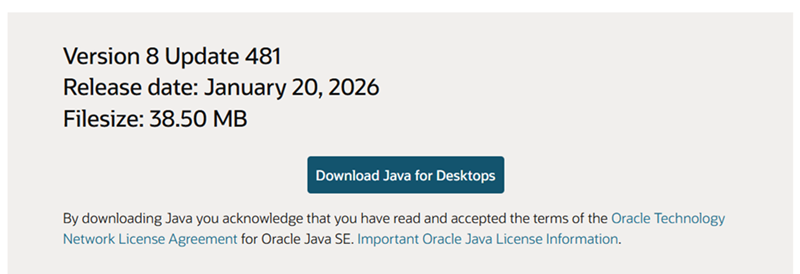
- Open the downloaded .exe file.
- Follow the setup wizard and click Install.
- Once finished, click Close.
Step 2: Install a JNLP Handler
Windows 11 does not come with a built-in program to run JNLP files. You’ll need to download JNLP Handler like OpenWebStart or ensure you have an older version of Java Runtime Environment (JRE) with Web Start included.
- Go to the OpenWebStart website.
- Download the Windows 64-bit installer as shown in the image below
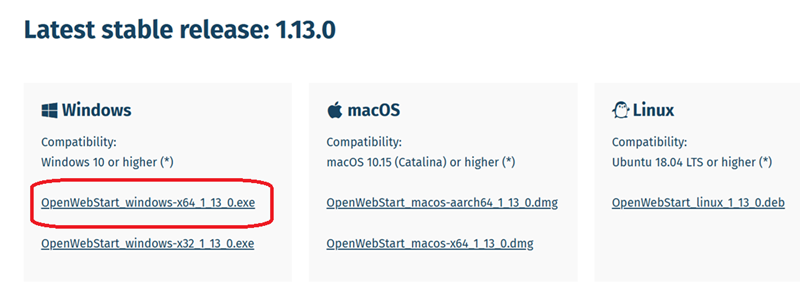
- Run the .exe and follow the setup wizard. It’s simple to install
- Accept the license agreement and click Install.
- Finish the installation.
Step 3: Open the JNLP File
- Locate the .jnlp file from your computer
- Right-click the file and select Open With.
- Choose OpenWebStart from the list.
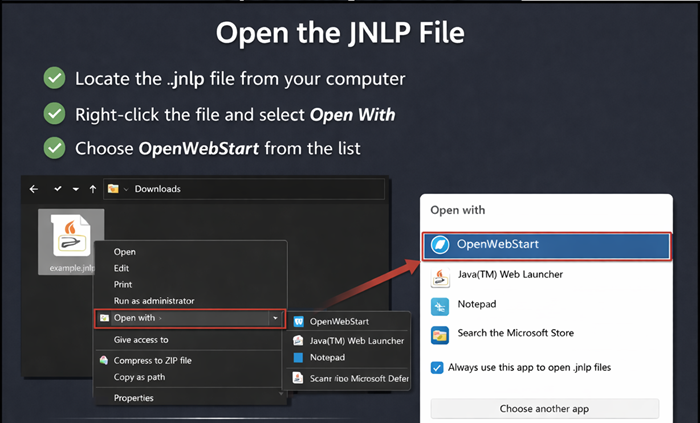
- If prompted, check Always use this app to open .jnlp files.
- The application will now launch automatically.
#1) Open JNLP file in Windows 10
- Open the Control Panel from the Start menu.

- Go to Programs and select Default Programs.
- Click on ‘Associate a file type or protocol with a program’.

- From the list of extensions, select JNLP.
- Select Change Program.
- If the proper Java application doesn’t show automatically, then choose the More Apps option.
- Now look for another app on this PC.
- Go to the Program Files (x86) folder.
- Click on the Java folder.
- Open the latest version of JRE you have.
- Go to the bin folder.
- Double-click on the javaws.exe application.

[Via nVoq Support Center]
- Click OK and then Close.
This is the process to open the JNLP file in Windows 10.
#2) Open JNLP file in Mac
- Go to the Finder.
- Search for the JNLP file you want to open.

[Via quotemedia]
- Right-click on the file.
- Click on Get-Info.

- On the information screen, go to Open With and click on the arrow next to it.
- From the application list, select Java Web Start.

- If you don’t find it in the options, then select Others and find it in the complete application list.
- Select the right app and click on Change All to apply the change to all JNLP files.
- Click Continue.
The JNLP files will now open on Mac without any issue.
#3) Open JNLP file in Windows 8
- From the right edge of the screen, swipe in, go to Search.

- Enter Default Programs in the search bar.

- Now click on the option – ‘Associate a file type or protocol with a program’.

[Via Top Password]
- Under the registered file types list, find.JNLP.
- Click on it once to highlight the file under the Extensions column.
- Select Change Program.

- From the list of programs, select Java Web Start Launcher.

- If it is not in the options, click on More Options, and then select Look for another app on this PC.
- Double-click on Local Disk (C:).

- Double Click on Program Files (x86) or Program Files, whichever you see.

- Select the Java folder.
- Select the latest JRE folder.

- Select bin.
- Click on javaws.exe and hit Open.
You will not have any more issues in opening the JNLP files on Windows 8.
#4) Open JNLP file in Old Windows Versions
Windows 7 and Vista
- Select Control Panel from the Start menu.
- Select Category from the View By option on the top right corner of the control panel.

- Go to the default programs option.
- Click on the ‘Make a file type always open in a specific program’ option.

- Locate JNLP from the list of Extensions under the Name column and click on it to select it.

- Select the Change option.
- In the Open With window, select Browse.

- The Open With dialogue box will take you to the C:\Program Files directory.
- Now select the Java folder.

- Double-click on the latest JRE folder.

- Double-click the bin folder.

- Now, double-click the javaws application.

- Click OK and then Close.
You should be able to open the file now.
For Windows 2000/XP
- Go to the Start option.
- From Settings, select Control Panel.

- Go to Folder Options and click on it.

- In the window that opens, click on the File Types tab.

[Via equisys]
- Under the registered file types, locate JNLP and highlight the file by going to the Extensions column and clicking on the JNLP file once.
- Hit the Change button.

- In the Open With window, click on Browse.
- Locate the file javaws.exe from the Open With dialogue window.

- Double-click the Java folder in the C:\Program Files folder.
- Now double-click on the JRE folder.

- Find the bin folder in it and double-click on it.

- Now select javaws.exe and click Open.

- Click Ok to close the window.
- Click Apply and click OK.
You will be able to open the JNLP files now.
Best JNLP File Opener Tools
Due to the fact that Oracle has discontinued the use of Java Web Start in Java 11 and newer, using JNLP files in 2026 requires certain software that will depend on your specific Java installation. Here’s a list of the best JNLP openers currently available.
1. Java Web Start (The Legacy Choice)
Best for: Individuals who still operate their computers on Java 8 (JRE 1.8).
Java Web Start is the initial and default opener of JNLP files. If you own Java 8, you already have this opener installed.
- How to use it: Right click on your .jnlp file > Open With > Java(TM) Web Start Launcher.
- The Catch: It has become officially deprecated. You won’t be able to use this method after updating to more advanced Java versions such as Java 11, 17, or 21.
2. OpenWebStart (The Modern Standard)
Best for: Those who have Java 11+ installed or wish to use an open-source and up-to-date tool.
OpenWebStart is an excellent open-source alternative to Oracle’s Java Web Start and is based on IcedTea-Web. It was created with recent versions of Java in mind.
- Key Advantage: The JVM Manager ensures the download and proper management of the required version of Java for the application.
- Cross-Platform: Compatible with Windows, macOS, and Linux systems.
3. JNLP Viewer Alternatives
If you don’t want to install a full desktop launcher, the following are the modern web-based and lightweight alternatives:
- CheerpJ JNLP Runner (Browser Extension):
- It is a special kind of Chrome and Edge extension that lets you run the JNLP file in your browser by means of WebAssembly.
- Advantages: You won’t need to have a Java environment on your PC. The program will be launched inside a sandbox within your browser tab.
- IcedTea-Web (Direct):
- The engine behind OpenWebStart. It is a perfect lightweight solution for Linux users who love launching applications via the command line (javaws filename.jnlp).
- Notepad++ / VS Code (For Developers): If you just want to view what is inside the file without running anything, any text editor will work fine for this purpose. Due to the XML nature of JNLP, these editors can highlight your code for better readability.
JNLP File Not Opening? Fix These Errors
When your JNLP file fails to open, the problem generally lies in the link between your operating system and the Java Runtime.
Here are some solutions you can use to fix the issue.
1. Repair Broken File Association: The most frequent cause why a jnlp fails to open is that the operating system cannot determine what program to use.
- Right-click the JNLP file and then select Properties (for Windows) or Get Info (for Mac).
- Locate the “Open with” field, then click on Change.
- Navigate through your hard drive to find the javaws.exe program file (normally located in C:\Program Files (x86)\Java\jre1.8.x\bin).
- Tick the option “Always use the selected program to open.jnlp” files, then click OK.
2. Fix Missing javaws Command
In case you have upgraded to Java 11, 17, or 21, you may notice that you cannot run jnlp files, which is due to the fact that the command for launching them, javaws (Java Web Start), is no longer included in your Java installation.
- The Problem: When you look for javaws.exe on your computer, you cannot locate it.
- The Solution: It is imperative to install an independent Web Start environment. The preferred tool is OpenWebStart; upon its installation, it will essentially “replace” the missing javaws command.
3. Fix JNLP Opening as XML: If the file opens up in Notepad or a browser, viewing a bunch of lines of code, the computer sees the file as a text file instead of a script file.
- What Causes This?: The .jnlp extension is associated with the text editor.
- Fixing the Problem: Perform the File Association process again. If “Java Web Start” does not show up in the menu, then you should consider reinstalling the JRE/OpenWebStart.
4. Fix Java Security Block Errors: Java is famous for being very particular when it comes to security. One can get an error stating “Application Blocked by Java Security” since there is no certificate in place, or the application is considered to be downloaded from an “untrusted” server.
Steps to disable Java Security Block:
- Access the Windows Control Panel and type “Java”.
- Access Java Control Panel and go to the Security tab.
- Click on the “Edit Site List…” option.
- Type the link of the site where the JNLP file was hosted (e.g., [https://example.com](https://example.com)).
- Click “Add” and “OK.”
Configuring Chrome to Open JNLP Files
Here are the steps:
- Launch Chrome.
- Go to the website with a link to a JNLP file.
- Download the file. You will be able to see the file at the bottom window.
- Click on the arrow next to it and select ‘Always Open Files Of This Type’.
- When Chrome asks the program with which you want to open the file, select ‘Java Web Start Launcher’.
- If you don’t have Java Web Start Launcher, then download and install it.
Now you can open JNLP files on Chrome.
Firefox Displays JNLP Files as Text
Usually, as the browser or system is not properly set up to send JNLP files to Java Web Start, it will face certain issues while opening the file. These issues could be being unable to open the file at all, or your browser ending up displaying it as text. So, to open the JNLP file on Firefox, make the following adjustments.
#1) On Linux
- Launch Firefox and Press Alt.
- Go to Tools in Firefox.

- Click on Options.

- Scroll down the list and find the JNLP File.
- Select Use Java Webstart Launcher in action.
#2) OSX
- Download the JNLP file.
- Go to Finder and find the file.
- Right-click on it.
- Select Get Info.
- In the Open With, select Java Web start.

- If you can’t find it in the list, then navigate to System, go to Library and click on Core Services. Here, you will find Java Web start.
- If it’s not there as well, then go to Applications and click on Utilities. There you can find Java Web start.
Frequently Asked Questions
1. Why am I not able to launch JNLP?
Make sure you have the latest version of Java. Also, see that your browser isn’t blocking the file from an unidentified developer, as it might lead them to block the file RCSB-ProteinWorkshop. jnlp. Always select the ‘Open Anyway’ option in such cases.
2. How to start Java Web Start launcher?
Go to the control panel from the start and double-click on the icon of Java. It will launch the Java Control Panel. Go to the General Tab. From the Temporary Internet Files section, select View. Now, double-click on the application you want to launch.
3. I am getting a fatal initialization error while using the web start?
JNLP files need to be executed with javaws, and if another application is your default Java client, you will come across this error. To start the file, either change your default browser preferences so that the JNLP application opens with javaws, or go to the command line in javaws viewer to force the JNLP file to execute with Java.
4. How to open a JNLP file in Windows 11
To open a JNLP file in Windows 11, since Windows 11 cannot open these files natively, you must first install a handler.
• Download the Windows 64-bit installer from the OpenWebStart website.
• Run the .exe file and follow the installation wizard.
• Once installed, you need to tell Windows to use this program for your JNLP files.
• Locate your .jnlp file in File Explorer.
• Right-click the file and select Open with > Choose another app.
• Look for OpenWebStart Launcher in the list.
• Check the box: “Always use this app to open .jnlp files.”
• Click OK.
5. How to open JNLP file without Java
Opening the JNLP (Java Network Launch Protocol) file without the presence of the local Java installation (JRE) on the computer is possible by using alternatives that emulate the environment. CheerpJ JNLP Runner allows Java applications to be executed directly on modern browsers (Chrome and Edge) using WebAssembly.
6. How to open a JNLP file in macOS?
To open a JNLP file in macOS, download the macOS installer (usually a .pkg or .dmg file) from the OpenWebStart website.
• Locate your .jnlp file in Finder.
• Right-click (or Control-click) the file.
• Select Open With > Other.
• In the Applications folder, find and select OpenWebStart.
• Check the box for “Always Open With” at the bottom of the window to make this the default.
• Click Open.
7. What program opens a JNLP file?
In order to run the file, you need either Java Web Start or OpenWebStart (the latter is preferred). These applications will decipher the XML commands embedded within the file and download and start the corresponding program. However, if you just need to read the content of the file, you can use any text editor such as Notepad.
8. Why is my JNLP file opening as XML?
If the JNLP file appears as a long string of code in a text editor or web browser, then the association between the .jnlp file extension and your system is not set properly. In this case, your operating system perceives the file as an ordinary XML document. To change this setting, you should right-click the file and choose “Open With.”
9. Is Java Web Start discontinued?
Yes, Oracle Corporation officially phased out Java Web Start and stopped including Java Web Start in its Java Runtime Environment software package with the release of Java 11. Although it remains present in older version Java 8, modern users need to use OpenWebStart, a free and open-source replacement solution for running JNLP files in newer versions of Java (Java 17, 21, etc.)
10. Why is my JNLP file not launching?
There are four potential reasons for this problem if your JNLP file fails to launch:
• No Launcher Installed: Your Java runtime environment (11+) does not have a javaws command.
• Security Restrictions: Java Control Panel is not allowing the app due to its “untrusted” status.
• Broken Path: Incorrect association of the .jnlp file extension with the program to launch.
• Expired Certificate: The Java application itself has an old security certificate and cannot be launched.
Conclusion
JNLP files might cause problems if they are not updated or if the file associations are mixed up. So, it is easy to fix the issue when you are unable to open the JNLP file.
However, try not to meddle with them, as one wrong click or keystroke in your program could get messed up. So, unless necessary, let these files be.
For more File extension-related guides, you can explore our range of tutorials below:
- How To Open CAL File | .Cal File Viewer Tools
- What Is An AIR File Extension And How To Open .AIR File
- How to Open .KEY File on Windows and Online: 4 Easy Ways
- How to Open .Pages File: 5 Ways To Open .Pages Extension
- How to Open EPS File in Windows (EPS File Viewer)
- What is a PSD File and how to Open PSD File
Was this helpful?
Recommended Reading
-

Introduction to Java deployment: We learned more about Java Swing in our previous tutorial, in this tutorial, we will learn how to deploy a java project. Once coding has been completed, you have to wrap all the files as a JAR file and that jar file can be deployed in…
-

This tutorial explains what is .Key file and How to open .key file with 4 Easy ways on Windows and Online. Also see how to convert the KEY file to PPT, PDF, ZIP Opening a .KEY file is usually a problem for most people, especially on Windows, since it won't…
-
This tutorial explains what is a 7z file extension. Also learn how to create and open .7z file in Windows, Mac, and online: In this tutorial, we will provide you with an understanding of this file format in detail. We will also learn to create and open files in 7z…
-
This Hands-on Tutorial Explains What is a Zip File, How to Create and Open a Zip File on Windows, Mac, Android & iOS using ZIP File Opener Utilities: ZIP archive format is the most widely used archive file format. These formats are useful when we wish to transfer large files…


