


This guide is about Torrent File – Its meaning and how to open it on different devices. We have also looked at the best torrent file openers and some quick fixes for common torrent errors.
Opening a torrent file by double-clicking a file usually gives an “Open With” error or opens the wrong application. The explanation is straightforward since the torrent file is not the movie, software, or game itself; it just holds information about the file.
In this guide, you will learn how to open a torrent file on Windows, Android, and iPhone devices, fix common torrent errors, use magnets, and download safely without any malware.

How Do You Open a Torrent File?
To open a torrent file, you need a BitTorrent client (software) or a Cloud-based downloader.
- Download a client (e.g., qBittorrent or WebTorrent).
- Upload the .torrent file or click a Magnet link.
- Select the destination folder.
- Wait for the download to complete—the actual “content” (movie, software, etc.) will then appear in your folder.
What is a Torrent File
A torrent file can be described as a small file that functions as a virtual map containing information about the content to be shared over the internet. It does not contain the actual movie, software, game, or any other file, but it contains information on where the parts of the content can be found through peers in a peer-to-peer network.
The torrent file contains information such as the structure of the file, the source of the file, trackers, and verification information. The torrent client downloads all the parts of the file from multiple servers until the full file is acquired.

Peers and Seeds
When you download using a torrent, you’ll hear the terms “peers” and “seeds”. Seeds are people who already have the complete file and are sharing it, while peers are others who are still downloading and sharing parts of the file at the same time. The more seeds there are, the faster and smoother your download will usually be.
How Torrent Files Work
Imagine a torrent file as a scavenger hunt of sorts.
- Metadata: The torrent file will include information called “Hash,” which is basically the digital footprint of the data contained in it, and a URL to a tracker, which helps connect the user with other users.
- Handshake: Once the torrent file is downloaded and opened in the torrenting program, the program reaches out to the tracker.
- Link-Up: The tracker then tells the torrenting program all about the peers with portions of the file.
- Build: Then, the torrent program downloads parts of the file from numerous people simultaneously until the file is 100% complete.
What Is Peer-to-Peer (P2P) Sharing?
The conventional downloading system is referred to as “Client-Server” (as you download from Google Drive). The moment the server goes offline, you can no longer continue the download process.
The Peer-to-Peer network system (P2P) eliminates the server component used in torrenting systems.
- The Network: Everyone involved in downloading also uploads to other people.
- Seeders: People who have the full file and are currently distributing it.
- Leechers (peers): Individuals who are currently downloading the file.
- Advantage: Torrenting works very fast due to the huge amount of bandwidth shared amongst many peers.
What Do You Need to Open Torrent Files?
In order to open and extract the information from a .torrent file, ordinary software such as Windows Media Player or Microsoft Word will not work for you. It will require a torrent file opener, known as a client.
This software is supposed to open metadata information inside the file, connect you to a peer-to-peer network, and coordinate the downloading process of bits of information on your computer.
Let’s see some of the best torrent openers or torrent clients in the section below:
The Best Torrent Clients for Windows
As it was already mentioned, Windows is still the dominating OS for torrenting. When choosing a torrent file opener, remember about the “lightweight” feature (will not slow your PC) and “ad-free”.
#1) BitTorrent

BitTorrent is one of the most used torrent clients. It is easy to use and extremely reliable. With a little tweak in settings, you can save the network resources. You can also download torrents in bulk and assign priority to speed up the download. You can also manage torrents remotely.
Steps to open Torrent file with BitTorrent:
- Download and launch BitTorrent.
- Search and download the file, or if you already have a torrent file, right-click on it and open it with BitTorrent.
- Click on I Agree to the pop-up menu.
- Save the file at the selected location.
- View the file.
Price: You can buy the Pro version with a VPN for $69.95 yearly. It allows you to be anonymous. The Pro version is available at $19.95 yearly for secure torrenting. At $4.95 yearly, you get an ad-free, no-distraction version.
Website: https://www.bittorrent.com/
#2) uTorrent

Like BitTorrent, uTorrent is also a well-known torrent client that is used by many to download and open torrent files. The basic version is free to download.
Steps to open the file with uTorrent:
- Install uTorrent.
- Select the file with a right-click.
- Click File, move to Open With, and select uTorrent.
You will be able to open the file and see its content.
Price: For the ad-free version, you will have to pay $4.95 yearly. At $19.95 per year, you will get its Pro version for secure torrenting, and by paying $69.95 every year, you get its Pro version with VPN and the ability to be anonymous.
Website: https://www.utorrent.com/
#3) Vuze

Vuze is an end-to-end software application for your every torrent need. It keeps a lightweight footprint. Also, it downloads the torrents quickly while not compromising the speed of your computer.
Steps to Open a Torrent file with Vuze:
- Click on the Open Torrents option in the top left corner of Vuze.
- You will get several options on the menu for adding torrents.
- To open a file stored locally, click the Add Files button.
- Go to the stored file, select it, and open it.
- To open a torrent link from the web, download it, and click on it.
Price: You can either use the free version or pay $3.99 per month for Vuze Plus.
Website: http://www.vuze.com/
#4) BitComet

It is a free torrent client that is super-fast, easy-to-use, and powerful. It gives you long-term seeding so that your torrent doesn’t get stuck at 99% because the seeder left. Also, since it caches data in memory, it doesn’t always need to access the hard drive, thus not damaging it like old clients.
Opening a Torrent File with BitComet:
- Download and launch BitComet.
- Select File and click on Open Torrent.
- Open the .torrent file.
- You will see a pop-up menu.
- Browse and navigate to the file you want to open.
- Click open.
Price: It is available for Free.
Website: http://www.bitcomet.com/en
#5) Torch

Torch is one browser that comes with torrent capabilities. It comes with a fully functional interface for torrents, along with many other features. You can use Torch to open torrent files and organize them as well. The best part is, you don’t have to wait for the torrent to download. Click play, and the Torch Torrent will automatically open the link in the Torch Player.
Steps to open a Torrent File with Torch:
- Download and open Torch Browser.
- Search for the torrent you want to open.
- Click on the torrent.
- The torrent will start to play and will be downloaded in the background.
Or, if you have already downloaded the file, right-click on the file, select Open with and click on Torch. Your file will be opened in Torch Browser.
Price: It is available for Free.
Website: https://torchbrowser.com
All the above torrent clients support Windows 10 and Windows 11.
Best Torrent Apps for Android
Android is the only mobile platform that allows native torrenting (iOS requires cloud-based workarounds). If you are looking for a mobile torrent file opener, these are the top picks:
#1) Flud Torrent Downloader

[Via vpnpick]
Flud is one of the powerful torrent apps that has a clear and simple interface. And that is why you can easily manage large torrents with it. It also comes with many features and ads with its free version.
Steps to use FLUD to open Torrent File:
- Download Flud on your Android device.
- Find the file you want to download.
- Download the file.
- Open the Flud app.
- Go to the bottom right corner and tap on the Floating Action Button.
- Navigate to where you have downloaded the desired file.
- Tap on the file and add it to Flud to start the download.
- Once the file is downloaded, you can open it.
Price: At $1.49, you can go ad-free.
Website: https://play.google.com/store/apps/details?id=com.delphicoder.flud
#2) Tornado

Tornado is a different torrent downloader as it doesn’t download the torrents on its own. Instead, the app connects to your system, where you can see the torrent downloads. This way, your device is free of space and power, and your computer carries the load.
Steps to use Tornado to open a torrent file:
- Install Tornado as your Firefox extension or download the app.
- When you click on a magnet link or a torrent link in Firefox, you will see an add torrent dialogue box.
- If not on Firefox, download the file you want, go to add a torrent, and select the torrent.
- Once the torrent is downloaded, you can click on it to open it.
Price: You can use it for free during its trial version. For the full version, you will have to pay $2.90. You can also use the tornado as an extension to Firefox.
There are a few more to rent clients for Android that you can download from the Play Store, like tTorrent, zetaTorrent, Transdrome, TorrDroid, LibreTorrent, etc. All these apps will open torrent files on Android easily. You can use the same process for opening the files in each app.
Torrent Clients For Mac
How to open a torrent file on Mac? Your answer is uTorrent, Vuze, BitTorrent, and Torch. Apart from these, there are a few other torrent clients that you can use to open a .torrent file as well.
#1) XTorrent

XTorrent is a dedicated macOS torrent client. It is extremely popular because of its user-friendly interface. It allows fast and accurate torrent search along with detailed download information, accurate ratio, seeding control, and much more.
Using xTorrent to open a Torrent file:
- Download and launch xTorrent.
- Select the file you want to open
- Drag and drop it in the xTorrent Window, or
- Right-click on the file and select xTorrent in the Open With option.
Price: For $25, you can buy the xTorrent Pro single-user basic plan, and for $40, you can enjoy a single-user lifetime plan. For family lifetime xTorrent Pro plans, you will have to pay $55 using xTorrent to Open a Torrent File.
Website: https://apps.microsoft.com/detail/9nsr967qlhnb?hl=en-GB&gl=CA
#2) Folx

Folx is one of the powerful torrent clients for macOS that allows you to schedule downloads. It supports magnet links and features multi-threading that leads to faster downloads.
Using Folx to Open a Torrent file:
- Download and launch Folx.
- Search for the torrent file you want to open.
- Download the torrent and click on it to open.
- If you have already downloaded the files, right-click on it and open with Folx.
Price: You can get its Pro version for $19.95.
Website: https://www.mac-downloader.com/#compare
#3) Deluge BitTorrent

It is yet another free open-source torrent client for macOS. Although it doesn’t look attractive and might have a slightly outdated interface, there are no ads, and that’s a relief. It comes with a handful of plugins. However, it doesn’t have any support, and that makes it prone to malware and bugs.
Steps to use Deluge to open Torrent Files:
- Download and install Deluge.
- Right-click on the file you want to open.
- Click on Open With.
- Select Deluge.
- If you can’t see Deluge on the list, select Open with other applications.
- Then select Show Other Applications.
- Click on Deluge.
Price: It is available for Free.
Website: https://deluge-torrent.org/
#4) BitLord

BitLord is a popular and free torrent downloader. It has an easy-to-use interface, and it comes with an integrated media player. So, you can start viewing the torrent while it keeps downloading in the background.
Downloading and Opening Torrent File With BitLord:
- Download and open BitLord.
- In the search bar, search for the file you want to download.
- Hit enter.
- From the list, click the torrent you want to download.
- Double click on it.
- Select Download.
- Pick a place to save the torrent.
If you already have a downloaded torrent, right-click on it and open with BitLord.
Price: It is available for Free.
Website: https://www.bitlord.com/download/
Torrent Clients For Linux
You can use qBittorrent and Deluge for Linux as well. Apart from them, here are a few more clients to open torrent files in Linux.
#1) Transmission

Usually, Transmission comes pre-installed on Ubuntu, and so it is one of the most popular torrent clients for Linux. It has a simple user interface with most of the essential options like configuring upload and download speed, magnet link support, remote control, etc.
Opening Torrents with Transmission:
- Download and install Transmission.
- Search for the torrent you want to download and click it.
- It will prompt if you want it to open with Transmission.
- Check the box beside “Do this automatically for files from now on”.
- Select Ok.
- You will see the main window and the Torrent Options window of Transmission.
- With the Torrent Options window, you will be able to add the torrent to start the download.
Price: It is available for Free.
Website: https://transmissionbt.com/download/
#2) Tixati

Tixati is a peer-to-peer protocol of file sharing, and it uses the BitTorrent protocol, which is known worldwide. With Tixati, many peers can form a cooperative swarm, thus allowing them to download huge files with even more efficiency.
Steps to open a Torrent File with Tixati:
- Download and install Tixati.
- Find the torrent you want to download.
- Launch Tixati.
- Click on the Add button and add the torrent.
- It will open the file, and Tixati will connect to peers to start the download.
You will find the downloaded torrent in your downloads folder.
Price: It is available for Free.
Website: https://www.tixati.com/download/linux.html
#3) KTorrent

This is yet another application that uses the BitTorrent protocol. With KTorrent, you can run multiple torrents all at the same time. It also comes with many extended features that give it the status of a full-featured BitTorrent client.
Steps to open a Torrent File with KTorrent:
- Download and install KTorrent.
- Find the torrent you want to download and open.
- Double-click on it to open with KTorrent.
- Or select Add to for manually adding the torrent.
Price: It is available for Free.
Website: https://kde.org/applications/en/internet/org.kde.ktorrent
How to Download and Configure a Torrent Client
Once you download a .torrent file, the computer doesn’t recognize these files by default, whether it is a Windows computer or a Mac. So you need a torrent client, a special software, to open a .torrent file.
In this section, we will see how to download a torrent file and configure it.

[Via VPNRanks]
Download a Torrent client
There are many torrent clients available to download and use to open .torrent files. Torrent clients like uTorrent, BitTorrent, qBittorrent, Deluge, etc., are well-known and often used to open torrent files. uTorrent or BitTorrent is the most popular pick.
Configure a Torrent Client
After installing the client, you will need to configure it. Although most clients come with fine-tuning, a little tweak could make them better. This is an example of uTorrent on how to fine-tune the client.
- Go to options and select Preferences.
- Under the General tab, you can allow your torrent to start each time Windows starts or disable it.

- Go to the Directories tab and select the place to save your downloaded Torrents.

- Now select the Connection option from the sidebar to enable UPnP port mapping that allows you to download torrents as fast as your Internet connection is capable of.
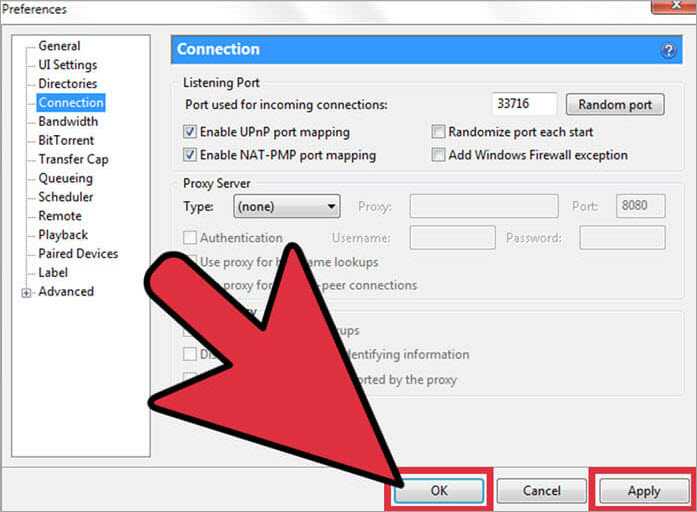
- To limit the maximum upload and download rate, slide down to Bandwidth. This is especially useful if you don’t have broadband. It helps you in continuing the use of the web.

[Via fossbytes]
However, with some clients like BitTorrent, you might also need to check and configure the firewall. Having an open pathway for file transfers will allow you to get faster download rates.

A firewall doesn’t allow unauthorized access to the ports of your computer to protect your system from intruders. And the port is through which an Internet connection travels in and out of the system.
All ports are numbered. Also, each type of communication is given a standard port number. BitTorrent and other clients also use specific port numbers that you can search for and find. Firewalls block these ports by default, and hence you will have to configure the firewall to allow incoming traffic for receiving .torrent files.
Download a Torrent FILE
In the above section, we have seen how to download a torrent client and configure it. Now you can look for the specific torrent file that you want for your purpose and download it from a trusted source.
Based on your configuration, a torrent file will be downloaded on your system. The download file will have various extensions, so you need to use a particular extension tool to open a torrent file, as explained below.
Note: Downloading a torrent file from untrusted and illegal sites may include a security risk.

[Via DVDVideoSoft]
How to Open Torrent Files on Windows
Opening torrent files in Windows 10 or 11 becomes an easy task once you install the correct software on your computer, since the operating system will treat these files as normal documents.
The following three simple steps will help you open torrent files on Windows easily and safely.
1. Install Torrent Software on Your Windows computer
- qBittorrent: We recommend you use this software in Windows, as it is free from ads. It also happens to be open source.
- uTorrent: Another widely used program that, however, includes ads in the free version.
- Installation: Click the .exe file to install this application and tick the box saying “Associate with .torrent files” while installing it.
2. Open a .torrent File
After installation of the client, there are three options for opening your files:
- The Double-Click Method: Just locate the .torrent file on your computer and double-click on it.
- The Drag-and-Drop Method: Launch your torrent client and then drag the .torrent file onto the screen of the client itself.
- The Magnet Link Method: This is the most common method used today, which uses the “Magnet Link” (signified by a tiny magnet icon).
3. Start the Download
Before initiating the download process, a pop-up window will show up on your client’s computer wherein your downloaded files will be saved. Just click OK/Start. Now, you will see the download process shown on the main dashboard screen.
- Status Monitoring: Note the “Seeds” and “Peers.” If there is a high number of seeds, it means the download speed will be faster.
- Completion: When the download process is done and when the progress bar is 100% completed, you will notice that the status will change to “Seeding/Finished.” Now, you can right-click the task and choose “Open Destination Folder.”
How to Open Torrent Files on Android
For mobile users, the process is slightly different but often faster than on a PC.
Use Flud or LibreTorrent: To begin, you need an application available in the Google Play Store. They serve as the main torrent file opener in Android, such as LibreTorrent, Flud, etc.
Opening Downloaded Torrent Files: After installing the app, opening it becomes easier as follows:
- Finding the File: Use the File Manager app to look for the .torrent file that you have downloaded using your browser.
- Launching the Opener: Tap on the file. Android will prompt you which application you wish to use to open it. Pick LibreTorrent or Flud.
- Configuring: The application opens up and shows you the files within the torrent. Choose your desired download folder, then tap “+” or Add.
Using Magnet Links on Android: In 2026, most users find magnet links more preferable than downloading files. This is how you should proceed to use the most effective option on Android:
- Go to your preferred torrent directory via Chrome or Samsung Internet.
- Touch the Magnet Icon (red horseshoe-shaped one).
- The link will be automatically identified, and your torrent application will start.
- After a brief “fetching” process, the download will start.
How to Open Torrent Files on Mac
There are two main methods of opening torrent files for macOS in 2026: using a lightweight native app or a web-based torrent client. The reason why both these options have been chosen is that macOS “Catalina” and above operating systems are no longer supported by the 32-bit format, making sure that you are opening your torrent file using a 64-bit opener.
Install a Mac Torrent Client: To open your torrent file natively on your MacBook or iMac, here are two recommended apps to use:
- Transmission (Recommended for Beginners)
- qBittorrent (Recommended for Advanced Users)
Opening Magnet Links on macOS: Torrenting using Magnet Links has now become the norm instead of .torrent files.
This is how it’s done on macOS:
- The Trigger: Just click the magnet link at your favorite website.
- Browser Notification: Either Safari or Chrome will show an alert box like the one shown below.
- The Connection: Just click Allow. Your torrent program will then automatically spring into action and start opening up a dialog box displaying the files you’ll be downloading.
- Fast Viewing: Quick Look can be activated by pressing Spacebar on any torrent program file listing.
How to Open Torrent Files on iPhone & iPad
Both Apple’s iOS and iPadOS utilize sandboxed environments, meaning that torrent applications do not appear on the App Store. Nonetheless, you can still be able to open torrent files through cloud torrent applications, which are typically safer and more convenient.
Browser Torrent Solutions (Recommend)
The most efficient way to open torrent files on your iPhone or iPad would be to use cloud torrent applications that download files on remote servers such as Seedr, Put.io, etc.
Best iOS Torrent Applications (Sideloading)
There are no traditional torrent applications available on the App Store. However, if you are advanced in terms of knowledge, you can sideload applications with the help of alternative stores, such as AltStore.
- iTorrent: Allows background downloads and File app integration.
- iTransmission: Mobile counterpart of the popular Mac application.
Limitations on iOS: There are certain constraints in using torrents on an iPhone or iPad.
- The App Store does not provide any official torrent client applications.
- Torrents may be large enough to necessitate manual file management in the Files application.
- The torrent client applications downloaded from other sources may drain your battery faster due to constant peer-to-peer connectivity.
What Is a Magnet Link?
In 2026, many people will experience “Magnet Links” before they even know what a .torrent file looks like.
The Magnet Link is a kind of hyperlink that enables downloading of files without the need for an additional .torrent file. Unlike regular links that point to the file stored on a server, a Magnet link refers to the file by means of a “cryptographic hash,” which can be considered a digital fingerprint.
Advantages of Magnet Links: Magnet links are typically faster and more efficient than regular links because they do not rely on one specific tracker server, and there is no need for a .torrent file.
How to Open Magnet Links: Opening a Magnet link is usually a “one-click” activity:
- Get your Client: Make sure that you have a client program, such as qBittorrent or Transmission, already installed.
- Open the Link: The link should be marked by the symbol.
- Grant Permission: Your browser (Google Chrome, Safari, or Mozilla Firefox) will show a prompt: “Allow this site to open magnet link?” Choose “Allow” or “Open in [client name]”.
- Metadata Loading: In contrast to .torrent, Magnet link requires some time to “load metadata”. After identifying the files, the pop-up window appears as if downloading the usual torrent file.
Fix Torrent File Not Opening
In case you have a file that resides on your desktop and cannot open a torrent file in Windows 11, then chances are very high that this problem has been caused by an error termed “File Association”.
The steps below will guide you through solving a torrent file that doesn’t open and get your torrenting process up and running.
Torrent File Opens in Notepad
When opening a torrent file leads to an appearance of a window full of jargon, Windows takes your torrent file for a document.
Fix: To address this issue, right-click on the .torrent file and click “Open with… > Choose another app”. Now choose your torrent program (for example, qBittorrent), and mark the checkbox that reads “Always use this app to open .torrent files.”
Fix “Open With” Errors: Sometimes, the torrent client may not even show up in the suggested apps menu.
- Right-click the file and click “Open with” > “Choose another app.”
- Scroll down and click “More options” > “Choose an app on your PC.”
- Find the folder where the torrent client is installed (it should be C:\Program Files\qBittorrent\) and choose the .exe file.
Set qBittorrent as Default App: To avoid encountering issues in the future by associating the extension through System Settings in Windows 11, follow the steps below:
- Press Windows key + I to launch settings.
- Go to Apps > Default Apps.
- Type “.torrent” in the search bar.
- Click the app’s icon and set it to qBittorrent (or any other torrent client you prefer).
Browser Auto-Open Problems
Usually, the torrent file will be downloaded successfully, but the Chrome/Edge/Firefox browser does not allow you to open the torrent client automatically.
- Chrome/Edge Solution: When your torrent file has been downloaded, locate the arrow next to the downloaded file on your Download bar, and choose “Always open files of this type.”
- Firefox Solution: Navigate to Settings -> General -> Applications. Search for “Torrent File” on your Applications list and modify the Action to “Use [Your Client Name].”
How to Open a Torrent File
When you have downloaded a torrent file, it may have different file extensions. Each extension has a different way to open it.
Here are some file extensions for the torrent files and how to open them.
#1) Zip Files
To open a torrent file with a zip extension, you will need to download and install WinZip software. You can either download a free version or unlock its full capabilities with its paid version.
Right-click on the a torrent that you want to open and select WinZip option to extract a file.
#2) EXE Files

We are all aware that you need to install the Windows application before using it. So, if you have downloaded a game or an application, run the installer.
Double-click on the ‘Setup.EXE’ file to run the installer through the installation procedure.
#3) Video Files

If you have downloaded a movie, you will see MP4, MKV, MPC-HC, and similar formats. Usually, your usual media player does the job.
But VLC is a comparatively potent media player that is capable of playing almost every possible video file.
#4) ISO Files
You see a single ISO file when you download games or applications from the Web. These are image files that are perfect replicas of a physical disk. However, both Windows and macOS recognize ISO files, and hence you will not need any additional software.
All you need to do is double-click the file, and your OS will create a new virtual disk to help you proceed with the installation.
Is Torrenting Legal and Safe?
The act of torrenting itself is legal, considering that it is only a P2P file-sharing technology. Nevertheless, downloading or uploading copyrighted media, software, video games, and music without obtaining proper permission from the owner might contravene copyright regulations in several nations. Safety issues must be considered when torrenting because of the existence of numerous malicious torrents online.
Legal and Illegal Torrents
Legal torrents consist of:
- Open-source software
- Public domain films and books
- Linux operating system
- Copyright-free material
Typically, illegal torrents contain copyrighted material that is distributed illegally through torrent websites.
How to Avoid Fake Torrents
Most fake torrents come with viruses, scams, or corrupt files. Tips on minimizing such risks include:
- Downloading torrents only from reputable sources
- Considering user comments and feedbacks
- Staying away from torrents that have unusually small file sizes
- Taking care when downloading .exe or cracked software files
- Checking the seeders’ reputations
Safe Torrenting Checklist
Some safety considerations to make before downloading torrents include the following:
- Detective use of the qBittorrent software
- Scanning the downloaded torrents using antivirus software
- Avoiding suspicious executable files
- Having an up-to-date operating system
- Download torrents from reputable torrent communities
Frequently Asked Questions
1. How to extract a torrent file?
Download WinZip or 7-Zip and install it. Find the directory with torrent files, select the file with the .rar extension. Right-click on it and select Winzip, or 7-zip, whichever you have, and click on Extract here.
2. Can I convert a torrent file to MP4?
Yes, you can. There are many apps available online that you can use for this purpose, like Wondershare UniConverter. Open the MP4 converters and import torrent files. For output format, choose MP4 as the output format and start the conversion. When ready, download wherever you want it.
3. Can I watch the torrent while it downloads?
Yes, you can. Many torrent clients allow you to watch the torrent while it downloads in the background. We have mentioned some of them above in the article, like Torch and BitLord. You can also use the WebTorrent Desktop App for the same purpose.
4. How can I convert unsupported video files on my Android device?
Go to the Play Store and install an Android video converter on your device. Open the app, and you will get the prompts; follow them to convert into the MP4 format or other desired format. Click on them to see if the file is fixed.
5. How to view files in a torrent?
To view files in a torrent file, you have to launch the file or magnet link in a torrent program, such as qBittorrent or uTorrent, where you will find the files before downloading them.
6. How to convert a torrent file to a normal download?
You can easily change the torrent file into a normal file with cloud torrent programs like Seedr or Real-Debrid. Such programs download torrent files to their own servers and then give a download link.
7. Can I open torrent files on any device?
Yes, absolutely, torrent files can be accessed on Windows, Mac, Android, Linux devices, or even on iPhones or iPads.
8. How do I open a torrent file in uTorrent?
Install uTorrent, then double-click the .torrent file or paste a magnet link into the app. Choose the download location and start downloading the files.
Conclusion
Torrent files were very famous some time back. Today, it might not be used so much but is still preferred, especially for downloading movies and games. There are many apps that you can use to download and open them. BitTorrent, uTorrent, Opera, Torch are a few among them.
Whether you want to open a file on Windows and Android, or you are looking for answers about how to open a torrent file on Mac and Linux, you have abundant apps for each platform.
Research Process:
Time taken to Research and publish this Guide: Approximately 48 hours. To put this guide together, I opened torrent files on Windows, Mac, Linux, and Android using commonly used torrent clients. I focused on how simple the process felt on both desktop and mobile devices, from opening the file to starting the download. Only the methods that worked consistently and didn’t require extra tweaking were included.
For more Torrent File-related guides, you can explore our range of tutorials below:
- The 10 Top Torrent Clients (Free Torrent Downloader 2026)
- How To Remove Malware From Android Phone [7 Easy Methods]
- Top 10 Free Malware Removal Software Of 2026
- How to Fix Windows Update Not Installing for Windows 10/11
Was this helpful?
Recommended Reading
-

This Tutorial Explains What is a .JSON File Format and Discusses Various Softwares Tools to Open a JSON File in Windows, Mac, Linux & Android: Most of you must have struggled to open a JSON file at some point in time. In this tutorial, we will discuss all about the…
-
This tutorial explains what is a 7z file extension. Also learn how to create and open .7z file in Windows, Mac, and online: In this tutorial, we will provide you with an understanding of this file format in detail. We will also learn to create and open files in 7z…
-
Are you curious how to open MKV files and how to play MKV files on Windows, Mac, Android, iPhone, or Smart TV? This guide is going to walk you step by step through opening and watching an MKV file. The VLC media player is the best way to open and…
-

This tutorial explains what is .Key file and How to open .key file with 4 Easy ways on Windows and Online. Also see how to convert the KEY file to PPT, PDF, ZIP Opening a .KEY file is usually a problem for most people, especially on Windows, since it won't…


