


In this Tutorial you will learn What Is SWF (Small Web Format) File, How to Open It on Windows, Mac and Android Safely Using Best SWF Player Software and Convert SWF Files to MP4 and HTML5.
Most of the modern browsers don’t support Flash player, and many people are looking for ways how to open SWF files. No matter whether you have downloaded an online game, animation, or interactive presentation, it can still be done.
The main focus of this article will be SWF files, their definition, the reason why they no longer work with modern browsers, and how to safely o pen and play them or even convert them to other formats such as MP4 and HTML5.
How do you open an SWF file?
One can easily open SWF (Small Web Format) through flash emulators such as Ruffle or standalone application like the archived Adobe Flash Player Projector or by converting the SWF files into other formats like MP4 or HTML5. SWF is a type of file extension used for flash animation and applications. As Adobe Flash player became obsolete from 2020, most of the web browsers have stopped supporting the opening of SWF files.

What is a .SWF File and What is it Used for?
A SWF, which stands for Shockwave Flash, is basically a file that was created to play animations, videos, or any other content that was created with Adobe Flash. Websites used to utilize SWF files to create games, advertisements, and other content.

Although most modern browsers no longer support Flash, it’s possible to find SWF files on old websites, downloaded content, or archived projects. These are not harmful; they simply require an appropriate player to open them.
Windows does not play the SWF file, as Flash is being phased out, and hence we need to look for other ways of opening and playing the SWF files, as discussed in the following section.
What Is the Use of SWF Files?
Before Flash became obsolete, the SWF file format was primarily responsible for most interactive web pages. The following is the list of some of the applications of SWF files:
- Interactive website animations
- Browser-based games using Flash
- Interactive educational content
- Demonstration videos
- Video players
- Ad banners animations
- Presentations that can interact with viewers
- On-line tests & simulations
Why Adobe Flash Was Discontinued
Adobe Flash Player became unsupported by Adobe as of December 31, 2020, beyond which Flash content has been blocked by web browsers.
There were several reasons for the discontinue of Adobe Flash:
- Several vulnerabilities and attacks by malware
- Heavy use of CPU and battery power
- Low performance on mobile devices
- Unstable performance causing browser crashes
- More advanced technologies like HTML5, CSS3, JavaScript, and WebGL which don’t need any plug-ins
How to Open a SWF file in Windows 10 and 11
As Adobe Flash is no longer supported by modern browsers in Windows 10 and 11, SWF files require a standalone SWF player to open. This makes it easy to view SWF files without using a browser.
Let’s see free best SWF player that is used to open SWF files:
Method 1: Ruffle (Recommended)
Ruffle is a free and open source Flash emulator that helps you run many SWF files without Adobe Flash.
What to do:
- Download and install Ruffle Desktop or the browser extension for Ruffle.
- Launch Ruffle.
- Select Open and drop your SWF file there.
- A SWF file will play.
Method 2: Open an SWF File Using Adobe Flash Player Projector (Standalone)
Adobe Flash Player Projector is an independent flash player that can play SWF files in your computer without the help of any browser. This is one of the simplest means through which you can view SWF files on Windows 10 and Windows 11.
Step 1: Download Adobe Flash Player Projector. Get the Standalone Flash Player Projector on Windows OS from a reliable source. This program comes in the form of an .exe file, and it does not require installation.
After downloading it, just click the .exe file. You will see a simple blank window with a top menu bar (File, View, Control, Help).
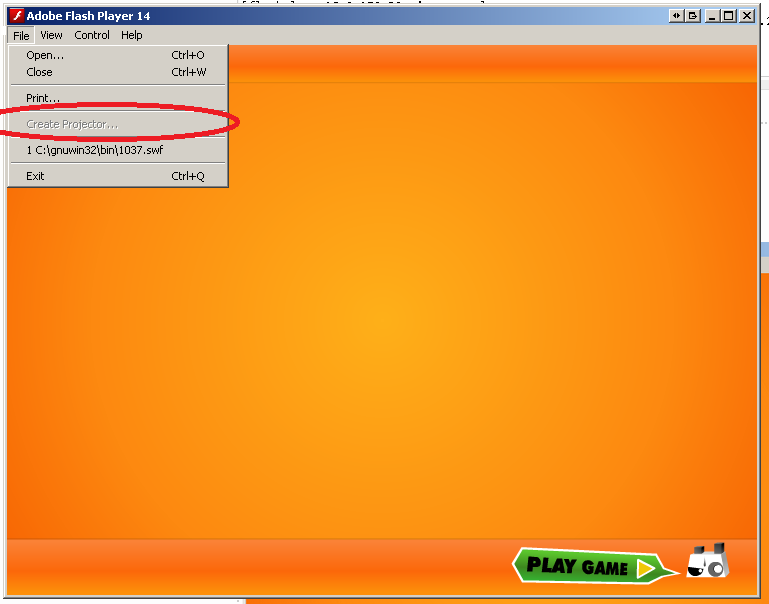
Step 2: Now, click File → Open from the top menu.
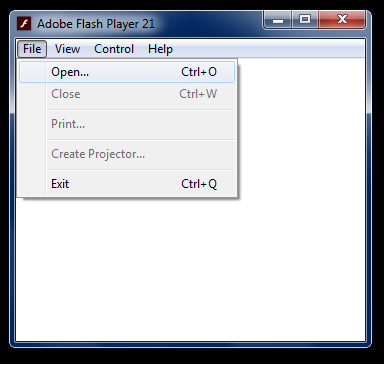
Step 3: A normal Windows Open dialog appears.
- Browse to the folder where the
.swffile is saved - Select the file
- Click Open
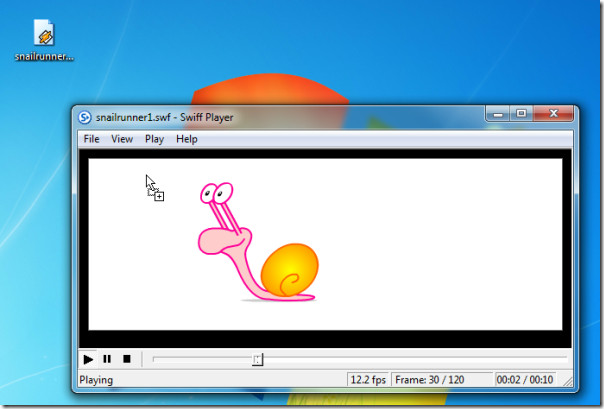
Step 4: As soon as you click Open, the SWF animation or interactive content starts playing automatically inside the Projector window.
Method 3: VLC player.
The VLC Player to open swf files; this is discussed in the Mac section below this section.
How To Open SWF Files On Mac
If you are a Mac user, then you might have come across the SWF files. If you want to open and play any SWF file on Mac, here are some tools that you can use.
VLC Player

[image source]
- Download VLC for Mac from its official website.
- Open VLC Player.
- Drag and drop the file into VLC.
You will be able to play the file on your Mac. To view a media file, VLC is a good option. But its capabilities extend beyond that, it can do much more.
Official Website: VLC Player
Web Browser
You can simply install Adobe Flash plugin in your browser to open the file in a browser, be it Opera, Chrome, or Firefox. But it comes with a risk. So, never install the plugin in Safari. Unlike before, most browsers don’t come with a pre-installed Flash Player. But the earlier versions of the browsers still comes with Flash Player as an option, bundled, or built-in.
In earlier Chrome versions, you can turn off Flash whenever you don’t need it. So, if you are using Chrome, you must enable the plugin to run. For security reasons, you must uninstall Flash from Mac and use it only sandboxed within a browser like Chrome.
Enabling Flash in Chrome
- In the address bar of the Chrome type chrome://settings/content and hit enter.
- Scroll down to the Flash Tab.

[image source]
- Turn off Block sites from Running Flash option and you will see the Ask First feature.
Now, whenever, there is a website or a file that needs Flash, you will be asked if you want to activate the plug-in for that particular site.
Opening SWF Files On Android
When you are looking to open or play an SWF file on your Android device, SWF Player- Flash File Viewer can come in handy. You can download the app here.

How To Open SWF Files With SWF Player
Since modern browsers no longer support Adobe Flash, the best and safest way to open SWF files is by using a standalone SWF player. These players run SWF files directly on your computer, without needing the internet or a browser.
Some of the best SWF players are:
- SWF File Player for Windows
- Elmedia Player for Mac
- iSwiff for Mac
- 5KPlayer for Windows and Mac
- FVC Free Video Player for online
- Ruffle for online
The following steps will help you open SWF files using SWF players:
- Install the SWF player on your device.
- Open the app and click on local files.
- Search the file you want to open and select it.
- Tap it to play it.
- While it’s playing, click on the back button to open its on-screen controls.
How to Convert a SWF File to Other Formats
If you want to convert it into other formats like AVI, MOV, HTML5, MP4, or MP3 in some cases, you can use any of the free video file converters. There SWF converters can help you convert the SWF file into a PNG or GIF file. And some apps like Adobe Animate can convert it into an EXE file making it easy to run them without Flash Player.
You can use tools like After Effects, Freemake Video Converter, FileZigZag, or SWF Tools
Converting SWF to MP4 or MOV with After Effects:
- Download and install After effects from here.
- Open the app and import the file. To import the file go to the File menu, select import, go to import files and pick the SWF file you want to open.
- Add the file to the render queue either by dragging it or go to compositions and add to render queue.
- Set the settings in the output module in the render queue and set the output to wherever you want the file to go.
How to Edit SWF Files
FLA files or Adobe Animate Animation files compile SWF files and that’s why it is not easy to edit them. Instead, you can edit the FLA file itself. These are the binary files that hold the source files for the entire Flash application. These FLA files are compiled with a Flash authoring program to build SWF files.
If you are a Mac user, you can use Flash Decompiler Trillix to convert them to FLA files for editing and converting various components of the SWF file without using Adobe Flash. You can download the Flash decompiler here.
Why Your SWF File Won’t Open
When you have issues while trying to open a SWF file on your computer, then it means that you either have a disabled Adobe Flash Player or you need an SWF player compatible with that file. These are the common causes for this issue:
1) Damaged File: The SWF file may be damaged or incomplete
Solution: Try downloading the file once again or restore the working version of that file from the source.
2) Wrong Program Associations: The file is connected with another program other than SWF player.
Solution: Right-click on the SWF file and click on Open with > Choose default program.
3) Flash Is Not Supported By Web Browser: Flash is not supported by Chrome, Edge, Firefox, and Safari web browsers.
Solution: Open the file in SWF player instead of using a web browser.
4) SWF File Requires ActionScript Code: There are some SWF files which require the use of ActionScript code.
Solution: Use the SWF player or emulator capable of using ActionScript code.
FAQ about SWF Files
What is an SWF file used for?
The SWF file or Shockwave Flash and is used to contain interactive multimedia content, which includes animations, browser games, ads, presentations, and education-related content created with Adobe Flash.
How do I open an SWF file without Adobe Flash?
One can open an SWF file without Adobe Flash through Flash emulator software, such as Ruffle, Adobe Flash Player Projector (standalone) or any other SWF player application that supports the format since Adobe has ceased its support for Flash.
Can I convert SWF to MP4 using VLC Player?
Yes. To convert SWF to MP4 using VLC, follow these steps:
Download and install VLC player.
Launch VLC and click on the Media icon.
Select convert/save option.
Add the SWF you want to convert on the window’s right-side and select convert/save option again.
In Profile, select the output format as MP4, save it in the temp folder and name the file.
Click on start.
Can I play SWF files in Chrome or Edge?
It is not possible to play an SWF file in the latest version of Google Chrome and Microsoft Edge as both browsers do not support the old Adobe Flash format anymore. To play an SWF file, use a standalone SWF player or a Flash emulator such as Ruffle.
What is the best free SWF player for Windows?
One of the best SWF file viewers for free is Ruffle because it gets regular updates and is safe to use. One may also consider using Adobe Flash Player Projector (standalone) and other SWF file viewers such as Ruffle (browser emulator), VLC Media Player (general file viewer), and Elmedia Player (macOS only).
Are SWF files safe to open?
SWF files are generally safe if they were obtained from reliable sources. Nevertheless, due to inherent security flaws within Flash technology, one should be cautious about opening SWF files from random sites and scan all files downloaded from the Internet.
Why won’t my SWF file play?
Your SWF file will not work because Adobe Flash is discontinued, SWF file is corrupt, SWF file is blocked by the browser, and SWF file uses unsupported ActionScript. Utilizing SWF player software that is compatible or SWF file emulator software fixes the problem.
How do I convert an SWF file to MP4?
SWF file conversion to MP4 file is possible using desktop video conversion software such as HandBrake, Freemake Video Converter, and different types of SWF to MP4 converters, including CloudConvert SWF to MP4 and VEED SWF Converter.
Can I open SWF files on Android or iPhone?
Opening SWF file on Android/iPhone is hard because the mobile browsers have discontinued support for Flash technology. In case the file is needed, then you can make use of SWF file emulator website or convert the SWF file to other formats like MP4.
What replaced Adobe Flash and SWF files?
New technologies on the web such as HTML5, CSS3, JavaScript, WebGL, and WebAssembly have taken over the place of Adobe Flash and SWF files.
Conclusion
Even though Flash is no longer supported in modern browsers, opening SWF files is still very doable. With the help of a standalone SWF player, you can run animations, videos, or interactive files without any hassle.
If you want the most reliable option, you can use Ruffle, which is a free and open source Flash emulator that helps you run many SWF files without Adobe Flash. Adobe Flash Player Projector works best in most cases, while SWF File Player is great if you prefer something simple and beginner-friendly. VLC Media Player can also help with basic SWF files. In short, once you have the right player, opening SWF files becomes quick, safe, and straightforward.
Suggested reading =>> How to open .AIR files
Also Read =>> How to open 7z files
Was this helpful?
Recommended Reading
-

This Comprehensive Tutorial Explains what is a DAT File and how to Open .DAT File. You will also learn to open Winmail.dat on iPhone, iPad & Mac: Some of you at some point in time might have been stuck with .DAT file that should have been an MS Word file.…
-

This tutorial explains what is .Key file and How to open .key file with 4 Easy ways on Windows and Online. Also see how to convert the KEY file to PPT, PDF, ZIP Opening a .KEY file is usually a problem for most people, especially on Windows, since it won't…
-
This Tutorial Explains What is a .JSON File Format and Discusses Various Softwares Tools to Open a JSON File in Windows, Mac, Linux & Android: Most of you must have struggled to open a JSON file at some point in time. In this tutorial, we will discuss all about the…
-
This Hands-on Tutorial Explains What is a Zip File, How to Create and Open a Zip File on Windows, Mac, Android & iOS using ZIP File Opener Utilities: ZIP archive format is the most widely used archive file format. These formats are useful when we wish to transfer large files…
-
This tutorial explains what a .BIN file is, how to open BIN files with or without using a program, how to convert BIN to ISO, and the best apps to open and read .BIN files on your PC. You may have come across the .BIN file extension and wondered what…
-
Here is complete Step by step method to Open EPS files on Windows 11 and 10 using different Graphic design software and EPS viewer tools. To open the .EPS file, you can use EPS Viewer, AdobeReader, CoralDraw, or you can also convert it to open it using other tools explained…
-
Are you curious how to open MKV files and how to play MKV files on Windows, Mac, Android, iPhone, or Smart TV? This guide is going to walk you step by step through opening and watching an MKV file. The VLC media player is the best way to open and…


