Explore the various background removal techniques to remove image backgrounds. Pick the most effective method to remove the background from a picture on an iPhone easily:
In this era of social media, image editing is a highly sought-after tool, particularly among young people. With the help of these tools, people can make their images brighter, remove their background, adjust colours, and much more.
Most of the phones come with some in-built image editing features. For example, if you have an iPhone, you can remove the background from an image without having to download another app for this purpose.
Table of Contents:
Guide to Remove Image Background on iPhone
Not all iOS phones support this feature. However, if your phone doesn’t have this feature, you can download an alternative app from the App Store for this purpose.
In this article, we have provided the readers with 4 methods for removing the background from an image on an iPhone.

[via Clipdrop]
How to Remove Background From Picture on iPhone
The four methods to remove image background are listed below:
- Remove image background in the Photos app
- Remove background in the Files app
- Remove background in the Safari Browser
- Remove background using a third-party app
With Photos App of Your iPhone
Follow these steps for this purpose:
1. Open the Photos app on your iPhone
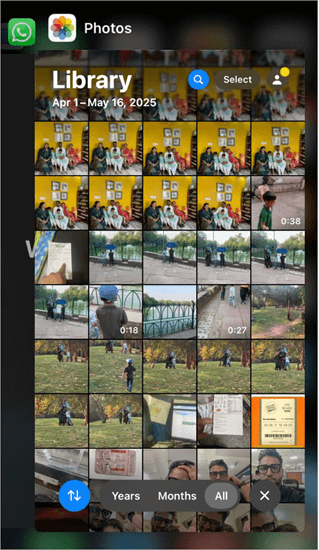
2. Open the photo from which you want to remove the background
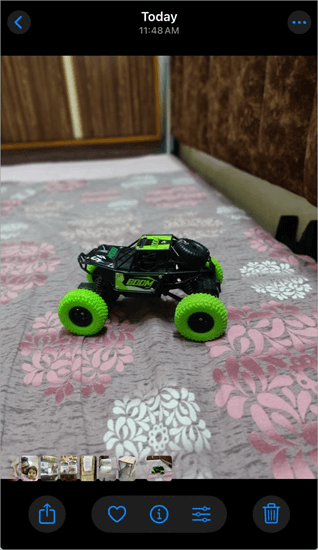
3. Now put your finger on the subject that you want to keep and press it for 2-3 seconds.
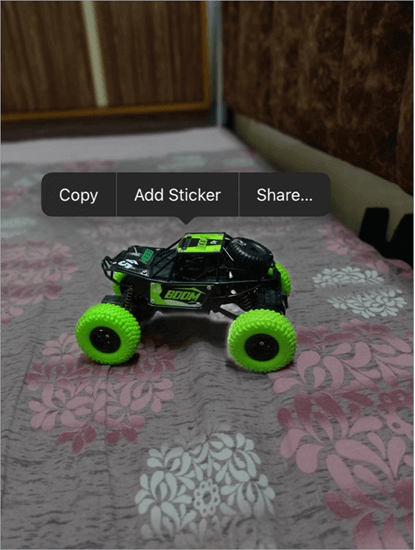
4. Tap on Copy. (From here, you can choose to add the subject as a sticker also.)
5. Now the cropped photo of the subject (for example- a person, an animal, etc.) is copied and can be pasted in the iMessage app or Notes app for saving and sharing purposes.
6. Open iMessage and paste the photo there to send it to someone. Then tap on the photo and click on Save. Now the cropped photo (without the background) will be saved in your phone.
Watch this short video for guidance on how to remove the background from an image in the Photos app of an iPhone.
Please note that the built-in background removal feature is offered by some of the iOS versions only. This feature does not allow users to remove backgrounds from images in bulk. Plus, the resultant photo will not be saved automatically and may not be very neatly cropped sometimes.
So, you can try other background removal techniques if this one does not suit you.
Through Files App
The Files app on iPhones has the feature of removing the background from images. Follow these steps for removing background from an image inside the Files app:
1. Open the Files app
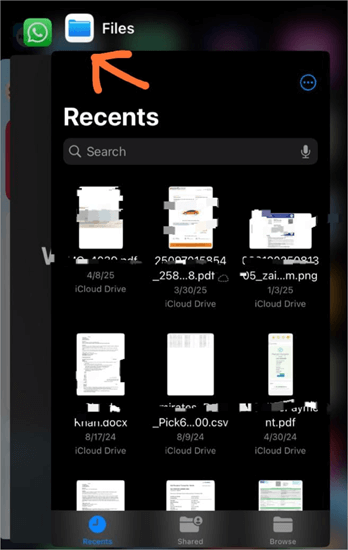
2. Long-press the image that you want to edit (for removing the background)
3. Click on Quick Actions
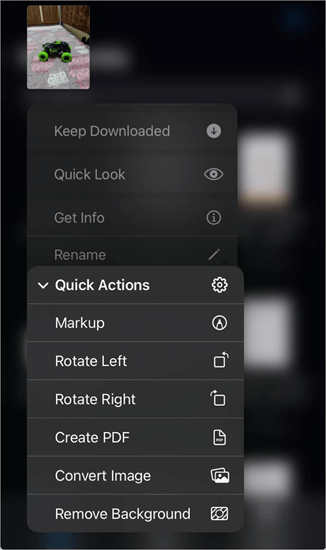
4. Now select Remove Background
5. The background will then automatically be removed, and the resultant image will be saved to your phone.
Suggested Reading => How to Blur Background in Zoom
Batch Background Removal Process
To remove the background of multiple images in the Files app, you will have to do as stated under
1. Open the Files app
2. Tap on the 3-dots icon in the upper-right corner of your screen
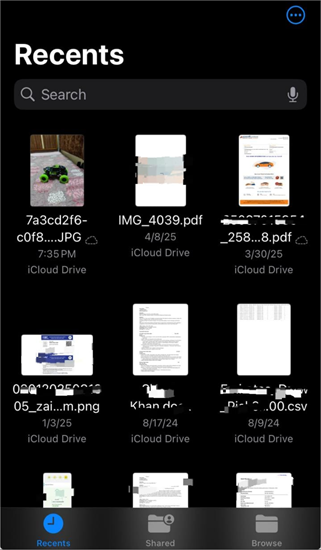
3. Tap on Select
4. Now select the images that you want to edit to remove the background

5. Now, click on the 3-dots icon located in the lower right corner of your screen.
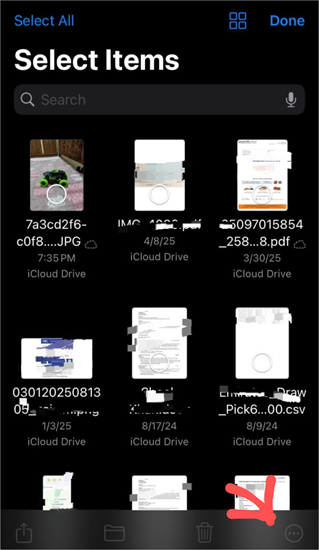
6. Now, click on Remove background.
7. Click on Done.
This removes the background from the selected images, and the edited images will then be saved to your phone.
This method works better than removing the background in the Photos app.
Using the Safari Browser
If you are using Safari Browser on your iOS device, then you can remove the background from an image you see on the web. You will have to follow these steps to remove the background from a picture:
- Open Safari browser
- Open the web page that has the image you want to save (without its background).
- Now hold the subject of the image for 2-3 seconds
- A pop-up will show up.
- Tap on Copy subject
- The cropped image will be copied to your clipboard, without the background.
- This cropped image can now be pasted in iMessages or the Notes app and can be shared whenever required.
Please note that this method is quick, but it diminishes the quality of the image. So, please save the full picture first, and then remove the background through another method.
Further Reading => How to Remove Background Noise From Audio
Using Third-Party Apps
#1) Photoroom App
The Photoroom application allows its users to remove the background from an image while maintaining its quality. Many photos can be edited at once using this app. This AI-powered app is quite popular in the e-commerce industry, where professionals need clear product photos without backgrounds.
Steps to remove the image background from an iPhone
For removing background from an image using the Photoroom application, follow these steps:
- Install the Photoroom application
- Open the app
- On the Create page, tap on Remove Background, then click on Transparent.
- Now choose the photo from your gallery that needs to be edited.
- The app will then automatically remove the background from the chosen image.
- Now you can choose to put another background to that image, or make the background transparent, improve the quality of the image, and much more.
- After this, the image will be ready to be saved or shared on any platform.
Ways to remove the background from multiple images:
- Start Batch mode
- Select pictures that you want to edit
- Tap on Remove Background
- You can choose to add another background
- Share the final results.
Website URL: https://www.photoroom.com/tools/background-remover
If you are wondering how to remove an image from the background on iPhone or remove the background from an image, just use Photoroom.
This is the best method for removing background from an image, as it is quick and delivers better quality results.
#2) PicWish
PicWish is one of the most sought-after background removal tools today, and one that offers an iOS as well as an Android app to users. PicWish stands out because of its use of AI. This AI automates the process of background removal. All you have to do is download the app on your phone, upload an image, and PicWish will automatically erase that image’s background.
The results are impressive as the image’s core subject is naturally separated from the background. You can upload and process up to 100 images simultaneously via this app. Besides the background removal, you can also count on the app to perform basic edits or have the AI generate an image for you from scratch.
Steps to Remove Background from an Image in the PicWish app.
- First, download the app on your phone, using the following link – PicWish iOS

- Launch the app on your iPhone and click on “Remove Background”
- Upload one or multiple images.
- Once uploaded, PicWish’s AI will automatically erase the image’s background.
- You can now choose to resize the resulting image or perform other basic edits.
- Click on the download icon to save the new image on your phone.
#3) Adobe Express. It is a free image background remover. It offers a mobile app for Android users, and a web version is also available,
Website: https://www.adobe.com/express/feature/image/remove-background
#4) Background Eraser This is also a free background remover app offered by the popular video editing platform, InShot.
Website: https://apps.apple.com/us/app/background-eraser-remove-bg/id1624827830
#5) Canva Online Image Background Remover: Canva is a feature-rich image editing platform that allows its users to remove background online, for free.
Further Reading => Best Photo Editing Software
Website: https://www.canva.com/features/background-remover/
#6) Pixelcut: Trusted by 70 million people, Pixelcut allows users to remove background from their images instantly, from their web page.
Website: https://www.pixelcut.ai/background-remover
These apps even allow their users to add another background to their images after removal.
Here is a video to learn how to remove the background and add another one in the Photoroom app.
Comparing the Top Methods Used for BG Image Removal
Here we have compared the various methods used for removing background from images in an iPhone
| Method | Best for | Pros | Cons |
|---|---|---|---|
| Remove background in the Photos app | Individuals who want to save the subject of an image as a sticker. | • Easy to do • No need to download another application for this purpose • Works quickly • Allows users to generate stickers to be used in chats | • Does not allow users to edit images in bulk • Does not work on all iPhones • The image does not get saved automatically • You can not insert another background in the photo |
| Remove background in the Files app | Individuals who want to remove background from a specific image. | • Automatically saves the image in your phone • No need to download another app • Quick results | • Can't edit images in bulk • The feature is not available on all iPhones • You can not insert another background in the photo |
| Remove background in the Safari Browser | Individuals who want to save an image without its background while surfing the web. | • No need to save image for editing • No need to download an editing app • Quick results | • Does not save the cropped image automatically • The result may not be very clear. • You can not change background of the photo |
| Remove background through an app like Photoroom | Individuals as well as e-commerce professionals. | • Edits images in bulk • Offers many image editing features • Delivers quick and clear results • Available for free • You can insert another background in your photo | • Users would need to download another app from the store for this purpose. (You can also use the web version of Photoroom if you don't want to download the app). |
Real-time Tips for Background Removal
- If you don’t want to download a third-party app, just go to the Files app on your iPhone and remove the background quickly.
- If your iPhone doesn’t support the background remover feature, then don’t worry, there are a number of apps like Canva and Pixelcut that have web versions for quick background removal, so you won’t need to download a third-party app.
- Apps like Photoroom, Adobe Express, and Canva have efficient, AI-powered removal tools that remove background from a number of images in seconds. For commercial purposes, using one of these apps would be quite beneficial.
Frequently Asked Questions
1. How do I edit the background of a photo on my iPhone?
iPhones offer tools for removing the z of a photo. This feature is not available on all iPhones.
You can add filters or change the contrast of a photo, in order to edit the whole picture. If you want to edit or change the background of a photo on an iPhone, you will have to install a third-party app from the App Store. Photoroom and Remove.bg are popular apps used for this purpose.
2. How to change the background of a photo to white on an iPhone?
If you want to change the background colour of a photo on iPhone, you will have to install a third-party app for this purpose. Apps like Photoroom offer tools for removing background, changing background colour, and much more.
3. Is there a photo editor on iPhone?
iPhones usually come with the following photo editing features:
1. You can adjust the light and colour of the photo
2. Apply filters and effects
3. Edit the photographic style of the photo
4. You can copy the edits you made to one photo and then paste them to another photo
5. You can add stickers or text to a photo.
Go through this link to find step-by-step guides on how to perform these editing tasks while using an iPhone.
4. How to get a clean up on iPhone Photos?
Some of the iPhone models allow their users to clean up their photos by removing distractions from the photos. Follow these steps to do so:
1. Open the Photos app
2. Tap on a photo to open it.
3. Now click on this icon on your screen 
4. Click on Clean Up
5. Select/ circle/ shade the parts that you want to remove from the image
6. Click on Done.
The unwanted object will then be removed from your photo.
Suggested Reading => Best PC Cleaner Tools
5. How to edit photo quality on iPhone?
iPhones allow their users to change the camera resolution. Follow these steps to change the main camera resolution:
1. Go to Settings
2. Tap on Camera
3. Now go to Formats
4. Click on Photo Mode
5. Now choose the camera resolution you want- 12 MP or 24 MP.
Conclusion
Removing background from an image in an iPhone is quite an easy task if your iPhone version has this feature.
Even if your phone (iPhone or Android) does not offer the background removing or changing feature, then you can use one of the many third-party apps available for editing photos, removing backgrounds, and much more.
The latest iPhone models allow their users to remove background from the image, through the Photos app, from the Files app, and while surfing through the Safari Browser.
All of these features are suitable for individuals who want to remove background from a small number of photos, for free. iPhones even allow their users to remove a specific object from the background of an image, to make the picture clearer.
Was this helpful?
Recommended Reading
-

Are you unable to find ways to change the background color on your Instagram story? Unleash your creative skills and quickly customize the background color of your IG stories with this simple guide: If you're anything like me, you probably enjoy spending time on Instagram and sharing moments with friends…
-
Quickly transform your dull photos with simple image background remover tools. Learn how to remove background from image to create professional images without Photoshop skills: So you’ve clicked a nice picture but aren’t too pleased with its background. Previously, you would have to download a special image background remover on…
-

Are you worried about how to remove background noise from audio recording on iPhone, Android, or other devices? Here, we have enlisted the top tools that can help you with the same: In today's world, where presence on social media is considered to be very important for individuals, businesses, and…
-
This tutorial reviews and compares the top Free Photo Editing Software to help you select the best photo editor as per your requirements: Thinking about uploading a new image for your social media account? Quick image editing can do wonders for your new post. If you just want to post…