


Quickly access emojis on Chromebook with simple emoji keyboard shortcuts. Learn how to get Emojis on a Chromebook and express yourself with colorful emotions to enhance your Chromebook communication:
Chromebooks run on the Chrome operating system, which Google built. Introducing Chromebooks has made it easy for everyone to afford a laptop. Another plus point of Chromebooks is that they let you access Android apps like WhatsApp, Instagram, etc., and are very easy to use.
Table of Contents:
Emoji Shortcut for Chromebook: Easy Ways
Watch this YouTube video explaining the uses and benefits of Chromebooks:
While using the chatting apps like WhatsApp and Instagram, people often insert emojis into their texts, to make them livelier and more interesting.
What are Emojis: How to Type Emojis on Chromebook
Emojis are small icons that are used to represent a certain emotion, object, symbol, etc. For example, people usually simply put an emoji  to say that they are laughing; insert
  an emoji to say that they like something; or use an emoji
  , that represents celebration.
The use of emojis makes the chats more expressive. With the immense increase in the popularity of texting apps, the use of emojis has also increased. Now you can find an emoji for almost every facial expression, like 
 , and more.
Not only this, keyboards today provide quite a vast library of emojis for different categories, including animals  , hand gestures
  , actions
 , flowers
  , hearts
  , food items
 , vehicles
  , and more.
Chromebook users often wonder how to do emojis on a Chromebook. This is because Chromebook looks just like other laptops. It has a screen and a keyboard. And the keyboard does not have any emoticons.
If you are using a Chromebook, or planning to buy one and cannot understand how to get emojis on a Chromebook, or how to get emojis on a school Chromebook, then here you will find different methods for doing that.
Watch this YouTube Reel showing how to add emojis to your text on a Chromebook.
Suggested Reading => Compare and select the best Discord Emoji Maker
How to Get Emojis on a Chromebook: Keyboard Shortcuts
Chromebooks and other laptops let you access many of their features using keyboard shortcuts. For example, you can just press Search + Alt keys to turn Caps Lock on, or press Ctrl + A to ‘select all’.
Similarly, there is a keyboard shortcut for accessing emojis on a Chromebook, which is: Search + Shift + Space.
Also Read => Chromebook Vs. Laptop
The different methods of accessing emojis while using a Chromebook are:
- You can use the shortcut keys to get access to emojis.
- You can use the Touchpad or a Mouse to insert emojis into your text.
- Convert your Chromebook into a tablet, so that the keyboard will automatically show the emoji icon.
- You can enable the on-screen keyboard, and then use emojis without having to use the tablet mode.
If you are wondering how to get emojis on Chromebook Google Docs or how to do emojis on Chromebook Lenovo, then please note that these methods will work for you.
Further Reading => How to Change Background Color on Google Doc
Watch this YouTube video to learn how to do emojis using Trackpad.
Methods to Use Emojis on Chromebook: Detailed Look
#1) With the help of a keyboard shortcut: It’s a simple and quick way of accessing emojis in a Chromebook. Simply press the keys.

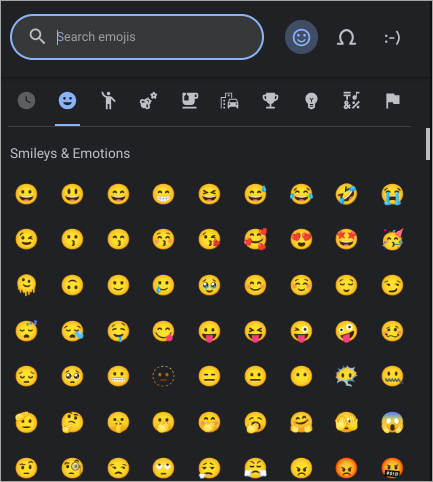
‘Search + Shift + Space’ simultaneously, and several emojis will pop up. You can select any of them to be inserted into your text. The pop-up box allows you to scroll down through the emojis, to find the one you want.
[image source]
Or you can simply search for emojis by writing the name or category of emojis you are looking for, in the Search bar, located at the top of the pop-up box.
For the people searching for ‘Emoji shortcut Chromebook’, or ‘how to use emojis on Chromebook without touchscreen’, or ‘emoji keyboard shortcut Chromebook’, this is the best option.
#2) How to type emojis on a Chromebook using the Touchpad or a Mouse:
- Using a Mouse: Take the cursor to the place where you want to insert emojis in your text, then right-click with your mouse. A menu will open. From here, click on ‘Emoji’. An emoji box will open. You can choose the one you want to insert.
- Using the Touchpad: While typing, tap on the Touchpad using two fingers. Now a menu will open, tap on ‘Emoji’, then select the emoji icon you want to insert into the text.
This is a shortcut for emojis on Chromebook. But when you insert emojis using this method, you can insert only one emoji at a time. You’ll have to repeat this whole process for inserting another emoji because the emoji box will disappear as soon as you select one from them.
#3) Convert your Chromebook into a tablet: Some Chromebooks come with tablet capabilities. Whenever you use them in Landscape mode, they automatically switch to a Tablet. When you use the keypad in tablet mode, it will automatically show you an emoji icon, which gives you access to some emojis, just by tapping on it once.
#4) Enable the on-screen keyboard: By enabling the on-screen keyboard, you can access the emoji keypad. Follow these steps to enable the on-screen keyboard:
- Tap on the system tray, in the bottom right corner of your screen.
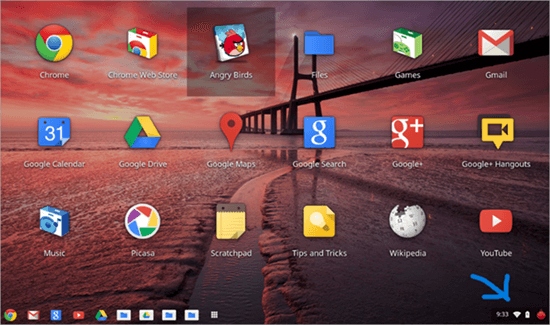
- Click on ‘Settings’
- Now tap on ‘Accessibility’
- Turn on ‘On-screen keyboard’
Once you have enabled the on-screen keyboard, whenever you tap on the screen to write text, an on-screen keyboard will pop up and will give you access to emojis through the emoji icon (a smiley face) located either in the top line or the bottom line of the keyboard.
Further Reading => Quick Ways to Insert Emoji in Outlook
FAQs – Chromebook Emoji Shortcut
1. Which emoji means what?
Here are the meanings of some of the top-used emojis:
Rolling on the floor laughing  I feel brokenhearted
 I love that/ I love how you lookLet’s party
 It’s funny
 I am angry
 Love
Love I am bored, or I don’t agree
 I am disappointed
  I am scared
 I did a smart job
 Hello
Hello Greeting someone/ pray
 Celebration
 I am overwhelmed/ hurt/ etc.
 Flirt/ Let’s Have Fun
2. What is the shortcut for emojis on Chromebook?
Here are the 3 shortcuts for using emojis on a Chromebook:
• Press the keys ‘Search + Shift + Space’ simultaneously, and an emoji box will pop up. Now select an emoji to add it to your text.
• If you are using a Mouse with your Chromebook, then take the cursor to the place where you are typing on the screen, then right-click, then click on ‘Emoji’, then choose the emoji you want to insert.
• The third method works when you use the Touchpad. Tap with two fingers on your Touchpad, then tap on ‘Menu’, then choose ‘Emoji’. Now pick the emoji you want to use.
3. Which keys do I press to get emojis?
For getting emojis on your PC:
• If you are using a Chromebook, press ‘Search + Shift + Space’ to get access to emojis.
• If you are using a Windows device, press the Windows logo key + . (For 2 seconds)
• While using a Mac, press the Control + Command + Space keys.
4. What is the difference between a laptop and a Chromebook?
A Chromebook is also a laptop. The basic difference between a Chromebook and other laptops is that of operating systems. A Chromebook operates on the Chrome operating system developed by Google. While other laptops can have a Windows or Mac operating system.
Chromebooks usually come with in-built security, seamless access to Google applications, ease of use, cloud storage, and affordability; which is a merit over other laptops.
5. How to open an emoji keyboard on a Chromebook?
There are 2 ways of opening the emoji keyboard on a Chromebook:
• Turn your Chromebook into a tablet. Some Chromebooks turn into tablet mode when you use them in Landscape mode.
In others, you will find the feature of switching to landscape mode from among the options you get when you swipe down the screen.
• Enable the on-screen keyboard. If you are unable to switch your Chromebook into tablet mode, you can enable its on-screen keyboard, which will give you access to emojis. To enable the on-screen keyboard, follow these steps:
Tap on the clock located in the bottom right corner of your screen, then go to Settings, then click on Accessibility, then turn on ‘On-screen Keyboard’.
6. How do I put custom emojis on my Chromebook?
Google Chat allows you to add custom emojis. But these custom emojis can only be used for work or school accounts. They can not be sent outside your specific organization.
Follow these steps for putting custom emojis on your Chromebook:
• Open Google Chat or Gmail.
• Start a conversation.
• Click on the ‘Add emoji’ option located in the bottom right corner.
• Click on ‘Create +’.
• Then upload an image and then click on ‘save’.
The custom emoji has been saved. Now when you chat through Google Chat or Gmail, to insert a saved custom emoji to your chat, follow these steps:
• Open a chat.
• Click on ‘Add emoji’.
• Select the ‘Custom emojis’ option to get access to all the saved custom emojis.
• Now pick the one you want to use.
7. What are Chromebooks good for?
Chromebooks deliver the following benefits to their users:
• They are easy to set up and easy to use.
• They give access to social media platforms and other applications.
• They can be good for note-taking and gaming.
• They let you download Android apps through the Google Apps Store.
• They usually have an in-built anti-virus software.
• You can store stuff in the Google Cloud and then access it from other devices.
8. Does Chromebook work without the internet?
You can play games, watch downloaded movies, listen to music files, etc., with your Chromebook when there is no internet.
Plus, it allows you to use your Gmail offline. Follow these steps to set up Gmail to be used offline:
• Open Google Chrome.
• Go to Gmail Offline Settings.
• Turn on ‘Enable offline mail’.
• You can change other Gmail settings from here if you want.
• Now click on ‘Save changes’.
Please note that whenever you send emails online, they will be saved in the Outbox until the device gets connected to an internet connection. They will be sent to the recipients, as soon as the device gets back online.
9. What are all of the keyboard shortcuts for Chromebook?
Keyboard shortcuts let you perform certain tasks quickly. Some of the popular keyboard shortcuts for Chromebooks are as under:
• For taking a screenshot on Chromebook – Ctrl + Windows.
• For taking a partial screenshot – Shift + Ctrl + Windows; Then select and drag for the part of the screen you want to capture.
• For taking a screenshot on a tablet – Press the Power button and the Volume down button at the same time.
• For accessing more screenshot features – Shift + Ctrl + Windows, now use the features you want, from the toolbar.
• For switching Caps Lock on – Search + Alt
• For switching Caps Lock off – Launcher + Alt
• For the locking screen – Search + L
• For Unlocking screen – Launcher + L
• Signing out of the Google account – Shift + Ctrl + q(press it twice).
• For checking all keyboard shortcuts – Ctrl + Search + S
You can find all keyboard shortcuts for a Chromebook using these steps:
• Click on the time at the bottom right of your screen
• Go to Settings.
• Select Keyboard.
• Click on ‘View Keyboard Shortcuts’.
10. Is a Chromebook an Android or a PC?
A Chromebook is a laptop that runs on the Chrome operating system. You can download Android apps on a Chromebook, via the Google Play Store.
Most of the Chromebooks come with the feature of converting them into a tablet. Thus, you can find the benefits of Android phones and PCs, at a single place.
11. How do you do on a keyboard?
If you are wondering how to add an emoji on a keyboard, then here’s the solution.
You can do any emoji, with the help of a keyboard shortcut. Just press Search + Shift + Space to get emojis on a Chromebook.
While on a Windows computer, you’ll have to press the Windows logo key and . .key simultaneously. And if you are using a Mac, press Ctrl + Cmd + Space to get emojis.
12. Where are my emojis on my keyboard?
Since keyboards do not have an option of adding an emoji directly to the text, users often ask how to do it with a keyboard.
If you want an emoji keyboard, you can do one of the following:
• Use your Chromebook/PC in tablet mode, if this feature is available. This way, you’ll automatically get an emoji keyboard whenever you go to write text.
• If the tablet feature is not available, you can enable the on-screen keyboard. This feature will be available in Settings.
If you do not have a touch-screen computer, then you’ll have to search for keyboard shortcuts for accessing emojis.
13. What is the keyboard shortcut for the heart emoji?
People often just type <3 for indicating a heart emoji. Alternatively, you can press Alt+3 to get a heart emoji on a Windows computer or use the keyboard shortcut to access all emojis.
Further Reading => How To Type Shrug Emoji in a Few Seconds
Conclusion
Chromebooks are widely popular among youngsters due to the very obvious reason that they are quite affordable. With a Chromebook, you get all the capabilities of a laptop; plus, you can install Android apps in them.
Chromebooks can be used as tablets, which makes them good for note-taking, or even gaming. Thus, students constitute the main market for Chromebooks.
Since Chromebooks are basically laptops, they have a screen and a keyboard; and the keyboard does not have keys for any emoji. So the main question asked by the users regarding Chromebooks is “How to do emojis on Chromebook with the keyboard?”.
So if you want to insert emojis in a text using your keyboard, then you can simply use the shortcut-
Search + Shift + Space. Or else, use a Mouse and then put the cursor on the place you want to insert an emoji, then right-click, and then select ‘Emoji’, and then pick the emoji you want to use.
If you use your Chromebook for regular chatting, then you would have to use it in Tablet mode, for getting quick access to the emoji keyboard. Or else, you’ll have to enable the on-screen keyboard if the Tablet feature is not there on your device.
Was this helpful?
Recommended Reading
-

This tutorial is a step-by-step guide on How To Type Shrug Emoji in a Few Seconds on Windows, Mac, Android, or iPhone: Emojis are fun! The use of little round yellow faces to convey what one feels is a great way to add that quirky human touch to your digital conversations.…
-
Read this review with features to compare and select the best Discord Emoji Maker to create unique emojis as your requirement: Text conversations can be boring and sometimes confusing without expressions. Emoticons, emojis, and Gifs are there to resolve that problem. Emojis add a lot of vibrancy and meaning to…
-
Through this tutorial, understand How do You Get Emojis on a Computer for Windows and Mac with details on how to use them: Emojis have become a vital part of our messages. They give conversations a humane touch, helping you understand the emotion behind a sentence. They have also become…
-
This tutorial explains the various features of Outlook and also introduces some useful and impressive methods to Insert Emoji in Outlook Emails: In order to send and receive emails stored on a Microsoft Exchange Server, Microsoft Outlook is the most popular choice. Outlook's contacts, email, calendar, and task management functions…
-
Here is a comprehensive guide that will help you understand the difference between Chromebook Vs. Laptop and understand their pros and cons: Whether you're a student, a professional, or simply someone looking to purchase a new computer, choosing between a Chromebook and a laptop can be challenging. Both devices offer…
-
Review and comparison of Websites to Send Free Text Message (SMS) online. Sending free text messages online has become easier than ever, due to a growing list of websites that let you send SMS without needing a phone or mobile plan. Whether your phone is switched off, you’ve run out…
-
Learn How to Repair Outlook Messages from PST or OST Files Using Recovery Toolbox for Outlook: He used to have it all: his accounting reports, romantic notes to his wife, his boss's calendar, his plane tickets to Frankfurt, some ancient photos of his beloved dog and his almost-equally-beloved mother-in-law. Now…
-
This Tutorial Explains How to Setup And Test Outbound Messages from Salesforce to the External System Through PutsReq or Request Bin: Workflow is nothing but a way to automate certain business processes. Workflow rule can be created and based on the criteria that are set in the rule the following…


