Looking for ways to blur Zoom Background? Learn how to blur background in Zoom video conferencing to enhance your privacy and professionalism effectively:
Video calling and texting are undoubtedly the biggest trends of today. These two features (offered by many apps) are integral parts of business operations and personal communication. Apps like Zoom, Microsoft Teams, Zoho, etc., offer these features and many other useful tools to enhance the whole experience.
In this article, we will discuss Zoom. Zoom is an audio and video calling platform that also allows video conferencing and recording, which is why it is quite a popular application used in business operations.
Table of Contents:
Blur Zoom Background: Simple Steps to Explore

Zoom offers a decent range of features. Have a look at its feature list here:
- High-quality audio and video calling: Users can make uninterrupted audio and video calls if they have a good internet connection.
- Audio and video conferencing: Users can conduct audio and video conferences. Their free plan allows users to add 100 participants, which increases to 300 participants with the Business plan and 500 with the Enterprise plan. Users can further increase this number by buying add-ons.
- Screen sharing: Users can share their screen with other participants during the call.
- Texting: Users can communicate through text.
- Security: All chats and calls are end-to-end encrypted.
- Call recording: All calls can be recorded for future use.
- Changing background: Users can change or blur the background during a video call.
- Integration: Zoom integrates with several applications, for example, Canvas, Teams, ClickUp, and more, which increases business productivity and thus makes it a go-to app for businesses.
- Translated captions: Zoom lets its users view translated captions during meetings.
- Clips: Users can create and share clips with their friends. They can record themselves or their screen to create a clip.
- Whiteboard: During a call, users can share an existing whiteboard or create one during the call. This feature is quite useful for educational purposes.
It must be noted that Zoom allows its users to change their background during a video meeting or conference. Users can blur their background or insert a virtual background, which can be an image or a short video.
Here is the video on how to make a professional Zoom Background:
Here we have explained how to blur Zoom background on a laptop, phone, PC, Mac, or the web app.
How to Blur Background in Zoom on PC/Mac/web App
Here are the steps to blur the Zoom Background during the meeting:
#1) During the call, you will see a screen that looks somewhat like this.
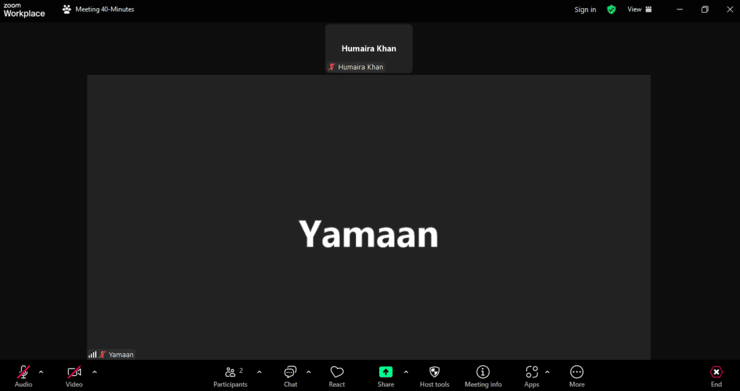
#2) Now, click on the ^ icon located on the right of the Video icon located in the lower-left corner of your screen. A box will appear, which will show you options like these-
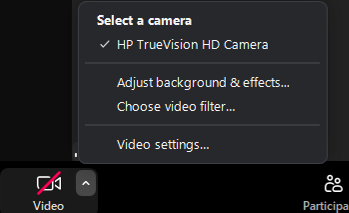
#3) Click on Adjust background & effects.
#4) Check the Blur my background option.
How do I Blur my Background in Zoom Before Meeting
You can also blur the background before joining the video. Follow these steps to do so:
- Open the Zoom app
- Now, click on your profile picture
- Go to Settings
- Select Backgrounds & Effects
- Now select Blur
By doing this, you can set a default blurred background screen for all of your future meetings. You can change this Zoom Blur Background setting anytime by following these simple steps:
- Open the Zoom app.
- Click on your profile picture
- Go to Settings
- Select Backgrounds & effects
- Now unselect Blur.
How to Blur Background in Zoom on Phone
If you are using an Android or iOS phone, you can blur your background by following these steps:
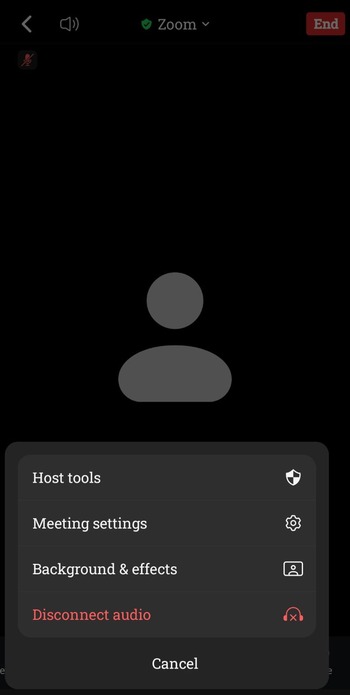
#1) During a Zoom meeting, tap on the option More.

#2) Now go to Backgrounds & effects
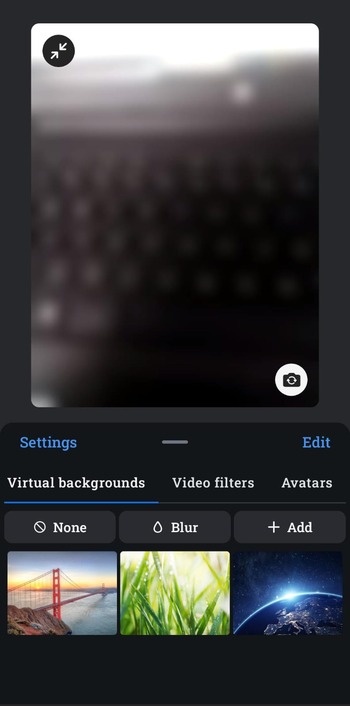
#3) Select Blur
Further Reading => Free Sites for Zoom Background Images
How to Blur Zoom Background on iPhone Before a Meeting
You can set a blurred background for your Zoom meetings before joining a meeting, as well. Please note that this feature is available in iOS phones only.
Follow these steps to do so:
- Open the Zoom app and sign in
- Now tap on More
- Go to Settings
- Now select Meetings
- Tap on Video
- Go to Backgrounds & effects
- Select Blur
Frequently Asked Questions
If you still have some issues with the Zoom blur background feature, go through these FAQs to find a solution.
1. Why is there no blur background option in the Zoom app?
Certain system requirements are necessary for using the feature of a virtual or blurred background. If these requirements are not fulfilled, the feature won’t work.
How to blur the background in Zoom: Prerequisites
Read further to learn about the requirements for using the blur background or virtual background features
– Android 8.0 or later
– arm64 processor; 8 cores or higher
– RAM- 3 GB or more
– GPU specifications:
a. Qualcomm Adreno: 540 (Snapdragon 835 / Snapdragon SDM835), or higher than 615 (QCS605 or Snapdragon SDM710)
b. Mali: G series with a G72 or later version; CPU must be higher than Exynos 9810, Exynos 990, Kirin 980, or Dimensity 1000.
– It supports phones only from Google, OnePlus, Oppo, Redmi, Samsung, Vivo, Xiaomi, and Huawei.
2. How do I blur my background in Zoom?
If you want to blur the Zoom background, then:
– During the Zoom meeting, click on the arrow ^ icon placed with the Video icon in the lower left corner of your screen.
– Now click on Adjust background & effects
– Select Blur.
These steps are the answer for how to blur Zoom background on Mac, Windows PC, and the web app. The process is slightly different for phones.
Steps for How to blur the background in Zoom on an Android phone:
– During a Zoom meeting, tap on the option More.
– Now go to Backgrounds & effects
– Select Blur.
3. How to raise hands in Zoom?
For raising a hand during a Zoom meeting, do as stated under:
– Click on the Reactions  icon
icon
– Now, click on Raise hand .
.
All people in the meeting will be notified that you have raised your hand. You can lower the hand by going to the Reactions icon, then selecting Lower Hand.
You can raise your hand with a shortcut as well. Press Alt + Y to raise your hand in a Windows device; and for doing so on a Mac, press Option + Y. This same shortcut can also be used for lowering the hand later.
4. How do you create a virtual background for Zoom?
To change your Zoom video background and create a virtual background, follow these steps:
– Login to your Zoom account
– Click on your profile picture
– Go to Settings
– Now select Background & effects
– Go to the Virtual Backgrounds tab
– Now choose from the available, pre-loaded virtual backgrounds for your video call.
– If you haven’t uploaded any images or short videos earlier, then go to the add  icon, and choose a file to be uploaded from your device.
– You can also create a virtual background using the AI companion by entering the background description in the text field. If you don’t get the desired results, click on try again.
Also Read => Popular Webcams for streaming and Zoom meetings
Conclusion
No doubt, Zoom makes audio and video calling and conferencing easier and more productive. One of its amazing features is changing the background during a video call. This makes it easier for people to maintain their privacy during calls.
The best part about Zoom is that it is very easy to use. However, users have often been spotted questioning how to blur the background in Zoom. So in this article, we have laid down a step-by-step guide on how to do it in a phone, PC, Mac, or web app.
If the feature still doesn’t work in your device, then there is are high chance your device does not support this feature. You can read about the system requirements for this feature in detail here.
Was this helpful?
Recommended Reading
-

Here you will find the list of popular Webcams for streaming and zoom meetings. Compare and select the best webcam as per your requirement: Are you attending video meetings or webinars regularly? The work-from-home culture has forced professionals to attend more video meeting sessions. If you have a desktop without…
-

Are you unable to find ways to change the background color on your Instagram story? Unleash your creative skills and quickly customize the background color of your IG stories with this simple guide: If you're anything like me, you probably enjoy spending time on Instagram and sharing moments with friends…
-
Quickly transform your dull photos with simple image background remover tools. Learn how to remove background from image to create professional images without Photoshop skills: So you’ve clicked a nice picture but aren’t too pleased with its background. Previously, you would have to download a special image background remover on…
-
Are you worried about how to remove background noise from audio recording on iPhone, Android, or other devices? Here, we have enlisted the top tools that can help you with the same: In today's world, where presence on social media is considered to be very important for individuals, businesses, and…
-
Review of the Best Background Check Service Provider Companies for Employment Check: Background check service helps you to know the information about a person. These services can provide information about a person’s address, educational information, relatives, criminal records, driving records, and much more. It can be used for various purposes,…
-
Planning to spice up your Zoom meetings to make them more interesting? Discover the top sites to find the best Zoom background images of your choice: Are you having the same feeling that most of the Zoom meetings are now getting boring? Professional Zoom backgrounds help a lot in replacing…
-
This tutorial will guide you with the steps in animated Zoom Backgrounds. Also, get to know about the top Zoom video background makers. With work-from-home gaining immense popularity these days, video conferences have become massively popular. One of the most preferred video conferencing services is Zoom. It has become a…
-
In this RingCentral Vs Zoom tutorial let’s discuss the major differences between RingCentral and the most important video conferencing system - Zoom with features: In today's world, users rely heavily on technology to stay connected. Your team will need various tools to conduct online meetings, remote conferences, or live chats.…