


Have you seen NW-2-5 on your TV when trying to open Netflix? Looking for ways to fix the Netflix code NW-2-5 error? Explore the causes & to solve Netflix error code NW-2-5 to watch your favorite shows:
The error “Netflix has encountered an error. Retrying in X seconds: code: NW-2.5′ appears on any devices that can access Netflix, including smart televisions, game consoles, streaming devices like Roku, and Blu-Ray Players. streaming devices means your device is experiencing delays in connecting to Netflix.
Most times, it manifests when there are internet connectivity problems or issues on the device or network.
Table of Contents:
- Expert Solutions to Fix Code NW-2-5 in Netflix
- What Causes Netflix Error NW-2-5
- How to Solve Netflix Error Code NW 2-5
- Tips to Resolve the Netflix Code NW-2-5
- NW-2-5 Netflix: Check Network Connection on Various Devices
- How to do DNS Settings on Devices for NW-2-5 Netflix Code
- FAQs on Netflix NW-2-5
- Conclusion
Expert Solutions to Fix Code NW-2-5 in Netflix
Quick fixes to try for Netflix Error NW-2-5:
- Restart your network.
- Try restarting your device.
- Sign out and sign in to Netflix.
- If this is not working then check this detailed article.
Reaching out to the Netflix Help Center will be the final resort.
You can implement several methods to solve this issue, which we will explore in depth in this tutorial. But first, we will examine the nature of error in depth.
What Causes Netflix Error NW-2-5
A delay in Internet connection may occur due to network disconnection and downtime, unstable connectivity, or slow internet connection.
It could also arise from the Netflix app being outdated, device technical issues (both the network device and the device that is connecting to it), incorrect network configurations, and Netflix being blocked by your Internet Service Provider or ISP.
How to Solve Netflix Error Code NW 2-5
Here are some possible ways:
#1) Check & Run a Test on your Internet Connection
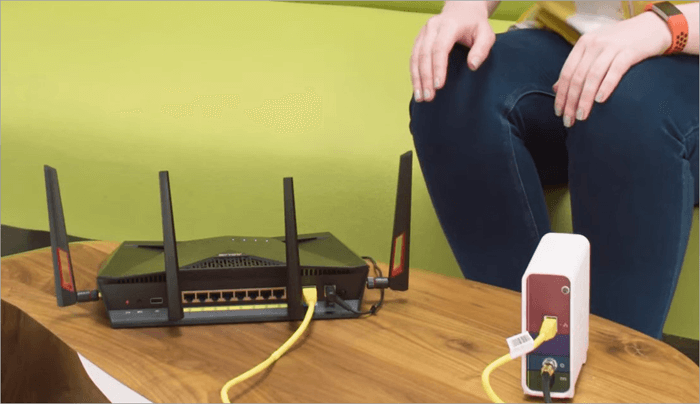
The first option when troubleshooting Internet connection issues is to test the device’s Internet connection. May it be your TV, Xbox, PlayStation, or others.
On the error screen, select More Details, then the Check your network option. Your device will not connect to the Internet if a red X appears when you do this.
Tip: To ascertain that it is not a Netflix app only that is failing to connect to the Internet, open another app that requires the Internet. If it also fails to work, the device may not be connected.
How do you check the network connection on various devices? Check out the section below.
At least 5 Mbps is recommended for HD and 25 Mbps for ultra-HD/4K video playback on Netflix.
If the network test confirms the device is connecting normally to the Internet, you may have to check over the Internet or contact Netflix to see if their service is still online/working well.
Tip: visit fast.com and check your Internet speed and connection directly to Netflix.
If the device’s network test shows that the Internet is working on it, but the Netflix app still gives the error (and their service is up and running), confirm that Netflix is not blocked on your network.
If you are using public or shared Wi-Fi for instance in a cafe metro station or school, some of them do block video streaming services like Netflix or impose data usage restrictions and you may need to switch to a private network to stream videos on Netflix for instance, or contact the admin.
The video streaming service may also experience a problem if too many people are streaming from the shared Internet network to which you are connecting. Contact the network administrator for help or change the connection to see if it works well.
Netflix experiences slowdown issues when streaming videos on slow cellular, satellite, or mobile hotspots. Confirm from the ISP that the network supports video streaming.
Tip: That said, you can also try updating the Netflix app on your device. Search for it on the app store, then uninstall and reinstall, or update.
Suggested Read => Top methods to fix the Windows error ‘Can’t Connect To This Network’
#2) Restart Your Device
Restarting your device forces Netflix to start over and is a common solution to common network problems, especially those of a temporal nature.
Tip: Netflix recommends you disconnect the device from power, wait for at least 15 seconds or 3 minutes if you use a cable box, plug the device back into power, turn the device on, and confirm if Netflix works normally.
#3) Restart Your Internet Connection Devices
Refer to this video:
Forcing a restart on the modem and router will also force a fresh Internet connection on the device since the device will request a fresh connection. Restarting Internet devices will also force them to clear old data and is utilized in solving many common Internet connection issues.
Tip: Netflix recommends you turn the device off and unplug it from power, wait for 30 seconds before reconnecting the modem and router, then wait for 1 minute before turning on the device, and then try Netflix again.
#4) Move the Wi-Fi Router
For those using Wi-Fi, it may be possible that the router is not receiving an adequately strong signal to support video streaming or connectivity on the TV/other devices.
If so, reposition the device by moving it closer to the TV/or other devices that are using the Internet or position it centrally, position it off the floor e.g. on a desk or bookshelf and ensure it is located away from other wireless devices, and metal appliances that could interfere with the network e.g. fridge and microwave.
A wireless repeater can also boost the Wi-Fi signal. Check with the ISP to see if they can update the router firmware or upgrade it to a new model.
Tip: You can try upgrading the router, for instance switching to a 5 GHZ band from a dual-band router 2.4 GHz band, and this will improve your streaming speeds. You might also try offloading the router by disconnecting other devices, and/or replacing the router’s antenna with a stronger one.
Also Read =>> Best WiFi Router for your home or business
#5) Set DNS to Automatic
How to Change DNS Server on Xbox Series X (Fast Tutorial):
PlayStations and Xbox game consoles might not find Netflix servers if the network connectivity timeouts occur due to DNS settings.
Check out the detailed steps mentioned below for the DNS settings on various devices.
If these steps do not work or Netflix still does not operate normally, contact your ISP for help with the DNS issue. The steps may not work if there are problems with the DNS server which you can enquire and check with the ISP to resolve.
Ask that your device should, according to the Netflix website, be able to connect to secure.netflix.com, appboot.netflix.com, uiboot.netflix.com, and fast.com Netflix addresses. For advanced users, try checking with a different DNS Server to see if the problem goes away.
#6) Contact Your ISP
Confirm with your ISP that there are no Internet outages in your area. You can also reach out to them to ask how to fix problems with your router, modem, and network settings; as well as to ask them to reset or restart your connections.
Tips to Resolve the Netflix Code NW-2-5
As you might see, the order of solutions matters a lot. For instance, you need to check whether other services on the same device can use the Internet normally (to check if it is only Netflix that is not working), then if they are working, you can visit fast.com to ascertain that Netflix service is up and, if so, update your app or reinstall it afresh. If the DNS does not allow Netflix, then changing or setting it to Automatic may help.
If you have been using the devices already, it could be a temporary problem and simple solutions will work before you can try advanced methods.
If it is the first time, you may confirm the setting up. Otherwise, you may need to contact a technician or your ISP to resolve the DNS server and other problems related to connectivity if you cannot resolve the problem.
NW-2-5 Netflix: Check Network Connection on Various Devices
How to check the network connection on Smart TV?
A network test from the device settings can also confirm if is the device likely not connected or if it is individual apps that are not connecting to the Internet.
To test network connection on the smart TV, navigate to the device Settings from the menu, then the Network Settings option->Network Status or Network Connection option and wait for it to scan for available networks and display the results. If it detects any network, check the indicated signal strength.
How to check the network connection on XBox?
Refer to this video:
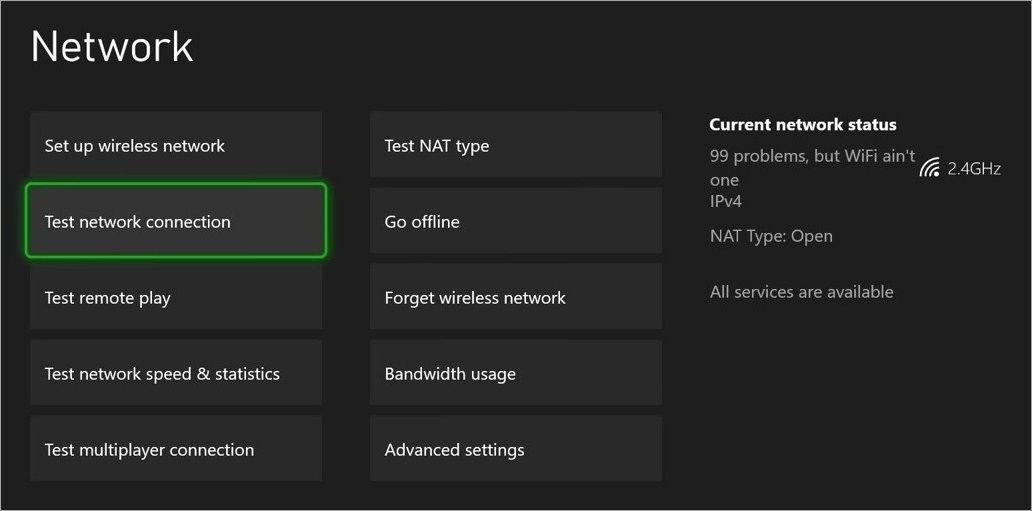
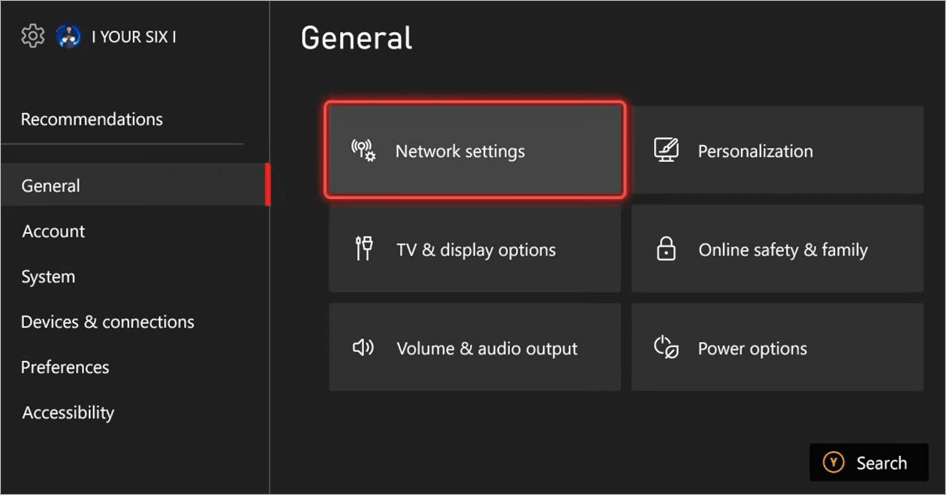
On Xbox One, sign in, press the Xbox button on the controller to open the guide, and navigate to System tab -> Settings -> Network -> Network Settings -> Test network connection. On Xbox 360, visit Troubleshoot your Xbox 360 network connection
How to check the network connection on PlayStation?
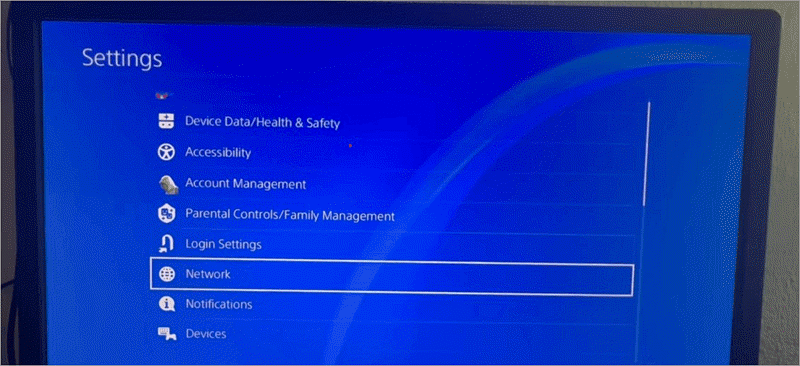
On PlayStation, go to Settings from the home screen and navigate to Network->Test Internet Connection. You can see the status of your connection, PlayStation Network sign-in, NAT type, and connection speeds.
PlayStation video
How to check the network connection on PS5?
On PS5, navigate to Settings->Network->Connection Status and see if the network passes all checks. On PS4 go to Settings->Network->Test Internet Connection and it will run necessary tests and display the speed, connection status, and NAT type.
How to do DNS Settings on Devices for NW-2-5 Netflix Code
DNS Settings on PlayStation:
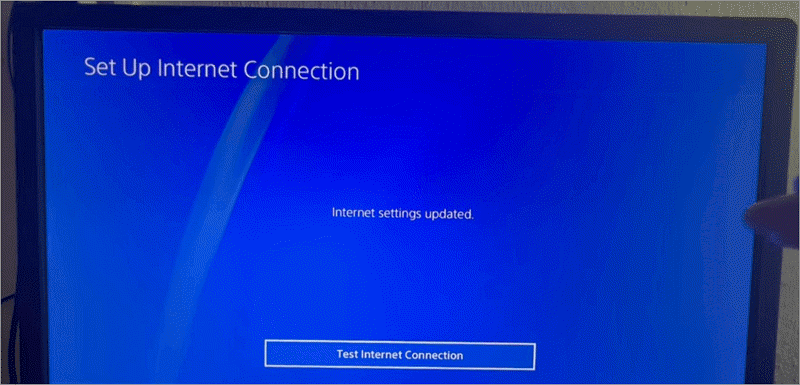
On the PlayStation 4/5 menu, navigate to Settings -> Network -> Set Up Internet Connection, and then choose the connection type Wi-Fi or LAN.
For Wi-Fi: Proceed to Custom then choose the Wi-Fi network you are connected to or want to connect to.
For LAN Cable: Proceed to Custom -> Operation mode. Proceed to IP Address Settings then choose Automatic. Then choose DHCP -> Don’t Specify. On DNS Settings, choose Automatic. On the Proxy Server option, choose Don’t Use, and on MTU Settings choose Automatic.

Choose Test Connection.
Try Netflix again.
For PlayStation 3
Navigate to Settings from menu -> Network Settings -> Internet Connection Settings -> OK then choose the Custom option. Choose the type of connection you use, either Wireless or Wired Connection. For Wireless, and under it WLAN section, choose Enter Manually. Choose IP Address Setting. For Wired Connection, choose Auto-Detect for Operation mode.
Under IP Address Setting, choose Automatic, under DHCP Host choose Do Not Set, under DNS Setting choose Automatic, under Proxy Server choose Do Not Use, under MTU choose Automatic, and under UPnP choose Enable.
Save the settings by pressing the X button.
Choose Test Connection.
Check if Netflix works normally.
DNS settings on XBox:
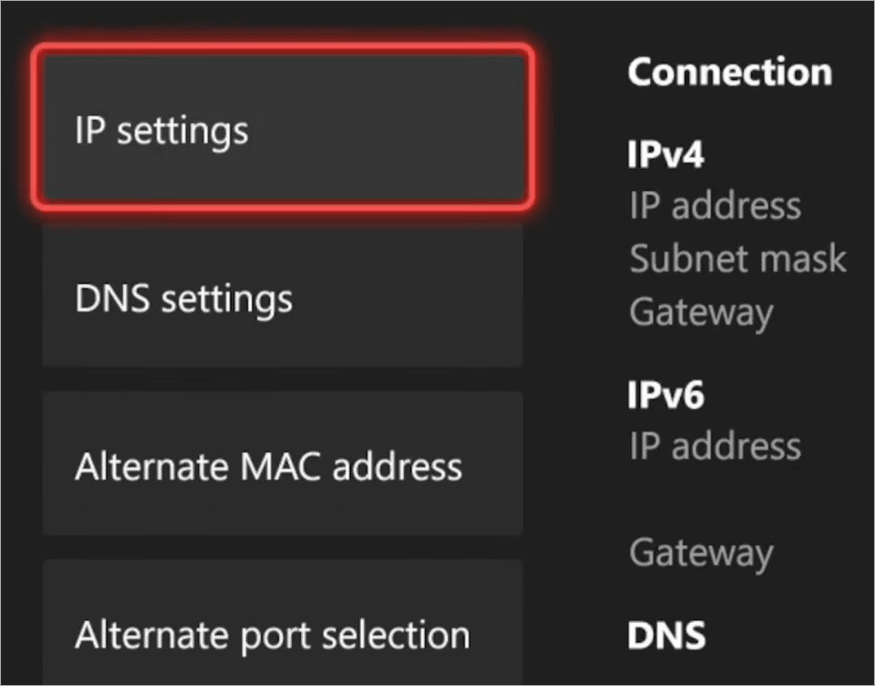
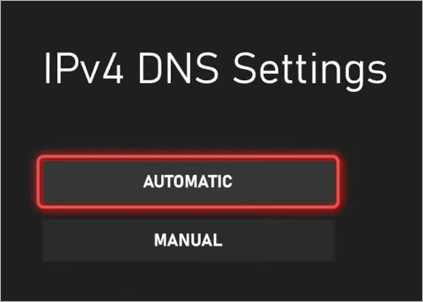
For Xbox One/Series, press the Xbox button to open the Guide. Select Profile & System menu -> Settings -> General -> Network Settings -> Advanced Settings -> DNS Settings and select Automatic. Retry Netflix to see if it works normally.
For Xbox 360, press the Guide button and navigate to Settings -> System Settings -> Network Settings, then choose your network and proceed to Network Settings -> Configure Network -> DNS Settings, and choose Automatic. Turn the Xbox off and On again and open Netflix to see if it works normally.
This step is not recommended for other devices, such as TV.
For TV:
You can navigate to Settings from the menu->Network & Internet scroll down to IP Settings switch it to Static and type DNS addresses you are familiar with. For instance, for Cloudflare, it is known to be 1.1.1.1 or 1.0.0.1.
FAQs on Netflix NW-2-5
1. What does error code NW-2-5 mean on Netflix?
If Netflix displays the Code NW-2-5 error, it means your TV, Roku, PlayStation, Xbox or other device is experiencing a delay in connecting to the Netflix service and this usually occurs due to Internet connectivity issues. There is a network issue that is preventing your device from accessing Netflix’s service.
For “Netflix has encountered an error. Retrying in [X] seconds. Code NW-2-5” on the screen, check that your Internet connection is working normally. See that your device can and is connected to a stable network that your routers and modem are working normally, and/or contact the ISP.
2. How do I fix Netflix error codes?
Depending on the code, check the Internet connection to resolve the Netflix nw-2-5 error. The same error can be fixed by restarting the devices, checking the network settings to, for instance, confirm that the DNS is set to Automatic or switching to a different public DNS address.
Ensure also that Netflix is not blocked on the network you are using to connect to the Internet since some public and shared Wi-Fi and other connections limit bandwidth and content access by blocking video streaming services such as Netflix.
You may also want to confirm if other services and apps can or cannot access the Internet as it may be a problem of downtime with an ISP or a technical issue with network devices and devices on which you are accessing Netflix.
3. Why is Netflix Retrying in [x] seconds?
Netflix has encountered an error. Retrying in [x] seconds. Code: NW-2-5 error occurs if the device on which you are accessing Netflix is experiencing a network issue when connecting to Netflix service and thus it keeps retrying. This error usually happens due to network connection issues.
To resolve NW-2-5 error code on Netflix, test the connection on your device, from the device’s settings. Also, open other apps that can access the Internet. Visit fast.com and test your Internet speed and direct connection to Netflix.
If these methods show your device can access the Internet and that the signal is strong, confirm that Netflix service is online and not down. In most cases, it is. Check that your network DNS settings are configured properly and set to Automatic.
Otherwise, ensure that the ISP services are not experiencing outages or slow if the signal is weak as seen when you test the connection on your device used to access Netflix. Contact the ISP to resolve these issues if unable to do it yourself.
4. How do I fix a Netflix connection problem?
Visit fast.com and check your Internet speed and connection directly to Netflix to resolve the Netflix code nw-2-5 error. With speeds of above 5 Mbps for HD and 25 Mbps for Ultra HD, you should be good to go. Otherwise, you may need to contact your ISP to resolve the connectivity issue or upgrade to a faster router.
If it is working normally, check if other apps can access the Internet well and if they are, confirm that Netflix service is up and running.
If the device is not connecting to the Internet, try rebooting. Check the Internet connection settings to ensure DNS is set to Automatic.
5. What does nw-3-6 mean on Netflix?
The error NW-2-5 on Netflix might show as NW-3-6 on some Netflix streaming devices. The Netflix error nw-2-5 arises due to Internet connectivity issues when the device cannot access Netflix services due to Internet connectivity issues. The problem may arise from the modem and router when these cannot access the Internet as required.
Try the simplest solutions first, e.g. resetting your router and modem, restarting the devices, including the network devices, visiting fast.com to ascertain that the Internet speeds are satisfactory and that you can connect to Netflix directly, and checking that the router is positioned not close to metallic devices or other wireless devices that can interfere with the signal.
Otherwise, contact your ISP if your device can connect to the Internet, or check that the DNS and Internet settings are normal.
Conclusion
Netflix error code NW-2-5 sometimes manifests as NW-3-6 on some devices that are used to access Netflix, e.g. TV, Roku, Xbox, PlayStation, etc. The error, signified by the code, happens when a network issue is preventing your device from accessing Netflix.
This tutorial discussed simple to advanced ways of resolving the code nw-2-5 Netflix error. If you are a basic user, we recommend trying the simpler solutions to the nw-2-5 Netflix code such as restarting routers and modems, restarting your device, checking the Internet DNS settings as explained, and visiting fast.com to test connectivity to Netflix.
Also Read =>> Network Troubleshooting Tools
When solving the Netflix error code nw-2-5, first check and test that your device can connect to the Internet and ascertain that other services can access the Internet from the same device before confirming if it is Netflix services that are down.
If the device does not connect to the Internet as revealed from the test results or if the signal is unstable and weak, you may have to check your Internet configurations.
Check that the modem and router can receive the signal, contact your ISP provider (to confirm if there is a service outage), try a different Internet service provider, and check if your ISP or network on which you are connecting has blocked Netflix as may happen on some public and shared Wi-Fi networks.
Was this helpful?
Recommended Reading
-

Does Netflix offer a student discount in 2026? Find out the latest update and explore the best student-friendly streaming alternatives that save money. If you’re a student trying to cut entertainment costs, you might be wondering: Does Netflix offer a student discount in 2026? With streaming prices rising and student…
-

Best Network Scanning Tools (Top Network and IP Scanner) For Top-Notch Network Security: The network is a vast term in the world of technology. The network is known as the backbone of the telecommunication system which is used to share data and resources using data links. The next term that…
-
Through this tutorial, you will understand how to change Netflix region & watch it From Any Other Country and access its content library also: Netflix has become a staple for entertainment across the globe. Its endless content keeps you company when you are traveling or bored. However, we often get…
-
This tutorial explains the best Network Security Policy Management NSPM tools that will perfectly cater to your specific requirements: Network Security Policy Management tools are nothing short of a godsend for system administrators. These tools empower admins with the ability to enforce and manage device settings as well as configurations…
-
Are You Looking For The Right Network Security Software To Protect Your System And Network? Select the best tool based on this review, which includes the features, pricing, and comparison of the top network security tools. Network security monitoring software refers to the tools designed to ensure the protection, usability,…


