Are you worried if Clipdrop is safe? Here is a perfect Clipdrop review, along with the top Clipdrop Alternatives to fulfill all your AI image editing requirements:
If you have spent hours tirelessly editing images on platforms like Photoshop, you’ll appreciate what AI-driven image processors offer.
For me, these tools are a godsend. From removing the background to upscaling a picture’s resolution, you can rely on them to automate basic and advanced image editing tasks.
There’s no need to drudge through hours of manual editing or to hire an expensive professional editor. Fire up these solutions on your system, upload an image, and let the solution do the rest.
Table of Contents:
Top Clipdrop AI Competitors: Beyond Excellence
In recent years, such tools have risen in both popularity and number. To such an extent that their market has now reached a point of saturation. You have a plethora of options at your disposal, and only a few of these are worth trying.
My relentless pursuit of the next best AI-driven image processors compelled me to try one solution after another. Eventually, I found my way to Clipdrop AI.
Clipdrop is among the most popular AI-driven visual editors used today. Naturally, I had to give it a shot. After spending months on it, I would like to share my honest thoughts now.
Consider this a comprehensive review and your hands-on guide to Clipdrop AI.
So without much further ado, let’s dive in.
What is Clipdrop?
Clipdrop is an online platform that offers a suite of creation and visual editing solutions, all of which are powered by the impressive Stability AI. As is expected of an AI-driven solution, Clipdrop can automate several basic and advanced image editing tasks.
Further Reading => Best Photo Editing Software for Mac and PC
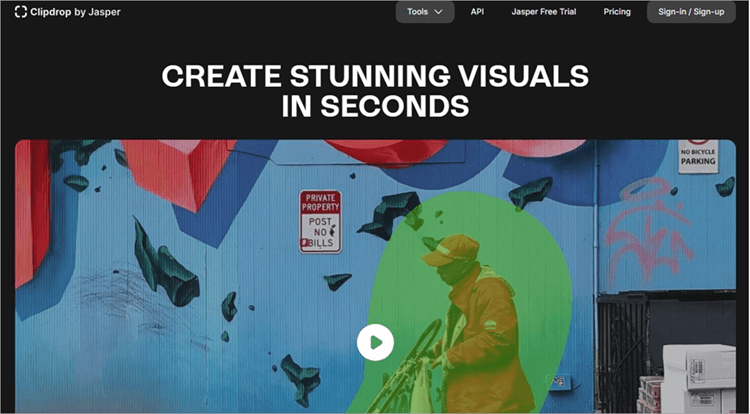
In three very simple steps, you can have the tool perform various otherwise complex editing actions. All you need to do is choose the tool you need, upload the image, and click a button. Clipdrop will take care of the rest.
Besides editing images, you can also use Clipdrop’s AI-generative capabilities to create images from scratch.
Now that you know what Clipdrop is, let’s understand how it works.
Suggested Read => How to download Adobe Photoshop
How to Use Clipdrop AI
Powered by Stability AI, Clipdrop essentially automates editing and creation tasks. This means you barely have to do anything at all. The steps are simple when upscaling or removing an element:
#1) Open the official Clipdrop website on your system’s browser.
#2) Sign up and opt for the free plan or pay for a subscription.
#3) Scroll down the homepage until you reach the tools section. Select the tool you need right now. For the sake of this article, I am choosing the “Remove Background” tool.
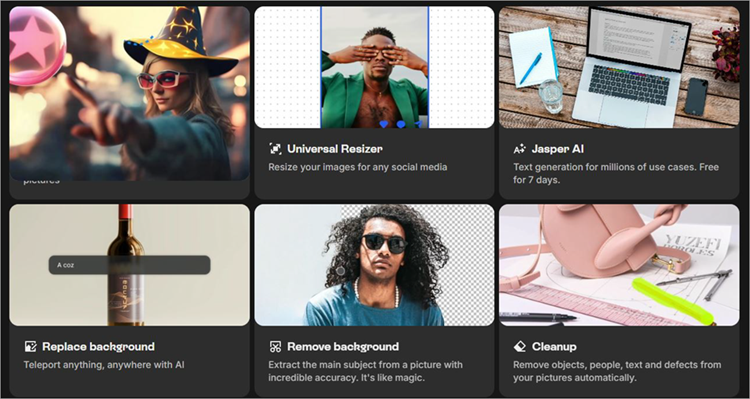
#4) On the ensuing page, either upload the image or drag and drop it.
#5) You’ll be given the option to upload more images. Add to the batch or leave it be.
#6) Click on “Remove Background”.
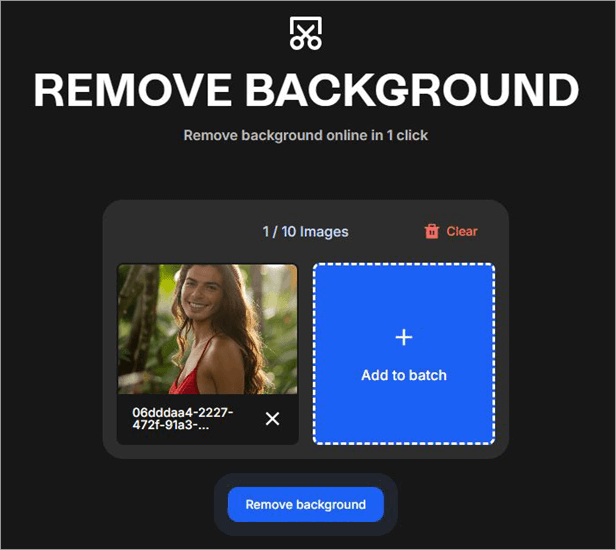
#7) Preview the file and download it.
It is that simple. This simplicity and the level of automation on display here are what make Clipdrop one of the best AI-driven image processors out there today.
Features
As I mentioned before, Clipdrop’s AI can perform various basic and advanced editing tasks. Here are some of its prominent features:
#1) Text to Image Creation
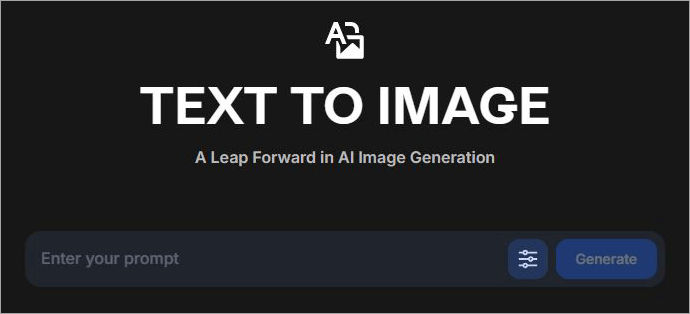
Clipdrop benefits from being backed by Stability AI, which is quite powerful in what it can do. As such, this tool possesses remarkable AI-generative capabilities, which can be harnessed to create images from scratch. All the AI demands from you is a clear text prompt. Describe what you want the image to look like and hit the “Generate” button.
That said, the AI generative capabilities aren’t perfect. Clipdrop does a good job of generating an image, but more often than not, I found the results not quite accurate to the text prompt I gave.
It took me a lot of tries and several prompt variations to get what I wanted. I still admired the AI’s speed. It took less than a minute for the tool to spawn an image after I had hit the “generate” button.
#2) Reimagine
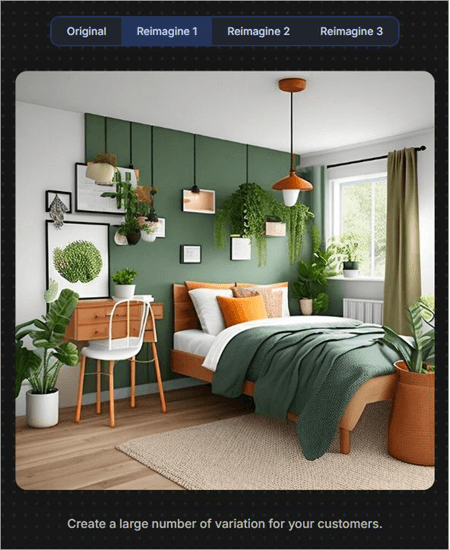
This is another of Clipdrop’s amazing AI-generative capabilities. The tool can reimagine the visuals of any image you upload to it. All you need to do is upload an image, and the AI will automatically create three variations of it.
#3) Generative Fill
Clipdrop’s AI-generative capabilities are limitless, and this next feature serves as a testament to the tool’s charm. This feature lets a user leverage the tool’s generative AI to edit or modify certain sections of an image. Let’s say you have a picture of a dog. You want the dog to wear a clown hat.
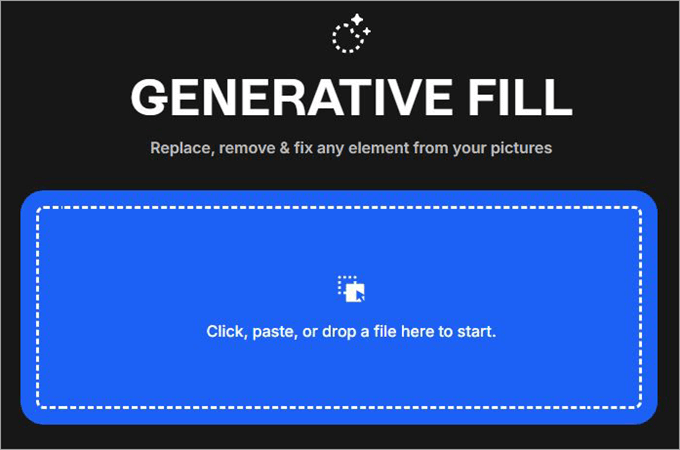
Mark the area around the dog’s head and type “add a clown hat”. The AI will generate and add a hat in the area you marked. You can use this feature to make edits that might otherwise be considered complex. Thanks to this feature, you’ll be able to remove or replace elements from an image while ensuring the picture’s background remains unaffected.
#4) Universal Resizer
Resizing or changing the format of an image is also quite simple with Clipdrop at the helm. With this feature, you’ll be able to modify an image to any size and format. The universal resizer comes in handy when you are editing an image that is supposed to go up on various social media channels.
You simply upload the image you wish to resize, choose the output size and format, and leave the rest to Clipdrop. The platform supports all social media dimensions and formats. So, social media managers, marketers, and graphic designers will find this tool really helpful.
Suggested Reading => Best Graphic Designer Software
#5) Cleanup
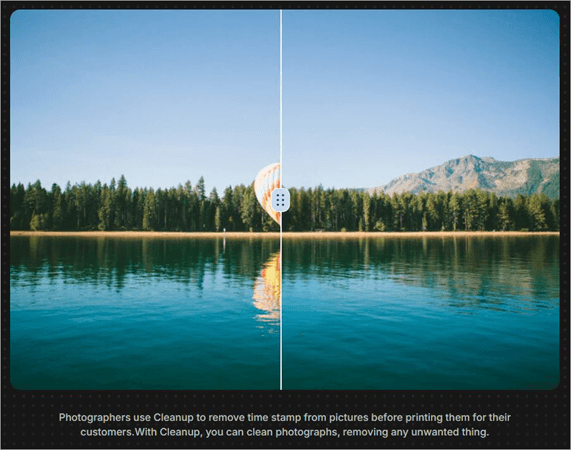
This is personally one of my favorite features and the reason I decided to give Clipdrop a shot. The tool’s intelligent AI does a very fine job of erasing objects, people, and defects from an image, thus modifying it or giving it a more polished look. You can erase any unwanted elements from an image, and it will only take you a few quick clicks.
#6) Uncrop
Besides resizing an image, Clipdrop can also be used to dramatically adjust an image’s aspect ratio. Upload any image you with to uncrop, select the new aspect ratio, and then hit the “generate” button.
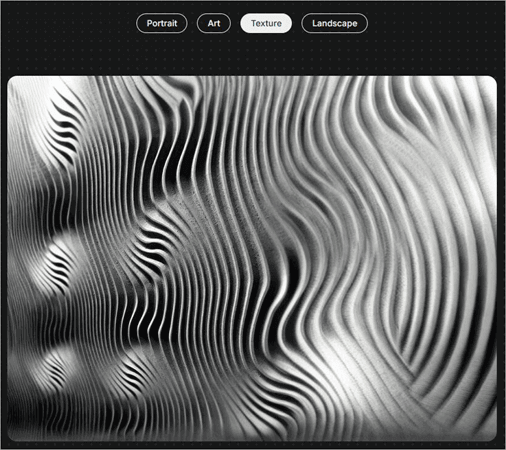
We will present the image with the new aspect ratio for you to download. This feature will help you change an image from portrait to landscape and back without affecting the picture’s original quality in any way.
#7) Remove and Replace Background
Clipdrop does an amazing job with the background removal tool. With a single click, you can erase any image’s background or replace it. The intelligent AI at play will automatically erase the background while carefully extracting the main subject from the picture.
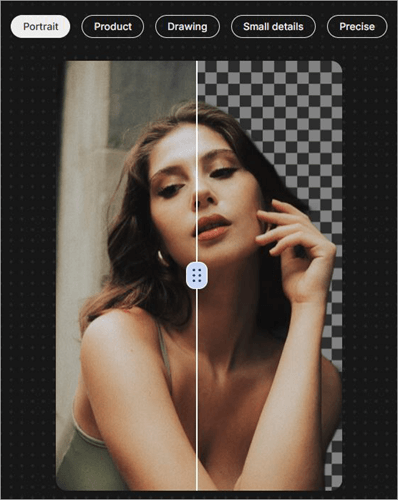
You can also generate backgrounds from scratch through text prompts. Describe the background as clearly as possible, and Clipdrop AI will conjure it up.
#8) Upscaler
With this feature, you’ll be able to enlarge your image by up to 16 times without compromising its resolution. Upload the image you wish to enlarge and wait as Clipdrop enlarges your image.
Preview the upscaled image and download it. It is that simple. You can upscale any low-resolution image. There will be no loss in picture quality.
Clipdrop Pricing
Clipdrop can be used for free, but you will need to sign up. Plus, the free tool is also very limited in what it allows you to do. The tool restricts you to processing up to 20 images per day. You also cannot use the free version to generate images, uncrop them, or replace the background.
I would suggest subscribing to the tool’s pro plan for an unrestricted user experience. The pro plan will cost you $15/month. All of Clipdrop’s features/tools are made available to you. You can process up to 1000 images per day. You can download the results in high resolution as opposed to the 720p cap imposed by the free version.
I suggest signing up and trying out the tool for free. If satisfied, you can opt for the $15/month pro subscription. The $15 price tag makes the tool quite affordable, especially when you consider the value being offered.
Pros & Cons
| Pros | Cons |
| Free plan | The images generated may not match the text prompts added |
| Text-to-image generation | The limited free plan. |
| Quick one-click image processing | |
| Very fast in its processing capabilities | |
| Easy to use |
List of the Best Clipdrop Alternatives
The market for AI-based image processors is vast. So, it isn’t hard to find an alternative to tools like Clipdrop if that’s what you are looking for. If Clipdrop isn’t what you seek, there are alternatives out there that might satisfy you instead.
The following are some of the best alternatives to Clipdrop out there.
#1) Upscale.media
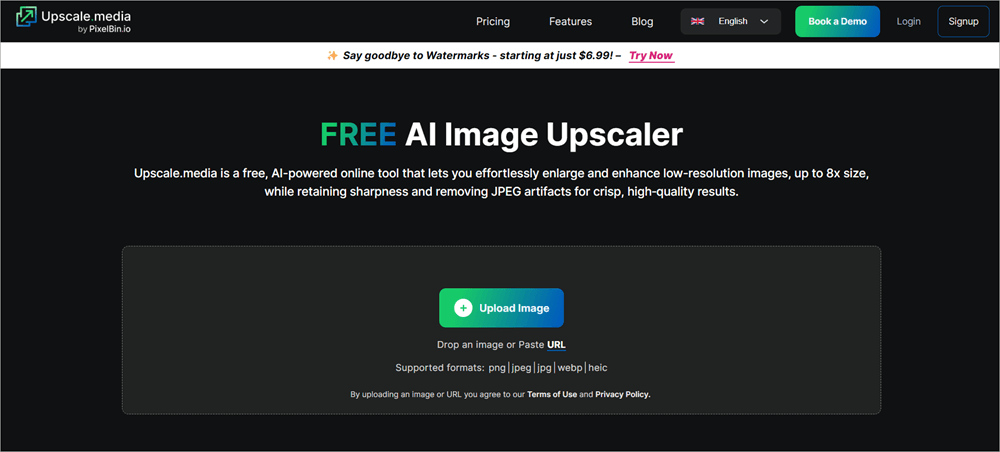
Upscale.media is a great alternative to Clipdrop if you are looking for an image upscaler. You can count on this web-based solution to enhance or enlarge any low-resolution images. You can use the tool’s AI to automatically enlarge an image by up 8x in size while retaining its original sharpness.
All the original image’s details remain intact, and there is no loss in picture quality as Upscale.media skillfully enlarges an image.
The tool also does a great job when working with JPEG files. Upscale.media prevents the negative impact that the compression of a JPEG image can have, ensuring you have a good JPEG image that’s free from degradation.
Features:
- Enhance an image’s picture resolution.
- Enlarge an image by up to 8x size.
- Remove JPEG Artifacts.
- An online tool that can be used with any browser or computer.
How does it work?
#1) Open the Upscale.media website and sign up.
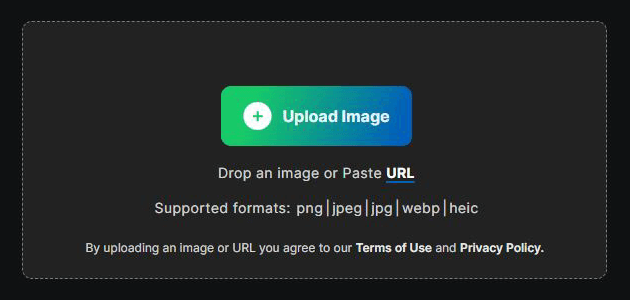
#2) Upload the image you wish to upscale.
#3) Choose the scale at which you’d like to enlarge your photo. Also, toggle on the “Enhance Quality” button to improve the image’s resolution.
#4) Wait for the image to be processed.
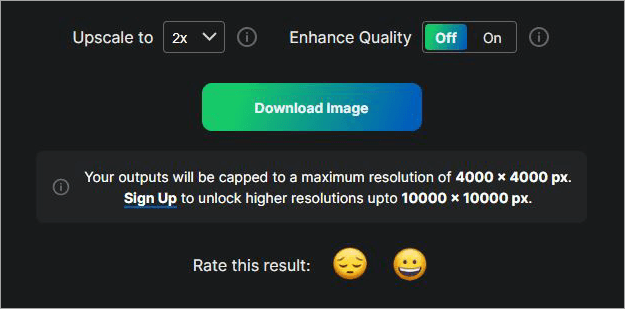
#5) Download the result.
| Pros | Cons |
| User-friendly | A very limited free plan |
| Fast processing | |
| Supports all image formats | |
| Compatible with Windows and Mac systems |
Price: Upscale.media is free to use in a very limited capacity. Its subscription plans are:
| Subscription Plan | One-Time Payment | Enterprise Plan |
| $69.99/year | $24.99 | Custom Price |
Website: https://www.upscale.media/
#2) Picwand.AI
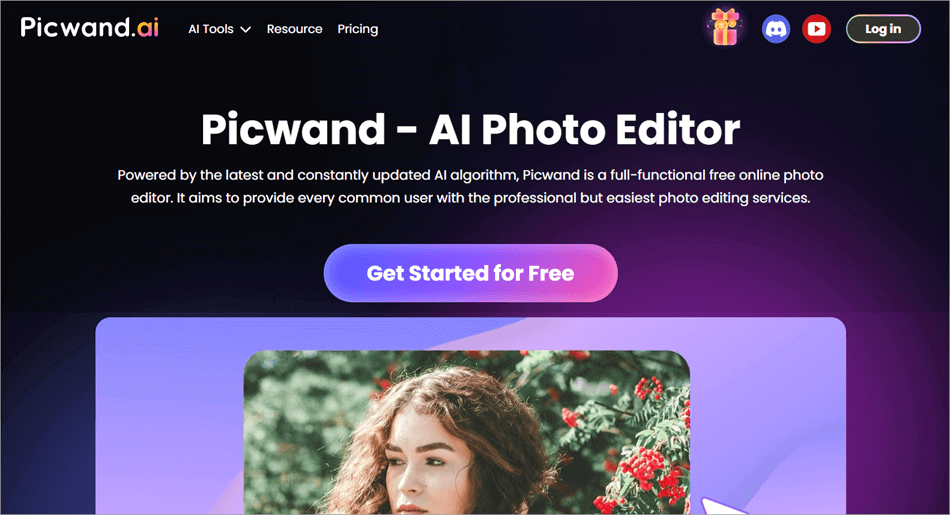
Like Clipdrop, Picwand also offers a whole suite of tools, each powered by an intelligent AI. This AI can automate various aspects of the image editing process. From enhancing an image’s resolution to removing objects from a picture, Picwand.AI can do it all without hassle. Picwand is also easy to use, with superfast processing capabilities.
Some of its best features include the ability to restore an old photo. You can provide Picwand with any blurry, tonally damaged, or torn photo. Within seconds, Picwand will restore the image to its former glory with even better quality and natural colors. You can use the tool to colorize black and while images.
Picwand is also great at processing videos. You can use the tool to enhance and upscale a video’s quality as well.
Further Reading => Explore All About getimg.ai with Alternatives
Features:
- Image Upscaler
- Object Remover
- Photo Colorization
- Photo Restoration
- Image compressor and converter
How does it work?
#1) Sign up at Picwand.
#2) Upload a photo you wish to process.
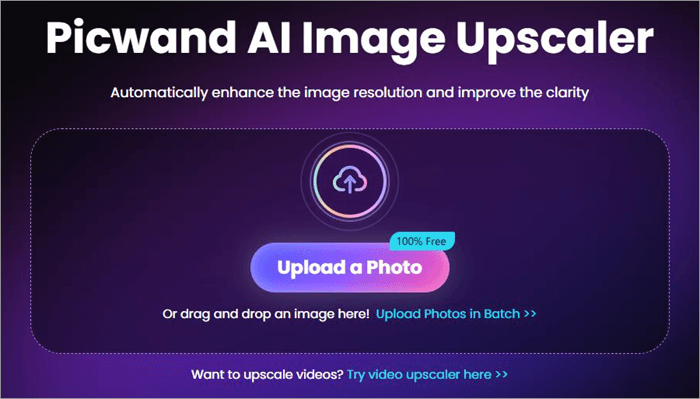
#3) Let Picwand’s AI assess the image and process it according to the feature you’ve chosen.
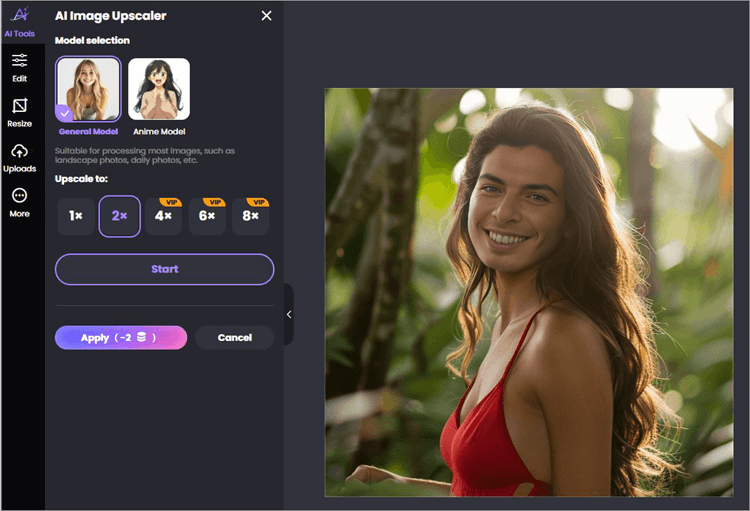
#4) Preview the image and download if satisfied.
| Pros | Cons |
| Flexible pricing | The support could be better. |
| Restore and colorize old photos | |
| One-click processing | |
| It can process videos as well |
Price: Picwand.AI is free to use in a very limited capacity. Its paid plans are as follows:
| Monthly | Lifetime |
| $12 for 200 credits | $29 for 200 credits |
Website: https://www.picwand.ai/
#3) WeShopAI
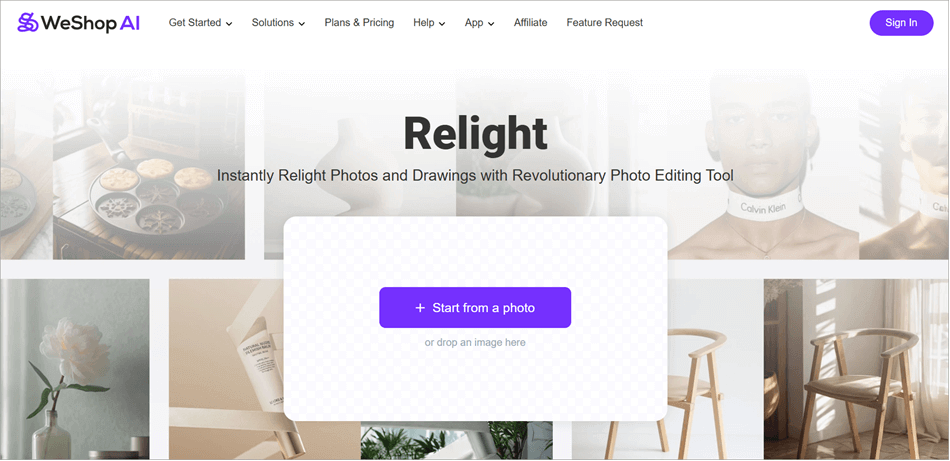
WeShopAI is another platform with an expansive AI editing suite for you to try. Just like Clipdrop, you’ll find tools here that allow you to edit and modify your images or photos in multiple ways. Everything from enhancing an image’s quality to background removal can be done through this tool with a single click.
Perhaps the best aspect of this platform is its relighting feature. If you aren’t satisfied with the lighting in your photograph, you can have WeShopAI’s tool improve it automatically. You can count on this intuitive AI to add a new light source in the image, change its color intensity, and even position the image as bright or dark.
This makes the tool excellent for photographers who might want to tweak the lighting in their pictures after it has been taken.
Features:
- Image enhancer
- Background Removal
- Lighting Modification
- Magic Eraser
- AI Pose Generator
| Pros | Cons |
| The mobile app | High-speed GPU pool |
| Flexible pricing | |
| Intelligent AI | |
| High speed GPU pool |
Price: WeShopAI is available to use for free in a limited capacity. Its paid plans are:
| Points | 3000 | 15000 | 36000 | 160000 |
| Pricing | $12.99 | $58 | $118 | $488 |
Website: https://www.weshop.ai/tools/relight
#4) LetsEnhance
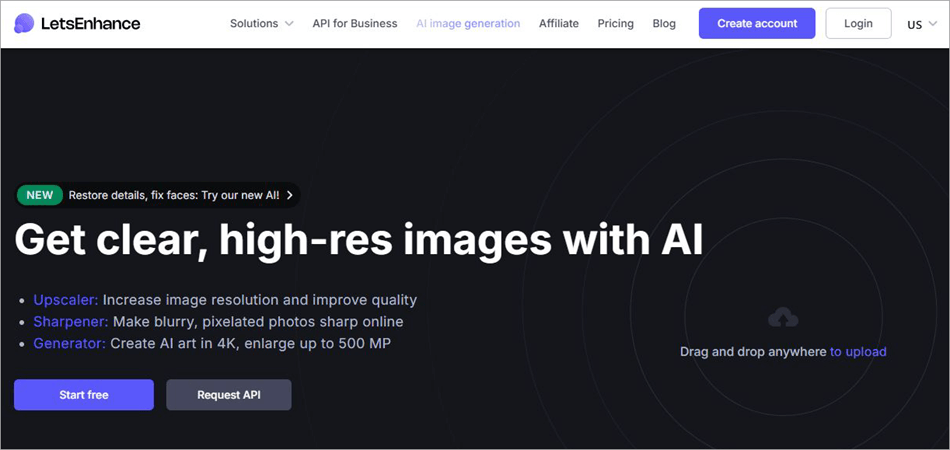
LetsEnhance is another excellent entry on this list and one that can easily give some of the best AI tools out there a run for their money. LetsEnhance serves three very useful functions. You can use it to upscale an image.
By upscale, I mean increasing an image’s resolution without harming its quality. You’ll be able to upscale an image by up to 16x with no noticeable quality drop.
Second, you can use it to enhance the picture quality of an image. If you have a blurry image, LetsEnhance’s AI will sharpen it up so you have something clear to look at. LetsEnhance also features generative AI capabilities. You can use it to create art in 4K resolution from scratch.
Features:
- AI Picture Upscaler
- Fix Pixelation and Blur
- Color Correction
- Remove JPEG Artifacts.
- Background Removal
| Pros | Cons |
| Text to image generation | It can boost image quality to 4K. |
| User-friendly | |
| Can boost image quality to 4K | |
| Super fast processing |
Price: LetsEnhance offers the following subscription plans:
| Starter | Pro | Max |
| $9/Month | $24/month | $34/month |
The tool is free to use, with some restrictions.
Website: https://letsenhance.io/
#5) Pixelcut
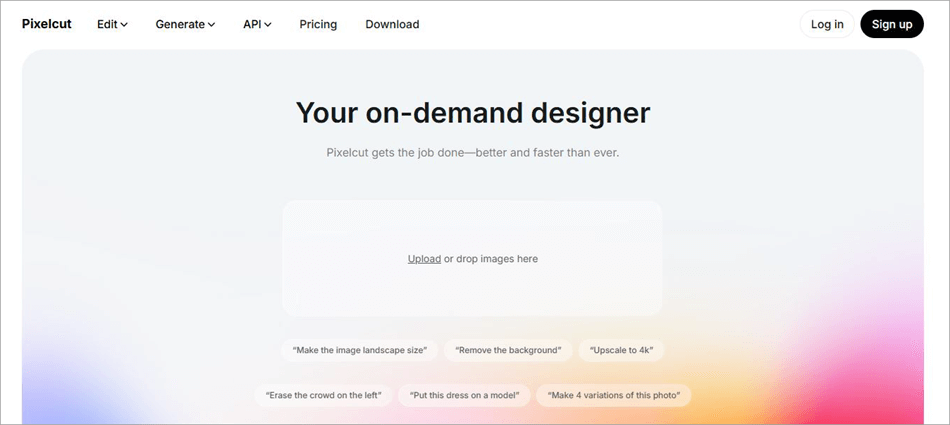
Finally, I would be remiss if I ended my list without mentioning this gem of a tool. Pixelcut stands out for its AI-based editing and generative capabilities. You can use it both to create visuals as well as edit them. Not just images, you can use Pixelcut to generate full-fledged videos, logos, and mockups.
The editing is fully automated and quite efficient. Upload the image and Pixelcut’s AI will take care of the rest. The processing speed, whether it is for background removal or uncropping, is quite fast. Pixelcut is now being used by 50 million creators worldwide. This further proves just how trusted the software is among its users.
Features:
- Generate Images and Videos
- Background Removal
- Magic Eraser
- Uncrop
- Generative Fill
| Pros | Cons |
| Text to image and video generation | Limits on concurrent generation. |
| Create photo-realistic visuals | |
| Mobile app | |
| Flexible subscription plans |
Price: You can use Pixelcut with some restrictions. Its paid plans are as follows:
| Pro | Pro+ | Max |
| $10/month | $30/Month | $60/month |
Website: https://www.pixelcut.ai/
FAQs on Clipdrop
1. What is Clipdrop AI used for?
Clipdrop AI can best be described as an AI-powered visual editor and generator. You can use it for diverse purposes. It can help you generate images from scratch and automate several other editing tasks.
Clipdrop AI will help you uncrop images, upscale images, remove background, clean up a picture, or resize it.
2. Is Clipdrop free?
Yes, Clipdrop is free. However, I would advise against using the free version because of its limited nature. You can process only 24 images per day. Plus, you won’t be able to download the results in high resolution. Clipdrop’s free version also doesn’t let you generate images.
3. Is Clipdrop safe?
After spending enough time on the tool and using my images to play with its various features, I can confidently say that it is safe. It has stringent security measures in place to ensure user privacy and safety.
The tool is also free of any malware or viruses. As such, you can rest easy whenever launching the solution on your system.
4. What are the best alternatives to Clipdrop?
AI-driven image processors are flooding the online space today. However, only a few of these tools are worth your money and time. The following are the best alternatives to Clipdrop by a long mile:
• Upscale.media
• Picwand.AI
• WeShopAI
• LetsEnhance
• Pixelcut
5. Is there a Clipdrop app?
Clipdrop doesn’t offer an Android or iOS app. However, it does offer an API, which allows you to integrate its AI with your app in minutes. If you do find a Clipdrop app during your search online, know that it is fake. Do yourself a favor and stay away from such applications.
Conclusion
Clipdrop is just the latest example of how AI is dominating the online space today and changing how we do things. Clipdrop features a smart AI that can automate and simplify various editing tasks that would have otherwise cost you a lot of time and money. That said, the tool isn’t perfect. Its generative AI may not render accurate results sometimes.
It also lacks a mobile app, thus failing to cater to folks who wish to edit on the go. Thankfully, Clipdrop isn’t a lone soldier in the realm of AI image processors. There are amazing Clipdrop alternatives out there that make up for some of the tool’s limitations.
You’ll find in-depth reviews of them all above to help you make an informed decision. All the recommended alternatives offer their services for free. However, I would suggest purchasing their subscriptions for a better, fully realized user experience.
Was this helpful?
Recommended Reading
-

Read this review if you're looking for a Photo Enhancer AI to Make Blurry Pictures Clear and look crisper as well as sharper than ever. A blurry picture is the worst nightmare for everyone. However, with Photo Enhance AI technology, you now know how to transform your blurry photos into…
-

Discover all about the unique features and character creation capabilities of Janitor AI along with its alternatives. Converse with the fictional AI characters of your choice and customize as per your needs: Conversational AI tools are finding varied applications in offering automated customer support, supporting online searches by providing relevant…
-
Edit and enhance your photos effortlessly with apps similar to Cutout Pro. Pick the best Cutout Pro Alternative with powerful features to revolutionize the world of image & video designs: Are you looking for an app like Cut Out Pro? Go through this article to find reviews about the top…
-
This tutorial reviews and compares the top Free Photo Editing Software to help you select the best photo editor as per your requirements: Thinking about uploading a new image for your social media account? Quick image editing can do wonders for your new post. If you just want to post…