An honest review of Atlassian Rovo with features & pricing. Deeply analyze how Atlassian Rovo accesses enterprise knowledge from Jira Cloud, Confluence Cloud & other SaaS tools (GitHub, Google Drive, etc.) to AI:
AI today can transform all aspects of our work, especially taking care of time-consuming activities and speeding up our tasks where typically human intelligence is needed.
AI helps in processing data, identifying desired patterns, and deciding based on the information that is collected. AI has integrated rapidly into various aspects of our life, helping us with our daily routines.
Table of Contents:
Atlassian Rovo Review: Your Ultimate AI-Powered Partner
What is Atlassian Rovo
Atlassian Rovo is your new “AI Teammate”. So, what exactly does it do? It helps to search relevant data across tools and platforms, which include Jira, Confluence, and other Atlassian tools, including other 3rd party SAAS tools like GitHub, Slack, Google Drive, Microsoft Teams, SharePoint, etc.
This is enterprise search across various tools and platforms. E.g., from Confluence, I can search for relevant information in Jira or GitHub.
Along with the enterprise search, Rovo can also help to explore the data through an AI-powered chat interface and work with Agents to reduce repetitive work and to help analyze any complex content. Atlassian Rovo definitely enhances your searching abilities across the connected ones.
Here is a video on Atlassian Rovo for your reference:
Features of Atlassian Rovo
Atlassian Rovo, which is powered by Atlassian Intelligence, is built on 3 areas of finding, learning, and taking action on information spread across a wide range of tools.
Find: Search across data, tools, and platforms, including 3rd party SAAS platforms like GitHub, Google Drive, Microsoft Sharepoint, Microsoft Teams, Slack, and more to get relevant information. Teams will see data only to which they have access.
Suggested Read =>> Top SaaS Companies
Learn: Getting access to data is of no use unless you get a deeper understanding of the same. Using Rovo Chat, you get an in-depth response to the queries.
Act: Now, as you have the information that needs to be covered, Rovo, with the help of agents, can handle time-consuming tasks and also streamline them.
With Atlassian Rovo, you turn the information into action.
Activating Rovo
To activate Atlassian Rovo in your Atlassian Cloud instance, go to admin.atlassian.com and in the Settings TAB, click on AI Settings->Rovo.
Click to start the Rovo Trial for 30 days and activate for the Atlassian Jira and Confluence cloud sites.
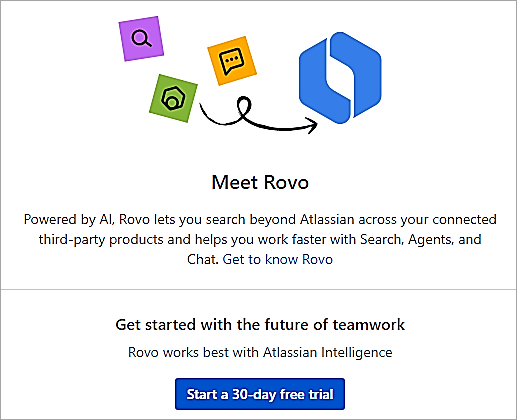
To use Atlassian Rovo, Atlassian Intelligence should also be activated.
Recommended Reading => Most Popular Confluence Alternatives
Rovo Search
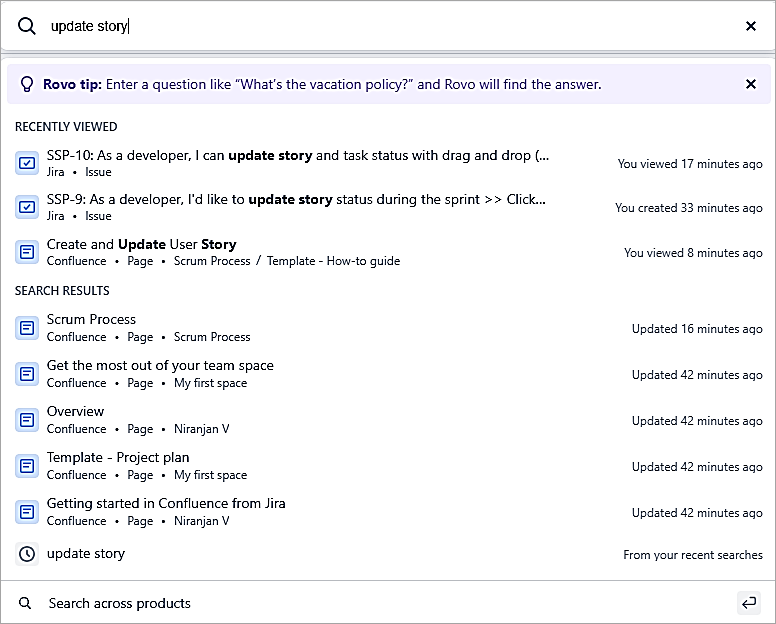
Rovo search allows you to search across different products without really having to switch. In Confluence and in the search option type as shown and click on Search across products at the bottom. It provides a single interface to provide results from Atlassian and 3rd part products. 

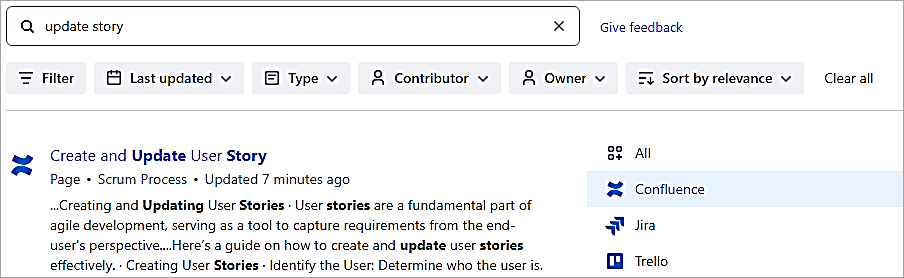
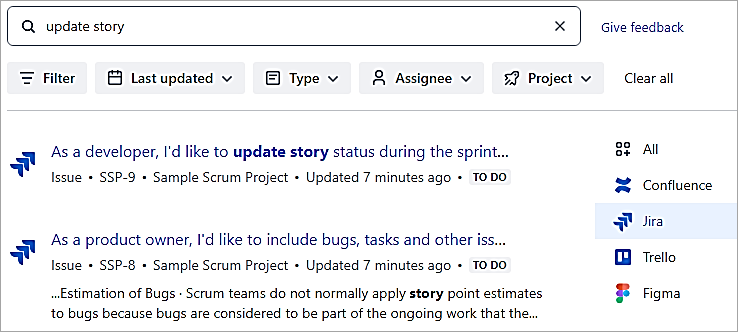
On the right, select Confluence and Jira one by one to see the search results from both products.
Let’s try another example. In the search field, enter “What Jira tickets are assigned to me?”
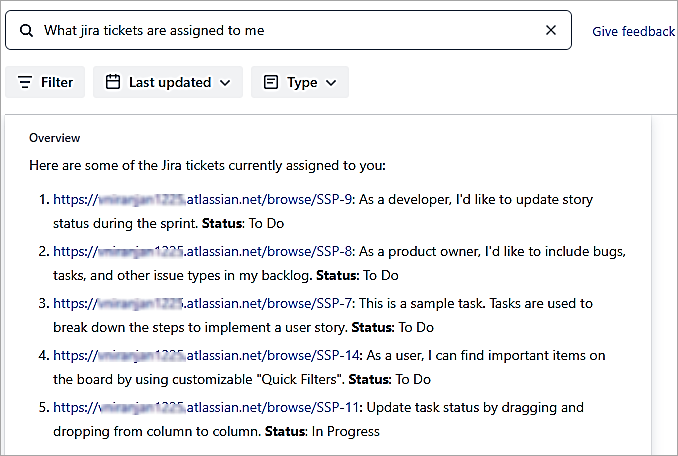
In the above search, you can apply filters to narrow down your search to a specific Confluence space or Jira project, or a particular contributor. Click Filter to apply the filter and select a specific space or project for Confluence or Jira products.
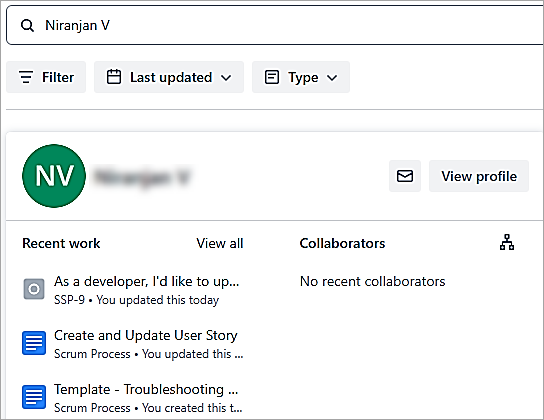
Next, in the search field, enter your teammate’s name. It will provide important information about what they have been working on.
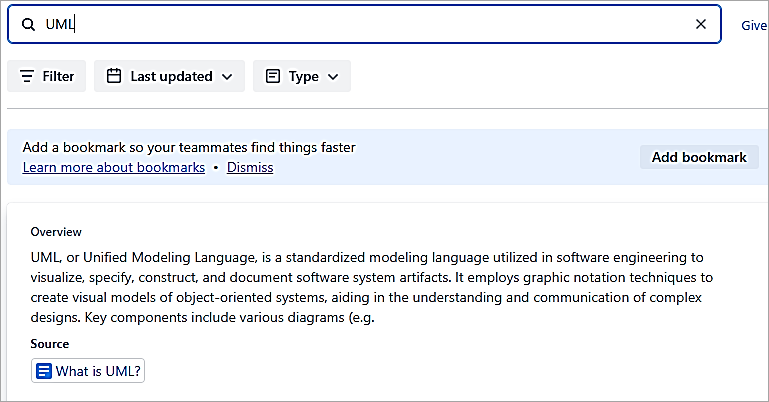
Let’s search for jargon you may have been assigned to work on. Enter “UML? It shows the source page where it is defined.
Connecting GitHub to Rovo
We will look at how to connect GitHub to Rovo, and once connected, GitHub will show up as a Filter option in the Search. Only GitHub Cloud sites can be connected, and this feature is currently available only in the Search option. To connect GitHub to Rovo, you will need to be an Organization Owner.
Follow the steps below:
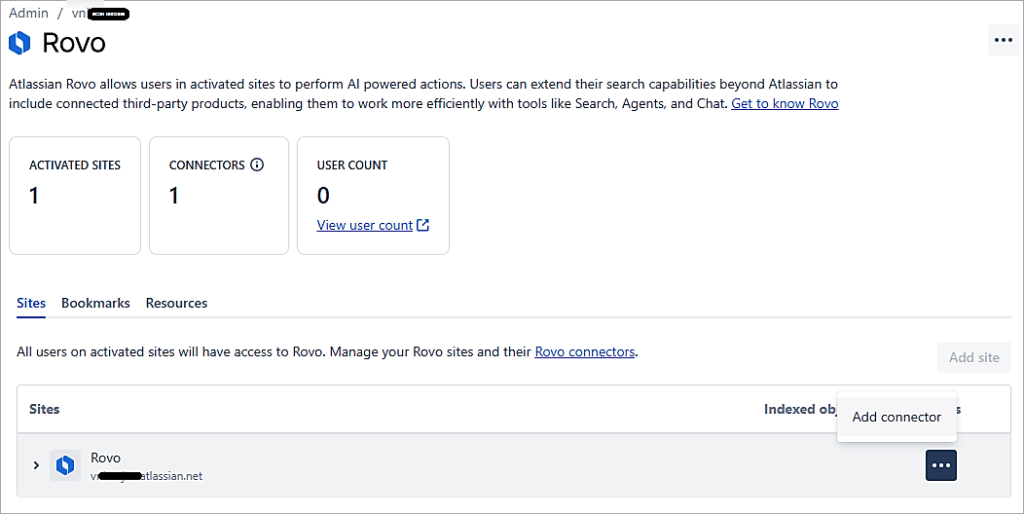
Open admin.atlassian.com and go to Settings -> Rovo. On the sites tab for the site that you need to connect to GitHub, click on 3 DOTS (…) -> Add connector
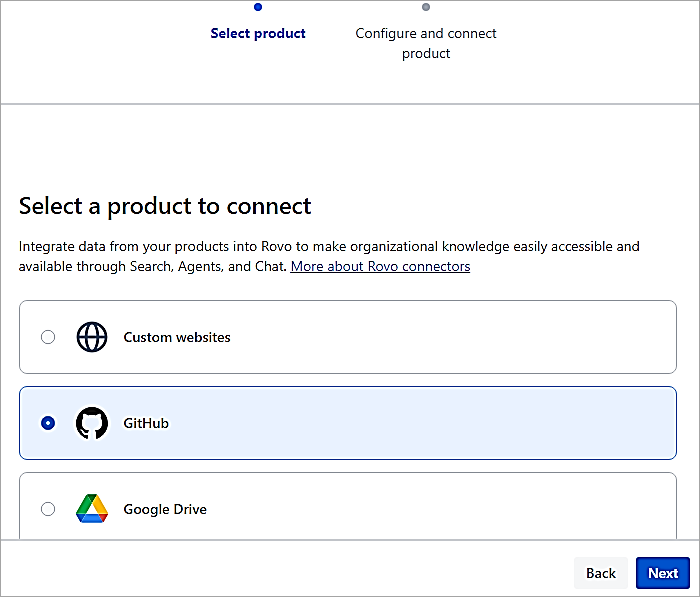
Select GitHub and click on Next.
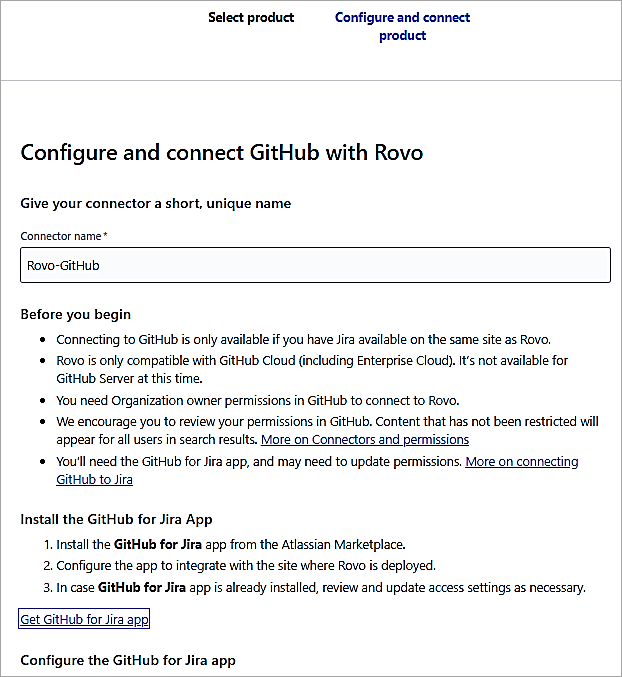
Provide a name and install the GitHub for Jira app from the Atlassian marketplace if not installed.
Recommended Reading => Project Planning with GitHub Projects
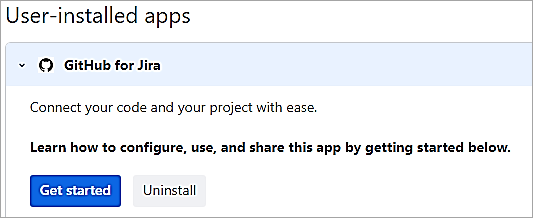
Next, go to the Apps section and click on Get Started for the GitHub for Jira app. We need to link the app to the GitHub organization, where you need to use it with Rovo.
Follow the steps to connect to the GitHub organization. In the last step, click on Add to Rovo.
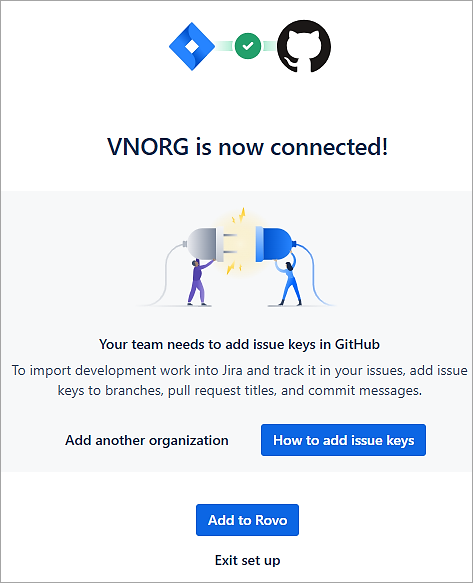
Back in the original screen, click on Connect.
You should see the screen below. Click on Do this later.
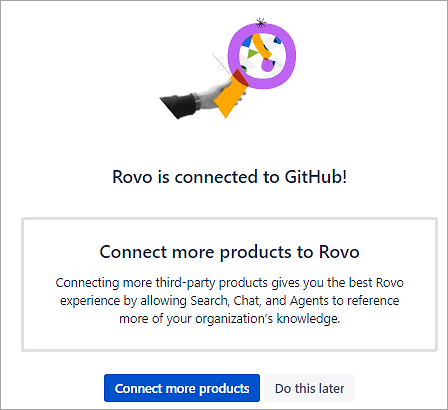
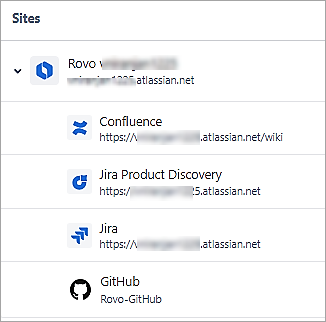
Under the sites, GitHub is added.
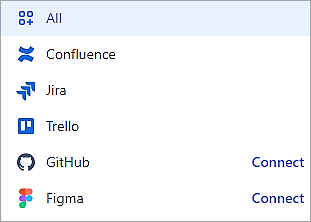
Now, back in Confluence on the search page, click on Connect next to GitHub
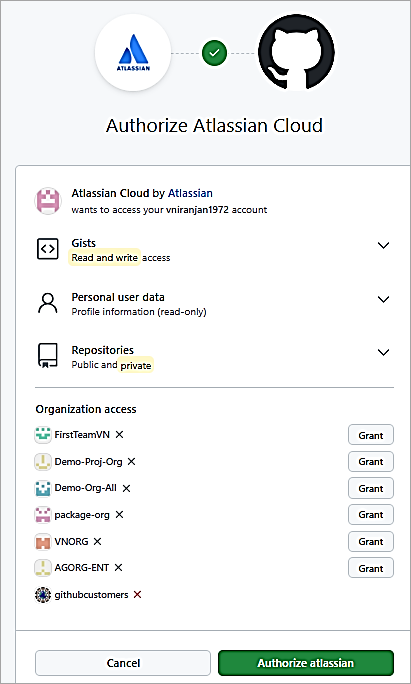
Click on Grant next to the ORG, and click on Authorize Atlassian
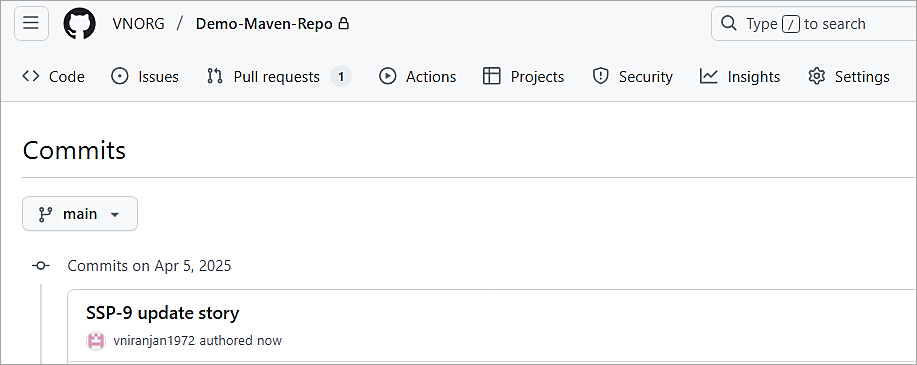
In GitHub, I have a commit with ‘update story’ as the commit message.
Searching for updated stories via Rovo in Confluence displays associated GitHub commits in the results.
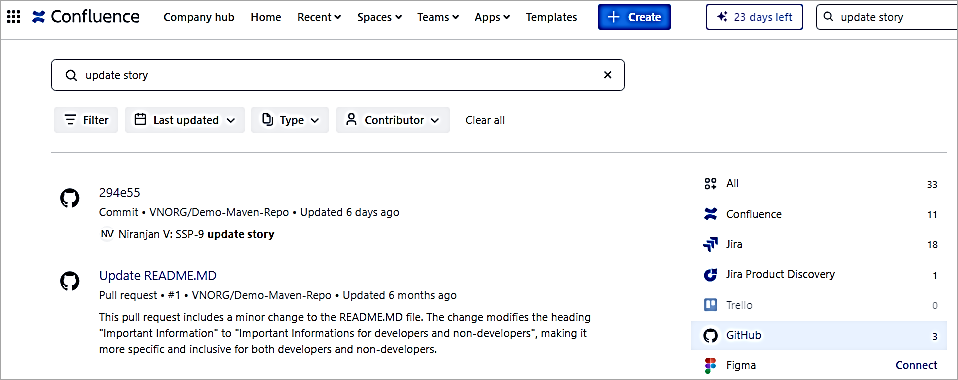
Simply superb. So, apart from the search information shown in Jira/Confluence, Rovo also shows the information from GitHub commits. So, we have eventually seen how to search for information from a 3rd party product, GitHub.
Rovo in GitHub Copilot Chat
As a developer, when you need to review specific Jira issues or information from a Confluence page while coding, you must switch to the tool, log in, and search for relevant information.
Rather than doing this, you, as a developer, can ask for all of this right from the integrated IDE (VS CODE) and get access to all of Jira/Confluence information using the new Rovo-powered Atlassian extension for GitHub Copilot.
Let’s look at how to access Rovo in GitHub Copilot Chat. A prerequisite, of course, is to have a valid GitHub Copilot Business Subscription.
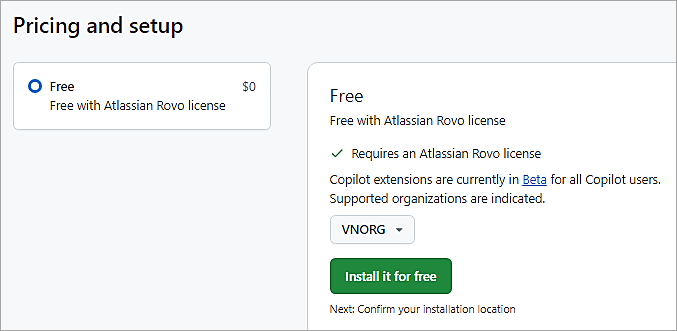
Install the Atlassian Rovo Copilot Extension into your GitHub organization from the GitHub Marketplace
Select the option to install for free from the above URL by selecting your GitHub organization
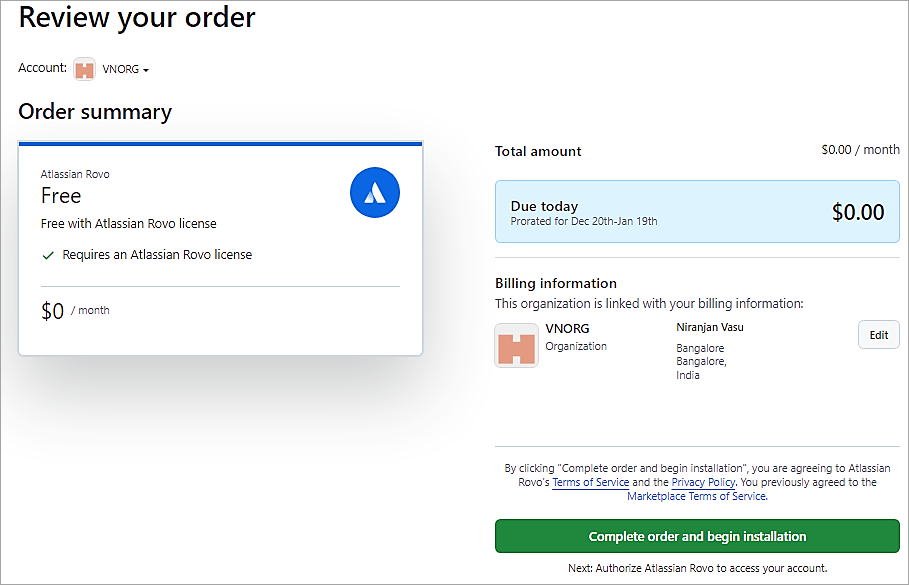
Click on Complete order and begin installation.
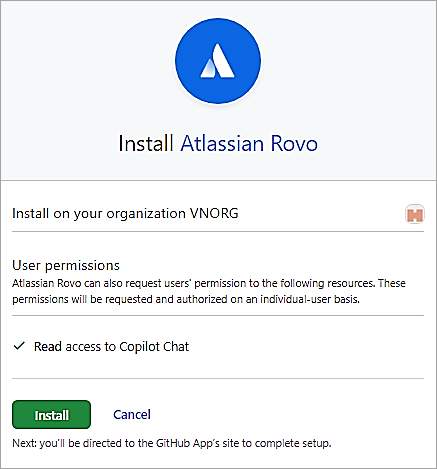
Click on Install.
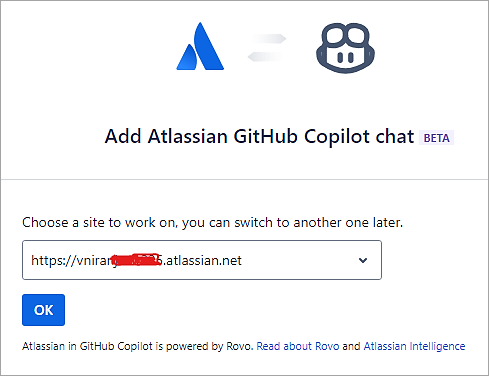
Click on Ok. You should see the screen below after a successful installation of the extension.
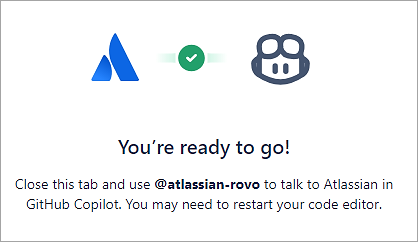
Restart the VS Code IDE if open and use @atlassian-rovo to talk to Jira projects right from within the IDE itself.
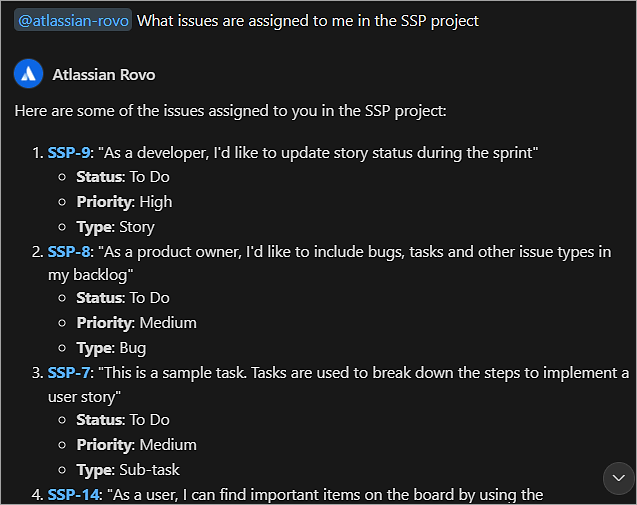
Enter the prompt below in the GitHub Copilot chat interface.
@atlassian-rovo What issues are assigned to me in the SSP project?
Also Read => Learn Selenium IDE Commands with Examples
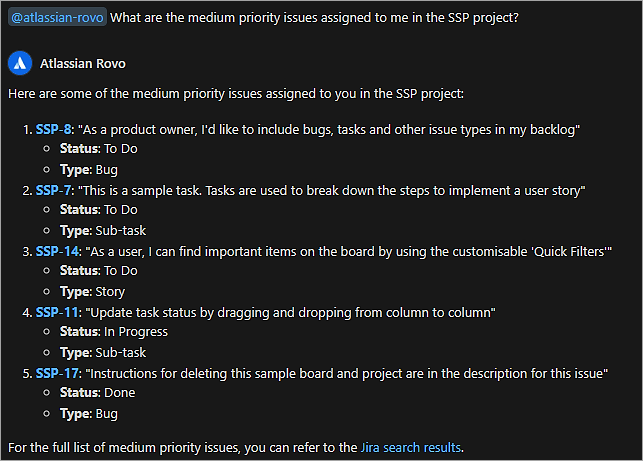
Let’s look at another prompt
@atlassian-rovo: What are the medium priority issues assigned to me in the SSP project?
Let’s look for a prompt for Confluence. Enter the prompt below in the chat interface.
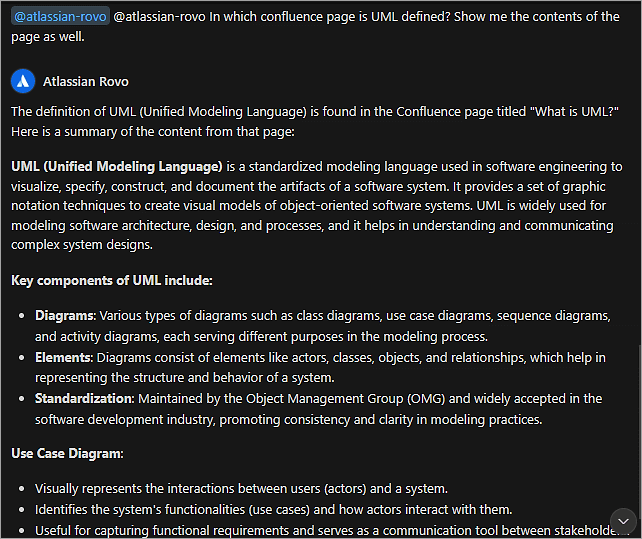
@atlassian-rovo In which Confluence page is UML defined? Show me the contents of the page as well.
Rovo Browser Extension
You can search or chat for information on Atlassian products using the Rovo Browser Extension. Supported browsers are Chrome and Edge. To install the extension, click here and click on Get.
Also Read => Best Chrome Extensions of the Year
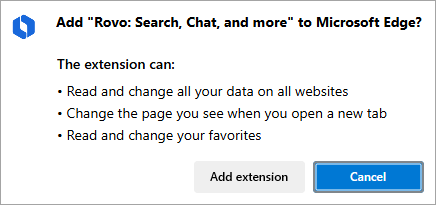
Click on Allow and Add extension.
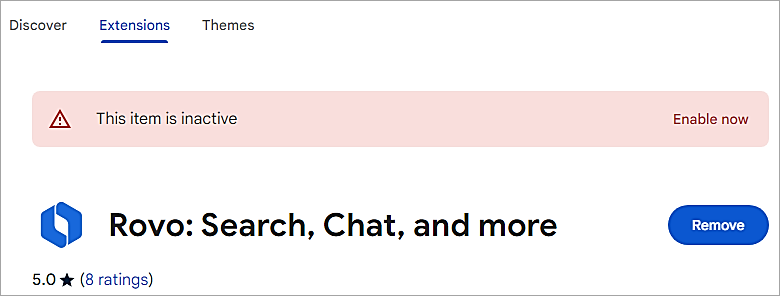
You will need to enable the extension. Click on Enable now.
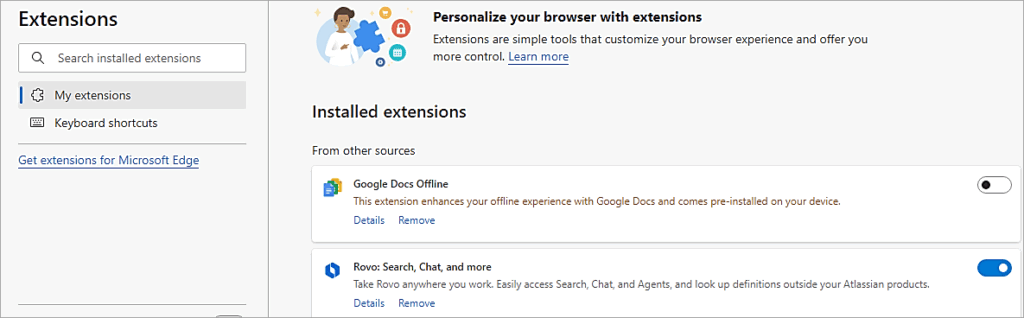
Click on Turn On and Toggle the option for Rovo Search.
In the page that comes up, you will need to log in.
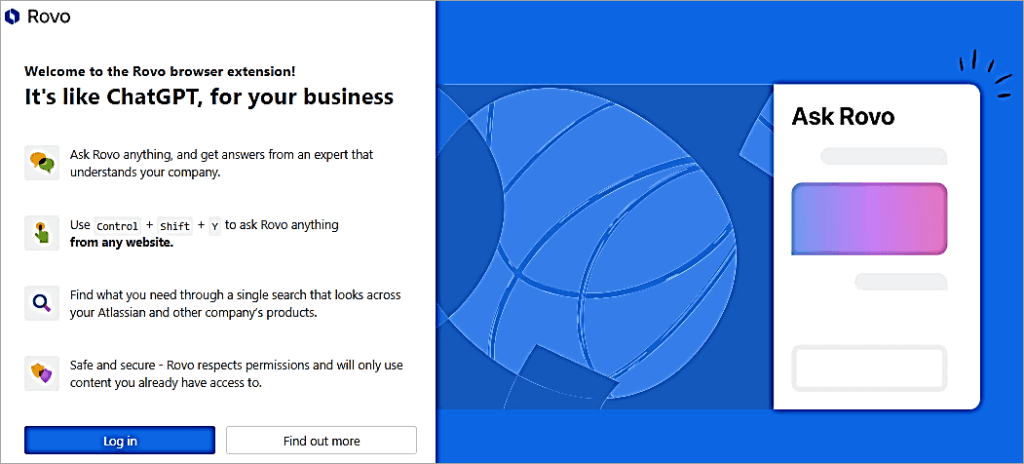
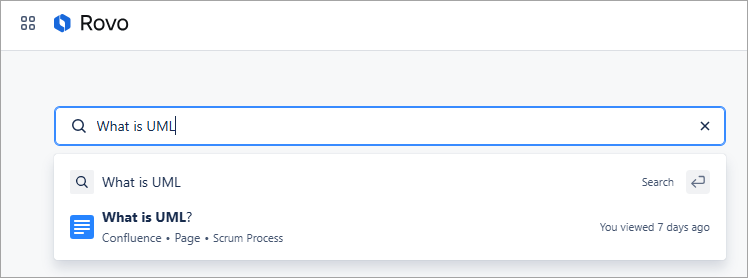
Once logged in, you can now ask questions. The following shows a reference from the Confluence page.
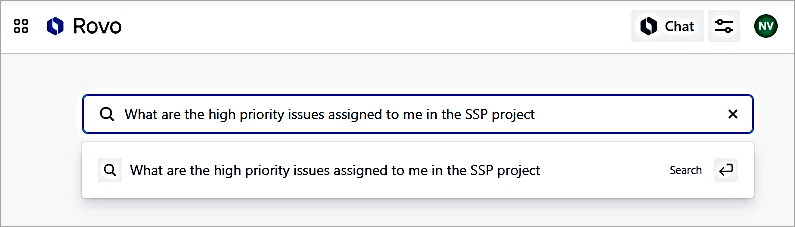
Let’s now ask a question about the Jira project.
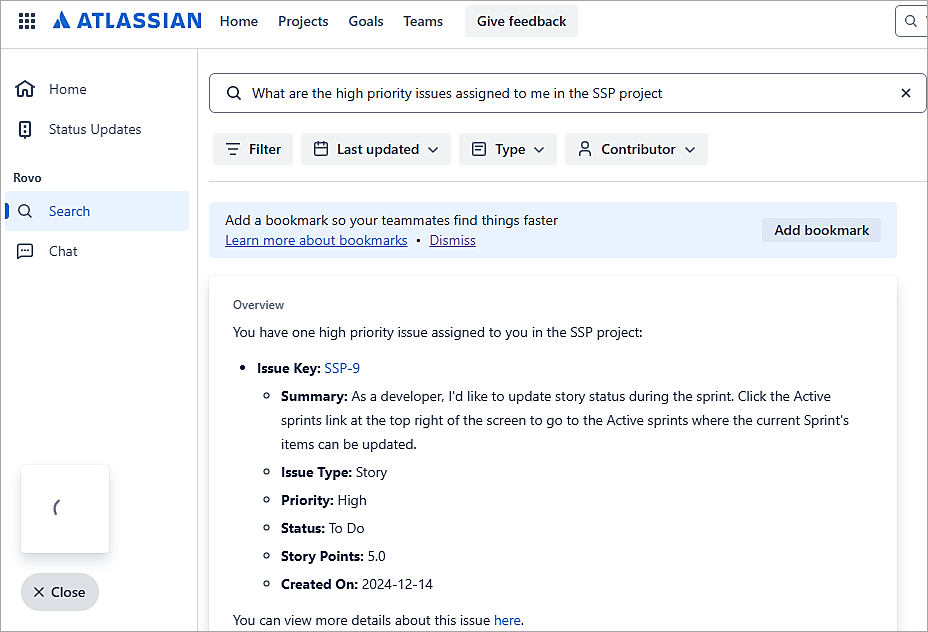
Add another comment.
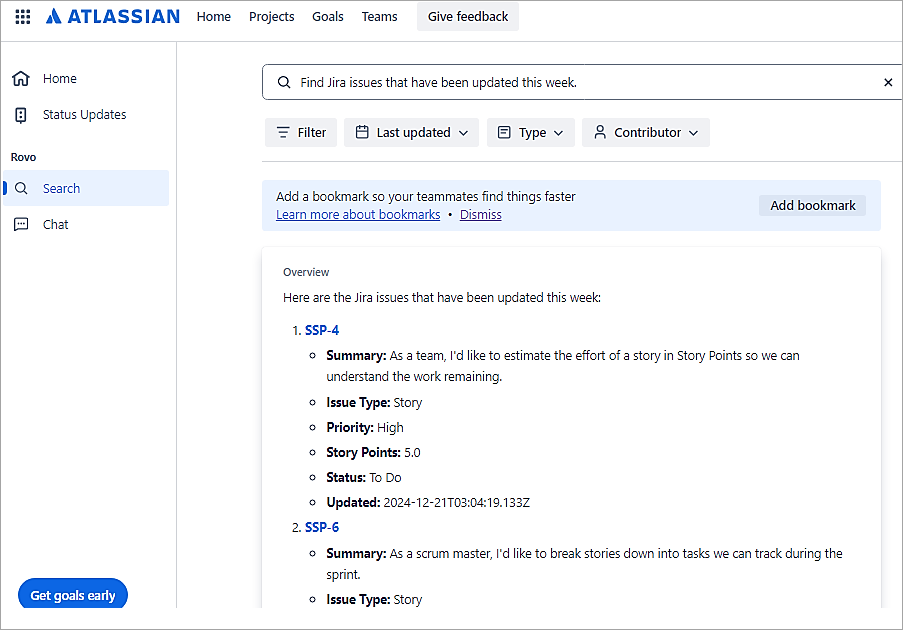
There are other suggestions in the browser extension that you can try.
Rovo Chat
Rovo Chat is an interface with which you can converse to access information from Atlassian and 3rd party products connected. Rovo understands the context of your work (Atlassian products and 3rd party connected products) and provides suggestions.
Rovo Chat is available in Confluence and Jira-based products and a Browser extension, which was explained in the previous section.
You can start using the chat interface by entering prompts and receiving responses.
To initiate chat, you can click on the Chat icon in the top right-hand corner.

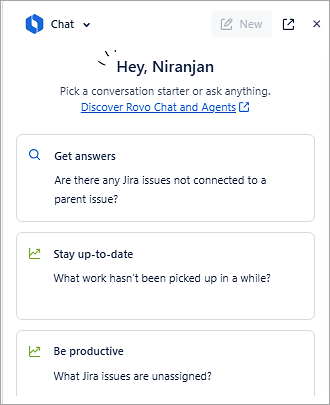
Once the chat interface is opened, you will always see 3 conversation starter questions.
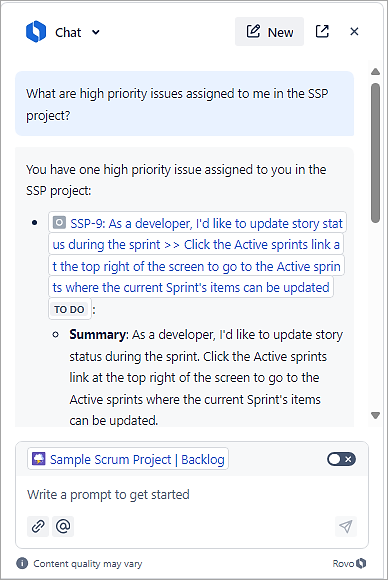
In the chat interface, enter the prompt. What are high priority issues assigned to me in the SSP project?
Click on a Jira Issue, which will become the context for the chat interface by toggling on the button next to the issue in the Chat interface. Enter the prompt Can you help me with the comments for this issue?
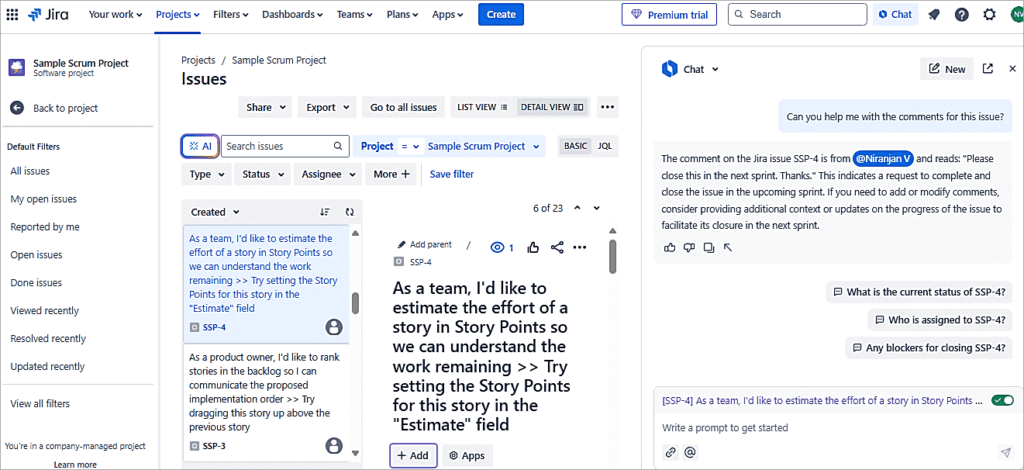
You can also see 3 follow-up prompts, which you can use for the issue. You can also access the chat interface from the Rovo Browser extension.
What is a Rovo Agent
Rovo Agents are AI-powered virtual teammates who will work with the team. The agents bring specialized knowledge and custom skills to your workflows and processes.
Agents can:
- Generate, review, and refine content.
- Provide recommendations based on best practices.
- Clean up Jira backlogs, organize Confluence pages, or align content.
- Organize, create, or edit Jira issues or Confluence pages, which we will see.
- Also, reduce any repetitive work.
In this section, we will look at certain pre-defined agents to help the teams with a particular task, and also use the chat interface to interact with agents.
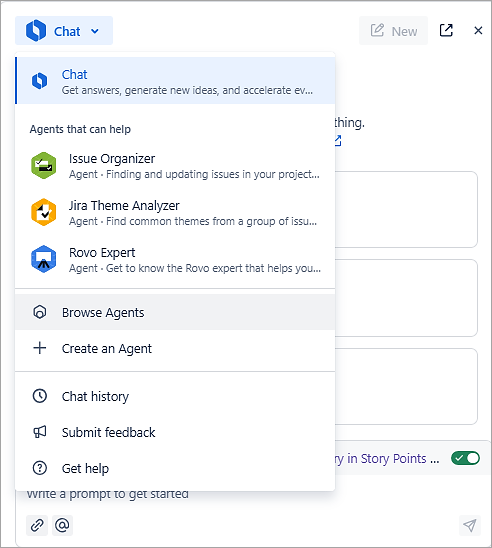
To browse the agents in the Chat menu, select Browse Agents.
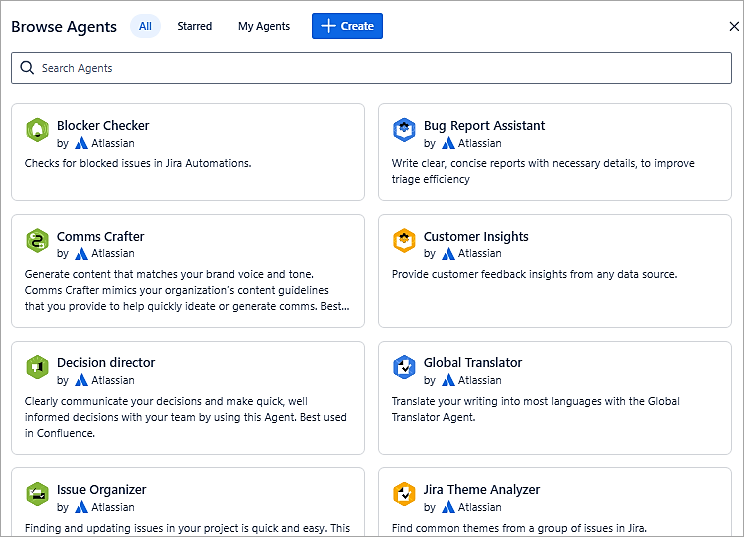
From the agents displayed, we will see examples of a few agents.
From the list of agents displayed, select the Issue Organizer. To use this agent, let’s say I have a filter in my Jira project to list all story issues, which will be my context for using this agent. Enter the prompt Suggest a new epic for the story issues.
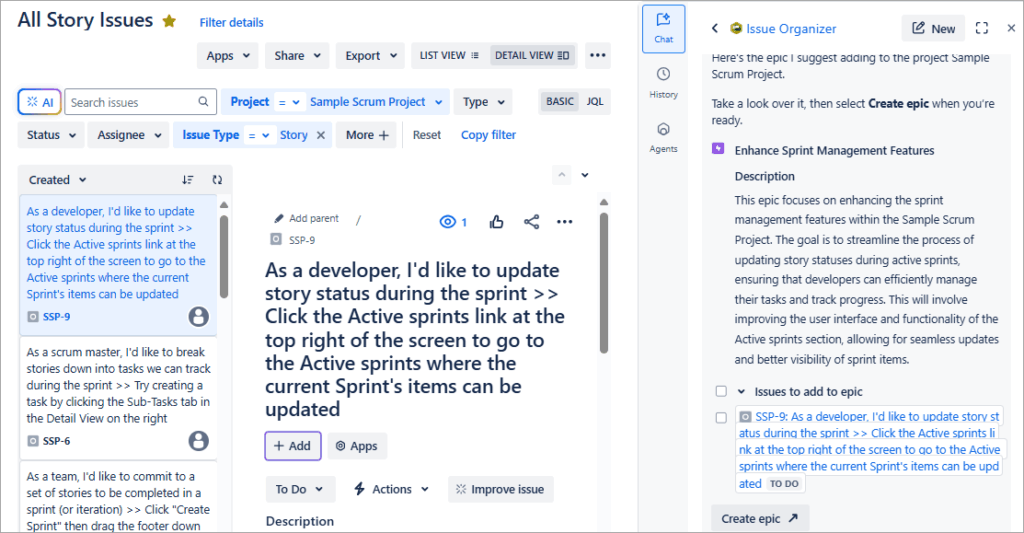
An Epic name is suggested to be created. Review the same and click on Create Epic in the chat interface.
Next, open a new session in the chat interface for that agent.
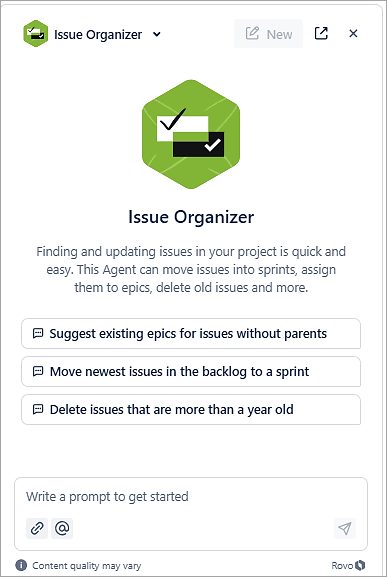
Click on the first option to suggest existing epics for issues without parents.
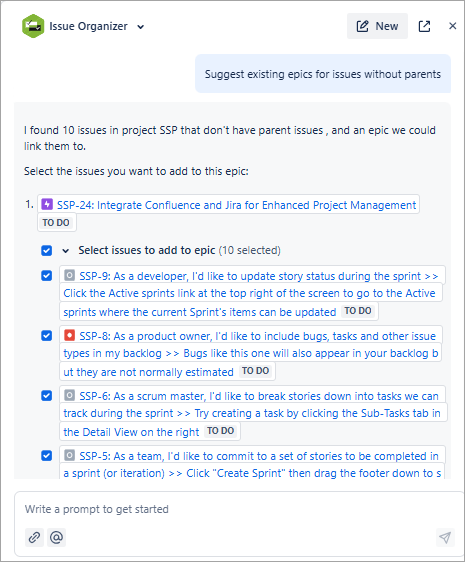
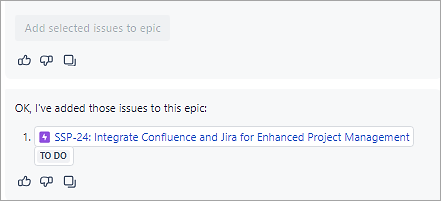
Select the Epic and at the bottom, click on Add selected issues to epic. You should then see the message below added.
Open the epic issue, and you would see the story issues linked to the epic.
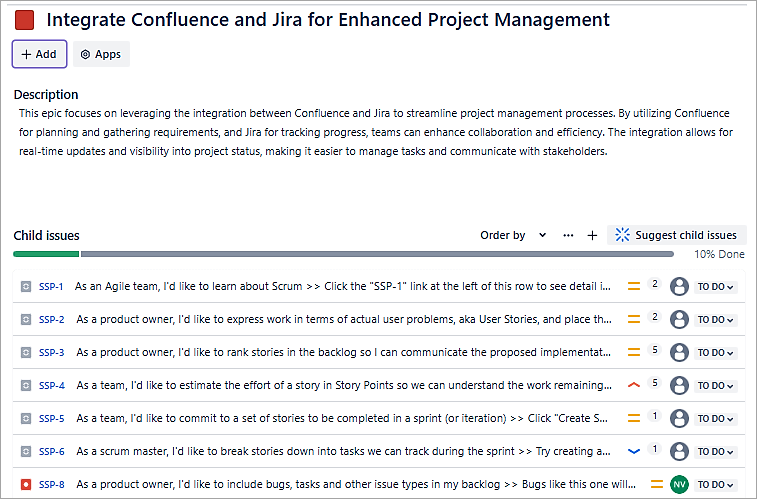
This would definitely save time if you need to link bulk issues to the epic.
Jira Theme Analyzer
Let’s look at an example for this agent. I have a filter for all epic issues. In the chat interface, select the Jira Theme Analyzer agent and click on the first option to identify themes. Provide the URL for the filter showing all epics.
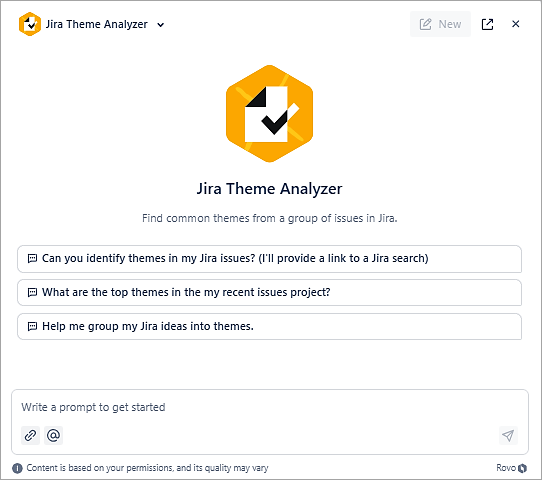
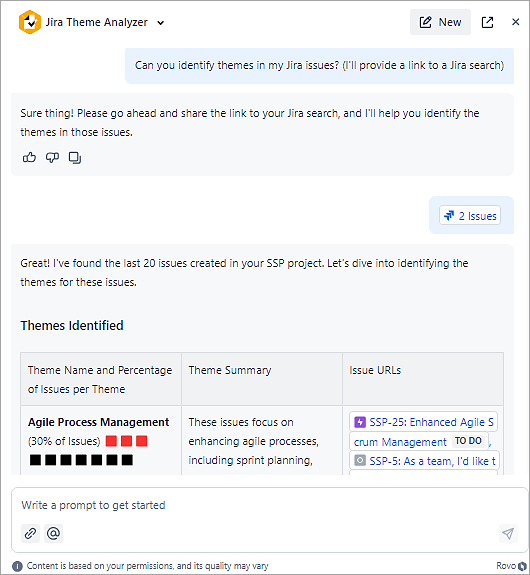
You can review the suggested theme names and create the same if there is a custom issue type called Theme.
Release Notes Drafter
The Release Notes Drafter will look at the Jira issues that have been resolved, and release notes will be generated. In the chat interface, select the agent and click on the first option. Ensure the filter for which the release notes have to be generated is open.
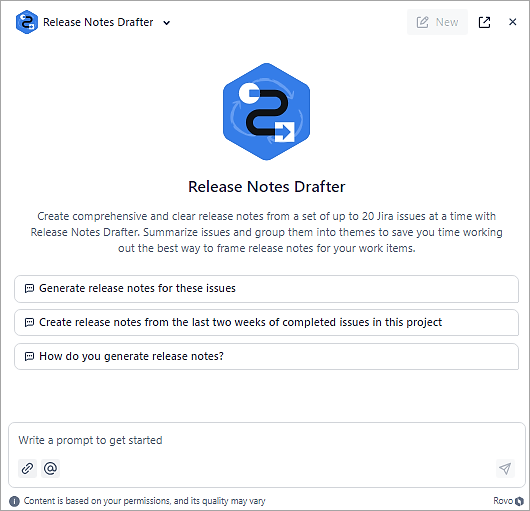
The release notes get generated. You can then copy the same and publish to a Confluence page.
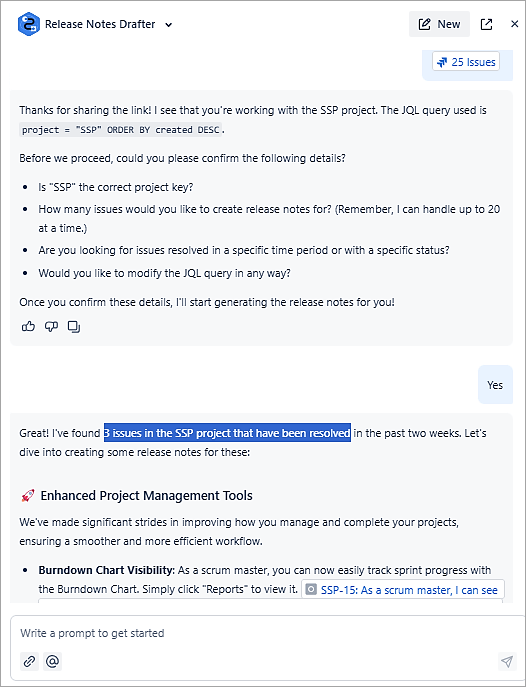
So, Rovo agents handle any kind of specialized tasks that are needed by teams.
The Rovo pricing, monthly and yearly, for specific team sizes can be found here
FAQs About Atlassian Rovo
1. What does Atlassian Rovo do?
Atlassian Rovo helps teams discover the knowledge across Atlassian and third-party SaaS apps quickly and with less effort.
2. What is a Rovo?
Rovo is an AI teammate that helps you find the relevant information on Atlassian tools, SaaS applications, and custom data centers. It can provide smart answers about your work. It’s valuable and up-to-date insights on your work will help you discover the various questions behind your work.
3. How much does Atlassian Rovo cost?
The Rovo’s price will change according to the team size. It offers monthly and annual billing. For a team of say 301 to 400, the Annual billing system will cost you $79000 per year, and the monthly billing system will cost $20 per user per month.
4. What is a Rovo agent?
Rovo Agent is an AI-powered virtual teammate that helps teams. These Agents can generate, review, & refine content as well as provide suggestions based on best practices.
They can clean up Jira backlogs, organize Confluence pages, or align content. They can also organize, create, or edit Jira issues or Confluence pages. Rovo agent reduces repetitive work.
5. Who is the founder of Rovo?
Three names are listed as the founders of Rovo. Danny Limanseta, listed as a primary founder of Rovo. Ritesh Angural and Joshua Newman are the other two founders of Rovo.
6. What is the difference between Atlassian Intelligence and Rovo?
Atlassian Intelligence and Ro vo work together to enhance your productivity and deliver better insights into your information so that users find it easy to manage their tasks and also access the same.
Atlassian Intelligence focuses on improving the functionalities of individual Atlassian products by providing a personalized AI experience. You can read more about how Atlassian Intelligence works @ Atlassian Intelligence in Cloud: How Does it Work?
Atlassian Rovo, on the other hand, extends Atlassian Intelligence capabilities across multiple products, helping teams to find knowledge quickly and, most importantly, efficiently.
Both are examples of teamwork and together bring the power of Artificial Intelligence into the Atlassian Cloud products.
Conclusion
Atlassian Rovo is a new Gen AI product that works across Atlassian and other 3rd party SAAS products using Search, Chat, and Agents, which are virtual teammates, to quickly discover the knowledge that you need with less time and effort.
In this document, we have seen how Atlassian Rovo works to unlock your enterprise knowledge across Jira Cloud, Confluence Cloud, and 3rd party tool SAAS tools like GitHub, Google Drive, etc.
To summarize, Atlassian Rovo helps to accelerate your finding, learning, and acting on data or information across your Atlassian products and 3rd party products as well.
Was this helpful?
Recommended Reading
-

Atlassian Bamboo 6.8: Deployment of a Java Web Application to Tomcat Application Server This tutorial will showcase on the Bamboo concepts for Build and Deployment of a Java web application to the Tomcat application server with the source code committed in the Bitbucket repository. Atlassian Bamboo is a Continuous Integration…
-
This Atlassian Bitbucket 5.16 Tutorial Provides a Detailed Explanation of Some of The Most Common Features Of This Version Control Repository: Bitbucket is a Git-based version control repository solution by Atlassian. It provides central management of source code and collaborates on the same among the developer community. With Bitbucket, it…
-

An in-depth review of Atlassian Intelligence in Cloud to highlight the AI features for Jira & Confluence to increase efficiency and most importantly accelerate your work with the assistance of AI: Artificial Intelligence, as everyone knows, involves creating systems to do tasks previously done by humans. Some activities like learning,…
-
Atlassian JIRA Tutorial Series of 20+ Hands-on Tutorials: What is JIRA? Atlassian JIRA is an issue and project tracking software to plan, track and manage your projects. JIRA is mainly used by agile development teams to customize your workflows, team collaboration, and release software with confidence. For your convenience we…