Get educated on how to turn off location on the iPhone without notifying the other person. Hide or share your location as per your choice with this exclusive guide & find solutions to stop people from tracking you:
iPhones offer their users some handy features like FaceTime, data security, screen sharing, location sharing, and more.
iPhones allow users to share their location with their contacts through Apple Maps, iMessage, and the Find My app. This allows users to track the location of a family member or friend. Parents find this feature extremely useful, as it allows them to know the exact location of their child anytime, without having to call them repeatedly.
How to Hide My Location on iPhone Without Them Knowing
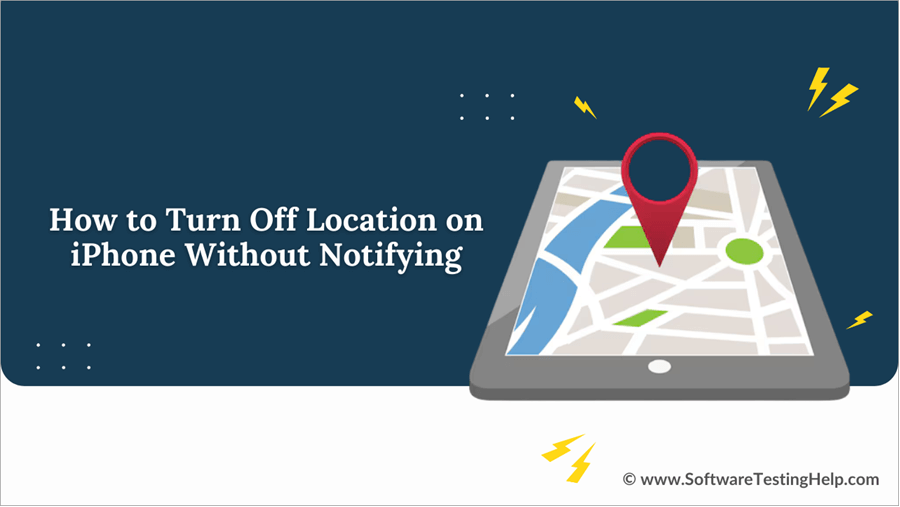
Using an iPhone, you can share your location in several ways, for example:
- Share once: This way you can pinpoint a location on the map, showing your friends where you are. You can do this through Maps or Messages.
- Share on the way: This method allows users to share a map with their contacts, showing the directions and the estimated time of arrival at a specific destination.
- Share ongoing: Through this method, you can share your live location with your friends for one hour, until the end of the day, or for an indefinite period.
Sharing your location with your friends and the apps you use are quite useful. But it can also prove to be harmful at times, especially when the number of frauds and cyber crimes is at an all-time high.
Despite having several benefits, sharing your location can also be quite harmful in many ways, for example-
- Someone, who has no good intentions towards you might use your phone without your permission to allow themselves to access your location.
- Your privacy can be invaded
According to a report by The New York Times, some apps used by a lot of kids nowadays have location-sharing features and can leak that person’s current location to strangers, which can prove quite harmful to anyone.
So even if you are sharing your location with just your dear ones, you must be very careful. Avoid using apps that provide your location to strangers.
If you are wondering how to stop sharing your location with anyone without them getting a notification on their phone, read this article to get a step-by-step guide.
Have a glance at this table to get knowledge about each of the methods used for turning the location off on iPhone:
| Method | How to do it | Why use this method | Limitations |
|---|---|---|---|
| Block, then unblock the contact | Go to Settings> Select Apps> Tap on Phone> Click on Blocked Contacts> Tap on Add new> Select a contact. Now for unblocking, Go to Blocked Contacts> find the contact you want to unblock, then Swipe left on that contact name and click on Unblock. | Involves quick, simple steps | The person will be notified that you have stopped sharing the location. |
| Turn off Location Sharing with everyone | Go to Settings> Tap on your Apple ID> Click on Find My> Turn Off Share My Location. | Does not send a notification to anyone. | Stops location sharing with everyone and the apps you use, like Maps, Carpooling apps, etc. |
| Turn off Location Sharing with one person | Open Find My app> Tap on People> Find the contact name with whom you want to stop sharing your location and tap on it> Now tap on Stop Sharing Location and confirm it. | Does not send a notification to the contact. Stops sharing location with a specific person, not with everyone and the apps that you use. | – |
| Stop sharing location with everyone using the Find My app | Go to Find My app> Now tap on Me> Now turn off Share My Location. | A quick, 3-step method of sharing location with everyone. | Stops location sharing with everyone and the apps you use, like Maps, Carpooling apps, etc. |
| Turn off Location Services | Go to Settings> Select Privacy & Security> Tap on Location Services> Turn it off. | A quick method of turning the location off with everyone. | Stops location sharing with everyone and the apps you use, like Maps, Carpooling apps, etc. |
| Switch on Airplane mode | Go to Settings> Turn ON Airplane Mode. (Airplane mode can also be turned on if you swipe down on your screen, then tap on the Airplane icon). | Quickest method of freezing your location. | Your contacts will know that it is a past location You can not make or receive calls and messages You can not use mobile data. Your location will still be traced if you are connected to a WiFi network. |
| Use another iPhone or iPad to fake location | You will be using another phone to show a fake location. Login both devices with the same Apple ID> Open Settings in your iPhone> Tap on the Apple ID> Select Find My> Turn on Share My Location> Now in the second device, open Settings> Tap on the Apple ID> Now select Find My> Now tap on Use This Phone as My Location. | You can hide your location very easily, without anyone getting aware of it. | You need another iPhone |
| Use a Location Spoofing app | Install a Location Changer app from the Apple Store (like iToolab AnyGo, MockGo and iMyFone AnyTo)> Follow the instructions for setting up a fake location. | You can show any location to your contacts. | A lengthy process of hiding your location. |
| Use VPN | Download a VPN application from the App Store, install it, then set a remote location. | The websites and the online services you use won't be able to track your IP address and other information. | Your contacts can still track your location. |
| Turn your location off for a specific app | Go to Settings> Tap on Privacy & Security> Select Location Services> Select an App> Tap on Never | Stops sharing location with a specific app, not with everyone and all apps. | |
| Reset your phone | Go to Settings> Select General> Tap on Transfer or Reset iPhone> Now select Erase All Content and Settings> Click on Continue. | Stops everyone from having access to your location, including people who would have done changes to your phone by getting physical access to it. | Sets the phone to default settings. All saved changed will be removed. Your data will also be deleted, unless backed up. |
| Turn off location shared through iMessages | Go to the iMessages app> Open the conversation in which you had shared your location> Tap on the location information> Now select Stop Sharing My Location. | Does not send a notification |
Suggested Reading =>> Top free Cell Phone Tracker Apps
How to Turn Off Location on iPhone Without Notifying Others
#1) Try blocking, then unblocking the contact. If you are sharing your location with some of your contacts and you want to stop sharing it, then you can just block that specific contact, and then unblock it. This stops location sharing.
To block a contact, you will have to do:
1. Go to Settings
2. Select Apps
3. Tap on Phone
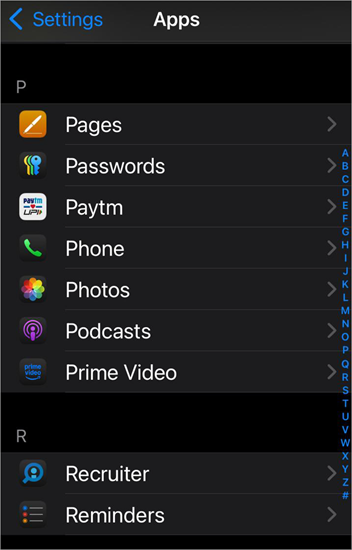
4. Now select Blocked Contacts
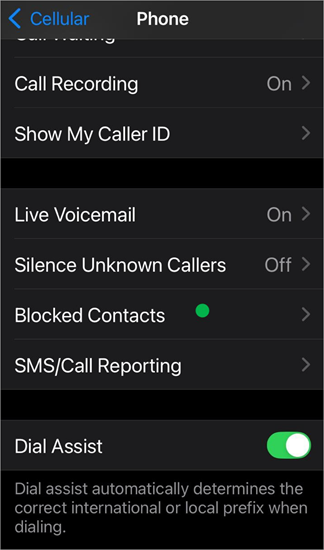
5. Now you will see the option to Add New contact to the block list. Tap on it.
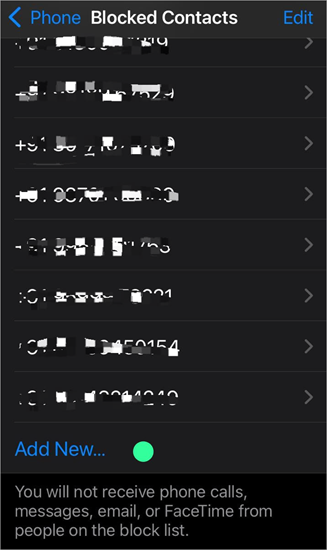
6. Select the contact
Now location sharing will be stopped. To unblock the contact, follow these steps:
- Go to Settings
- Tap on Phone
- Select Blocked Contacts
- Find the contact name you want to unblock.
- Swipe left and click on Unblock.
By following this method, location sharing will be stopped. However, the person will be notified that you have stopped sharing the location.
Further Reading => Find My Location Not Updating on iPhone Error
#2) Turn off Location sharing with everyone. Follow these steps to turn your location sharing off with everyone.
1. Go to Settings
2. Tap on your Apple ID. Then you will have to sign in (if not done already).
3. Select Find My option
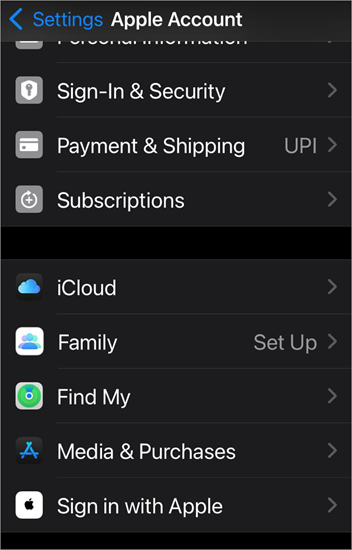
4. Now turn off Share My Location.
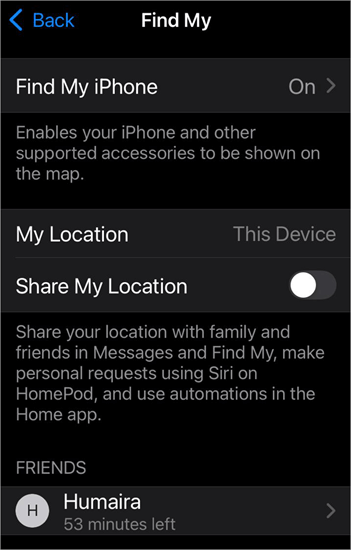
This way, your location sharing will be stopped by everyone, including contacts and apps, without them getting notified.
#3) Turn off Location sharing with One Contact. If you want to stop sharing your location with just one specific contact, then follow these steps:
- Open the Find My app on your iPhone.
- Tap on the People option located in the bottom left corner of the screen.
- Now you will find a list of contacts with whom you are sharing your location.
- Find the contact name with whom you want to stop sharing your location.
- Tap on the contact name.
- Now tap on Stop Sharing Location and confirm it.
Once you do this, you will no longer share your location with that specific contact without notifying them. But if you will share the location with them again, they will get a notification this time.
#4) Stop sharing location with everyone using the Find My app. If you want to know how to turn location off on your iPhone without notifying anyone, then-
- Go to Find My app.
- Now tap on Me option located in the bottom-right corner of your screen.
- Now turn off Share My Location.
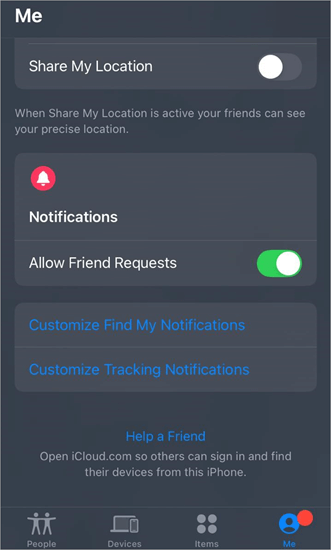
This way, no one will then be able to access your location unless you allow them to.
You can also stop sharing your location with everyone by turning OFF Location Services. This can be done by following these steps-
1. Go to Settings on your iPhone
2. Now select Privacy & Security
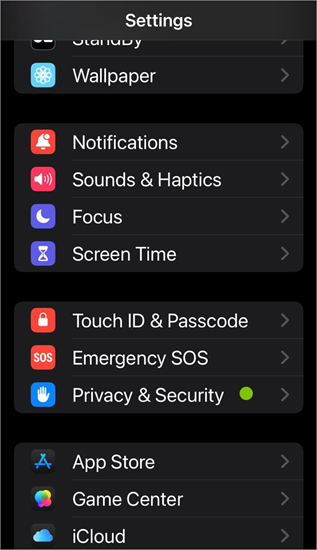
3. Click on Location Services
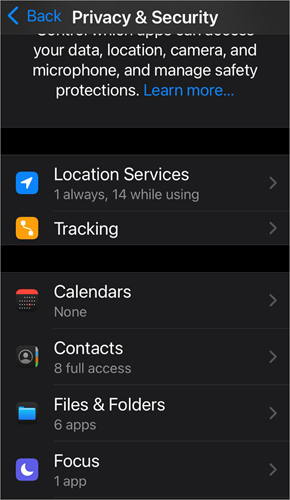
4. Turn it OFF.
This stops all location services in your iPhone.
Also Read =>> Spoof iPhone Location using Wondershare Dr. Fone Virtual Location
You can watch this YouTube video to learn how to turn off location services on your iPhone
#5) Switch on the Airplane mode. Once you switch on the airplane mode in your phone, your phone will stop using the mobile networks. This way, no one can track your location, as long as the airplane mode is on.
Please note that the phone will still be able to stay connected to the available WiFi network, even after switching the airplane mode on. So disconnect the WiFi also, since the location is shared through the internet.
To turn on the airplane mode in your iPhone, follow these steps:
- Go to Settings
- Turn ON Airplane Mode.
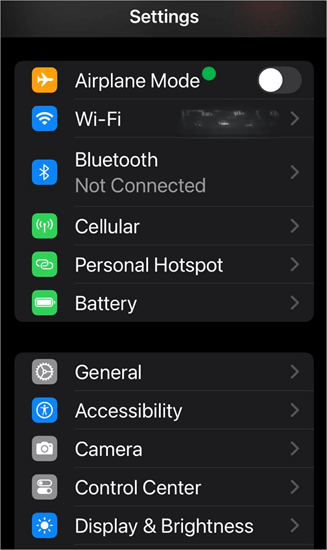
Airplane mode can also be enabled by just scrolling down the screen and tapping on the Airplane.
I would say this is the quickest method to stop sharing your location with anyone. But, it has certain drawbacks like you won’t be able to make or receive calls and messages through your phone, and your phone won’t have internet access (unless it is connected to a Wifi network).
Further Reading => How to Drop a Pin on iPhone
#6) Use another iPhone or iPad to hide your location. If you have a second iPhone or an iPad, then you can use it to fake your current actual location.
Please note that you would need 2 iPhones or one iPhone and one iPad to hide your current location through this method.
For hiding your location with the help of another iPhone, follow these steps:
- Login to both devices with the same Apple ID
- Open Settings on your iPhone
- Tap on the Apple ID, then select Find My
- Now turn on Share My Location
- Now on the second device, open Settings
- Tap on the Apple ID
- Now select Find My
- Now tap on Use This Phone as My Location.
Now, the contacts who have access to your location will be shown the location of the second phone as your current location. So you can just leave the second phone at home or any other location and take the first phone with you and no one will know your real location.
#7) Use a Location changer app. There are multiple apps available at the App Store that allow users to show a fake location to their contacts. Some of the Location Spoofing apps for iPhone users are iToolab AnyGo, MockGo, and iMyFone AnyTo.
But, if you are a kid and you are sharing your location with your parents, then you must NEVER use such tactics to hide your location. Parents usually keep an eye on their kids so that they can rest assured that their kids are safe.
#8) Use a VPN: This is quite a popular trick of hiding your location. A VPN works by hiding your IP address and showing a different (remote) location to the online websites and other online services you use. This way, your activity data is also saved from getting exposed.
Please note that if you are sharing your location with someone through a location-sharing app, then it would most probably show them the correct location, even after using a VPN.
#9) How to turn your location off for a specific app: If you want to know how to turn your location off on your iPhone without notifying a specific app, then follow these steps-
1. Go to Settings
2. Tap on Privacy & Security
3. Now select Location Services
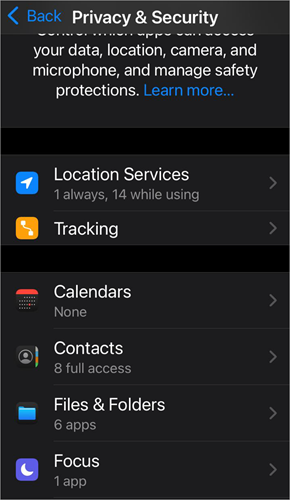
4. There will be a Share My Location option and a list of apps underneath that have access to your location.
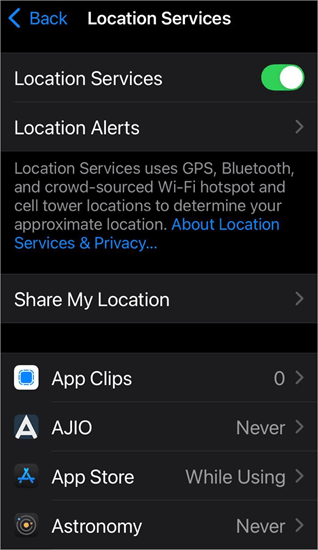
5. Select an app
Then tap on Never to stop sharing your location with them.
#10) Reset your phone. Although this is not the best option to stop sharing your location with your apps and contacts, it can also stop sharing your location with everyone in an emergency.
You can factory reset your iPhone by following these simple steps-
- Go to Settings
- Select General
- Tap on Transfer or Reset iPhone
- Now select Erase All Content and Settings
- Click on Continue.
#11) How to turn off location on iPhone without notifying the other person, if you had shared the location through iMessages: If you had shared your location with someone through iMessages and want to stop sharing it now, then follow these steps:
Further Reading => Learn the ways to Create a Poll on iMessage
- Go to the iMessages app
- Open the conversation in which you had shared your location
- Tap on the location information
- Now select Stop Sharing My Location.
Now whenever that contact opens this location tab, he will be shown that your location has expired.
Are you worried someone may be tracking your location without your knowledge?
If you doubt that someone may have physical access to your phone or someone may track you through your iPhone, then you should just reset your phone. This way, if an application is downloaded on your phone or any setting change is done for tracking you, then it would get fixed.
Do you know people can get access to your location through the photos and videos you share with them?
Yes, that’s true. Some photos and videos contain location metadata, through which the location where the photo was taken, can be traced. This happens when the Camera app on your phone is allowed access to Location Services while taking the photo.
If you will open the Photos app on your iPhone and then open Albums, you’ll see an option named ‘Places Album’. Now from here, you can tap on any place in the map shown on your screen, to see photos from that place. See, your phone knows about the places where your photos and videos were taken because the image/video files contain some metadata about that location.
To remove location metadata from your images or videos on iPhone or iPad, follow these steps:
- Open the Photos app
- Open Albums
- Go to Places album
- Now tap on a photo
- Click on
 or swipe up
 - Now select the option Adjust
- Tap on Remove Location
 or swipe up
This will remove the location metadata from a specific image or video. You’ll have to follow this procedure for each file, to remove the location metadata.
If you wish that your future photos and videos do not collect the location data, then you’ll have to stop the Location access for the Camera app on your iPhone. To stop the Camera app from accessing Location Services, follow these steps:
- Open Settings
- Go to Privacy & Security
- Select Location Services
- Tap on Camera
- Now select Never
From now on, your photos and videos will not save the location metadata.
Benefits of Sharing Your Location With Your Contacts & Apps
- Your dear ones will always know your whereabouts
- Parents can track their kid’s location for safety concerns when he goes out for an outing, tuition classes, etc.
- The apps you use can deliver region-specific content to you
- You can find your lost phone
Read this article to learn about different ways through which iPhone users can share their location with their friends.
To share your location with one of your contacts, follow these steps:
1. Go to Find My app on your iPhone
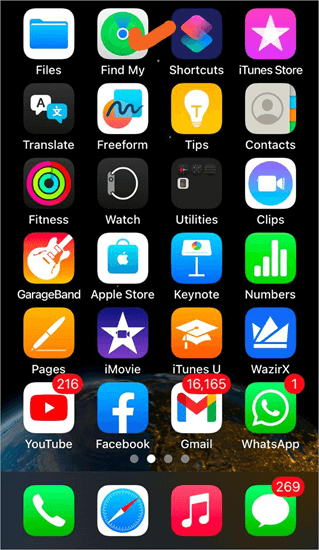
2. Now tap on Me, located in the bottom right corner of your screen
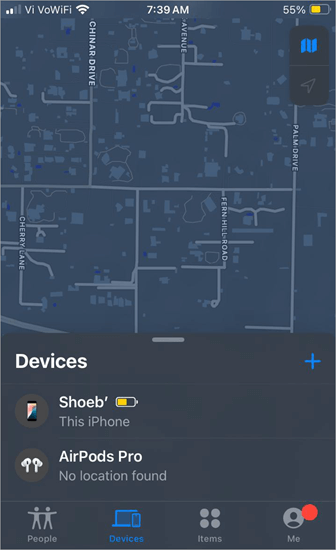
3. Turn Share My Location on.
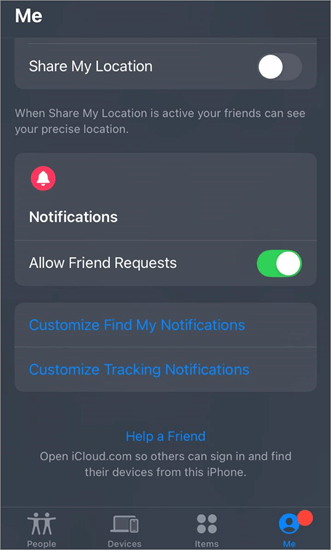
4. Now tap on the People option located in the bottom right corner of your screen
5. Click on Start Sharing Location
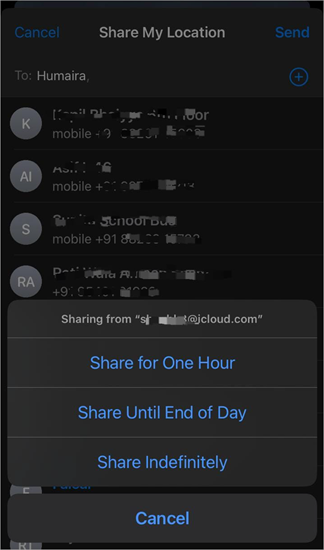
6. Add contacts and tap on Send
7. Choose whether you want to share the location for One Hour, Until the End of the Day, or Indefinitely.
Here is the video on how to share location between iPhone and Android:
FAQs on Turn Off iPhone Location
1. How do I freeze my location on Find My Friends without them knowing?
If you want to freeze your location on Find My Friends without letting your contacts know, then
1. You can just turn on the airplane mode. This way your phone will not catch any networks and your contacts will be shown a past location until you turn the airplane mode off again.
2. Another way of showing a frozen location to your friends is using another iPhone or iPad, in which you have logged in with the same Apple ID.
Follow these steps for showing a frozen location to your friends using a second iPhone:
• Open Settings on your iPhone
• Tap on the Apple ID, then select Find My
• Now turn on Share My Location
• Now in the second device, open Settings
• Tap on the Apple ID
• Now select Find My
• Now tap on Use This Phone as My Location.
Now your contacts will be shown the location of your second device as your current location and you can leave the second device at home or any other place to fake your actual location.
2. Can you turn off Location Services on your iPhone without someone knowing?
Yes. Turning off Location Services on iPhone can be done without someone knowing. You will have to follow these steps for this purpose-
• Go to Settings on your iPhone
• Now select Privacy & Security
• Click on Location Services
• Turn it OFF.
The Location Services on your iPhone will then be stopped for everyone and no one will be notified.
3. How to tell if someone turned their location off on an iPhone?
If someone turns their location off on their iPhone, you won’t be notified. But, if you try to look for their location, you will see the No Location Found text on your screen.
4. How can I stop someone from tracking my iPhone location?
If you had shared your location with someone who allowed them to track you, and now are worried about how to turn off location on your iPhone without notifying people, you can opt for any one of the following methods:
• If you want a quick solution, turn on the airplane mode. This shows the location tracker of your past location (of the place where your phone had networked with the airplane mode off).
• Another quick solution is blocking that contact. You can block a contact by doing these simple steps:
1. Go to Settings
2. Tap on Phone
3. Now select Blocked Contacts
4. Now you will see the option to Add New contact to the block list. Tap on it.
5. Select the contact that you want to be blocked.
This method is better than turning on airplane mode because airplane mode doesn’t allow you to make/receive calls and messages or use the mobile internet. But please note that through this method, the tracker will be notified that you stopped sharing your location.
• You can turn the location off for a specific contact by following these steps-
1. Open the Find My app on your iPhone
2. Tap on the People option located in the bottom left corner of the screen
3. Now you will find a list of contacts with whom you are sharing your location.
4. Find the contact name with whom you want to stop sharing your location
5. Tap on the contact name
6. Now tap on Stop Sharing
This is the best method as it doesn’t notify the tracker that you have stopped sharing your location with them.
• If you have shared your location through iMessage, then go to the conversation, open the location information, then tap on Stop Sharing My Location.
Further Reading => How to Tell if someone blocked you on iMessage
5. Will Airplane Mode hide my location?
Airplane Mode stops your phone from catching networks, which makes the location app on your phone stop. Thus, your contacts will be shown a past location, where your phone had the networks. The location tracker will also show that it is a past location.
6. Can an iPhone be tracked if the location is off?
Yes. iPhone can be tracked using Bluetooth. The Find My iPhone application uses Bluetooth to track your device, in case it gets lost.
Some devices that get infected by malware can also be traced. Hackers can track your location or other online activities through malware. Read this useful article to learn how to check whether your phone is hacked or not.
7. Do you get notified when someone checks your location?
No. You will not get any notification when someone checks your location. Plus, there is no other way that allows users to see if someone checked their location.
8. Will another iPhone user know I’ve blocked them?
If you block a contact, they will not get a notification. But, if you were sharing your location with them, then in this case, they will get notified that you have stopped sharing your location with them.
9. How do I discreetly hide my location on Find My iPhone?
You can easily hide your location through the Find My app on your iPhone. Follow these steps for doing so:
• Open the Find My app on your iPhone
• Now tap on Me icon located in the bottom right corner of your screen
• Now turn off Share My Location.
10. Does do not disturb turn off location?
No. The Do Not Disturb feature available in the iPhones does not turn off the location. It can only silence calls and alerts from various apps.
Conclusion
Sharing your location with your contacts and apps must be done with caution, especially when you are a kid. Plus, you must immediately stop sharing your location with your friends-tuned enemies.
In this article, we shared several ways through which you can immediately stop sharing your location with anyone, without letting them know. The easiest of them is turning on the Airplane mode, but it stops all phone networks from making calls, and messages and using the internet.
Other methods used for this purpose are blocking and unblocking the contact, turning off location on the Find My app, using another iPhone to show a fake location, using a location-changing app, and doing a factory reset.
If you are below 18 years of age and your parents are tracking you, then I would advise you to not use any of the above-mentioned methods for hiding your location with them. Your parents are your real guides and they are the ones who care about you, that’s only why they look after your safety.
Was this helpful?
Recommended Reading
-

Are you worried about losing track of your car? Read and compare these Best Hidden GPS Trackers for Cars with their Technical Specifications, Pros and Cons: Not being able to track it down because it is not in front of you? It's time to install the Hidden GPS Tracker for…
-

Tracking your fleet is not challenging anymore with our list of Top GPS Vehicle Trackers. Pick the best Vehicle Tracking device of your choice to monitor your vehicles consistently: Vehicle Tracking Device helps you to keep track of your vehicle and monitor it constantly and without any interruption. The ideal…
-
If you need to know how to track a person's location via a mobile phone, read on. Our experts examined ten of the top mobile spy applications and rated them based on their performance. Many people look for methods to locate a cell phone or track a phone by its…
-
Read this step-by-step guide to understand How to Track Someone’s Phone. We have also listed the top apps to help you select the best option: There are many reasons for which someone would want to track someone else’s cell phone activity. A parent would like to know where their child…
-
Do you wish to keep tabs on your spouse or employee? Are you a worried parent who wants to protect your child from harmful content and entities online? Well, then you’ve probably considered using cell phone spying applications. Although there are ethical concerns surrounding these applications, there are also valid…
-
Review and Comparison of the top free SMS Tracking Apps Without Target Phone. Pick the best SMS Tracker of your choice from this exclusive list: From knowing your child is safe at all times to catching a cheating spouse in the act, one could have many legitimate reasons to track…
-
A Brief Introduction to the Best Email Tracker in 2024: Email tracking is generally required or used for the follow-up process. The Email tracking Software is of immense use when emails are sent in bulk. What does email tracking tell us? Which factors will you get to know by tracking an…
-

Thinking about always keeping track of your car while you are on the move? Read this review of the Top GPS Trackers for Cars: A vehicle tracking device or a simple GPS tracker can do the job for you. It's time to secure your car with the best GPS Trackers…