Quickly turn your Android phone as webcam in just a few steps. Discover how to use your phone as webcam and convert phone camera into a webcam for your desktop without any hassles:
Today, there is an app to solve almost all of your daily problems. You can sit at home and order food or groceries online and get them delivered to your doorstep within minutes.
Or, you can order a taxi and it will reach the exact location you are at, within 2-3 minutes, to drop you home! Or you can download an app to get Yoga classes, plan your monthly budget, or create a checklist, and the list goes on and on.
Quick Ways to Turn Android Phone as Webcam
Since the pandemic, the need for video-calling applications has increased a lot. Businesses and even schools have to conduct their operations remotely, very frequently. So they conduct video meetings now and then. And for such important video meetings, you need to have a webcam to have good picture quality.
In case you do not have a webcam, we have come up with a trick for you. You can use the iOS or Android phone as a webcam. This can be done just by downloading a specific app and following a simple procedure to set up your phone as a webcam.
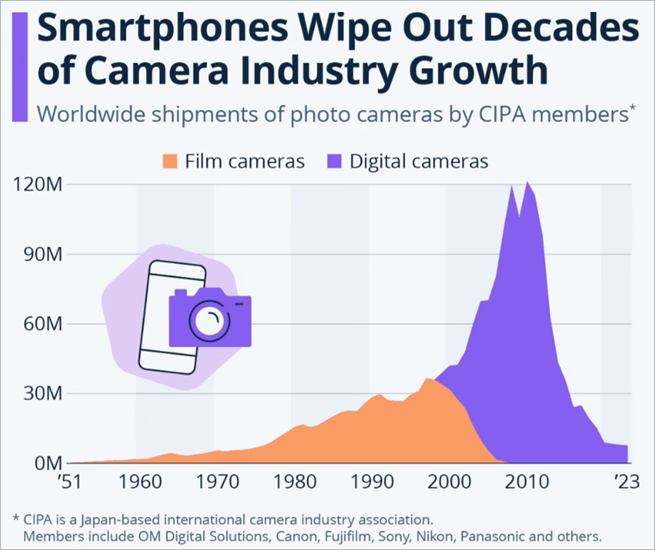
Most smartphones today come with advanced cameras, so it seems to be a good idea to use a cell phone as a webcam and save your money.
Turn Your Android Phone into a Pro Webcam: No Software Needed! Go through this video.
Why should we use our smartphone as a webcam?
Using the phone as a webcam would deliver several benefits, for example:
- You would save the cost of buying a good quality webcam.
- You can well use the high-quality camera of your smartphone.
- You will get access to many other features like video quality enhancement, zooming in or out, brightness adjustment, and more (which are not offered by the webcam).
Bonus Tips: Before using your phone as a webcam, have a look at these useful tips:
- Make sure you have a proper stand to place your mobile. Plus, adjust the camera position in such a way that the phone’s camera points at you.
- If you are going to use a third-party application for turning your phone into a webcam, look for an app that allows you to fix the brightness levels, add filters, etc.
- You can not use your phone while you are using it as a secondary camera. Plus, interruptions like calls or alarms on your iPhone can pause the camera while you are on an important video call. So make sure no such interruptions occur.
- Charge your phone before using it as a webcam, to avoid issues during a call. Please note that using your phone as a camera consumes a lot of power. It would be good if you plugged into the phone charger while using it as a webcam.
Through this article, you will learn how to use a phone as a webcam. Read the article to find the most suitable solution for yourself.
Further Reading => How to Scan QR Code on Computer
How to Use Your Phone as a Webcam
If you too have this very popular query, “How to use my phone as a webcam”, then have a look at the different solutions we have provided here-
#1) Use the Riverside App to Turn Your Phone (Android or iOS) into a Webcam.
If you are wondering how to use a phone camera as a webcam, then Riverside is the answer!
Step-by-step guide on how to convert your phone into a webcam using Riverside:
Step #1: Install Riverside on your smartphone (Android or iOS)
Step #2: Open Riverside in your desktop browser and sign up.
Step #3: Now you will have to join a Riverside studio.
Step #4: Then, on your Lobby page, click on the Cameras drop-down menu
Step #5: Then select the option Connect mobile cam. The desktop screen will then show you a QR code.
Step #6: Now open the Camera on your phone and scan the code.
Step #7: Then Tap on the Riverside.fm link shown on your phone’s screen.
The Riverside app in your phone (already installed) will then open and your camera will get connected to the desktop application automatically.
Step #8: Now place your phone in a way that its back camera focuses on you.
Step #9: Now, on your PC, on the Lobby page, find the video preview option and select your phone from the Cameras menu.
Step #10: Then you’ll have to enter your name on the left side of the page. The app will then ask you whether you are using your headphones. Select the correct answer.
Step #11: Now click on Join Studio. Your phone’s back camera will then record videos.
More about Riverside
Riverside is a feature-rich application compatible with Android, iOS, Windows, and Mac devices. You would need to download the app on your phone and the desktop to use the phone as a webcam for the PC.
Riverside can also be used as a video-calling app. This way, you won’t need to connect your phone to the desktop to be used as a webcam. The application has tools for making video calls, video call recording (in up to 4K resolution), editing, and live streaming.
For using Riverside as a video calling app, follow these steps-
Step #1: Download Riverside on your smartphone (Android or iOS)
Step #2: Sign up, then login into your account
Step #3: Now on the Home page, you will see a ‘+’ icon, beside the ‘Studios’ option. Click on the ‘+’ icon
Step #4: Add a name to the new studio
Step #5: Select the language
Step #6: Choose the recording mode
Step #7: Now click on Create. Now a Studio is created.
Step #8: In the Studio dashboard, tap on Record
Step #9: Then click on Join
Step #10: Click REC.
You can watch this YouTube video for step-by-step instructions.
Using Riverside, each participant’s audio and video gets recorded on their phone, so the audio or video will be of the best quality, regardless of their internet speed. Their video editing tools include inserting captions, audio quality enhancement, and more.
#2) Use Camo to Turn Your Phone into a Webcam
Another app used to convert a phone into a webcam is Camo. This app is also compatible with Android, iOS, Windows, and Mac devices. Camo is compatible with over 40 video-calling apps.
How to set up Camo:
Step #1: Download Camo on your phone (Android or iOS), as well as on your desktop (Windows or Mac).
Please note that the system requirements for Camo are:
- Android 7.0 and up
- iOS 12 and later versions
- Windows 7 (64-bit) or newer
- macOS 10.13 and higher versions
Step #2: After the installation process, open the app on both devices (your desktop and your smartphone).
Step #3: In your desktop app, click on the drop-down menu below the Device option in Camera settings.
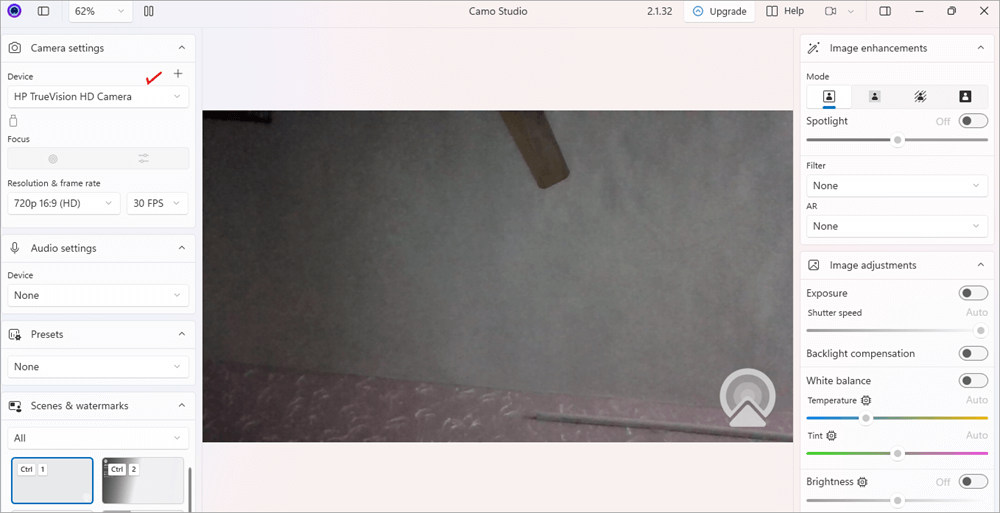
Step #4: Then click on Pair a device. A QR code will appear on your desktop screen.
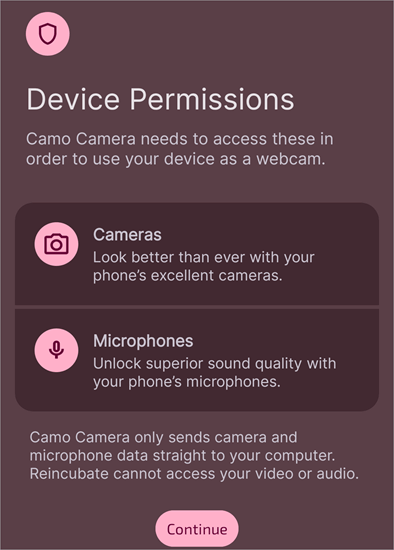
Step #5: Now in your phone give the app permission to use your Camera and Microphone.
Step #6: Then tap on the Wifi icon in your phone app
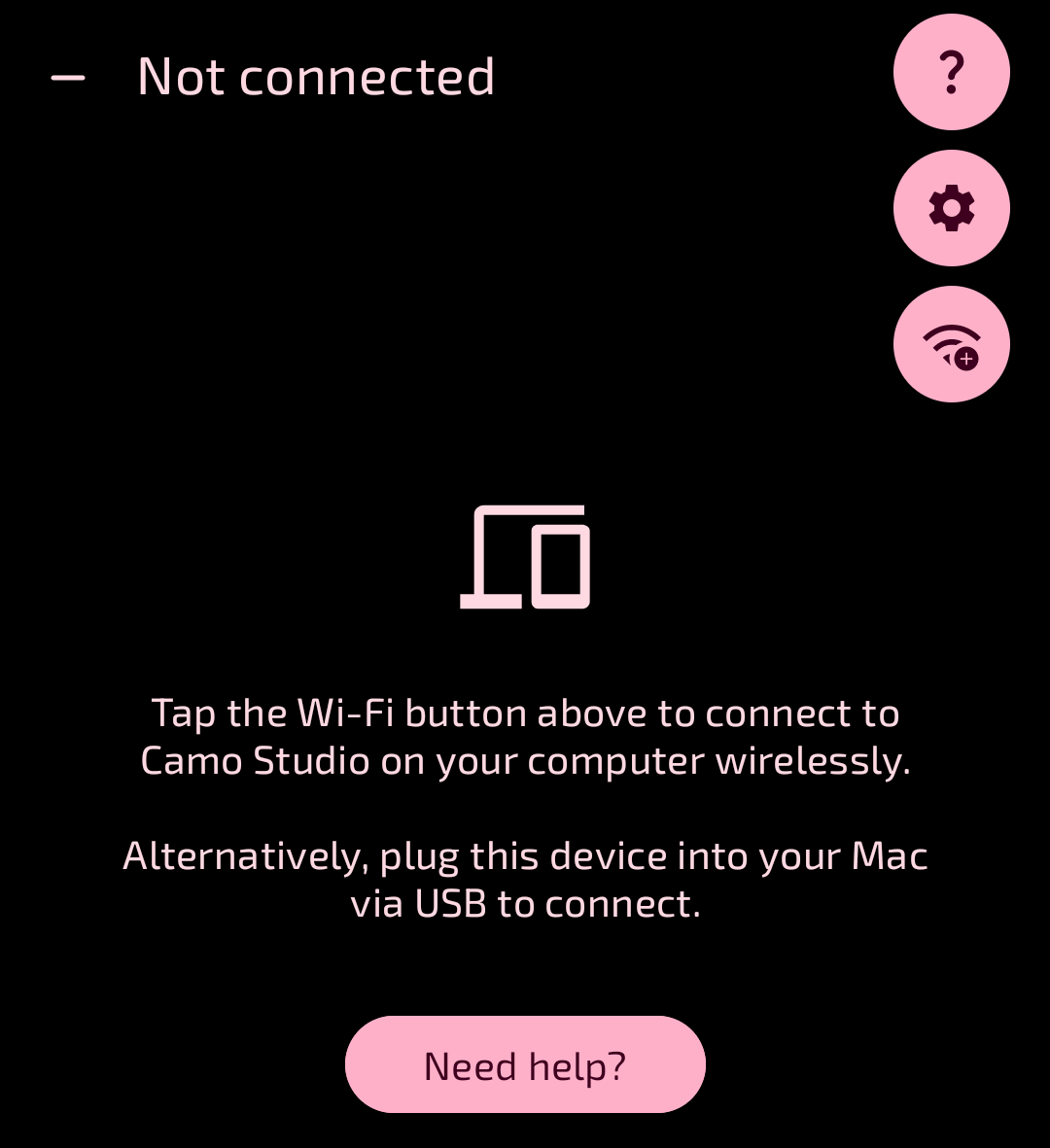
Then a QR code scanner will pop up.
Step #7: Scan the code on your desktop screen through your Camo Studio app scanner on your phone.
Your phone app will automatically get connected to the desktop app and you will start seeing the phone camera recording on your desktop screen.
Step #8: Now open the video calling application on your PC and go to its Settings
Step #9: Then choose Camo as Camera in Video Settings (here we are using Microsoft Teams). You can also choose Camo for Microphone in Audio Settings.
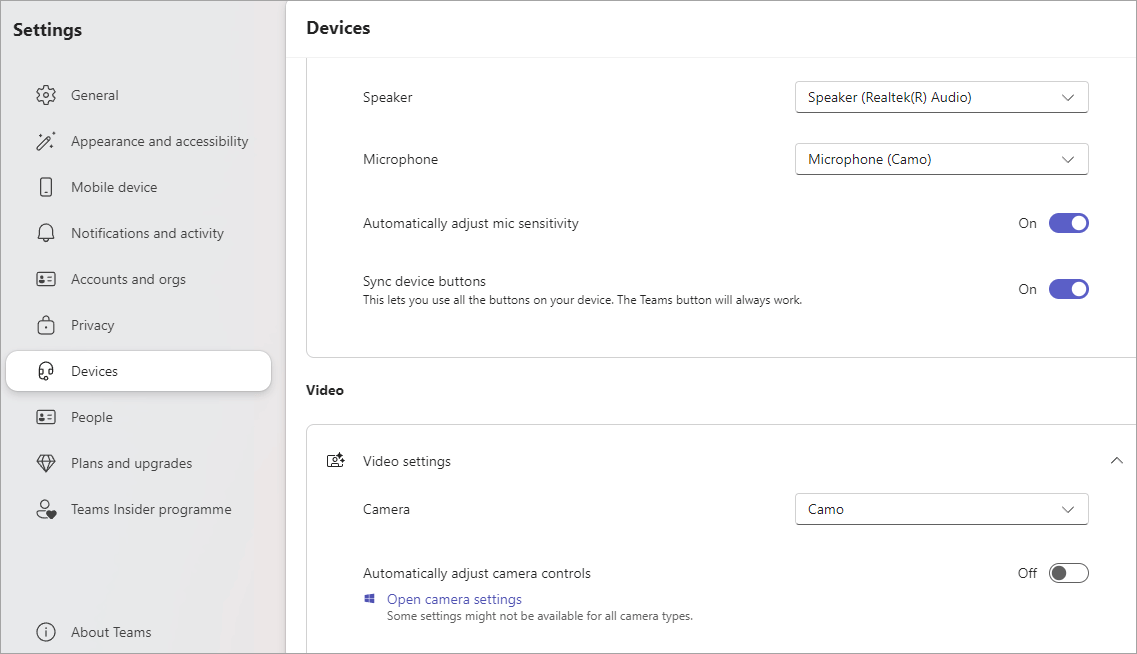
Now, whenever you attend a video call through this app (where you made changes to the Video Settings), the application will use your phone’s camera as a webcam.
If you do not want to connect the devices wirelessly, then after downloading the app on your desktop and your phone, follow these steps-
Step #1: If you are connecting an Android phone to a Windows PC, then you will have to turn ON the USB Debugging mode. Follow these steps for enabling the USB Debugging mode in your phone-
- Go to Settings
- Tap on About Phone
- Tap 7 times on the Build number
- Developer mode will be enabled
- Now find the option USB Debugging and turn it ON.
If you are connecting an Android phone to a Mac, then you’ll need to turn USB Debugging OFF in this case.
Step #2: Connect both the devices through a USB and you’ll automatically start seeing your phone camera’s recording in your desktop application. If it doesn’t work, try re-inserting the USB cable or changing the cable. There are chances that the USB cable does not support data transfer.
Step #3: Once connected, go to the video calling app and set Camo as Camera in Video Settings and Camo as Microphone in the Audio Settings.
Now, whenever you make a call via Microsoft Teams, the app will use your phone as a webcam.
More about Camo
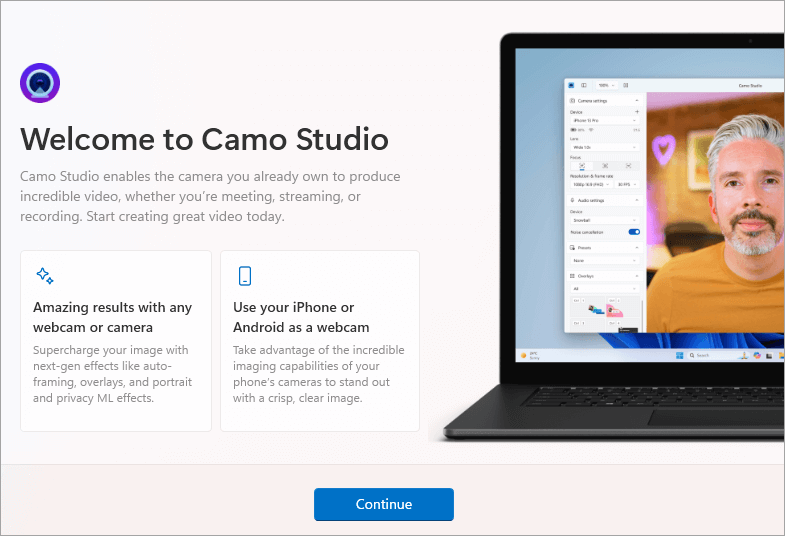
Camo is used to turn your phone camera into a webcam. The app works will almost all of the popular video conferencing apps like Zoom, Meet, Teams, Skype, FaceTime, and more.
It offers you several features like video filters, backlight compensation, adjusting temperature, brightness, etc, zoom and much more. These features can be accessed on the Camo home page.
Camo is available for free. But it charges fees for using its premium features like 4K resolution video recording, Portrait mode, and more. Camo’s price plans are as follows:
- Lifetime license- $100
- Annual Subscription- $50
- Monthly Subscription- $9
#3) Use iPhone’s Continuity Camera as a Webcam For Mac
Apple’s Continuity Camera can also be used as a webcam for your Mac. This way, you won’t need to download another application on your phone or desktop. The system requirements for using iPhone’s Continuity Camera as a webcam for Mac are iOS 16 or later and MacOS 13 Ventura or later.
You would have noticed that whenever you use a video calling app on your Mac and your iPhone is nearby, you’ll get a notification that you can use your iPhone as a webcam.
How to use your iPhone as a webcam on Mac
Use iPhone as Webcam with Continuity Camera in macOS Ventura:
To use your iPhone’s Continuity Camera as a webcam for Mac, follow these simple steps-
Step #1: First, log in to your iPhone and Mac with the same iCloud account, and then switch on their Bluetooth and WiFi.
Step #2: Now open Settings on your iPhone, then go to the General, then tap on AirPlay & Handoff, then turn it ON.
Step #3: Now, on your desktop, open the video calling application. Then go to its device settings and select your phone as the camera source. (Make sure your phone is nearby). Your iPhone will make a sound when it gets connected to the desktop.
Now when you do a video call, the iPhone camera will be used. Please note that you must do nothing else on your iPhone while you are on a call, otherwise, the camera feed will stop or pause.
The process is wireless. You can also connect the devices through a USB for reduced battery drain.
#4) Use Google Pixel as a Webcam for Mac and Windows Devices
Your Google Pixel phone (Pixel 6 or later) can also be used as a webcam for your Mac or Windows devices. Please note that Google Pixel does not let you make a wireless camera connection to your desktop. Connect it through a USB cable.
Follow these steps to connect your Google Pixel phone to your laptop:
Step #1: First, connect the devices using a USB cable.
Step #2: Your phone will notify you of ‘Charging this device via USB’. Tap on the notification, then you will see a list of options. Find and tap on the option Webcam.
Step #3: Now open the video calling app on your desktop. Find video calling options and select the Android Device.
Now you are ready to use your Google Pixel phone as a webcam. You’ll get a notification saying that your phone is used as a webcam. You can tap on the notification to access features like flipping to the selfie camera, increasing the video quality, and more.
#5) Use a Motorola Phone as a Webcam for Windows
If you have a Motorola phone, you can use it as a webcam for your Windows PC. Please note that it can not be used with Mac devices. It works with Windows 10 and 11 only.
Follow these steps to connect your Motorola phone to your Windows PC to be used as a webcam:
Step #1: Open the Microsoft Store on your Windows PC
Step #2: Download and Install the Smart Connect app by Lenovo.
Step #3: Once installed, open the app and you will see a QR code on its main dashboard. It is used for connecting with devices.
Step #4: Now, on your Motorola phone, open the Camera and scan the QR code.
The phone will start pairing with the PC.
Step #5: In the Smart Connect app, there will be an option for a Webcam. Click on it. You will then be asked to download the Webcam driver. Install it and then click on the Webcam option in the Smart Connect app again.
Step #6: You will receive a pairing request on your phone. Confirm it.
Step #7: Now, in the video calling application on your PC, select Smart Connect as the video source.
Now, whenever you use the video calling app on your desktop where the Smart Connect app is set as the video source, it will automatically use the Motorola phone as a webcam (make sure your phone is nearby).
#6) Use the DroidCam app for setting up your iPhone or Android camera as a webcam for Windows or Linux devices.
Another app that can be used for this purpose is DroidCam. It is available for iPhone and Android phones and Windows and Linux desktops. The app helps you connect your phone to the desktop either wirelessly or through a cable.
Connection via a cable consumes less power as compared to that made wirelessly. So go for a USB connection if you want less battery drainage.
What is DroidCam
DroidCam is an application that turns your smartphone into a feature-loaded webcam. It works over your Wi-Fi or through a USB cable. With this application, you will get 1080p video as a webcam and 4K video with OBS integration. DroidCam allows you to adjust exposure, focus, zoom, rotate or flip the video, and much more.
The application has millions of users from around the world and has impressive customer ratings. It is a free application, but you’ll have to pay some fee if you would like to use their premium features like improved picture quality, no ads, and more.
Please note that, if you are a Windows user, DroidCam won’t work with applications downloaded from the Microsoft Store. So you’ll have to download the video calling apps from the desktop client. For example, you’ll have to download Skype from here.
To set up DroidCam, follow these steps:
Step #1: Download the app on your mobile phone. It is available at the Google Play Store and the Apple App Store. The system requirement for Android phones is Android 5.0 or up, and that for Apple phones is iOS 9 or later.
Step #2: Give the app permission to access your camera and microphone.
Step #3: Now install the app on your PC.
Step #4: After the installation process, open the application on your desktop and connect your phone and the PC to the same WiFi network.
Step #5: Now, in the phone app, you’ll see some numbers for Device IP and DroidCam Port. Fill the same numbers in your desktop application.
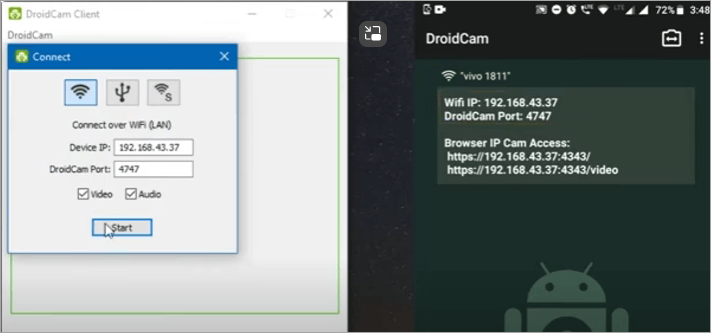
Step #6: Click on Start in the desktop app.
It’s done!
After this process, you’ll need to open the video calling application on your PC and set DroidCam as Camera in the video settings.
Watch this YouTube video for step-by-step instructions on how to set up your smartphone as a webcam using DroidCam.
How to use an Android Phone as a webcam on a Windows PC
You can turn your Android phone into a webcam for your Windows PC using apps like Riverside, Camo, and DroidCam. You can also use Windows Insider to turn your phone into a Webcam.
How to use Windows Insider to turn your phone into a Webcam
For using your Android phone as a webcam, you would need an Android 9 or up. Follow these steps for using Windows Insider to turn your phone into a Webcam-
Step #1: In your Windows PC, open Settings
Step #2: Click on Bluetooth & Devices
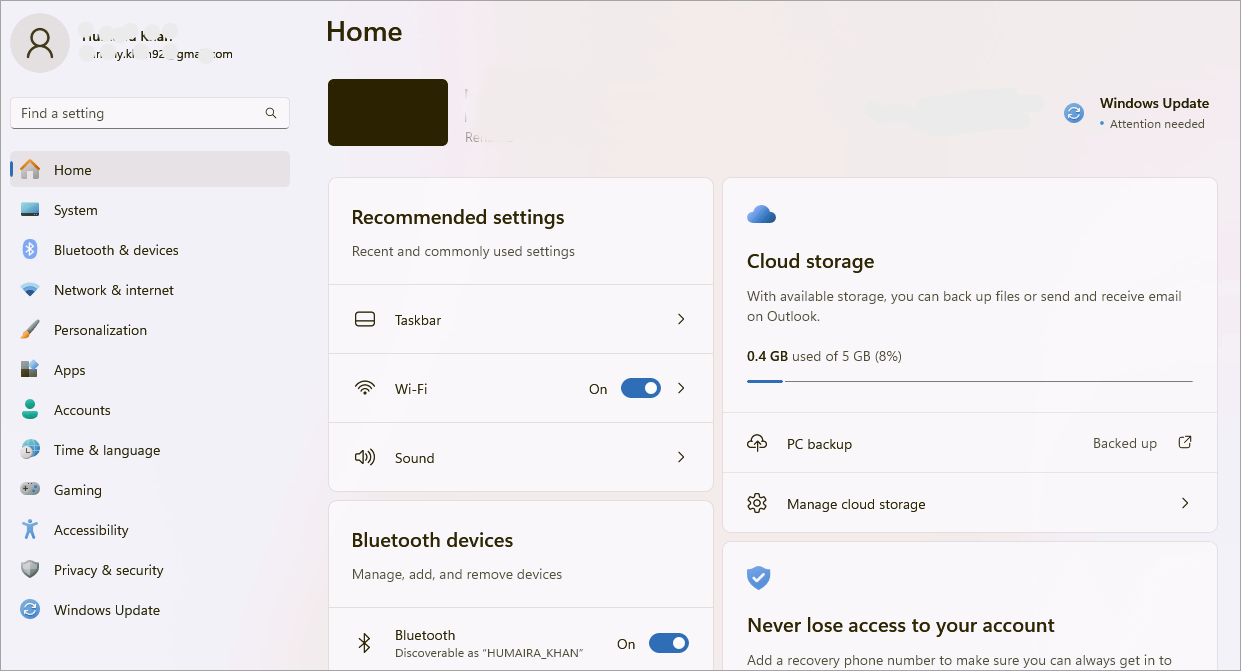
Step #3: Now select Mobile devices
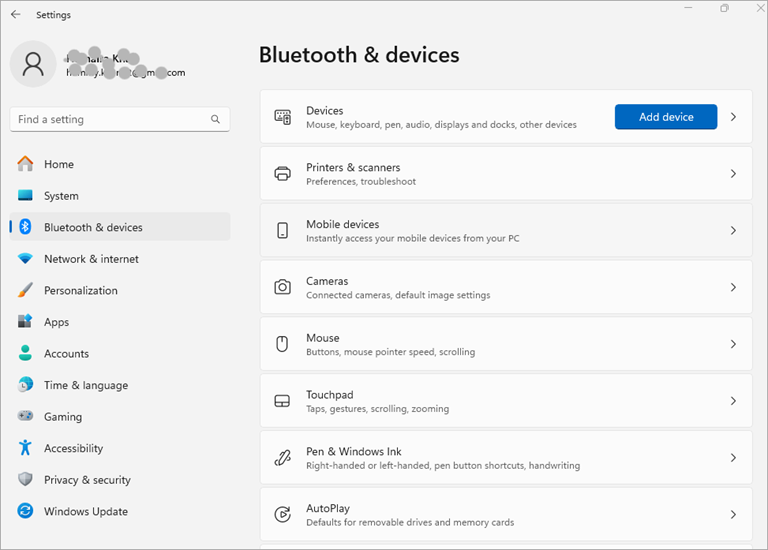
Step #4: Now Allow your PC to access your mobile devices. You will be asked to sign in to your Microsoft account. Sign in.
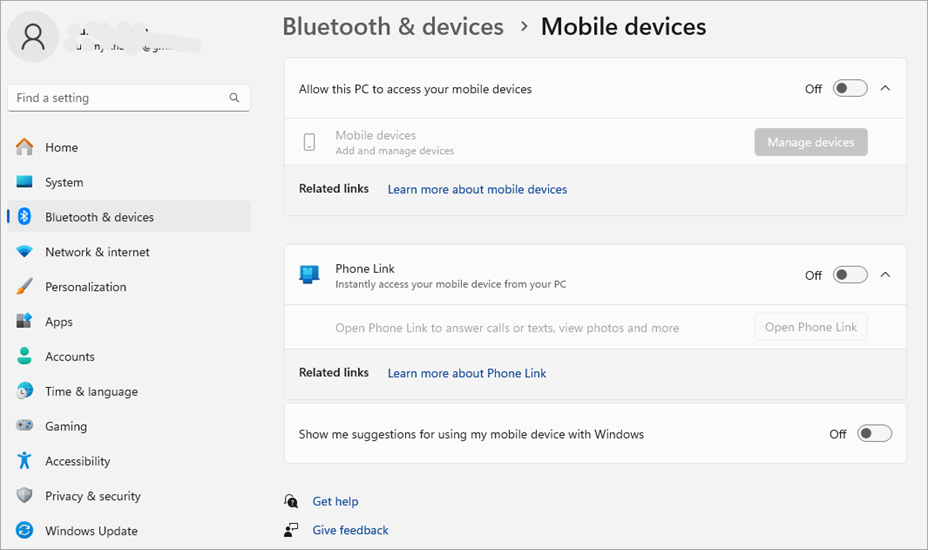
Step #5: Turn On the Phone Link.
Step #6: The PC will ask you whether you have an Android device or an iPhone. Select one.
Step #7: Your PC screen will then show you a QR code. Scan it from your phone and you will be directed to download the application named Link to Windows. Install it, give permissions, log in to your Microsoft account, and then type in the code available on your desktop screen, into your phone app.
You are now all set to use your mobile device with your PC.
You can now make and receive phone calls through your PC. You can also access your contacts, call history, and photos through your PC.
Suggested reading => Top Webcam Software
FAQ’s on Ways to Use Cell Phone as Webcam
1. How can I use my phone as a webcam without a USB?
There are several ways through which you can use your phone as a webcam without a USB cable. For example:
• You can use the app Camo, which is compatible with Android, iOS, Windows and Mac devices
• You can use the Riverside app, which is also compatible with Android, iOS, Windows, and Mac devices
• DroidCam is another app that can be used for turning your Android or iOS phone’s camera into a webcam for Windows or Linux devices
• Your iPhone’s Continuity Camera can also turn your iPhone into a webcam.
Motorola phones also offer the feature of using the phone as a webcam without USB.
2. Is DroidCam free?
DroidCam is used for converting a phone camera into a webcam. The application offers a free version. The free version offers unlimited usage at standard definition (640×480), but it contains ads. For ad-free usage and premium features, you’ll need to buy the paid version of the app.
3. How do I activate DroidCam?
Activating DroidCam involves 3-4 simple steps. Once you have installed the application in your phone and on the desktop, do as follows:
• Connect your phone and the desktop with the same WiFi network
• Open the app on both devices and you’ll see Device IP and DroidCam Port numbers in your phone app.
• Type the numbers in the space provided in the desktop app, then click on Start.
The application will be activated. Then in your video calling application, you’ll have to go to video settings and set DroidCam as a Camera.
4. Does DroidCam have a watermark?
Yes, DroidCam has a watermark. To remove the watermark from the videos, buy their premium plan.
5. Does Camo cost money?
Camo offers a free version as well as 2 paid plans. Their price plans are as follows:
• Free: $0 (no watermarks, no ads, no spam, 720p high-quality videos)
• Camo Pro: $49.99 per year (Comes with a 30-day money-back guarantee)
• Camo Enterprise: Custom pricing (Offers priority support, user management tools, and a dedicated account manager).
6. How can I use my phone as a webcam via USB?
You can use the Camo app to connect your phone as a webcam via USB. First of all, download the Camo app on your phone and your desktop.
For using your phone as a webcam for your Windows desktop, you will have to turn ON the USB Debugging mode first. Follow these steps for switching the USB Debugging mode ON in your phone:
• Go to Settings
• Tap on About Phone
• Tap 7 times on Build number
• Developer mode will be enabled
• Now find the option USB Debugging and turn it ON.
If you are connecting the phone to a Mac, then you’ll need to turn USB Debugging off in this case.
Once this is done, connect the phone to the desktop with a USB cable. Now you will start seeing your phone’s camera feed on your desktop app’s screen. If this does not work at once, try re-inserting the cord or changing the cord.
After this process, open the video calling app on your desktop, and in its Video settings, set Camo as Camera and Camo as Microphone in the Audio Settings.
7. Can I use my DSLR as a webcam?
If you have a DSLR camera, then you can opt not to buy a costly webcam and use your DSLR as a webcam for your desktop. Many of the modern DSLRs come with this feature.
To use your DSLR as a webcam, what you will have to do is-
• You’ll have to download an app on your desktop, depending on the brand of your DSLR camera. For example-
1. https://downloadcenter.nikonimglib.com/en/products/548/Webcam_Utility.html for Nikon users
2. https://www.usa.canon.com/cameras/eos-webcam-utility for Canon
3. https://support.d-imaging.sony.co.jp/app/webcam/en/ for Sony
4. https://fujifilm-x.com/en-in/support/download/software/x-webcam/ for Fujifilm users
• Once you have installed the application, connect the camera to the desktop using a USB cable and follow the instructions.
Before doing the whole process, make sure that your DSLR camera is compatible with the webcam application, otherwise, it won’t work.
8. Do Android phones have a webcam?
Android phones do not come with a webcam feature. But they can act as a webcam when you download certain apps for example Camo, DroidCam, or Riverside.
These apps let you use your phone’s high-quality camera while making a video call through your PC. They even offer other very useful features like video quality enhancement, zooming, and more.
9. How can I use an Android phone as a webcam without the app?
In most cases, you would need to download a third-party application to convert your smartphone into a webcam. However, in some of the latest phones (like if you are using Android 14 or later), there is an option to use the phone as a webcam without having to download an app.
If you connect it to your PC using a USB cable, you will see an option on your desktop screen to use the USB as a webcam.
You can also use Windows Insider to turn your Android or iOS device into a webcam. For this, you will have to go to Settings on your Windows PC, then click on Bluetooth & devices, then click on Mobile devices, then Allow your PC to access mobile devices, then turn on Phone Link.
Click on Android or iPhone (whichever you have) and then scan the QR code that appears on the screen through your phone camera. Then download Link to the Windows app and follow the instructions for linking both devices. You will then be allowed to make and receive phone calls through your PC while using your camera.
Conclusion
With time, smartphones have been able to reduce the need for many of the useful day-to-day items like Calendars, Clocks, Notepads, Letters, and more to a great extent.
The most advanced smartphones even let you use the phone as a webcam, thus saving a lot of money. You would just need to download an application on your smartphone that connects your phone’s Camera and Microphone to your desktop and then uses your phone’s Camera while you make a video call with your desktop.
Most of these applications offer free versions. But for high-quality videos, you would have to buy one of their Pro plans. If you are using a Google Pixel phone or a Motorola or an iPhone or an Android 14 and up, then you can use your phone as a webcam without even having to download any third-party app.
Some of the advanced DSLR cameras by Nikon, Canon, Sony, and Fujifilm can also be used as a webcam for your desktop by downloading their webcam utility application on the desktop.
Was this helpful?
Recommended Reading
-

An in-depth review of popular Webcam Software with features, pricing, and comparison. Select the best commercial or free Webcam Software as per your requirements: Your computer or laptop’s webcam has perhaps never been put through so much work as it has been this year. You can credit the ongoing pandemic…
-

Explore this quick guide to know how to set timer on iPhone camera and take stunning photos easily. Customize the duration and receive alerts with the clock app's timer function in easy steps: All iPhone cameras have a timer feature that makes it easier to take photos without leaving yourself…
-

Are you open to enhancing your home security system to increase coverage? Compare these top POE Cameras to pick the best PoE security camera systems for utmost security: Having a POE security camera system will give you an added advantage over regular ones. It's time to switch over to the…
-
Are you looking for the top Video chat cameras for your meeting room? Here are the best Video Conference Cameras that offer high-definition video with top-notch functionalities: Being present in a conference meeting is important and also making your appearance look better with clear recordings is also important. It's time…
-
Are you thinking of taking amazing photos and videos while snorkeling? Read this tutorial for the Best Waterproof Cameras along with features, technical specifications, and comparisons: Is the current camera you possess not permitting you to get the right shots underwater? It's time to switch over to the best Waterproof…
-
This tutorial explains different modes to Test Webcam Online or Offline and using different computer apps like Skype, Microsoft Teams, etc: In the wake of COVID-19, confined to their homes, many employees cannot attend office and client meetings in person. Hence, online video conferencing has become the need of the…
-
Are you tired of getting low-resolution video calls because of the default camera from your laptop? Here you can compare and select the top-rated Wireless Webcams: Improving the resolution and comfort of the images can only be possible if you have a wireless webcam. It's time to shift over to…
-
Here you will find the list of popular Webcams for streaming and zoom meetings. Compare and select the best webcam as per your requirement: Are you attending video meetings or webinars regularly? The work-from-home culture has forced professionals to attend more video meeting sessions. If you have a desktop without…