This tutorial will clearly show you how to draw a Radius on Google Maps using free tools.
Need to measure distance within a specific area on Google Maps? While Google Maps doesn’t offer a built-in radius button, you can still draw and display a radius circle using simple tools and workarounds.
Whether you are planning deliveries, checking service coverage, managing real estate listings, or mapping travel distance, this step-by-step guide will show you how to draw or show a radius on Google Maps quickly and accurately.
Google Maps Radius

Why Do You Need a Radius on Google Maps?
Drawing a radius on Google Maps helps you measure distance within a specific area and make smarter location-based decisions based on data visualization.
The following are the most common reasons people use a radius on Google Maps:
- Creating a radius on Google Maps helps calculate distances within a given region and make informed location-based decisions based on the resulting data.
- Business and Delivery Planning: Radius Google maps assist business people and agents in creating specific delivery areas, service areas, and customer reach easily and quickly.
- Real Estate Search: Individuals searching for homes use radius tools to help them easily locate their homes, schools, offices, or any other location of their choice within their close proximity.
- Travel and Commute Planning: Drawing a radius on Google Maps can help you determine the distance of a place from your home, hotel, or office before making travel decisions.
- Marketing and Local Targeting: Marketers use radius mapping to analyze local audiences and plan geo-targeted marketing campaigns.
Suggested Reading =>> How to Drop a Pin in Google Maps
How to Draw or Show Radius on Google Maps
Now, let us see how to draw a radius on Maps. Since Google Maps doesn’t support this functionality, you can’t determine the radius around a location. However, you can measure the distance between two or more points.
Using CirclePlot
The tool can help you find a radius on Google Maps. So, can I draw a radius on Google Maps? Yes, I can.
Follow the steps below:
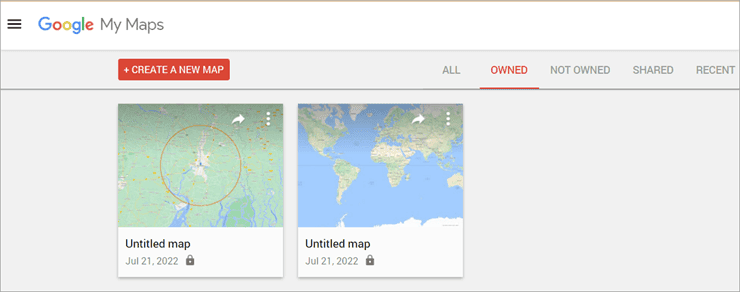
- Go to Google My Maps.
- Click on Create a new Map.
Search the area around which you need the radius.
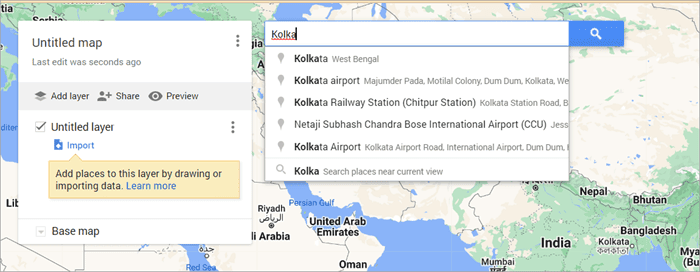
- Hit Enter.
- Click on Add to Map.

Now copy the latitude.

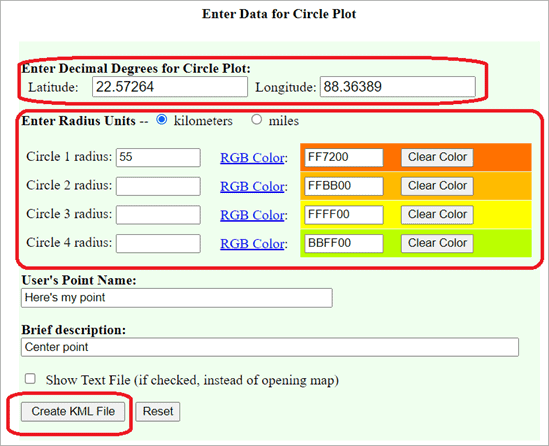
- Open CirclePlot
- Enter the Latitude.
- Copy the Longitude from My Maps.
- Paste it into the Latitude.
- Set the circle radius of as many radii as you need.
- Click on Create KML File.
- Save it on your device.
- Go to Google Maps.
- Click on Add Layer.
- Select Import.

- Click on the KML file.
- Select Open.
You will see the radius on your Google Maps.
Alternative Tool
There are third-party tools like CalcMaps and Maps. ie that you can use to draw a radius on Google Maps. Here’s how to use CalcMaps:
- Go to CalcMaps.
- Click on Radius.
- Select Draw a Circle.

- Now select the area around which you want to draw the radius.
- Use the drop-down from the Radius KM tab to adjust the size of the radius.
- Click OK when you are done.

This is how to draw a radius on Google Maps using CalcMaps. Maps.ie works similarly but with less detailed maps. Click on Draw a Circle and use it in the same way.

You might need to create an account for some of the websites and create a map. After entering the relevant information, like the address or location, you will generate the desired radius. Most of these third-party tools can be integrated with Google Maps and allow multiple radii.
Further Reading => How to Change Margins in Google Doc
What Does a Google Maps Radius Tool Offer?
- Helps determine the distance between a central location and a specified boundary.
- Useful for proximity analysis using location data.
- Allows you to measure the distance between specific map points
- Helps identify patterns or issues within multiple data points.
- Should match your specific business needs.
- Ideal for defining sales territories and boundaries, which requires multiple radius options.
- Useful for evaluating your current customer base.
- Allows setting clear territory guidelines for better planning.
Further Reading => How to Add Google Form Header Image Size
What to Consider Before Using Google Maps Radius Tools
Start by clearly defining the purpose and use of Google Maps that will help you understand why you need to create a radius. Having this clarity will help you choose the right tool and organize your requirements more effectively.
Use cases may be like :
- Delivery planning
- Real estate search
- Marketing targeting
- Route optimization
- Real-Time Updates: Look for software that has real-time integration with Google Maps, which means the software gets traffic updates, routes, and location updates in real-time.
- Ease of Use: The software should be user-friendly and easy to navigate that can help you or your team easily create, modify, and manage radius circles.
- Device and Platform Compatibility: Ensure the software operates easily across all devices and operating systems.
- Customization: Need to look for other features based on your requirements, like the ability to create multiple radius circles, the ability to set distance units to miles or kilometres, Color-coded regions, Export functionality, etc.
- Integrations: If you are already using any CRM, delivery management, or marketing software, then it is better to check if the Radius software can be easily integrated.
- Performance and Scalability: There are some tools that need to remain open in a browser, while there are others that can run in the background; accordingly, you can check your suitability. Also, make sure that the tool is scalable based on the data and the coverage area for your future requirements.
- User Permissions: If you are working in a team, see if the software allows multiple user accounts and provide them with the necessary privileges.
Determine the Distance Between two Addresses on Google Maps
Now that you know how to draw a radius on Maps, we will tell you how to determine the distance between two addresses on Google Maps.
- Open Google Maps on your system.
- Right-click on the starting point.
- Select the option to measure distance.

- Now click on the second point to measure the distance.

Frequently Asked Questions
Q #1) How do I draw a 5 km radius on Google Maps?
Answer: You can use Circle Plot to draw a 5 km radius on Maps. Just enter the latitude and longitude of the location and the radius measurement. Then download the KML file and upload it as a layer on Google Maps.
Q #2) How do you make a radius map?
Answer: There are some alternative tools that allow you to make a radius map.
Q #3) Can I search within a radius on Google Maps?
Answer: Yes, you can. Once you have established a radius on Google Maps, enter the area name in the search bar and hit enter. It will tell you if that area falls under the radius or not.
Q #4) Can I draw a radius on Apple Maps?
Answer: You can use the Radius Around the Point tool to draw a radius on Apple Maps.
Q #5) How do I measure the area on Google Maps on my iPhone?
Answer: Open Google Apps on your iPhone, select a location, and tap on measurements. Add the point where you want to measure the area and tap done.
Also check =>> How to share your location on iPhone
Conclusion
From this article, you have learned the various ways to draw a radius on a map.
We have taken you through how to draw a radius on Google Maps and what things you should consider while picking up radius software. You can now use the radius for the data study as needed.
Was this helpful?
Recommended Reading
-

If you are looking for ways to Turn Off Trending searches, then this post is for you. This guide will show you how to Turn Off Trending Searches on Google Apps, Windows 10/11, Android and iPhone quickly. Searching for anything has never been easy until Google. However, the Internet of…
-
Review and compare the list of the Best Chrome Extensions along with the features to select the must have Google Chrome Extensions: Google’s Chrome browser is one of the most popular web browsers around. Millions of users across the globe use this browser daily. This browser’s functionality can be enhanced…
-
Here we will explain how to use 5 easy-to-use tools to Convert PDF to Google Docs format with the help of screenshots: PDF documents are extremely hard to edit because it was developed as a document exchange format. Its main aim was to protect the layout and content of the…
-
Here you will learn the easy steps about how to Drop a Pin in Google Maps for Android / iOS devices and desktops: Google Maps is no doubt a huge discovery. It is one of the most popular mobile applications in the world and is offered by Google, whose name…
-
Read this article to understand how to edit PDF in Google Docs. Follow the easy steps to format text, insert images, charts, tables, etc: Until recently, PDF wasn’t as important a document. It made us think about legal contracts, agreements, purchase orders, etc. It was a document you would print,…
-
This tutorial explains how to Open CSV Files to access your data. Learn multiple ways to open the CSV file format on various applications: Ever came across a CSV file on your system, and when asked what application you want it to open, you had no idea? Many of you…
-
This tutorial explains How to Strikethrough on Google Docs. Also, learn various strikethrough shortcuts on Google Docs: In the initial days, Microsoft Office provided users with software that could ease creating and managing documents on the computer. Later on, the users looked for an online editor that can store all…
-
Review this step-by-step guide to transfer files from Dropbox to Google drive. Also, explore the top tools to save and transfer data: The need for storage services has grown by leaps and bounds in the last few years. With the growing demand for storage services, services like Dropbox, Google Drive,…