


Complete hands-on review of popular video downloading application SnapDownloader, including its installation process, pricing, features, etc..
When it comes to entertainment, we are indeed living in an age of abundance. With a plethora of content platforms at our disposal, there is seldom a dull day in our lives today.
Online content platforms like YouTube, Dailymotion, Vimeo, and many others have ensured we are never short of content to derive entertainment from. You can indulge in a slew of content, ranging from news to comedy and movies to music, anytime you want, from anywhere in the world, because of the ubiquitous nature of content platforms online.
However, for some reason or another, you may want to have an option to watch these videos offline. It can be because you are out of time. You may have a very poor Internet connection, making the prospect of getting through a buffering piece of content extremely frustrating.
Whatever the reason may be, there is an undeniable demand for watching videos offline on your desktop or mobile devices. This is an issue easily solved with robust video downloading solutions. One such software that has garnered consistent praise ever since its inception is SnapDownloader.
SnapDownloader Review
SnapDownloader enjoys a substantial base of die-hard loyalists who can’t help but rave about its user-friendly, superfast, and feature-rich nature. So naturally, we had to look for ourselves to find out what all the fuss was about.
In this article, we take a hands-on approach to reviewing the popular video downloading/processing tool. We will share fundamental insights about our experience with this tool, share our opinion on its interface, features, pricing plans and leave you with our final thoughts that determine whether this tool is worth the hype or not.

SnapDownloader is a video downloading application that allows you to download content from over 900 websites online. From social media platforms like Instagram and Facebook to content platforms like YouTube, Dailymotion and Vimeo, you can easily download any type of video and audio content from almost all major and obscure websites online using this intuitive tool.
SnapDownloader Specifications
Please refer to the table below for specifications:
| Latest Version | 1.10.4 |
| Operating Systems | Windows 7, 8, and 10, macOS X 10.10 or higher. |
| RAM | 2 GB DRAM |
| CPU | Intel Pentium 1.6 GHz processor |
| File Size | 95.04 MB |
| Price | Starting $3.99/month for 1 computer |
Another thing that most users find appealing about this tool is its ability to download HD and UHD videos. You can choose the quality of a video, which can range anywhere between 144p to 8k! Very few downloading solutions facilitate video downloads of 8K quality. Apart from quality, you can also choose the format, size, and set subtitle preferences as well.
The software comes with several great features that really enhance the overall downloading experience. You can schedule your downloads, initiate bulk downloads to start extracting multiple videos simultaneously, trim videos, and download subtitles in more than 50 languages from YouTube.
We will look into each of these features and more to better understand how they all contribute to the overall user experience. So without much further ado, let’s begin.
Downloading SnapDownloader
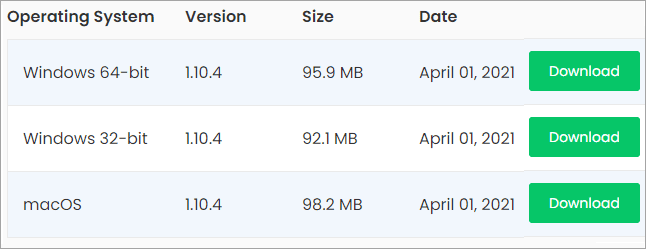
The installation process for SnapDownloader is quite simple. The software is compatible with most 32 bit and 64 bit Windows and macOS devices. The software works smoothly on macOS X 10.10, Windows 7, 8, and 10 platforms.
Follow the steps below to get this software installed on your device:
- Go to the SnapDownloader official website.
- On the website, click on the ‘Download’ tab you will find on the top right-hand side corner of your screen.
- Depending on the type of OS your device uses, choose between 32 bit and 64 bit Windows or macOS options.
- Simply click the ‘DOWNLOAD’ button, upon which an installer will be launched.
- Accept the terms of the agreement, and select ‘Run’ when prompted. You will be notified when the installation is complete.
- You can now use SnapDownloader on your device.
User Interface
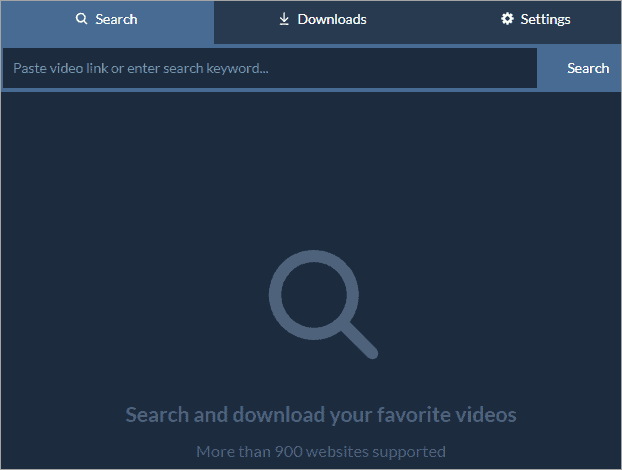
SnapDownloader harbors one of the most immaculate interfaces out of all the downloading solutions available to us today. The interface is presented to us in a way that is clean, comprehensive, and easy to navigate.
Upon launching, you are instantly greeted with an almost blank dark blue page that invites you to paste a link or search for a video to download. You can directly switch between the main page where you initiate a download, the preview page that presents you with a list of completed, queued, and scheduled downloads, and the settings page with the help of three large visible tabs on top.
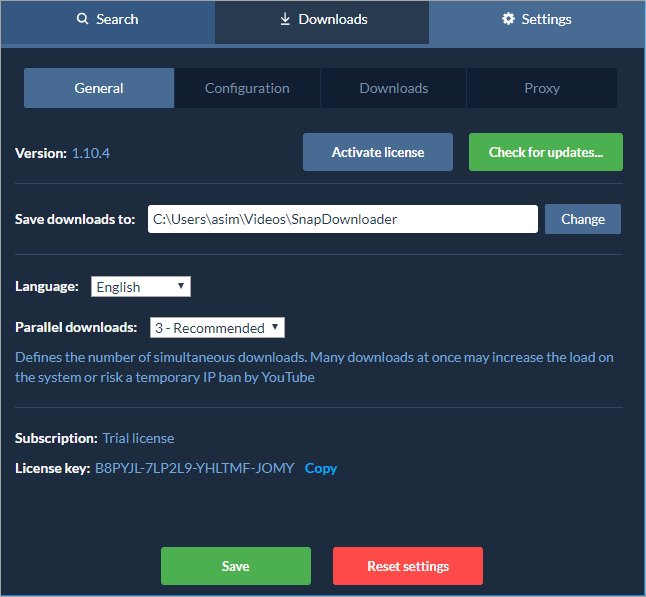
On the settings page, you can configure general, download, or proxy settings with the help of clearly displayed checkboxes and details. At the very bottom of your main page, you will find the option to configure and set up the ‘Bulk Download feature’ and the ‘One Click Mode’ (more on them later) to further simplify and automate the download process.
Right beside these options, you also have links to be redirected to SnapDownloader’s Facebook, Twitter, and Reddit pages.
The software also harbors a color scheme that adheres to the principle of ‘Dark Mode’. This makes the software go easy on the eyes as the dark colors do not strain your vision.
Features
The features are explained as follows:
#1) Video Downloading
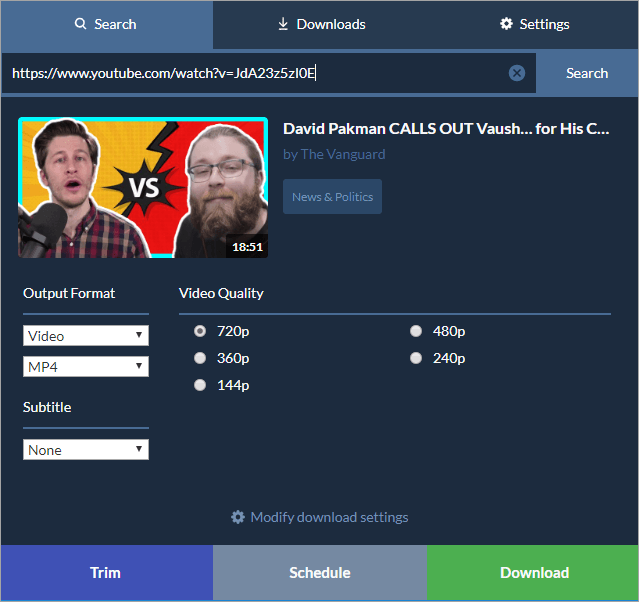
SnapDownloader is known for its simple and super-fast downloading feature. In fact, we wouldn’t mind arguing the fact that it very well might be one of the best in the market today. It comes with an in-built YouTube search engine that allows you to directly search videos with the aid of keywords.
The in-built search mechanism also harbors an auto-suggest feature, thus further assisting you in the search of your desired file. Although the search can take its sweet time in delivering results, it does, however, provide you with accurate results to your search query.
Alternatively, you can resort to the traditional formula of copying and pasting links for downloads. You can go to the settings option to automatically initiate a search as soon as the link is pasted in the text box.
The process to download is very simple. The following is a complete guide to downloading videos or audio files on SnapDownloader:
- Search for the video or audio you seek to download using SnapDownloader’s search bar. Alternatively, copy and paste the URL in the tool’s text box to initiate the process.
- Once pasted, select your desired output format and file quality. For instance, whether you want to download the file in 144p, 480p, or 1080p full HD. You can also download videos in 4 K and 8 K resolution.
- Once set, simply click on the ‘Download’ tab below to begin the process
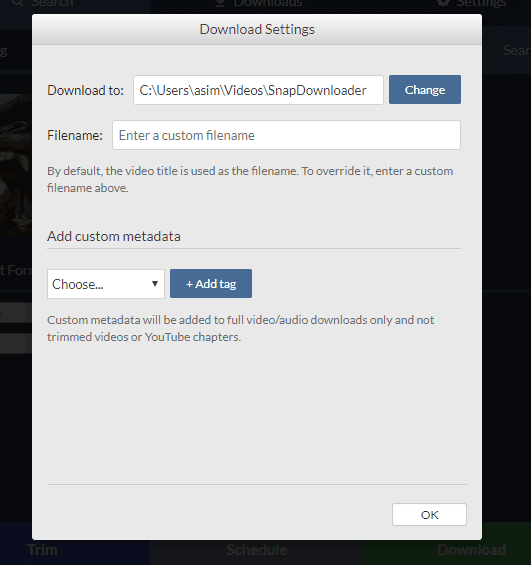
- You can also choose to modify the download settings by changing the location where your downloaded file will ultimately appear, changing the name of the file, and adding meta tags.
- You can check out the file size, download speed, and estimated time to finish, in the ‘Download notification’ section of the tool.
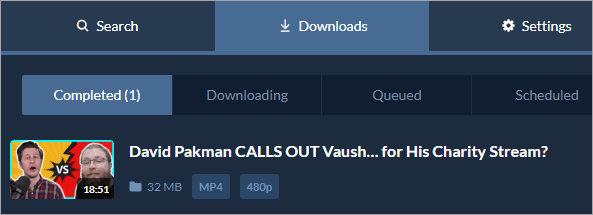
- Once the download is complete, simply double-click on the file to start watching it offline.
The download speed was really impressive here. We could download an 18-minute, 32MB file within a minute.
#2) Trim Video
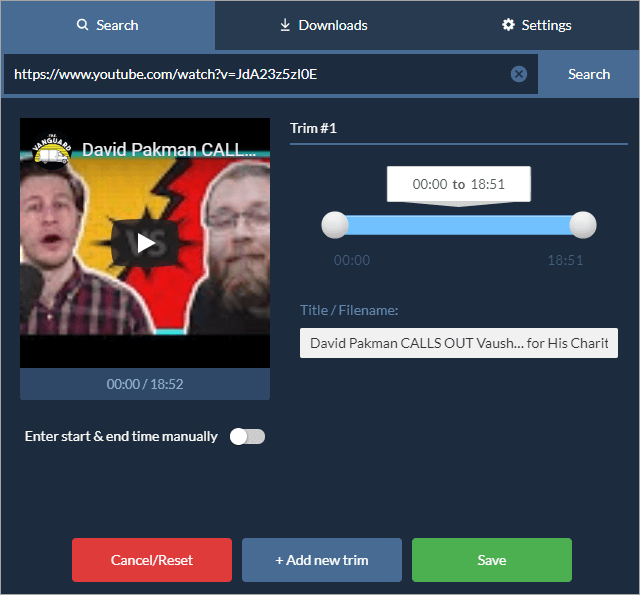
You also have the option of cutting a video short before you even begin the downloading process. To do so, simply click on the ‘Trim’ tab found at the bottom of this tool. Upon selecting ‘Trim’, you can manually add a start and end time to the video or use the designated cursor instead to drag in the length of a video from the end or drag out from the beginning to chop the video.
Once you have trimmed the video to your preference, simply select ‘Save’ and your modified video will be ready to download. You can perform multiple trims to capture multiple clips on the same video by selecting the ‘Add New Trim’ tab at the bottom.
#3) Schedule Video to Download
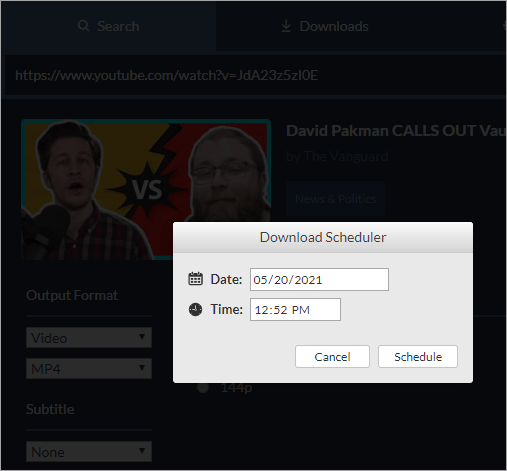
You can also schedule your downloads to begin the process anytime you deem appropriate. Once you have the video all prepped up with desired settings, simply select the ‘Schedule’ tab below. This will open a download scheduler. From here, you can quickly set the date and time when you would like to begin downloading your preferred audio or video.
The software will automatically initiate the download process exactly on the pre-set date and time.
#4) One-Click Mode
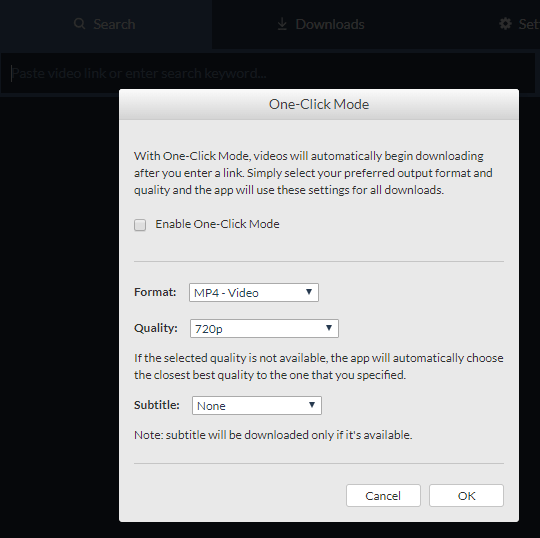
SnapDownloader further simplifies the download process by essentially allowing users to automate it. With the help of SnapDownloader’s one-click mode, you can pre-set the output format and quality preference for all your concurrent downloads.
The download process begins instantly as soon as you enter the link of the video or audio you want to download. This is a pretty useful feature if you prefer your videos to have one uniform quality and output format.
#5) Bulk Download

The Bulk Download feature is useful to save time when you have multiple videos to download in one go. You can easily download an entire YouTube playlist in one go.
You can access this feature in SnapDownloader by clicking on the ‘Bulk Download’ option, which is in small text beside the ‘One Click Mode’ tab below. Once selected, you will be treated to a small white text box. Simply copy and paste the links (one per line) of all the videos you would like to download at once. You can begin up to 15 parallel downloads at once in this tool.
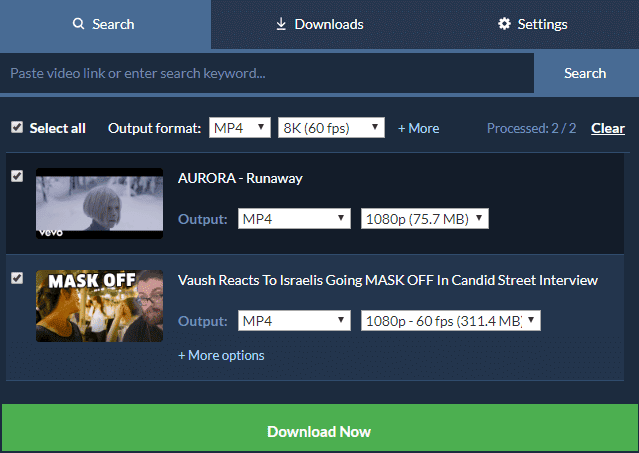
You can paste up to a whopping 100 links in this text box at one time. Once you have the links pasted, click ‘OK’. You will get a preview of all the videos that are ready and just waiting for a command from you to begin downloading.
Now here, you can either select them all and set a uniform quality and output preference or set the preferences for each video individually. Once done, click the ‘Download’ tab and the process will begin.
Also Read =>> Tools to Download YouTube Playlist
#6) Video Conversion
The software can capture videos and convert them into 7 video and audio output formats. You can choose to convert your video to MP4, MP3, AVI, AAC, WAV, AIFF, M4A, and more. You choose the output format when you are configuring the settings right before the download process is initiated.
#7) Download and Extract Subtitles from Video
This is yet another impressive feature offered by SnapDownloader. If a YouTube video comes with subtitles, then you can capture them in over 50 languages. This also includes automatic captions as well. You can choose the subtitle to download before the process begins. You can find the option to do so below the Output format and video quality section.
#8) Proxy Setup
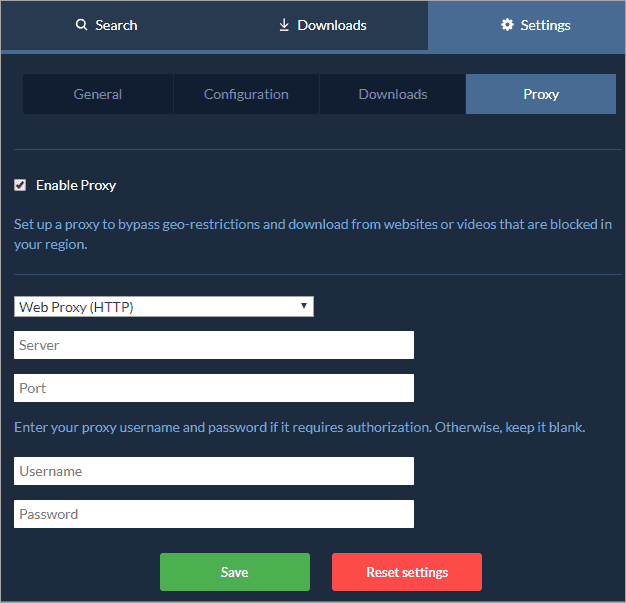
You might want to download content from a website that is geographically restricted to you. This can be challenging as accessing websites that are restricted to you because of laws specific to their location can be tricky.
SnapDownloader features a great solution for this. Its in-built proxy set-up functionality allows you to bypass geo-restricted facilities so you can download content from a location that is otherwise blocked to you. All you need to do to bypass these restrictions is set up a proxy credential and you will be able to access the blocked site.
#9) Export Files
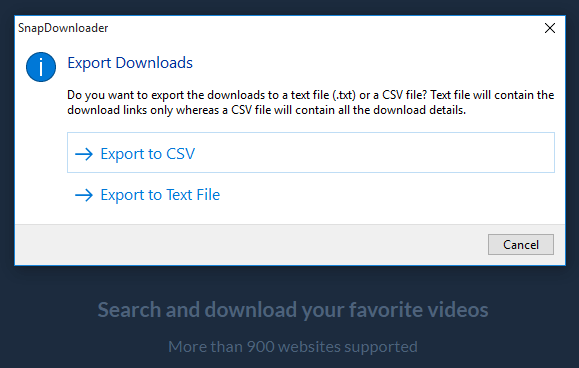
If you want to export video or audio files in the form of CSV or text files, you can do so with SnapDownloader. Simply go to the ‘Tools’ tab on the top left corner of your screen, and select ‘Export downloads’ from the drop-down menu. You will be greeted with a prompt that gives you two options to export your downloaded files.
#10) Customer Support
The support options in SnapDownloader are limited. You don’t get direct call or chat support. However, the 24/7 email support is very responsive. Just mail them with a query, and you will get a response as soon as possible from their representatives. Alternatively, you can refer to their FAQ page to seek assistance.
Pricing
There are 4 flexible pricing plans to choose from when buying SnapDownloader. Each of these plans offers the same features, differing only in the duration you will get to use the software.

You can purchase a monthly subscription license for 1 computer for $3.99/month or opt for an annual subscription, which will cost you $19.99/year for 1 computer.
Alternatively, you also have the option to choose a lifetime license, where you pay only once to use the tool forever.
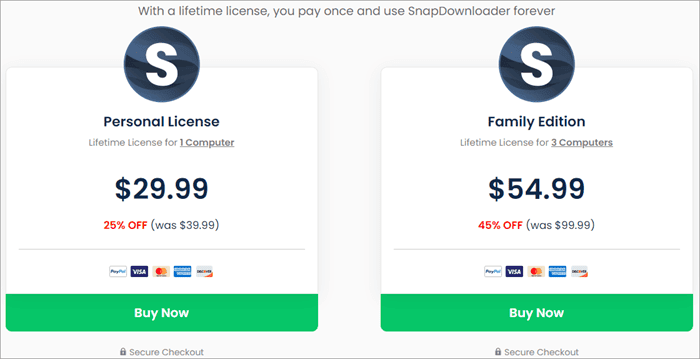
You either buy a lifetime personal license for 1 computer at $29.99 or opt for the family license for 3 computers at $54.99.
You can also opt for the 48-hour free trial that allows you to test all of its features for two days before you decide which plan to go for.
Pros And Cons
The table below enlists the pros and cons:
| Pros | Cons |
|---|---|
| Download up to 15 videos simultaneously | Only 48 hrs. free trial |
| Superfast video processing with no speed caps | |
| Download in 1080p, 4K, and 8k resolutions | |
| Clean and User-Friendly UI | |
| No ads | |
| 24/7 customer support | |
| Proxy Set up | |
| Cross-Platform Support |
Conclusion
SnapDownloader is one of the best cross-platform video downloaders being used today. It is very simple to use, incredibly fast in its processing, and harbors a clutter-free interface that is visually stunning. Its ability to download video and audio content from over 900 websites should be reason enough to install this tool on Windows or Mac devices.
Further reading =>> Video Downloaders for Chrome
However, there is so much more on offer here with regards to its features. You can convert videos to audio, trim the length of your videos, download subtitles, download an entire playlist from YouTube and capture content from geo-restricted locations.
This is a tool of the future as it can easily help you download videos in both 4k and 8k resolutions.
With no ads, this is a very safe software to install and use on your device. Ultimately, its user-friendly nature, fast downloading speed, 24/7 customer support, and clear pricing plans earn it a very glowing recommendation from us.
Was this helpful?
Recommended Reading
-

If you’re looking for a free tool to convert and download YouTube videos to MP3, you’re in the right place. Read a complete review and compare the best YouTube to MP3 converters and downloaders. The challenge is that there are countless options out there, and finding one that’s actually free,…
-
Here are the best free MP3 downloader tools and mobile apps of 2026 for high-quality, ad-free MP3 music downloading. Finding a reliable MP3 downloader isn't as easy as it used to be. Many websites are packed with ads, fake download buttons, and low-quality audio files. Whether you want to download…
-

Review of Top YouTube Video Downloader Apps with Features, Pricing & Comparison. Select the Best Free Online YouTube Ripper for PCs to Download YouTube Videos: YouTube is the most-watched video streaming website. Launched in 2005, the online video platform features a wide variety of content, including TV clips, educational videos,…
-
Are you looking for the top Instagram video downloading app Regardless of whether you own an Android phone or an iPhone? In this guide, we have tested 15 Instagram video downloaders and the right app is going to come in handy for downloading your Instagram videos and Reels offline. The…
-
Searching for the best video downloader for Google Chrome? In this guide, we will compare the best video downloaders for Chrome with their features. We have tested the video downloaders for chrome to check their ability to detect videos on a web page, the number of supported websites and formats,…
-
Are you looking for the safest YouTube playlist downloaders? Here is the complete list of the top free desktop tools, websites, and open-source alternatives for batch downloading videos from YouTube playlists. Single-file downloads of YouTube videos can be very annoying especially when the playlist has hundreds of videos. With a…
-
Read this Comprehensive Review & Comparison of the Best SoundCloud Downloader Tools With Features & Pricing to Download Soundcloud Songs: SoundCloud is a popular online platform that connects artists and audiences. It claims to be the largest online community of artists, bands, and podcasters. The platform consists of millions of…




Excellent Review and breakdown of SNAP DOWNLOADER. Just wish you guys listed close Similiar Downloader programs like this program, that has the very rare, uniquie option to only [pre-trim select desired start and end youtube videos]
before downloading,so we do not have to download entire videos that we do not need.
Please advise if your video experts know of any similiar video downloaders like this with the pre-trim b4 downloading superhot option?? Cheers, and keep up the great work.