Looking for ways to record your favorite show or sports broadcast on YouTube TV? This guide helps you understand how to record on YouTube TV using the platform’s DVR feature:
I don’t think I’ll receive any arguments to the contrary by simply stating that YouTube TV is one of the best live streaming services in the USA today.
The platform offers a good selection of popular networks alongside some amazing features. It is so popular that it now enjoys a user base of more than 8 million subscribers and counting.
Table of Contents:
- Can You Record Shows on YouTube TV
- Speciality of YouTube TV’s DVR Functionality
- How to Record on YouTube TV Effortlessly?
- How to Record Live Sports on YouTube TV
- Steps on How to Record Something on YouTube TV Firestick
- How to Manage Your Recordings on YouTube TV
- Deleting a Recording on YouTube TV?
- FAQs – Record on YouTube TV
- Conclusion
Can You Record Shows on YouTube TV
YouTube TV’s status as one of America’s biggest pay-TV services cannot be denied. Now, you could attribute the platform’s success to several things. In my opinion, though, it is YouTube TV’s DVR functionality that gives it an edge over many of its contemporaries.
Refer to the video below about: Everything You Need to Know About YouTube TV
So, can you record on YouTube TV? Absolutely! Recording a show or sports broadcast while it is airing is a breeze on the platform. However, understanding how this DVR works can be tricky for folks who are new subscribers to YouTube TV.
If you are having a hard time with YouTube TV’s DVR, I suggest you give this guide a thorough read.

Speciality of YouTube TV’s DVR Functionality
Before I show you how to record on YouTube TV, I believe it is important to understand how this function works on the platform. As is the case with most live TV streaming services, YouTube TV also lets you record and store shows and live broadcasts for later viewing.

Most platforms impose a limit on how many hours of content you can record and store. You’ll have to pay more on top of your existing subscription charge to record without limits. However, YouTube TV doesn’t have any such restrictions. You are allowed to record to your heart’s content, and this is the platform’s greatest strength.
The recorded content is stored in your account’s “Library” section. You can access it from there whenever you wish. Any recorded content will be kept on YouTube TV for no more than 9 months.

[image source]
Unlimited storage isn’t the only thing that’s great about YouTube TV’s DVR, as it offers several other enticing benefits, such as the following:
1. Skip Ads, Rewind, and Fast-Forward
With YouTube TV’s DVR, you can record content the way you want it saved. You can fast-forward through parts of the show you don’t want to watch, you can also rewind to parts you don’t want to miss. Best of all, you can skip commercials that get in the way of you enjoying your favorite show.
Suggested Reading => YouTube TV vs Hulu Live TV
2. Unlimited DVR Storage for Multiple Accounts

YouTube TV allows you to open up to 6 accounts via a single subscription. Each account enjoys equal privileges, which extend to DVR as well. All accounts get their own library, which can be used to record and store as much content as you’d like. You don’t have to worry about running out of space as you add more members to your subscription.
3. Record Multiple Shows or Broadcasts Simultaneously
There is no restriction on how many shows or live events you can record at the same time. You could face a scenario where three of your favorite shows end up airing at the same time. YouTube TV allows you to schedule all three of them to be recorded simultaneously. As such, you don’t have to choose one over the other. You can enjoy them all at your leisure.
4. Download for Offline Viewing
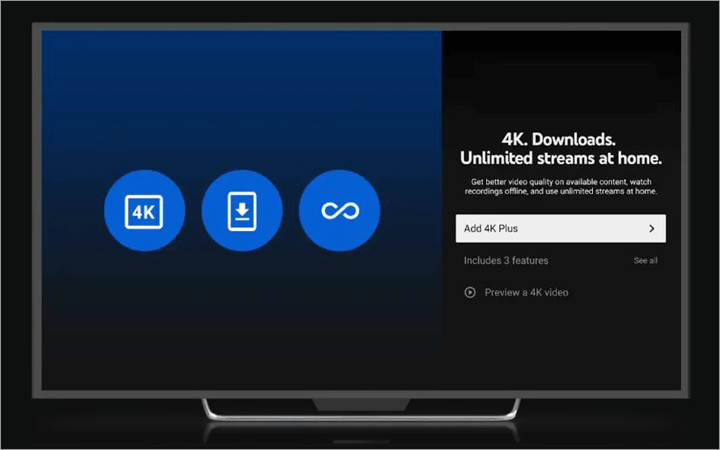
YouTube TV also lets you download your recordings for offline viewing. However, you’d only be able to do so with an upgraded add-on. This add-on costs $9.99/month and also offers other features like the ability to stream in 4K and stream on an unlimited number of devices simultaneously.
Now that you know how YouTube TV’s DVR works, let’s get into the core guide without wasting any more time.
How to Record on YouTube TV Effortlessly?
Recording anything on YouTube TV is simple and will take you only a few seconds once you get familiar with the process.
- You start by first signing up and logging into your YouTube TV account. To access YouTube TV on mobile, you’ll need to download the app. If you are using it on your desktop or PC, simply logging into the official website on your browser will suffice.
- Once you are on YouTube TV’s home screen, find the show or episode you’d like to record. You can rely on the platform’s TV guide or simply type the show’s name in the search bar.
- When the show’s thumbnail is displayed to you, hit the “+” icon. You are commanding YouTube TV to record this particular show by clicking on the “+” icon.
- Once you click the “+” icon, it will turn to a checkmark, indicating that the show is now being recorded. You’ll find the recording stored in your account’s library. You can access and watch the show from there anytime you like.
When you are recording a live show, it is important to keep a few things in mind.

That said, YouTube TV will replace the partial recording with the full episode if that episode is aired again.
How to Record Live Sports on YouTube TV
Recording live sports broadcasts is as simple as recording a live show on the platform. What I find interesting about this particular aspect of YouTube TV is the flexibility it affords users, especially when it comes to recording sports-related content.
YouTube TV was tailor-made for sports fans, and its DVR functionality further serves as a testament to this fact.
Further Reading => Best IPTV for Sports
Here’s how you record a sports event on YouTube TV:
1. Once you are logged into your account, click on the magnifying glass icon that’s found in the top right corner of your screen. Now, type a team’s name, league, or any sports event that you’d like to record.
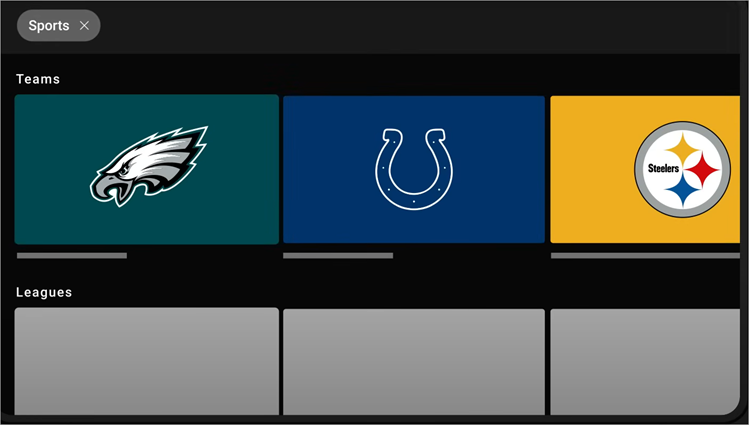
2. You’ll be presented with results based on your search query. Click on the option you prefer and hit the “+” icon, resulting in that program being added to your library. All live broadcasts related to your selection will now be recorded automatically by YouTube TV. You don’t have to do a thing more.
Let’s say you’ve selected a particular team. YouTube TV will now automatically record any live broadcast associated with that team. If you choose a league, any live broadcasts associated with that league will automatically be recorded as well.
This is what ultimately makes YouTube TV such a great live-streaming companion for sports fans. That’s not all.
The makers of YouTube TV seem to understand how live-sports broadcasts work very well. You can count on the platform to extend the recording time automatically, just in case an event runs longer than the anticipated end time.
Steps on How to Record Something on YouTube TV Firestick
The process of recording on YouTube TV Firestick will be the same as recording on any other device. Simply follow the process step-by-step:
- Find YouTube TV on your Fire TV Stick’s home screen and select it to launch. Sign in to your YouTube TV account.
- Now, select a show or live event you’d like to record. Tap on the “+” icon to start recording. Make sure this “+” icon is replaced by a check mark to confirm recording.
- Navigate to your “Library” to find all of your recordings. Simply click on the recorded title you’d like to watch from here.
Also Read => How to Watch a Blocked YouTube Video
How to Watch YouTube TV with Your Smart TV or Streaming Device – US Only
How to Manage Your Recordings on YouTube TV
As I mentioned before, all of your recordings are automatically added to YouTube TV’s library. It is easier for you to access and manage them all from this section. The “Library” tab can be found at the very top of YouTube TV’s home screen as soon as you log into your account.
It will be to the left of the tab titled – Home. This “Library” will have content further categorized into different sections.
They are as follows:
- Most Watched: This will feature all the shows, movies, and sports broadcasts you’ve watched or frequently watch on the platform.
- Scheduled: Every single live show or sports event that’s been scheduled for recording in the future can be found here. You can visit this section to get a gist of your scheduled viewing.
There are also specific categories for shows, movies, sports, events, etc., as well.
Also Read => Best YouTube Audio Ripper Tools
To watch a recording, simply scroll through the library and click on the title you’d like to watch. Now, it is possible that you might not find a title that you had set up for recording here. I suggest going back to the title and checking if the “+” icon still exists on it. If that’s the case, click on it and ensure the icon is replaced with a checkmark.
If that doesn’t solve the issue either, your best bet would be to contact YouTube TV’s support team. The support team is responsive and will most probably satisfactorily address your concerns.
Deleting a Recording on YouTube TV?
Can you record shows on YouTube TV? Yes. Can you delete this recording if necessary? With ease. Although there aren’t any limits to how many hours or how much data you can record, I still consider it best to clean up your DVR storage periodically.
Freeing up some space in your library will declutter it and help it appear considerably organized. It is easier to browse through a catalog that’s neatly organized. Deleting a recording on YouTube TV is quite simple.
Suggested Reading => How to Download YouTube Videos
Here’s how you do it:
- Log in to your YouTube TV account and click on the “Library” tab that’s displayed at the top of your home screen.
- In the “Library”, scroll and find the show or event you’d like to erase.
- When you find the title, click on the three small dots to open a drop-down menu.
- You’ll see a checkmark that says “Added to Library”. Click on the title for this checkmark to be replaced with a “+” icon.
This “+” icon serves as an indicator that your title is no longer set to be saved or scheduled to be recorded.
FAQs – Record on YouTube TV
1. How do you record a live show on YouTube TV?
Recording a live show on YouTube TV is simple. All you have to do is follow the steps below:
1. Open YouTube TV and find the show you want to record.
2. Click on the title you wish to record and hit the giant “+” icon.
3. The show will now be added to your library whenever it airs.
Make sure the “+” icon has been replaced with a checkmark, as this confirms the show for future recording.
2. What is the downside of YouTube TV?
The answer here will vary from person to person. If you ask me, I would say it’s the price. It is quite expensive as far as live TV streaming services go. Some of its best features, like the ability to download recordings, are locked behind an add-on. You’ll need to pay an additional amount on top of your base subscription to avail of other features.
3. Can I fast-forward through commercials on YouTube TV?
Yes, you can fast-forward through certain types of content on YouTube TV. For instance, it is possible to skip through ads on DVR-recorded content. However, you cannot fast-forward through commercials on a live broadcast or VOD content.
4. Can you cancel YouTube TV anytime?
Yes, you can cancel YouTube TV anytime you wish. Once canceled, you’ll still have access to your membership until the current billing cycle ends.
5. How far in advance can you record on YouTube TV?
This depends on how soon the schedule of a show becomes available. If the schedule for a show or live event becomes available on the platform in advance, you can set it up for recording. Schedules are typically available weeks or even months in advance. As such, you could record weeks or months in advance before a title airs.
Conclusion
I still remember what an inconvenience it was with a very rigid television schedule. If you missed a show or live event for some reason, you could have missed it for good. If you were lucky, maybe you could catch a rerun.
Fortunately, those days are long behind us, and we have tech like DVR and platforms like YouTube TV to thank for it. As you can see for yourself, recording live shows or sports broadcasts is simple via YouTube. It will only take you a few seconds to schedule a show for recording.
You don’t have to worry about storage space, and you will be able to access your recording with ease for viewing anytime you’d like.
I hope this guide can be of great help to you when recording on YouTube TV or simply managing your DVR library.
Was this helpful?
Recommended Reading
-

Explore and discover all about YouTube TV vs Hulu with features. Put an end to your search with these Top Cable TV Alternatives if you are seeking to replace cable TV in this streaming world: We are living in an age of digitized information. Nowhere is this more apparent than…
-
Review of Top YouTube Video Downloader Apps with Features, Pricing & Comparison. Select the Best Free Online YouTube Ripper for PCs to Download YouTube Videos: YouTube is the most-watched video streaming website. Launched in 2005, the online video platform features a wide variety of content, including TV clips, educational videos,…
-

In this comprehensive article, we have reviewed and compared the best YouTube Alternatives that are available online. Select from this fantastic list of alternatives to YouTube to host your videos online safely and securely: You must be living under a rock if you have never heard of YouTube until now.…
-
This tutorial reviews and compares the best YouTube Video Editor Software for editing YouTube videos easily: Nobody could have imagined the level of success YouTube would go on to enjoy as it grew in popularity over the years. Apart from being the most widely used content platform online; it is…