Deeply understand how to pin a location on Apple Maps instantly. Acquire knowledge on how to drop Pin on iPhone to save your favorite spot & share the exact location with friends and family:
I must say, Apple Maps is a great deal that users get with an iPhone while paying literally nothing for it. All iPhones come with Maps already installed, and users do not need to pay anything for it, no matter how much they use it.
A report by RioSEO states that there are currently approximately 918 million Apple Maps users worldwide. The app’s ability to provide directions for virtually any location in the world makes it extremely popular and reliable.
Table of Contents:
- Dropping a Pin on iPhone: Simple Steps to Follow
- How to Drop Pin on iPhone Using Apple Maps
- Process to Add a Location to the Library
- Ways to Find Saved Locations in Apple Maps Library
- Steps to Download the Route to a Location to use it Offline
- How to Share a Location with Your Friends
- How to Delete a Pinned Location
- Edit Pin Names & Add Notes to Pins
- How to Drop Pin on iPhone Google Maps
- Save a Parking Spot/Set Pin as Parking Location
- Drop Pin on iPhone: Troubleshooting Common Issues
- FAQs on How to Share a Pin on iPhone
- Conclusion
Dropping a Pin on iPhone: Simple Steps to Follow
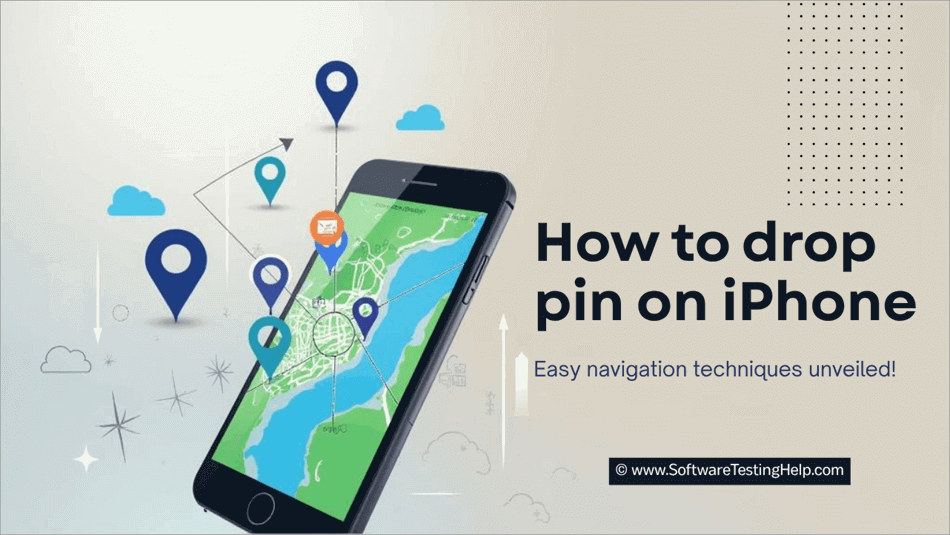
In this article, we have listed down steps on how to drop Pin in Apple Maps, how to share a pin on iPhone, how to save a location to the Library, how to drop Pin on iPhone Google Maps, and how to download directions for a location to be used offline.
Easy Steps to Drop Pin on iPhone with Apple Maps
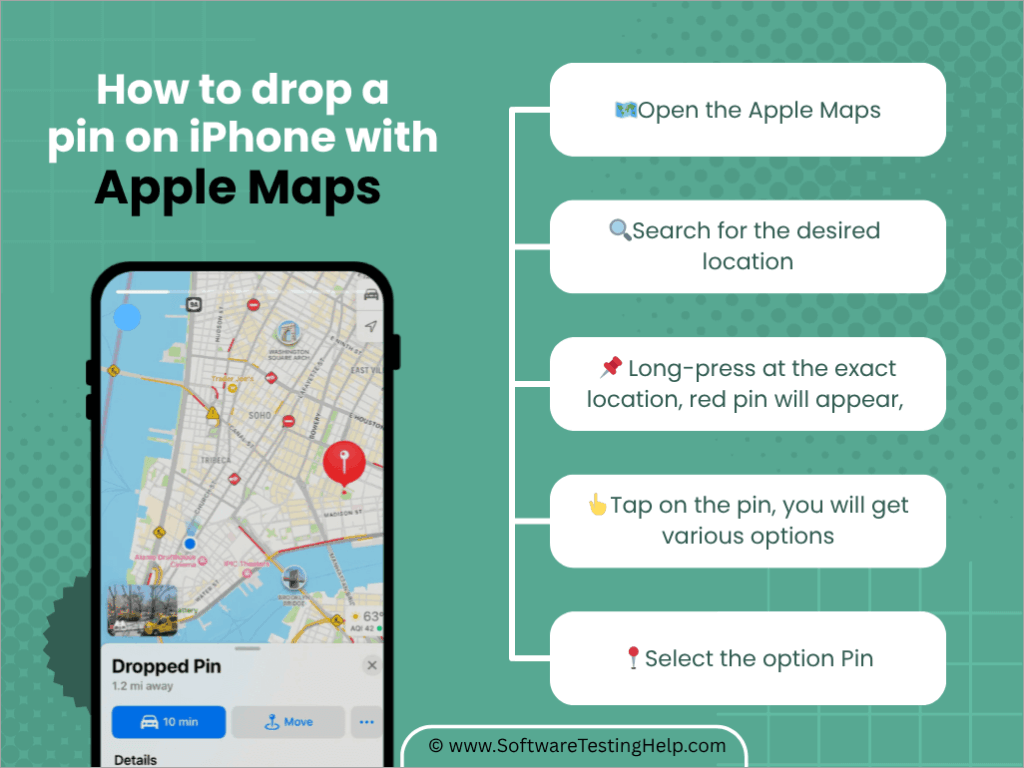
- Open Apple Maps.
- Search for the desired location.
- Long-press at the exact location, and a red pin will appear.
- Tap the pin, and you will get various options.
- Select the option Pin.
Quick Ways to Drop Pin on iPhone with Google Maps
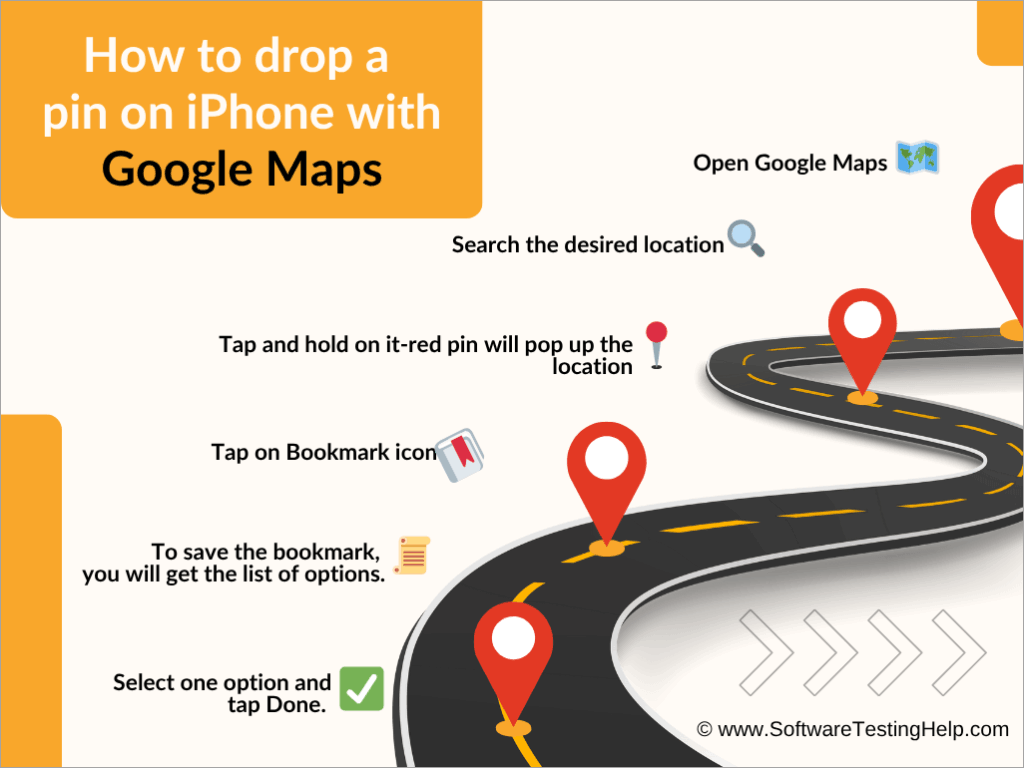
- Open Google Maps.
- Search the desired location.
- Tap and hold it, and the red pin will pop up the location.
- Tap on the Bookmark icon.
- To save the bookmark, you will get the list of options.
- Select one option and tap Done.
Also Read => Drop a Pin in Google Maps for Android/iOS Devices
How to Drop Pin on iPhone Using Apple Maps
Follow these steps for dropping a pin on an iPhone while using Apple Maps:
1. Open Apple Maps on your mobile.
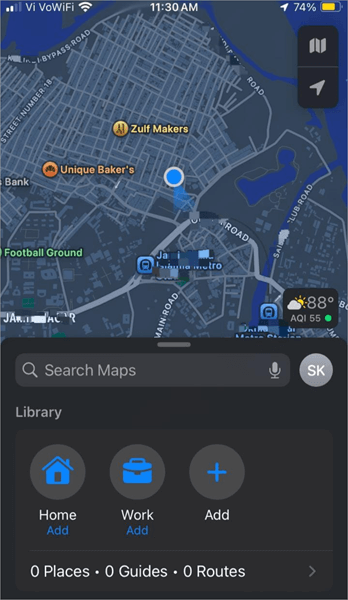
2. Now search for the location that you want to pin from the Search Maps bar.
3. Once you find that location, zoom in to find the exact point of the location that you want to pin.
4. Now, if the location is correct, then long-press at the location and a red pin will appear at that place. Tap on the pin, and several options will appear, which will look like this:
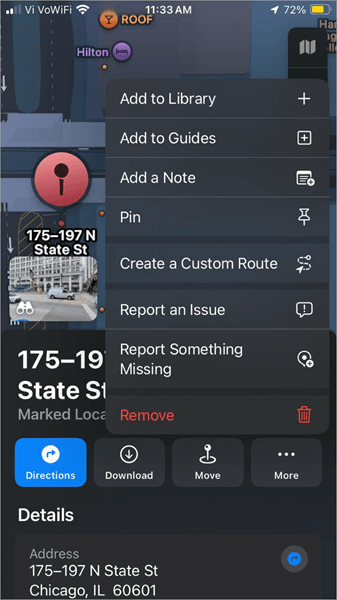
5. Now tap on Pin.
6. The location will be pinned.
7. If you don’t want to pin this location, click on the Remove option at the bottom.
Process to Add a Location to the Library
Apple Maps allows users to add their pinned locations to the Library, so that they can easily find routes to that location at any time. The saved locations can even be shared with your friends through iMessages, WhatsApp, and other applications.
To add a location to the Library, do as stated under:
1. Find the location that you want to mark as Favourite on the Map.
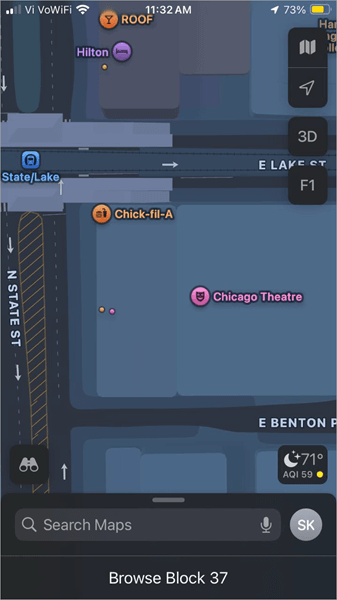
2. Zoom in to get to the exact point of the location.
3. Press and hold at the exact position that you want to save. A red pin will appear on the Map.
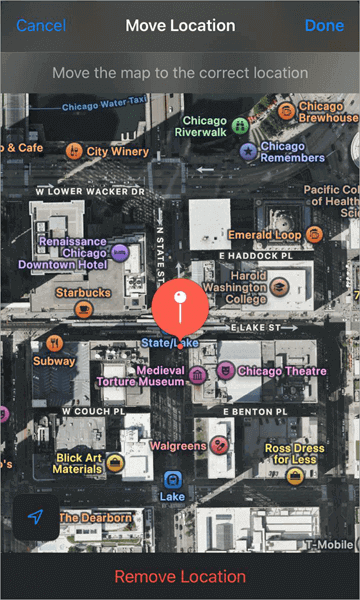
4. Tap on this red pin, and several options will appear, which will look like this.
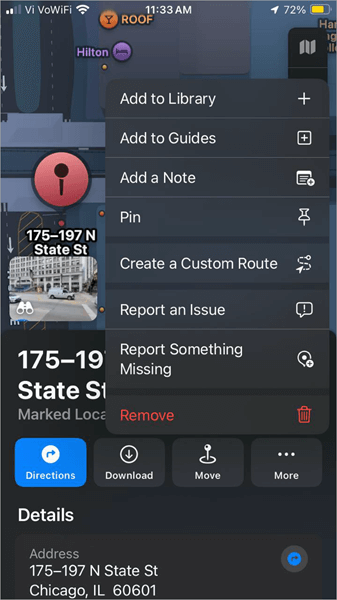
5. Tap on the Add to Library option. You can even Add a Note for this location from here.
6. You will be asked to give a Name to the location, to save it to the Library.
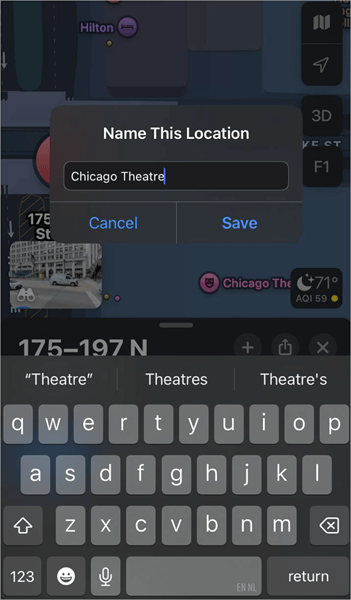
7. Input the name and tap on Save.
8. The location will then be saved to the Library.
Also check => How to share your location on iPhone
Ways to Find Saved Locations in Apple Maps Library
If you have pinned a location or saved it to the Library, it can be easily accessed by swiping up on the Apple Maps home page.
Here is a step-by-step guide:
1. Open Apple Maps. The saved locations will be at the bottom of your screen.
2. Swipe up.
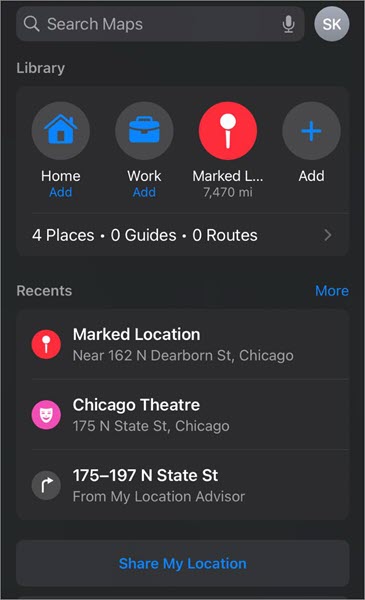
3. Tap on the > sign.
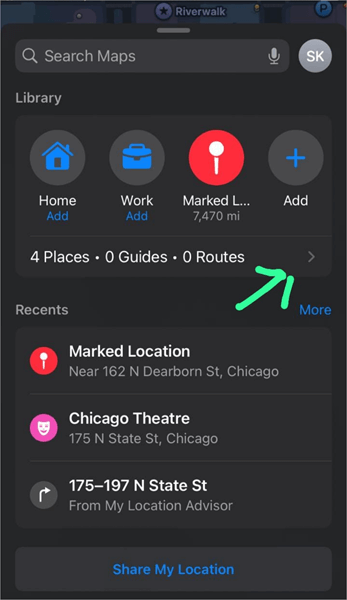
4. Select the location you want to access.
5. Tap on Directions.
6. You can find the route to the pinned location from a specific location or from your current location. You can add Stops if you want.
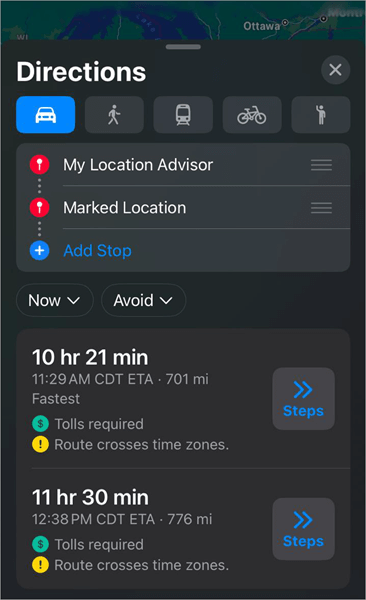
7. From here, you can:
- Select whether you are traveling by a Car, a Train, a Bicycle, etc., to get the Estimated Time to arrive at the location.
- You can add Stops to reach the location.
- Get information about Tolls.
- Get the steps to reach the location in written form.
- You can choose some points (like Tolls) to avoid during your journey.
Steps to Download the Route to a Location to use it Offline
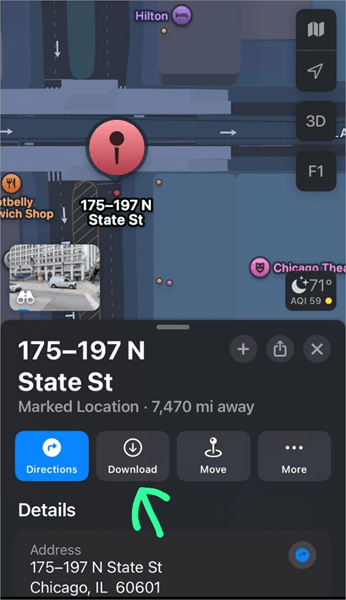
If you are traveling to a place and you are afraid that you won’t get network access during the journey, then don’t worry. You can just download the map to reach a specific location, to be used offline, by following these simple steps:
- Open Apple Maps
- Swipe up
- Go to the Library, tap on > icon to see the list of saved Locations
- Select a Location
- Click on Download
If you want to share a location with your friends, follow these instructions:
1. Open Maps.
2. Swipe up to find the saved Location.
3. Tap on the Share option that looks like this.
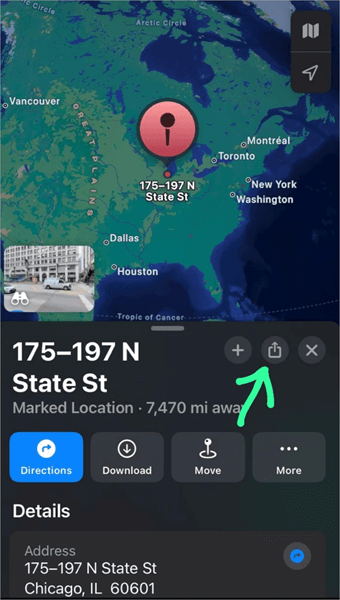
4. Now select the app you want to use for sharing this location.
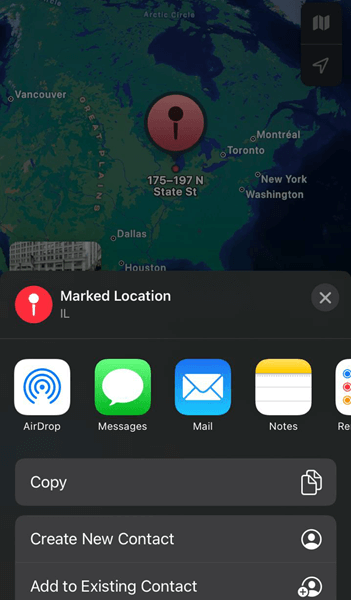
5. From here, you can choose to share the location or just Copy the link to save it to your Notes or share anywhere you want.
Here is a YouTube video on how to send a pinned location to a friend on WhatsApp iPhone
Quick Guide For: How to Add a Dropped Pin to an Existing Contact
Follow these steps:
Step 1: Drop a pin.
Step 2: Tap the dropped pin and click on share.
Step 3: Select “Add to existing contact”.
Step 4: Select Contact and update it.
How to Delete a Pinned Location
If you want to delete the pinned location, then follow these quick and easy steps:
- Open Maps.
- Swipe up and find the location you want to delete.
- Tap on the location.
- Scroll down.
- Now select Unpin.
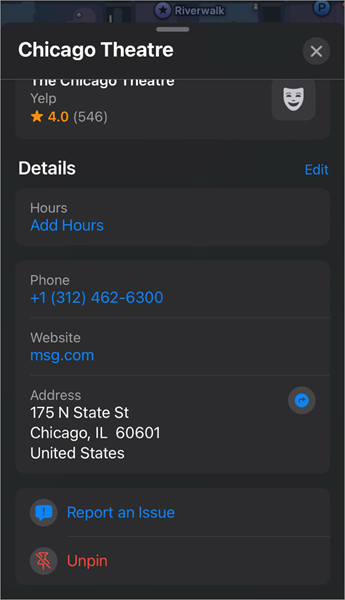
Edit Pin Names & Add Notes to Pins
Edit Pin Labels/Names
If you have saved a pin and now you want to edit its name, then follow these simple steps:
- Go to Maps
- Swipe up and open Library
- Tap on Pinned
- Tap on the info icon

- Now tap on the Label field and change the name of the pinned location.

Adding Notes or Descriptions to Pins
You can easily add short notes or a description to the pins saved in your Maps. Do as stated under for adding notes to a pin:
- If you have already pinned the location, then open Maps, go to Library, tap on Pinned, tap on the info icon, and then click on Add Notes. You can add notes and then select Done.
- You haven’t pinned the location yet, then search for the location, zoom in to find the exact location to be pinned, then tap and hold your finger on the location. A red pin will appear. Tap on it and then select the Add Notes option. Add the description for the pin and then tap on Done.
How to Drop Pin on iPhone Google Maps
If you are using Google Maps on an iPhone and wondering how to drop a pin, then just follow these steps:
- Open Google Maps.
- Search for the location that you want to pin (or save).
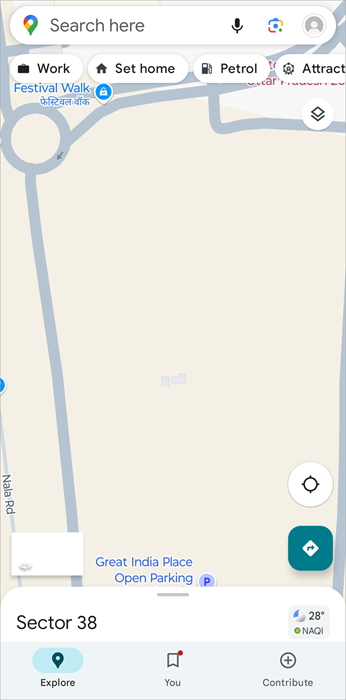
- Zoom in on the map to find the exact location to be pinned.
- Tap and hold the desired location.
- A red pin will pop up on the location.
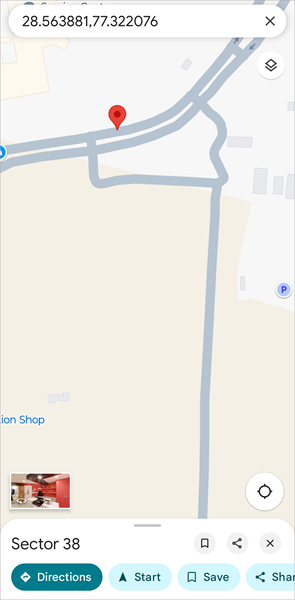
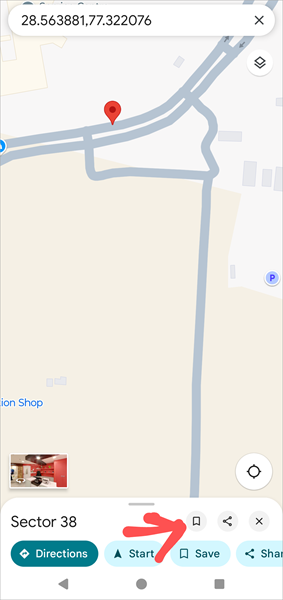
- Now tap on the Bookmark icon.
- The app will then let you choose a List where you want to save the Bookmarked (pinned) location. You can make a custom List of locations from here. For example, Places to visit in 2026, etc.
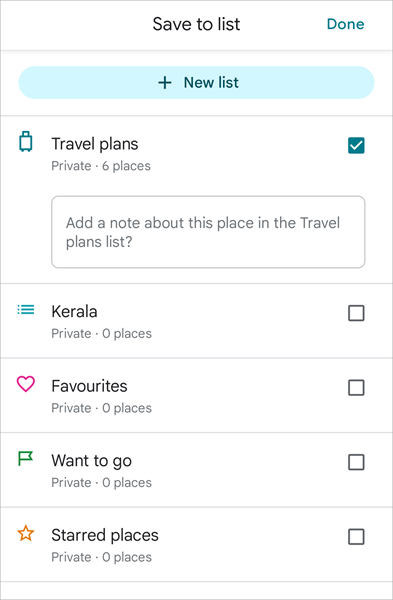
- Once you choose the List, tap Done.
- The pinned location is now saved.
Also Read => How to Draw Radius on Google Maps
To access your saved location on Google Maps, you’ll have to do as follows:
- Open Google Maps.
- Tap on the You option located at the bottom of your screen.
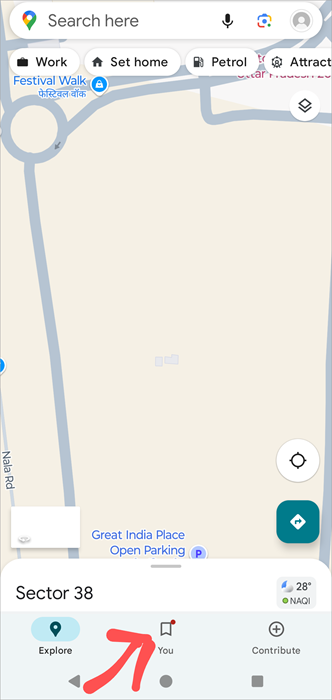
- You will see your list of saved locations.
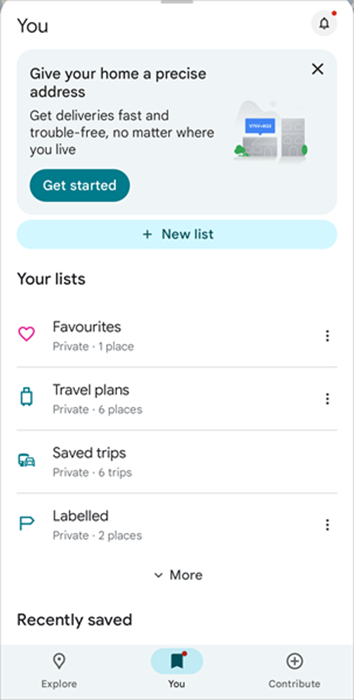
- Open the List where you saved the location you want.
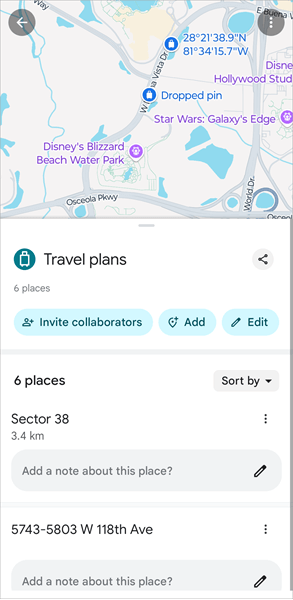
- Now you can choose any location and get directions instantly.
Save a Parking Spot/Set Pin as Parking Location
If you are using Apple Maps on your iPhone, then follow these steps to set a pin on your parking spot:
- Go to Maps.
- It will show you your current location.
- Zoom in and long-press the location you are at.
- A red pin will appear. Tap on it, and then select the option Pin.
If you are using Google Maps on your iPhone, you’ll have to do as stated under to mark your parking spot:
- Open Google Maps.
- A blue dot will show your current location.
- Tap on that blue dot.
- You will get several options, including-
- Share this location
- Share real-time location
- Save Parking
- Set as Home
- Report a problem
- Add a missing place
- Select the Save Parking option.
- Tap on More info. Now you can add notes to this location and share it with your contacts.
Using Siri to drop Pin on iPhone
If you are using Siri on your iPhone, then adding a pin to a location is a breeze. Just ask Siri to
- Open Maps.
- Now say- Search for “Your desired location”.
- Drop a pin.
That’s it.
Also Read => How to Turn off Search History in Google
Drop Pin on iPhone: Troubleshooting Common Issues
In this section, we have covered the solutions for various issues that can occur while dropping a pin in an iPhone.
Some of the common issues that users face while dropping pins on an iPhone are:
- Pin does not drop at the desired location
- Pin disappears
- Pin is not saved
- They are not able to find the saved pin
- Network issues
Solutions:
- The solutions include troubleshooting for these issues:
- Network issues.
- Check for system updates.
- When there is a bug in the app, try restarting the phone or reinstalling the app.
- You may not be doing it right.
- There can be some issues with the data sync settings. Check if Maps is enabled in the iCloud settings of your iPhone.
- The phone may be running on Battery Saver mode, due to which it would not be updating your current location.
- The date and time on your phone may not be correct.
- If your pin does not drop at the desired location, chances are that you have not zoomed the map enough to tap on the exact point of location that you want to pin. To pin a location, you must zoom in on the map after searching for the location.
- Apple Maps allows its users to save only one pinned location at a time. If you want to save more locations, you’ll have to save them in the Library. So if a pin disappears, chances are that you saved another pin, due to which the earlier one disappeared. But you can find that disappeared pin in the recent locations if you had used that pin recently.
- If you are worried that your pins are not saved, try saving them in the Library. This way, you can access them later anytime. If you don’t save pins to the Library, the pin will disappear when another location is pinned.
- There is a possibility that the pin may actually be saved in your iPhone, but you are not able to find it, which makes you think that the pin disappeared. So follow these steps to find your pin:
- Open Maps
- Swipe up
- Go to the Library
- Tap on Pinned
- Now you will see the location you have pinned earlier.
- If you know that you will be facing network connectivity issues while going to a location, then you must download the route to the location before starting your trip. This way, you can access the directions even without an internet connection.
- What to do when location accuracy is poor:
- Make sure the app has permission to access your location
- Make sure Location services are enabled on your phone. You can go to Settings, then tap on Privacy, then go to Location Services to turn them on.
- You may be using the phone in Battery Saver mode, due to which the Maps app would not be able to sync in the background.
Further Reading => Fix for iPhone Not Updating Location Issue
1. How to pin a custom location on an iPhone?
To pin a custom location on an iPhone:
• Open Maps
• Search for the location you want to pin from the Search Maps bar
• Zoom in on the Map to find the exact point of location to be pinned
• Long-press on the exact location you want to save
• A red pin will appear.
• Tap on it.
• Some options will appear on your screen. Tap on Pin.
• This location will be pinned to be used in the future.
Please note that, to save more than one pinned location, you will have to add the locations to the Library.
2. How do I send a location pin on WhatsApp?
If you are using Apple Maps, follow these steps for sending a pinned location to WhatsApp:
• Open Maps
• If the location is already pinned, then swipe up, tap on the location, click on the Share icon, choose WhatsApp, and choose the contact you want to share the location with.
• If the location is not pinned already, then:
a. Search for the location in the Search Maps bar
b. Zoom in to find the exact location
c. Long-press the exact location that you want to save and share
d. A red pin will appear at that place. Tap on the pin, and several options will pop up.
e. Now select the option- Pin.
f. Now tap on the Share icon and then click WhatsApp and select a contact to share the pinned location.
If you are using Google Maps, follow these steps to pin a location and then share it:
• Open Maps
• Search for the location that you want to pin in the Search here bar
• Zoom in and then long-press the exact location that needs to be pinned
• A red pin will appear at that location.
• You can either choose to share the location directly or save it and then share it.
• To save it, tap on the Bookmark icon
• Choose a list that you want to save the location in, and then tap on Done.
• The location is now saved in your Maps. Now tap on the Share icon and choose WhatsApp to send the location link to a contact.
3. How do I mark a location on my iPhone?
You can pin a location to mark it to be used in the future. To pin a location on your iPhone, do as stated under:
• Open the Maps application
• Search and find the exact location that you want to be pinned
• Do a long press on the exact location after zooming in on the Map
• A red pin will appear. Tap on it.
• Select the option Pin.
• The location will now be marked. You can just open Maps and swipe up to find directions to that location anytime.
4. What does it mean when someone sends you a dropped PIN?
If you have received a pinned location from someone, it means that you can just tap on the link and quickly get the route to the exact location whenever you want.
This feature can be quite helpful in several situations. For example, You have planned a birthday party at a remote location and you don’t want your guests to get troubled while finding the place, so you can just send a drop pin on iPhone to your guests, so that they can find the directions to reach the exact location, from wherever they start.
5. Is iPhone Maps free?
Yes, iPhone Maps is a free app that comes built-in on all Apple phones. The application is secure and is loaded with useful features.
The users of Apple Maps can search for directions to reach any location using an internet connection. They can even download the route to a location for using it offline.
Conclusion
The Maps application on an iPhone is undoubtedly a great tool and is used by millions of users worldwide. You can find the route, estimated time to arrive, and toll expenses for any route within seconds.
Not only this, you can save the directions for any location or pin a location to find its directions quickly, anytime in the future. You can even share a pinned location with your friends, so that they can easily find the route to reach that exact location.
And the ease of use that this app offers makes it a highly reliable and recommended tool. iPhone users use Apple Maps as well as Google Maps. Both of them are quite similar and can be used for finding directions, pin a location, and sharing a pinned location with friends.
Was this helpful?
Recommended Reading
-

Here we will explore multiple ways to understand how to Share Your Location on iPhone with others: Sharing live locations is a useful thing today. It is especially useful when you don’t know the exact address and you would like to tell someone where you are. Be it an Android…
-
Delve deep into the quick ways to fix find my iPhone not updating location error. This guide will help you to identify the causes behind this issue and suggest all possible solutions to get rid of the problem: Why is Find My Location not updating? If you’ve asked this question…
-
If you are looking for solutions to track someone's location using a mobile phone, then this article provides you with the best tools to do so. In this guide, I have explained what it means to track someone through their mobile number, the techniques that work, as well as the…
-
Get educated on how to turn off location on the iPhone without notifying the other person. Hide or share your location as per your choice with this exclusive guide & find solutions to stop people from tracking you: iPhones offer their users some handy features like FaceTime, data security, screen…