


Are you struggling with “Your organization’s data cannot be pasted here” error across various apps and devices? Here are the quick steps to fix the error from our expert guide.
This message usually appears when you try to copy and paste corporate data from one app to another, particularly in environments where applications are managed under an organization’s security policies.
Encountering the “Your Organization’s Data Cannot Be Pasted Here” error can be frustrating, especially when it interrupts your workflow across apps and devices.
In this ultimate guide, I will break down all possible reasons behind the error and provide clear, practical solutions for fixing it on Windows 10/11, Android, iPhone, Outlook, Microsoft Teams, SharePoint, OneDrive, Power BI, and other Microsoft 365 apps.
Table of Contents:
- “Your Organization’s Data Cannot Be Pasted Here” Error: Ultimate Guide with Solutions
- Possible Reasons for “Your Organization’s Data Cannot be Pasted Here” Error
- How to Resolve “Your Organization’s Data Cannot be Pasted Here” Error
- What to Do if the File is Being Blocked by the Organization
- Advanced Troubleshooting Tips to Employ as a User
- How to Fix as an Admin through Enterprise-Level Adjustment
- Frequently Asked Questions
- Conclusion
“Your Organization’s Data Cannot Be Pasted Here” Error: Ultimate Guide with Solutions

“Your Organization’s Data Cannot be Pasted Here” is an error is most commonly found in apps under an organization’s or company’s policy control, as they would rightfully want to protect their confidential or sensitive data.
So, without much further ado, let’s dive in.
Quick Summary
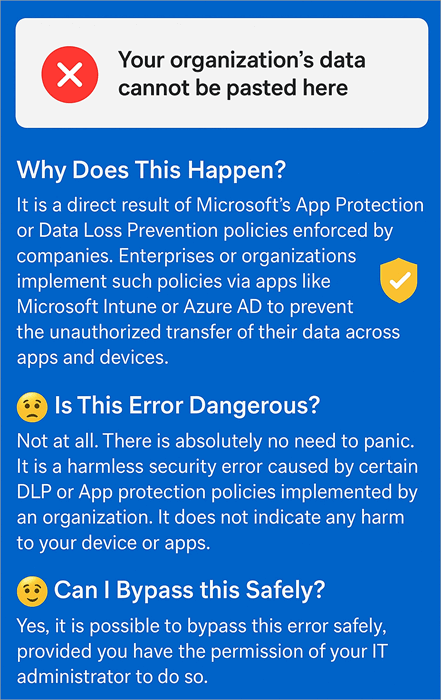
Understanding Different Error Messages
Not everyone is going to see or get the “Your Organization’s Data Cannot be Pasted Here” error. Most will see this message, while others may get an error message like “This operation is not allowed by your organization” or “Clipboard access restricted”.
Although these messages sound different, they carry the same meaning. Take these messages as a sign that you are being blocked via enforced app-protection and DLP policies from copying data from one app to another or one device to another.
That is what I am about to help you with in this article. Consider this article your comprehensive guide on how to resolve the “Your organization’s data cannot be pasted here” error.
Here is the video guide that shows the Quick 5 solutions to solve the error ‘Your organization’s data cannot be pasted here.’
Possible Reasons for “Your Organization’s Data Cannot be Pasted Here” Error
The most prominent culprit of this problem is an app that’s being policy-controlled by your organization. However, there is also a good likelihood of something else being the reason. As I mentioned before, the only way you can solve this problem is by identifying the root cause.
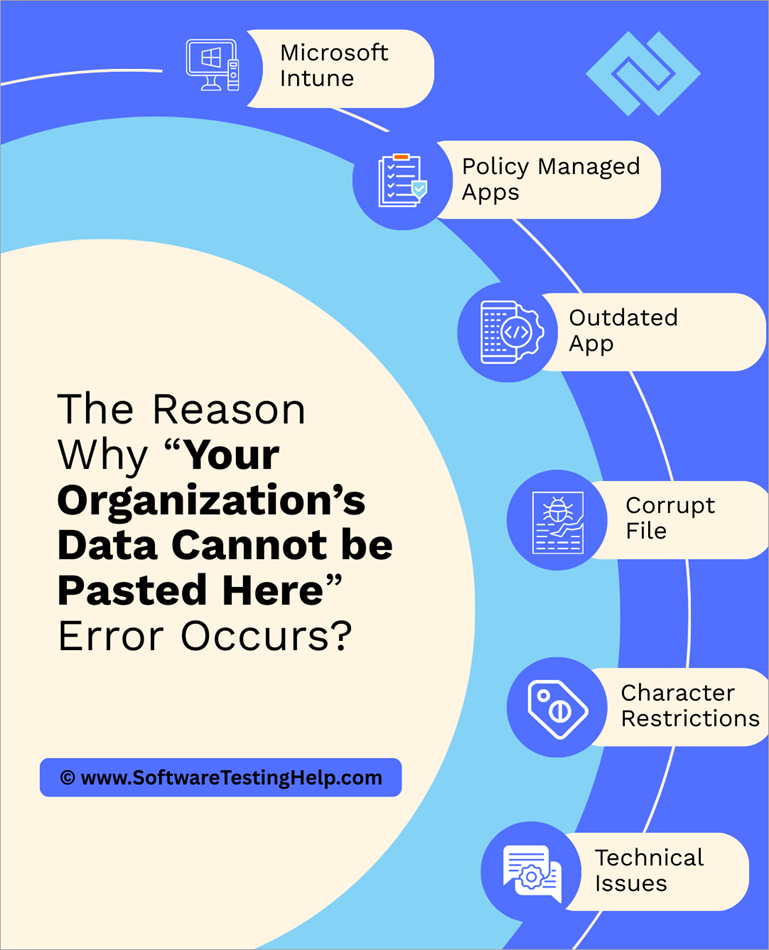
Here are some of the most prominent reasons behind this error:
#1) Microsoft Intune
Microsoft Intune is an app specifically designed by Microsoft to help organizations manage user access and personal devices. The app comes in handy for organizations that adhere to a BYOD policy, wherein employees are required or allowed to carry their personal mobile and computer devices for work.

Microsoft Intune can help companies prohibit or downright ban the cutting or copying of data from apps like Outlook, Excel, and Word, and pasting it on other unauthorized platforms, personal emails, and social media channels.
With Microsoft Intune doing its job in the background, you’ll always be met with the error “Your organization’s data cannot be pasted here”. This is because the app is doing its intended job of blocking you from copying and pasting important corporate information.
#2) Policy Managed Apps
Besides Microsoft Intune, some apps allow you to enforce policies that block the copying and pasting of data from and to them. For instance, MS Office apps like Excel and Word are good examples of such apps.
Let’s say you are trying to copy data from an MS Word file, but cannot do so. This could be because editing on that file has been restricted by your organization. If that is the case, you won’t be able to edit the file, let alone copy data from it to paste it.
#3) An Outdated App
It is also possible that the problem isn’t due to a company policy, but rather because your app is outdated.
It is a well-known fact that outdated apps are prone to misbehavior and may generate numerous error messages. One of those messages could be “Your Organization’s Data Cannot be Pasted here”.
#4) A Corrupt File
There’s also a chance of the file itself being corrupted. This means the error has nothing to do with Intune or policy-managed apps. Instead, it is more than likely to be restricted to a specific file. If that is the case, you’ll have a problem copying and pasting data into that file.
#5) Character Restrictions
Sometimes this error may come to you in a different form. It could say the following: “Your organization’s data cannot be pasted here. Only 25 characters are allowed”. This could be because of character restrictions imposed on the app you are using by your organization.
Companies could restrict the character count to ensure the security of their sensitive data. This could be yet another rare cause for the occurrence of this error.
#6) Technical Issues
This is yet another prominent cause of the error in question here, especially if the app isn’t being policy-managed. It is not uncommon for apps to sometimes be plagued by a variety of technical issues. Besides performance issues, you could also have a tough time working on such apps and face errors like the one we are focusing on in this article.
The technical issue could pertain to anything from issues with connectivity to program conflicts. You could perform simple troubleshooting tactics like rebooting the app or uninstalling and reinstalling it to fix the error.
How to Resolve “Your Organization’s Data Cannot be Pasted Here” Error
On Windows 11 and 10
After identifying the actual cause of this error, you can proceed to take the right measures to fix this error for good.
Depending on the reason, here’s how you can fix the error:
1. Updating Policies on Microsoft Intune
If Microsoft Intune is being used to block copying and pasting on an app, you’ll need to modify Intune’s policy. This means changing the policy to one that now allows the transfer of data from one app to another.
Here’s the procedure:
- Log in to your Microsoft Intune dashboard.
- Access client apps, which will be presented to you on the left-hand side of the interface.
- Navigate to App protection policies.
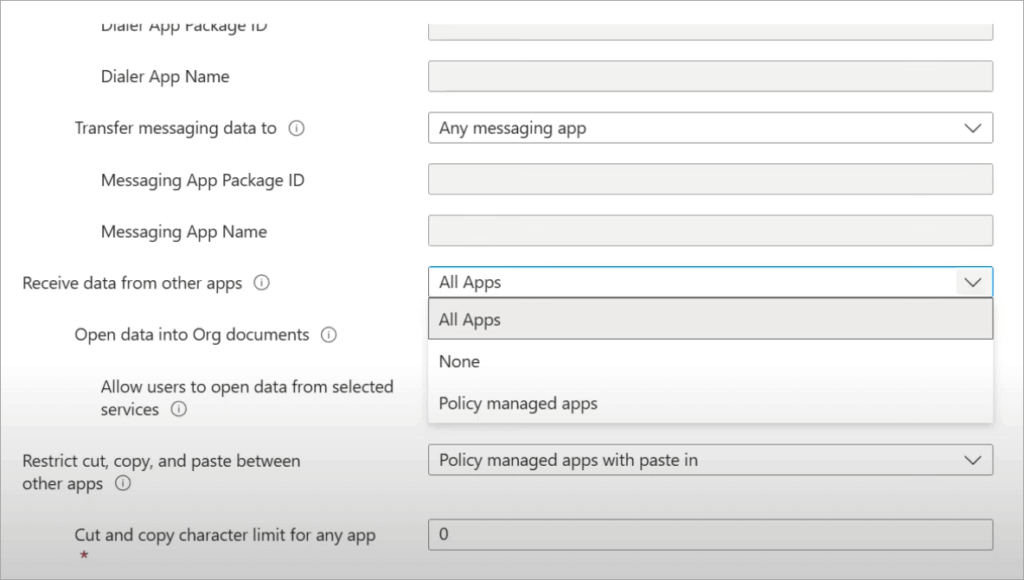
- Here, you’ll need to create a new policy, which you can do by clicking on the “Create Policy” button. Alternatively, you can update an existing policy by simply selecting it from the displayed policy list, as in the image below.
- Now, open Settings and scroll to the Data Protection sub-menu.
- Find Data Transfer in this sub-menu.
[Via Gregarious Technology]
7. Find the option “Restrict cut, copy, and paste between other apps” and edit this policy.
8. Once the policy is modified, click on OK to save the policy.
With Intune’s policy changed, try copying corporate data from the app. You should be able to do so under the newly changed policy. If the problem persists, perhaps updating the app in question could do the trick.
2. Update the Apps
If the above trick didn’t get the job done, then the problem lies somewhere; perhaps it has to do with the app itself being out of date. Of course, the most plausible “Your Organization’s Data Cannot be Pasted Here” error fix here would be to update the software.
Forget about automatic updates. Try to manually update your entire office suite instead. You can do so by first opening the Office App (Word, PowerPoint, Excel) and then following the process below:
- Click on “File” in the above menu.
- Select “Account”.
- You should find the option to update the software underneath “Product Information” as shown below.
- Click on “Update Now”.
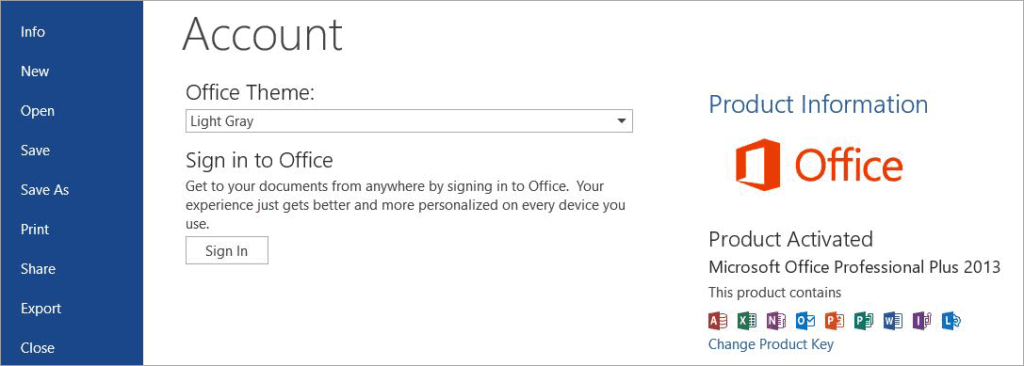
5. Once the updates are downloaded, you’ll be asked to close the Office app to complete the update.
It is that simple. Once the app is updated, try to copy-paste data. It should work now.
3. Enable Editing on the File
MS Office apps allow you to restrict editing on their apps. So, if you are unable to copy and paste data on these files, the editing permissions on the app have been disabled.
You’ll need to enable editing, which is quite simple.
All you have to do is:
- Open the Office file, and in the above menu, select “Review”.
- From the submenu that opens up, navigate to “Protect”; here, you’ll see the option “Restrict Editing” highlighted as in the image below.
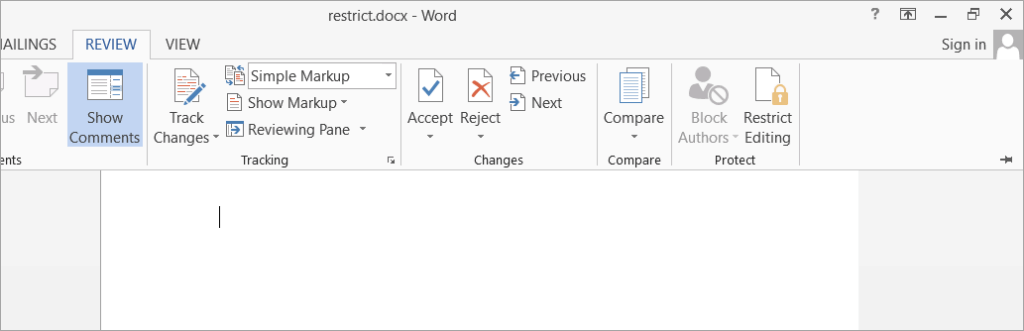
3. You’ll need to click on it to disable the feature.
This should help you edit the document again, as well as copy and paste content into it.
4. Edit the File
If the problem isn’t app-related, then perhaps it has something to do with the file itself. If that is the case, your best bet would be to first try to edit the file. For instance, you could try editing an Excel file by opening a new spreadsheet within it and adding some text in one of the cells.
If the error is occurring in one of the files being operated by MS Office, then try to paste the date in a non-Office file. You could try pasting the data into Notepad instead.
If the issue persists, I suggest closing the file and waiting for a few minutes before opening it again.
5. Create a New File
Besides creating a new file, you could also try creating a new file and trying to paste the data into that file instead. If you are successful in pasting data into the new file, this means your original file was corrupt. You can attempt to duplicate the original file or repair it to fix the corruption.
6. Reboot the Computer or App
As I mentioned before, technical issues related to your app or computer could be the culprit behind the error you are facing. The best way to resolve a technical issue would be to reboot your computer or the app that’s giving you that error. You could also try uninstalling and reinstalling the app.
On Android Devices
There can be two reasons for you to encounter this issue on an Android device. First, this could be because of Microsoft Intune’s policy restricting copy-pasting on any app installed on your Android.
The solution to this problem would be to modify Microsoft Intune’s policy, thus lifting any restrictions on the app you are trying to copy data to. The process of changing this policy is laid out in simple terms above. Follow it step-by-step to resolve the issue.
If Intune isn’t the cause, then you are probably getting this error because of your phone’s Google Keyboard.

When you are using this keyboard, a warning may appear stating, “Your data cannot be out here”. This is nothing but a mere recommendation from Google Keyboard. The error will disappear if you press and hold your phone’s screen for some time.
Another reason this error might appear on your phone is that of an outdated app. You can solve the issue here by simply updating the app.
On iPhone or iPad Devices
The error pertaining to copy-pasting of dates isn’t restricted to Android and Windows devices alone. You could also face this issue when trying to copy and paste data on an iOS device like your iPhone or iPad.
Below are some potential causes for iphone problem, along with solutions:
#1) Bugs: It is quite common for software solutions to be plagued by bugs, which could result in the error you are facing. There have been many complaints out there recently from people who’ve updated their phones to the latest version. An easy fix to this problem would be to report the bug to the app’s in-house support team or restart the app on your phone.
#2) Memory Limitations: You could also face this issue on an iPhone if it is running out of storage. I would suggest clearing up your phone’s RAM and cleaning the cache before you attempt to copy-paste data through it.
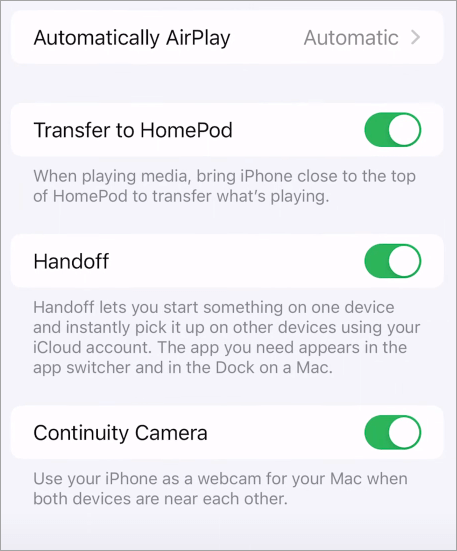
#3) Handoff: This feature is exclusive to iPhone. It can also cause you problems. Naturally, you’ll have to disable this feature to fix the error.
Disabling Handoff is easy; all you have to do is the following:
- Navigate to settings
- Tap on General => AirPlay & Handoff
- Switch off the toggle next to “Handoff” as in the image below.
[Via 5 Minute Solution]
4. After disabling Handoff, log out of your iCloud account.
5. Restart your device and log back into your iCloud account.
This should do the trick.
#4) Modify App Restrictions: It is more than likely that the problem isn’t with the phone but with the app or the file itself because it is being policy-managed. Perhaps Microsoft Intune is being used to restrict copy-pasting on certain apps on your iPhone, or maybe the app itself has a policy in place that restricts any kind of editing.
In such a scenario, you’ll need to identify what’s causing this restriction. If it has to do with a specific policy, you’ll need to modify it. You already know how to change this policy in Microsoft Intune.
Fixing the Issue with Outlook
This error can occur in Outlook for three reasons. It could be because your Microsoft Office Suite is out of date, the original file is corrupt, or because of an app protection policy implemented by your IT administrator.
First, try updating your Microsoft Office Suite to the latest version. If the file is corrupted, try creating a new file, copying data from the old file, and pasting it into the newly created file.
If the issue is due to an app protection policy, immediately contact your IT administrator to lift the restriction imposed.
On Microsoft Teams
You could encounter the same problem on the Microsoft Teams app because of app protection and data loss prevention policies implemented by solutions like Intune.
Possible solutions for this Teams app issue are:
- Contact the IT administrator and request that they modify the security policy.
- Update the Microsoft Teams app.
- Download the File or use the “Share to Outlook” feature.
- Create a new file and paste the data there.
On platforms like SharePoint and OneDrive, this issue can be narrowed down to the conditional access policies in place.
Let’s say a document you are trying to copy data from is stored inside a protected SharePoint library. Any attempt at copying data from such a document will result in the aforementioned error message.
On Power BI and Microsoft 365 Apps
Apps like Power BI allow their users to implement strict data protection policies via row-level security and export restrictions. With these policies in place, copy-pasting or taking screenshots of your document becomes impossible.
If you are the admin, then you can modify the security policy to enable copy-pasting. If you are not the admin, try contacting them and requesting the modification.
What to Do if the File is Being Blocked by the Organization
In most cases, you’ll encounter this issue when copying and pasting corporate data from and to a file or app. That’s because of the policies enforced by the organization. They could have their own reasons for imposing such restrictions, all of which can be legitimate.
This restriction could mainly be to protect sensitive information. It could also be done to protect their data from viruses. A company could also take this measure to comply with the necessary regulations.
Whatever the reason may be, if an organization is behind the error you are getting, it would be in your best interest to do the following if you wish to resolve it:
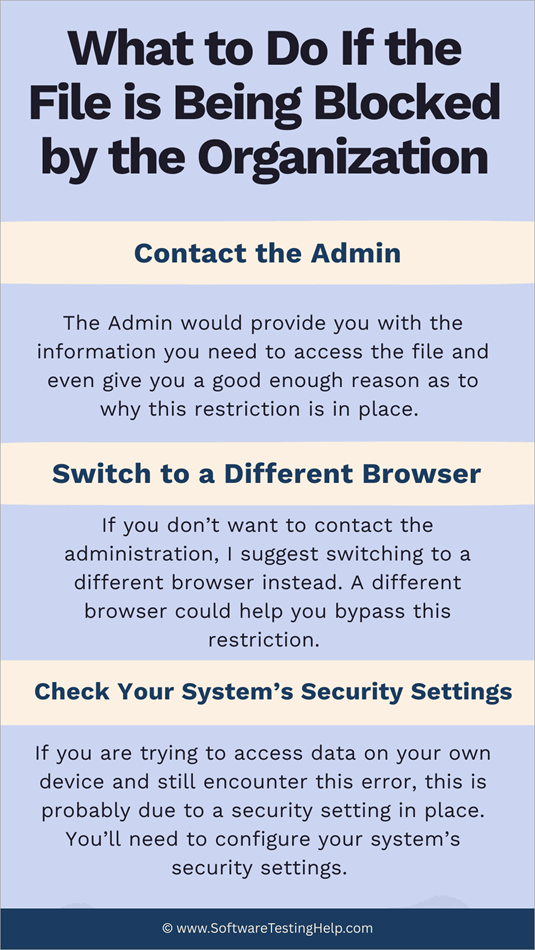
1. Contact the Admin
This is a method I recommend using if you need access to data in a file or application. The Admin would provide you with the necessary information to access the file and offer a clear reason for the restriction.
When requesting the admin, I suggest making your case concisely and politely. If they feel your request is valid, they’ll lift the restriction and allow you access to the data.
2. Switch to a Different Browser
If you don’t want to contact the administration, I suggest switching to a different browser instead. A different browser could help you bypass this restriction. For instance, if you were first using Firefox to open a file, try using Chrome.
3. Check Your System’s Security Settings
If you are trying to access data on your own device and still encounter this error, this is probably due to a security setting in place.
You’ll need to configure your system’s security settings. You might also need to configure your system’s registry to resolve this issue. I suggest doing this yourself if you possess the technical know-how.
Advanced Troubleshooting Tips to Employ as a User
As a user with no admin access, it’s difficult to understand what exactly you did wrong to get that error message in the first place. That said, there are ways by which you can sort this issue out with the tips I’m sharing with you below:
#1) Using Windows Event Viewer
You can use Windows’ Event Viewer to check which security rule actually resulted in the error you received.
Use Event Viewer in this manner:
- Click on Start, Find, and Select “Event Viewer”.
- First, go to Applications and Services Logs.
- In this section, find “Microsoft” => Windows => AppLocker.
You’ll now get to check if a policy denial was recorded when you got the error message.
#2) Using PowerShell
PowerShell is another app one can use to pinpoint the policy that is affecting the copy-paste function on a device or app. Running a command like Get-IntuneAppProtectionPolicy will result in PowerShell displaying a list of policies that are being enforced by Intune to prevent the copy-pasting of data.
#3) MDM Apps Beyond Intune
Intune isn’t the only app on this planet being used by a corporation to enforce restrictive clipboard policies. While Intune is a prominent app for this purpose, there are also companies using other apps like AirDroid. Jamg is another example of an MDM largely used for securing Apple devices in an organization.
You’ll need to understand which MDM is being used to enforce this policy if you wish to know what type of policy is in place. Regardless, the best way to lift restrictions imposed by these apps is to contact your IT administrator.
#4) Cross-Platform Synchronization
The same app could operate differently across different platforms. Therein could lie the root cause of your issue. For instance, cross-app copy-pasting will not be possible on a Mac device without managed profiles in Microsoft Endpoint Manager.
Linux users must make sure that their system’s browser can handle Microsoft’s extensions like Conditional Access, for the copy-paste function to work properly.
Platform Specific Tips
For Windows
On Windows, you could resolve the error message caused by your company’s policies conflicting with your computer’s local features. Try disabling “Clipboard History” or “Clipboard Sync” in settings. Moreover, you should sign out of all work-related accounts on your system.
For Mac
You may encounter a copy-paste error message if there are some unnecessary MDM profiles still in place. You can remove or adjust them by navigating to System Preferences > Profiles.
For Linux
I would recommend that Linux users only use Microsoft 365 apps in a managed browser environment. They can also prevent the copy-paste error message from ever occurring by installing Microsoft’s Conditional Policy extension.
How to Fix as an Admin through Enterprise-Level Adjustment
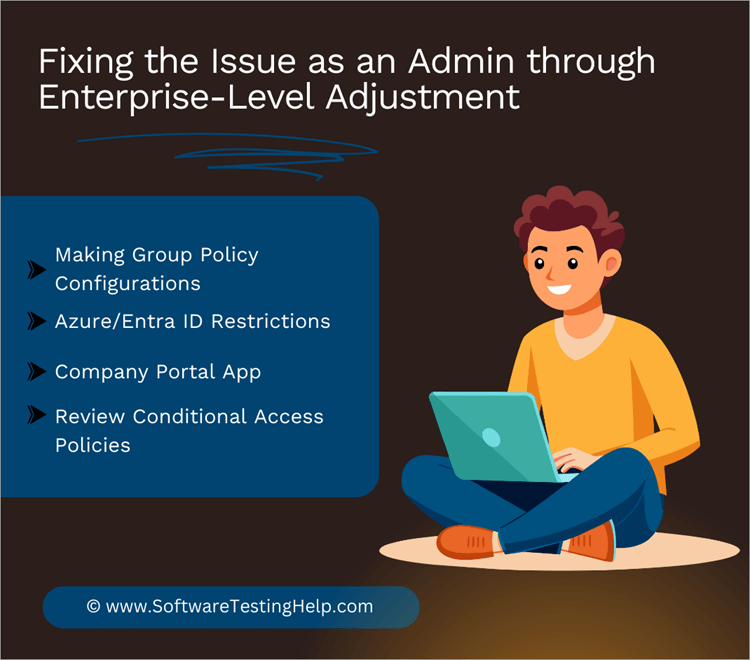
We’ve looked at the things you can do and the methods you can employ as a user. Now, let’s look at a few enterprise-level adjustments that one can employ as an admin to fix this error.
1. Making Group Policy Configurations
Group Policy settings basically entail configurations that can be controlled by an admin centrally. If you are the admin with access to a domain account that has the permission to create and edit group policies, here’s what you’ll need to do:
- First, open the Group Policy Management console on your device.
- Navigate to Computer Configuration.
- Here, select Policies => Administrative Templates => Windows Components => Remote. Desktop Session Host => Device and Resource Redirection.
- Find the policy setting – “Do Not Allow Clipboard redirection”.
- Select “Disabled” or “Not Configured” to enable clipboard redirection.
2. Azure/Entra ID Restrictions
In apps like Entra ID and Azure AS, the following policies are usually behind the issue you are facing related to blocked copy-paste.
- Requires Approved Client App
- Block Downloads
- Use App Enforced Restrictions
To fix the issue as an admin, you’ll need to review these policies within Azure AD and Entra ID and make the modifications to enable copy-pasting.
3. Company Portal App
Microsoft’s Company Portal app allows you to block mobile and computer devices from copying and pasting data if they are non-compliant with certain company policies.
If an employee comes to you with an issue where they can’t copy-paste data, you should review their device’s status on the Company Portal App. Find out whether or not their device has been marked as compliant.
4. Review Conditional Access Policies
Sometimes, companies or administrators make the mistake of broadly applying the “Block” rule across devices within their organizations. This could lead to certain devices or apps being unnecessarily plagued by the error message.
So, I suggest reviewing your organization’s Conditional Access policies and making some exceptions to the rule.
Alternative Methods: What to Do When Admin Access isn’t Available?
You can try using third-party apps to bypass this error, especially when Admin access is nearly impossible to get. I would still suggest not using such apps, as you are basically violating company policies.
If you don’t want to encounter such policies, try to keep your work and personal data separate across mobile and computer devices.
Frequently Asked Questions
1. What is the “Your Organization’s Data Cannot be Pasted Here” Error?
“Your Organization’s Data Cannot be Pasted Here” is an error displayed as a direct result of restrictions enforced by apps like Microsoft Intune and other mobile device management solutions.
This error basically means that the data within an app or file cannot be copied or pasted anywhere else. This error could also be because of a corrupted file or an outdated app.
2. How can you prevent this error from ever occurring in the future?
To make sure this error never occurs again, you’ll need to first identify the cause behind it.
Considering the reasons, you could try the following tactics:
• Modify Microsoft Intune’s policy
• Update the app
• Edit the file or create a new file.
• Contact the IT admin to lift the restriction.
3. Can the “Your Organization’s Data Cannot be Pasted Here” error happen on mobile devices?
Yes, people misconceive this error to be exclusive to a Windows PC. However, you could encounter this issue on both desktops and mobile devices, such as your Android or iOS smartphone.
4. How do I bypass the “Your Organization’s Data Cannot be Pasted Here” error on iPhone?
The first thing you can do is make sure your organization’s Microsoft Intune settings allow the transfer of data between apps. Also, make sure your app is up to date. If your software is plagued by bugs, restart it and attempt to copy-paste data again.
5. How do I bypass the “Your Organization’s Data Cannot be Pasted Here” error on Android?
On Android devices, this error might not be a technical issue but a mere recommendation posed by your phone’s Google Keyboard. Pressing and holding your screen for a while will result in the message vanishing.
If the problem is due to a policy, then make sure Microsoft Intune’s policy allows data transfer between apps. If the problem pertains to outdated software, then update your app.
Check the video guide below on Microsoft Intune:
Conclusion
Facing the “Your Organization’s Data Cannot be Pasted Here” can be frustrating, especially when you desperately need access to certain information. This error mainly occurs because of a policy put in place by a company to protect its data and information.
Of course, if you have the right and authority, you could modify the policy as enforced via Microsoft Intune and other MDM apps. If you don’t have the authority and still need access to certain data, contact your IT administrator and request that they lift the restriction.
If the issue isn’t policy-related, then you could possibly resolve the issue via an app or file update. Just make sure you are only trying to copy-paste data you are authorized to access.
Research Process:
- This guide is based on real-world testing in everyday work environments where this error commonly appears.
- We encountered and checked the “Your Organization’s Data Cannot Be Pasted Here” message on Windows 10 and 11 systems, Android phones, and iOS devices, and observed how it shows up in apps people actually use, such as Outlook, Microsoft Teams, SharePoint, OneDrive, Power BI, and other Microsoft 365 tools.
- Total Time Taken to compose and publish this article: 50 Hours (Approx)
For more quick-fix related guides, you can explore our range of tutorials below:
- How To Fix ‘DNS Server Not Responding’ Error On Windows 10
- FIX for “Your Connection is Not Private” Error (Quick Tips)
- How to Fix Windows Update Not Installing for Windows 10/11
- How to Fix the ERR_CONNECTION_TIMED_OUT Error
- Top Ways to Fix “Default Gateway Is Not Available” Error
Was this helpful?
Recommended Reading
-

How to Fix "Default Gateway Is Not Available" Error Message: In this Hands-on Networking Training Series, we learned all about Network Address Translation in detail along with examples in our previous tutorial. In this tutorial, we will discuss the concept of the default gateway and its role in the computer…
-

Explore the top effective methods to Fix Your Connection is Not Private error with simple tips. Quickly learn to bypass your connection is not private error with this easy guide: You have probably seen your browser flashing a message that your connection is not private. It typically appears on web…
-
This step-by-step guide with screenshots will explain the top 5 methods to fix the 'DNS Server Not Responding' Error in Windows 10: The Internet has turned vital for us, as all our daily chores and work depend on it. But have you ever given it a thought that how frustrating…
-
Here are the proven tips to efficiently fix the system-critical Windows error 0x0 0x0. Read through these top solutions to permanently fix error 0x0 0x0 on Windows PC: While working on PCs and laptops with Windows as their operating system, users may come across various types of errors. Some of…


