


Not able to take a screenshot due to restrictions set for privacy and copyright? This step-by-step guide will assist you in taking a screenshot easily from Android, Chrome Incognito, Instagram, WhatsApp, and any other restricted apps.
The error “can’t take a screenshot due to security policy” is a very common issue faced by Android users. This error prevents users from taking screenshots from specific apps or screens. This restriction mostly appears on apps like WhatsApp, Instagram, bank apps, or even in Incognito mode.
In most cases, users are given a notification like “unable to take a screenshot of private content” or “screenshot restricted for privacy and copyright.” Even though these restrictions are set for privacy and security, it becomes frustrating when you need to capture important information.
In this guide, I will explain why Can’t Take Screenshot Due to Security Policy message occurs and show you practical ways to fix or bypass screenshot restrictions safely on Android for applications like WhatsApp, Instagram, etc.

Quick Answer: Why does Android say “can’t take a screenshot due to security policy”?
Android displays this message if an application or a feature is restricting screenshots to secure sensitive, private, or copyrighted data. This is usually encountered in banking applications, in incognito mode, or in messaging service features such as “disappearing messages,” where taking a screenshot might reveal sensitive data.
Quick Fix: How to Fix “Can’t Take Screenshot Due to Security Policy”
- Exit incognito or private mode and try again
- Check and disable screen security settings (if available)
- Use screen recording instead of a screenshot
- Try taking a screenshot using Google Assistant
- Restart your device and retry
Detailed step-by-step methods are explained below.
Table of Contents:
- What Does “Can’t Take Screenshot Due to Security Policy” Mean?
- How to Disable Screenshot Security on Android
- Can’t Take Screenshot Due to Security Policy Bypass for Device Restrictions
- How to Fix “Can’t Take Screenshot Due to Security Policy”
- How to Bypass Screenshot Security on Android
- Screenshot Restricted for Privacy and Copyright: What It Means
- Fix Screenshot Restrictions on WhatsApp
- Fix Screenshot Restrictions on Instagram
- Other Ways to Capture Restricted Screens
- Frequently Asked Questions
- Conclusion
What Does “Can’t Take Screenshot Due to Security Policy” Mean?
The error “can’t take a screenshot due to security policy” occurs when your device or an application prevents the taking of a screenshot for the sake of security and privacy of private and copyrighted content.
In most cases, users may also receive similar messages such as “cannot capture screenshot personal information” or “screenshot restricted for privacy and copyright.” These messages suggest that the content displayed on your screen is protected by security policies that have been implemented for the sake of security against leaks and sharing of the content.
Why Android Blocks Screenshots
Android blocks screenshots when an app enables security features to protect user data. This is done through system-level permissions to prevent screen capture in critical situations.
For instance, when you launch a banking app or access an incognito browser, Android prevents screen capture to ensure that critical information, such as passwords, financial data, or messages, is not saved or shared.
This restriction is not an error but a security feature to protect your personal data.
Apps That Commonly Block Screenshots
You are most likely to face this restriction in applications where data privacy and integrity are of primary concern.
- Banking and Finance: Applications such as Chase, PayPal, or digital wallets to secure account numbers and balances.
- Incognito Browsers: Google Chrome and Firefox often restrict screenshots in their private browsers to keep your browsing history completely private.
- Streaming Services: Applications such as Netflix, Disney+, and Amazon Prime Video often employ this restriction to avoid piracy of their content.
- Encrypted Messaging Services: Applications such as Signal or Telegram, in their Secret Chats, offer users the ability to restrict screenshots for data privacy.
- Instagram: Restricts screenshots in Disappearing Messages
- WhatsApp: Restricts screenshots for View Once photos and videos
How to Disable Screenshot Security on Android
In most cases, screenshot restrictions on Android are controlled by apps, but you can try adjusting device settings to allow screenshots where possible.
Developer Options Settings
- Go to Settings > About Phone
- Tap Build Number 7 times to enable Developer Options
- Open Developer Options from Settings
- Look for any options related to screen capture or security policies
- Disable restrictions (if available)
Note: Not all devices provide screenshot control in Developer Options.
App Permission Settings
- Go to Settings > Apps
- Select the app where screenshots are blocked
- Check Permissions and Special App Access
- Disable any privacy or security restrictions (if available)
- Restart the app and try taking a screenshot again
If the restriction is enforced by the app (e.g., banking or private content), it may not be possible to fully disable it due to built-in security policies.
Can’t Take Screenshot Due to Security Policy Bypass for Device Restrictions
If you are taking a screenshot on the device provided by your company or school, it could be that taking the screenshot is against the company policy. If you could never take a screenshot on your private device, it could be because the feature has been disabled ever since you purchased it.
In such cases, connect with the IT department of your institute. Most probably there’s an app that is preventing you from taking the screenshots. For that, you can uninstall the app.
In the case of your private device,
- Go to Settings.
- Find Additional Settings.

- Go to Button Shortcut or Gesture Shortcut.

- See if you have set up a screenshot shortcut.

If not, set one up and try taking a screenshot. If yes, see what it is and try with that shortcut.
How to Fix “Can’t Take Screenshot Due to Security Policy”
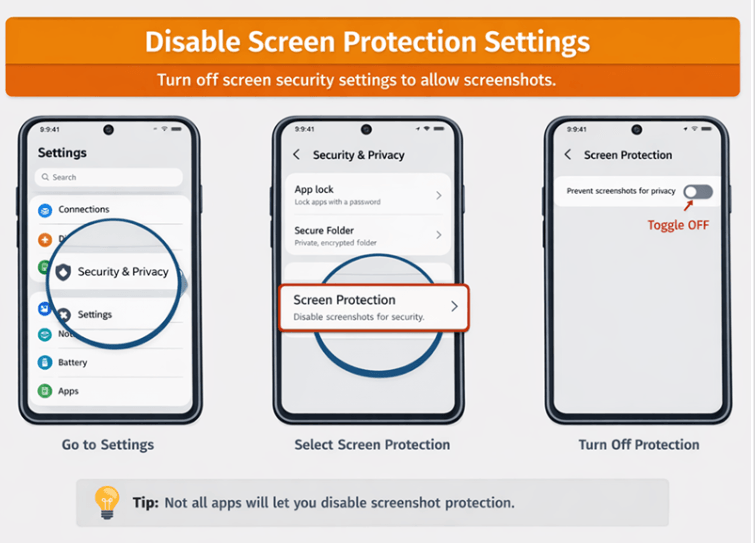
Method 1 – Disable Screen Protection Settings
Some apps or settings may provide an option to protect the screen from screenshots for privacy.
To disable screen protection, you need to navigate to Settings > Security & Privacy > Options like “Secure screen,” “Screen protection,” “Prevent screenshots,” etc.
Note: This option may not be available on all devices, and some apps enforce this restriction permanently for security purposes.
Once you have disabled all such options, you can try taking a screenshot again from the app.
Method 2 – Turn Off Incognito Mode
There are workarounds you can try to resolve this, can’t screenshot it due to security policy issues. Here are a few things you can do.
For Incognito Mode
If you prefer surfing in Incognito mode, you cannot take screenshots. If you try, you will get the message “can’t take screenshot due to security policy.” So how to bypass Android can’t take screenshots due to security policy?
For certain versions of Chrome, you will find its experimental features in its Flag menu. You can enable this feature in Chrome.
- Launch Chrome.
- In the address bar type chrome://flags

- On that screen type “Incognito Screenshot” in the search bar. Once the option is available, it will display the option.

- Click on the drop-down menu and select Enabled.

- Click on Relaunch.
For Firefox
- Launch Firefox.
- Click on the menu and the three vertical dots.
- Select Settings.

- Click on Private Browsing.

- Toggle the slider beside the “Allow screenshots in private browsing”.

- Relaunch the browser.
You should be able to take a screenshot in incognito mode of both Chrome and Firefox now.
Method 3 – Use Google Assistant Screenshot
If the app has put restrictions on taking screenshots, there’s not much you can do. Apps like Confide disable the screenshot feature for privacy reasons. Sometimes apps like Netflix and Facebook can prevent you from taking screenshots due to copyright issues as well.
In such cases:
- Launch Google Assistant.
- Tap on your profile picture.
- Scroll down and tap on General.

- Go to use Screen Context and toggle it to the right.

Or,
- Open the app that doesn’t allow screenshots.
- Launch your Phone’s assistant.
- Tap on What’s on my screen.

Method 4 – Use Screen Recording
If screenshots are disabled based on a security policy, you can use a screen recording option to capture the screen. Most Android-based devices come pre-equipped with a screen recording option.
This option can be used to record your screen even if screenshots are disabled.
To use a screen recorder on your Android-based device (option depends on your Phone make and model)
1. Swipe down to access the Quick Settings panel
2. Tap on Screen Recorder
3. Record your screen and access the restricted content.
How to Bypass Screenshot Security on Android
If screenshots are blocked due to security policies, you can try alternative methods to capture the screen. These workarounds don’t directly disable the restriction but help you access the content when standard screenshots are not allowed.
Method 1: Use Screen Mirroring
You can mirror your Android screen to a PC or another device and capture the screen from there.
- Connect your phone to a PC using screen mirroring apps or built-in features
- Display your phone screen on the larger device
- Take a screenshot from the PC
This method works because the restriction may not apply outside the original device.
Method 2: Use a Secondary Device
A simple workaround is to use another phone or camera to capture the screen.
- Open the restricted content on your device
- Use another smartphone to take a photo of the screen
- Crop and adjust the image if needed
This is the easiest method when all digital screenshot options are blocked.
Method 3: Use Accessibility Screenshot Tools
Some accessibility tools or third-party apps provide alternative ways to capture the screen.
- Enable Accessibility settings on your device
- Use apps that offer overlay screenshot or capture features
- Capture the content using these tools
Note: Not all apps will bypass restrictions, and effectiveness depends on device and app security policies.
Screenshot Restricted for Privacy and Copyright: What It Means
The “screenshot restricted for privacy and copyright” notification indicates that the content on your screen is protected and cannot be screenshot due to security and privacy policies and copyright laws.
This restriction usually happens when the content on the screen includes the following:
- The content includes private and confidential information.
- The content includes copyright content.
- The security features of the apps restrict the screenshot.
This restriction is usually implemented for the security and privacy of the users and to avoid the misuse of the content. This restriction is not a bug, and it is not possible to overcome it in such cases.
Fix Screenshot Restrictions on WhatsApp
WhatsApp now blocks both screenshots and screen recordings for “View Once” media by displaying a black screen. There are a few safe workarounds you can try.
Why WhatsApp Blocks Screenshots
WhatsApp restricts screenshots mainly for privacy and security reasons. This typically happens in:
- View Once photos and videos
- Disappearing messages
- Sensitive shared content
These restrictions ensure that private media cannot be saved, forwarded, or misused without the sender’s consent.
Workarounds for Screenshot Restrictions on WhatsApp
This is particularly true in situations that warrant the blocking of screenshots for the sake of user privacy. While this feature cannot be disabled completely, there are a few alternatives that can be employed when the need to take a screenshot arises in WhatsApp.
The “Second Device” Method: The most reliable method of all. Simply open the “View Once” image or video on your phone and use another device to take a physical picture of the image on the screen.
Unopened Backup Extraction: If you haven’t yet opened the “View Once” message on WhatsApp, it is still saved in your backup. There are several media recovery tools that can be used to scan your Google Drive/iCloud backup and retrieve the media
Virtual Android Environment: Advanced Android users may be able to get past the FLAG_SECURE limitation by using a virtual environment for running WhatsApp (like Virtual Master), as the virtual operating system doesn’t pass on the security flag to the actual hardware.
WhatsApp Web/Desktop: The screenshot limitation is currently mainly implemented on the mobile app. One can use the web version of WhatsApp on a computer and take a snapshot of the profile picture using the Snipping Tool (Win + Shift + S) or Cmd + Shift + 4 on a Mac.
Fix Screenshot Restrictions on Instagram
If you see the error “can’t take screenshot due to security policy” on Instagram, it usually means the app is protecting temporary or private content from being captured.
Why Instagram Blocks Screenshots
Instagram restricts screenshots mainly in features designed for privacy and temporary sharing, such as:
- Disappearing messages (Vanish Mode)
- View-once photos and videos in DMs
- Sensitive or private content shared in chats
These restrictions help prevent users from saving or sharing content without the sender’s knowledge.
How to Capture Restricted Instagram Content
Though Instagram prevents screenshots, there are other options you can try:
The “Airplane Mode” Trick (Hit or Miss):
1. Open the chat but do not tap the photo/video yet.
2. Activate “Airplane Mode” and disable “Wi-Fi.”
3. Open the chat and take a screenshot.
4. “Force Close” Instagram before turning “Airplane Mode” back on.
Screen Mirroring (Android/PC):
Mirror your Android device to a PC using apps like “Scrcpy” or “ApowerMirror.” The idea behind this trick is that the screenshot limit is usually enforced at the phone’s display hardware level, and the mirrored window on your PC might be able to be captured using “Win + Shift + S.”
Second Device Method (100% Reliable): This entails taking a picture of your screen using another device. This approach ensures you don’t receive any notifications or encounter a black screen, as you’re bypassing all software-based security.
Use Screen Recording – Record your screen as you view your content (this may work)
Open Instagram Web – View your content on a web browser and record your screen.
Other Ways to Capture Restricted Screens
The following are 2 more ways that will help you to take a screenshot easily:
1. Screencast to take a Screenshot
You can also take screenshots using Screencast. You can cast your screen to a different device and take a screenshot of that one.
Here’s how to screencast your device’s screen:
- Go to Settings.
- Tap on Connection and Sharing.

- Select Cast

- Turn on Cast.

- Connect both devices to the same router.
Or you can just ask your Smartphone’s assistant to cast your screen to another device.
2. Third-Party Applications for taking a Screenshot

If you are still getting the “can’t take screenshot due to security policy” message, you can try using a third-party app to take the screenshot. Apple and Google stores offer many apps that can help you take a screenshot. However, before you install an app, ensure it’s verified and doesn’t have any permissions other than files and folders for storing the screenshots.
Empty the Phone’s Storage
One reason why your device is not letting you take a screenshot is that you don’t have free storage to store it. If that’s the case, delete unused apps and unnecessary media files to create some space for your screenshots.
Frequently Asked Questions
How do you remove a restriction for screenshots?
You can either go to the settings of your phone and enable screenshots or use Google Assistant to capture your screen.
How do I take a screenshot of protected content?
You can use a third-party app to take a screenshot of protected content or cast your screen to some other device and take a screenshot of it if the device preventing you from taking the screenshot.
How do I change my screenshot settings on Android?
Go to Settings and find Additional Settings. Then, go to Button Shortcut or Gesture Shortcut. Select the button or gesture for the screenshot you want.
What is a DRM-protected image?
DRM is Digital Rights Management. Hardware and software manufacturers use this copy protection technology widely. Many publishers and copyright holders use it as well. You can’t take a screenshot of DRM-protected content, or record or copy it in any way.
Why can’t I take screenshots?
It could be because of the device or app restriction upon taking the screenshot. It could also be that a screenshot is not activated on your device or your device is low on storage and doesn’t have enough space to save the screenshot.
Conclusion
Taking screenshots is an integral part of our lives. Be it important information, pics, or memes, the first thing we think of is “let’s take a screenshot”. Now you can. No more getting that annoying “can’t take screenshot due to security policy” message.
In this article, I have told you how to take a screenshot even when you are not allowed to. I have also told you how to activate screenshot gestures on your device. However, if it is copyrighted material, make sure you don’t use it anywhere. If you do, you can land up with legal issues. Other than that. Have fun with the screenshots.
Research process
Time taken to research and write the solutions: Approximately 40 hours were spent on comprehensive research, review, evaluation, verification, and final preparation to ensure accurate and reliable information.
Was this helpful?
Recommended Reading
-

Explore and compare the top Screen Sharing Software. You can select the best software to share your desktop during web conferencing: Screen sharing, also known as desktop sharing, refers to having access to use the same screen with other users present at different places. With screen sharing, one can give…
-

Best Screen Capture Software Tools that would enable you to make your workday much more productive: A few years ago, screenshots were not that much popular. It was only used to share the error message on the screen. But, nowadays screenshots are routinely and widely used in our day-to-day life.…
-
List of the Best Free Screen Recording Software Apps That are Useful for Capturing Your Screen Effectively: A lot of people ask us about the best screen recording software online. The answer is not that straightforward. While there are many apps online that let you capture the desktop screen, not…
-
This tutorial explains different methods to take a screenshot on Windows 10 and other versions. Select a suitable method to screenshot on Windows: Screenshot means taking an image of the content on the screen. It could be a part of the screen or the entire screen, and some additional tools…
-
This tutorial explains the importance of Selenium Screenshot & how to use Ashot to take Screenshot in Selenium application with examples: Screenshots are basically used in bug analysis. They help in understanding whether the application works as per the user requirements or not. For every test case, the output received…
-
Here we learn How To Screenshot On Mac with various step-by-step methods and also understand ways to fix screenshot on Mac not working error: Capturing the screen at an instant has always been a cumbersome task as it is challenging to capture the various movements and record the actions on…
-
This in-depth review of the Movavi Screen Recorder tool covers how to use the tool, its key features, pros and cons of the tool. Check out this hands-on Movavi Screen Capture software review: Movavi Screen Recorder captures screens quickly in one click. This is the best tool if you want…


