Discover the simple ways to make a perfect Google Forms Header Image that matches your brand. Learn how to change Google Form Header Image Size and customize it as per your requirements:
Like many other entrepreneurs today, I use Google Forms to create forms. It has been an invaluable tool in my arsenal due to its simplicity and convenience.
That said, I am not a big fan of its aesthetics, especially the default purple color scheme. It isn’t exactly pleasing to the eyes. Thankfully, you can perform some tweaks here and there and customize your form to make it more captivating.
Table of Contents:
- Google Form Header Image Size: Step-By-Step Guide
- What is Google Forms Header Image?
- How to Modify Google Form Header Image Size
- Ways to Add a Google Forms Header Image
- How to Change the Image on a Google Form
- How to Customize Your Google Forms’ Theme
- Things to Consider When Adding a Header Image to a Google Form
- Frequently Asked Questions
- Conclusion
Google Form Header Image Size: Step-By-Step Guide
In my opinion, the best way to make your Google Forms look great is by adding a header image.
If you don’t know how to do this, I’ve got you covered.
Consider this article your hands-on guide to adding a header image and giving your Google Form a visually appealing makeover. I’ll share how to add this image and particularly touch on the requirements concerning the Google Form header image size.
So, without much further ado, let’s get started.
What is Google Forms Header Image?
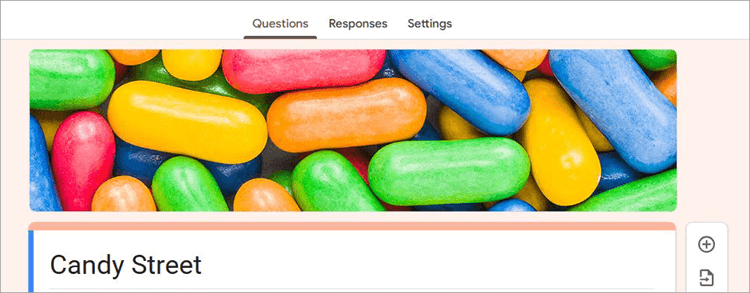
A header image, or banner image as some people call it, is a visual element that you’ll see at the very top of a Google Form. It is the first thing you or your prospects will be greeted by when opening a Google Form. As this image will be the very first thing your audience sees, it could have a serious influence on whether they end up filling your form.
This image could be anything. It could be your business’s logo, a personal photo, or a graphic you painstakingly cooked up on any random editing software.
Also Read => Top Logo Design Tools
Whatever the image ends up being, the fact of the matter is that you’ll have to put a lot of thought into this. This header image is bound to give your form a distinct visual charm.
It will make your form look more professional. Furthermore, it could also be a way for you to brand a form so it appears more in line with your business’s image and messaging.
How to Modify Google Form Header Image Size
Simply uploading any image to your Google Form’s Header isn’t wise. There are specific requirements, particularly in terms of size, that you should consider for optimal results. While it isn’t exactly clear what the right size would be, the header image should be 1600×400 pixels in size with an aspect ratio of 4:1.
These are the recommended dimensions for the Google Form header. The image possessing these dimensions will fit the form header perfectly. Moreover, an image of that exact size will also look great on almost all screens.
If you don’t upload an image of the right size, Google Forms will automatically resize it. However, the image might lose its quality during the resizing. It could become blurrier than before. I would suggest following the recommended dimensions when uploading a header image.
Ways to Add a Google Forms Header Image
Now that you are familiar with what a header image is and have some clarity on the typical Google Form Header size, it is time to focus on the core subject of this article.
Further Reading => Best YouTube Banner Maker Tools
Here’s how you can add a header image to your Google Form:
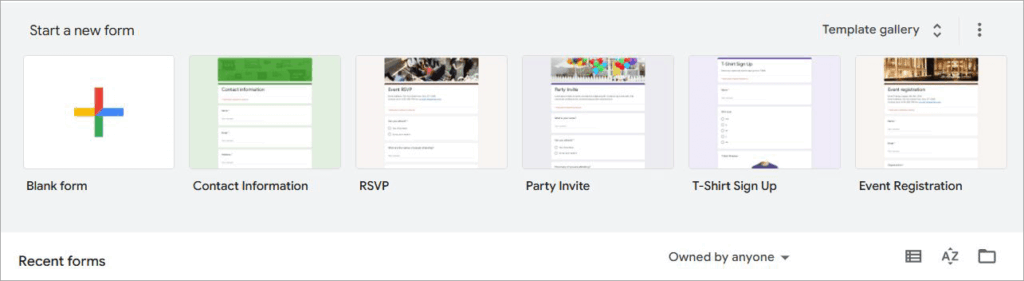
1. Go to Google Forms and select an existing form or click on the + sign to create a new blank form.
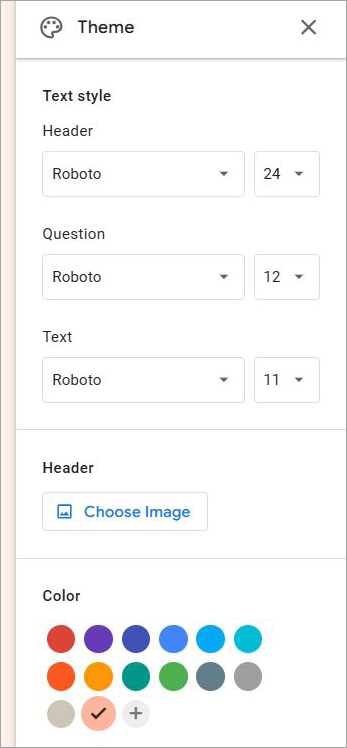
2. Once you are in the form’s main interface, navigate to the top-right-hand corner of your screen and click on the “paint palette” icon. This is where you’ll find options to customize the theme and look of your form.

3. In the ensuing menu, you’ll find a tab that says “Choose Image”. It’ll be right under the Header section.
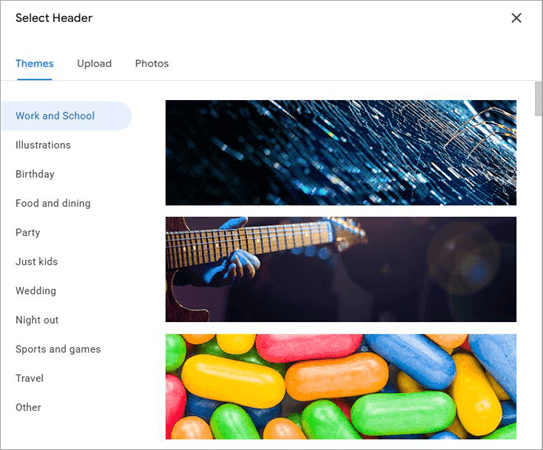
4. You’ll now be presented with the option to either choose from the images offered to you by Google or upload your own directly from the system.
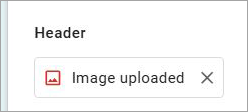
5. Once the image is uploaded, you’ll notice the form’s color scheme change automatically. This is the form’s way of complementing the style and color of the image uploaded. You can choose to change the color scheme. Go with one that you feel is the best fit.
Simply hit the “Publish” button once you are satisfied with the uploaded header image. It is that simple.
How to Change the Image on a Google Form
If, for some reason, you want to change the header image later. You can do so, even after the form has been published. Simply follow the steps below:
1. Open the Google Form.
2. Click on the “Paint Palette” icon on the top right-hand corner of your screen.
3. From the drop-down menu, first click on the “x” symbol on the existing image to delete it.
4. Click on “Choose Image” again and upload a new image from the existing Google Library or your own system.
How to Customize Your Google Forms’ Theme
Adding a header image isn’t the only thing you can do to customize your Google Forms’ Theme. You can perform several other modifications to give your form a distinct look. Here’s how you customize a Google Form’s Theme:
- Open Google Forms. Choose an existing form or hit the + icon to create a new form.
- Hit the paint palette icon above the form to open the “Customize Theme” menu.
- You’ll now be presented with the option to change the font and size of your text, change the color of your form, and change the color of your form’s background.
- Make the desired changes and hit the “Publish” button.
Your form is now customized.
Suggested Read => How to Change Background Color on Google Docs
Things to Consider When Adding a Header Image to a Google Form
The idea behind adding a header image is to give the form a polished look. As such, simply adding any image as your header wouldn’t suffice. You should consider a few things before uploading a header image to ensure your Google Form looks impressive. Those things are as follows:
1. The Google Form Image Header Size
It is recommended to have the image size for the Google Form header be about 1600×400 pixels with an aspect ratio of 4:1. You could upload an image in any size and have Google Form automatically resize it. However, this will be to your detriment as the resized image might lose its quality.
If you have an image, I would recommend using tools like Canva to crop it to arrive at the right header image size for Google Forms.
Further Reading => Online Image Resizer Tools
2. The Image Quality
While the size of the Google Form header image is imperative, equally important is the quality or resolution of that image. Make sure to only upload images of high quality. The purpose of an image is to encourage your audience to fill up the form. A pixelated or blurry image will only turn your audience away.
3. Pay Heed to Your Company’s Branding
If you are creating a form for business purposes, it is important to ensure your header image aligns with the brand’s color and theme. If your brand goes by a red theme, make sure your header image complements that. You want the header image to give your form a professional look without compromising on visual appeal.
If you have any doubts over the header image not representing your brand, edit it further to make sure that it is the case in the end.
Also Read => How to Change Margins in Google Doc
4. Test the Look of Your Form on Different Devices
Once the image is uploaded and the form is published, you want to make sure it looks great on all devices. I would suggest previewing the form across multiple devices. This includes desktops, tablets, and smartphones.
A person responding to your form will try to view it on any of the above devices. You should be prepared for this. So, make sure the image display looks great across the board.
Frequently Asked Questions
1. What is the importance of a Google Form Header Image?
A header image, cover, or banner has a simple but important purpose to serve. A header gives your form a distinct look. The right image will give your Google Form a professional makeover. It will make it more captivating and visually appealing. The chances of someone interacting with your form are much higher if it has a header image.
2. What is the image size for the Google Form header?
The recommended size is 1600×400 pixels at an aspect ratio of 4:1. You can upload an image of any size and have Google automatically resize it. However, this is not recommended. The automatic resizing could affect the image’s quality.
3. How do I put a header picture in a Google Form?
The process to add a header picture in Google Forms is quite simple. Open your Google Form, click the paint palette icon at the top right corner of your screen. This will result in a sidebar appearing on the form.
You’ll find the option to “Choose Image” in this sidebar bar, right under the Header section. Click on this option and choose to either upload your image or select from the existing Google Library.
4. How to change the background image in Google Forms?
You cannot change or add a background image to Google Forms. You can only change the background’s color scheme. Your best bet to customize a form is by adding the header image. I suggest you follow the steps I’ve mentioned above to do so.
5. Why can’t I upload a picture on Google Forms?
This could be for several reasons. An out-of-date web browser could be the primary cause of this error. Perhaps the image’s size is too large. Outdated cached data could be another reason behind the failure to upload images.
I suggest you make sure your web browser is up-to-date, clear up any cache, and make sure your image isn’t too large. If the problem persists, you’ll have to contact Google support.
6. How to make a Google Forms Header Image?
You have multiple options at your disposal to create a Google Forms header image. The most convenient option would be getting the image from Google’s library. You’ll find several images in this library, and you don’t have to worry about their size specifications as they are tailored to be compatible with Google Forms.
Alternatively, you could choose to upload an image directly from your system. If you wish to stand out, I suggest using a tool like Canva to create a Google Forms Header Image from scratch. Canva has a ton of templates, which you can use to craft and customize your header image.
7. What is the size of a header image?
The recommended size of the header image is 1600 pixels wide by 400 pixels tall. This will result in an aspect ratio of 4:1. An Image in any other size will result in your uploaded picture appearing distorted and cropped up in the wrong places.
8. What is the ratio of the banner in Google Forms?
The aspect ratio of the banner in Google Forms is 4:1. I recommend uploading a banner image in this ratio to have the header displayed properly on Google Forms.
Conclusion
You don’t need to upload a header image to your Google Form, just like you don’t need to visit a dentist every six months. However, you know it will be to your benefit to still perform both of these tasks without fail.
A catchy image displayed at the top of your form is a great way to grab the attention of your audience. You’ll want to add a banner image to make your form look professional and intriguing. The chances of people engaging with your form are simply higher with a header image.
As you’ve learned by now, it is simple and quick to add this image. You have nothing to lose and only things to gain by having an image at the top of your Google Form. Just make sure it is of the appropriate size. You also don’t want the image to distract folks from the content of your form.
Was this helpful?
Recommended Reading
-

Quickly explore how to change page color in Google Docs. This guide will walk you through the settings in the Google Docs editing platform to help you change Background Color on Google Docs in just a few steps: How do I change the background color on Google Docs? I’ve been…
-
This tutorial explains How to Strikethrough on Google Docs. Also, learn various strikethrough shortcuts on Google Docs: In the initial days, Microsoft Office provided users with software that could ease creating and managing documents on the computer. Later on, the users looked for an online editor that can store all…
-
This tutorial will clearly show you how to draw a Radius on Google Maps using free tools. Need to measure distance within a specific area on Google Maps? While Google Maps doesn’t offer a built-in radius button, you can still draw and display a radius circle using simple tools and…
-
Discover the simple ways to change page margins in Google Docs. Understand the step-by-step process on how to change margins in Google Docs if you are unsure of how to do it: Google Docs is a popular, highly efficient method of creating documents that is quite easy to use. It…