Discover the simple and easy ways to connect phone to TV wirelessly. Learn how to stream from phone to TV without any cables from this exclusive step-by-step guide:
Whether you are using an Android device or an iPhone, know that it is possible to cast your phone’s screen onto your TV. With the devices we have today, there are multiple ways to accomplish this feat, no cables or wires necessary. You don’t need to be a tech-wizard or need a high-end TV or smartphone.
Now, how easy it will be will depend on the method you end up going with. The trick is to opt for a method that you are most comfortable with.
Table of Contents:
- Connect Phone to Smart TV Wirelessly: Easy Guide for iPhone & Android
- Reasons to Pair Phone to TV
- How to Stream from Phone to TV
- How to Connect Phone to TV Wirelessly
- How Can I Connect My Phone to the TV via Various Streaming Players
- Best Third-Party Apps for Screen-Mirroring
- Using a DLNA App
- Performance & Quality Factors Across Various Methods
- Troubleshooting Common Screen-Casting Issues
- Security & Privacy Risks to Consider When Screen-Mirroring
- Tips & Tricks for Better Screen Mirroring
- Frequently Asked Questions
- Conclusion
Connect Phone to Smart TV Wirelessly: Easy Guide for iPhone & Android
I want to use this article to saddle you with an exhaustive list of methods. If you want to know how to connect a phone to a TV wirelessly, I’ve made sure this is the only guide you’ll ever need.
[Via Pexels]
So, without much further ado, let’s dive in.
Requirements Checklist
To successfully connect your phone to a TV wirelessly, there are certain things you will need without fail. Ensure that you meet the following requirements before you proceed with your screen-mirroring endeavors:
- First, you want both your phone and smart TV to be on the same Wi-Fi network. Your Wi-Fi connection should also be strong enough to facilitate a smooth transmission.
- Almost all Android and iOS devices today feature built-in screen mirroring capabilities. Make sure you have an Android device that’s running on an OS that is 5.0 or above. All iOS 18 and later versions have built-in mirroring features. Older versions can be connected to TVs that are AirPlay-enabled.
- Make sure your smart TV and phone have up-to-date firmware to avoid video and audio syncing issues or screen-mirroring failure.
- Finally, make sure the screen mirroring capabilities on your TV, like Miracast, AirPlay, or Chromecast, are switched on.
Reasons to Pair Phone to TV
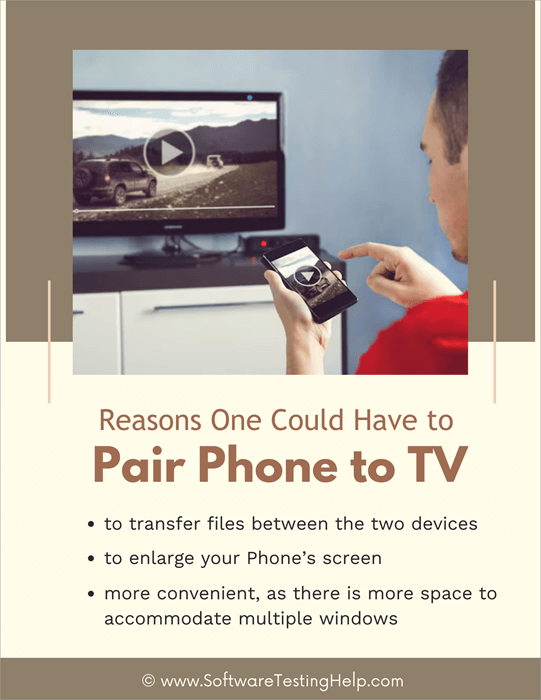
People can have numerous legitimate reasons to connect their Phone to a TV wirelessly. The most obvious reason of them all is to transfer files between the two devices. You can connect a Phone to any TV via Bluetooth to copy files stored on your mobile to your TV.
Another good reason would be to enlarge your phone’s screen. Everything looks good on a larger screen. By casting your phone’s screen onto a TV, you can essentially watch any content you have on your phone or have the YouTube video playing on your device cast onto the relatively larger TV screen.
I also believe it is a good idea to connect your phone to the TV when conducting or attending a Zoom meeting, especially with multiple people. It is just more convenient as there is more space to accommodate multiple windows with talking heads in them.
As such, you are not squinting your eyes when trying to communicate with one particular person in a Zoom conference call.
With that out of the way, let’s discuss how to connect a phone to a Smart TV wirelessly.
How to Stream from Phone to TV
iPhone
As I mentioned before, all modern smartphones let you cast their screen onto a TV. iPhone users can easily leverage the AirPlay feature to connect their devices to a TV.
Here’s how you can do it with an iPhone.
I) Using Built-In AirPlay
1. First, you swipe your iPhone screen to open the control center.
2. From the control center, select the “Screen Mirroring” option.
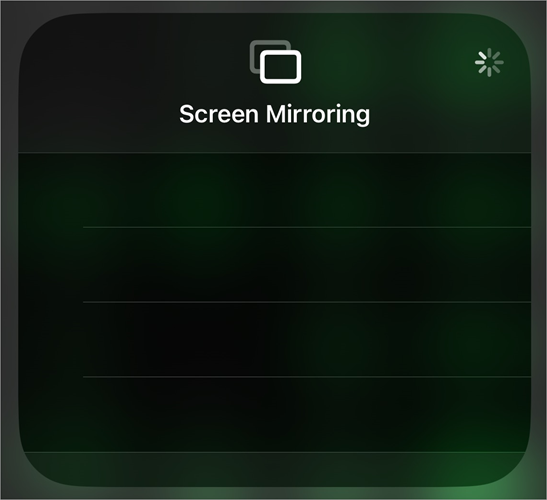
3. Upon tapping on that option, the device will scan for active AirPlay-enabled smart TVs in the immediate vicinity.
4. Click on the detected TV to establish a connection. It is that simple.
You’ll need to make sure that both your AirPlay-powered smartphone and smart TV are connected to the same Wi-Fi network for this to work.
II) iPhone to Android TV and Google TV Connection
Screen casting is easier on an iPhone when the TV you are using is AirPlay compatible. Contrary to common assumptions, you’ll find that many Android and Google TVs support AirPlay, which makes it easier to mirror an iPhone screen onto a TV.
Most modern LG, Samsung, and Sony Smart TVs support Apple’s AirPlay. So, yes! AirPlay without Apple TV is a thing.
Simply put, you can connect an iPhone to a Samsung TV or any other Smart TV that supports AirPlay. As such, you’ll be able to connect your smartphone to these TVs using the step-by-step guide I’ve already mentioned above.
That said, what about TVs that don’t support AirPlay? It may be possible to mirror your iPhone’s screen to these TVs via a third-party app.
I’ll be recommending a few third-party apps later in the article that work well with both iOS and Android devices. You could rely on them for screen-mirroring on TVs that don’t have AirPlay.
III) Here is the video guide on how to connect an iPhone to non-AirPlay TVs
Android
I. Built-In Casting Feature
Connecting a phone to any smart TV wirelessly is as simple on an Android device as it is on an iPhone.
Here’s how you do it:
1. Swipe down on your Android phone’s screen to open the control menu.
2. Find and tap on the “Cast” or “Screencast” option.
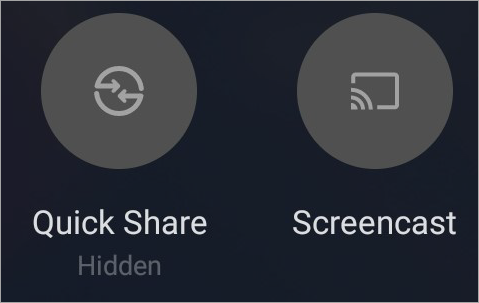
3. Upon tapping this option, your phone will start scanning for nearby TVs.
4. Select the TV you wish to connect with from the displayed list and start streaming.
Again, make sure both your Android device and Smart TV are connected to the same Wi-Fi network. Also, make sure that the Wireless Display feature on your Smart TV and phone is enabled.
II) Miracast / Wi-Fi Direct Connection
This feature is a privilege only afforded to Android device users. Miracast can be best described as a technology that leverages Wi-Fi Direct to establish a peer-to-peer connection between two devices. Simply put, you can rely on Miracast to mirror the content on your mobile devices to a TV or monitor without an existing Wi-Fi connection.
This tech is natively supported by almost all Android devices today. All Android devices running version 4.2 or later come with built-in Miracast support or Wi-Fi Direct support.
How to Connect Phone to TV Wirelessly
Via Miracast or Wi-Fi Direct Connection
1. First, make sure your Smart TV has a good Wireless Display Miracast app on it.
2. Now, you need to enable the “Wi-Fi Direct” feature on both your smartphone and TV. On the smartphone, do the following: Settings > Connections > Wi-Fi > Wi-Fi Direct. On TV, do: Settings > Network > Wi-Fi Direct.
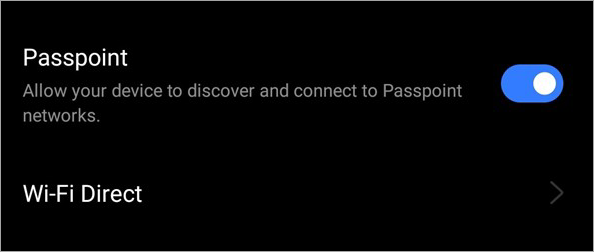
3. Open the Miracast app on your Smart TV. Upon doing so, your TV will scan for available mobile connections in its vicinity.
4. On your phone’s Wi-Fi Direct option, search for your TV and tap on it as soon as it’s detected.
5. This will cause your phone’s screen to be mirrored on your Smart TV.
III) Smart View (for Samsung Smart TVs and phones)
All Samsung smart TVs and phones offer you the privilege of screen-mirroring via the “Smart View” feature. If you have a Samsung phone and a Samsung TV, just do the following:
- First, make sure that both your Smart TV and smartphone are connected to the same Wi-Fi network.
- With that taken care of, proceed to the Quick Settings panel on your Samsung phone.
- You’ll find the “Smart View” option there, which is basically what Samsung calls its screen-mirroring feature. Tap on it.
- Wait for the phone as it detects available connections in the vicinity. As soon as your TV is detected, tap on it to successfully establish a connection.
You will now see your phone’s screen displayed on your Smart TV.
IV) Google Home
Suggested Read => Amazon Alexa vs Google Home
This is an app by Google that you can use to connect Android-powered devices in your home or office with each other. You can also use the app to cast your phone’s screen or audio-only to a larger screen like a monitor or TV. This is arguably considered to be the best method to cast Android to a smart TV.
Here’s how you do it:
- First, make sure the Google Home app is downloaded on your phone. Confirm that your phone and TV are connected to the same Wi-Fi network.
- Once downloaded, open the app on your phone.
- In the app, navigate to the “Devices” section. Here, see your TV’s name.
- Tap on your TV’s name, which will lead to a pop-up menu opening.
- Select “Cast Screen” and tap on “Start Now” to begin screen-mirroring.
V) LG Smart TVs and Phone (Using the LG ThinQ App)
Most LG Smart TVs and phones come with built-in screen-mirroring capabilities. The steps to facilitate this screen-mirroring are the same as the method we’ve already discussed above with the built-in casting capabilities of Android devices. However, LG also offers a dedicated app to ensure seamless screen mirroring. It is called LG ThinQ.
If, for whatever reason, your phone’s built-in casting feature isn’t working well, you can switch to this app.
Here’s how you use it to screen-cast devices using LG ThinQ:
- Download and install LG ThinQ on your smartphone.
- Open the app on your phone and select your TV.
- Tap on “Share Screen” to mirror the phone screen to the TV.
It is that simple.
VI) Here is the YouTube video on how to connect an Android Phone to a Sony TV:
Using Bluetooth
In this section, you will learn how to connect Phone to TV using Bluetooth. This is probably the most common way to connect your phone to your smart TV wirelessly. Here’s how you do it:
- First, switch on the Bluetooth on your phone. You can do so by swiping down on your phone’s home screen and tapping the Bluetooth icon.
- Once that is done, configure your TV’s Bluetooth settings.
- Go to your TV’s settings page > Select “Remote and Accessories”, and “Pair remote or accessory”.
- Your TV will now start to scan for nearby Bluetooth devices.
- Select your phone from the displayed list of devices to initiate pairing.
Further Reading => How to Turn on Bluetooth on Windows 10
This method is best for sharing files between the two devices and is not meant for screen mirroring. That is only possible with the methods I’ve discussed before this.
How Can I Connect My Phone to the TV via Various Streaming Players
Besides using the built-in screen-mirroring features on your phone, this is arguably the most convenient way to connect a phone to a TV without cables. The method, of course, will vary depending on the streaming player you choose to go with.
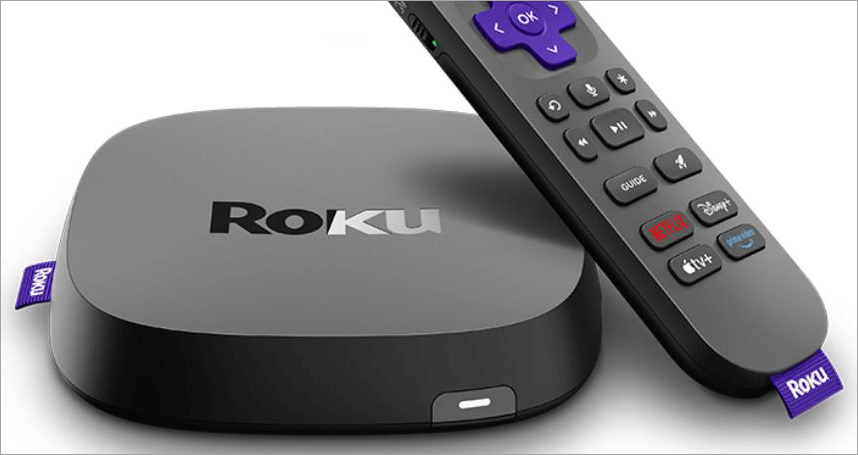
#1) Via Roku
[Via Roku]
Roku is a very popular streaming player that comes with built-in screen mirroring and casting capabilities. You can rely on these features to easily connect your phone to a TV.
Here’s how you do it:
- Open Roku, navigate to its settings, and select the “Screen Mirroring” option.
- Make sure the streaming app you wish to use, like Prime Video or Hulu, is installed on Roku and your phone.
- With the screen-mirroring feature on, open the streaming app you wish to use on your phone and choose a video to stream.
- Inside the streaming app, you’ll find the “Cast” option. Tap on it and select “Roku” as your device of choice.
You can now stream content on that app via your TV. Again, connect your Roku and phone to the same device. Also, note that Roku only responds well to Android phones. It will not work with an iPhone or any other iOS-powered device.
Device Requirements:
- Roku Device and Remote
- Compatible Smart TV
- Strong Internet Connection
Initial Configuration:
- Connect your Roku device to a TV and power it up.
- Prepare your remote and pair it with your device.
- Connect the device to your Internet.
- Once connected, follow the on-screen instructions to activate your account.
Supported Format: Almost all major video, audio, and image formats are supported.
Limitations: Not all Roku models support screen-mirroring. Make sure you confirm a Roku device’s screen-mirroring capabilities before purchasing it. Also, some apps cannot be mirrored because of content-protection regulations.
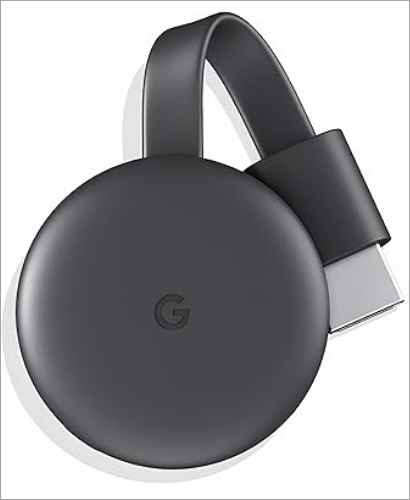
#2) Via Chromecast
[Via Amazon]
After Roku, Chromecast is yet again a great, dare I say, affordable alternative to connecting your Android device to a TV. The process is a bit tedious, but simple nonetheless. It requires connecting the Chromecast dongle to your phone and installing the Google Home app on your smartphone.
Once that is taken care of, the rest of the process is simple.
- Connect your Chromecast to your phone via the same Wi-Fi network.
- Open any streaming app on your phone and hit the “Cast” icon within that app.
- Select “Chromecast” from the displayed options.
You’ll now be able to stream videos on the TV.
Requirements:
- A Chromecast device
- A Google account
- A smart TV with an HDMI input
- Devices with Android 9.0 or later and a 5 GHz connection.
- Strong internet connection.
Initial Configuration:
- Plug your Chromecast device into your TV via an HDMI cable.
- Download the Google Home app.
- On the app, tap on Devices and select “Add”.
- Follow the on-screen instructions to successfully set up the device.
Supported Formats: MP4, HLS, WebM, MPEG-DASH, etc.
Limitations: You may need to re-encode some files. Also, mirroring of some apps may not be possible because of content protection regulations.
#3) Via Fire TV Stick
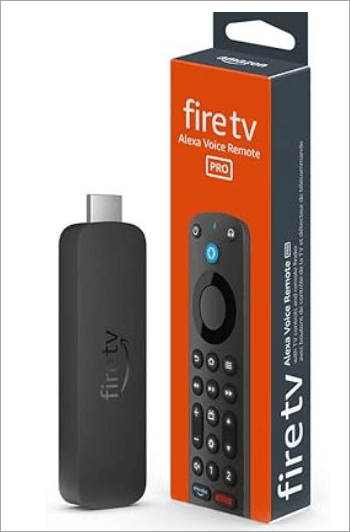
Fire TV Stick is yet another streaming device that can connect an Android device to your TV. Although the process may vary slightly depending on the phone you are using, the basic gist remains the same and is as follows:
- Connect the Fire TV Stick to your phone via the same Wi-Fi network.
- Now open Fire TV’s main menu, go to settings, and activate “Screen Mirroring”.
- On your phone, select “Cast” or “Screencast”. Your phone will start scanning for nearby devices.
- Select your Fire TV Stick as it pops up on your phone’s screen.
This should result in your phone’s screen being cast on your Fire TV Stick-enabled TV.
Also Read => FireStick Won’t Load Home Screen Issue: How to Fix
Requirements:
- Fire TV Stick device
- A TV with an HDMI port
- An Amazon account
- Strong internet connection.
Initial Configuration:
- First, connect the USB cable to your power adapter and the Stick.
- Plug the stick into your TV’s HDMI port.
- Now, switch your TV on and choose the HDMI port that is connected to the Stick.
- Complete the registration process.
- Follow the on-screen instructions to complete the setup process.
Supported Formats:
- All typically used audio, video, and image formats are supported. Codecs like H.264 and H.265 are also supported.
Limitations: Fire TV Stick works best with Android devices only. You also may not be able to mirror certain apps due to content protection regulations.
Best Third-Party Apps for Screen-Mirroring
#1) AirDroid Cast
AirDroid Cast is an app you can use for screen-casting across devices. This app is compatible with not just your modern Android or iOS devices, but almost all Windows and Apple-enabled smart devices as well. It is simple to use with a straightforward screen-mirroring process to boast. It is also free to use when casting via a local network.
Price: Free for local casting. Paid plans start at $1.67/month
Website: https://www.airdroid.com/cast/
#2) ApowerMirror
This is yet another great screen-mirroring app for both Android and iOS devices. It is easier to launch and even easier to use. Once its screen-mirroring capabilities are on, you can use it to share content and even play your mobile games on a larger TV screen. The app is excellent for two-casting via USB and Wi-Fi.
Price: Starts at $19.95/month
Website: https://www.apowersoft.com/phone-mirror
#3) Vysor
Vysor is a screen-mirroring tool that is perhaps best used for professional rather than mere entertainment. Once launched, you can use Vysor to cast your iPhone or Android device’s screen to your desktop.
You can then use Vysor’s two-way casting capabilities to control your phone in the same way you would your laptop or desktop. At just $2.50/month, this app is also quite affordable.
Price: Starts at $2.50/month
Website: https://www.vysor.io/
#4) LetsView
LetsView makes screen-mirroring effortless across devices by facilitating a QR-enabled connection. Once you have LetsView installed on your phone and computer, simply scanning the QR code will result in a successful connection between devices.
With the connection established, you can do everything from streaming content to playing games on the mirrored screen.
Price: Starts at $5.99/month
Website: https://letsview.com/
Using a DLNA App
Also known as Digital Living Network Alliance, these are third-party apps that essentially connect all devices on your home network. You can count on these apps to connect your smartphone to a TV without hassle. Once connected, you can share content between the connected devices or stream content as well.
LocalCast, TV Assist, and DLNA Browser are all good examples. For the DLNA app to work, you’ll need a DLNA-compatible device. Most modern smartphones and TVs will work. The app itself will serve as the interface between your phone and TV. You’ll be able to control, manage, and play media files on your TV through this mobile app.
Drawbacks of Using a DLNA App
DLNA apps should be used as a last resort, as they come with many drawbacks. The most prominent of which are:
- You may have to pay for the apps.
- Some apps have ads on them.
- Some apps can cast DRM-protected content
- The installation process can be tedious.
Performance & Quality Factors Across Various Methods
| Screen Mirroring Method | Merits | Drawbacks |
|---|---|---|
| Built-In AirPlay | • Superior Quality Mirroring • Hassle-free Integration with Apple devices | • Only works with AirPlay-compatible devices. |
| Smart View | • Hassle-Free Integration with Samsung devices • Good Quality Mirroring | • Ideal for Samsung devices only • You can experience lags. |
| Google Home | • Great for content streaming. • Can use the phone while casting. | • The device should be Chromecast-enabled • Limited to Android and Google devices. |
| Miracast/Wi-Fi Direct Connect | • No Wi-Fi connection required • Easy configurations | • Not compatible with Apple devices. • Potential lag. |
| Streaming Devices like Roku and Fire TV Stick | • High-Quality Mirroring. | • You’ll need to buy the hardware. • Initial configuration can be tedious |
| Third-Party Apps | • Bypass device compatibility issues. • Get additional features like audio-only casting or two-way casting. | • Quality will vary from app to app • Some features locked behind premium plans. |
Issues about latency and battery consumption will vary across all of these wireless connection methods. How bad the battery consumption is will depend on how strong your phone’s battery is. You are bound to experience screen lags and latency issues across these methods, even when using Wi-Fi Direct.
Your best bet against these problems is a strong internet connection and a device that is up-to-date with the latest firmware version. I would suggest opting for phones with better RAM and processing power for smooth screen mirroring. 5G-compatible devices are also quite great at ensuring lag-free screen-mirroring.
Troubleshooting Common Screen-Casting Issues
Although screen-casting from mobile to TV is simple, you can run into a few issues. I would suggest you keep the following troubleshooting tips in mind when struggling to cast your mobile’s screen onto a TV.
1. Connection Fails: A good internet connection is essential for successfully connecting your phone to your TV wirelessly. Naturally, you are going to have an issue here if your internet connection isn’t strong.
My advice would be to make sure you have a reliable and strong internet connection at home. If there is a lag in the connection, try to reboot your internet router. If the issue persists, switch to an HDMI cable.
2. Device Not Detected: You could encounter an issue where your phone isn’t detecting your TV or vice versa. There is a quick and easy fix to this problem. First, I would recommend checking whether your phone and TV’s firmware is up-to-date. If not, immediately update them.
If the issues persist even with up-to-date devices, I suggest restarting both your phone and TV. This should solve the problem.
3. Screen Mirroring Failure: This is yet another very common issue that you can encounter when trying to use your phone’s screen mirroring features. An out-of-date firmware is a major reason behind this problem. Obviously, you’ll need to update both your phone and TV’s firmware for your devices’ screen-mirroring feature to work as intended.
4. Audio and Video Sync Issues: This is perhaps the most frustrating issue one might encounter when employing the screen-casting feature. Although most devices today are advanced and strong, they cannot completely ensure seamless audio/video syncing when screen-casting.
To ensure you aren’t facing these issues, I suggest having a strong internet connection. Switch to mobile devices that support 5G connectivity. Also, ensure there aren’t objects blocking your phone’s wireless connection with your TV.
Security & Privacy Risks to Consider When Screen-Mirroring
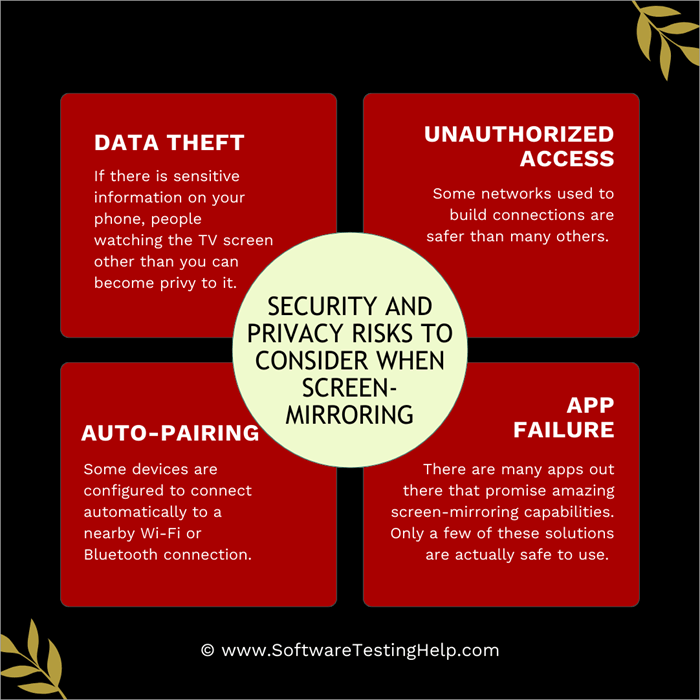
Screen-mirroring involves the transmission of data from your phone to a TV. Obviously, this makes you vulnerable to a ton of security and privacy risks. Some of these risks can be benign, while others can have a devastating impact.
Here are a few risks you should consider when screen-mirroring a phone to a TV:
1. Data Theft: When you choose to cast your phone’s screen to a larger screen, its content naturally becomes visible to more people. If there is sensitive information on your phone, people watching the TV screen other than you can become privy to it.
2. Unauthorized Access: Some networks used to build connections are safer than many others. If you’ve used a public Wi-Fi to connect your TV to your phone, there is a good chance somebody else could use the same connection to make their way into your phone and access things you don’t want them to see.
3. Auto-Pairing: Some devices are configured to connect automatically to a nearby Wi-Fi or Bluetooth connection. As such, your device could end up automatically connecting to the wrong TV accidentally, thus mirroring the content of your phone to that device.
4. App Failure: There are many apps out there that promise amazing screen-mirroring capabilities. Only a few of these solutions are actually safe to use. These apps could expose your phone’s content to someone with bad intentions.
Measures to Mitigate these Risks
- Always protect your phone with a strong PIN or pattern code.
- Restrict your App’s permissions.
- Disable auto Wi-Fi and Bluetooth connections.
- Only connect to a Wi-Fi network that you trust.
- Make use of reliable and trusted solutions like Google Home, Miracast, or Apple’s AirPlay for screen mirroring.
Tips & Tricks for Better Screen Mirroring
1. Multi-Device Casting
Screen mirroring on multiple devices at the same time can be tricky, and you could face performance issues. However, it is feasible. I would suggest using a reliable third-party app like Google Home. Connect all devices to a 5 GHz Wi-Fi network. Make sure all devices are running on updated firmware. Also, keep a space between all the devices.
2. Audio-Only Casting
The best way to ensure excellent audio-only casting from phone to TV is to use a reliable third-party app. The best one is the Google Home app. Once you’ve downloaded Google Home. When connecting with a TV, select “Cast My Audio”. This will result in only your Audio being cast on the TV.
3. Gaming (Without Lags)
For successful mobile gaming on the larger screen, it is best to go the HDMI route. If you still want to game wirelessly from your mobile to TV, I would suggest using a faster Wi-Fi connection and a high-performance mobile device. Also, turn off all background-running apps on your phone for better performance.
Further Reading => Top-Rated Gaming TVs to Look For
4. Professional Presentation Setups
Your phone’s built-in casting features will be enough for professional presentations. I would suggest using a third-party app with two-way casting features so you have better control of your phone and TV screen at the same time. Also, no other app is running, and all your sensitive information on the phone is hidden.
Frequently Asked Questions
1. How can I pair my phone to my TV?
Pairing a phone to your TV is simple. If you are using an Android device, you’ll need to rely on your phone’s “Screencast” feature. If you are using an iPhone device, you’ll need to count on your phone’s “AirPlay” and “Screen-mirroring” features.
Make sure your phone and devices are connected to the same Wi-Fi network. With that taken care of, just follow the methods I’ve discussed above step-by-step.
2. What apps connect a phone to TV?
DLNA apps, also known as Digital Living Network Alliance, can help you connect a phone to TV. While not a desirable option, you can still try using it to connect multiple devices on the same home network. The platform is ideal for streaming content between devices without any external storage necessary.
3. How do I connect my phone to my TV wirelessly for free?
It is possible to connect a phone to a TV wirelessly for free by relying on an Android or iOS device’s screen-mirroring feature. For Android devices, enabling the “Cast” or “Screencast” option will work. For iOS devices, enabling the screen-mirroring option in the control center will suffice. Also, you’ll need to make sure that both your iOS phone and TV are AirPlay compatible.
4. How to connect a phone to a non-smart TV wirelessly?
It is possible to connect a phone to a non-smart TV wirelessly, provided you are using a streaming player like Chromecast or a Roku stick. Roku is best for HDR and Dolby Vision support. Fire TV Stick, on the other hand, is a great streaming player if you want sharper picture quality.
5. How do I connect my phone to the TV without Wi-Fi?
Setting up a phone to your TV without Wi-Fi is possible and can be done via your mobile’s hotspot. Here’s how you do it:
1. Swipe your phone’s home screen and select “Hotspot”.
2. Connect your TV to the mobile hotspot.
3. Also, enable the “Screen Mirroring” feature on your phone.
4. With your phone and TV now connected, you will be able to cast your phone’s screen to the TV.
Conclusion
There you have it, the answer to the often asked question – how to connect phone to TV wirelessly?
Although I still believe that an HDMI cable is the best way to connect your phone to a TV, screen mirroring is also not that bad. You could use the above methods to connect your phone and TV wirelessly, in the absence of a good HDMI cable.
Just note, though, that using the screen-mirroring feature on your app will consume your phone’s battery a lot.
So, a wireless connection might not be an ideal option if you wish to stream your phone’s content on TV for hours on end. I’ve discussed methods above that’ll work for both Android and iOS devices. Pick the one you feel best suits your requirements and start streaming.
Was this helpful?
Recommended Reading
-

Watch unlimited free movies and TV shows online with the top FlixTor Competitors. Pick the best FlixTor Alternatives to get the best in entertainment through their well-designed streaming platform: FlixTor is one of the most popular free movie streaming sites out there which lets you watch movies and shows online,…
-

To keep you entertained in your comfort, here we have listed the Best Firestick Apps with comparisons, features, installation steps, etc: Firestick has taken entertainment up by a few levels. All your favorite channels, movies, sports, series, everything at one place at your fingertips. It comes with a massive library…
-

Review of the best IPTV services available worldwide, compare the features and pricing of the top-rated IPTV providers, and select the best IPTV subscription. Picking an IPTV service in 2026 gives you choices from all kinds of live sports to big on-demand libraries. But it's not easy to find a…
-
Easily mirror your screen to a TV or any smart device with these top Mirroring Apps. Pick the best Screen Mirroring apps of your choice to enable fast, and seamless mirroring with great quality: Screen Mirroring is a modern-day technique that allows you to easily and quickly share a screen…