Can you really connect Roku without Remote? This step-by-step guide will quickly educate you on how to connect Roku TV to Wifi without Remote for unlimited streaming:
Roku is a streaming device that allows its users to watch online videos, including movies, series, TV shows, news, sports, and much more. Roku gives its users access to watch content from streaming platforms like Netflix, Hulu, YouTube, Hotstar, and more.
The users will have to buy a subscription to watch content from Netflix, Hulu, and similar platforms on Roku. The platform offers some free Live Channels and movies.
Table of Contents:
Turn on Roku TV Without a Remote: Easy Guide
According to a report by the Roku developers, Roku has an audience of more than 85.5 million streaming households. It is the top-selling smart TV streaming operating system in the USA, Canada, and Mexico.
Features of Roku TV
- 500+ free live channels, movies, and more.
- You can watch local news
- Roku originals
- Customisable home screen
- Content from various genres, including news, sports, kids, lifestyle, horror, and more.
- Voice search and controls
- Allows screen mirroring from your smartphone to your Roku TV.
- You can use their mobile application as the second remote
- You can listen to music and watch videos with Headphone mode.
- Automatic software updates
- You can ping your remote when lost, using the Roku device. This feature is available in some models only.
Further Reading => Top Streaming Devices to Look For
The impressive range of features offered by Roku TV is the reason why it is the #1 streaming platform in the USA.
Roku works on the Roku OS. You can buy a Roku TV, or you can use your old TV by simply purchasing a Roku streaming player. The streaming players can be used with any TV that has an HDMI port and is 4K or HDR compatible. Go through this link to get guides on how to set up your Roku streaming player or Streaming Stick, how to connect your Roku device to a TV, and more.
Roku TV is quite easy to use, and its users seldom face any issues. However, users are often spotted asking questions like How to use Roku TV without a remote and wifi.
Such issues arise when there is a problem with the Roku remote. If your remote doesn’t work, is broken, or if the batteries have gone dead, then don’t worry, there are still many ways to use your Roku TV. In this article, we have given solutions to ‘How to use Roku TV without a remote’.
If your remote is lost and you can’t find it, you can use their Roku mobile app to find your remote.
Further Reading => How to Turn Off Roku Device
How to Find your Roku TV Remote using the Roku Mobile App
- Open the Roku app on your phone
- Make sure your phone and Roku TV are connected to the same WiFi
- Now, in your mobile app, go to Devices
- Tap on Roku
- Just tap on the Menu icon (three dots)
- Now tap on the 3 sliders and then select Lost Your Remote?
- Click on Ping Remote.
- Your remote will then make a sound for 60 seconds, and thus, you can find it. But this won’t work if the remote’s batteries are dead.
Or, you can just give a voice command saying “Hey Roku, where’s my remote?”, if the hands-free feature is enabled in your remote. Moreover, you can also press the Remote Finder button located on your Roku device, which enables your remote to make a sound for 60 seconds.
If you still can’t get access to your remote, then you will have to use a secondary, virtual remote. Read further to find out how to do this.
One of the many useful features of Roku is that it allows its users to use their mobile phones as secondary remotes. The Roku mobile app is available on the Google Play Store as well as on the Apple App Store. This allows the users to use their Android/iOS phone, tablet, or iPad as a remote for their Roku TV.
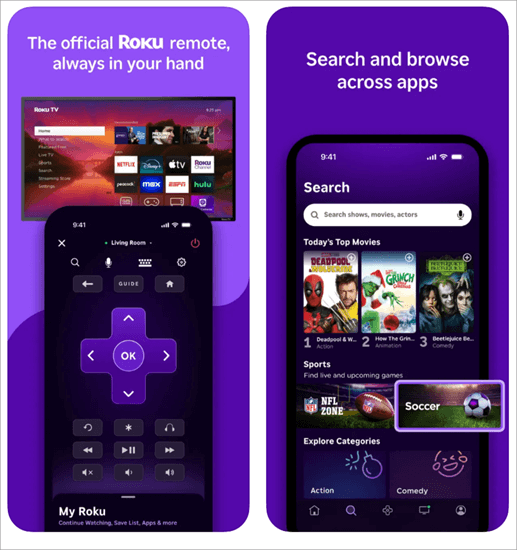
[via Apple]
How to Connect Roku TV to Wifi Without Remote
You can easily turn your Roku TV on without a remote. All of the smart TVs today have a hidden power button. Many times, users are not able to find it, which is why they think that there is no power button.
For finding the power button, just roll your fingers on the left and right sides of your TV, its bottom edge, and the back panel. You will most probably be able to find it.
Using the Roku Mobile App
Once you have turned your Roku on using the power button on the TV, you will need a remote to do anything further. For this purpose, you will have to download the Roku app on your phone to get a virtual remote for your Roku TV.
For using your phone as a remote, follow these steps:
- First of all, you will have to make sure that your phone and the Roku TV are connected to the same WiFi.
- Now, install and open the Roku app on your phone, then log in with your account.
- The app will have a Remote icon. Tap on it.
- Now you will see a list of devices that are connected to the same WiFi that you are using.
- Find your TV and tap on its name.
- Now your phone can be used as a remote for your Roku TV.
- You can use the other icons on your phone screen to navigate and search for your favourite content.
Watch this video for step-by-step guidance on how to connect Roku to WiFi without a remote:
If you are wondering how to connect Roku TV to wifi without remote, then rest assured, because your Roku will automatically connect to the last used WiFi as soon as it is switched on.
Using a Hotspot
In case your Roku is connected to a previous network and you want to connect it to a new WiFi network without a remote (same as that of your phone), then you can do it using a hotspot.
Further Reading => Simple Steps to Reset Roku Remote
Follow these simple steps for turning your phone into a remote using a Hotspot:
- Make sure you have a second phone/iPad/tablet/PC for performing this trick.
- On your phone, install the Roku app and sign in.
- On the second device, switch on the internet and mobile hotspot. Follow these steps for turning the mobile hotspot on:
- Go to Settings
- If you are using an iPhone, find Personal Hotspot and switch it on. If you are using an Android device, then go to Network & Internet, select Hotspot & tethering, and then tap on WiFi Hotspot.
- Make sure the name of the WiFi hotspot provided by the new device is the same as that of the last used WiFi network on your Roku TV. This way, your Roku TV will get connected to this new WiFi network automatically.
- Now connect your phone (which has the Roku mobile app) to this WiFi network/hotspot (provided by the second phone)
- Now, restart your Roku TV. As soon as it starts, it will automatically search for the last used WiFi. And since the hotspot has the same name as the last used WiFi on your Roku TV, it will connect to the hotspot. (Make sure the hotspot has the same password as that of the previous WiFi).
- Now, since your phone and Roku TV are on the same WiFi network, your phone can be used as a remote for your Roku TV.
- You can now change the WiFi network of the Roku TV using the virtual remote in your phone app.
Using an Ethernet Cable
If you have an Ethernet cable, you can use it to connect your Roku and mobile device to the same WiFi network, allowing your phone to serve as a remote. For this method to work, your Roku must have an Ethernet port.
To connect your Roku TV to a WiFi network with the help of an Ethernet cable, follow these steps:
- First of all, switch on your Roku TV and connect it to Ethernet via a router
- Connect your phone to the same router’s WiFi network
- Install the Roku mobile app on your phone. Log in, or you can choose to continue as a guest.
- Now, in the phone app, tap on Devices
- Select your Roku TV
- Now select Remote
- Now your phone can be used as a remote for your Roku TV.
- You can now change the Roku TV’s WiFi network or watch your favourite content using your phone.
Using the Remoku Browser Extension
If you want to change your Roku TV’s WiFi network using the Remoku Browser extension, then you will have to make sure that your Roku and your PC/Mac/Chromebook are connected to the same WiFi; otherwise, this method won’t work.
If the Roku and PC are connected to the same WiFi, then follow these steps for using the Remoku Browser Extension as a virtual remote and changing the Roku’s WiFi network:
1. On your PC, open the Remoku home page and click on Get extension.
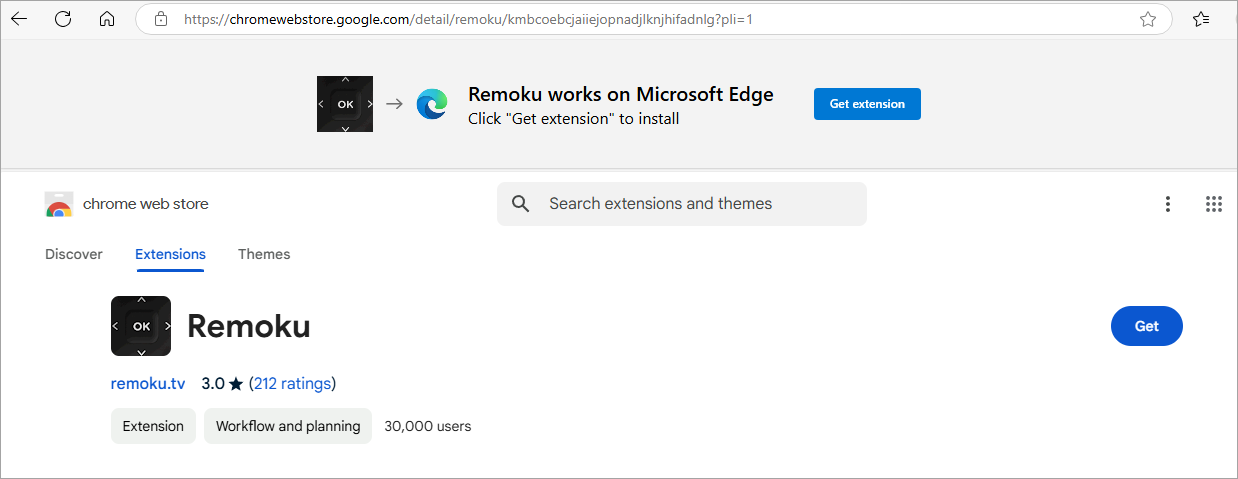
[via Chrome Web Store]
2. Follow the instructions that appear on your screen
3. Now tap on the Remoku icon (extension)
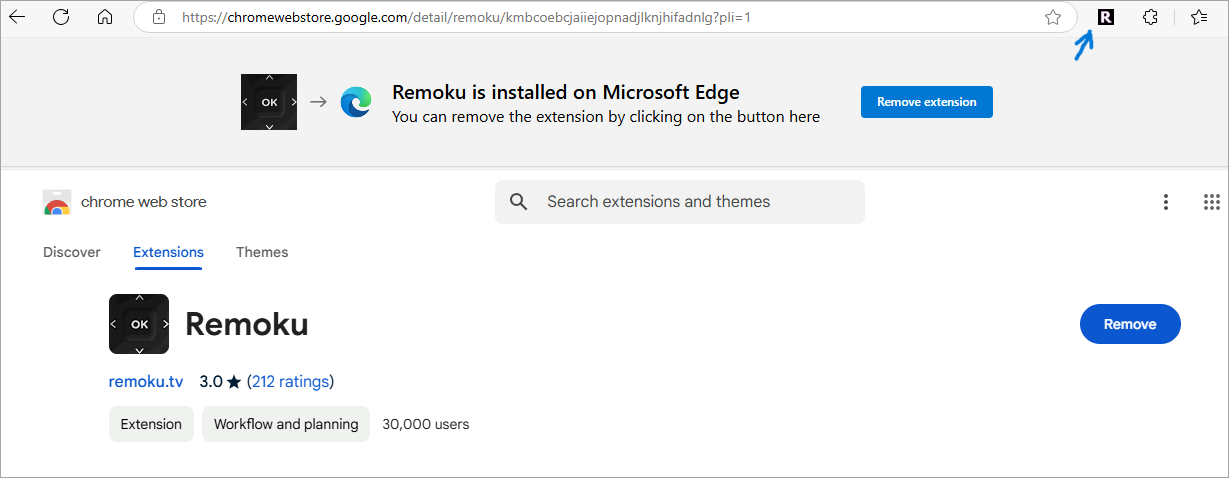
4. Now you will see a virtual remote which can be used to control the Roku and change its WiFi network.
5. If the remote does not connect with your Roku TV automatically, then click anywhere on the remote and then click on Scan.
The remote will then search for available Roku devices to connect. Once done, you can select your Roku TV to establish the connection.

5. To change the WiFi network of the Roku, do as stated under:
- On your Roku TV, go to Settings
- Click on Network
- Go to Set up connection
- Now select Wireless
- Now you can select the WiFi network that you want to connect with.
Please note that once you connect the Roku TV to a new network, you won’t be able to use the Chrome extension as a remote anymore, unless you connect your PC to the same WiFi that the Roku is using.
FAQs on Roku TV Without Remote
1. What do I do if I lose my Roku remote?
In case you have lost your Roku remote, you can:
• Give a voice command saying, “Hey Roku, where’s my remote?”
If the hands-free feature is enabled in your remote, then it will make a sound so that you would be able to find it.
• Press the Remote Finder button located on your Roku device, which enables your remote to make a sound for 60 seconds.
If you don’t have these features in your Roku TV, or if you can’t find your remote even after having these features, then you can use your mobile phone as a remote for your Roku, simply by downloading the Roku app on your phone, which is available for iPhones as well as Android phones.
2. How do I connect my Roku TV to Wi-Fi?
To connect your Roku TV to WiFi, follow these steps:
• Go to Settings
• Select Network
• Now, click on Set up connection
• Select Wireless
• Now choose the WiFi that you want to use from the list of available WiFi networks, and then type in the password to connect.
3. Is there a free Roku remote app?
Yes. Roku offers a free application that allows its users to turn their phone or tablet, or iPad into a remote for their Roku TV. The app is free and is available on the Google Play Store as well as the Apple App Store.
4. How can I connect a Roku without a remote?
If you have lost your remote, then you can either use your phone as a remote by downloading the Roku mobile app, or else, you can use Remoku Browser Extension to connect with your Roku.
For using your phone as a remote for Roku, follow these steps:
• Make sure your phone and the Roku TV are connected to the same WiFi
• Now download the Roku app on your phone
• You can choose to log in or use the app as a guest
• Now tap on the Remote icon in your mobile app.
• You will see a list of devices that are connected to the same WiFi that you are using.
• Find your TV and tap on its name.
• Now your phone can be used as a remote for your Roku TV.
To use an Ethernet cable to connect with the Roku TV, follow these steps:
• Connect your Roku to Ethernet via a router
• Connect your phone to the same router’s WiFi network
• Install the Roku mobile app on your phone.
• Login, or you can choose to continue as a guest.
• Now tap on Devices
• Select your Roku TV
• Now select Remote
• Now your phone can be used as a remote for your Roku TV.
5. How to connect Roku to a hotspot without a remote?
Please note that whenever a Roku TV is switched on, it will automatically connect to the previous WiFi network used. If you want to connect it to a different WiFi (using a hotspot) without using a remote, then you will have to follow these steps:
• Make sure you have 2 phones/an iPad/a tablet/PC for performing this trick. One phone will be used for providing the internet via hotspot, and the other one will have the Roku mobile application
• On your phone, install the Roku app and sign in.
• On the second device, switch on the internet and mobile hotspot. Follow these steps for turning the mobile hotspot on:
a. Go to Settings
b. If you are using an iPhone, find Personal Hotspot and switch it on. If you are using an Android device, then go to Network & Internet, select Hotspot & tethering, and then tap on WiFi Hotspot.
• Make sure the name of the WiFi hotspot in the second device is the same as that of the last used WiFi network on your Roku TV. This way, your Roku TV will get connected to this new WiFi network automatically.
• Now connect your phone (which has the Roku mobile app) to this WiFi network (provided by the second phone)
• Now, restart your Roku TV. As soon as it starts, it will automatically search for the last used WiFi. And since the new WiFi has the same name as the last used WiFi on your Roku TV, it will connect to the new WiFi.
• Now, since your phone and Roku TV are on the same WiFi network, your phone can be used as a remote for your Roku TV.
• Open the Roku app on your phone, tap on the Remote icon, then select your Roku device. That’s it.
• Now you will see a virtual remote on your phone’s screen, ready to be used as a remote for your Roku TV.
6. Can you use a mobile hotspot for Roku?
Yes, Roku can be used with a mobile hotspot. But since it is a video streaming platform, it consumes a lot of data and needs a fast internet connection. So, make sure you have unlimited data on your mobile phone before using its hotspot for streaming Roku.
7. Can I control my Roku TV with my phone without Wi-Fi?
If you do not have a WiFi connection, then you must have Ethernet, so that you can use your phone as a remote for your Roku TV. To use an Ethernet cable to connect your phone to the Roku TV, follow these steps:
• Connect your Roku to Ethernet via a router
• Connect your phone to the same router’s WiFi network
• Install the Roku mobile app on your phone.
• Log in, or you can choose to continue as a guest.
• Now tap on Devices
• Select your Roku TV
• Now select Remote
• Now your phone can be used as a remote for your Roku TV.
8. Can you use Roku without internet?
Since Roku is an online video streaming platform, you must have an internet connection to watch content on it. However, if your Roku TV does not have internet, it can be used to watch content from its local or external storage, or to watch photo or video files via screen mirroring.
For the purpose of mirroring your phone or tablet’s screen to your TV, you will have to find the Screen casting feature on your phone and then connect the phone to the Roku TV. This setting will be different on each phone. For example, in Motorola phones, when you swipe down the screen, you will see the option Screen Cast. From here, you will be able to connect with your Roku TV for casting your screen.
Conclusion
Roku is a popular streaming platform with millions of users. So, in this article, we tried to answer one of the most asked questions of the Roku users – How to use Roku TV without Remote.
In a nutshell:
- If you can’t find the remote even after pinging it, then you can connect your phone to the Roku TV and install the Roku app to use the virtual remote available in the app. For this purpose, your phone and the Roku TV must be connected to the same WiFi network.
- If your Roku TV is connected to a previous WiFi network, then you can use a mobile hotspot with the same name as the last used WiFi in your Roku TV to connect the TV and phone to the same WiFi network.
- If your Roku TV is not connected to any network at all, then you can use Ethernet to connect your Roku TV as well as your mobile phone to the same network, so that the mobile app can be used as a remote.
Was this helpful?
Recommended Reading
-

Facing issues with resetting Roku remote? Read this simple guide on how to reset the Roku remote to fix Roku remote reset issue and sync Roku remote back to form: Think about getting home from a long day of work and all you want to do is sit on the…
-
Understand what a Roku device is and how it works along with the clear instructions to power down Roku TV. This guide will explain How to Turn Off Roku Device to disable it permanently: How to Turn Off Roku? If you’ve never used a Roku device, this question might come…
-
Explore the top Wireless Routers with their features, pricing, and comparison to select the Best WiFi Router for your home or business: Today when the new normal for people is to work from home. Well, to work without disturbance and interruption, you need good Internet with high speed. So here…
-
Is your Firestick Remote not pairing? Discover the quick ways to pair Fire TV remote and understand how to Pair Firestick Remote to TV in just a few simple steps: Firestick is perhaps one of my favorites of all the tech that has come out in the past decade. Simply…