Discover the simple ways to quickly add Subscript and Superscript in Google Docs. Implement these easy steps to insert a Superscript in Google Docs promptly:
When writing academic dissertations or scientific papers, I always recommend using Google Docs. Such papers involve the frequent use of mathematical formulas, chemical equations, and dates, some of which have to be inserted as a superscript or subscript.
It is just easier and quicker to apply a subscript or superscript in Google Docs.
Table of Contents:
- Superscript in Google Docs: Which Keyboard Shortcuts to Use
- Understanding Superscripts & Subscripts
- How to Do Superscript in Google Docs
- How to do Subscript in Google Docs?
- Ways to Insert Superscript in Google Docs for Mathematical Equations
- Make Superscript in Google Docs on Smartphone (Android & iOS)
- Frequently Asked Questions
- Conclusion
Superscript in Google Docs: Which Keyboard Shortcuts to Use

Now, I completely understand if you have no idea how to superscript in Google Docs, especially if you are using this word processor for the first time. All you need is a guiding hand, and I hope to offer that with this little article.
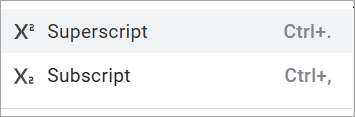
Consider this article your hands-on guide to adding superscripts and subscripts to Google Docs with ease. After reading this, you’ll hopefully know how to add superscript in Google Docs, regardless of whether you are using the word processor on mobile, desktop, or Chromebook.
So, without much further ado, let’s dive in.
Understanding Superscripts & Subscripts
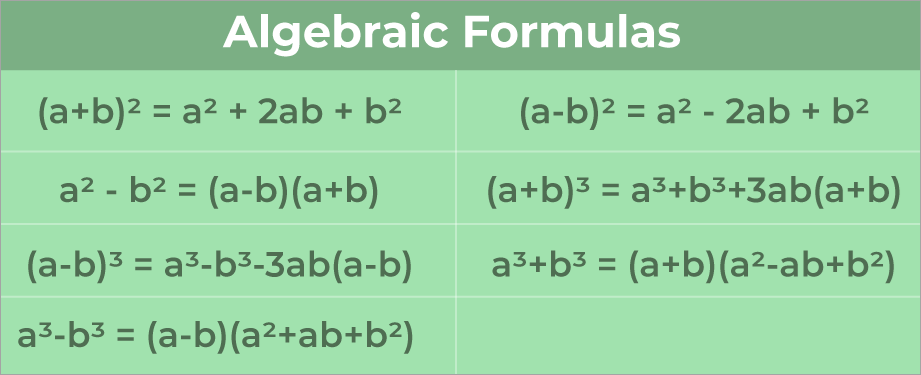
I think it is important to understand what purpose a subscript or subscript serves before you learn how to type it into Google Docs. Superscripts or subscripts are typically characters or symbols that have to be positioned above or below the normal line of text.
via Geeks for Geeks
A character or symbol placed above the line of text is known as a superscript. On the other hand, a character or symbol placed below the line of text is known as a subscript.
This type of formatting is used when spelling out mathematical equations or chemical formulas. For instance, the number “2” in H20 is an example of subscript formatting.
Similarly, the number “2” in mc2 is a good example of superscript formatting. With that out of the way, we can now focus on the subject at hand.
How to Do Superscript in Google Docs
Google Docs presents you with three options to apply a superscript, or a subscript, for that matter. I’ll be walking you through all three of these methods. You can decide which of these options suits you best.
i) Using the Menu
You’ll find the option to add a superscript to your written text or number in Google Docs’ menu system. Simply follow the guide below to learn how to do this:
1. First, highlight the text you wish to turn into a superscript.

2. Navigate to the menu at the top of your document. Select “Format”.
3. From the drop-down menu, select “Text”.
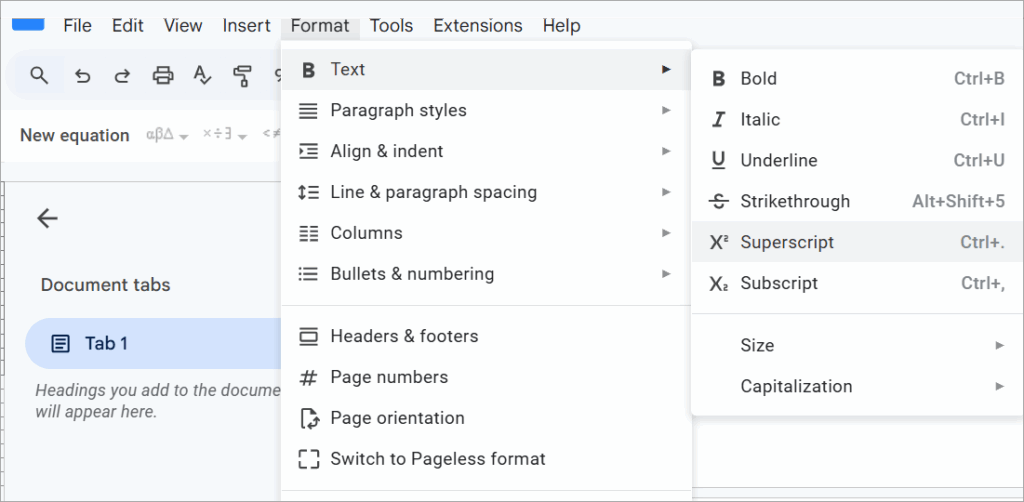
4. Now, select “Superscript”

5. You’ll now see that the selected text has been modified to a superscript format.
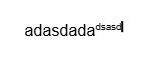
As depicted in the image above, you can apply a superscript to a single letter, the whole word, or the entire phrase. Traditionally, you’ll be applying this format to a single letter.
Suggested Read => How to Get Emojis on Chromebook
How to do Subscript in Google Docs?
The same process will also lead you to converting highlighted text to subscript format. Here’s how you do it.
- First, highlight the text you wish to turn into a superscript.
- Navigate to the menu at the top of your document. Select “Format”.
- From the drop-down menu, select “Text”.
- Now, select “Subscript”
- You’ll now see that the selected text has been modified to a subscript format.
Although this process lets you quickly format your text, there is an even swifter way to apply superscript and subscript formatting.
ii) Keyboard Shortcut for Superscript and Subscript in Google Docs
This is the method I recommend using, as most folks writing dissertations or scientific papers are operating on short deadlines. Using a keyboard shortcut takes the hassle out of formatting your text on Google Docs. All you need to know here is the right keys to press on your keyboard.
On the PC or Chromebook, the keyboard shortcut for a superscript is the Control and Period key (Ctrl + .). For the subscript, press Control and Comma (Ctrl +,).
On the Mac, you’ll need to press the Command and Period keys for a superscript. On the other hand, applying a subscript will require you to press the Command and Comma keys.
Make sure the text you wish to convert is highlighted before you press the keys. If you wish to write the entire sentence in superscript, simply press the Control and Period key (Ctrl + .) before you start typing. Press these keys again to go back to the original formatting. The same rule applies for subscripts.
iii) Using the Special Characters Library
Like I mentioned before, if you are writing a dissertation or a scientific paper, chances are you’ll need to include different types of symbols and characters in it. You are not going to find most of them on your keyboard. You’ll need to open Google Docs’ special characters library to find and add these elements into your article.
Most of these characters and symbols will already be available as superscripts or subscripts. You just need to add them in their designated spot in the article’s body. Here’s how you add these special characters as superscripts or subscripts.
Further Reading => How to Strikethrough on Google Docs
1. Navigate to the menu, which is accessible to you above your document.
2. Select “Insert”.
3. From the drop-down menu, select “Symbols” => “Special Characters”
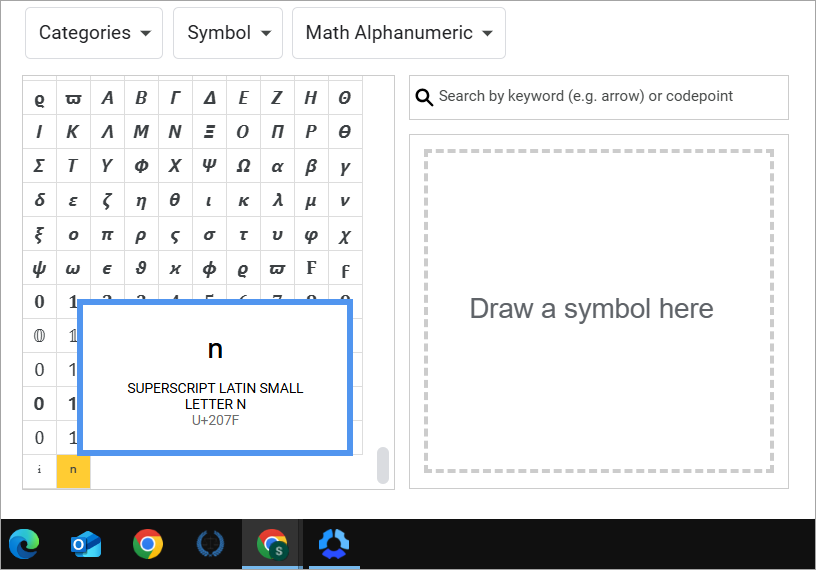
4. You’ll now find a plethora of characters that you can use as superscripts and subscripts. Simply click on the one you wish to insert, and it will show up in your text wherever the cursor is placed.
Further Reading => How to Change Margins in Google Docs
Ways to Insert Superscript in Google Docs for Mathematical Equations
As is the case with many special characters, you are not going to find a mathematical equation on your keyboard. You’ll need to insert it into your Google Docs from the “Equation” menu. This menu holds various prominent mathematical equations in both superscript and subscript formats. Simply follow the guide below to access and insert these equations:
1. Select “Insert” from the menu.
2. Select “Symbols” => “Equation”
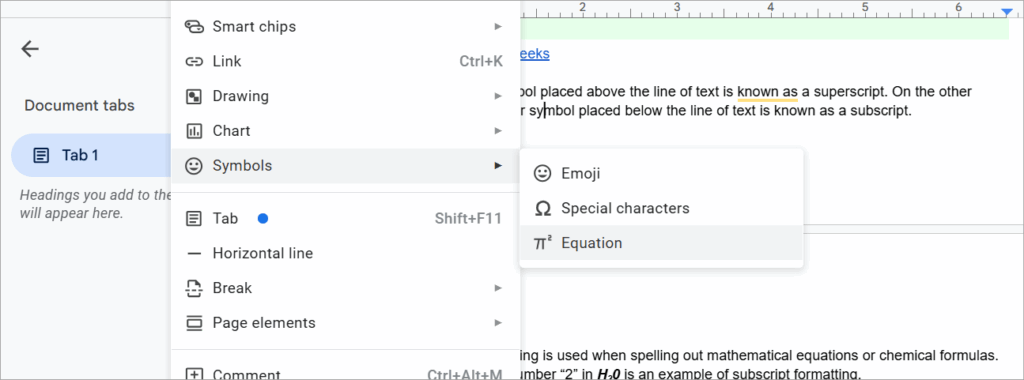
3. Now, on your keyboard, either press Shift+6 to enter a superscript character or Shift+- for a subscript character.
4. Once you’ve added the superscript or subscript, press “Enter” to get back to the original formatting.
Make Superscript in Google Docs on Smartphone (Android & iOS)
Google Docs on mobile has an interface that is slightly different from its web counterpart. As such, the process to input a superscript or subscript will be different. Although different, it is still simple to apply this formatting. Here’s how you do it:
1. Open the Google Docs document on your Android or iOS phone.
2. Highlight the text you wish to turn into a superscript.
3. Navigate to the top of your document and tap on the “Format” button as depicted in the image below.
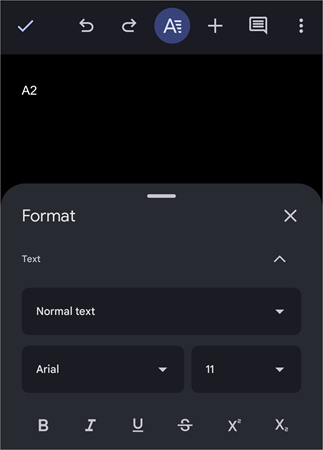
4. Make sure you are on the “Text” and not the “Paragraph” tab.
5. Tap on the formatting option for superscript. You’ll also find the formatting option for subscript right beside it.
Also Read => Simple Ways to Change Background Colour on Google Docs
Unfortunately, the option to insert equations is missing on the Google Docs mobile app. However, you can superscript or subscript an existing equation in your document.
Frequently Asked Questions
1. What is a Superscript and a Subscript?
Superscript and subscript are a type of formatting that applies to certain symbols and characters. They are used when spelling out chemical formulas, mathematical equations, or sometimes dates.
A superscript is a character or symbol that is written or typed above the usual line of text. A subscript is a character or symbol that is written or typed below the usual line of text.
2. What is an example of Superscript?
Below are a few prominent examples of superscripts that I can recall off the top of my head:
• 12th
• mc2
• X2
3. How do you insert a Superscript in Google Docs?
There are three ways to write a superscript in Google Docs. You can turn highlighted text into superscript by clicking on the “Superscript” option presented to you in the Google Docs menu.
Alternatively, you can use the keyboard shortcut. On Windows, this shortcut would be (Ctrl+.). On Mac, you’ll need to press (Command+.).
4. When are Superscripts and Subscripts needed?
Superscripts and Subscripts don’t come into play unless you are writing papers for scientific research or academic purposes. Certain chemical formulas, like CO2, or mathematical equations like a2+b2=ab2, can only be spelled out this way.
Using them appropriately in your assignments and dissertations will lend authenticity to your work. Superscripts are most commonly found in mathematics or when you want to mention dates. Subscripts are usually used in chemistry.
5. How do I type th as a Superscript in Google Docs?
To type th as a superscript-th, highlight it and press (Ctrl+.). Alternatively, go to Format => Text => Superscript. In either case, make sure the text is highlighted. Press the (Ctrl+.) again to pull out of the superscript formatting.
6. How do I type exponents in Google Docs?
To type the exponents in Google Docs, you can use the Superscript format. To use this format, you just have to highlight the character or number and hit the keys (Ctrl+.). Mac users should use the key (Cmd+.).
Conclusion
Google Docs is a great word processor. Most folks use it for basic writing tasks. As such, its potential remains untapped. With this guide on how to use superscript in Google Docs, I wish to make you guys realize just how amazing this app can be.
If you are writing a scientific research paper or dissertation, I recommend sticking with Google Docs. Adding superscripts and subscripts in this word processor is as easy as a walk in the park.
It lends you the ability to type in formulas and symbols within your text in a manner that is simply not possible with many other text applications out there.
Hopefully, I’ve done a good job of explaining how to get superscript in Google Docs. I suggest you give each method a try and get familiar with the formatting so you can use this skill without hassle when the need arises.
Was this helpful?
Recommended Reading
-

Discover the simple ways to change page margins in Google Docs. Understand the step-by-step process on how to change margins in Google Docs if you are unsure of how to do it: Google Docs is a popular, highly efficient method of creating documents that is quite easy to use. It…
-
Read this comprehensive review of the top Word Processing Software to select the best free Word Processor for Windows, Mac, iOS, and Andriod: Microstar developed the world’s first word processor WordStar in 1979. Since then the word processor market has come a long way. Today, there are different types of…
-
This tutorial explains How to Strikethrough on Google Docs. Also, learn various strikethrough shortcuts on Google Docs: In the initial days, Microsoft Office provided users with software that could ease creating and managing documents on the computer. Later on, the users looked for an online editor that can store all…
-
Review this step-by-step guide to transfer files from Dropbox to Google drive. Also, explore the top tools to save and transfer data: The need for storage services has grown by leaps and bounds in the last few years. With the growing demand for storage services, services like Dropbox, Google Drive,…