Are your arrow buttons stuck or frozen, and can’t use the Arrow Keys in Excel? Explore all proven techniques from this ultimate troubleshooting guide to fix Arrow Keys Not Working in Excel issue in minutes:
Microsoft Office offers software for preparing spreadsheets – commonly known as Microsoft Excel — used for managing data, calculation, accounting, financial analysis, project management, and planning.
Organizational records like employee data, attendance, leave, salary, accounts receivable and payable, scientific and research reports, and anything that comes as records are captured using an Excel spreadsheet.
Table of Contents:
Excel Arrow Keys Not Working: Quick Fixes
Applications receive this data for further processing, or they provide it as a search result for a selected date interval.
Excel users commonly use keyboard keys to enter numerical and alphabetical data for filling in details such as names, addresses, contact information, emails, etc., for uploading employee or customer registration details, online orders received, or preparing bills in respective master forms using the bulk upload utility.
Overview: Arrow Buttons Not Working in Excel
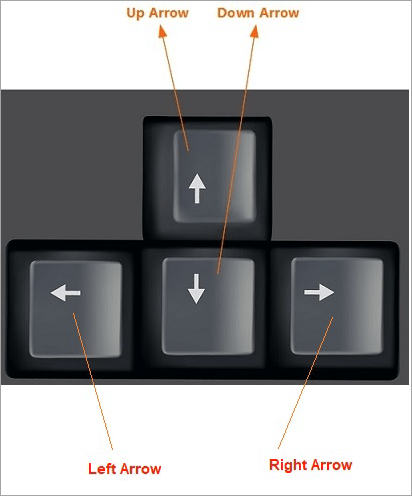
Arrow keys are used to move/navigate between the cells. The left arrow key will move the active cell to one cell to the left, the right arrow key will move the active cell to one cell to the right, the up arrow will move the active cell one cell above, and the down arrow will move the active cell one cell below.
Arrow keys, when used in combination with the Ctrl key, as explained below:
Ctrl + Right Arrow key – moves the active cell to the last cell of the current row that contains data
Ctrl + Left Arrow key – moves the active cell to the first cell of the current row that contains data
Ctrl + Up Arrow key – moves the active cell to the first cell of the current column that contains data
Ctrl + Down Arrow key – moves the active cell to the last cell of the current column that contains data
Keyboard Arrows Not Working in Excel: Explore Reasons
There are multiple reasons for the arrow keys not working in an Excel spreadsheet:
- The Scroll Lock key may have been enabled
- There can be a conflict with the Excel Add-in
- Excel installation files may have been corrupted or missing
- Presence of Frozen Panes in the spreadsheet
- Keyword driver files may have been corrupted, missing, or out of date
- Keyboard keys, hardware malfunction
- You are in formula entry mode
Fix Arrow Keys Not Working in Excel
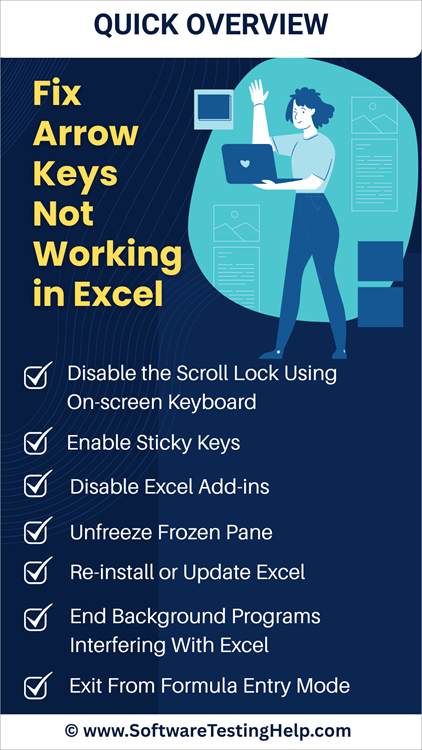
Let’s find out how we can resolve the issue of the arrow keys not functioning in Excel:
#1) Quick Solutions to Try
| Close the existing spreadsheet file and open a new worksheet. |
| Just restart the Excel application. |
| Click on File from Excel menu –> Select Options –> Click Advanced, and check hardware graphics acceleration parameter is enabled |
| Check if there are conflicting add-ins installed in Excel. |
| Reinstall the Office application |
#2) Disable the Scroll Lock Using On-screen Keyboard
The scroll lock feature, when enabled, will move the window that contains visible content up, down, left, or right when the respective arrow key is pressed instead of the movement of the cursor or active cell.
This will prevent active cell movement to the left, right, up, or down when the arrow keys are pressed. Disabling Scroll Lock will resolve the issue of the arrow keys not working in the Excel spreadsheet.
Suggested Read => Best Keyboards with Screen
You may not find the scroll lock key on your keyboard; you have to follow the steps as explained below.
For computers with Windows 8.1 installed:
- Press Ctrl + C simultaneously.
- You will find a window appearing with quick access icons like Search, Share, Start, Devices, and Settings. (for Windows 8.1)
- Under Settings, select Change PC settings, click on Ease of Access.
- Select the keyboard, open the on-screen keyboard, and you will see the ScrLk button enabled. Click on it to disable the scroll lock.
Recommended Reading => Excel Macros: Complete Guide for Beginners
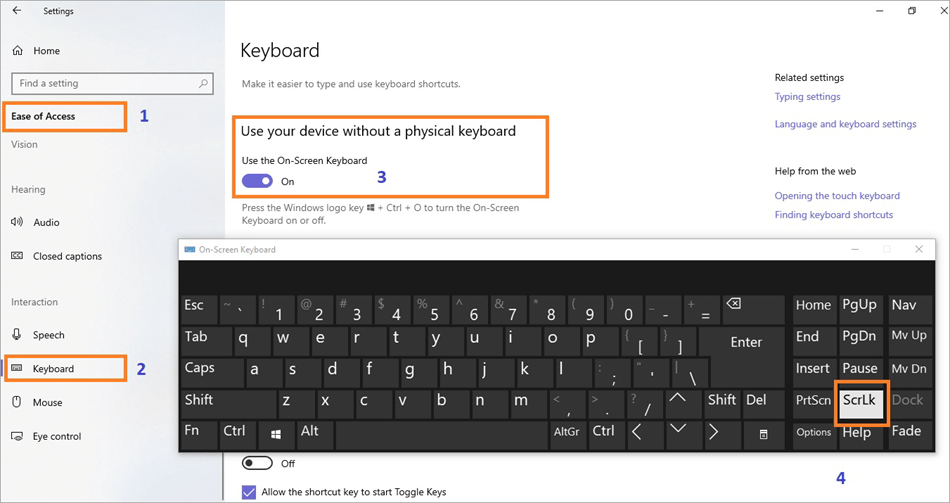
For computers with Windows 10 installed:
- Press Windows icon keys OR click the Windows (Start) icon at the bottom left corner of your screen.
- Select the Settings option from the list.
- Click on Ease of Access.
- Select the keyboard.
- Open the On-screen keyboard.
- You will see the ScrLk button enabled.
- Click on it to disable scroll lock.
For computers with Windows 11 installed:
- Click on the Windows (Start) icon.
- Select the Settings option from the list.
- Select Accessibility
- Select the keyboard
- Open the On-screen keyboard.
- You will see ScrLk button enabled.
- Click on it to disable scroll lock.
How to Disable Scroll Lock in Excel on Mac?
To disable scroll lock in Excel on Mac, press the combination of keys: Fn+Shift+F12 simultaneously.
#3) Enable Sticky Keys
Sticky keys allow pressing modifier keys i.e. (Windows, Ctrl, Alt, Shift) one at a time, and keep them enabled till you press another key. Sticky key feature is for those users who find it difficult to press multiple keys like Ctrl+B or Alt + tab, etc., simultaneously.
You can enable the sticky key feature from your computer’s settings for accessibility, or by pressing the shift keys five times in quick succession.
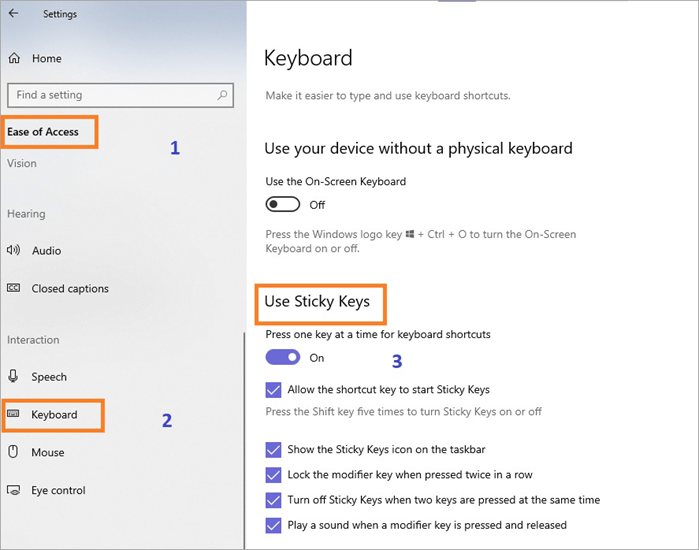
To enable Sticky Keys, follow the steps below:
- Press the Windows (Start) icon.
- Select Settings from the list.
- For Windows 8 & 10, click on Ease of Access.
- For Windows 11, click on Accessibility.
- Look for keyboard settings.
- Enable Sticky keys (this is a toggle key; if it is disabled, clicking on it will enable it).
What are Modifier keys?
There are special keys on your keyboard that, when pressed along with other keys, act as an extension or enhance the functionality of other keys and are known as modifier keys.
The examples of modifier keys are Alt, Ctrl, Shift, and Windows keys.
| Modifier Keys | Examples |
| Windows | Windows + R will open Run window, Window + E will open file explorer, Windows + X will open list of menu under Windows(Start) |
| Ctrl | Ctrl + C, copy the selected content, Ctrl + B will make font bold, Ctrl + V will paste the content saved on the clipboard (copied with Ctrl + C) |
| Alt | Alt + F4 will close current window, Alt+Tab will switch between multiple windows |
| Shift | Shift + character will type in upper case, shift + number will type special character e.g. shift +2 ? will type @ |
Here is a video for your reference:
#4) Disable Excel Add-ins
Add-ins in Excel will extend standard functionality or capabilities, offering customization and improved productivity, such as adding new features, improving data analysis, automation, and visualization using HTML, CSS, and JavaScript to interact with Excel components.
You can either develop custom add-ins through development, install traditional add-ins via COM add-in dialogue, or web-based add-ins from the Microsoft Office stores, or get an add-in option from the Excel application itself.
Suggested Read => Best FREE Office Software
Disable Excel add-ins
- Open the Excel application
- Click on File –> Options
- The options dialog window will appear
- Select Add-ins
- The add-in dialog box will appear
- Uncheck the checkbox next to the add-in you want to disable.
#5) Unfreeze Frozen Pane
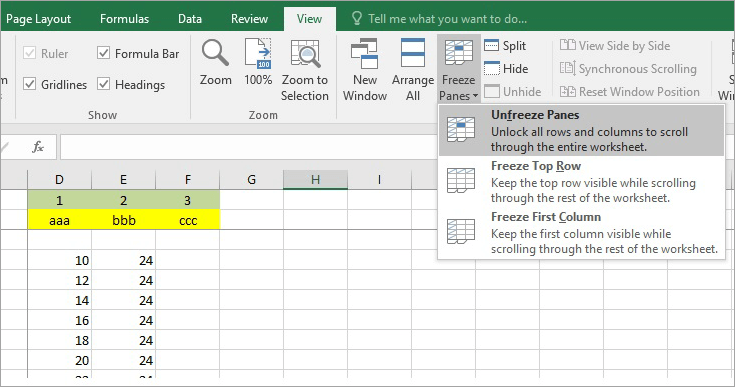
Frozen pane in an Excel spreadsheet allows certain columns and rows to remain stagnant or visible, or locked on scrolling across the sheet. The freezing of the pane may cause the arrow keys to stop functioning.
- Open an Excel spreadsheet
- You may have frozen panes already
- Click on the View tab
- Select Freeze Panes
- The drop-down will display options
- Select Unfreeze Panes
- This will unfreeze the frozen pane.
In case the Arrow keys remain non-functional, follow the various workarounds as listed below.
#6) Re-install or Update Excel
Arrow keys may not function due to various reasons, one of which is out-of-date software; hence, you can try updating Excel.
- Open an Excel spreadsheet.
- Click on the File tab.
- Select Account from the left pane.
- Select Update Options & click on the Update Now button.
- This will start updating the software to the latest version and resolve conflicts, if any.
#7) End Background Programs Interfering With Excel
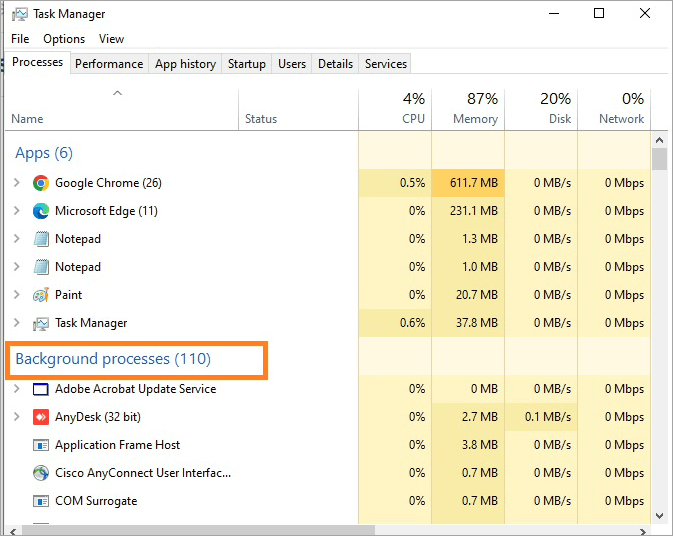
- Press simultaneously the Ctrl+Shift+Esc keys.
- The Task Manager interface will appear, displaying various processes.
- You will see processes or applications running in the background under the background processes section.
- You can select the process and click on the End Task button to close or end the process.
- Restart the Excel application, and you will see that the arrow keys will not be functioning and will be resolved.
#8) Reset Settings for Excel
You can try to open the Excel spreadsheet application in safe mode, which will resolve arrow keys not working.
- You can close the open Excel application.
- Press the Windows + R keys together.
- Run window with the Open textfield will appear.
- Type excel.exe/safe
- Press Enter
Further Reading => What is an Excel Pivot Table
You can press Ctrl keys while the Excel spreadsheet application is being launched, which will prompt the user to start the Excel application in safe mode, as a confirmation window, as shown below:
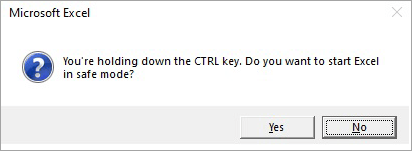
Press the Yes button to confirm your decision to start the Excel application in safe mode.
#9) Exit From Formula Entry Mode
You will find the cursor or arrow keys suddenly stop working – this can happen when you are entering a formula.
- You may have selected one of the cells.
- Clicked on fx.
- You will find entry mode enabled with the = symbol & window showing the Insert function list.
- You may observe that the cursor may have stopped working until you are in formula entry mode.
- You can enter a function OR
- Press Enter & Press Ctrl +Z simultaneously – to reactivate/enable arrow keys
Further Reading => How to Open Task Manager with Shortcuts in Windows
Tips to Improve Your User Experience With Excel
Excel users are often data entry operators who are well-versed in using keyboard shortcuts and entering specific data using the keyboard. The following table will list and explain how important keyboard keys are while using Excel.
| Operation | Key from keyboard |
| Navigation | Page Up, Page Down, Arrow keys, Home(F11) & End (F12). |
| Data or Information Entry | Keys from 1 to 0, A to Z (a-z), and special characters entered used along with shift keys |
| Formula | Excel offers various categories like financial, math, statistics, engineering, and corresponding functions like Sum, Count, Average, etc. |
| Editing | F2 for editing cell, Ctrl+c for copy, Ctrl+v for paste, Ctrl+x for cut, Ctrl+z for Undo, Ctrl+y for redo |
| Basic Format | Ctrl +B, Ctrl +I, Ctrl +U for changing font in bold, Italics, and Underline |
| Shortcut | Windows icon + R for running commands from Run queries for opening installed applications by typing Function keys like F2, F4 and F9 |
| Function Keys | F1 for Help, F5 for going to a specific cell, F7 for spellcheck, F12 to save the file at a specific location on your computer. |
Also Read => MS Excel Interview Questions and Answers
Frequently Asked Questions
1. Why arrow keys not working in Excel?
Arrow keys may stop working in an Excel spreadsheet, for any one of the reasons listed below
• Scroll Lock is enabled
• Sticky keys are disabled
• Excel Add-in enabled
• Pane is frozen
There are other reasons, like an out-of-date version of Excel installed, a process or application running that interferes with Excel.
2. What is the scroll lock feature in Excel?
The scroll lock feature, when enabled, will move the window that contains visible content up, down, left, or right when the respective arrow key is pressed instead of the movement of the cursor or active cell.
This will prevent active cell movement from left, right, up, or down when the arrow keys are pressed.
3. How can you disable the scroll lock if the scroll lock key is not found on the keyboard for Windows 10?
If the scroll lock key is not found on the keyboard, you can disable scroll lock in a Windows 10 computer by following the steps listed below
• Press Windows icon keys OR Click Windows (Start) icon at the bottom left corner of your screen
• Select the Settings option from the list
• Click on Ease of Access,
• Select keyboard,
• Open On-screen keyboard,
• You will see ScrLk button enabled,
• Click on it to disable scroll lock.
4. Any workaround to navigate active cells if the arrow keys are not working?
You can press the tab key to move the active cell to the right and press shift + tab keys to move the active cell to the left. Further, press Enter to move the active cell down, and press Shift +Enter to move the active cell up.
5. What is the difference between pressing Up, Down, Left, or Right Arrow keys alone, and pressing the Arrow keys along with the Ctrl key?
Arrow keys are used to move/navigate between the cells.
The left arrow key will move the active cell to one cell to the left, the right arrow key will move the active cell to one cell to the right, the up arrow will move the active cell one cell above, and the down arrow will move the active cell one cell below.
Arrow keys, when used in combination with the Ctrl key, as explained below
Ctrl + Right Arrow key – moves the active cell to the last cell of the current row that contains data
Ctrl + Left Arrow key – moves the active cell to the first cell of the current row that contains data
Ctrl + Up Arrow key – moves the active cell to the first cell of the current column that contains data
Ctrl + Down Arrow key – moves the active cell to the last cell of the current column that contains data
Further Reading => How to use VLOOKUP in Excel
Conclusion
Arrow keys in Excel are essential, and there is no workaround if the arrow keys stop working. As a first and quick solution to this problem, you can try closing & reopening the spreadsheet or closing & reopening the application.
This can be tried if you don’t have unsaved data. If that doesn’t work, you can try out the other solutions discussed in this article, and if nothing works, you can try reinstalling the application.
We have learnt the importance of keys, the reasons or causes that have prevented arrow keys from working, and various ways to resolve non non-working of arrow keys in an Excel spreadsheet.
Was this helpful?
Recommended Reading
-

List of the top MS Excel Interview Questions and Answers. This tutorial answers interview question on Excel with examples to help you prepare for the interview: Excel - a product of Microsoft, is a software that utilizes spreadsheets to arrange formulas, functions, and sort numbers & data in rows and…
-
This hands-on Excel Macros tutorial explains what is a Macro, how to create and use VBA Macros with plenty of examples: Most of us in the industry will surely have certain tasks that are to be performed repeatedly almost every day. Now imagine if those tasks are done with just…
-
This In-depth Guide About QA's Macro Mindset Explains How To Automate Repetitive QA Tasks Using Excel Macros with Examples And Screenshots of Excel Sheets: The need for automation in today’s world is one of the essential and growing demands. Today everyone is seeking something that eases his/her work and the…
-
This comprehensive VLOOKUP Tutorial explains what is VLOOKUP in Excel and how to use this function with the help of practical examples: VLOOKUP is a filtering method available in Microsoft Excel that allows us to search for a value using a formula in a huge list of data. In this…