


This is a stepwise guide to Uninstall Microsoft Edge from Windows 10, Mac, Android, iOS explaining multiple methods:
Microsoft pushed the chromium-based Edge browser through a Windows update, making it part of the core operating system. Microsoft Edge has become as good as other popular browsers like Chrome, Firefox, and Safari, but no one wants to use a piece of software forcefully.
A lot of Windows users want to uninstall Microsoft Edge from their PC but find it hard as the Uninstall option is no longer clickable. If you were looking to delete Edge from your PC, then you have come to the right place. Here is how you can remove Microsoft Edge from Windows.
Table of Contents:
Uninstall Microsoft Edge

Suggested Reading =>> Top 10 Browsers for PC
From Windows 10
Uninstalling Microsoft Edge from Windows 10 will mainly depend on how you got it on your PC. If you installed it manually using an installer file or installed one of the Beta, Dev, Canary build, then most probably you can uninstall it from settings.
But in case you got it through a Windows update, then it will be tricker. Command Prompt will be used to uninstall Edge on the system level.
You don’t have to worry a bit about either of the situations. We have provided the exact steps to uninstall Edge from Settings or with Command Prompt. Many users complain about Microsoft Edge getting reinstalled with a Windows update, so we have also provided a way to stop Edge from reinstalling.
Method 1: How to Uninstall Microsoft Edge From Settings
First, let’s start with assuming you have installed Edge manually on your PC. Follow the below steps to Uninstall it from settings:
Step 1: Tap on Microsoft Logo from the bottom left corner of your screen to open up the Start Menu.

Step 2: Go to Settings, Under Settings, go to Apps, and then tap on Apps & features.
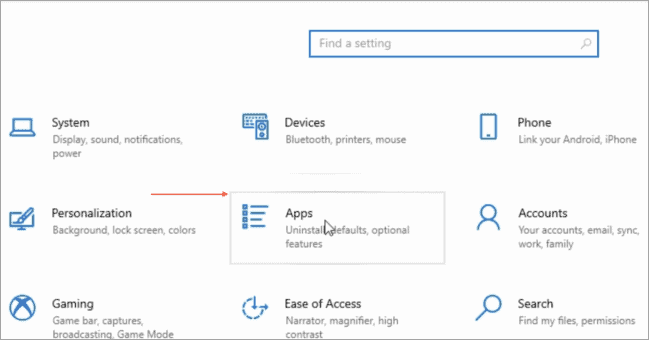
Step 3: You will see all the apps installed on your PC. Scroll down to find Microsoft Edge and select it.

Step 4: There will be two options there: Modify and Uninstall. Tap on the Uninstall option and it should remove Microsoft Edge. In case you had installed Beta, Dev or Canary build then instead of Uninstall button you will get Uninstall Program button. Don’t be confused. Tap on the Uninstall Program button.

After the completion of the above steps, Microsoft Edge will be successfully uninstalled from your PC.
Method 2: How to Uninstall Microsoft Edge with Command Prompt
As we mentioned earlier, if you got Microsoft Edge through a Windows update, then the Uninstall button will be grayed out for you. In this situation, Command Prompt will come in handy in uninstalling Edge forcibly.
Follow the below steps to uninstall Microsoft Edge with a command prompt:
Step 1: Open Microsoft Edge on your Windows PC and tap on the three-dot menu icon from the top right corner. From the menu options, select Help and feedback.
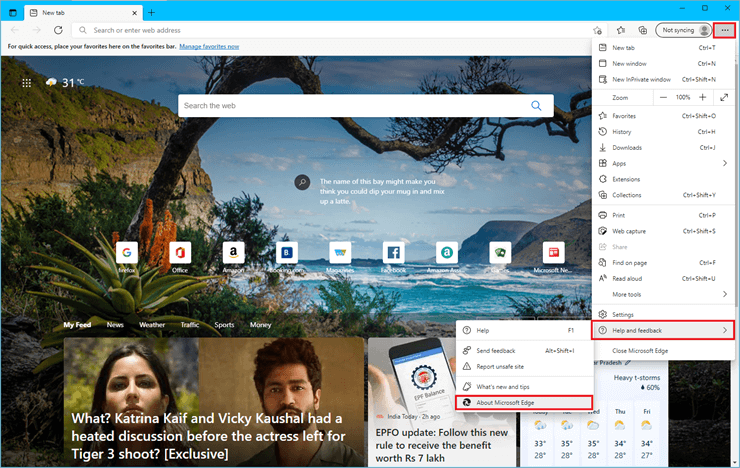
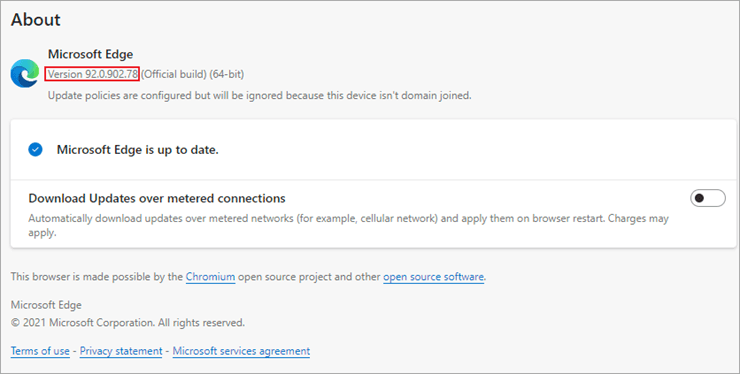
Step 2: Under Help and Feedback, the last option will be About Microsoft Edge tap on it. In About you will find the version number of Edge running on your PC. Take a correct note of the version number as it will be needed in the upcoming steps.
Step 3: In the next step, type cmd in the search box. Among the search results, click on Command Prompt app and then select Run as administrator.

Step 4: Once Command Prompt gets opened on your PC copy, paste the below command, and hit enter. Replace xxx with the version of Microsoft Edge. Remember, you took a note of the version number in Step 2.
cd %PROGRAMFILES(X86)%\Microsoft\Edge\Application\xxx\Installer

Step 5: Running this command will take you to the Edge Installer folder. Once you are there, copy and paste the below command.
setup.exe –uninstall –system-level –verbose-logging –force-uninstall

Step 6: You will get a prompt “Do you want to allow this app to make changes to your device“. Tap on yes to give the final confirmation. Once done Microsoft Edge will be completely uninstalled from your PC.
The Microsoft Edge shortcut will disappear from the desktop and also the Taskbar. Some users still see the Microsoft Edge when they try to access it from the Start Menu, but clicking on it does nothing. You can get rid of the Microsoft Edge from there as well by restarting your PC. So, this is how you can uninstall Microsoft Edge with a command prompt.
Further Reading => List of the Best Uninstaller Programs for Windows
Method 3: Stop Microsoft Edge From Reinstalling
You know what Microsoft wants every Windows user to use Edge as their default browser. So even if you uninstalled it forcibly using a command prompt, there is always a fair chance it will make a comeback with future Windows updates. But you can stop Microsoft Edge from reinstalling by following the below steps:
Step 1: Type “regedit” in the Search box to search for the Registry Editor app. The app will appear as the best match, select it and then Run as administrator.

Step 2: After opening the Registry Editor app, copy and paste the below key in the address bar of the Registry Editor app. Alternatively, you can also navigate to the same key.
HKEY_LOCAL_MACHINE\SOFTWARE\Microsoft
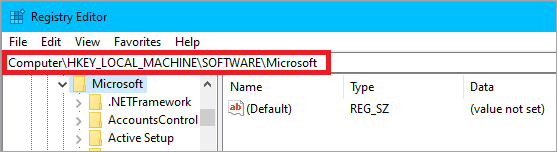
Step 3: Right-click on the Microsoft Folder and tap on New and then Key. Give the Key a name, EdgeUpdate.

Step 4: Once the EdgeUpdate key is created right-click on it. Among the options, tap on New and create a new DWORD (32-bit) Value. Give it the name DoNotUpdateToEdgeWithChromium.
Step 5: After creating the new DWORD (32-bit) Value double click on it to open. Under Value Data enter 1. Tap on Ok to save the value. Now you can exit the Registry Editor app.
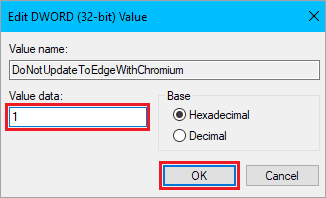
Step 6: Once you’ve created the new DWORD Value, double-click it to open it and change its value to “1.” Click OK to confirm, then exit the Registry Editor.
Once done, your PC will be free from Microsoft Edge as long as you want. Microsoft cannot push it with any future Windows updates. If in the future you decided to install Microsoft Edge, follow the same steps explained above and change the DWORD value to 0.
From Mac
Microsoft launched Edge browser for Mac back in 2019. The new chromium-based Edge browser works fine on Mac. But its users can choose to keep it or uninstall it. In case you have decided to uninstall Microsoft Edge on your Mac. Here is how you can do so. The steps are exactly the same as how other apps and programs are uninstalled on Mac.
Step 1: Open Finder on your Mac. The Finder icon appears on the far left side of the Dock at the bottom of the screen.
 `
`
Step 2: In the Finder, look for Applications Folder and open it. It will appear under the Favourites.
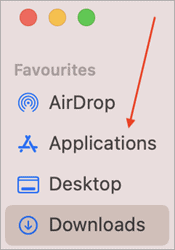
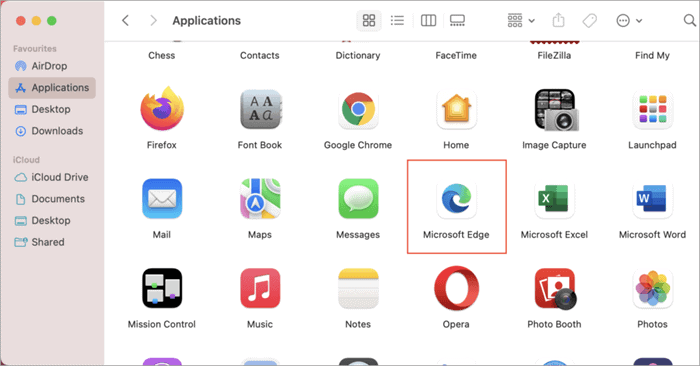
Step 3: You will find all your installed applications in this folder. Look for Microsoft Edge, select and right-click on it to open a context menu.
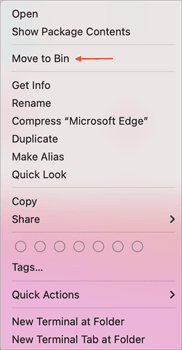
Step 4: From the menu options, tap on Move To Trash. Alternatively, you can select the Microsoft Edge icon and press the command+delete key to move it to Trash.
Step 5: After moving the Microsoft Edge to Trash. Look for the Trash icon on the far right side of the Dock and open it.

Step 6: Tap on the Empty option in the Trash folder.
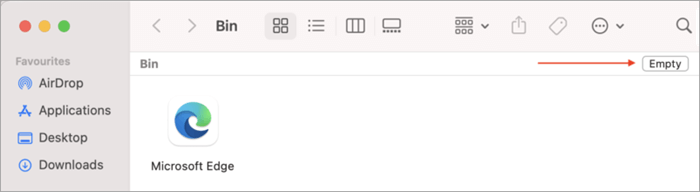
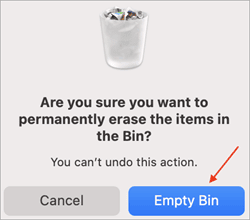
Step 7: You will be asked for a final confirmation tap on Empty Bin to remove Edge from Bin. Keep in mind Emptying Bin will remove other files that are in the Trash Bin folder.
From Android
Google Chrome is the default browser on Android smartphones. A huge portion of Android users are fine with Chrome, but a small percentage of users prefer to try out other alternatives like Firefox, Edge, Opera, etc.
If you installed Microsoft Edge to test out how it performs compared to Chrome and didn’t find it better than Chrome, then you can easily uninstall it. The Uninstall process will not differ from uninstalling any other app on an Android device.
Step 1: Find the Microsoft Edge app icon from your App Drawer or Home Screen.
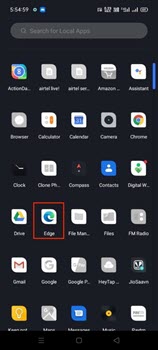
Step 2: Once you find the app icon, press and hold your finger until a pop-up menu appears. The pop-up menu will have different options like Select, App info, and Uninstall. Tap on the Uninstall button. Do note these options might differ on different Android smartphones.
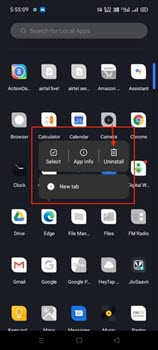
Step 3: You will get a final confirmation prompt tap Uninstall in it. Now Microsoft Edge will be successfully uninstalled from your Android smartphone.
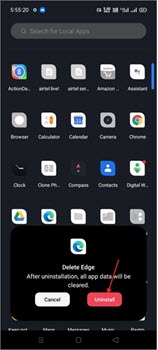
This is how you can uninstall Microsoft Edge from your Android smartphone. It is very easy to just find the Edge app icon, press, and hold on to it to get the Uninstall option. Tap on the uninstall option, give the final confirmation, and that’s it.
From iOS
iOS devices come with Safari as the default browser. Many users don’t bother to install any other third-party browser. But still, almost all popular browsers are available on App Store and Microsoft Edge is no exception. If you decided to test the features of Microsoft Edge after hearing all the praises but didn’t like it then you can easily uninstall it from your iOS device.
The steps are the same as you uninstall any other app on your iPhone.
Step 1: Find the Microsoft Edge app icon from the App Library. It will be in the Utility folder. You can also find it on your Home Screen.
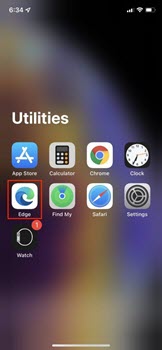
Step 2: Once you find the Microsoft Edge app icon Press and hold it from your finger until a pop-menu appears. The next steps will differ a bit depending on whether you pressed and held on the Edge icon from the home screen or App Library.

Step 3: If you tried it from your Home Screen then tap on the Remove App option.
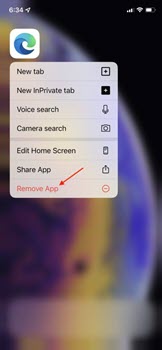
Step 4: On the next screen, you will get two different options: Delete App and Remove from Home Screen. Tap on Delete App to uninstall it. Selecting the Remove from Home Screen option will only remove the app from Home Screen and it will still be there in the App Library.
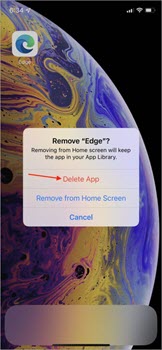
Step 5: If you tried from App Library, then the very first option on the Pop-up menu will be Delete App, tap on it.
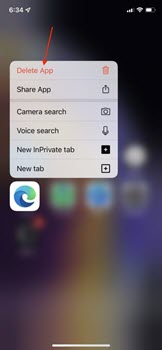
Step 6: The next screen will ask for a final confirmation tap on Delete. Microsoft Edge and all its data will be completely deleted on your iPhone.

Frequently Asked Questions
Q #1) Why can I not uninstall Microsoft Edge?
Answer: If you got Microsoft Edge in a Windows update, then you can not uninstall from settings. The Uninstall option will be grayed out. But It doesn’t mean you can’t uninstall Microsoft Edge from your PC. You can do it forcibly by using a command prompt. We have provided the steps needed to do it above in this article.
Q #2) How do I uninstall or disable Microsoft Edge?
Answer: You can uninstall or disable Microsoft Edge easily by going to Settings, Apps, Apps and Features and lastly tapping on Uninstall button. In case the Uninstall button is unclickable on your PC, then you use the command prompt to uninstall or disable Microsoft Edge forcibly.
Q #3) How do I disable Microsoft Edge in Windows 10?
Answer: To disable, you will have to use a command prompt to run a couple of simple commands. We have made things easier for you by not just providing those commands, but also by writing the steps needed.
Q #4) How do I uninstall Microsoft Edge from Windows 11?
Answer: You can uninstall Microsoft Edge from Windows 11 by using a command prompt. We have provided the commands needed above in this article along with the steps. Although the method is mainly for Windows 10, it works equally well on Windows 11.
Q #5) How do I permanently disable Microsoft Edge?
Answer: It has always been a problem even after uninstalling Microsoft Edge using Command Prompt. Microsoft pushes it again whenever you update your PC. To permanently disable Microsoft Edge, you will have to make some changes using the Registry Editor. We have provided the steps in the article to stop Edge from reinstalling.
Q #6) What happens if I uninstall Microsoft Edge?
Answer: If you uninstall it from your PC, it will be longer available as a default browser to open links. Uninstall any other browser to not just browse, but open links from email, documents, etc.
Conclusion
So, this is how you can uninstall Microsoft Edge on different devices. If you had installed Edge manually on your Windows PC, then it can be easily installed from Settings. If It got installed as a Windows update then you use the command prompt to uninstall.
Also Read =>> Ways to uninstall McAfee antivirus
We have also provided a little trick to stop reinstalling Edge on your PC. On Mac, uninstalling Edge is very easy and similar to uninstalling other apps.
As an Android user, you can uninstall Edge the same way you uninstall any other app. If you use an iPhone, then uninstalling Edge involves the exact steps needed in uninstalling other apps installed from the App Store.
Was this helpful?
Recommended Reading
-

This tutorial compares the top 10 Browsers for PC. You can select the fastest and best web browser most suitable for you: The word ‘browse’ can be used in many contexts and can have different meanings in different scenarios. For instance, ‘to browse’ means to scan, skim, or read and…
-
Learn How To Use Browserstack Mobile App and Cross Browser Testing Platform In This Detailed Hands-on Browserstack Tutorial: BrowserStack is the testing platform, to test the websites and mobile applications. We can test a web application in multiple browsers and mobile applications in all the mobile devices without any virtual…
-

Here is an in-depth tutorial on the process of browser automation through Geb Tool for your benefit: Geb (pronounced "jeb") is the answer to any kind of browser automation challenges. It is a very effective tool to perform automation testing over the web. Geb originated out of the need to…
-
This Tutorial Explains the Step-by-Step Process to Automate Web Applications on the Chrome Browser in an Android device with Screenshots and Examples: To automate a Web Application on Android device, follow the steps listed below: Connect the mobile device or Create an Emulator Get details of the mobile device ChromeDriver…
-
This tutorial explains why do we need to clear browser cache and different methods to Clear Cache in browsers like Chrome, Firefox, etc.: A few decades back no one would have ever imagined that a connection of numerous computers can lead to an evolution of the world's largest network, which…
-
Review this tutorial to learn all about Incognito mode. Learn to Open Incognito Tab on various browsers and different operating systems: Private browsing, or going Incognito, as we know it today, is not a new concept. It has been around since 2005. But it took some time for every browser…
-
Learn about infected Chromium web browser and its symptoms. This tutorial explains 6 different ways to uninstall Chromium Web Browser: Browsers are like keys to the Internet portal as they provide various tools and features that are very useful while accessing the Internet. Different web browsers are divided into subcategories…
-

IE Tester Tutorial: Learn To Use The Internet Explorer Tester Tool To Test The Website On Different Versions Of Internet Explorer IE Tester is a software that is used to check whether a particular website/webpage is working perfectly on all versions of Internet Explorer. Using IE Tester you can check…


I uninstalled Edge a long time ago.
However, since yet another Windows Crapdate that was forced upon me I still have Edge set as my default browser on a regular basis and still have to view loads of Windows spam when I search for anything on my Taskbar.
I can’t uninstall it using these methods you suggested (thanks anyway) and my best option is to aim for a MacBook as my next machine of choice.
It is amazing how the billionnaire owners will do this to beg for more money!
I use chrome instead of Edge… but i know when Edge pops back up in my taskbar because my system comes to a crawl making it irritating to watch movies or perform other tasks!!!! I DESPISE EDGE!!! IT WON’T STOP COMING BACK!!!
same as Kirsten above. do not get final message to uninstall on cmd
I hate Microsoft with a vengence which exceeds normality – I am using and always will use Linux. MS Edge is a pile of invasive shit malware – and is very hard to remove. Anyone who works for Microsoft is a parasite on humanity. I am forced to use MS windows for work and for some applications – and I really really really hate it. OMG – but God does not exist !!!!!
What you said.
I believe ‘Edge’ also confuses any other browser to force it’s use! To that effect it also seems to cause my computer to ‘crash’ on a number of occasions!
I delete a few of it’s apps a few days ago…and computer ran faster and didn’t seem to have operational problems until an MS update message came up with a red dot down on my taskbar. A number of times it’s updated AUTOMATICALLY which slows down my work even offline).
It has also converted my html files from Google into Microsoft’s icon version!
Isn’t that form of pirating?
Can you guys show me how to download LINUX?
How hard is it to do that?
Please feel free to contact me via my email!
I need help on this!
Thanks guys!
I asked the question on how to delete microsoft edge (notice I did not capitalize the words), off my computer. and the web is telling me all I can do is disable it, with no instructions on how to accomplish that task. This software is an extremely controlling piece of software, and I don’t care how many times you delete it or disable it, (well again they left no instructions for disabling) it keeps reloading and changing the changes for MY browser choices and search engine choices Bing is also up there in my choices for software to be deleted, as it eats up my memory and searches for other searches that have been found by a different search engine. I have yet to use Bing, and have it do anything except other searches, and never gives an answer.
Microsoft, please make the changes necessary to allow me and other people that choose to, use their own search engines, and not the ones that not only don’t work, but we hate. I have deleted Microsoft Edge, and now am unable to delete it, as Microsoft has changed my ability to change the previously noted information.
The command prompt instructions are not working for me with Windows 10 on my laptop. I am not getting the final message asking “Do you want to allow this app to make changes to your device”.
Likewise. Interestingly there is no screen image on the webpage showing how that is presented.
Edition Windows 10 Pro
Version 22H2
OS build 19045.4046
Experience Windows Feature Experience Pack 1000.19053.1000.0