Is your Firestick Remote not pairing? Discover the quick ways to pair Fire TV remote and understand how to Pair Firestick Remote to TV in just a few simple steps:
Firestick is perhaps one of my favorites of all the tech that has come out in the past decade. Simply plug it into an HDMI port and turn any TV into a smart TV. Now, when you do buy a Firestick set, you are going to get a few important accessories besides the main stick. The most important accessory out of the box would be the Fire TV Stick remote.
While this remote is easy to use, some users may find the initial setup associated with it rather tricky. If you are one of those folks, fret not, as I’ve got you covered.
Table of Contents:
- Pair Fire TV Remote: Simple Steps to Connect
- A Brief Overview of Firestick Remote
- Getting Your TV and Firestick Ready
- How to Pair Firestick Remote to TV
- How to Connect a New Firestick Remote via CEC
- What to do if Your Firestick Remote is Unresponsive?
- Fixing the Issue of Firestick Remote Not Pairing?
- Using Your Phone as a Firestick Remote
- FAQ’s on How to Pair Remote to Firestick
- Conclusion
Pair Fire TV Remote: Simple Steps to Connect
Don’t know how to pair the Firestick remote? Well, consider this article tailor-made for you.
My sole purpose in penning down this article was to help people like you pair a Firestick remote without breaking a sweat.
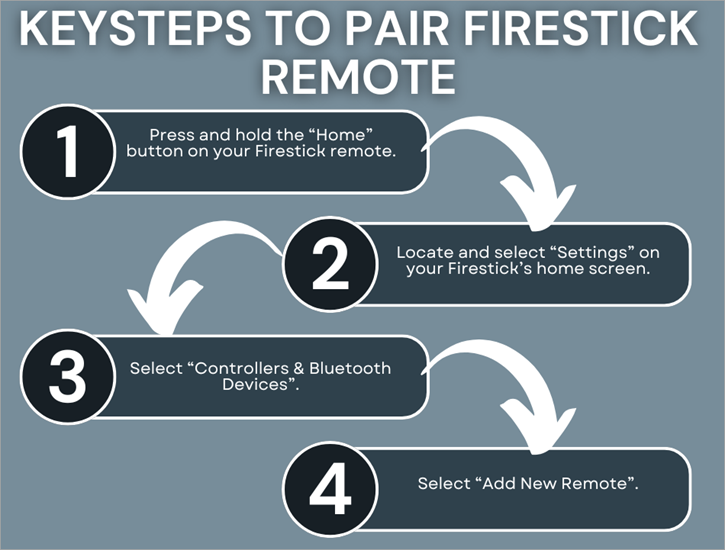
I’ll be walking you through the entire process step-by-step and even share a few tips on resetting the remote should the need ever arise.
Further Reading => Steps to Reset Roku Remote
So, without much further ado, let’s get started.
Here is a beginner’s guide to the Amazon Firestick:
A Brief Overview of Firestick Remote
Think of the Firestick remote like any other TV remote out there. It is a device that lets you control Amazon’s streaming media player. You can rely on the remote to navigate through Firestick’s entire interface from the comfort of your couch.
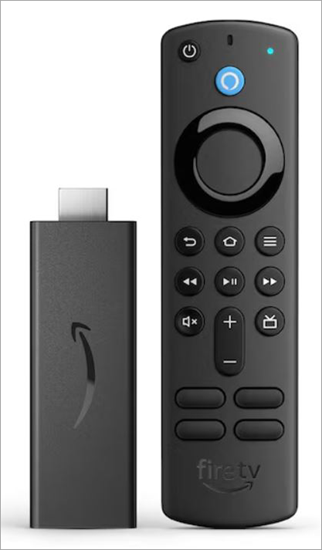
via Lowes
You could also use it to conveniently browse through the popular media player’s entire digital content catalogue, like movies, music, and TV shows. Furthermore, the remote comes in handy when accessing and controlling some of Firestick’s most prominent features.
Further Reading => Top-Rated Video Streaming Services
Recent versions of the remote also feature the capabilities of Amazon’s Alexa. This means you could give your TV voice commands via the remote. Needless to say, this remote is the perfect companion piece to the Firestick, and it is an essential accessory to have if you wish to enjoy a user-friendly experience on the device.
Now that you know what a Firestick remote does, let’s bring our focus back to the main concern of this article: How to pair Firestick remote to TV.
Getting Your TV and Firestick Ready
Before you begin the pairing process, it is important to prep your TV and Firestick up properly to ensure little to no hurdles along the way.
The very first thing you need to do, even before placing an order for your Firestick, is to make sure your TV is compatible with the media player. You want a TV that features HDMI connectivity. As most TV sets of today are designed to support all types of HDMI connectivity, you’ll probably not face any compatibility issues here.
Once you’ve checked for compatibility, it is time to connect the Firestick to your TV. Connect it to an empty HDMI port on your TV, and then plug the device into a nearby power outlet. Switch the Firestick on so we can proceed with the pairing process.
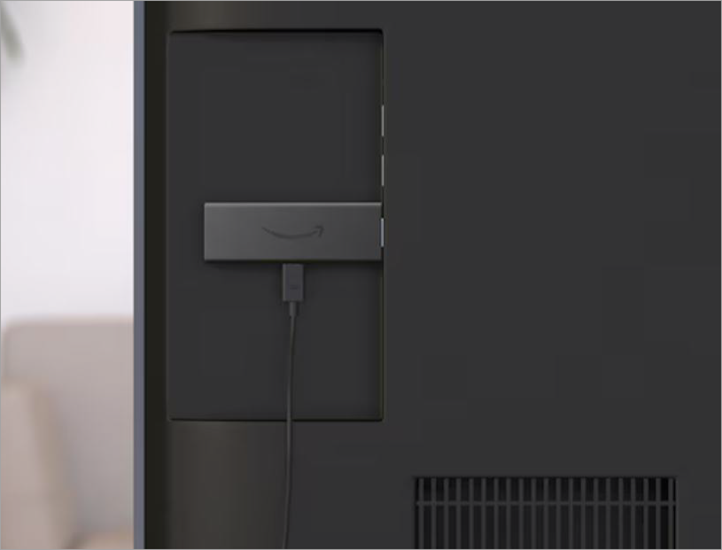
With your TV and Firestick device ready, it is time to learn how to pair the remote to Firestick.
How to Pair Firestick Remote to TV
Step-By-Step Guide on How to Pair a New Firestick Remote
1. Press and hold the “Home” button on your Firestick remote to kick-start the pairing process.
2. Now, pay attention to your TV screen. You’ll need to locate and select “Settings” on your Firestick’s home screen.
3. Under “Settings,” select “Controllers & Bluetooth Devices”.
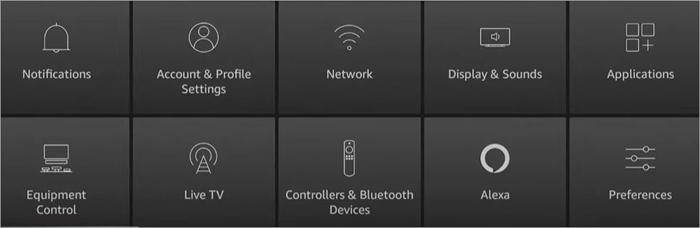
4. Under “Controllers & Bluetooth Devices”, select “Add New Remote”.
Also Read => Top Bluetooth Receivers
Once the pairing is done, it is also important to make sure your remote is perfectly in sync with the remote. You can ensure that is the case by doing the following:
- Go to “Settings”
- Choose “Equipment Control” => “Manage Equipment”
- Here, you’ll now find options to fine-tune how the remote controls your TV.
How to Connect a New Firestick Remote via CEC
Also known as Consumer Electronics Control, CEC is essentially a feature you’ll find on almost every TV and media player available today. CEC exists to considerably simplify the process of controlling devices like Firestick through a remote.
To ensure a hassle-free pairing between the Firestick and your TV, just make sure this CEC feature is supported by your TV. If so, simply enable it in the settings. You can find the option to enable CEC within your Firestick’s “Settings”. All you have to do is the following:
1. Navigate to “Settings” on your Firestick’s home screen.
2. Under “Settings”, find and select “Display and Sounds.”
3. Find the option that states “HDMI CEC Device Control”.
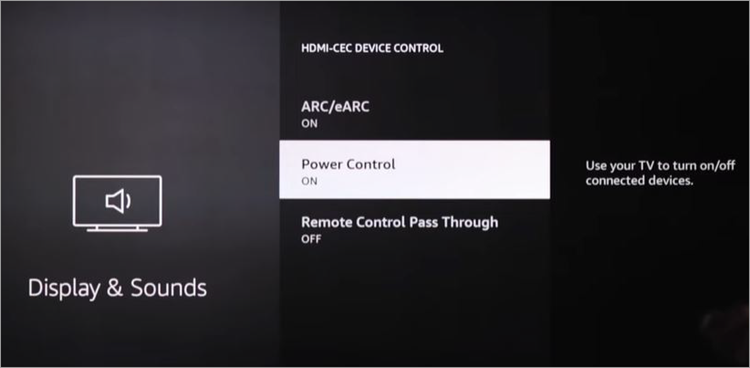
4. Click on it to enable it.
Your remote will automatically pair with the TV as soon as the CEC is enabled.
What to do if Your Firestick Remote is Unresponsive?
As is the case with most devices, your Firestick remote isn’t infallible. There might come a day when it isn’t working as it should. If your remote becomes unresponsive, I would suggest immediately taking measures to fix the issue.
Suggested Reading => Fix for Firestick won’t Load Home Screen
You could start by first checking your remote’s batteries. If the batteries are fine, then it is possible that the remote didn’t pair properly with your TV.
To ensure your remote is properly paired, press and hold the home button on your remote until you see a light blink on the remote. This rapidly blinking light indicates that your remote is trying to pair with the TV. You will see a notification on your TV screen if the pairing is successful.
If the issue still isn’t resolved, don’t lose hope just yet. Instead, follow the guide below:
Fixing the Issue of Firestick Remote Not Pairing?
- First, unplug the Firestick from your wall outlet. Keep it unplugged for at least 60 seconds.
- With the main device unplugged, press and hold the left, Menu, and Back buttons on your remote. Hold it for about 10 seconds max. Make sure to hold all three buttons at the same time. This might sound a bit uncomfortable, but I assure you it isn’t as difficult as it sounds.
- Wait for at least 5 seconds before you remove the batteries from your remote.
- It is now time to re-plug your Firestick device. Wait until the device fully resets once plugged in before you attempt re-pairing the remote.
- Time to put the batteries back in the remote as well.
- With your remote and TV set, press and hold the Home button for at least 10 seconds to start repairing.
It is recommended that you keep a 10-foot distance between yourself and the TV when controlling the remote.
This should fix the issue. If not, you will have to buy a new remote. Alternatively, you could save a lot of money by using your Smartphone as a Firestick remote instead.
Using Your Phone as a Firestick Remote
Firestick has an app available for both Android and iOS devices. This can turn any smartphone device into an intuitive Firestick remote control. Here’s how you do it:
Further Reading => Top Firestick Apps to Look For
1. Download the Amazon Fire TV app from your Google Play Store or Apple App Store, depending on what OS your smartphone operates on.
2. Install the app on your device by allowing every permission it requests.
3. You’ll eventually arrive at a screen that says “Connect To Remote” with your Fire TV device’s name beneath. Click on your device’s name.
4. You’ll now see a 4-digit PIN on your TV screen.
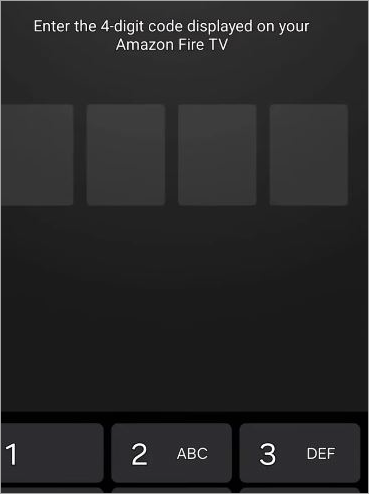
5. Enter this PIN in the designated section on your phone.
Once entered, you’ll now be able to control and access your Fire TV home screen via your smartphone.
FAQ’s on How to Pair Remote to Firestick
1. How to pair my Firestick remote?
I’ve mentioned a detailed version of this pairing process in the guide above. To summarize the same, follow the steps below:
1. Press and hold the “Home” button on your screen until a light blinks on your phone.
2. Navigate to “Settings”.
3. Choose “Controllers and Bluetooth.”
4. Choose “Add New Remote”.
5. Select the new remote to start pairing.
2. How do I get my Firestick to recognize my remote?
If your remote isn’t pairing with the TV, you’ll need to re-pair the remote. You can initiate the re-pairing by pressing the home button on your remote. I would also recommend checking your remote’s batteries if your remote is unresponsive.
Of course, you always have the option of using your smartphone as a remote as well, especially if you are in a hurry to catch your favorite show and don’t have time to fiddle with the device’s settings.
3. Does Firestick work without a remote?
It is recommended to use Firestick with a remote for a better, more convenient, and comfortable user experience. That said, you don’t have to use the remote that comes with your device. You can use your Android or iOS smartphone to control and access Firestick’s settings and digital content catalog with ease.
4. How do I remove an old remote from my Firestick device?
Removing an old remote from your Firestick device is as simple as connecting a new one. Simply follow the steps below:
1. Go to settings
2. Choose Controllers & Bluetooth Devices.
3. Choose Amazon Fire TV Remote
4. Now, select the remote you want removed and simply follow the instructions shown.
5. Is it possible to pair multiple remotes to a single Firestick device?
Yes, you can add multiple remotes to your Firestick device. The process of pairing new remotes will be the same. You go to Settings => Controllers & Bluetooth Devices => Add New Remote. Prepare the new remote for pairing by holding down the “Home” button to ensure there are no issues later on.
6. How do I reset my Firestick remote to my Firestick?
How you reset a Firestick remote will depend on what kind of remote you have. For most Firestick remotes, the following process will suffice:
1. Unplug your Fire TV completely. This means disconnecting it from the power supply and the HDMI input. Once done, wait for 60 seconds.
2. Now, press and hold the Left button on your remote, the Menu button, and the Back button. Hold them all at the same time for at least 12 seconds.
3. Release the hold and wait for 5 seconds.
4. Remove your remote’s batteries.
5. With the batteries removed, it is time to plug in your Fire TV and start it up again.
6. Put the batteries back and press the Home button.
Further Reading => Why is My Firestick So Slow
The blue blinking light on your remote is a sign that it has paired successfully with your TV.
If you own a Basic Edition Remote, do the following:
1. Press and hold the Home button. While holding that button, press the menu button three times.
2. Now, release the Home button and press the Menu button 9 times.
3. Remove your remote’s batteries.
4. Unplug your Fire TV from and wait for 60 seconds.
5. Put the batteries back in and plug in your Fire TV as well.
6. As soon as the Home screen appears, hold the Home button for 40 seconds.
7. Wait for another 60 seconds for the setup to conclude.
If you are using an Alexa Voice Remote, the process will be a bit different. Here’s how you can reset this remote:
1. Unplug your Fire TV and wait for 60 seconds.
2. Press and hold the Left and Menu buttons at the same time for about 12 seconds.
3. Release the buttons and now wait for up to 5 seconds.
4. Remove the remote’s batteries.
5. Now, plug in your Fire TV, boot it up, and wait for the on-screen remote detection error message.
6. This is your sign to put the batteries back in.
7. With the batteries in, press the Home button.
7. How to pair a new Firestick remote without the old one?
If you don’t have an old remote, your best bet to pair the new one would be to use the Amazon Fire TV app. This app is available for both Android and iOS devices. Download and install it on your phone.
Connect the new remote to the app and follow the usual pairing process. For successful pairing, make sure your Fire TV and mobile device are connected to the same Wi-Fi network.
Conclusion
How to pair the Fire TV remote? I’ve been coming across this question a lot on online forums. This guide was my response to this query in kind. I’ve used the Fire TV Stick occasionally and paired it with a remote as well as a smartphone.
As such, you can trust my expertise on this topic and rely on the guide above with closed eyes to pair your Firestick remote to a TV without hassle in no time. From pairing the remote to resetting it, I’ve covered as much ground as possible to ensure you encounter no issues while operating the remote and enjoy your time as a viewer using the popular streaming player.
I hope this guide can help you use the Firestick device and its remote to its fullest potential.
Was this helpful?
Recommended Reading
-

To keep you entertained in your comfort, here we have listed the Best Firestick Apps with comparisons, features, installation steps, etc: Firestick has taken entertainment up by a few levels. All your favorite channels, movies, sports, series, everything at one place at your fingertips. It comes with a massive library…
-

Are you looking for solutions to why my Firestick so slow? Then this expert guide provides you with effective solutions that will help you to fix it easily and quickly. If your Amazon Firestick operates slowly or shows buffering or lag in your stream, this will surely cause frustration for…
-
Here we will review and compare the most popular and top IPTV for FireStick and guide you to select the best IPTV service for FireStick: Internet Protocol Television or IPTV is quickly taking the online content streaming domain by storm. This advanced technology allows you to stream your favorite TV…
-
Facing issues with resetting Roku remote? Read this simple guide on how to reset the Roku remote to fix Roku remote reset issue and sync Roku remote back to form: Think about getting home from a long day of work and all you want to do is sit on the…