Have you ever wondered how a tiny device transforms your TV into a Smart TV and streams your favorite shows? Learn how Amazon Fire TV Stick exactly works with our complete setup guide:
Imagine the ability to turn any TV into a Smart TV. Well, this was the appeal that made devices like Amazon’s Fire TV Stick so popular almost a decade ago when it was first launched.
Despite the surge in smart TVs in recent years, demand for these devices remains high.
Table of Contents:
- Amazon Fire TV Stick Explained: Beginner’s Guide
- What is a Firestick and How Does It Work?
- Top Fire TV Stick Models With Price
- Comparing the Models Against Each Other
- How to Pick the Right Fire TV Stick Device
- Tips and Tricks to Get the Most Out of Your Fire TV Stick
- Alternatives to Fire TV Stick
- Frequently Asked Questions
- Conclusion
Amazon Fire TV Stick Explained: Beginner’s Guide
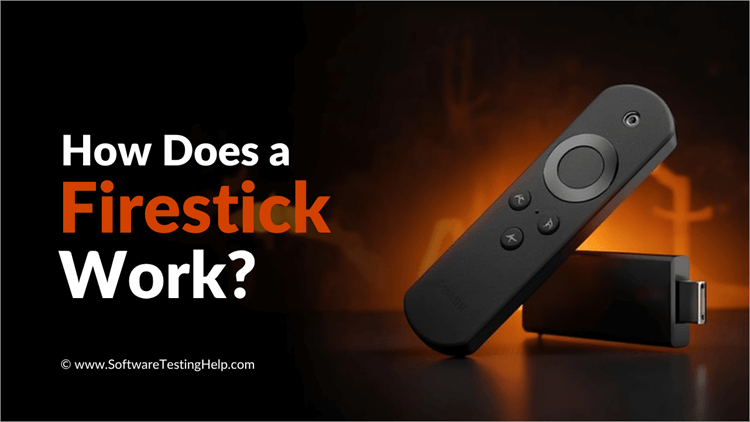
It is estimated that Amazon has sold over 250 million of these devices all around the globe. It makes for a wise investment, especially if you have a non-smart TV at home that’s in desperate need of an upgrade.
Before you set out to buy these devices, though, you must know everything there is to know about them. That is where my expertise comes into play.
Consider this your hands-on guide to the Amazon Fire TV Stick. I’ll cover what these devices are, how they work, where you can buy them, and more.
So, without much further ado, let’s dive in.
What is a Firestick and How Does It Work?
Firestick or Fire TV Stick is a streaming device or technology introduced by Amazon in 2014. It resembles a dongle or a USB flash drive that you plug into a TV’s HDMI port.
Once plugged in, it will turn an ordinary TV into a Smart TV. By that I mean, your ordinary TV will now have the ability to connect to the internet through a Wi-Fi network.
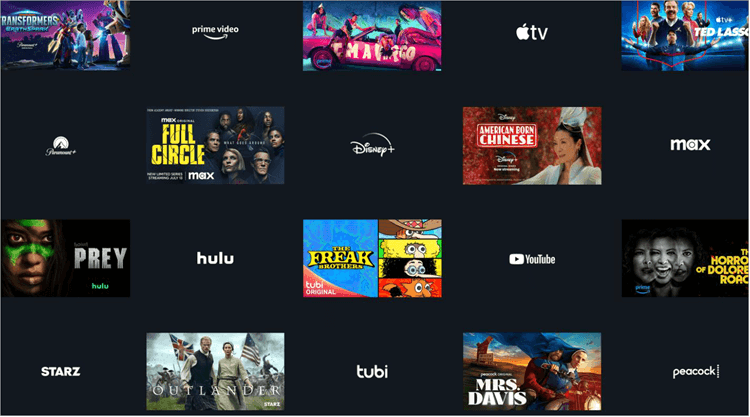
You’ll also be able to share photos and videos online through the cloud. You can stream movies and TV shows by downloading famous streaming apps like Netflix. Hulu, Amazon Prime, and more.
These tiny little devices come equipped with their own quite powerful processors, RAM, and GPU. Simply put, you are basically giving your traditional TV a much-needed performance and functional upgrade with a Fire TV Stick plugged into it.
What Does an Amazon Fire TV Stick Do?
Amazon’s Firestick can best be described as an inexpensive, powerful, and portable piece of streaming tech. To make it work, you’ll need to connect it to your TV’s HDMI port and then connect it to your Wi-Fi network.
Besides upgrading your TV’s functionality and performance, it also serves as a central repository for all of your Amazon-purchased content.
You can access all the movies, music, and videos you’ve purchased through an Amazon account via your Fire TV Stick. You’ll also have access to all pictures uploaded to your Amazon Cloud account.
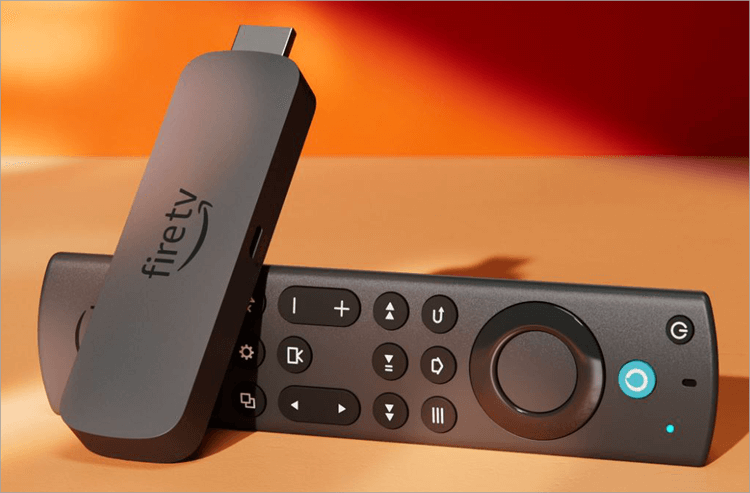
All Fire TV Stick devices come with a voice-controlled remote powered by Alexa. You can interact with the Firestick’s interface on your TV via this remote.
How Does a Firestick Device Work on a Smart TV
Now that we know what a Firestick is, let’s dive deeper and understand how a Firestick works with your TV. Most people accurately believe that a Firestick is used to turn an ordinary TV into a smart one. While that is true, you can also use Firestick to further upgrade an already smart TV. In what way? You might ask.
Well, while most Smart TVs come with streaming apps pre-installed, the selection you end up getting is pretty small. With a Firestick, you’ll have access to thousands of apps. This means a million movies, TV shows, and video games at your disposal.
Thanks to Alexa, discovery through Firestick is a lot easier than on your typical Smart TV. Imagine finding a show or movie that you wish to watch with a single voice command. That is the power a Fire TV Stick grants you.
A Step-By-Step Guide to Connecting a Firestick to a TV
Here’s a Guide: Connecting a Firestick to Your TV
It is quite simple to connect a Firestick to your TV. All you have to do is follow the step-by-step guide below:
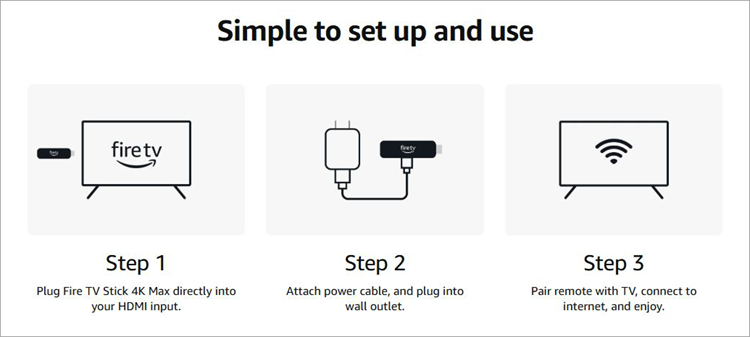
- First, you’ll need to plug the Firestick into one of your TV’s HDMI ports. You’ll find these ports at the back of your TV.
- Once plugged into the TV, you need to power them up. As such, connect the USB power cord to the Firestick and plug that USB into the power adapter. Connect this power adapter to a nearby outlet.
- Now, switch on your TV. Using your TV’s remote, select the source (HDMI 1, HDMI 2, HDMI 3) where the Firestick is connected.
- With your TV and Firestick powered up, it is time to prepare your Alexa remote. Place batteries into this remote and press any button on it.
- With the physical setup complete, you’ll need to follow the on-screen instructions. Use your Alexa remote to follow the on-screen instructions to complete the setup process.
- Once the setup is complete, connect the Firestick to your Wi-Fi network and then sign in to your Amazon account.
Your TV should generally default to the Fire TV Stick’s home screen whenever you switch it on. You can download apps like Netflix or Hulu to stream content on your TV. If you already enjoy an Amazon Prime Membership, you’ll already have access to Prime Video.
Top Fire TV Stick Models With Price
There are different versions or models of Firestick available in the market today. Each model differs with regard to noticeable hardware and software-related features.
This means you have a wide range of options in front of you when it comes to purchasing a Firestick. You could make an informed choice from these options after considering your requirements and budget.
Enlisted below are some of the noteworthy models:
#1) Fire TV Stick Lite
Of these models, the cheapest is the Fire TV Stick Lite. It is also one that’s really hard to come by in today’s market. If you are lucky and the product is in stock, you may buy it for as little as $20 on Amazon or Best Buy.
#2) Fire TV Stick HD
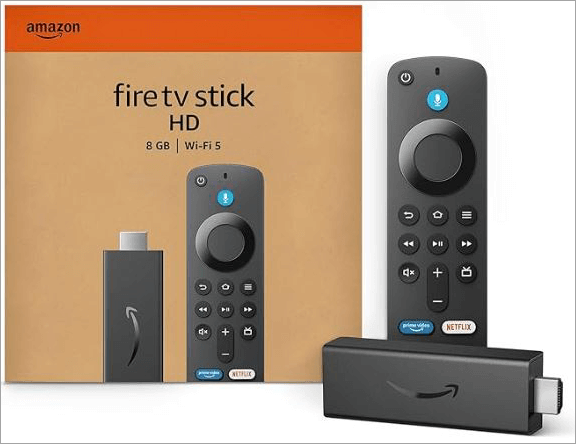
The other option you have is the original Fire TV Stick HD device. It offers features similar to the Fire TV Stick Lite, but is significantly more expensive for one reason: its remote.
While Lite’s remote only offers voice control, this model has buttons for volume, power, and mute. Buying this model will set you back by up to $35.
#3) Fire TV Stick 4K and 4K Max
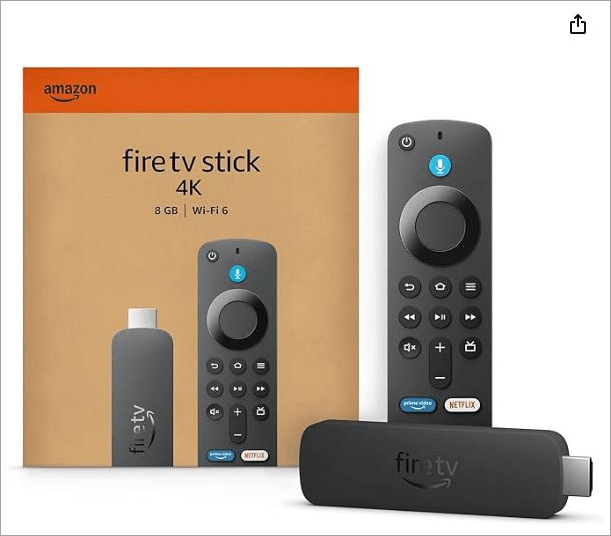
The above two options offer video output that’s capped at 1080P. If you wish for better output, then you can opt for Fire TV Stick 4K or Fire TV Stick 4K Max, which cost around $30 and $60, respectively.
Besides offering better video output, you can also expect considerably improved speed and performance with these devices.
#4) The Fire TV Cube
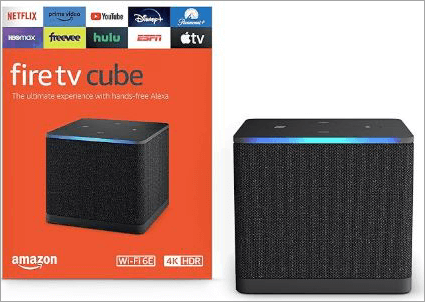
Launched in 2022, Fire TV Cube is a different beast in terms of both its physical appearance and performance. This device literally looks like a cube and connects to your TV through Bluetooth or Wi-Fi. Performance-wise, the Fire TV Cube represents a significant upgrade over your average Firestick dongle.
You get a RAM of 2 GB as opposed to the 1 GB RAM of a Firestick. The cube also supports 4K streaming. Unlike the Firestick, this cube also presents you with options for auxiliary expansions. You get ports for USB, HDMI, and Ethernet connections. It also features a microSD slot. As for its downside, at $140, this device is quite expensive.
Comparing the Models Against Each Other
| Firestick Model | RAM | HDR | Resolution | Dolby Atmos |
| Fire TV Stick Lite | 1 GB | HDR10, HDR10+ | 1080P | No |
| Fire TV Stick HD | 1 GB | HDR10, HDR10+ | 1080P | No |
| Fire TV Stick 4K | 2 GB | Dolby Vision, HDR10, HDR10+ | 4K | Yes |
| Fire TV Stick 4K Max | 2 GB | Dolby Vision, HDR10, HDR10+ | 4K | Yes |
| Fire TV Cube | 2 GB | Dolby Vision, HDR10, HDR10+ | 4K | Yes |
Where can you buy a Fire TV Stick?
There are many stores, online and offline, selling Firestick devices in America. It is convenient to place an order online through websites like Amazon or Best Buy.
That said, these are listed as best-selling items on both websites and are usually out of stock. If you can’t find them online, you could try looking for them in nearby retail stores like Staples, Walmart, and Target.
What to Expect From Your Firestick Purchase
A typical Firestick device will come with everything you’ll need to set up the device and power it up.
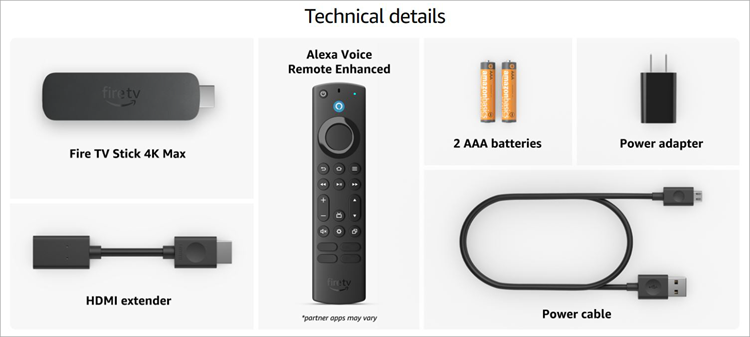
You can expect the following items in your box, regardless of which model you’ve purchased:
- A USB Cable
- The Fire TV Stick dongle
- Power Adapter
- HDMI Extender
- 2 AAA Batteries
- Alexa Voice Remote
How to Pick the Right Fire TV Stick Device
With multiple models to choose from, you might wonder which of these options would suit you best. To make an informed decision, I suggest you consider the following factors.
i) Why do you need it?
What exactly do you need a Fire TV Stick for? Do you need it to turn your ordinary TV into a smart TV? Do you wish to upgrade your existing Smart TV with a few advanced features, or do you wish to play games on your TV? Perhaps you want to use the Firestick to turn for digital signage.
Knowing why you need a Fire TV Stick will help you choose the right model. For instance, it makes sense to go with the 4K model of Fire TV Stick if you intend to stream movies in pristine picture quality or play video games.
ii) Video Output
As I mentioned before, Fire TV Stick HD and Lite versions offer Full HD Video output, whereas Fire TV Stick 4K and 4K Max offer 4K video output. Depending on the output you need or are comfortable with, choose the model accordingly.
iii) Budget
How much are you willing to spend on a streaming device like the Fire TV Stick? Is the price worth it? These are also questions you’ll need to ask to decide you won’t end up regretting. Budget-wise, you can choose from various options with prices ranging from as little as $20 to as high as $140. Stick to your budget to make a wise decision.
iv) Hardware Considerations
All five models differ from each other with respect to their built-in hardware, which affects their performance. Basic Fire TV Stick models offer you 1 GB of RAM with 8GB of storage, whereas advanced models offer you 2GB of RAM with 16 GB of storage.
If your goal is to only stream movies and TV shows via your Fire TV Stick, then opt for the basic models. Go for the advanced models if you want to use your Fire TV Stick for digital signage or playing video games.
Tips and Tricks to Get the Most Out of Your Fire TV Stick
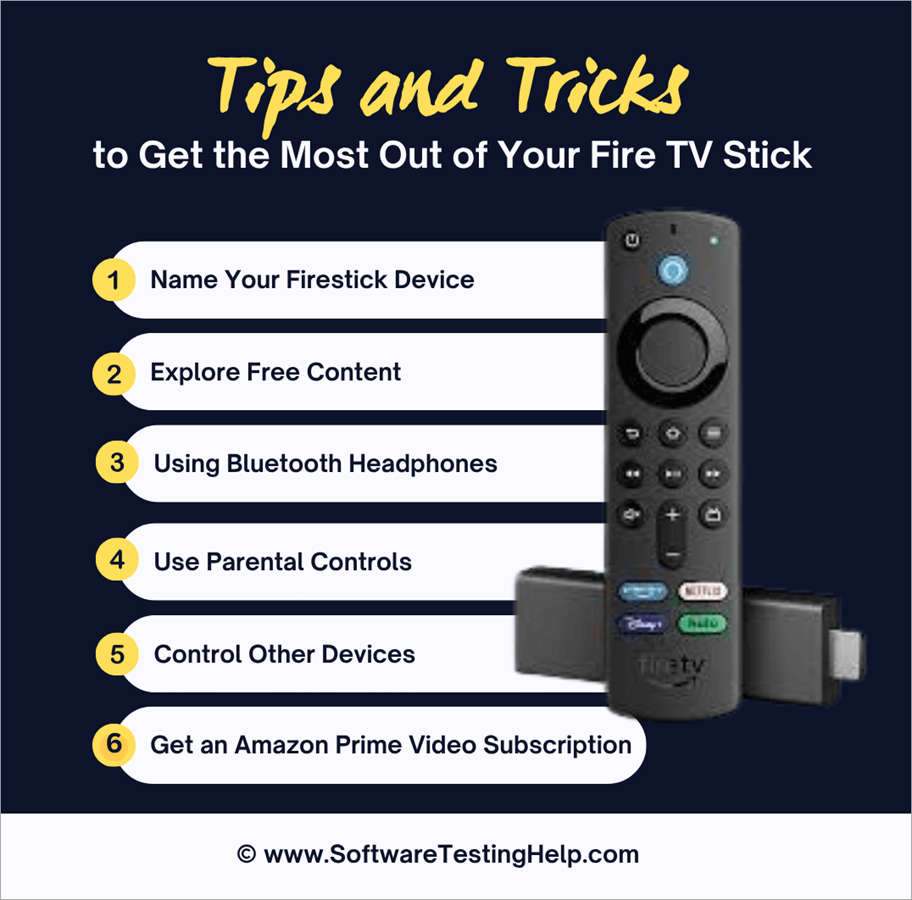
Now that you know how much a Firestick and how it works, allow me to share a few tips and tricks that could help you get the most out of your recently purchased device.
#1) Name your Firestick Device
You’ll need to connect your Firestick device to your home’s Wi-Fi network and establish other wireless connections. That will be easier if your Firestick has a name, helping you easily find and connect to it.
Naming the device will make device management easier inside your Alexa app. You can change your Firestick’s name under Settings => Devices tab.
#2) Using Bluetooth Headphones
Bluetooth headphones are the best for enjoying movies with surround sound. They are also recommended if you are living with other people in a house, as you don’t want your entertainment disturbing others. Connecting your Fire TV Stick to a Bluetooth device is simple.
All you have to do is:
- Settings
- Controllers and Bluetooth Devices
- Other Devices
- Add Bluetooth Device
#3) Use Parental Controls
Don’t want kids at home accessing mature content? Fire TV Stick’s got you covered with its exceptional parental control features. You can use this feature to set age restrictions on content readily available online.
To enable parental controls, simply do the following:
- Settings
- Click on Preferences
- Select Parental Controls
#4) Control Other Devices
Your TV isn’t the only thing a Fire TV Stick can control. Through a feature called HDMI CEC, you could control almost all devices connected to your TV through its HDMI port via the Fire TV remote. To do this, you’ll need to enable your TV’s HDMI CEC feature.
Here’s how to turn on this feature:
- Open Settings
- Display and Sounds
- Select HDMI CEC Device Control
Make adjustments after considering your room’s device setup for better results.
#5) Get an Amazon Prime Video Subscription
Firestick will take care of your daily entertainment fix when used to access your Amazon Prime Video Subscription. You’ll have instant access to thousands of movies and shows – content you can enjoy in the best picture and sound quality.
Of course, you’ll need to purchase a Prime Video subscription to enjoy these privileges. Prime Video’s monthly subscription will cost you $8.99, whereas its annual alternative costs $107.88. You’ll need to pay an additional $2.99 for an ad-free upgrade.
You can also get Prime Video via an Amazon Prime Membership, which costs $14.99 per month and $139 per year.
#6) Explore free content
As soon as you launch your Fire TV Stick, you’ll be enamored with millions of movies and TV shows. While you’ll need to pay to see most of these titles, you can also access some for free via ad-supported streaming services like Amazon’s miniTV.
Alternatives to Fire TV Stick
Fire TV Stick isn’t the only streaming tech available to you. Although I believe Fire TV Stick is the best out there, it won’t hurt you to explore other options.
#1) Roku Stick
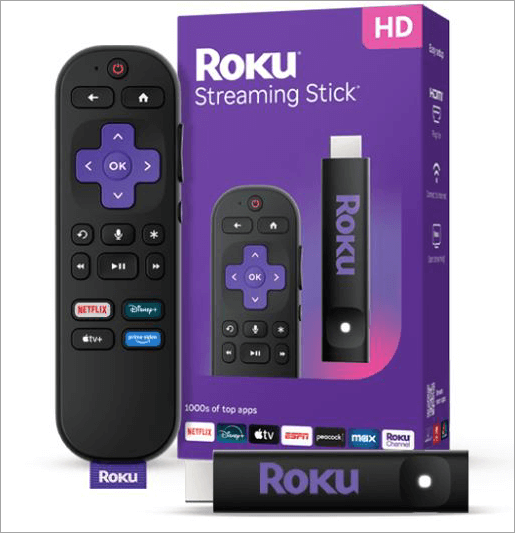
Roku is perhaps the closest any technology could come to serving as an alternative to the Fire TV Stick as solely a portable streaming device. It isn’t as powerful or as fast as your average Fire TV Stick device.
However, it does make up for its limitations with an easy-to-use device that features a voice-controlled remote, decent storage capacity, and a massive app store.
Website: https://www.roku.com/products/players/roku-streaming-stick?srsltid=AfmBOookKxZKbwqn3YOGcXNBLTiN1VrObN1mIUKLRulKDrL1pTzdfxJr
#2) Google Chromecast
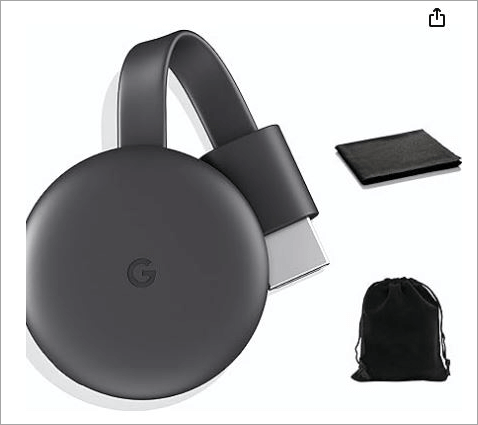
Google Chromecast is yet another alternative to the Fire TV Stick that you can use to turn your TV into a smart TV. You can rely on this device to stream movies, watch shows, listen to music, and play video games in picture quality as high as 1080p.
It also grants you access to content from over 2000 streaming apps. That said, Chromecast is expensive and could set you back by $80.
Website: https://www.amazon.com/Google-Chromecast-Streaming-Cleaning-Compatible/dp/B0CF4HMW5K
#3) Apple TV
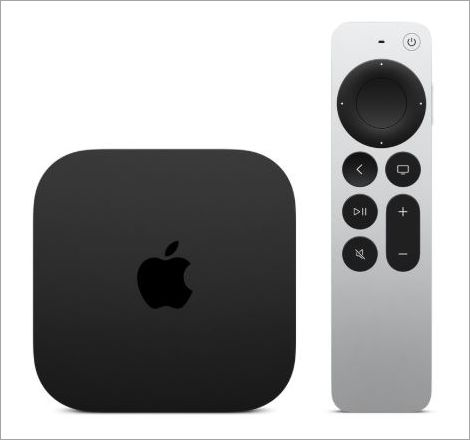
You don’t get a dongle with Apple TV. However, this streaming device is small enough to sit comfortably on your TV. Its relatively bigger size also means that the device is considerably more powerful than a Fire TV Stick. The device comes with a port for Ethernet connection, an A15 bionic chip, and a storage capacity of 128 GB.
Website: https://www.apple.com/shop/buy-tv/apple-tv-4k/64gb?afid=p240%7Cgo~cmp-11305110662~adg-109557508463~ad-560788360445_pla-2291750646698~dev-c~ext-~prd-MN873LL%2FA~mca-3622330~nt-search&cid=aos-us-kwgo-pla-btb–product-MN873LL%2FA
Frequently Asked Questions
1. Do you need to plug in a Firestick for it to work properly?
Yes, a Firestick needs to be plugged into a TV’s HDMI port and a nearby outlet through a power adapter for it to work properly. You’ll get everything you need to make a Fire TV Stick work when you purchase this item from a retailer or online store.
2. How does a Firestick work without WiFi?
A Firestick needs an internet connection to perform its function. You’ll need to connect it to your home’s Wi-Fi network to stream content via apps like Netflix, YouTube, Hulu, etc.
That said, there are some apps like Kodi that don’t need a constant internet connection. You could enjoy these apps on your Firestick without Wi-Fi.
3. How does a Firestick work with a projector?
A Firestick works with a project the same way it works with a TV. You’ll need to connect the Firestick to your Projector’s HDMI port and then power up the device by plugging it into a nearby outlet via the power adapter provided to you in the package.
From here, you’ll need to follow the setup process I’ve laid out in the article to get the device working with your projector.
4. How does a Firestick work without cable TV?
A Firestick does not need a traditional cable connection to do its job. In fact, it serves as an alternative to cable TV, allowing you to stream content online. You’ll need to connect a Firestick to your home’s Wi-Fi network and then download apps like Netflix or YouTube to stream movies and shows.
5. Does Firestick allow a Bluetooth connection?
Yes, all Fire TV Stick devices allow Bluetooth connection. You can connect your Firestick to a remote, game controller, or headphones, and other Bluetooth-enabled devices.
6. What TVs are compatible with a Fire TV Stick device?
All Firestick devices work with any TV that comes with HDMI ports. It doesn’t matter how new or old the TV is. As long as it has an HDMI port, it will work with a Fire TV Stick device.
7. Is an Amazon account necessary to use a Firestick?
Yes, a basic Amazon account is necessary to use a Fire TV Stick device. You can have one account and use it across multiple Firestick devices.
8. Can a smartphone be used as a Firestick remote?
Yes, you can use your smartphone as a Firestick remote. However, you’ll need to download the Amazon Fire TV app on your iOS or Android device. This will turn your smartphone into a remote that controls your Firestick device.
Conclusion
So, there you have it, a comprehensive guide that covers everything there is to know about how a Firestick works. It isn’t rocket science. These devices are easy to set up and even easier to use once plugged into a TV. You can use them to give your TV a necessary upgrade and access millions of movies or TV shows on it.
Alternatively, you could also use these devices as a central portable repository for all the content you’ve purchased via Amazon. You can buy them for as cheap as $20 from online stores like Amazon or Best Buy. You can find them at your local Target, Walmart, or Staples store as well.
If you are keen on upgrading your TV, I suggest you use my guide to purchase one of these devices and set it up immediately.
Research Process: The total time involved to complete and publish this article is approximately 32 hours. This content was created through a structured research approach to ensure accuracy and reliability.
For more Firestick-related guides, check our tutorials below:
- Why is my Firestick So Slow & Keep Buffering: Speed It Up
- Ways to Fix When Fire Stick Won’t Load Home Screen
- 20 Best Firestick Apps for Movies, Live TV
- The 13 Best IPTV For FireStick (Paid And Free Services For 2026)
- How to Fix FireStick Keeps Restarting Issue
Was this helpful?
Recommended Reading
-

To keep you entertained in your comfort, here we have listed the Best Firestick Apps with comparisons, features, installation steps, etc: Firestick has taken entertainment up by a few levels. All your favorite channels, movies, sports, series, everything at one place at your fingertips. It comes with a massive library…
-
Is your Firestick Remote not pairing? Discover the quick ways to pair Fire TV remote and understand how to Pair Firestick Remote to TV in just a few simple steps: Firestick is perhaps one of my favorites of all the tech that has come out in the past decade. Simply…
-
Here we will review and compare the most popular and top IPTV for FireStick and guide you to select the best IPTV service for FireStick: Internet Protocol Television or IPTV is quickly taking the online content streaming domain by storm. This advanced technology allows you to stream your favorite TV…
-

Are you looking for solutions to why my Firestick so slow? Then this expert guide provides you with effective solutions that will help you to fix it easily and quickly. If your Amazon Firestick operates slowly or shows buffering or lag in your stream, this will surely cause frustration for…