Are you looking for ways to Cancel Peacock Membership? Explore the simple steps to learn how to Cancel Peacock TV Subscription easily in just a few minutes:
Peacock is another in a barrage of streaming platforms dominating the entertainment industry. Thanks to its affordable subscription plans and interesting content catalog, Peacock has established a stable foothold among behemoths like Amazon Prime and Netflix in an impressively short time.
It is simple to subscribe to Peacock’s services and even simpler to cancel. Despite this simplicity, I’ve come across many people confused about how to cancel a Peacock subscription. This confusion largely stems from their inability to navigate the platform’s interface.
If you are one of those folks facing this issue, fret not – I’ve got you covered. My goal with this article is to provide a definitive answer to the often-asked question, “How do I cancel Peacock?”
Table of Contents:
Is It Hard to Cancel Peacock Subscription: Explore
So, without much further ado, let’s get started.
Here is the video to know more about Peacock:
Quick Steps to Cancel Peacock Subscription
| Platform | Payment Made Through | Steps |
|---|---|---|
| Web | — | Login > Profile > Accounts > Plans and Payments > Cancel Plan |
| iPhone | App Directly | Open App > Accounts > Plans and Payments > Cancel Plan |
| Through Apple Store | Open iPhone settings > Apple ID > Subscriptions > Peacock App > Cancel Subscription. | |
| Android | App Directly | Open App > Accounts > Plans and Payments > Cancel Plan. |
| Through the Play Store | Open Play Store > Profile Icon > Payments and Subscriptions > Subscriptions > Peacock App > Cancel Subscription. | |
| Roku | Roku TV | Home > Peacock TV App > Click * on Roku Remote > Manage Subscriptions > Cancel Subscription |
| Roku Website | Login > Manage Accounts > Manage My Subscriptions > Active Subscriptions > Peacock TV > Unsubscribe | |
| Amazon Fire TV | Website | Login > Accounts and Lists > Memberships and Subscriptions > Peacock TV > Cancel Subscriptions. |
| Firestick | Settings > Accounts and Profiles > Prime Video > Prime Video Channels > Peacock TV > Cancel Channels. |
What is Peacock

Peacock is a streaming platform launched by NBC Universal, one of the biggest names in the American broadcasting industry. Launched in July 2020, the platform has experienced many ups and downs in the four years since its inception. Despite some tough competition, the platform has garnered a loyal base of users.
Today, it caters to a commendable 36 million subscribers. The platform is home to hundreds of blockbuster movies and popular TV shows. Naturally, you’ll find almost all of NBC’s popular shows on the platform. You can also find original Peacock-exclusive shows and movies on the platform. Although this catalog isn’t as extensive as the ones found on Netflix or Amazon Prime.
One area where Peacock does have an edge, though, is in its broadcasting of live sports and events. A premium subscription to Peacock will allow you to stream some of the most hotly anticipated live sporting events in the best quality possible.
Those with an affinity for catching live events online are going to adore this streaming service.
Peacock’s Subscription Plans
The kind and extent of entertainment you’ll enjoy on Peacock will ultimately depend on your subscription plan. Peacock offers two premium plans to its users.
Here is the video to know more about the difference between Peacock Premium vs. Premium Plus:
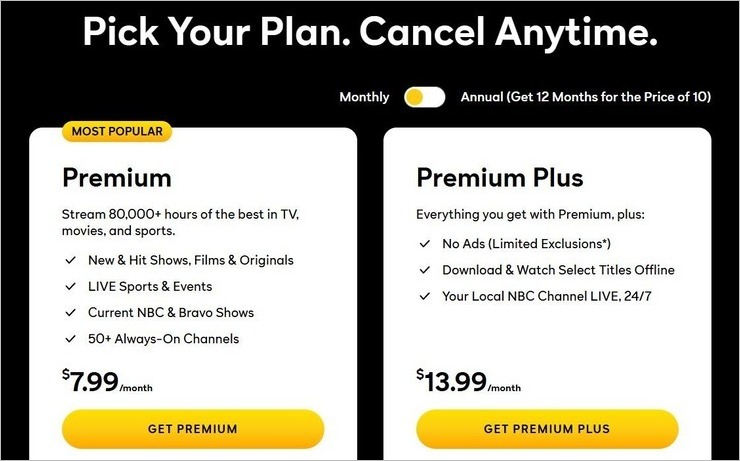
The Premium plan will cost you $7.99/month and $79.99/year. This plan will grant you access to the biggest hits currently airing on NBC and Bravo channels, over 50 always-on channels, and a plethora of live sports and events. Besides this, you’ll also get to enjoy Peacock’s ever-expanding library of Movies and TV shows. You can stream them all in pristine 4K quality.
The downside of this plan is the ads, which you can avoid with an upgrade to the Premium Plus plan. This plan will cost you $13.99/month and $139.99/year. Barring a few exclusions, there will be no ads interrupting your streaming experience. You’ll also have the privilege of downloading and watching certain titles offline. Plus, you get 24/7 access to your local NBC channel.
In essence, I think Peacock hits a home run with its subscription plans. It is affordable, and the content you get is worth every penny spent. I think the price is competitive when you consider the plans other streaming platforms are offering nowadays.
Why Cancel a Peacock Subscription?
Long ago when I subscribed to Peacock, I did so because I wanted to binge-watch two Peacock-original shows. Once I was done, I felt there was nothing else to watch. So naturally, I canceled my subscription.
The reason for my cancellation is also a major reason why anyone would want to cancel Peacock membership. The monthly or annual subscription auto-renews unless you expressly cancel the subscription. If you aren’t watching Peacock and still have a subscription to the platform, you have consented to have your bank account debited each month for its fees unless you hit the cancel button.
Once you cancel the subscription, you can always rejoin the service. Some might find the price to be not that great and choose to cancel their membership. Perhaps you just wanted to try the service out, and now that you have, you would like to end the membership, as you didn’t find anything worth latching onto.
Whatever your reason to unsubscribe may be, know that it is simple and I will now walk you through the steps.
How to Unsubscribe From Peacock?
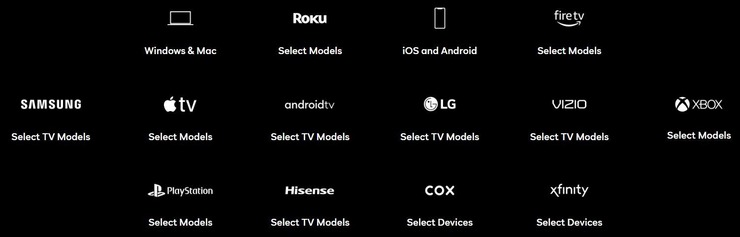
So, how do you cancel a Peacock subscription? Well, the answer to that question is similar, but will vary depending on the device on which you are using the service. You can stream Peacock’s content on a Windows or Mac system, on an Android or iPhone device, on a smart TV, Roku, or Amazon’s Fire TV.
I’ll walk you through the cancellation process on each of these platforms.
#1) How to Cancel Peacock Subscription on Web
If you are using Peacock online on your Mac or Windows devices, here’s how you can unsubscribe through a series of quick steps:
- Log in to your Peacock account.
- On the home page, navigate to the profile icon at the top-right corner of your screen.
- Now select the Accounts option (gear icon) at the top-right corner of your screen.

- You’ll be directed to the plans and payment section.
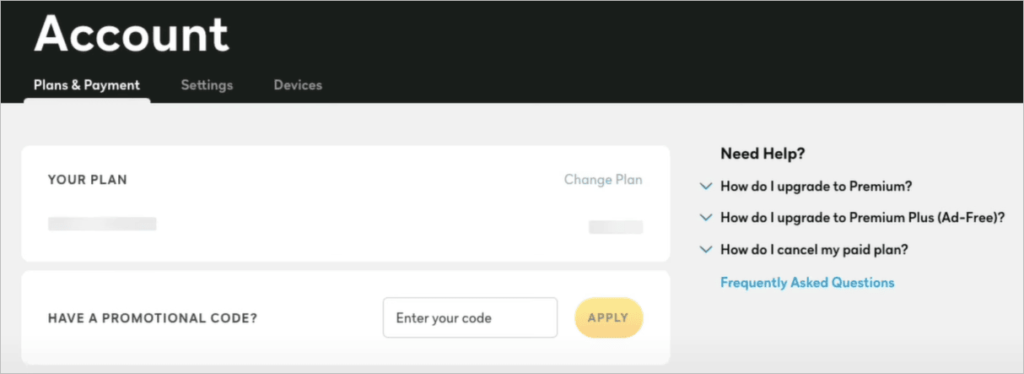
- Here, you’ll see your current plan, and right below it, in red, you’ll see the option to Cancel Plan. Click on it.
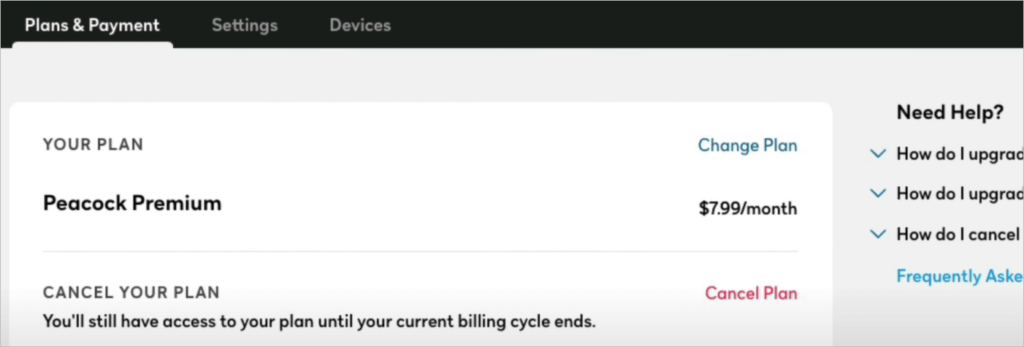
- You’ll be asked whether you are sure to cancel your plan. Hit the cancel plan button again.
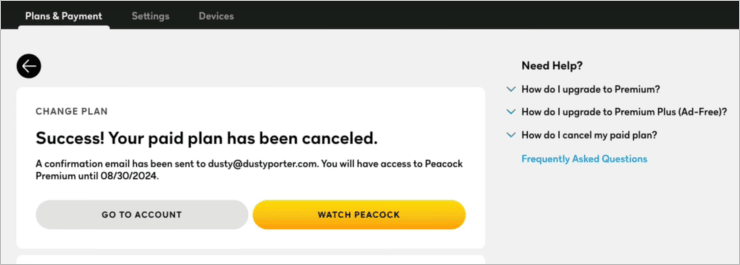
You’ll receive an assurance in the words, – Success! Your paid plan has been canceled.
#2) How to Cancel Peacock on iPhone
I) Through App Directly
If you know how to cancel Peacock on the web, pretty much the same steps will apply once you log into your Peacock Apple app.
- Open your Peacock app and select Accounts.
- In the Plans and Payments section, you’ll see your current plan and the option to Cancel Plan in red.
- Click on the cancel option, and you will successfully cancel your Peacock account.
II) Through the Apple Store
Apple iPhone devices make it very convenient for you to manage all of your subscriptions across multiple platforms. If you’ve paid for the app through the Apple store, I suggest you do the following:
- Go to the Settings section of your iPhone.
- Click on your Apple ID.
- Next, Click on Subscriptions.
- Select the Peacock App from the options provided.
- Tap on Cancel Subscription.
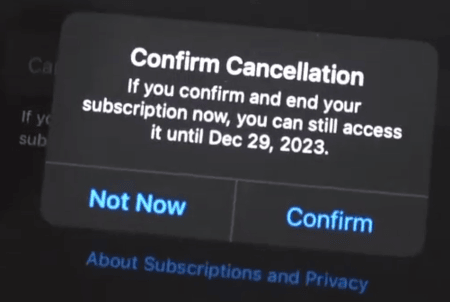
- Tap Confirm when asked to confirm whether you want to cancel your Peacock membership.
There you go, the answer to the question – “How do I cancel Peacock on my iPhone?”
Also Read => How do Apple AirTags Work
#3) How to Cancel Peacock on Android
Canceling a Peacock subscription on an Android device is similar to canceling the service on an iPhone. Here’s how you do it:
I) Through the App Directly
- Open the Peacock App on your Android phone.
- Navigate to the Account option.
- In the Plans and Payments section, find the Cancel Plan button and tap on it.
- Confirm your cancellation when prompted to complete the process.
II) Through the Play Store
You don’t even need to open the Peacock app to cancel it if you’ve paid for the app through the Play Store.
- Open the Play Store and navigate to your Profile icon at the top-right corner.
- Now, click on Payments and Subscriptions.
- On the following page, click on Subscriptions.
- You’ll find all your active subscriptions here. Select Peacock and tap on the Cancel Subscription button.
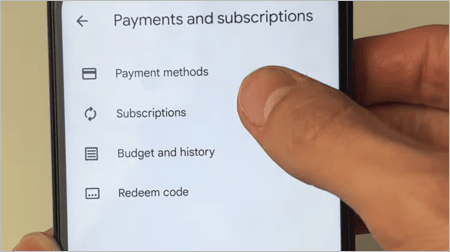
- Tap on “Confirm” to conclude the process.
#4) How to Cancel Peacock on Roku
If you are using Peacock on your Roku device or have paid for Peacock through Roku, follow the steps below to cancel your Peacock membership:
I) Via Roku TV
- Click Home on your Roku remote.
- On the home page, find Peacock.
- When you’ve highlighted it on the page, hit the asterisk sign on your remote.
- This will bring up a menu. Find and click on “Manage Subscriptions”.
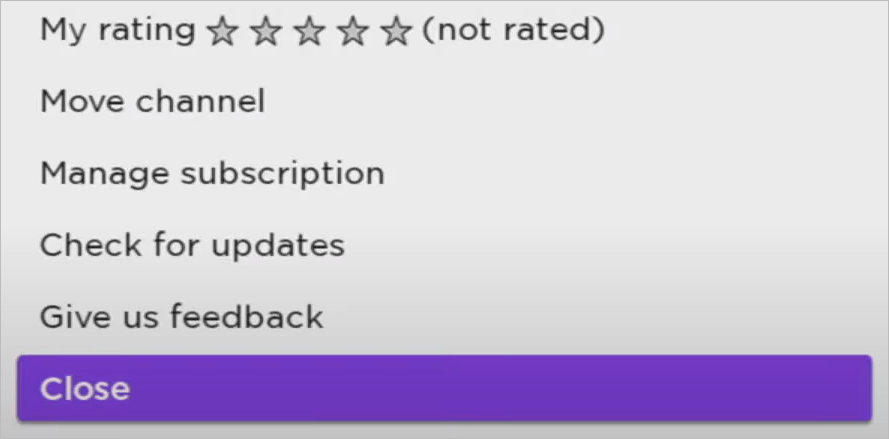
- In the ensuing window, click on Cancel Subscription to end Peacock membership.

- Confirm the cancellation to conclude the process.
II) Via the Roku Website
- First, open and log in to your Roku account.
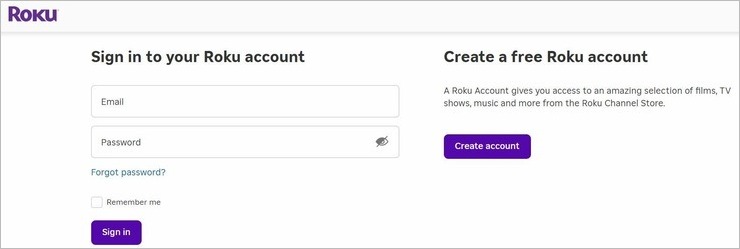
- Navigate to “Manage Accounts”.
- Follow it up by opening the “Manage My Subscriptions” page.
- You should find your Peacock subscription under the “Active Subscription” section.
- Click on “Unsubscribe” next to it and you’ll be successful at terminating your Peacock TV subscription.
Suggested Read => How to Turn Off Roku Device to disable it permanently
#5) How to Cancel Peacock on Amazon Fire TV
Do the following to cancel Peacock on Amazon Fire TV or any other Amazon streaming device:
I) Via The Amazon Website
- Open Amazon.com and log in to your Account.
- Now navigate to “Accounts and Lists” and scroll down to “Memberships and Subscriptions”.
- On the “Memberships and Subscriptions” page, you should find your Peacock or any other subscription you have.
- Select Peacock and click on the “Cancel Subscription” button.
II) Via Amazon Firestick
- On your Firestick interface, navigate to the “Gear” icon and click on it.
- Next, you’ll need to click on the “Accounts & Profiles” settings.
- Select Prime Video from the options presented to you.
- Scroll down to the bottom of the page to find “Prime Video Channels”.
- Under “Prime Video Channels”, find information on your Peacock TV subscription and hit the “Cancel Channels” button right next to it.
Further Reading => Why Does My FireStick Keep Restarting? Possible Solutions
Upgrading or Downgrading Your Peacock Subscription
Sometimes, when people wonder “how to cancel my Peacock subscription”, it is not because they aren’t satisfied with the service. It could be because they would like to either upgrade or downgrade their plan. If you are on the base premium plan, you would want to upgrade to the Premium Plus plan, and vice versa.
That said, you don’t have to go through the trouble of unsubscribing only to subscribe again with a different plan. You can simply choose to change the plan from within your account.
Here’s how you do it:
- Go to the Accounts option at the top-right corner of your screen.
- On the Plans and Payments page, select “Change Plan” instead of “Cancel Plan”.
- Choose the plan you want and hit “Confirm”.
It is that simple. You can switch between plans freely throughout your run with the service.
FAQs on Cancel Peacock Membership
1. How do I find my Peacock Account?
If you can’t remember your Peacock password or username. There are easy ways around this situation. Peacock itself helps you log into your account if you’ve forgotten your credentials by simply clicking on the forgot password button.
To find your Account name, I suggest looking for emails from Peacock in your inbox, spam, and junk folders. You can also rely on the Peacock Account Finder to help you.
2. How do I remove a payment method from Peacock?
Removing or changing a payment method to pay for your subscription is simple in Peacock. Simply navigate to the Plans and Payments page and select Update Payment Method. Click on the payment options provided to you to change your payment method and hit “Confirm”.
For instance, if you were paying for your subscription through a credit card. You can switch the payment method to PayPal using this process.
3. How do I check the status of my Peacock subscription?
To check the status of your Peacock subscription, follow the steps below:
– Open the Accounts section on your Peacock page.
– You’ll be navigated to the Plans and Payments section.
Here, you’ll be able to view your current plan, when it will expire, or auto-renew. You’ll also be given options to cancel your plan or change it.
4. Does Peacock automatically renew?
A major reason why people unsubscribe is because of auto-renewal. Peacock’s subscription will auto-renew on a monthly or annual basis, depending on your plan. There’s no way to prevent the auto-renewal besides canceling your subscription. You can cancel your membership via the methods I’ve shared above.
5. Is Peacock TV free?
Peacock TV used to be free with members getting access to certain content with ads. However, this free version was discontinued in early 2023. The only way to access Peacock TV now is through its premium subscription plans, which I find competitive.
6. How do I deactivate a Peacock Account?
Deactivating a Peacock account is different from canceling a subscription. This would basically mean you wish to delete any trace of having an account with Peacock. To do this, you’ll need to send a request for deletion of personal information to Peacock’s support team.
Once your request is granted, any trace of your Peacock TV account will cease to exist. To restart your Peacock subscription, you’ll need to open a new account.
7. How to delete a payment method on Peacock?
You cannot delete a payment method while your account is active. You’ll need to delete your Peacock account to erase any payment information. However, you can update your payment method if you don’t wish to be billed through your usual option.
To update your payment method, simply navigate to “Plans and Payment” -> “Payment Method” -> Update Payment Method”. Once there, you can update your payment methods by selecting any of the given options.
8. Does Peacock have customer service?
Yes, Peacock has an active and very responsive customer service. You can get in touch with the support team via email or chat with a live agent, who is available from 9:00 AM to 1:00 AM ET. You can also reach out to the support team via Facebook, Twitter, and Instagram.
Conclusion
Ultimately, the answer to how to cancel a Peacock subscription will depend on how you paid for it and on what platform you are using it. I’ve virtually covered all popular platforms that people choose to stream Peacock’s service on. One glance at the steps and you’ll know just how simple it is to cancel your membership.
In hindsight, I think Peacock is a great streaming platform with a lot to offer. Its gallery may not offer a consistent supply of good entertainment. If that’s the case, you can cancel your membership anytime and resume again once you have something to watch that’s worthy of your hard-earned dollars.
Was this helpful?
Recommended Reading
-

This tutorial will teach you how to set up your Monitor as a TV and TV as a Monitor. Also, understand the difference between TV and monitor. With such huge TV screens and better resolution, we are often tempted to use our TV as a monitor. We have also come…
-
A hand-picked list of the Top Digital TV Antenna with Pricing. Select the Best Indoor TV Antenna that would be reliable and affordable as per your needs and specifications: Worried about not getting local TV channels even after purchasing an expensive HD TV? This is because you do not have…
-
Do you have a console and want to play games at a higher refresh rate without any lag? If yes, then you need to review this list of best Gaming TVs to pick one of your choice: Gaming TVs can compete with gaming monitors these days. This can be a…
-
Review and comparison of the Best Streaming Service that will help you decide on the top streaming TV services to play your movies and shows: Thought about what to do on your weekends? If you just want to spend your time at home- what's better than binge-watching? The best streaming…
-
Are you looking for globally serving IPTV service providers? In this guide, I’ve reviewed the Best 14 IPTV service providers serving worldwide. Identifying a reliable IPTV supplier in 2026 is no easy feat, given the number of IPTV services that are being provided by various companies with their distinct offerings…
-

Review and comparison of the best Alluc Movie Alternatives. Pick Sites like Alluc Movie to watch and stream a wide range of movies and TV shows as per your choice: Alluc is a website that allows you to watch and download movies and TV shows for free. However, it has…
-
To keep you entertained in your comfort, here we have listed the Best Firestick Apps with comparisons, features, installation steps, etc: Firestick has taken entertainment up by a few levels. All your favorite channels, movies, sports, series, everything at one place at your fingertips. It comes with a massive library…
-
Read this Crackle review to explore all about the robust free streaming service. Our hand-picked list of the Best Crackle alternatives with features will help you in selecting the right Crackle competitor: The internet has made entertainment more accessible to everyone. Hundreds of sites let you watch movies and TV…