


Is Microsoft Teams status showing you as Away even while you are working? Here are the proven tricks to keep Microsoft Teams status green all day to avoid Away status.
Your status in Microsoft Teams frequently changes from Green (Available) to Away despite being busy because inactivity detection, system settings, and calendar syncing rules.
In this tutorial, you will learn all the details on maintaining your status green in Microsoft Teams, why the status is changed automatically, and safe methods of staying active without breaking any policies of Microsoft.
How Do You Keep Microsoft Teams Status Green?
To ensure that your status remains green within Microsoft Teams, you need to be active within the system or modify certain settings that are related to presence detection. In Microsoft Teams, your status will automatically turn “Away” whenever the system detects any signs of inactivity.
Ultimate Guide to Keep Microsoft Teams Status Green
If you use Microsoft Teams, you must have experienced the frustration of being switched from green to yellow status. This might happen when you pause typing, read documents, attend non-Teams tasks, or simply step away from your keyboard for a few minutes.
In these situations, the software senses the inactivity and turns the status to yellow even when you are active.

Here is the video guide that explains the 4 methods to keep Teams status green:
Why Does Microsoft Teams Status Change to Away?
In Microsoft Teams, your availability status will be changed from Available (green) to Away (yellow) in the event that the software determines that you are not active on your computer or in the application.
Microsoft Teams makes use of indicators like keyboard activity, mouse movements, system sleep status, calendar appointments, and app usage to determine your availability status.
Most of the time, when you remain idle for about 5 to 10 minutes, Microsoft Teams updates your status as “Away.” It depends on several factors like the Organizational policies, Device idle period settings, Background activity of apps, version of Teams app used whether desktop or web version, and activity on the mobile app.
Legitimate Ways to Keep Microsoft Teams Status Green
We can not set the indicator green permanently, but we can take certain steps to prevent the software from sensing that you are away and help you show your engagement.
#1) Set Microsoft Teams Status Manually
Microsoft Teams allows you to manually set your status for some specific duration, but you can not set the duration for the“green” indicator, reverting to Away if it detects inactivity.
Steps:
- Open Microsoft Teams.
- Click your profile picture given at the top right corner of the screen.
- Select the status option as shown below.
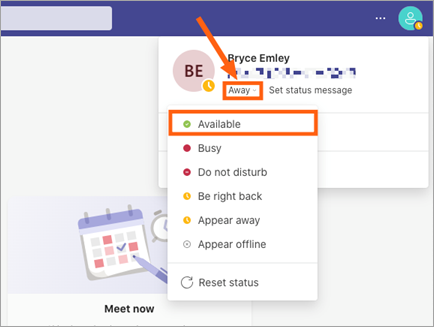
- Here you need to select the option like Available, Busy, Do not disturb, etc.
- Now you can select how long you want that status to be there, or the duration.
#2) Prevent Your Computer from Going Idle
It means in whichever case, if your device’s screen goes to sleep or locks due to screen timeout, the software detects it as your inactivity and turns the indicator to “Away”.
Even if you set the status to Busy or Do Not Disturb, this can also switch the status to Away if it remains inactive. To avoid this, you need to extend the screen timeout time for your device. For this, you need to change the lock screen setting as given in the steps:
- On Windows:
- Open settings/system/power & sleep.
- Here select the screen and sleep time for longer durations, or to never while plugged in.
- Optionally tweak Battery Saver and Lock Screen settings.
- On macOS:
- Open system settings/displays or battery.
- Here, change the screen dimming and sleep settings.
Now this will prevent the computer from sleeping automatically when the display is off.
#3) Stay Active Within the Teams App
You can engage yourself with the software so that it can show you as “Available”. Microsoft Teams needs you to be regularly engaged to be shown as “Available or Green”. The small actions or engagement reset the idle timer and maintain visible activity without needing external tools.
There are ways you can do so:
- You can reply or react to the messages with emojis.
- Short replies or updates in chats can be done.
- You can open the chats, channels, or files within Teams occasionally.
- View or comment on files shared in Teams.
#4) Sync Microsoft Teams with Your Outlook Calendar
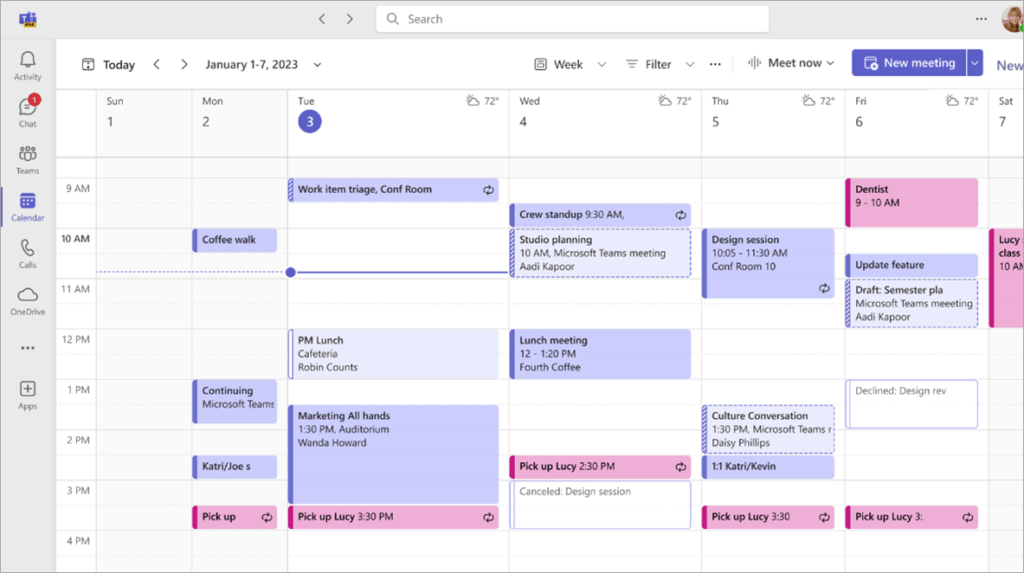
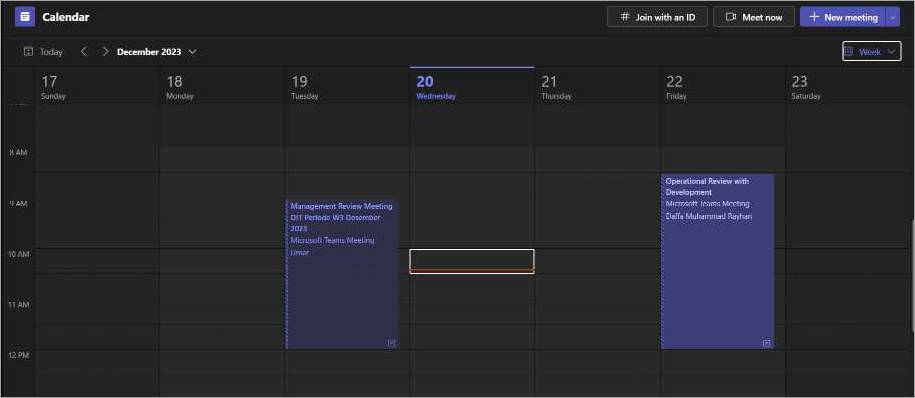
If you are thinking of how to keep Teams status green when away, then you can sync your calendar with Microsoft Teams, such as Office 365 or Outlook, and calendar events automatically affect its status. Recurring blocks can protect time and keep the software from marking you “Away”.
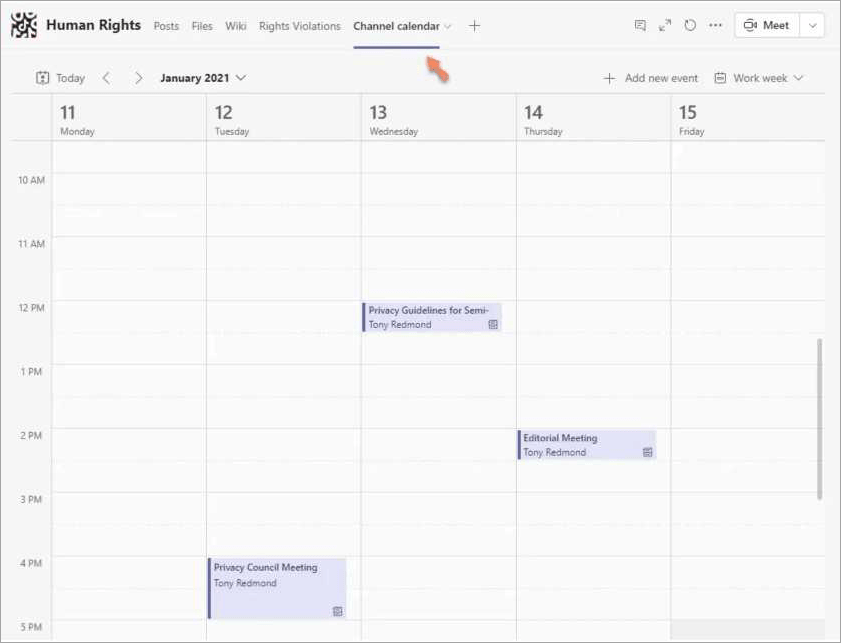
The image below shows the Channel Calendar:
#5) Start a Private Meeting with Yourself
You can host a meeting with yourself to show your status as “Green” for a specific time. In this case, incoming calls may be routed and may block notifications, so use it judiciously. With this, you have the option to:
- Click on Calendar in Teams
- Then choose a new meeting
- Here, add only yourself as the attendee.
- Now click on Join Now
Check the video below to know how to schedule a meeting in Microsoft Teams:
#6) Use a Persistent Status Message
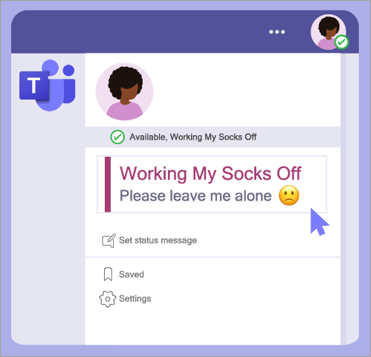
You can also set a status message so that in any case, if your indicator turns to “Away”, anybody can see this message. Like – “Online but may not reply instantly.”
Steps:
- Open Microsoft Teams and click on your profile icon.
- Now choose a set status message.
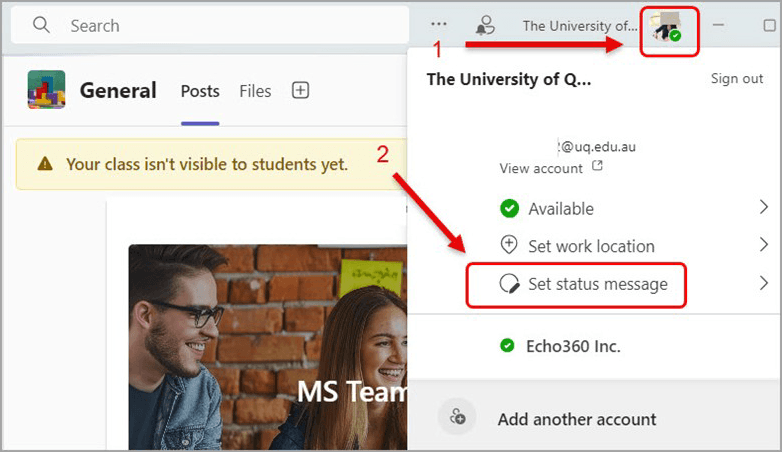
- Here, you need to type in a short message like: “Online but may not reply instantly.”
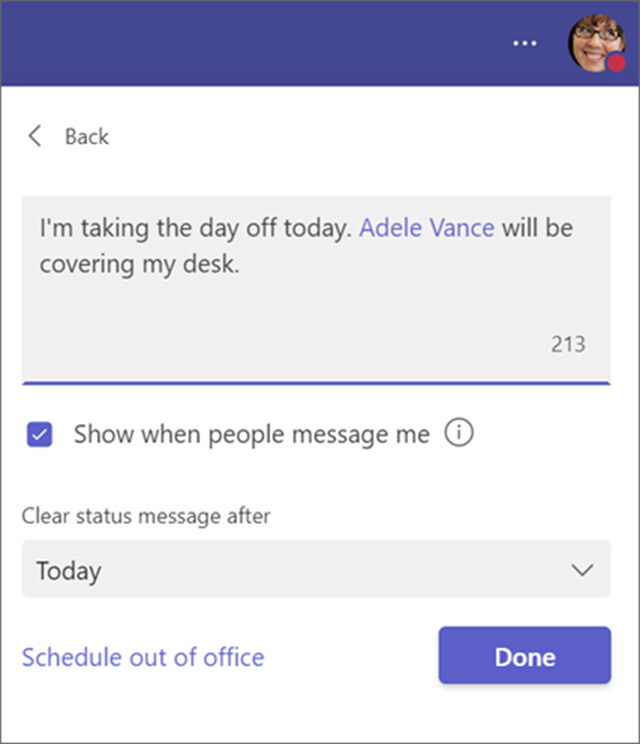
- Then choose how long it will stay visible.
#7) Mobile App Methods to Stay Available
There are some specific ways to keep Teams status green on phone; for this, you can manage your status from the mobile as the mobile app responds differently than the desktop.
- Keep the Teams App Open: You can keep the Teams app open in the background and avoid minimizing Teams when possible. With this trick, your status would not be flipped to “Away” as the software would perceive that you are working on it.
- Disable Battery Optimization: The battery optimization feature disables some apps from working in the background, which affects your indicator and may change it to “Away”. So in this case, you should not enable the battery optimization feature anyhow.
Ways to disable the battery optimization feature:
Android:
- Go to settings/apps/Teams.
- Open battery settings.
- Disable battery optimization for Teams.
iOS:
- Go to Settings/General.
- Enable background app refresh for Teams.
- Increase or disable screen auto-lock during key hours.
Manually set status: You can manually change your status from “Away” to “Available” just as on the desktop.
Steps:
- Open Teams
- Tap your profile icon.
- Tap Status → Available.
Why Keeping Microsoft Teams Status Green Matters
It is of utmost importance to know how to keep Microsoft Teams status green in today’s hybrid work environment for remote workers, work-from-home scenarios, etc, as digital presence often replaces physical office visibility.
If someone needs to connect with you, they check indicators to decide when to call, message, or assign work. If your indicator shows you are inactive or if your indicator switched from green to yellow, you may get missed messages, delayed collaboration, or even misunderstandings about responsiveness or productivity.
To avoid being misunderstood, you should know how to keep status green and stay visible and reachable while working. For this, there are several legitimate ways to keep the status green.
In this article, you will be presented with certain legitimate methods on how to keep your team’s status green, troubleshooting tips, and much more.
Microsoft Teams updates the indicator based on device activity and your engagement. It turns:
- Green: When the user is active and interacting with Teams or their device.
- Yellow: When the user’s system is idle for some time or the user is away from the system.
- Busy/In a Meeting: When the system detects you’re in a scheduled meeting or call.
- Do Not Disturb: When you manually set the indicator to block alerts.
- Offline: When you are not signed in or choose to appear unavailable.
Ethical Use vs. Activity Simulation Tool
There are some ways you can keep your status “Green” which are not ethical. Many users look for clever hacks to keep the status green all day, but it’s important to distinguish between legitimate visibility and activity simulation.
Legitimate visibility is when the person is actually on the board and ready to serve. The Green or Available indicator shows the actual availability of the person. The users can prefer native settings, calendar integration, and scheduled activity to manage presence accurately.
Third-Party Tools, Extensions and GIF Tricks: On the other hand, there are browser extensions and third-party tools that simulate activity to keep the status green, bypassing idle detection, which may violate company IT policies, misrepresent your actual engagement, and create trust issues if observed by managers.
There is a looping GIF trick people also use to gimmick the system. In this, they think, if they send a GIF to a chat with themselves and click it, that would keep playing and leave that window active.
Split Screen and Foreground Misconceptions: Some users think that keeping Teams in Split screen or Teams in Foreground would keep the status green. But in reality, Teams presence is based on system activity, not just whether the app is visible. So to remain Available, there must be regular keyboard or mouse input or an active meeting or call. It will not prevent status from changing if your system goes idle or locks.
Ethical Approach to Maintaining Green Status: You don’t need to trick the Teams to maintain your indicator Green. There are certain ethical ways that you can adopt to stay focused and visible, as discussed above.
Mouse Jigglers
There are certain apps people use to prevent status from going Away in Microsoft Teams (by keeping the system active).
#1) Move Mouse
It is a small utility that prevents your computer from going to sleep by keeping it awake. It is found in the Microsoft Store – Windows. It simply simulates a keypress at intervals to keep the OS system awake and keeps the screen active so the system won’t lock or sleep.
Website: https://apps.microsoft.com/detail/9nq4ql59xlbf?hl=en-GB&gl=IN
#2) Caffeine
It is a background app that prevents your computer from going to sleep. It simply simulates a light keypress at regular intervals to keep the system awake and prevent the screen lock due to inactivity. It does not visibly move your mouse and also does not create continuous natural user activity; it just keeps your screen on.
Website: https://caffeine.en.uptodown.com/windows/download
#3) Amphetamine
It is a macOS tool that prevents sleep, displays dimming, and screensaver activation by keeping the macOS awake with customizable triggers, while an app runs for a set period, and when a peripheral is plugged in.
Website: https://apps.apple.com/us/app/amphetamine/id937984704?mt=12
Risks of Mouse Jigglers:
Mouse jigglers misrepresent the user activity on Teams, and using them to simulate activity may solve a short-term “green status” concern, but the long-term risk (career, trust, compliance) is usually much higher than the benefit. It may invoke serious consequences like-
- Violating company policy
- May invoke disciplinary action
- You can lose the job
- You can be found in the monitoring detection
- Security risks like malware may attack your system.
- May affect your professional reputation
Microsoft Teams Status: Troubleshooting Common Issues
Enlisted below are some of the common troubleshooting steps for Microsoft Teams status issues.
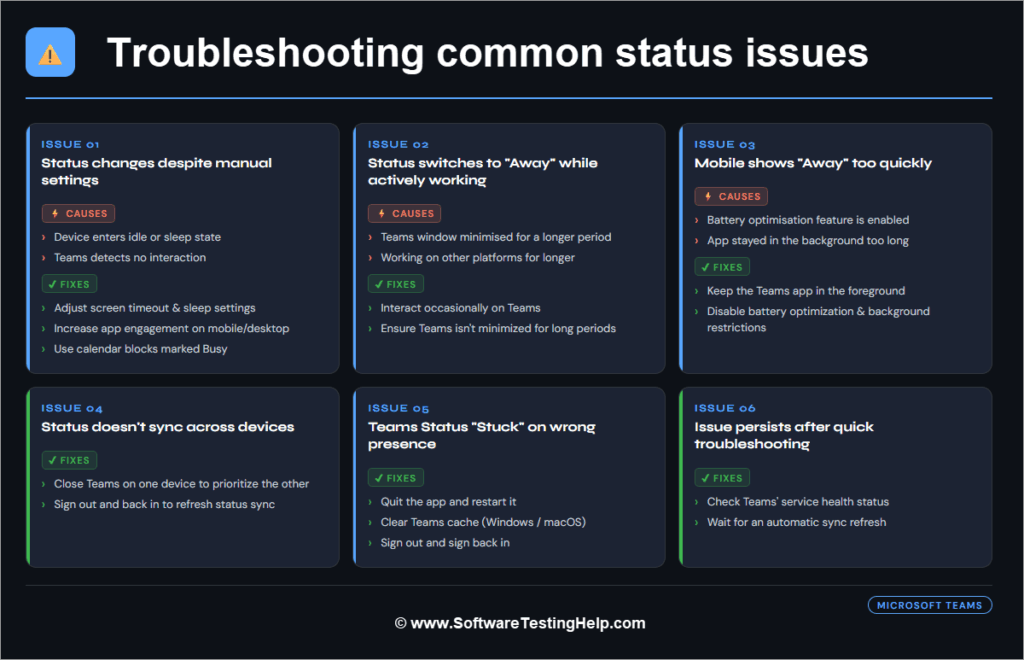
#1) Status Changes Despite Manual Settings
In case your status switches to Away even after you set Available, then it may be because:
Causes:
- Your device enters an idle or sleep state, or
- The Teams software detects no interaction.
Fixes:
- You should adjust the screen timeout and sleep settings.
- Increase app engagement on mobile or desktop.
- Use calendar blocks marked Busy.
#2) Status Switches to “Away” Even While Working
Sometimes your status gets switched to “away” even when you are actively working.
Causes:
- This happens due to the minimized Teams window for a longer period.
- Doing work on other platforms for a longer period.
Fixes:
- You should keep interacting occasionally on Teams.
- You should ensure Teams isn’t minimized for longer periods.
#3) Mobile Shows “Away” Quickly
Using Teams on mobile keeps the status switched to “away” more frequently.
Causes:
- Due to the enabled battery optimization feature.
- The app stayed in the background for a longer period.
Fixes:
- Keep the Teams app in the foreground.
- Disable battery optimization and background restrictions.
#4) Status Doesn’t Sync Across Devices
When you switch your account between desktop and mobile, the status does not match.
Fixes:
- Close Teams on one device to prioritize the other.
- Sign out and back in to refresh the status sync.
#5) Teams Status “Stuck”
Sometimes, after the activity or after any activity resumes, the software displays the wrong presence. In this case, you can fix it.
Fixes:
- By quitting the app and restarting it.
- You should also clear Teams cache (Windows/macOS).
- Or you can sign out and back in.
#6) Issue persists after the quick troubleshooting: If, in any case, you face the issue even after troubleshooting or fixes.
Fixes: In this case:
- You can check the Teams’ service health or
- You can wait for a sync refresh.
Frequently Asked Questions
1. How long before Microsoft Teams changes to Away status?
The Teams’ status switches to “Away” within 5 minutes of inactivity on the app unless calendar events or other status overrides are present.
2. Can I permanently keep Teams green?
No, you can not permanently keep the teams indicator green as it works on the activity detection and calendar signals, not a persistent toggle. You can delay it with certain engagements, but you can not permanently set it green.
3. Can I stop Microsoft Teams from changing status automatically?
There is no way to totally disable automatic status switching in Microsoft Teams since it depends on the presence detection feature within the application. Nevertheless, you can limit changes by stopping your computer from going to sleep and remaining active
4. Will mobile activity override desktop status?
Yes, the most recent mobile activity overrides the desktop status, but desktop idle can override mobile in some scenarios, so you need to keep engaged from both devices if logged in from both.
5. Is it okay to use mouse-jiggler tools?
It is unethical to use mouse-jiggler tools or any third-party simulation tools, as they may misrepresent actual engagement. You can manage your indicator by efficiently and smartly managing your engagement through battery optimization settings, Calendar integration, etc.
6. Why is Microsoft Teams not showing green even when I’m working?
This occurs because there will be no detection of direct interaction with your device by Teams. Actions such as reading, watching videos, or using other applications could go unnoticed as “active” actions
7. How to keep the Teams Status Green on Chrome or Edge?
Keeping the status green (Available) on Chrome or Edge works the same way as the desktop app. Teams Web cannot stay green just by being open in a browser tab.
It changes to Away when no keyboard/mouse activity is detected (about 5 minutes), or your computer is locked, or the system goes idle/sleep.
8. How to keep Microsoft Teams status green on iPhone?
For iPhones, make sure that Microsoft Teams has Background App Refresh turned on, notifications are allowed, and Low Power Mode is not active. Updating the app regularly and having a reliable internet connection also helps
9. How to keep Microsoft Teams status green on Android?
For Android phones, switch off battery optimization for Microsoft Teams, and make sure unrestricted background activities are allowed. Power saving mode restrictions and disabling background data should also be avoided
Conclusion
To maintain the Teams status green, you need to align your presence signal with your actual work engagement so that other team members have accurate visibility into when you’re available. There are some legitimate ways in which you can be more engaged with the software, like:
- Calendar integration (scheduling focus and busy time).
- Device settings that prevent premature idle.
- Real engagement through chats, reactions, and meetings.
- Mobile optimization for seamless availability.
These are the ways through which you can legitimately engage with Teams and maintain the green indicator.
There are some other unethical ways that some users adopt to trick the system and misrepresent their actual engagement, which can create trust issues if observed by managers. It includes shortcuts like activity simulation tools that may seem tempting, but they risk miscommunication or policy violations.
In brief, if you adopt the above-mentioned techniques thoughtfully and ethically, then you can reduce the frustration of unintended Away statuses and communicate your availability clearly and confidently to your team.
Research Process: The total time involved to complete and publish this article is approximately 41 hours. This content was created through a structured research approach to ensure accuracy and reliability.
For more related guides, you can explore our range of tutorials below:
- How to Reinstall Microsoft Store in Windows 10
- How to Uninstall Microsoft Edge from Windows
- The 15 Best FREE Chat Apps for Android and iOS (Secure)
- Omegle Alternatives for Random Chat (Sites like Omegle)
- 11 Best Websites to Send Free Text Message (SMS) Online
- Best Slack Alternatives of the Year
Was this helpful?
Recommended Reading
-

This step-by-step guide explains the reasons why you should back up and Microsoft Office 365 Backup process with NAKIVO Backup & Replication: Numerous businesses manage their data in the cloud. That’s why Office 365 security is a popular discussion topic today. Some businesses think that data in the cloud is…
-
Tutorial on Microsoft Visual Studio Team Services (VSTS) Cloud ALM Platform for the Entire Project Team: Our previous tutorial briefed us with a list of Continuous Delivery Tools. Here, we will focus on Microsoft VSTS. Microsoft Visual Studio Team Services (VSTS) is a new cloud-based offering that helps the project…
-
Get to know about the top Microsoft Dynamics 365 Partners & Consultants. Compare and select the best Dynamics 365 Partners for your business: Microsoft Dynamics 365 has emerged as a tool that most businesses, regardless of their scale, can use to make their daily operations considerably efficient. The ability of…
-
Comprehensive List & Comparison of top Microsoft Visio Alternatives With Features and Pricing to Help you Select the Best Visio Competitor for your Business: Visio has become quite popular recently. It is a very powerful tool used for constructing different forms of diagrams. Not just simple but even complicated diagrams can…


