Learn how to turn off dark mode on Microsoft Word to light mode instantly with our step-by-step guide and get back to normal instantly.
Suddenly noticing that your Word interface has become black and white? Don’t worry. It happens quite frequently to people and switching from dark mode to light mode is quite easy.
In this guide, you’ll see step-by-step methods to disable dark mode on Microsoft Word on various platforms including Windows, Mac, phones, and even online. Also we have listed common problems and solutions that may come while turning off dark mode on Microsoft word.
How Do You Turn Off Dark Mode in Microsoft Word (Quick Steps)?
For a quick switch from Dark Mode to Light Mode in Microsoft Word on Windows:
- Start Microsoft Word and select File from the top-left corner.
- Select the Account option (or Options -> General).
- Find the dropdown option for the Office Theme.
- Choose between White, Colorful, or Use System Theme setting to revert to the white theme immediately.
This will switch the mode in Microsoft Word from dark mode to light mode on Windows, Mac, and Microsoft 365.
How to Disable Dark Mode on Word (Video Guide)
If using dark mode in Microsoft Word is causing issues with readability, switching to the light theme takes only a matter of seconds. It doesn’t matter whether you are using Word for your computer or using the Word website; it takes only a moment to change it in the settings.
Check the video below to know the steps to turn off Dark Mode on MS Word:
Quick Steps to Disable Dark Mode in MS Word on Any Device
Here is a quick summary of how to turn off dark mode on MS Word.
| OS | Process |
| Windows | Go to Files > Options > Personalize Your Copy of Microsoft Office > Choose Office Theme as Black. |
| Mac | Word > Preferences > General > Personalize > Turn Off Dark Mode. |
| Web | “View” and click on “Dark Mode”. |
| Android | Open MS Word App > Tap on Profile Pic > Settings > Display Preferences > Theme |
| iPhone | Settings > Display and Brightness > Tap on “Light” under “Appearances”. |
How to Change Dark mode on Word to Light Mode on Windows, Mac, Web (Microsoft 365)
In the following section we will see how to turn off dark mode on Microsoft word to light mode on various devices and operating system:
Turn Off Dark Mode On Windows 11 and 10
Note that the default theme settings for all Microsoft 365 applications are “Use System Settings”. This basically means that your MS Office application matches the theme of your Windows OS.
For instance, if your Windows OS is in light mode, your Word file will also open in light mode. If you want the Word file’s theme to differ from your OS’s look, you’ll need to configure those settings from within your Word file.
Disabling Dark Mode on the Windows OS is simple. It will only take you a few steps and seconds.
Here’s how you do it:
- Click on File.
- In the resulting menu, click on Options > General.
- In the General menu, see a section called “Personalize Your copy of Microsoft Office”.
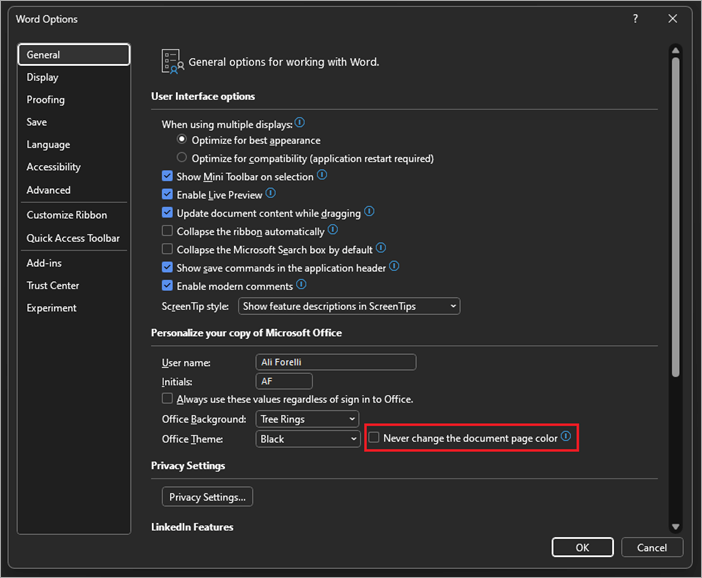
4. Within this section, click on the Office Theme box to open a drop-down menu to find the following options:
- Drak Gray
- Colorful
- White
- Black
5. Select “White” to switch Word back to light mode.
6. Click “OK” to return to your page.
Alternatively, you can also do the following:
- Open your Word file.
- Select File > Accounts
- Under the Office Theme section, select “White” as the desired option.
Pat yourself on the back as you’ve now successfully pulled Word out of dark mode.
Turn Off Dark Mode on Word on Mac
Although slightly different from Windows, the process for disabling dark mode on Mac is equally simple and quick. To complete the task, follow the steps below.
Here’s how you do it:
1. First, launch MS Word on your Mac.
2. Click on the “Word” option, which you’ll find on the top toolbar, right beside the Apple logo.
3. Click “Preferences” in the drop-down menu.
4. In the “Word Preferences” window, scroll down to the Authoring and Proofing Tools section and click on “General”.
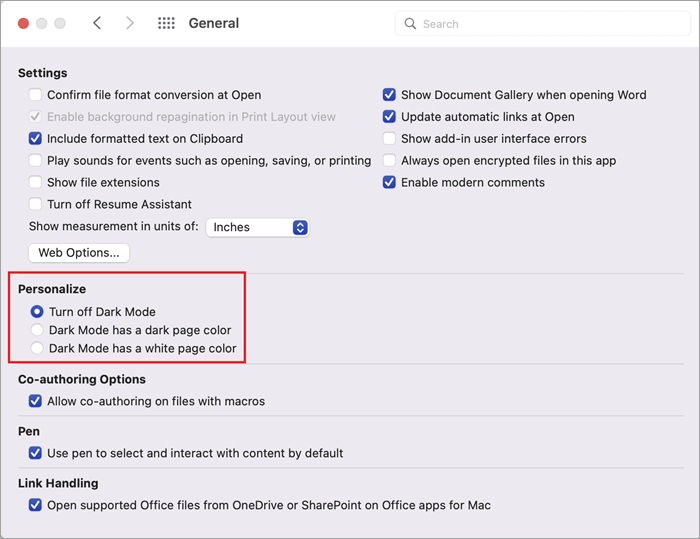
5. In the “General” Window, find a check box that states “Turn Off Dark Mode” underneath the “Personalize” header.
6. Select it, and MS Word will revert to light mode.
The Shortcut “Switch Mode” to Change Page Background Color.
Once you’ve enabled Dark Mode on Word, you are granted the privilege of switching between dark and light mode with a single click. This is essentially a quicker way to enable and disable dark mode on MS Word.
Whether you are using Word on Windows or Mac, simply do the following:
1. Select the “View” tab in the top toolbar.

2. Click on the “Switch Mode” option to change the background color.
Clicking on “Switch Mode” will help you toggle between light and dark mode in an instant. You don’t have to do anything else.
Change Dark mode on Word to Light Mode on Web (Microsoft 365)
Disabling Dark Mode on the web version of Word is relatively simple, as you are presented with this option in the ribbon (top toolbar) itself. If you are someone who uses the web-based version of MS Word, I suggest you follow the guide below to disable dark mode or manage your Word file’s theme.
1. On a web browser, enter https://www.office.com/
2. Sign in to your Microsoft account and select Word.
3. Create a new Word file or select an existing one. It is up to you.
4. With the Word file open, go to the “View” tab at the top and click on “Dark Mode”.

5. If Word is on dark mode, it will revert to light mode as you click on that button.
6. Simply click on it again if you wish to switch back to dark mode.
The web-based version of Word remembers the changes you’ve made and ensures those changes are intact every time you open the file. For instance, if you set a page’s background color to white, it will remain so every time you open the file unless you make a change again.
If you have set your OS or browser theme to dark or light mode, the web version of Word will follow these settings. For instance, if your web browser’s theme is already set to “light mode”, Word on the web will also automatically open in light mode without you having to do anything.
How to Change Dark mode on Word to Light Mode on iPhone and Android
1) On Word (Android Phone)
MS Word on a smartphone differs completely from its web-based or desktop counterpart. As such, the method of disabling dark mode will also differ. That said, it is still quite simple to accomplish.
Here’s what you’ll need to do to disable a Word file’s dark mode on Android:
- Open the MS Word app on your Android smartphone.
- Tap on your profile picture at the top.
- Go to Settings
- Scroll down to “Theme”, which you’ll find underneath the “Display Preferences” header.
- Tap on “Theme” and select “Light”.
- Once done, restart the app for the changes to take effect.
2) On Word (iPhone)
Although MS Word is available for iOS devices, there is currently no feature that lets you enable or disable dark mode on the iOS version of MS Word. Your iPhone display mode will affect your MS Word’s appearance as well. Simply put, if your iPhone is set to dark mode, MS Word will also feature a darker theme.
To disable dark mode here, you’ll need to adjust the display settings of your iPhone.
Here’s how you do it:
1. Go to Settings
2. Tap on “Display and Brightness”.
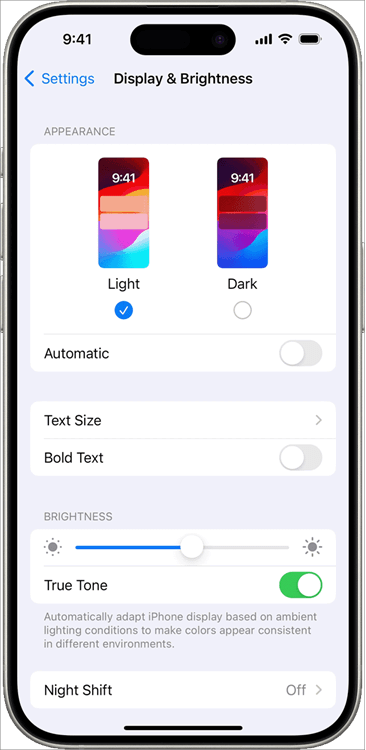
[Via Apple Support]
3. Tap on “Light”.
The MS Word app on your iPhone will respond to this change.
Change MS Word’s Theme
Besides switching between dark and light colors, experiment with the aesthetics of your Word document. If that is the case, I would suggest experimenting with your Word file’s color themes.
You can do so by:
1. Going to the “Design” tab.
2. Selecting “Colors”.
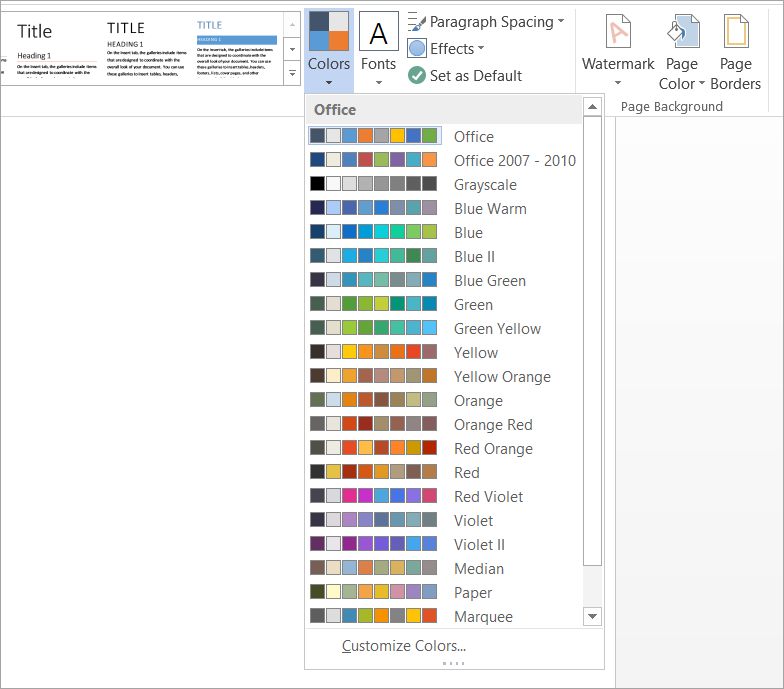
3. Pick a color set from the given options.
You can even create your own color set by selecting the “Customize Colors” option in the same drop-down menu.
After selecting a color set, simply hit the “Set as Default” button to make sure these changes apply to all new documents in the future.
Besides the overall theme, you can choose to change your page’s color as well.
1. Go to the “Design” tab
2. Select “Page Color”.
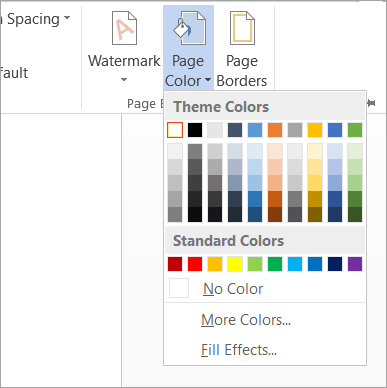
3. Select the color you want for your page.
Things to Know About MS Word’s Dark Mode
If you are someone who uses multiple versions of MS Word, know that enabling or disabling dark mode on one device will not reflect on other devices. You’ll need to perform this action separately on each device.
Also worth noting is the effect Dark Mode has on a document you are trying to print. Even if the Word file is in dark mode, it will be printed by default with the light mode page colors.
Furthermore, Dark Mode’s effect may not apply to the side pages, dialog box, textboxes, chart, and equations in your Word file.
Common Word Dark Mode Problems and How to Fix Them
You may encounter some problems when working with Dark Mode on MS Word. These problems can be annoying. That said, these are issues that can be solved with a few neat tricks.
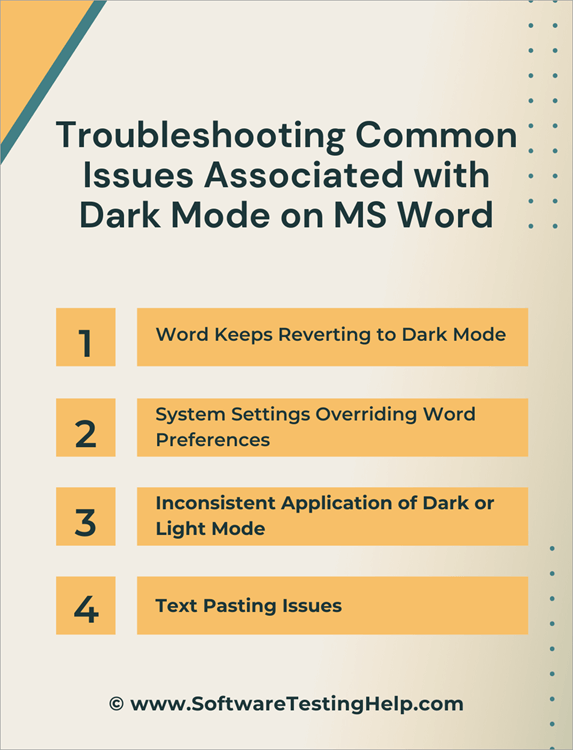
#1) Word Keeps Reverting to Dark Mode
This can be an annoying issue where you have to constantly undergo the tedium of turning light mode on again and again. An easy fix to this problem would be to first check your MS Word’s theme settings.
Make sure that the “White” theme is selected. Also, check the “Never change the document page color” on Windows and the “Dark mode has white page color” on Mac to ensure your page color remains white by default even if the theme changes.
If that doesn’t work, try updating the MS Office App. Alternatively, you can try to repair the MS Office file by navigating to your system’s Control Panel > Programs > MS Office> File Repair.
If all else fails, you could take a more technical approach to solving this issue by launching MS Word in Safe Mode.
#2) System Settings Overriding Word Preferences
An easy fix to this problem can be found by navigating to your account settings on MS Word. See if the “Use System Settings” has been selected. If so, you need to disable it by specifying the theme you want for your MS Word file. Select “White” as your MS Office theme instead of “Use System Settings”.
If you are using a work computer, it’s tricky to bypass system settings enforced by your workplace’s IT admin. I suggest getting in touch with your office’s IT admin to override the system settings in place.
#3) Inconsistent Application of Dark or Light Mode
When switching to dark or light mode, you may notice that not all parts of your Word file reflect the change enacted. For instance, it is a common problem for Dark Mode to not map some parts of a Word file, like equations, side panes, dialog boxes, etc.
Try updating your toggle between dark and light mode to fix this issue. You could also try updating the app or reinstalling it to see if the problem has been resolved.
#4) Text-Pasting Issues
Another issue you may face has to do with copy-pasting text from a file that is in dark mode. The copied text might appear in black on a white background. You can solve this very common issue by using the Ctrl+V or Ctrl+Shift+V keys, followed by the “Paste Text Only” option. This should fix the error.
Frequently Asked Questions
1. How do you get rid of dark mode in Word?
The answer here will depend on what device you are using MS Word on. On a Windows system, go to Files > Options > Personalize Your Copy of Microsoft Office > Choose Office Theme as Black.
On a Mac, Go to Word > Preferences > General > Personalize > Turn Off Dark Mode.
On a Web-based version, go to the “View” and click on “Dark Mode”.
On Android, you’ll need to change the theme settings, and on an iPhone, you’ll need to adjust your phone’s display settings.
2. Can I disable dark mode permanently?
Yes, unless there is an issue with your Word file or system, the command to switch off dark mode will be permanent unless you choose to do otherwise.
3. Is Dark Mode better for your eyes?
Well, it depends. Some may find Dark Mode display soothing as it reduces eye strain by lowering the screen’s brightness and glare considerably. That said, Dark Mode might not be ideal for folks with conditions like myopia and astigmatism, as it can cause eye strain and blurry vision.
4. How to remove a page’s background color from my Word document?
Removing a page background color is simple.
Just follow the steps below:
1. Go to the Design tab
2. Select Page Color
3. Select “No Color” from the options displayed.
5. Why is Word suddenly in dark mode?
This is perhaps because your MS Word file or Office app was switched to a darker theme. You can revert to a lighter mode by following the instructions I’ve laid out in this article. If you remember switching to light mode, then perhaps this is a glitch affecting your Word file.
Restart the Word file, update it, or clean MS Office’s cache to make sure this problem is resolved.
Conclusion
Turning off Dark Mode on Word isn’t rocket science. It is easy, with a straightforward and brisk process for you to follow. Of course, the process itself may vary depending on what device you are using Dark Mode on.
I suggest trying to disable dark mode yourself by following the instructions I’ve laid out in this article. I would also recommend experimenting with the aesthetics of your MS Word file by switching between different themes and page colors. You never know. You might end up with an MS Word file that’s visually distinct and striking.
Research Process:
The total time involved to complete and publish this article is approximately 39 hours. This content was created through a structured research approach to ensure accuracy and reliability.
For more Microsoft-related guides, you can explore our range of tutorials below:
- How To Make A Flowchart In Word (A Step-By-Step Guide)
- How To Open XML File In Excel, Chrome And MS Word
- Top 10 Free Word Processor | Word Processing Software
- How to Reinstall Microsoft Store in Windows 10 [5 Methods]
- Microsoft Office 365 Backup: Do You Need To Back Up Office 365
- How to Uninstall Microsoft Edge from Windows, Mac, Android
- Microsoft Azure Tutorial: What Is Microsoft Azure
Was this helpful?
Recommended Reading
-

Learn the steps to enable Chrome Dark Mode as a customization feature on Chrome mobile, Chrome desktop, Mac, Windows, etc: We often personalize our things as per our desire, and similar is the case for personalizing our system. Personalizing our system includes changing themes and setting wallpapers and screensavers that…
-
Reduce eye strain and save phone battery with Snapchat dark mode. Get educated on how to Turn ON Snapchat dark mode instantly to extend battery life and protect your eyes: In my humble opinion, I believe Snapchat is one of the most addictive social media platforms out there. It is…
-
Understand various issues while downloading applications in the Microsoft Store. Explore useful methods to Reinstall the Microsoft Store: Windows comes with various pre-installed applications that make your work effortless and efficient. But sometimes, you need additional applications with advanced features on your system that can vary from streaming platforms like…
-
In this Microsoft Azure tutorial, we will learn about Cloud Computing, Azure Cloud, Azure Marketplace, Azure DevOps, Continuous Integration, etc: Microsoft Azure is a cloud computing platform. It provides a set of services that you can use while developing your application and gives the best solutions to business users with…