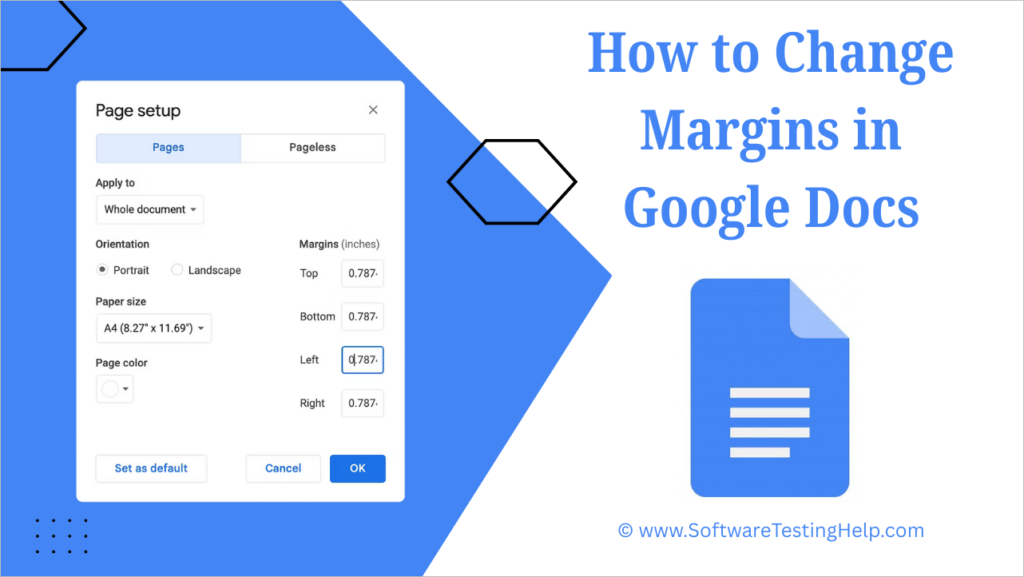
Discover the simple ways to change page margins in Google Docs. Understand the step-by-step process on how to change margins in Google Docs if you are unsure of how to do it:
Google Docs is a popular, highly efficient method of creating documents that is quite easy to use. It allows its users to add text, tables, and images to their files, insert links to the text, change font color or size, and much more.
According to a report by Exploding Topics, Google Docs has over 1 billion monthly active users, while Microsoft Word lags with 750 million monthly active users.
Microsoft Word was founded in 1983, and Google Docs was founded in 2006, when Microsoft Word was quite popular. The main reason for Google Docs’ popularity is its interface, which is quite easy to use and similar to Microsoft Word.
Modifying Margins in Google Docs: Explore Steps
How to Start With Google Docs
Here is a video for your reference:
The platform lets you start a new blank document or use one of their templates to start with. As soon as you open Google Docs through your web browser, you will see its home page, which looks like this:
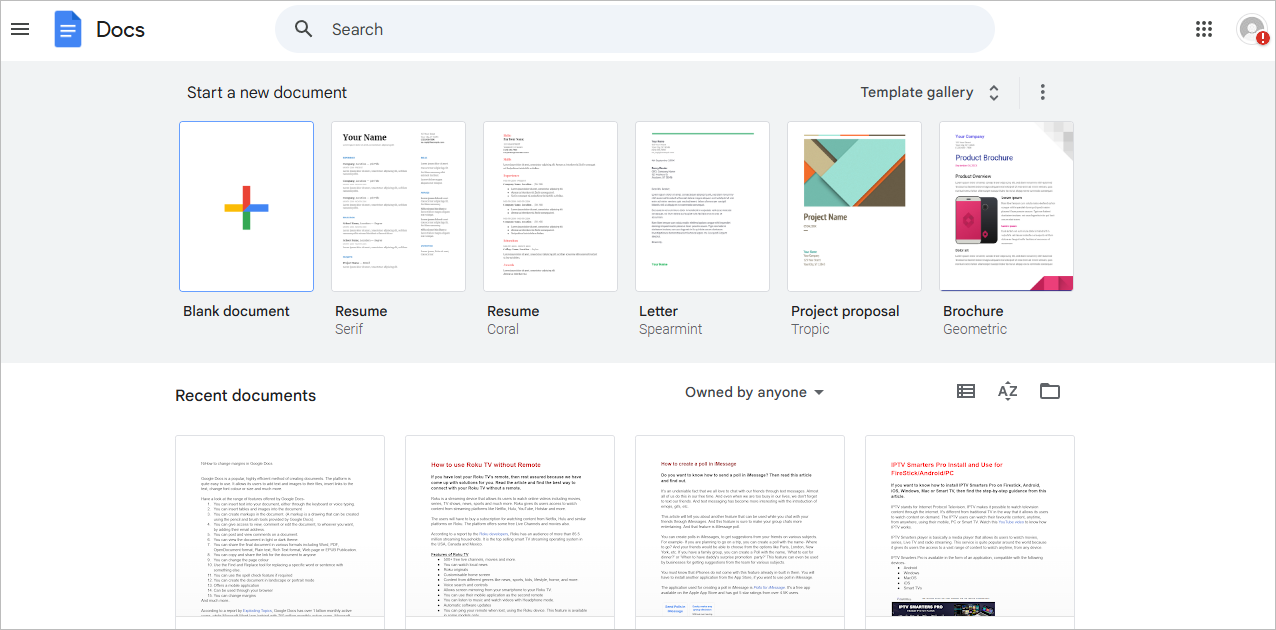
From here, you can choose to start with a blank document, a template of your choice, or open previous documents.
Suggested Read =>> How to Strikethrough on Google Docs
Have a look at the range of features offered by Google Docs:
- You can insert text into your document, either through the keyboard or through voice typing.
- You can insert tables and images into the document.
- You can create markups in the document. (A markup is a drawing that can be created using the pencil and brush tools provided by Google Docs).
- You can give access to view, comment, or edit the document to whoever you want by adding their email addresses.
- You can post and view comments on a document.
- You can view and edit the document in light or dark theme.
- You can share the final document in various formats, including Word, PDF, OpenDocument format, Plain text, Rich Text format, Web page, or EPUB Publication.
- You can copy and share the link for the document with anyone.
- You can change the page color.
- You can use the Find and Replace tool to replace a specific word or sentence with something else.
- You can use the spell check feature if required.
- You can create the document in landscape or portrait mode.
- Offers a mobile application.
- It can be used through your browser.
- You can change margins and page size.
And much more..
We found several users of Google Docs asking how to change margins in Google Docs. So, in this article, we have provided solutions for this.
Google Docs Margin Adjustment Using Page Setup
Follow these simple steps to change margins in Google Docs using the Page Setup feature:
If you want to change the margins of the whole document, follow these steps:
#1) Go to the Files option located in the toolbar at the top of your page.
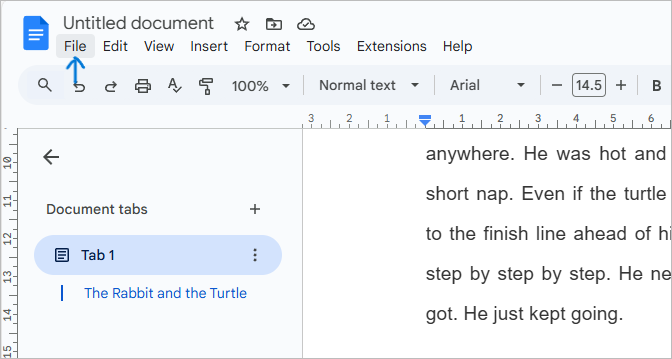
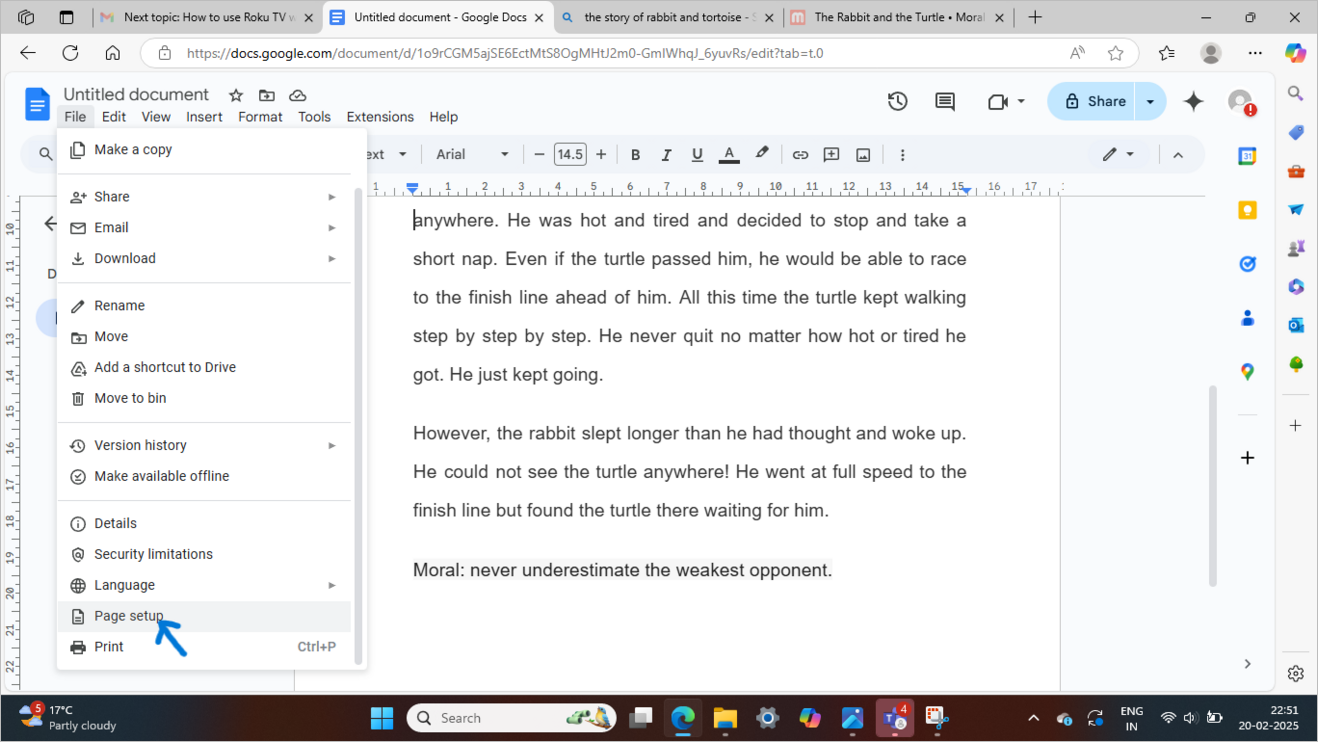
#2) Scroll down to find the option Page Setup, and click on it.
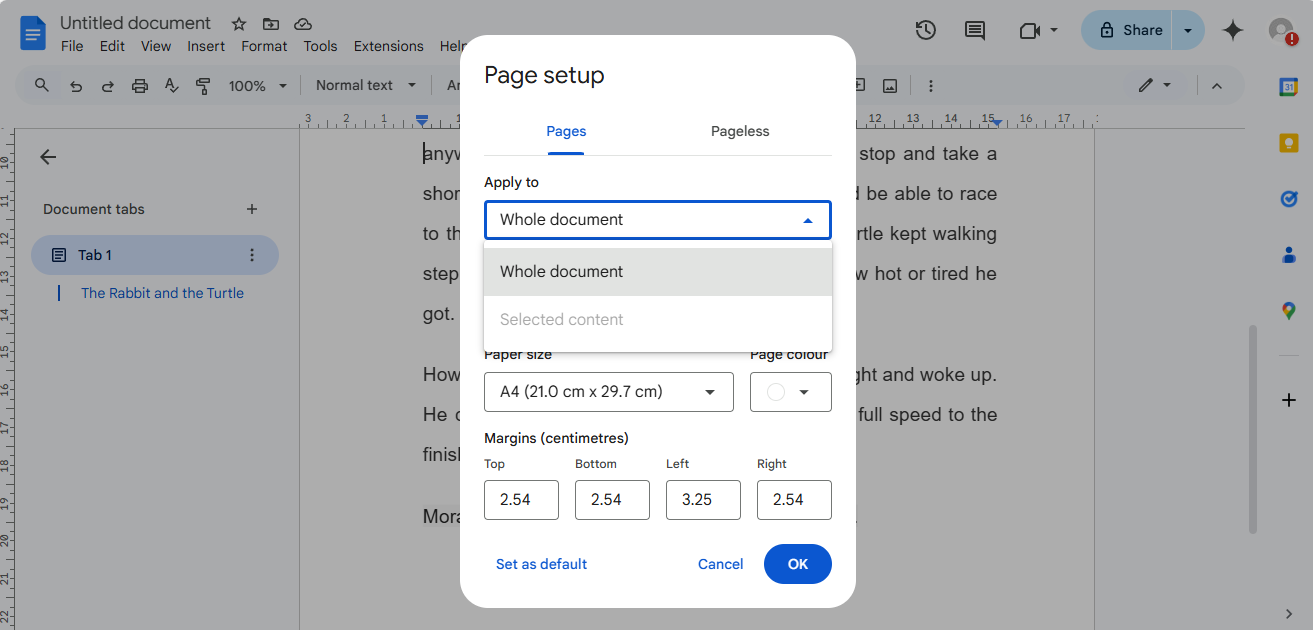
#3) A box will show up. First of all, choose whether you want to change margins for the whole document or for selected content.
#4) Now select the measurements for the margins on the left, right, top, and bottom of the page.
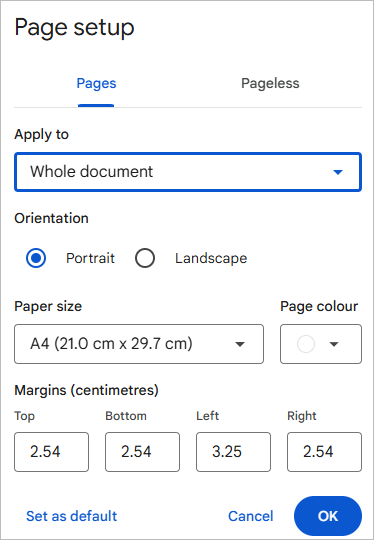
#5) Once done, you can choose to Set as default for future documents. Or just click on OK to make these changes for the current document only.
How to Adjust Margins in Google Docs For a Specific Section Margin
To change the margins of a specific section in Google Docs, follow these steps:
- First, select that section.
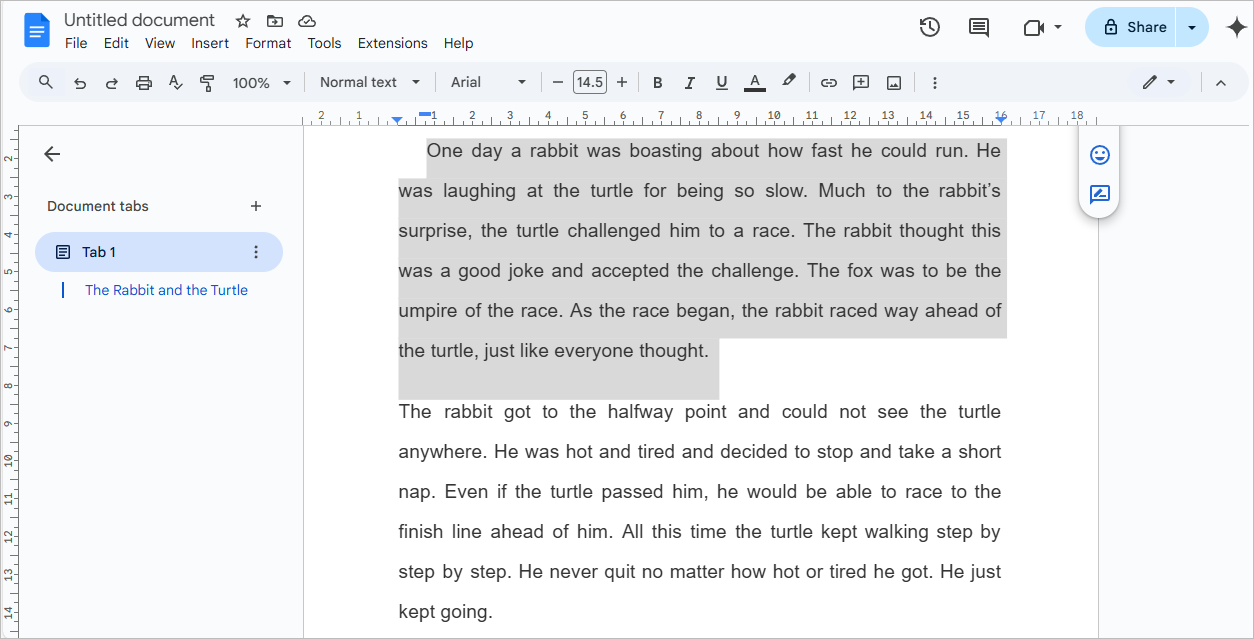
- Go to the Files option located in the toolbar at the top of your screen.
- Click on Page Setup.
- Under the heading Apply to, select the option Selected content.
- Now change the measurements for the top, bottom, left, and right margins.
- Click on OK.
How to Change Page Margins in Google Docs Using Ruler
This method is even easier than the previous one. To know how to change the top and bottom margins in Google Docs using the ruler, read these guidelines:
- Open Google Docs and open your document in which you want to change the margins.
- There will be a ruler above the text.
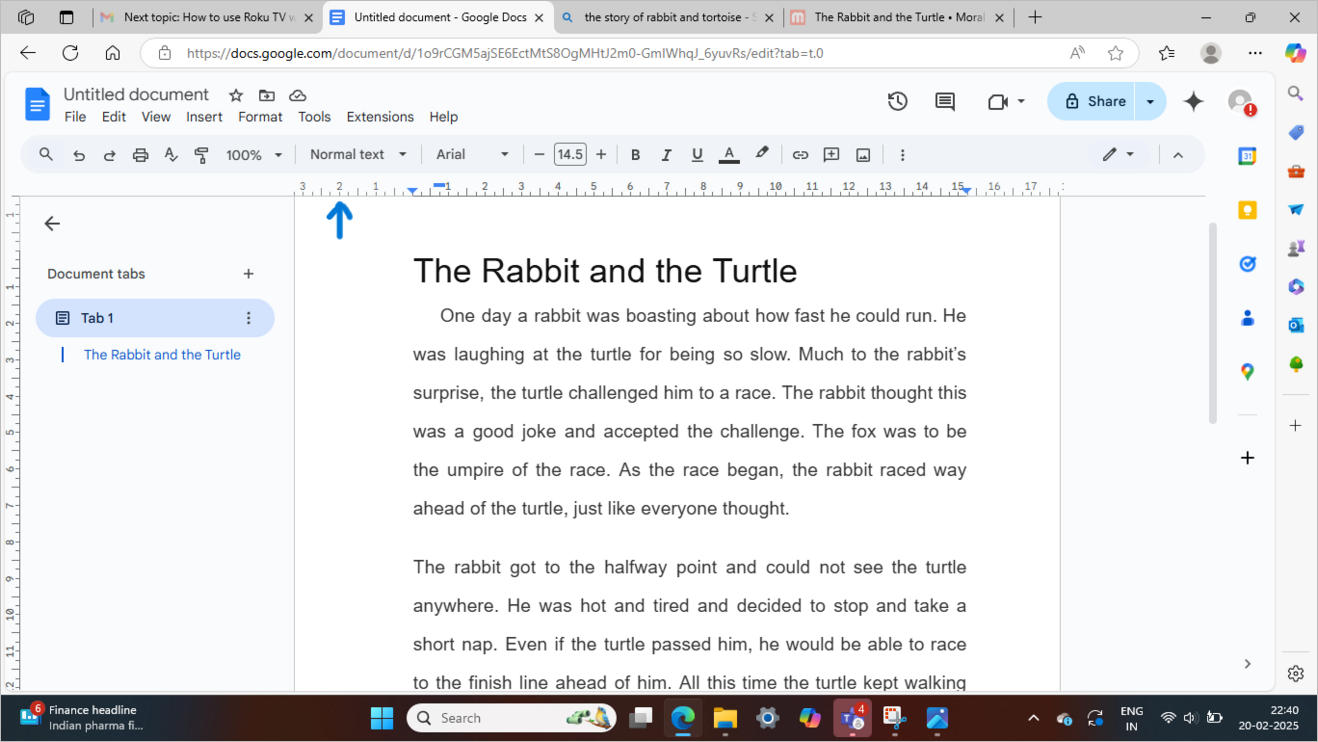
- If the ruler is not shown on your screen, go to View and then click on Show ruler.
Change Margins on Google Docs For the Whole Document
Now, if you want to change the margins of the whole document, then-
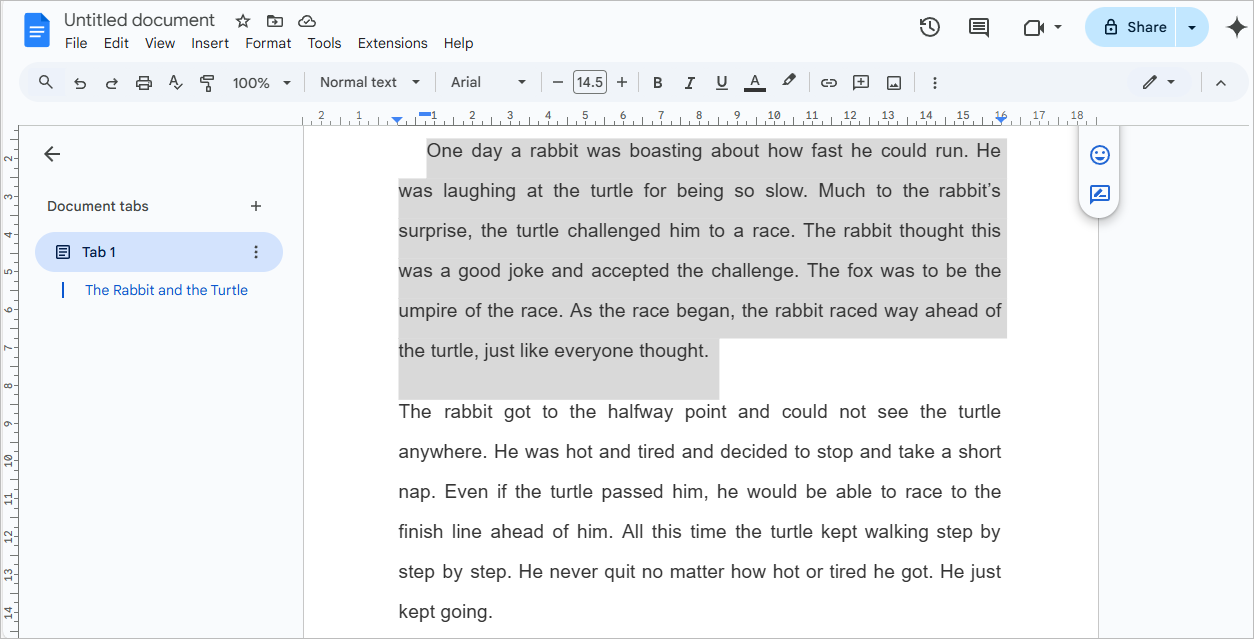
- Take your cursor above the bottom line of the ruler (located above the document text), your cursor will then be shown like this? Now you can change the left and right margins of the document by dragging the inverted triangle towards the right or left.
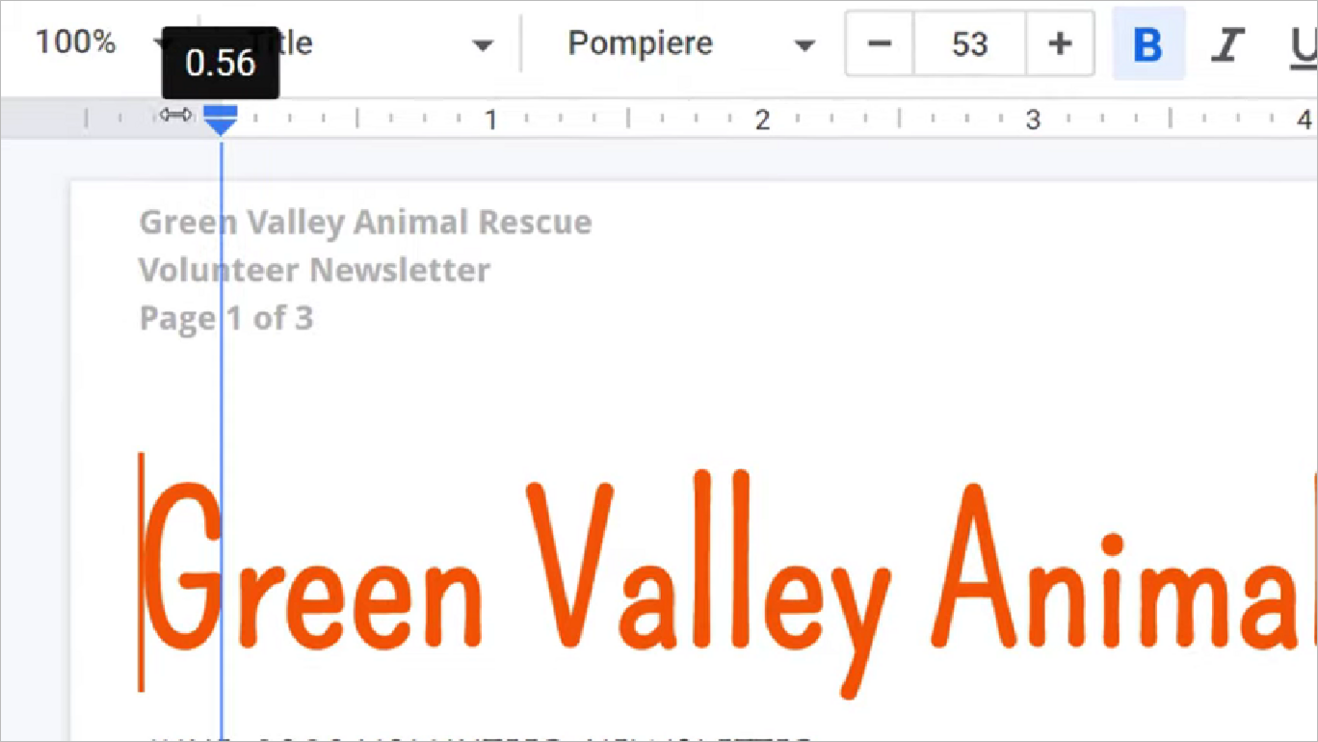
- For changing the margins of the top and bottom of the page, you will see a ruler on the left side of the page. Use it to change margins.
Further Reading => How to Add Superscript in Google Docs
If you want to change the margins of a specific section or a paragraph, then-
- Select the paragraph.
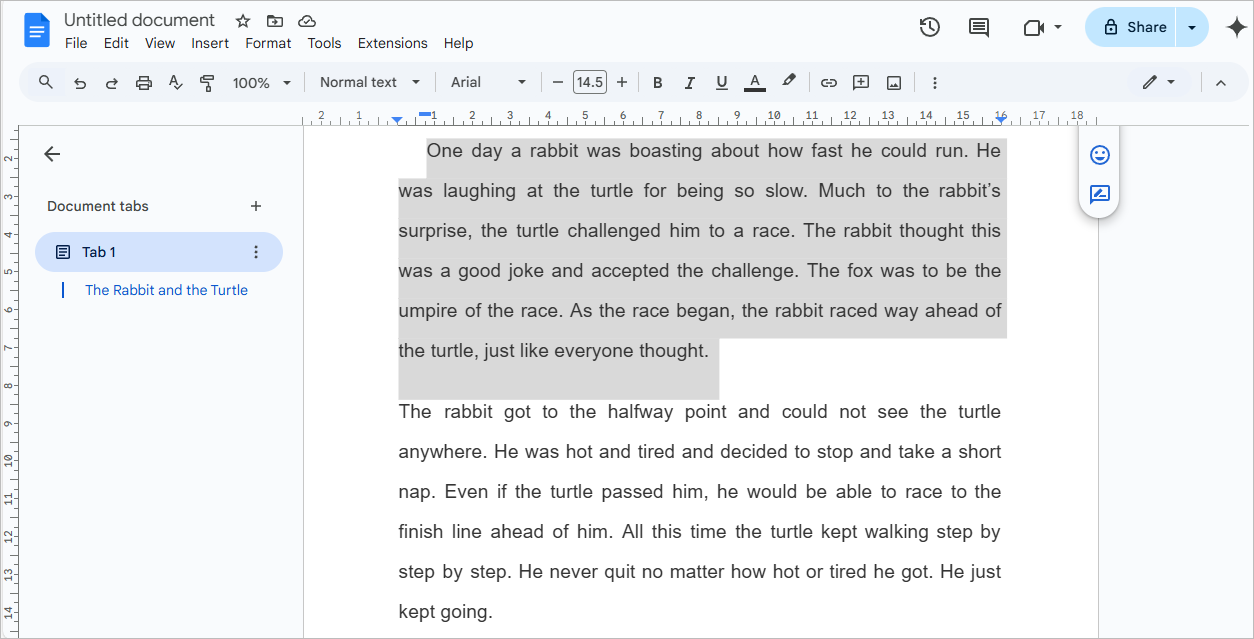
- Take your cursor to the ruler. Place it in such a way that the pointer is at the bottom line of the ruler (not above it).
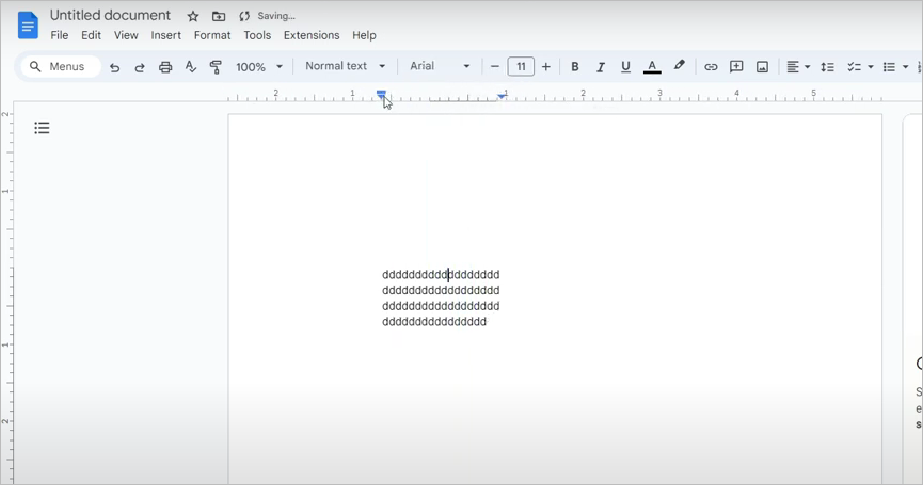
- Now you can change the margins of that specific paragraph by dragging the inverted triangle towards the right or left. The margins of the remaining document will remain the same.
Further reading => Top tools to convert PDF to Word Document
How to Change Margins on One Page Only
If you need to change margins on a single page, then you can do it by the Page Setup feature and the Ruler.
First, select the whole content on that specific page, then:
- Go to Files.
- Now, click on Page Setup.
- A box will pop up. Under the heading Apply to, select the option Selected content.
- Now change the margin’s measurements as per your need.
For changing the margins of a page using the ruler method, select the content of that specific page, then:
- Take your cursor to the ruler (in such a way that the pointer is at the bottom line of the ruler, not above it).
- Now, drag the ruler as per your requirements to change the margins of the selected content.
Change Vertical Margins on Google Docs Mobile
Please note that Google Docs does not offer the feature of changing margins on Android phones. This feature is available in iPhones and PCs only. So, for changing margins in Google Docs when using an iPhone, follow these steps-
- Open the Google Docs application.
- Open your document in which you have to change the margins.
- Tap on the pencil (editing) icon located in the bottom right corner of your screen.
- Now tap on the 3 dots (Menu) located in the upper right corner of your screen.
- Find the option Page Setup and click on it.
- Now select Margins (You can also change Orientation, Paper size, and Page color from here).
- From here, you can enter values you want for left, right, top, and bottom margins.
- Tap on Done.
Suggested Read => 10 Top Document Management Software
FAQ’s Margins in Google Docs
1. How do you make a 1 inch margin on Google Docs?
If you want to know how to make 1-inch margins in Google Docs, then read the steps stated under-
1. Open Google Docs on your web browser
2. Open the document in which you want 1-inch margins
3. Now click on File
4. Scroll down and find Page Setup, then click on it.
5. A box shows up that allows you to set specific values for left, right, top and bottom margins.
6. You can set the margin to 1 inch.
7. Then you can just click on Done, or set them as default margins for your future documents.
2. How can I adjust margins in Google Docs?
If you are using Google Docs on your web browser, then follow these steps for adjusting the margins:
Go to File, then click on Page Setup, then adjust values for left, right, top and bottom margins, then click on Done.
Or else, you can use the ruler located at the top of your screen (below the taskbar), to adjust margins quickly. For changing margins through the ruler, just place your cursor on the ruler and drag the inverted triangle towards right or left, to adjust the margins.
3. What are standard margins?
Standard margins in a Docs or Word file are 1 inch on the right, top and bottom sides each, and 1-1.25 inch on the left side.
4. How do you get the ruler tool on Google Docs?
Usually the ruler tool is shown at the top of your document in Google Docs. But if it is not shown on your screen, then do as follows:
1. Click on View
2. And select Show ruler.
Now you can adjust margins using the ruler.
5. Is Google Docs free?
Yes, Google Docs is absolutely free. You can use the app on your PC through your web browser, or download the app on your Android or iOS mobile phones.
6. Is Google Docs good?
Yes, Google Docs is a great tool for creating documents, editing them and collaborating. It is quite easy to use and can be used for educational, business and other purposes.
7. How to create a Google doc?
For creating a document in Google Docs, follow these steps:
1. Open Google Docs in your web browser
2. You will see their home page
3. Click on Blank Document or a template of your choice to start creating your document.
4. The document page will show up and you can start by inserting text, images and tables to your document.
8. What are 1-inch margins in Google Docs?
1-inch margins in Google Docs refer to the measurement of gap between the text and edge of the page. There is 1 inch of gap between the text and the edges on each of the four sides of the page on Google Docs by default.
9. Where is Page Setup in Google Docs?
Page Setup feature is not listed on the screen. In order to go to Page Setup, go to the File icon located in the toolbar at the top of your screen, then scroll down to find the Page Setup option.
Conclusion
Google Docs is one of the best free apps out there, used for creating documents quickly and easily. In this article, we listed ways to change margins in Google Docs.
Here is a list of some concluding points. Please have a look-
- You can use the Page Setup method if you have specific guidelines on how much margin should be kept in the document.
- Users also employ the Page Setup feature to set default margins for all future documents (which can be changed at any time).
- Ruler feature is the easiest and quickest to use.
- If you are using their mobile app, then you can also change the margins using the Page Setup feature.
- The Google Docs app available for Android phones does not offer the feature of changing margins, but you can change the page size, color, and orientation.
Was this helpful?
Recommended Reading
-

In this step-by-step guide on how to combine PDF files we will learn to merge PDF files using various tools in Windows and Mac: What is PDF? PDF stands for Portable Display Format. It is the biggest revolution in the world of electronic documentation. When the world was confused and…
-
By now, we all know that for a tester, Documentation is an integral part of his daily life. There is an overload of testing artifacts that are created, reviewed, approved, used, maintained and distributed. We always have clear-cut processes laid out for how to create a document, how to use…
-
Here we will explain how to use 5 easy-to-use tools to Convert PDF to Google Docs format with the help of screenshots: PDF documents are extremely hard to edit because it was developed as a document exchange format. Its main aim was to protect the layout and content of the…
-
Read this article to understand how to edit PDF in Google Docs. Follow the easy steps to format text, insert images, charts, tables, etc: Until recently, PDF wasn’t as important a document. It made us think about legal contracts, agreements, purchase orders, etc. It was a document you would print,…
-
This tutorial explains How to Strikethrough on Google Docs. Also, learn various strikethrough shortcuts on Google Docs: In the initial days, Microsoft Office provided users with software that could ease creating and managing documents on the computer. Later on, the users looked for an online editor that can store all…
-

Most Frequently used Document Management System: With the ongoing process of Digitization, people wish to reduce their paper-based work and expect to have access to their important documents from anywhere and at any time. Document Management Systems are the best solution to make this task a much easier one. PDF…
-

Documentation of Acceptance Testing (Part- II): Previous Tutorial | NEXT Tutorial This tutorial is the continuation of our previous tutorial where we discussed what is Acceptance testing, when it has to be done, who does it, its importance, types, process, impact on different teams, etc. Documents play a very important…
-
Get a comprehensive understanding of Document360 acknowledged as a self-service Knowledge Base for Customer Support: The software landscape has changed significantly over the past few years, giving rise to several dedicated knowledge base software solutions. Companies are looking for standalone knowledge base software to help them build documentation sites, without…