Are you looking for easy ways to reset AirTag? Read through our step-by-step guide to fix Apple AirTag connection issues and pair it with your iPhone again in just a few seconds:
AirTag makes the lives of Apple users easier because they help them locate any lost and misplaced wallets, keys, backpacks, and other essentials by utilizing location tracking technology. The coin-sized device, which is also located at the back of the Apple device, does the tracking with high accuracy.
It works by sending a Bluetooth signal to the device that needs to be identified, and the device will then relay its location to iCloud. The user will then track the exact location of the to-be-found device using the Find My app.
Step-by-Step Guide to Reset AirTag
Beyond device tracking, they facilitate location sharing between users. For instance, starting with iOS 17 and later versions, two people can share AirTags and track their actual locations on the Find My App on Apple devices such as Apple phones. For iOS 17 and later devices, AirTag can be shared with 5 people and doesn’t need to be reset before sharing.
Here is the video guide on how to reset an AirTag and pair it with an iPhone:
The AirTag Lost Mode also helps locate a device if it is misplaced or lost. Once you activate this feature, it enables tracking of the device/item by its location using the Find My network to pinpoint the location of the item that has been lost. It also protects privacy since AirTag is locked to the Apple ID, such that only the owner can track it.
Besides, owners can peg a custom message on the AirTag such that anyone who finds the lost AirTag can contact the owner (for instance, if contact information is included), which means it makes it easier to return lost items such as bags or keys.
There are many advantages to expect when using AirTag, but if ownership changes, there would be a need to change the name. A technical glitch on the AirTag device may also necessitate a change. By erasing the current name and data and so disconnecting the current Apple ID on the device, you can reset the device ownership and resume normal connection.
You may also need to perform a full reset of your Apple ID if there are issues with your privacy or usage. If hackers breached it, for instance, resetting or reformatting may improve privacy, although only a bit of residual data will remain in your account.
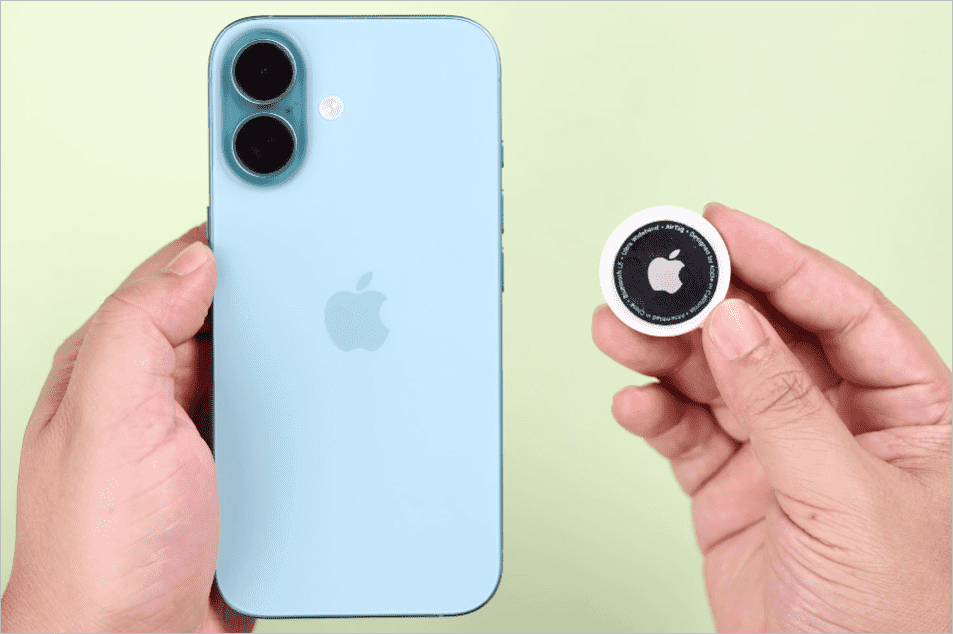
This tutorial covers resetting AirTags and related devices. We will discuss the reset and formatting process step by step, the expected outputs, and how to stay safe when using AirTags.
Why You Need to Reset AirTag
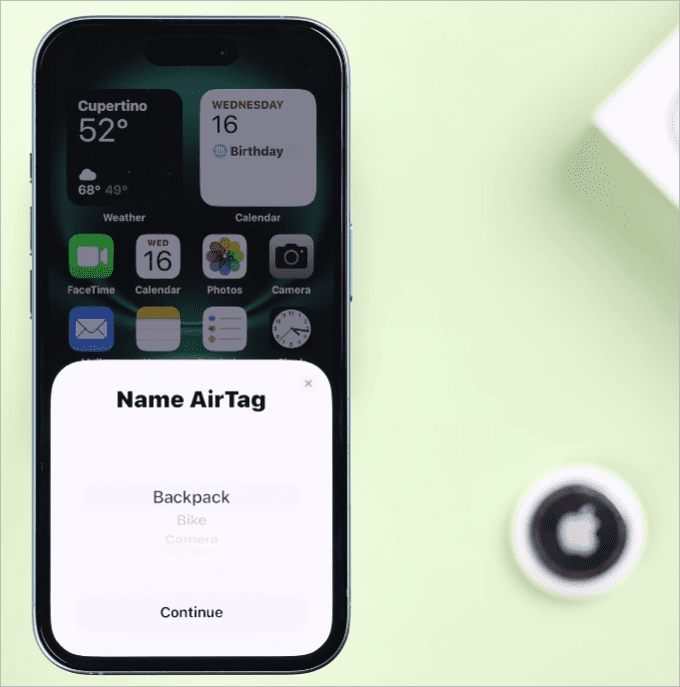
To reset an AirTag, you need to follow the below procedure at difficult times.
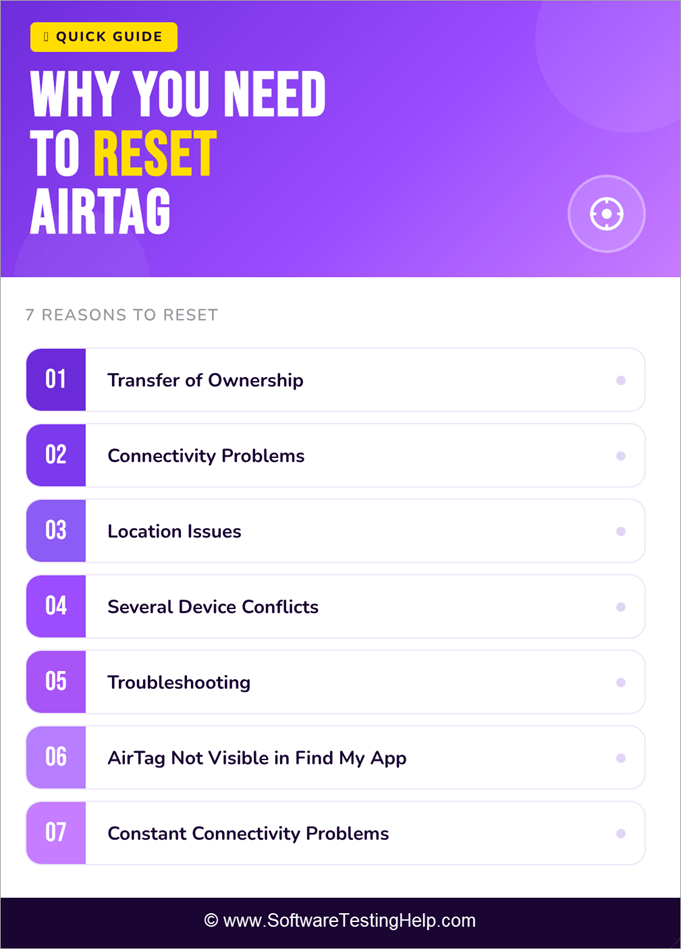
#1) Transfer of Ownership
In case you sell or give away your AirTag to someone else to use, reset it. This is because the new person can associate it with their Apple ID for personalization benefits.
This also secures the data with the current Apple ID, because once reset, the new owner will not have access to the data associated with that Apple ID.
#2) Connectivity Problems
Sometimes AirTags incur a glitch and cannot connect well with the Find My application on Apple devices. Resetting them may resolve this temporary glitch and restore the connection.
#3) Location Issues
Syncing faults and issues may make the AirTag fail to report new locations correctly, or may do so intermittently and with a lag. You may need to clear old locations and remove data from them so that location syncing is fast and accurate. A reset may achieve that trick.
#4) Several Device Conflicts
Device conflicts regarding Apple IDs and AirTags can happen for several reasons, including software glitches and IP issues.
Transitions in iPhones or Apple ID can also cause syncing issues that result in device conflicts, such that the AirTag device will not work as it should, for instance, keep reporting the conflicts that interfere with usage. A reset may restore normal device functionality by resolving conflicts.
5. Troubleshooting: A reset on AirTag, like on many other smart devices, can help remove stubborn technical problems, including those whose source may be unknown.
6. AirTag is not Visible in Find My App: Sometimes restarting can restore situations when the device cannot be seen in the Find My app on Apple devices. Otherwise, it may be necessary to reset it entirely, for instance, when the problem is unknown.
7. Constant Connectivity Problems: If a restart does not act well to resolve intractable glitches, then a reset of the Apple ID may work and ensure your AirTag connects with your iPhone perfectly.
Requirements Before Resetting Apple ID on AirTags
Resetting your Apple ID will require:
- Your iPhone or iPad: At least one of these devices is needed for changing your AirTag ID and other settings in the Find My application, so that it is possible to unlink it to your Apple ID safely.
- Constant Internet Connection: Synchronising the AirTag and your account with Apple servers requires a stable internet connection. This ensures there are no synchronization issues and that no errors occur when unlinking or resetting.
- Physical Access to AirTag: You need physical access to reset your Apple AirTag. This is because you will need it in hand to perform the battery change.
- Apple ID Credentials: Keeping your current user data on the AirTag, which is synced to the Apple account on the device, ensures the reset process is valid and safe.
- Reprofiled iOS version: The latest version of iOS, for instance, on iOS 17, can be useful when turning on AirTag features. This will reduce the possibility of technical gaffes when resetting the Apple device.
How to Reset AirTag: Easy Methods
This section briefs on the prime methods to reset AirTag.
Method 1: Trace Find My Application
Find My application will be located in the list of installed applications on the device:
Step 1: Get AirTag out of Apple ID
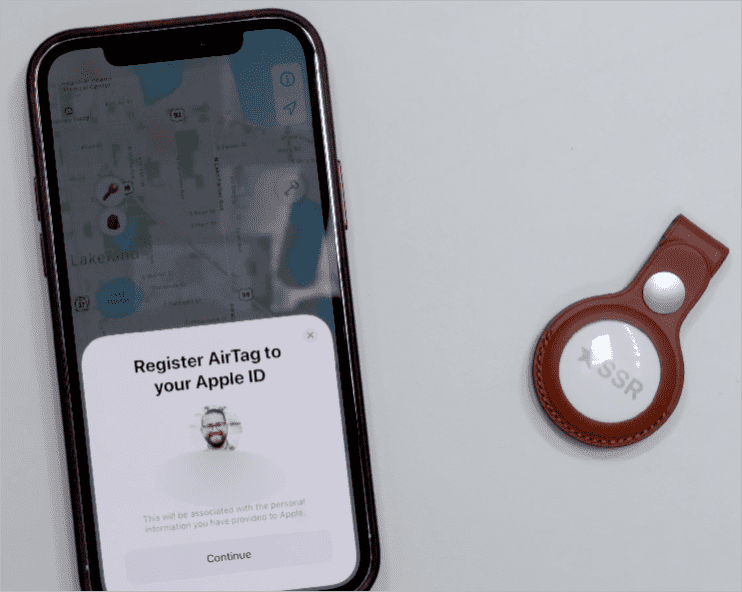
Step 2: First, search for the Find My application on your device. Open it and then tap Items. From here, choose or select your AirTag. Swipe up and finally tap to remove the item from the list of available options. Remove the checks to clear this.
Method 2: Force Physical Deletion of AirTag Device
If an AirTag is removed from the Apple ID while it is out of Bluetooth range, the device is unlinked from the account. However, it does not get a factory reset, meaning a new owner still needs to do the physical battery reset before pairing it.
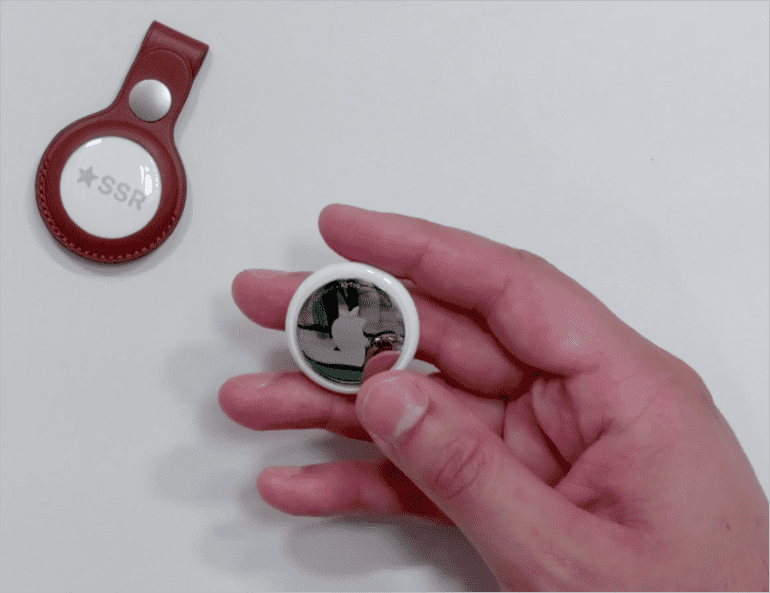
Step 1: This is achieved by changing the battery. Here, turn the stainless steel back cover down and then press down. Turn it counterclockwise for removal. It thrusts, and a sound is heard.
Step 2: Check that you can hear the sound 5 times. If or when you can hear it the fifth time, it means the process was completed.
General Problems in Resetting AirTag Apple ID
Here are some of the common problems involved in resetting the AirTag Apple ID:
#1) AirTag Still Registered Under Old Apple ID
When the AirTag still shows that it is registered under the old Apple ID
Issue 1: Sometimes you might reset an AirTag physically, but you may skip or forget to disconnect it from another Apple ID. This may make an AirTag show as registered under the old ID.
How to resolve this problem:
- Remove the AirTag from the Find My app, or ask the first owner to remove it. Otherwise, people wanting to sync or connect to the AirTag will not successfully connect. Without this, new customers cannot connect to and use the AirTag.
#2) Battery Reset Sequence Errors
Sequence errors arising as a result of the battery reset sequence errors that were already present in the system
Issue 2: Remove the battery and reinsert it five times, while there is sound each of these times. Sometimes a reset may fail because you did not have enough chime or because you have not pressed hard enough.
Resolution:
- Ensure that the device battery is fitted properly.
- You must now stamp till it makes a chime that you can hear.
- Press the same button five times. On the fifth time, a different sound is produced. The fifth beep confirms that the reset has been successful.
#3) Weak or Dead Battery
Issue 3: This problem, in which the battery voltage or charge drops low and fails to identify the reset chime, occurs during future pairings.
Resolution:
- Ensure to buy and mount a CR2032 battery. Avoid batteries with a coating. This is because they will not fit into the slot meant for the battery.
- Confirm that the battery is contacting the terminals effectively to pick up the charge effectively.
#4) Bluetooth/Proximity Problems
Issue 4: The problem of the AirTag not being visible during the setup process. This happens when the phone is too far away so that it cannot pick up the Bluetooth signals. It also happens when the Bluetooth is turned off.
Resolution:
- To solve this issue, hold the AirTag at a distance of a few centimeters from the iPhone.
- Check and confirm that the Bluetooth and Location Services are turned on.
- For the case of using AirTag with an iPhone, simply restart your iPhone without demonstrating the setup animation.
#5) Software Glitches
Issue 5: Glitches may arise from the iOS software not being up to date. There may also be a certain temporary idiosyncrasy that is preventing the pairing following a reset.
Resolution:
- Install the latest iOS update on your iPhone or update your current version to the latest.
- Force quit the Find My application.
If there are any issues arising as a result, simply turn off your iPhone and start the phone again.
#6) Cover Misalignment
Issue 6: This is a case in which the device’s stainless steel cover is not properly locking into position, for instance, after inserting the battery. For that reason, the AirTag will not function.
Resolution:
- Screw the cover in the clockwise direction till it fits in appropriately.
- Test and confirm that the chime can be heard. After hearing the chime, press the battery once more.
Rapid Problem-Solving Guide
Here is a guide to help you resolve the problems we listed and discussed above.
Step 1: Make sure the AirTag has been detached from the previous Apple ID. If not, follow the steps we prescribed to disconnect.
Step 2: Ensure there is no coating on the CR2032 battery being used.
Step 3: Repeat the battery reset five times in a sequence.
Step 4: Ensure that the AirTag is placed near your phone. Ensure that you switch on the Bluetooth + Location Services.
Step 5: Before or after pairing the devices, ensure to update the iOS. Perform a restart.
Step 6: Ensure that the cover is returned to its position perfectly.
Critical Security Information
You can not compromise the Activation Lock just by resetting an AirTag ID that is pegged to the first user. This type of lock is one of the most significant kinds that concern device security.
This lock ensures that the AirTag cannot be reused with the current account (and thus user data) once it has been stolen. It will force a wipe for the AirTag to come to a re-use condition.
You cannot configure another user on an AirTag even after physically deactivating the AirTag, as long as the current user is connected. Apple also designs such restrictions to maintain their privacy and avoid theft, and uses AirTag devices in their stolen software state.
Thus, it is crucial to reset the AirTag device and remove the current data before selling an AirTag to a new user or gifting it. Apple ID, as explained in the sub-sections above, is done using the Find My application.
Any person who buys the AirTag as a second-hand user and attempts to unlock an AirTag that is not linked will get frustrated. This is because Apple can not unlock the device.
The system also makes AirTags credible, safe, and sound. This protects buyers. It means that only after deletion of an existing account can you restore Apple AirTag to its normal usage while ensuring the current user data is private and safe.
Frequently Asked Questions
1. Can an AirTag be reset without the use of an iPhone?
It is entirely possible for you to reset an AirTag by erasing it physically. However, you will require an iPhone or iPad and the Find My app to disable the AirTag in your Apple ID.
Without accomplishing this crucial step, the AirTag will always remain registered under your account in terms of registration, which also means that you cannot configure new users.
2. How can I take away my location history on the AirTag?
By resetting the AirTag device to disconnect it from the current Apple account or ID. This will wipe all the history under the account. Once you accomplish the reset, your privacy will not be compromised on the AirTag due to possible exposure of historic information.
3. Is it possible to make an immediate reset of AirTag?
After it is reset, an AirTag can then be reconfigured for a new user and owner through the Find My app, and this process happens to be straightforward and convenient.
In fact, you can accomplish the process all by yourself by following the prescribed guide.
4. I have bought an old AirTag, which remains connected. What should I do?
Note, you cannot continue using it under the current user data. You must disconnect the current user’s Apple ID if the seller did not do so before selling. In most cases, they may have.
Notice the AirTag comes with a security guard that blocks unauthorized entry of stolen devices. One must always ask the seller to ensure that the AirTag is properly unlinked before making a purchase.
The process of resetting an AirTag often takes several minutes after disconnecting the device from the current Apple ID.
5. Can an already used AirTag be paired, and how can this be done?
The steps that are known on how to pair an AirTag to a new user are as follows:
Step 1: The former owner must remove their Apple ID.
Step 2: After this, it must be paired to a new AirTag user Apple ID so that the new user can continue using it. Ensure that the AirTag is extremely close to your mobile phone and that the Location and Bluetooth features are tweaked on.
Step 3: Make sure you have set up animation on your screen.
Step 4: Tap Connect and hook it with (keys, bag, etc.).
Step 5: The AirTag will then be linked to your new Apple ID.
Step 6: Once the AirTag is linked to the new account or Apple ID, you cannot pair it with another user until the current one unlinks it.
6. What is the procedure for resetting an AirTag to the factory state to make it available to another person?
The procedure for restoring your AirTag to factory state is as explained in subsequent sections.
To reset an AirTag, ensure to follow the procedure listed below:
Step 1: Disassociate your current user Apple ID from the Find My application on your device.
Step 2: To disassociate from the app, look for Find my app from the list of items on your phone, navigate to Items, select the AirTag. Tap Remove Item.
Step 3: Physically reset the AirTag.
Step 4: Press to place the back cover on location. Turn the cover in an anticlockwise direction to unscrew it from the position.
Step 5: Remove the cover and then the exposed battery.
Step 6: Replace the battery. Push it down until you hear some sound.
Step 7: Repeat the battery replacement into position five times. Make sure you hear some sound each of the five times.
Step 8: The fifth time a sound is heard confirms that the battery has been placed perfectly into position.
Step 9: Replace the back cover to its position by screwing it in the clockwise direction. Ensure that the cover is in place to secure the battery and components.
Your AirTag is now ready and can be synced with another user’s Apple ID.
7. Why is my AirTag not pairing with a user’s Apple ID?
There are a few reasons for the device not pairing with a new Apple ID, among them:
– The current Apple ID is not yet deleted, which means the device will definitely refuse to sync with another user.
– Battery issues, for instance, the battery is not in the right position, in which case you need to unscrew the back cover and put it back in the right position. The battery may also be low in charge or exhausted, in which case you need to unscrew the back cover from the position to expose the battery and insert a new battery. Before this, you might as well try boosting the charge of the existing battery, for instance, if you have stayed for a long time without using the AirTag.
– Bluetooth problems may also arise where the device is so far away that it cannot detect and/or connect to the other device’s Bluetooth and location services. These services may also be turned off, in which case you need to access your iPhone and tweak the location and Bluetooth services. Make sure it is also connected to the internet. For this purpose, always make sure the AirTag is placed close to the other device, e.g. iPhone, when configuring.
– Outdated iOS, in which there would be glitches that cause it to disconnect from charging and sometimes affect other functionality, such that the charging fails. This is obviously solved by updating your iPhone to the latest iOS version.
Conclusion
This tutorial discussed the procedures for resetting AirTag devices and pairing a new user ID. Resetting an AirTag is not just a technical process. It is also one way of restoring it to ensure a smooth experience with it, e.g., the effective tracking of the devices it is meant to track.
A reset unlinks the current user’s Apple ID and physically resets it to lose all user data, after which you can sync a new user. Not only does this fix glitches, but it also keeps your privacy in terms of user data. The latter is a commitment to security that Apple takes very seriously.
Research Process: The total time involved to complete and publish this article is approximately 39 hours. This content was created through a structured research approach to ensure accuracy and reliability.
For more related guides, you can explore our range of tutorials below:
- How Do Apple AirTags Work: Pricing, Range & Setup Process
- How to Use Apple AirTag for Android Devices
- Top GPS Equipment Tracking Devices & Systems
- The 15 Best Small GPS Trackers: Micro GPS Tracking Devices
- How to fix Find My iPhone Not Updating Location
Was this helpful?
Recommended Reading
-

Get to understand How do Apple AirTags Work along with its advanced technology, activation process, cost, security features, etc in simple terms with examples: AirTags are the latest smart device from Apple. These are little trackers shaped like pucks that you can use to locate something stolen or misplaced in…
-
Is your Apple Watch not counting steps accurately? Unveil the expert solutions from our step-by-step guide to fix Apple Watch not tracking steps and restore accuracy to achieve your fitness goals: Apple launched the first Apple Watch in 2015, which had fitness monitoring, wireless communication, and many other useful features.…
-
Are you an Apple CarPlay user who often asks "Why is my Apple Carplay not working". Here is a guide that revolves around the carplay not working issue along with the possible solutions to fix it: Before CarPlay, Apple had developed its smaller version, ‘iOS in car’, in June 2013.…
-
Do AirTags work with Android? Explore this exclusive setup guide to discover the step-by-step ways to effectively use Apple AirTag for Android devices: AirTags are a phenomenal piece of tech. I would even consider them a godsend, especially for folks who forget where they keep their belongings. Attach these tags…