


Is Avast Antivirus not opening in Windows 10? Learn how to fix when Avast won’t open or start in Windows with these step-by-step solutions and get Avast to work again in minutes:
Avast is one of the most popular antivirus programs worldwide, offering comprehensive protection for your network and system. This antivirus program is light and, due to its design, does not cause your system to hang.
There is a free version with limited features and a paid version with all features available. So why won’t Avast open?
Avast Not Working: Proven Fixes That Actually Work
Despite the benefits you can derive from this application and being compatible with your system, the Avast application error may still show while using it, like Avast not opening without any given error that can be used for troubleshooting.
But in this article, I will show you how to fix Avast won’t open on Windows 10 and 11.
Here is the video guide to resolve the issue of Avast antivirus not opening:
Common Issues With Avast Antivirus
When installing the Avast antivirus, you may encounter issues that can prevent the installation from completing successfully.
One thing that may have caused this issue is that another conflicting software was installed, or the previous antivirus was not removed properly, and still has some uninstalled files that are conflicting with the Avast installation.
Another common issue with Avast installation is when there are insufficient system requirements. If your computer does not meet the minimum requirements needed for a successful Avast installation, this will cause the Avast not working issue.
Suggested Reading => Free Antivirus Software For Windows & Mac
Avast won’t launch when there is an incompatibility between the Avast drivers and your computer system files.
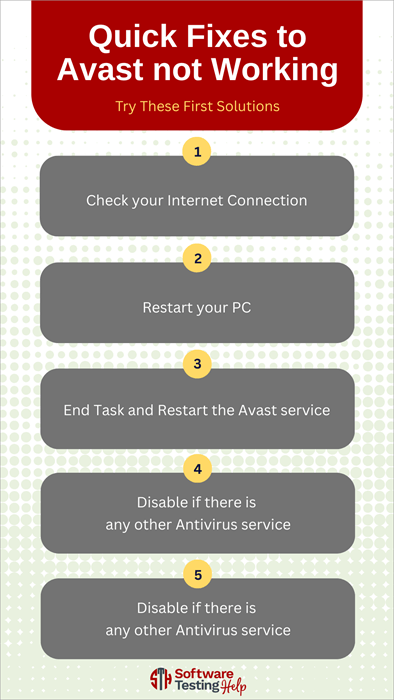
Quick fixes to Avast not working: Try These First Solutions
- Check your Internet Connection
- Restart your PC
- End Task and Restart the Avast service
- Disable if there is any other antivirus service
- Try reinstalling the Avast software
Simple Solutions: Avast Antivirus Not Opening
Below are simple methods you can use to resolve the issue of Avast won’t open:
#1) Confirm your Internet Connection: Sometimes, a simple internet connection may be the reason that Avast is not working. You may try to update the application, or try to upgrade, or do anything that would require internet access, and once there is no access, it may look like the application is not working.
#2) Restarting your PC: A mere restart of your system may correct any issue with the Avast Secure Browser.
#3) End and Restart Service
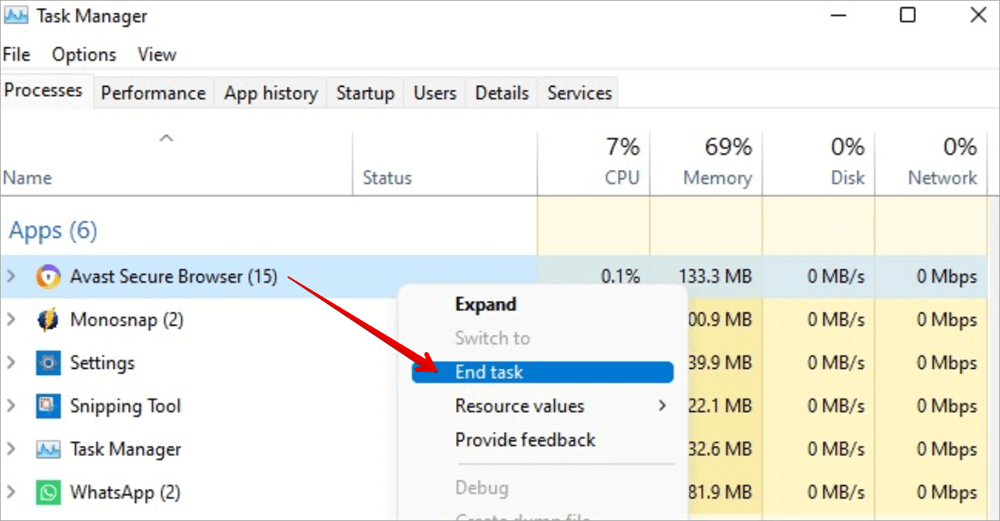
- Open Task Manager
- Right-click on the Avast Secure Browser. Select End task and restart the Avast Secure Browser Service.
#4) Disable any Third-party Antivirus: Having another antivirus installed on your computer may cause a conflict with the main antivirus software. So, to remove this issue, you will need to permanently disable the third-party antivirus.
Suggested Reading => Top Antivirus Apps for Android Smartphones
#5) Reinstalling the Avast Software: Another simple method to fix Avast won’t start is to reinstall the latest version of the application with the current features. After trying all methods, and the issue persists, you might need to do another clean installation.
You may use the uninstall feature of the antivirus application, or use the Add or Remove Programs on the operating system. Sometimes the issue may be a result of the specific version of the antivirus installed, which may not be compatible with your computer, so once you reinstall a newer version, it may instantly resolve the issue.
#6) Temporarily Disable Avast
Suggested Read => Disable or Turn Off Avast Antivirus
1. Right-click on the Avast icon in your taskbar.
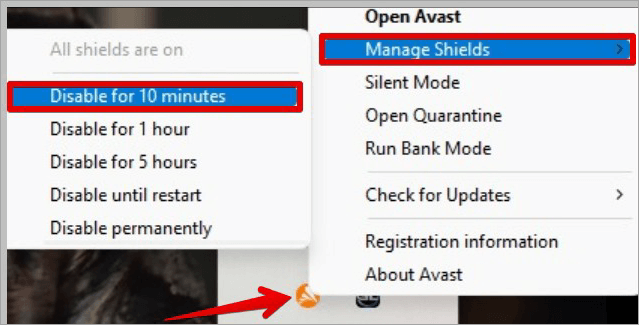
2. On the Avast shields control, select Disable for 10 minutes on the context menu.
3. After disabling Avast, you can enable it again by selecting Enable all shields.
4. This method will help the Windows system to recognize the Avast antivirus again.
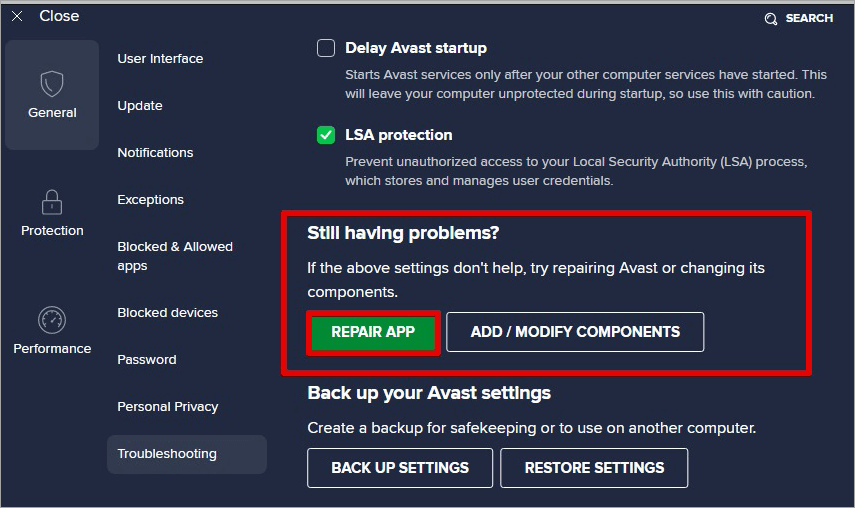
#7) Repairing the Avast Software: Sometimes, when you experience this issue, just repairing the Avast installation may solve the problem.
Follow the steps below to repair the application:
- Launch the Avast Antivirus application.
- Navigate to the Settings and click General.
- On the General page, click Troubleshooting, scroll down, and click REPAIR APP.
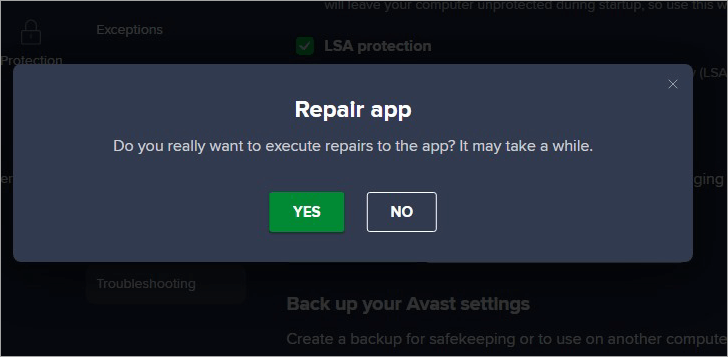
You will be asked to confirm the repair process.
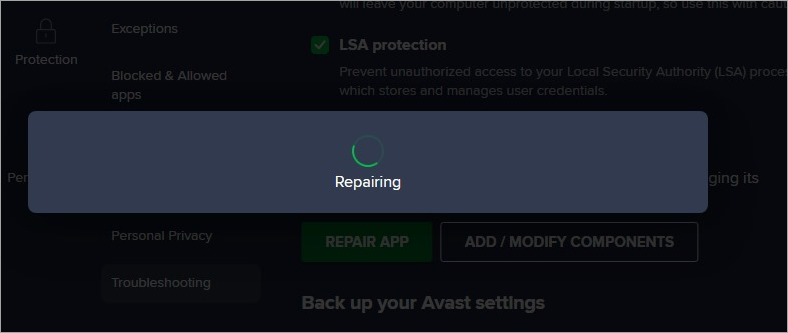
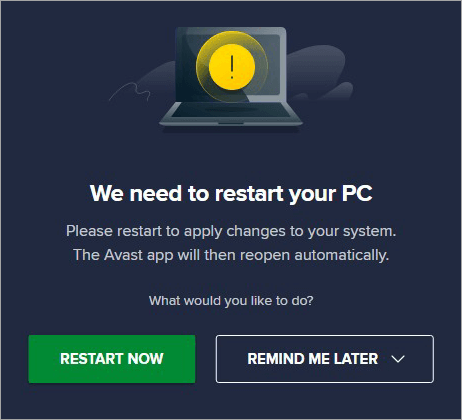
After the repair is completed successfully, you will be asked to restart the system so that the changes will be applied.
You can also repair the application via the Control Panel > Programs > Programs and Features, click Repair at the top, or double-click and follow the application wizard to repair the antivirus.

#8) Restart the Avast Antivirus Service: Another possible cause of the Avast Antivirus not starting issue may be when the Avast Antivirus service is not working properly. What you can do is simply restart the service, which is a straightforward way to troubleshoot and can be carried out by anyone.
Follow the steps below to restart the Avast Antivirus Service:
- You can either run “services.msc” or type and click Services in the search box; this will launch the Services tool.
- Look for the Avast Antivirus service on the list, right-click on it, and select Properties.
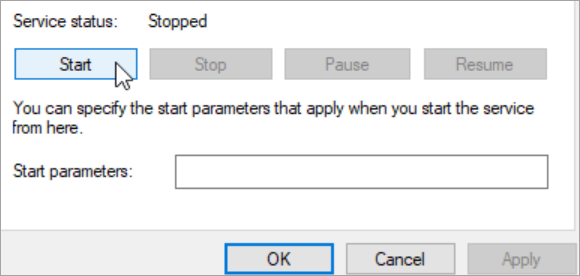
Make sure the Startup type option is on Automatic, and if the Service status is showing Stopped, click Start and OK for the service to be restarted.
Intermediate Solutions to Avast Won’t Start
#1) Reset all Avast Antivirus Settings
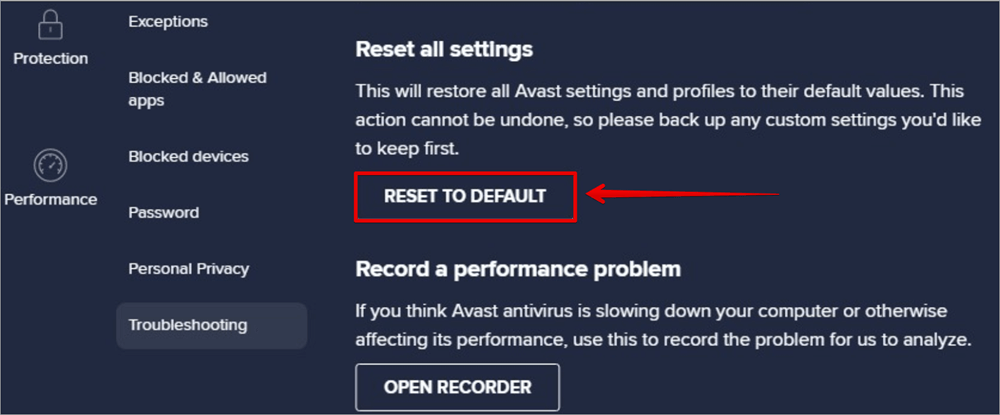
When you reset Avast settings, it can resolve the issue of Avast not opening. It will restore all Avast settings and profiles to their default values. After doing this, you may not experience the issue of Avast antivirus won’t open again.
Please note that this action cannot be undone; it is recommended that you do a backup if you have custom settings you want to keep.
#2) Regular Update of Avast Antivirus
Sometimes, Avast may not scan or detect threats in the usual way simply because of outdated virus definitions. To get the best from Avast, you will need to regularly update the virus definitions.
This will help identify and remove threats, whether old or new. So, Avast may not be working perfectly if its virus definitions are not up to date, which may cause a lack of malware detection.
Further Reading => Best Malware Removal Software of the Year
#3) Temporarily Disable your Firewall
- Type Windows Defender Firewall in the search box
- Double-click Windows Defender Firewall and open the Customize Settings page.
- Select the option Turn off Windows Defender Firewall.
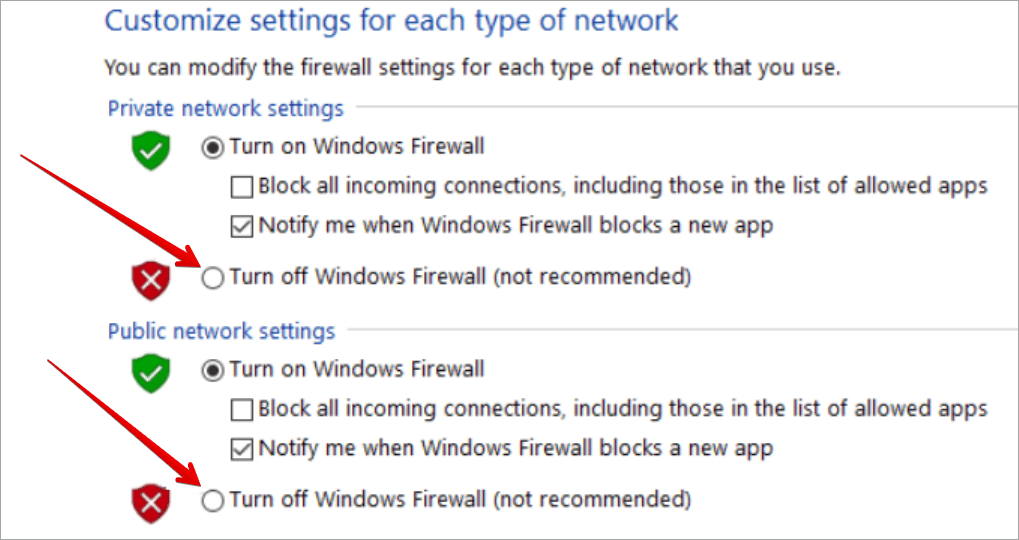
Having both Windows Defender Firewall and Avast Antivirus may cause some conflicts, which may prevent you from installing the latest software updates.
Suggested Read => Methods to Disable Microsoft Windows Defender
#4) Update Your Operating System
When your operating system is outdated, this may cause the applications installed on your system not to run optimally. Ensure you install all current updates by following these steps:
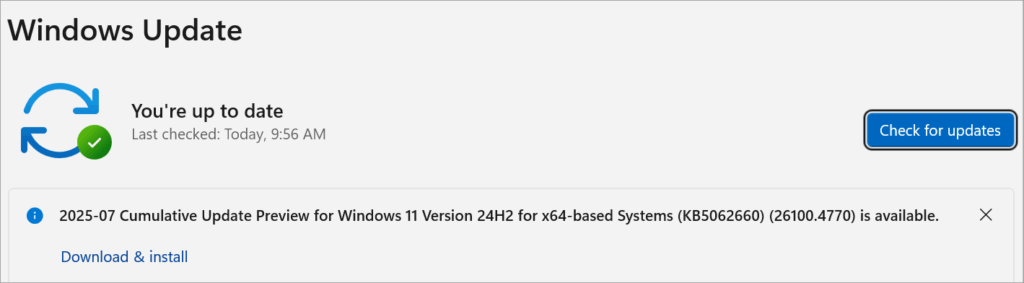
- Search for the Windows Update settings.
- Click on Windows Update settings from the left pane, and click the Check for updates button.
Avast Won’t Open: Advanced Solutions
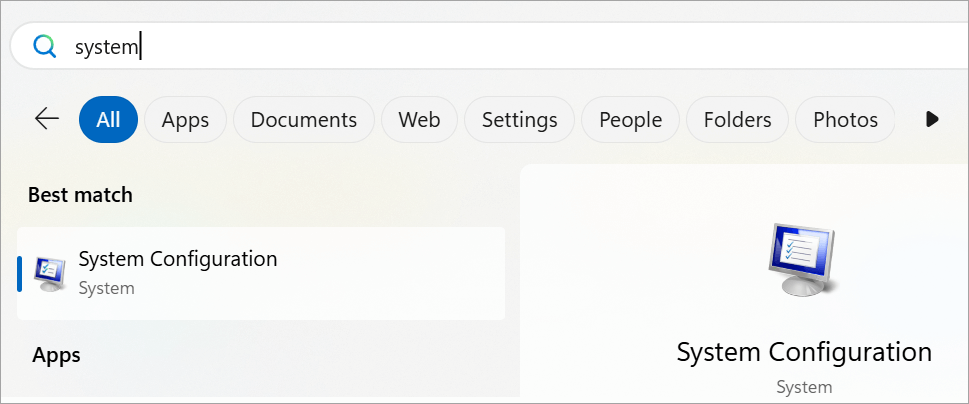
#1) Do a Clean Boot on your computer: The steps below show how to do a clean boot on a computer.
1. Type System Configuration in the search box, and hit Enter.
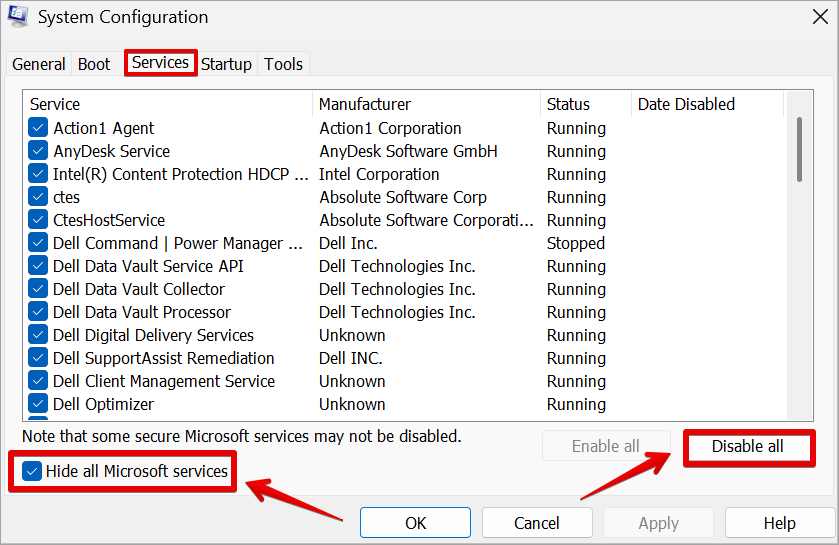
2. Click on the Services tab.
3. Select the Hide all Microsoft services checkbox and click Disable all.
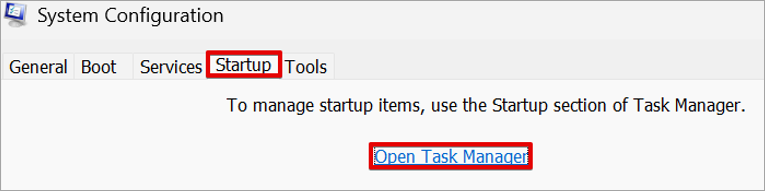
4. Click on the Startup tab and click on the Open Task Manager button.
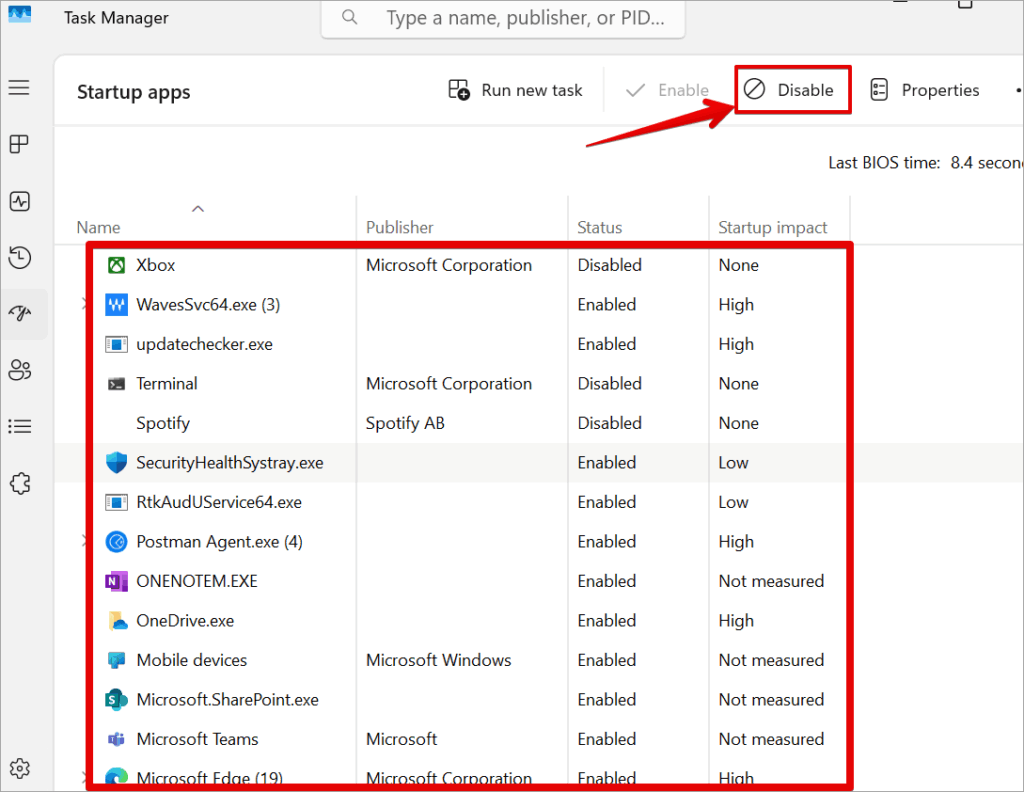
5. In the Task Manager, right-click each application and click Disable.
6. Close Task Manager and in the System Configuration window, click OK.
7. Restart your PC.
#2) Verify WMI Repository
Follow the steps below to verify the WMI Repository to resolve the issue of Avast not working.
1. In the Taskbar search box, type cmd.
2. Right-click the Command Prompt and select Run as administrator
3. In the Command Prompt, type winmgmt /verifyrepository and hit the Enter key.
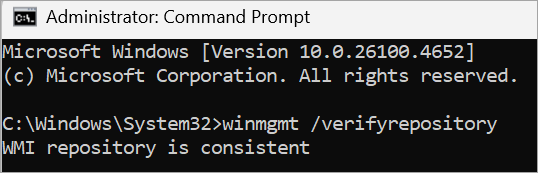
4. If the response on the command prompt says WMI repository is consistent, type winmgmt /resetrepository, and hit Enter.
5. If the response on the command prompt says the WMI repository is inconsistent, type winmgmt /salvagerepository and hit Enter.
6. But when the response says WMI repository has been salvaged. What this means is that the WMI repository has been successfully rebuilt.
7. Restart your computer, and your system should now recognize Avast Antivirus.
#3) Uninstall Conflicting Extensions
Some extensions installed on the browser may not be compatible with it. The best course of action is to uninstall all conflicting extensions.
#4) Uninstall Avast Secure Browser
This is usually the last option after other methods do not work. Try uninstalling and reinstalling it on your system.
Add Exception to Fix the Black Screen Issue in Avast
Follow the steps below on how to fix the black screen that Avast Antivirus can cause on your computer:
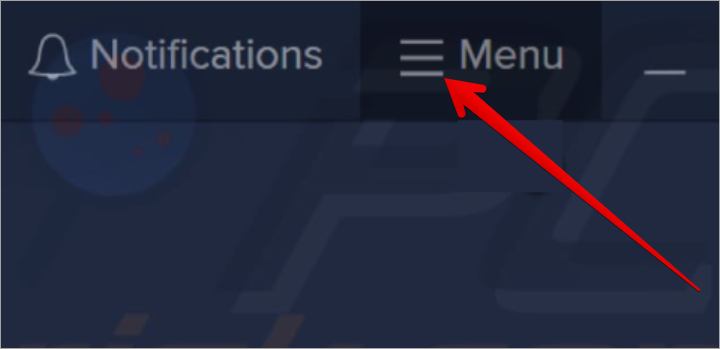
1. Open Avast Antivirus and click the Menu button.
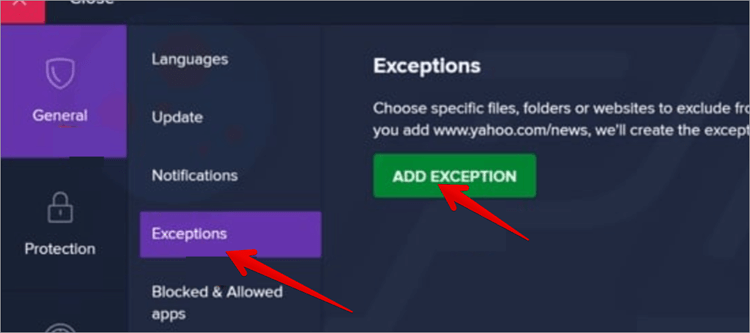
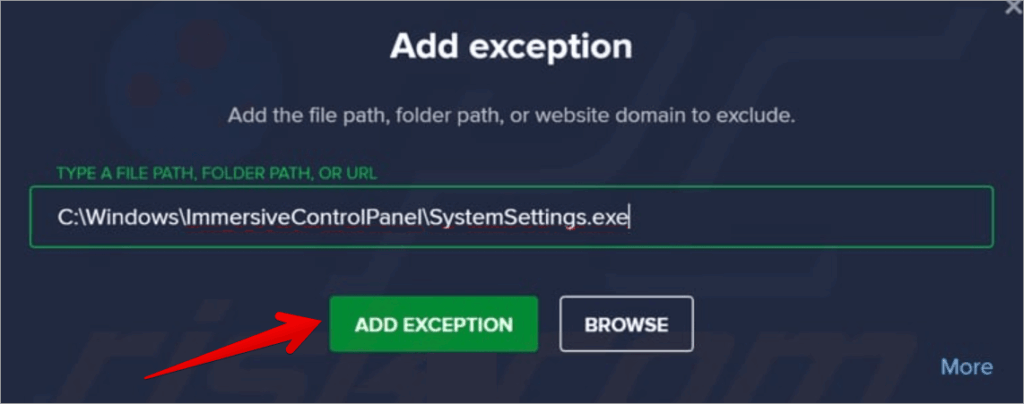
2. On the General page, click Exceptions and click the ADD EXCEPTION button.
3. Type C:\Windows\Explorer.exe and click the ADD EXCEPTION button.
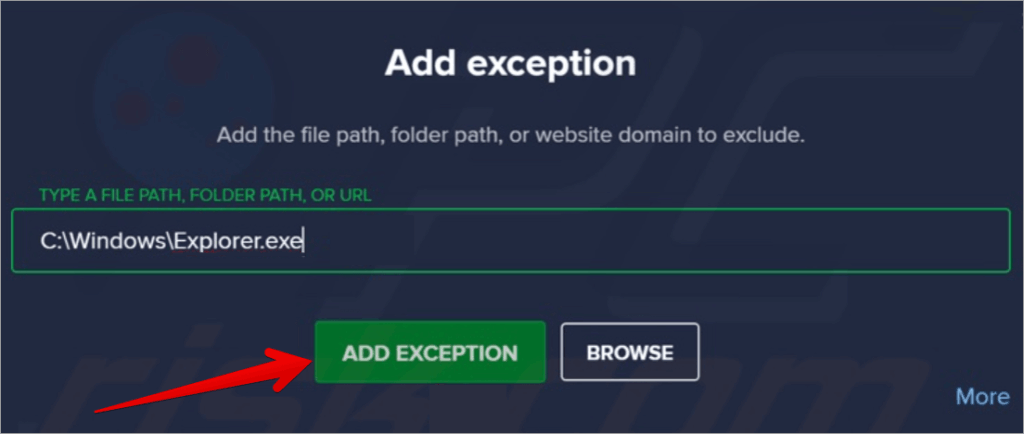
4. Click the Add Exception button again and type C:\Windows\ImmersiveControlPanel\SystemSettings.exe and click the ADD EXCEPTION button.
5. Restart your computer system.
Avast Applications Failed to Load Errors
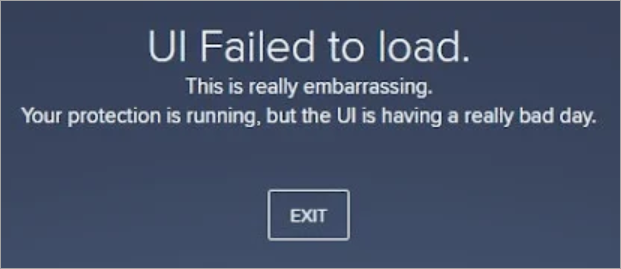
Sometimes you will try opening the Avast applications, but you will see some loading errors like:
- Sorry, something went wrong
- Well, this is embarrassing
- Sorry, we’ve crashed
- Sorry, our screen didn’t load
The problem of Avast not responding or Avast UI won’t load by throwing some on-screen errors can be corrected by doing any of the following:
- Restarting the Avast Antivirus Service
- Update or Repair Avast
- Remove and Reinstall Avast
- Update the Windows OS
Avast UI Won’t Load on Windows 10
The UI loading issue on Windows 10 may happen if important Windows services like the Remote Procedure Call (RPC) service are not properly configured and set to start automatically. This issue can occur in both Windows 10 and Windows 11.
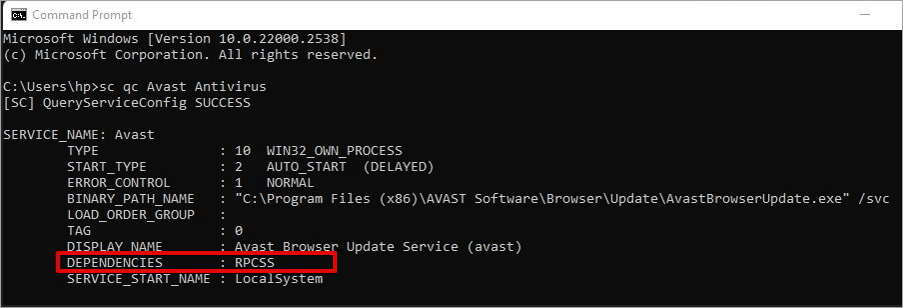
One of the best approaches to take in resolving this issue is ensuring that the Remote Procedure Call (RPC), which serves as a service dependency for Avast, is set to run automatically. You can confirm if the RPCSS is a dependency for Avast by running this command.
Sc QC Avast Antivirus
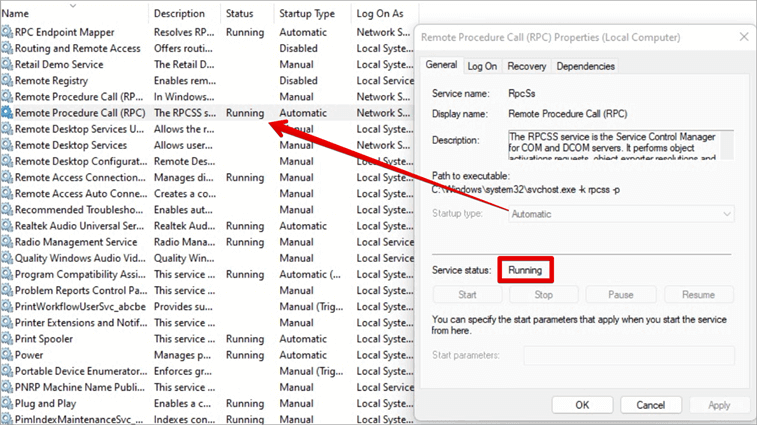
Under the General tab, confirm that the Startup type drop-down is set to Automatic. Confirm that the Service status is Running. Sometimes you may need Admin Privilege to do this.
You can also run the command below to set the RPC service status to Running. Sometimes, due to a permission issue, you may need to run the Command Prompt as Administrator.
sc config RPCSS start= auto
net start RPCSS
After doing the above, you might try restarting your computer and reloading the Avast UI. If the above does not work, then repairing and reinstalling the product would be the next option.
Compatibility Issues With Avast Antivirus
Windows 11
VPN Compatibility: Some users have observed that when you upgrade your Windows 11 version 23H2 to 24H2, the Avast SecureLine VPN stops working, but when you revert to version 23H2, it works again.
Internet Connection Compatibility: When you upgrade your Windows 11 to version 24H2, Avast blocks your internet connection, but when you disable the Avast shields temporarily, you notice that the internet will start working again.
Further Reading => Review & Compare the Top Safe VPNs
Windows 10
Blocked Windows Update: It is discovered that Windows versions 1903 and 1909 are not compatible with the old version of Avast, making the operating system update fail. So, if you have Avast installed on a Windows 10 system, updating the Avast Antivirus from the old version will resolve the issue.
Please note: Do not try to disable Avast and continue with the OS update, because when the update finally finishes, it will still cause conflicts with Avast when it is enabled again.
Operating System Corruption: Avast Antivirus may have compatibility issues with other software installed on your computer. This conflict may cause your Windows OS to crash, freeze, or display a blue screen error. The solution to this issue is to identify the specific third-party software that is clashing with Avast and uninstall it from the PC.
How to Fix User Account Control Problems for Avast
UAC is a Microsoft security tool that was developed to prevent malicious attacks on your PC. This tool notifies you of any updates or changes that are about to be made to your computer and warns you if you wish to proceed. Please note that this app does not replace an anti-malware or an anti-virus.
When you want to troubleshoot an issue with an application like Avast, or you try installing Avast or any other applications, this security tool will prompt you to warn you if you want to proceed. What you can do in this scenario is to temporarily disable UAC, and after you resolve the issue, you can restore the security settings.
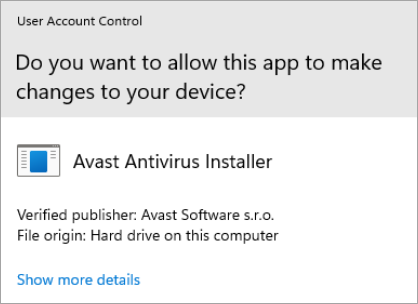
Follow the steps below to disable UAC:
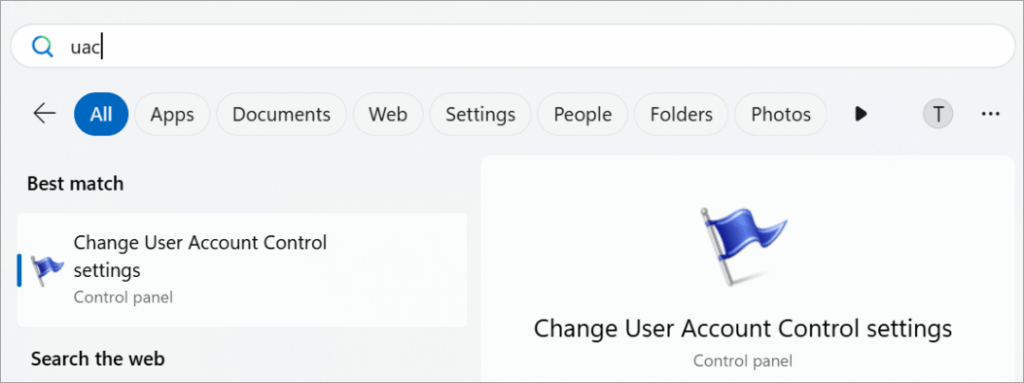
- Type UAC into the Windows Search box.
- Click Change User Account Control settings.
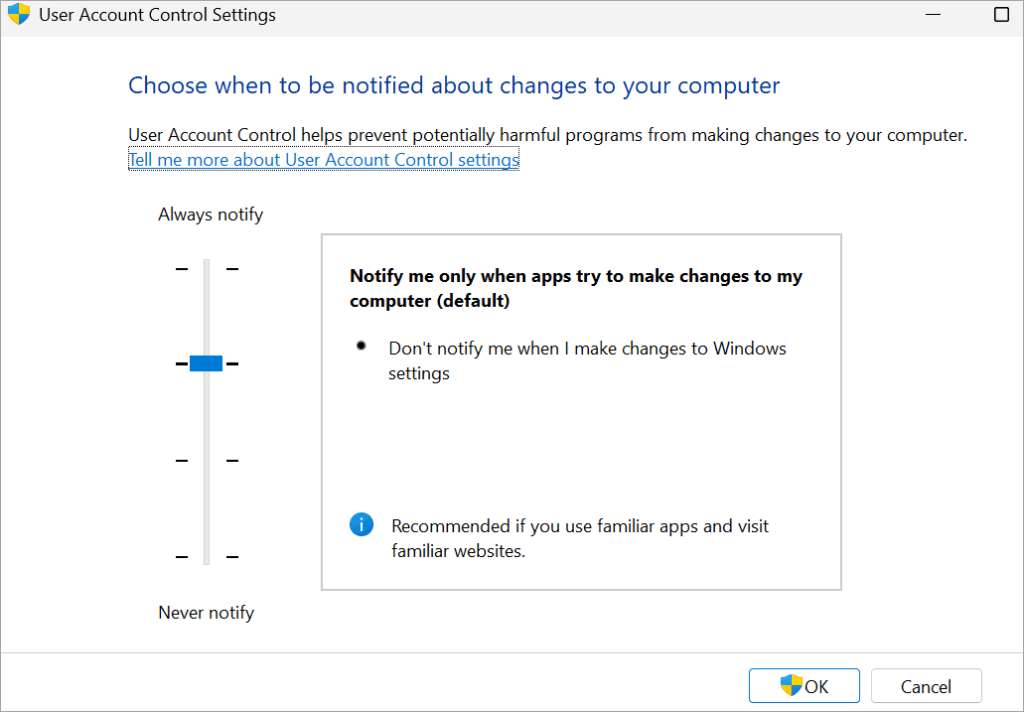
- To disable the UAC setting, slide down to the level of “Never Notify.”
- Click OK and restart the computer.
Why is Avast Secure Browser Not Working?
Avast Secure Browser is a free Chromium-based browser developed to protect against online threats, ensure better privacy, and provide faster browsing. You will notice that during Avast installation, this browser is a standalone application or part of an Avast security package.
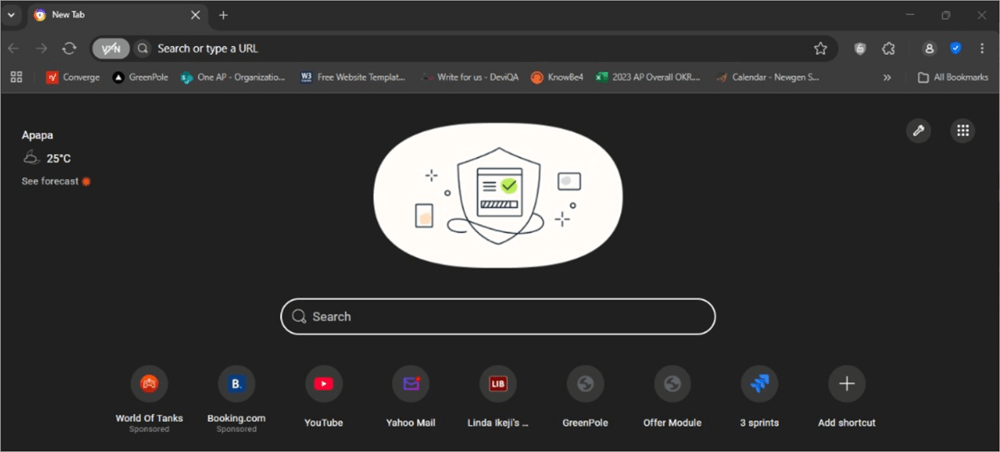
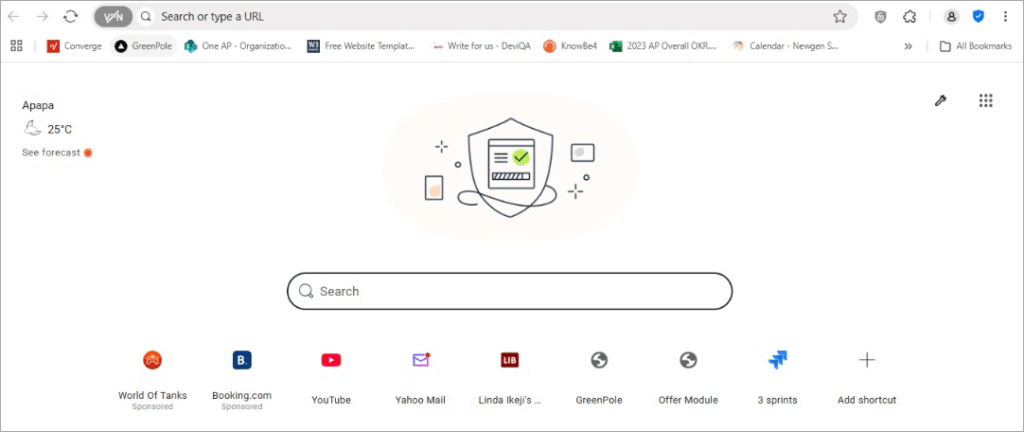
Sometimes on Avast Secure Browser, certain features may not work, the application may not open, the browser may crash, browser extension conflicts may occur, and application updates may fail. You can do the following to fix the issue.
Issues People Face in Corporate/Enterprise Environments
Operating System Compatibility: It is discovered that some older versions of Avast are not compatible with Windows OS 10 and above, except that the Avast version is upgraded.
Network and Connectivity Issues: In an environment where we have macOS as the operating system, it is observed that Avast Web Shield can cause consistent network interruptions, as it blocks internet access. It also blocks the ability to share files on a Windows system. The best solution is to disable the web shield to restore connectivity.
FAQs on Why Won’t Avast Open
1. Why isn’t Avast opening?
There are many reasons why Avast Antivirus may not be opening, including your system specification, incompatibility with your system files, incompatibility with other applications, update issues, and many more.
2. How to know if Avast is working?
Confirm you can see the Avast tray icon at the bottom right. When you right-click the icon, you will see menus, and when you place your cursor on the Manage Shields menu, you will see whether it’s ON or OFF.
3. How to check what Avast has blocked?
Open Avast Antivirus, navigate to the Protection page. Click Firewall and select the Apps tab, then click on BLOCKED to display all the applications that Avast has blocked. Find the specific app on the list and click UNBLOCK to unblock the application.
4. How do I turn Avast on?
Click on the hidden icons at the bottom right, right-click on the Avast icon, and confirm all shields are on. The Status must show that your computer is protected.
5. How to activate Avast?
Click on the Activate or Reactivate button. Select Avast Premium Security. You will now see the different paid plans available, like a 1-year subscription, a 2-year subscription, and a 3-year subscription. Make sure there is internet on your computer and click the BUY NOW button.
After you have successfully made your payment, an activation code will be generated, which can upgrade the current plan.
6. Does Avast slow my PC?
Though Avast is not a heavy Antivirus application but during real-time scanning, if there are too many applications running simultaneously with the scanning, it can cause the computer to start slowing.
7. How do I check if my antivirus is working?
When you launch the antivirus application, it must be open, and the status must show protected.
Also, confirm that the real-time scanning and other security features are working as expected. The application should be updated successfully to confirm it is working perfectly.
8. Can I turn Avast on and off?
Launch the Avast application and navigate to the Protection page. On the Protection page, click Core Shields. You will be able to toggle the slider for the different Core Shields to the right or left to enable or disable virus protection.
9. Why Avast won’t open?
This may be due to some system issues, and by restarting the system or the Avast application, may do the trick. This will re-initialize and reload the UI. Ensure you exit all applications and reload the antivirus software.
10. How to fix if Avast is not responding on startup?
When you are getting an Avast startup error, you may need to check your Avast Antivirus settings, ensuring it is properly configured, ensuring all shields are enabled, and if the issue persists, then you may need to reinstall it.
11. What to do when Avast services won’t start?
Update Avast and your operating system. You can also check if your subscription plan is still active. You can also restart the complete system and try launching the Avast service again.
12. How to completely reinstall Avast without errors?
Sometimes you may find it difficult to uninstall Avast using the standard method, but when you use the Avast removal tool called Avast Clear, it will completely uninstall the Avast you are having issues with from the system.
After removing it then you can download another Avast from their approved website and install a version that is compatible with your computer.
13. What is the Avast error UI failed to load?
This can occur when you try to launch the Avast application, and instead of the application console to open, you will start seeing messages like ‘Sorry, something went wrong’, ‘This is embarrassing’, ‘Sorry, we’ve crashed’, ’Sorry, our screen didn’t load’.
Further Reading => Avast vs Windows Defender
Conclusion
Just like any other antivirus software, Avast antivirus may experience issues that can affect its performance. These are issues about outdated or out-of-support software, using the wrong settings, and many more.
It will interest you to know that following the simple troubleshooting methods above can resolve many of the issues surrounding Avast antivirus not coming up.
You ensure that your antivirus works optimally and effectively. When this is confirmed, you will be able to fully protect your system and network from any potential threats.
Was this helpful?
Recommended Reading
-

Review and Comparison of The Highly-Rated Avast SecureLine VPN which Covers All Aspects of VPN Software Including Features, Pros, Cons & Pricing Plans: Privacy concerns have increased lately spurred on by the Cambridge Analytica scandal that was revealed in 2018. A lot of people today are turning to Virtual Private…
-
This hands-on tutorial explains the step-by-step process to Disable or Turn Off Avast Antivirus either all shields at a time or one at a time: Installing an antivirus is very important to protect your computer from different types of malware attacks and viruses. That is why most people prefer to…
-
Read this in-depth review and comparison between Windows Defender and Avast to decide which antivirus solution is better for you: Whenever Windows OS is installed on a laptop or a computer, we also need to make an important choice regarding the antivirus solution that needs to be installed. This antivirus…
-
Review and compare the top best Antivirus for Mac with features, pricing to select the ideal virus protection for Mac: Computer viruses are small programs that perform malicious activities. Whether you own an office or home personal computer, you must install an antivirus app to protect against computer viruses. Antivirus…


